Getting Started with the EmpowerID Chatbot
The EmpowerID Chatbot makes it easy to perform access and identity management tasks directly within Microsoft Teams. This guide shows you how to install and access the chatbot so you can start using it immediately.
info
Before You Begin:
Your organization must deploy and configure the chatbot before it appears in the Teams app store. If you do not see the app, contact your administrator.
How to Install the Chatbot in Microsoft Teams
- Open Microsoft Teams (web, desktop, or mobile).
- Click the Apps tab in the left-hand sidebar.
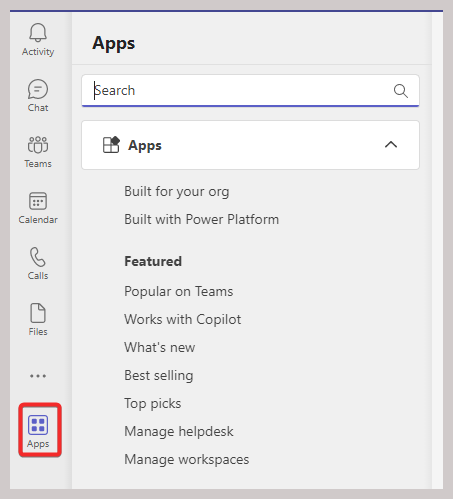
- Choose the Built for your org category.
- Locate the EmpowerID Botflow app in the list.
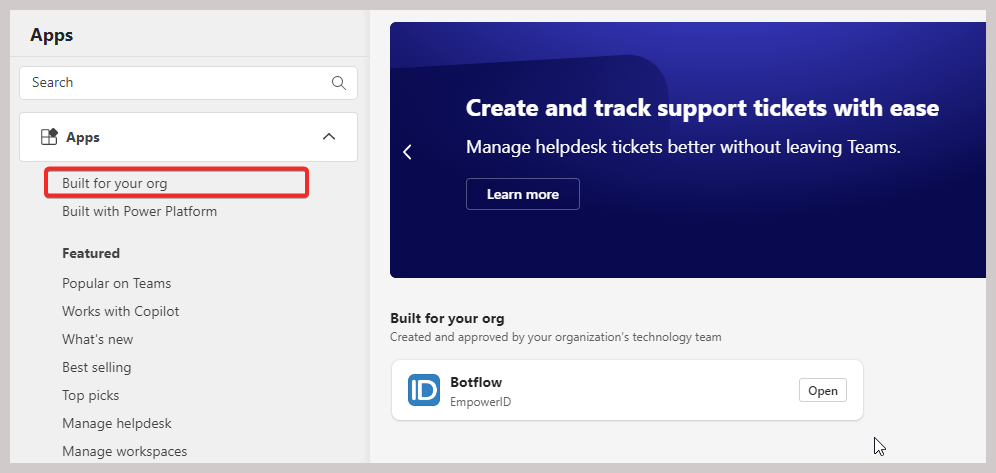
- Click the app to view more details.
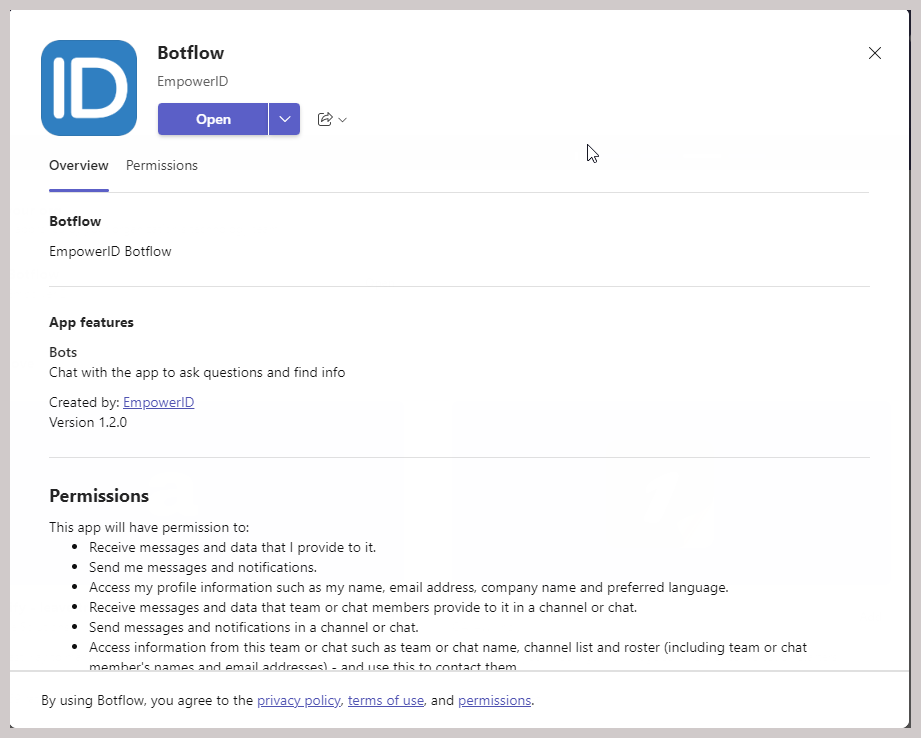
- Click Add to begin installation.

You’ll then choose where to install the bot:
- Add to a Team
- Add to a Chat
- Add to a Meeting
The bot becomes available to all members of the selected team.
- Click Add to a team
- Select the team
- Click Set up a bot

The bot becomes available in a private or group chat.
- Click Add to a chat
- Select the chat
- Click Set up a bot

The bot becomes available during a Teams meeting.
- Click Add to a meeting
- Select the meeting
- Click Set up a bot
How to Access the Chatbot
After installation, you can:
- Click the Chat tab in Teams and locate the EmpowerID bot
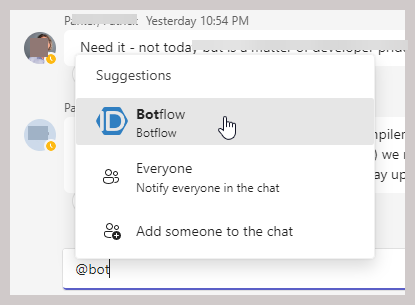
- Type
@botflowin any chat, team, or meeting to start interacting
To begin, type a command (e.g., help) or use natural language such as:
change my passwordrequest access to saasadminwhat roles do I have?