Activate the Group or Management Role
The EmpowerID Chatbot makes it easy to activate pre-approved group and management roles right from your chat window. These roles are configured by your organization and are available instantly — no approval or wait time required.
Use this guide to request and activate access roles using a quick, self-service workflow in Microsoft Teams, Web Chat, or the EmpowerID mobile app.
What Roles You Can Activate
- Group Roles – Organizational groups you belong to
- Management Roles – Admin-level permissions
- App Roles – Pre-approved access for specific applications
These roles are pre-approved, meaning they activate instantly with no additional approval process.
Step-by-Step: Activate a Group or Management Role
1. Open the Bot Menu
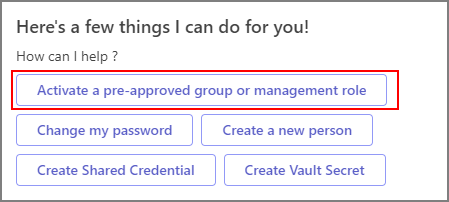
Type help into the EmpowerID Chatbot to bring up the main options menu.
2. Select the Activate Role Option
Click the Activate a pre-approved group or management role button.
3. Choose the Role Type
Select the type of access you want:
- Group – Regular membership-based access
- Management Role – Elevated administrative permissions

Figure 2: Choose "Group" or "Management Role"
4. Find Your Group or Role
You can either:
- Search by name – If you know the exact role or group
- Browse all – Type
allto list every available option
Once the system displays the options, select the one you need and click OK.
5. Confirm and Check Status
After selecting the role or group:
- The chatbot will confirm that your request has been submitted
- Click Check Status to view your request in the IAM Shop

Figure 3: Click "Check Status" to view request details in the IAM Shop
Need Help?
If you're not sure what roles are available or how to phrase your request, try:
- Typing
helpto bring up the chatbot’s main menu - Asking: "What preapproved roles are available?"
- Viewing the Chatbot Commands reference guide for more supported phrases
Troubleshooting
| Issue | Solution |
|---|---|
| Role name not found | Make sure you typed the role name exactly as it appears |
| Role not available | Only pre-approved roles can be activated through the chatbot |
| Activation fails | Click "Check Status" to confirm the request; contact IT if needed |
| No options returned | Try typing all to browse available roles |