Change Your Password with the Chatbot
You can use the EmpowerID Chatbot to quickly and securely change your EmpowerID account password. This is especially helpful if you’re using Microsoft Teams or Web Chat and want to update your credentials without opening a separate portal.
Supported Commands:
Try natural phrases like change my password, update password, or reset password. For more examples, visit the Chatbot Commands page.
How to Change Your Password
1. Open the Chatbot
- Type
helpin your chat with the EmpowerID Bot - Or use a direct command like
change my password
2. Select the Password Option
Click the Change my Password button from the menu.
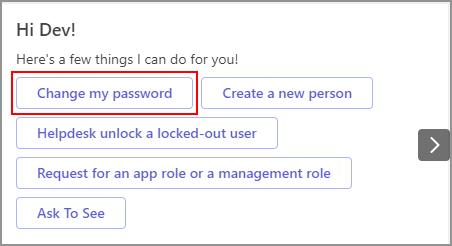
Figure 1: Select "Change my Password" from the chatbot menu
3. Fill Out the Form
Enter your password information as prompted:
- Current Password – Your existing password
- New Password – Your desired new password
- Confirm Password – Re-enter the new password (must match)
- Click Submit to complete the request

Figure 2: Complete the form to change your password
4. Receive Confirmation
Once your password is successfully changed, the chatbot will confirm the update.
Troubleshooting Tips
If the password change fails:
- ✅ Double-check your current password
- ✅ Make sure your new password meets complexity requirements
- ✅ Confirm that both "New" and "Confirm Password" fields match exactly
If you continue having trouble, try restarting the process or contact your IT support team.