Connect to a Remote Computer
The EmpowerID Chatbot allows you to start a remote desktop session by connecting to a remote computer directly through chat. You’ll need valid credentials and authorization to complete the connection.
Supported Commands:
You can use natural phrases like connect computer or connect to a computer to start the workflow. See the Chatbot Commands page for more examples.
How to Connect to a Remote Computer
1. Launch the Workflow
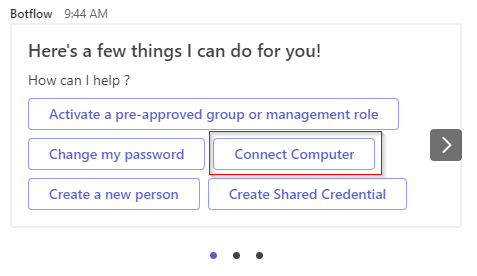
Type help to open the bot menu, then click the Connect Computer button.
2. Choose a Computer
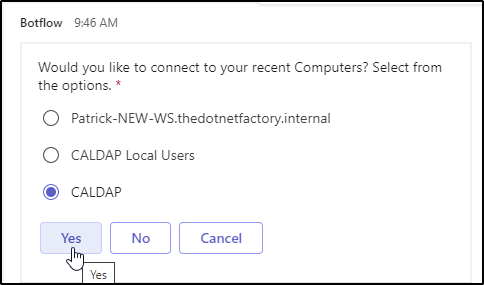
The bot will show a list of your recently connected computers:
- Click Yes to connect to one of them
- Click No to enter a different computer name manually
- Click Cancel to exit the workflow
3. Choose Basic or Advanced Connection
After selecting a computer, you’ll be given two options for how to connect:
- 🔁 Basic Connection
- ⚙️ Advanced Connection
Click Basic to connect using default settings.
A link will appear labeled here — click it and follow the browser-based steps to launch your remote session.

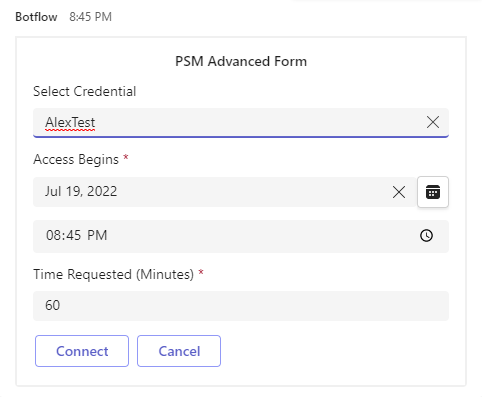
Click Advanced to enter more connection details before launching the session.
- Select Credential – Choose which credential to use
- Access Begins – Set the start date and time
- Time Requested – Choose how long access should be granted
A link will then appear labeled here — click it and follow the instructions in your browser.
Best Practices
- Choose Basic if you just need quick access
- Use Advanced if you need to schedule access or use a specific credential
- Always confirm your connection details before clicking the final link