Add People to Management Roles
Add people to Management Roles to grant them the permissions and access rights defined by the role. This cart-based business request process allows you to add multiple individuals in a single request, with optional time-bound assignments and approval workflows based on your organization's policies.
When you add a person to a Management Role, they inherit all Access Level assignments associated with that role, granting them the operations and rights needed to perform delegated administrative tasks.
Prerequisites
Before adding people to Management Roles, ensure you have:
- Access to Resource Admin with permissions to manage the target Management Role
Procedure
-
Navigate to Resource Admin.
-
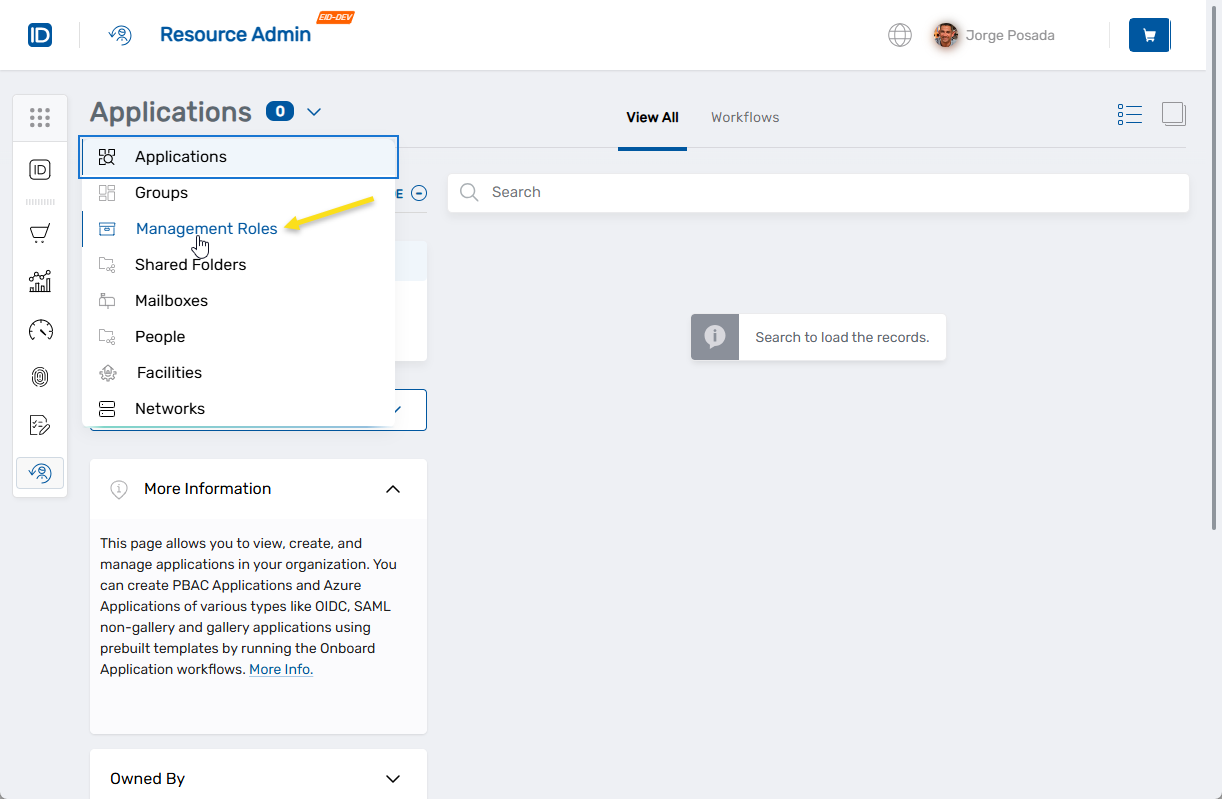
Select Management Roles from the resource type menu.
-
Locate the desired Management Role and click the Details button.

-
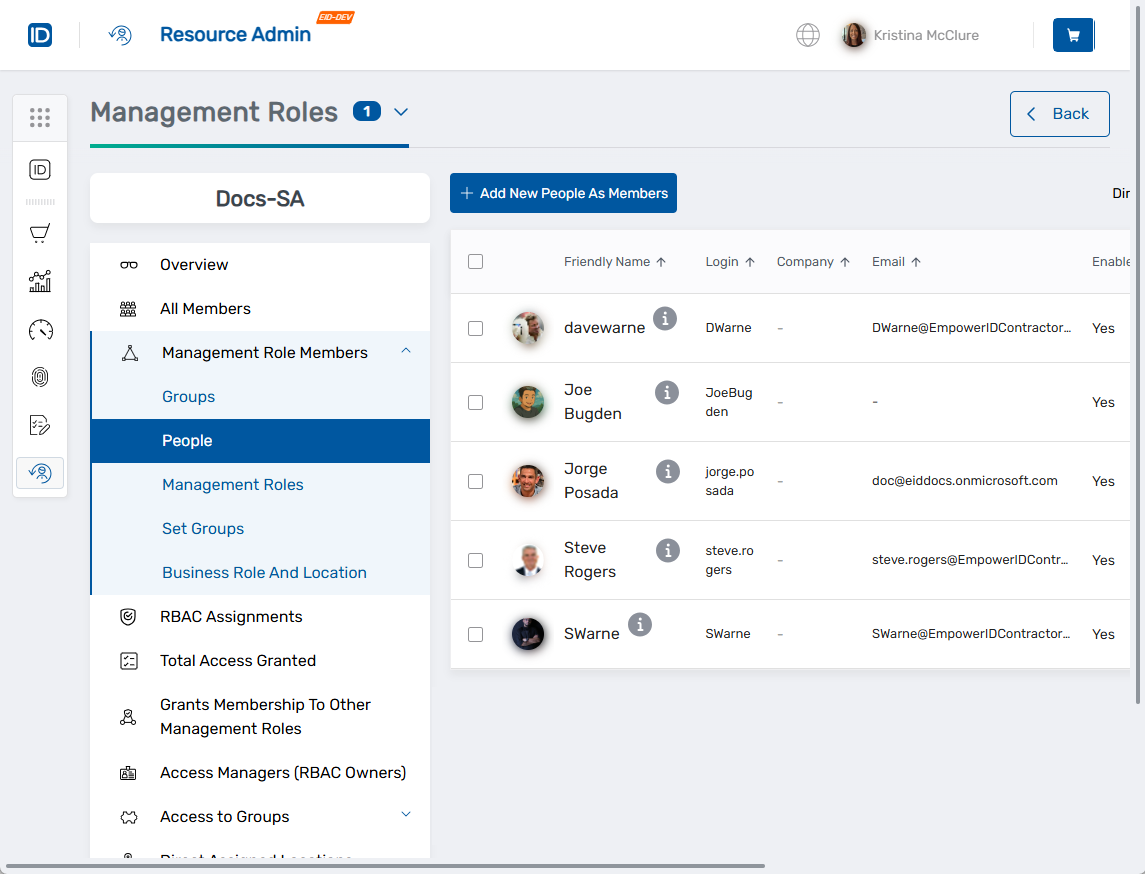
The role details page displays. Use the role navigation pane on the left to navigate to Management Role Members > People.
-
Click Add New People as Members.
-
Search for and select people to add:

- Enter the person's name or username in the search field
- Select each person from the search results
- Click Add to move them to the Added list
- Repeat for additional people
- Use Remove or Remove All to modify selections before proceeding
-
(Optional) Configure time-bound assignments:
- Toggle Set Duration to ON to enable temporal access controls
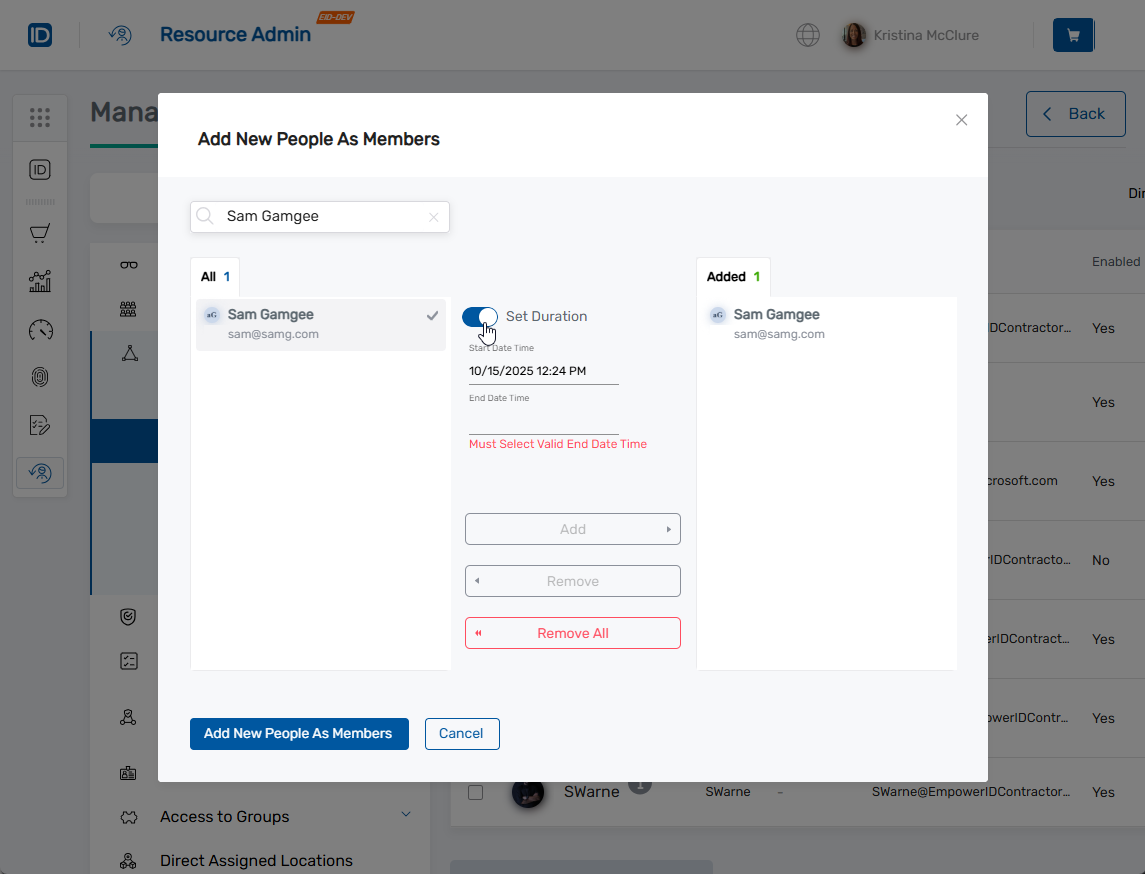
- Start Date/Time: Specify when the assignment becomes active (leave blank for immediate activation)
- End Date/Time: Specify when the assignment expires (leave blank for permanent assignment)
- Toggle Set Duration to ON to enable temporal access controls
-
Click Add New People as Members to add the action to your cart.
-
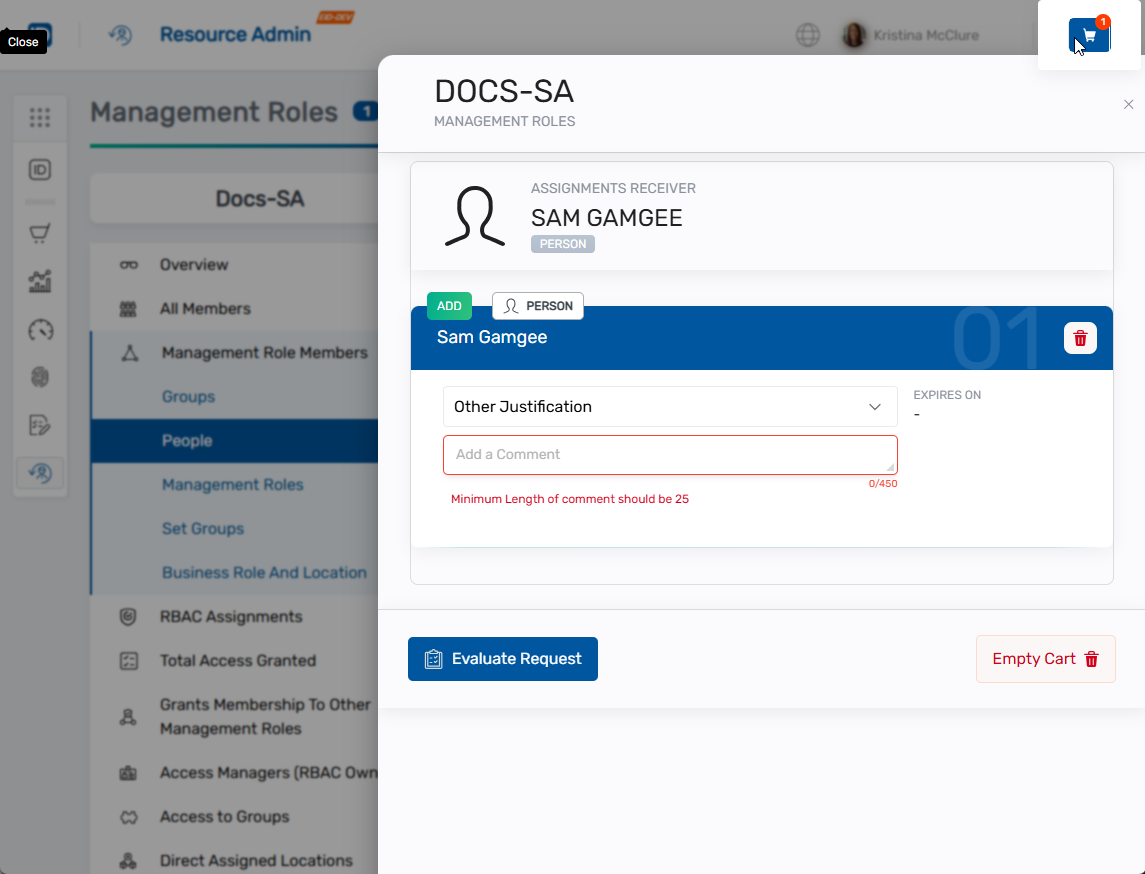
Click the Shopping Cart icon at the top of the page.
-
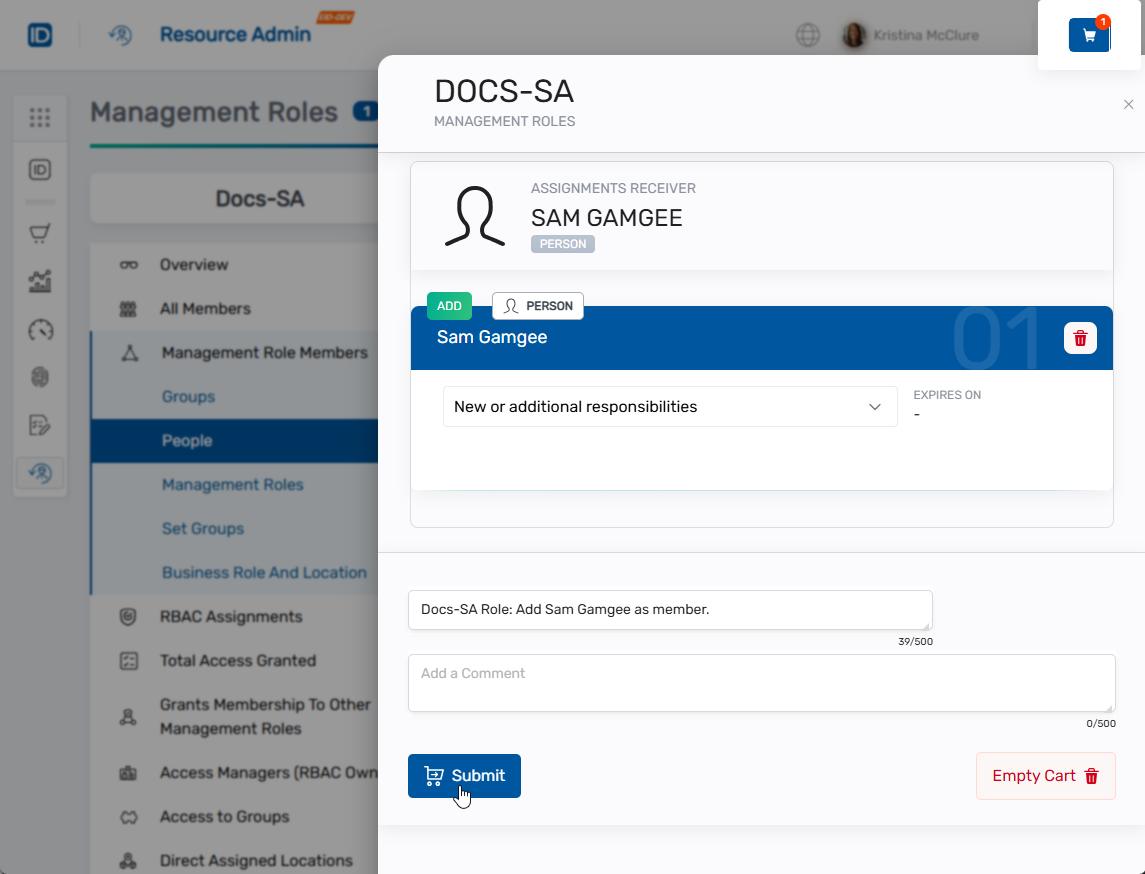
Review the selected people and their assignment details.
-
Complete the justification:
- Select a predefined justification from the Justification dropdown, OR
- Select Other Justification and enter a detailed comment
-
Click Evaluate Request. The system performs a Separation of Duties (SoD) policy check:
- If violations are detected, review the conflict details and acknowledge the violations to proceed
- If no violations exist, the request continues to submission
-
Enter a Business Request Name for the assignment request.
-
(Optional) Add additional comments to provide context as needed.
-
Click Submit.
Verify the Results
Assignment may require approval depending on your organization's policies. To verify the assignment:
- Note the request status displayed in the submission confirmation modal:
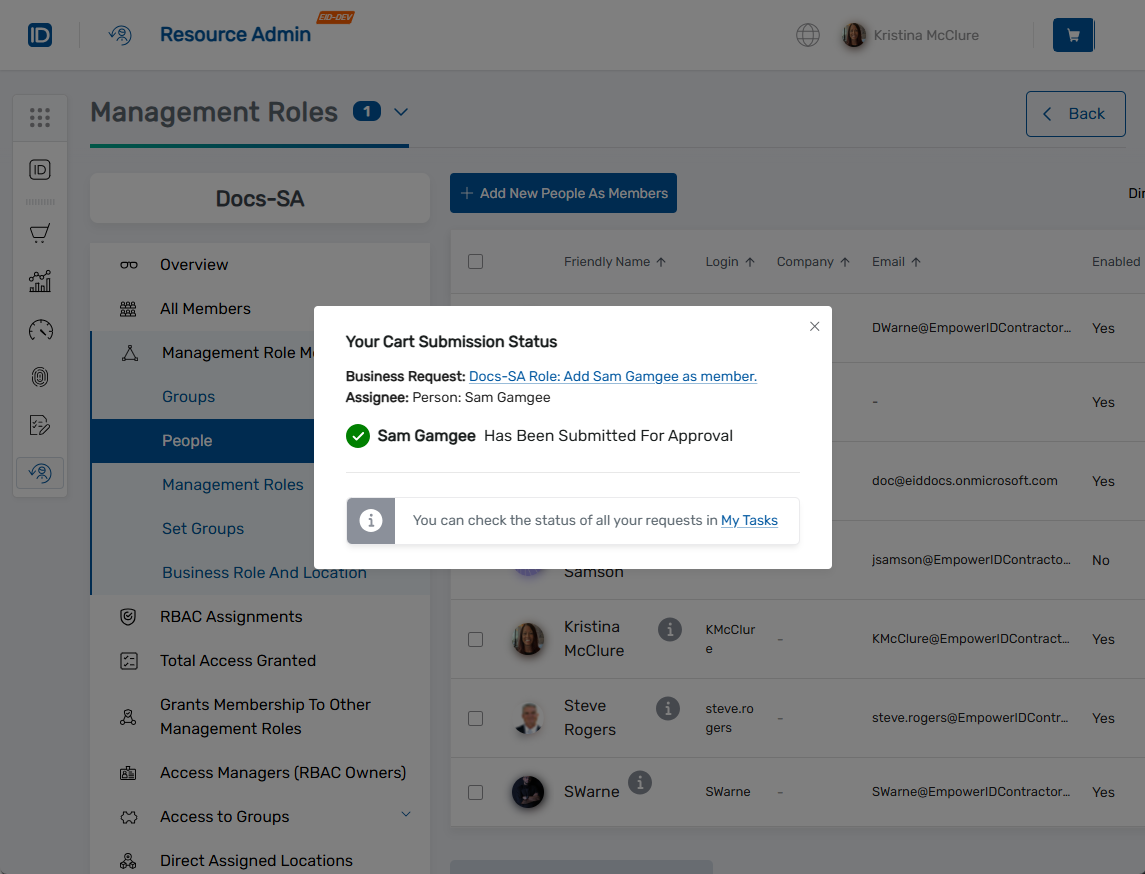
- For pending approvals, click the status link to track the request in My Tasks.
- Once completed, return to the Management Role's Management Role Members > People view to confirm the person appears in the members list.
Related Topics
- Remove People from Management Roles - Remove individual members from roles
- Add Groups to Management Roles - Assign entire groups to roles for bulk management
- Edit RBAC Membership Policies - Configure automatic assignment based on user attributes
- Edit Management Role Owners & Deputies - Manage role ownership and delegation