Add Groups to Management Roles
Add groups to Management Roles through a cart-based business request process. All current and future group members automatically receive the role's permissions.
Prerequisites
Before adding groups to Management Roles, ensure you have:
- Access to Resource Admin with permissions to manage the target Management Role
Procedure
- Navigate to Resource Admin.
- Select Management Roles from the resource type menu.
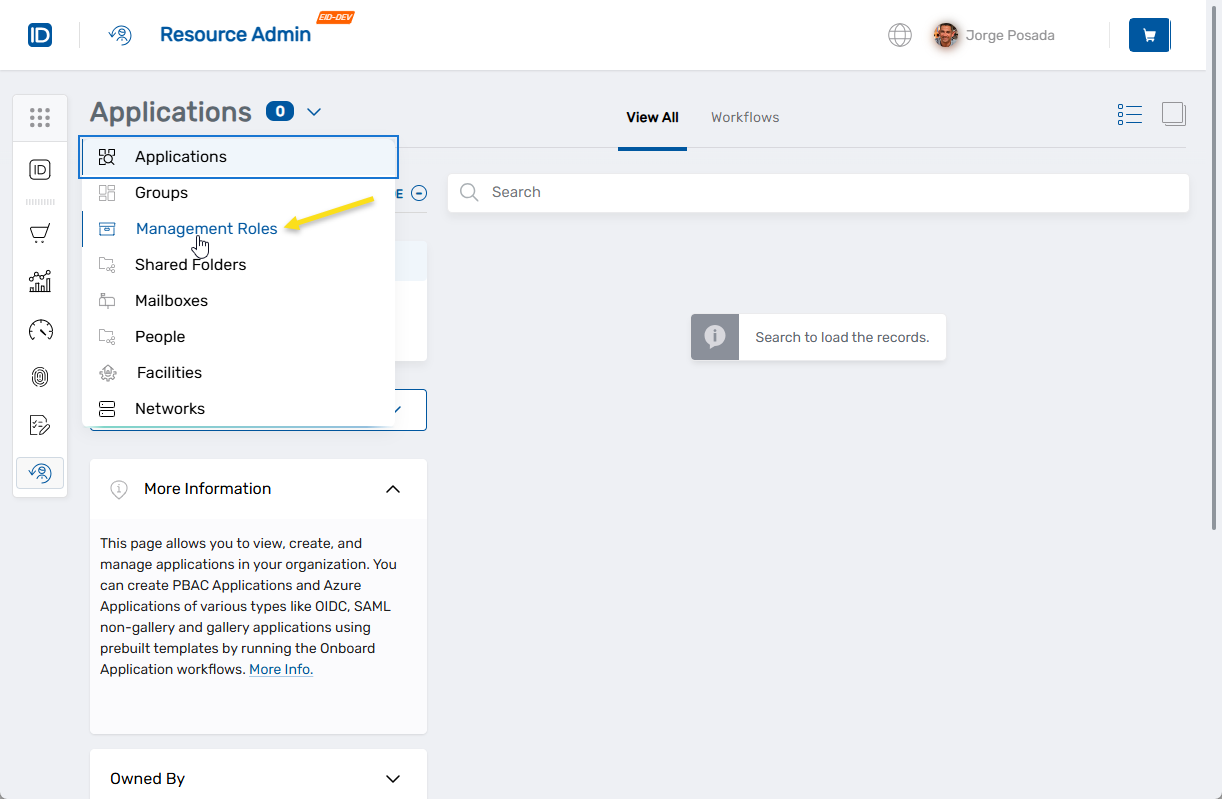
- Locate the desired Management Role and click the Details button.

- Use the role navigation pane to navigate to Management Role Members > Groups.
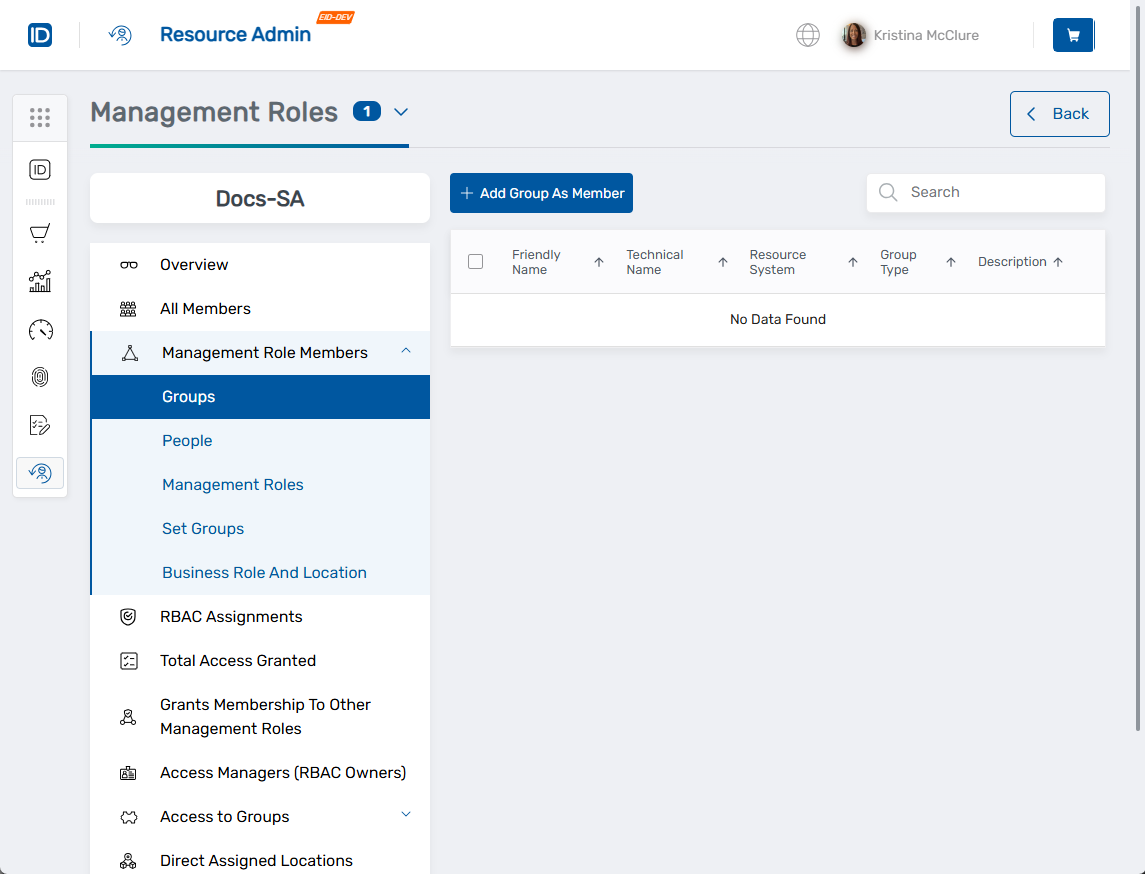
- Click Add Group As Member.
- Search for and select groups to add:
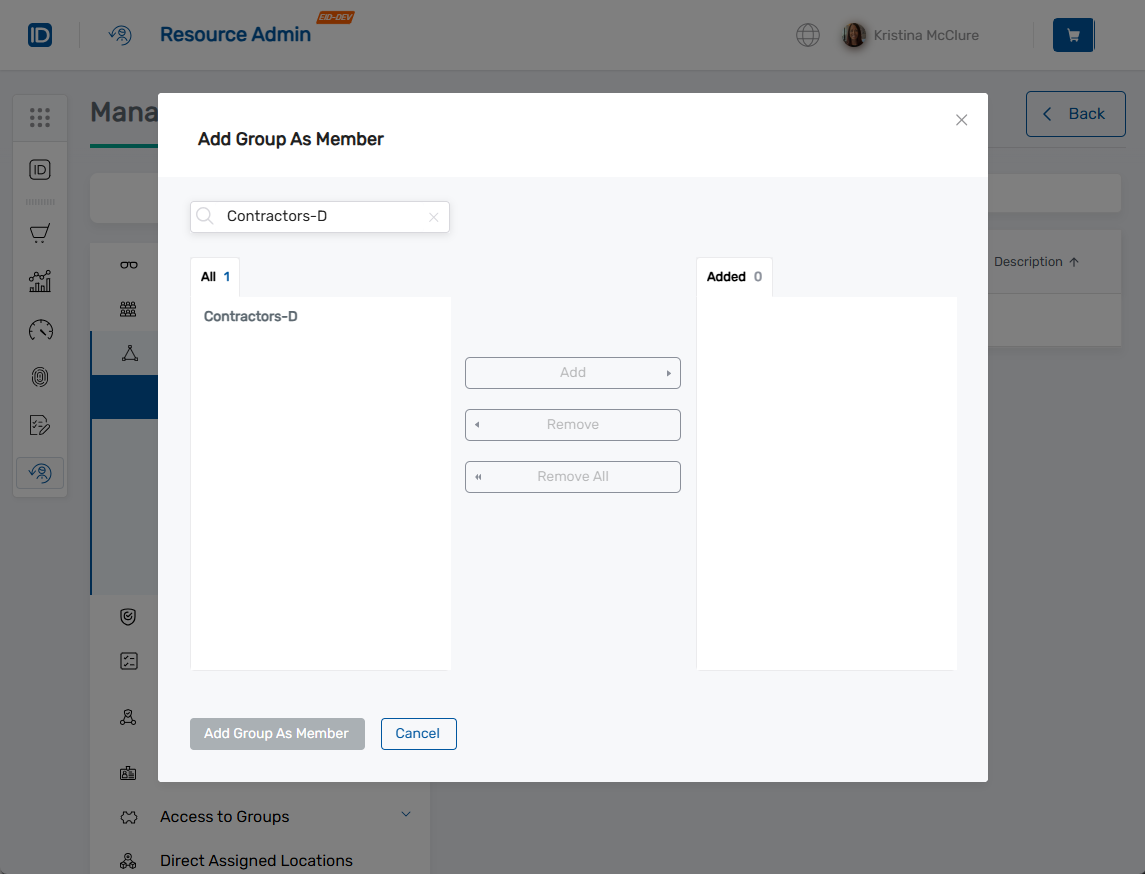
- Type the group name in the search field
- Select the group from the search results
- Click Add to move it to the Added list
- Repeat for additional groups
- Use Remove or Remove All to modify selections before proceeding
- Click Add Group As Member to add the action to your cart.
- Click the Shopping Cart icon at the top of the page.
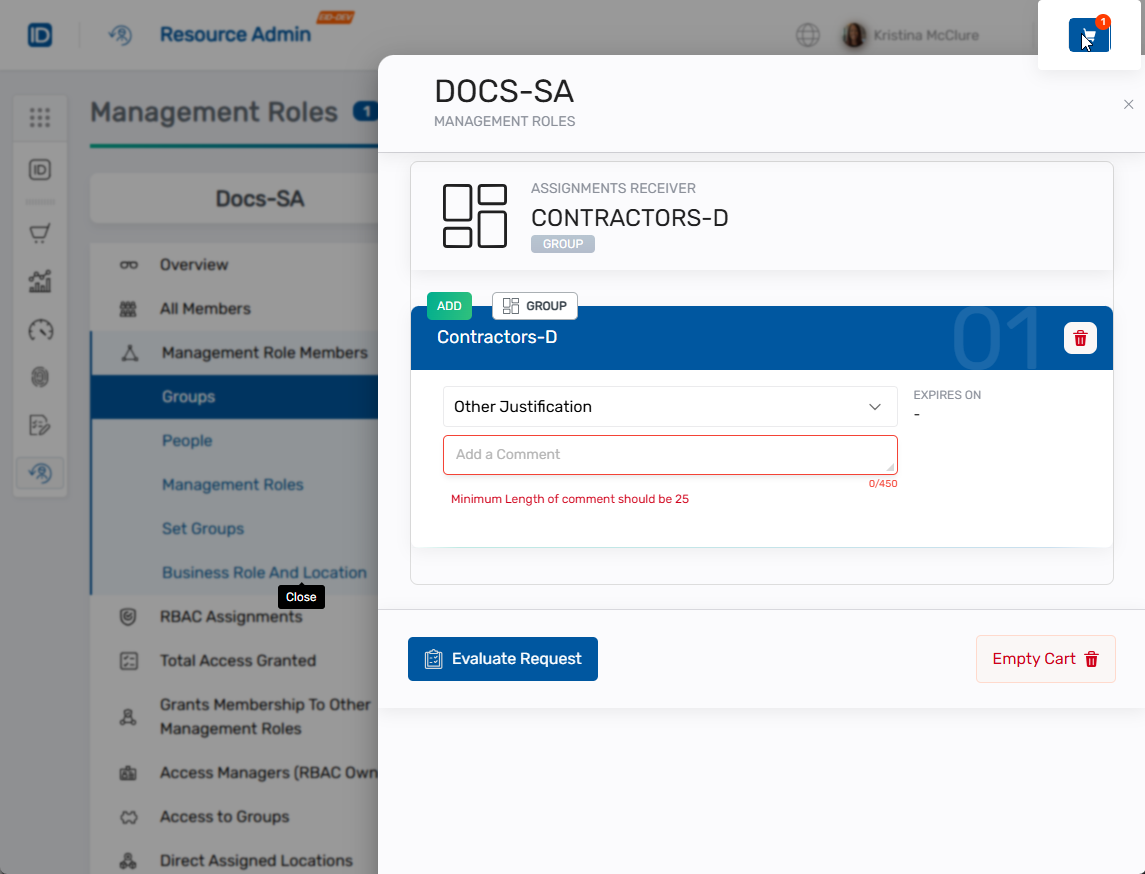
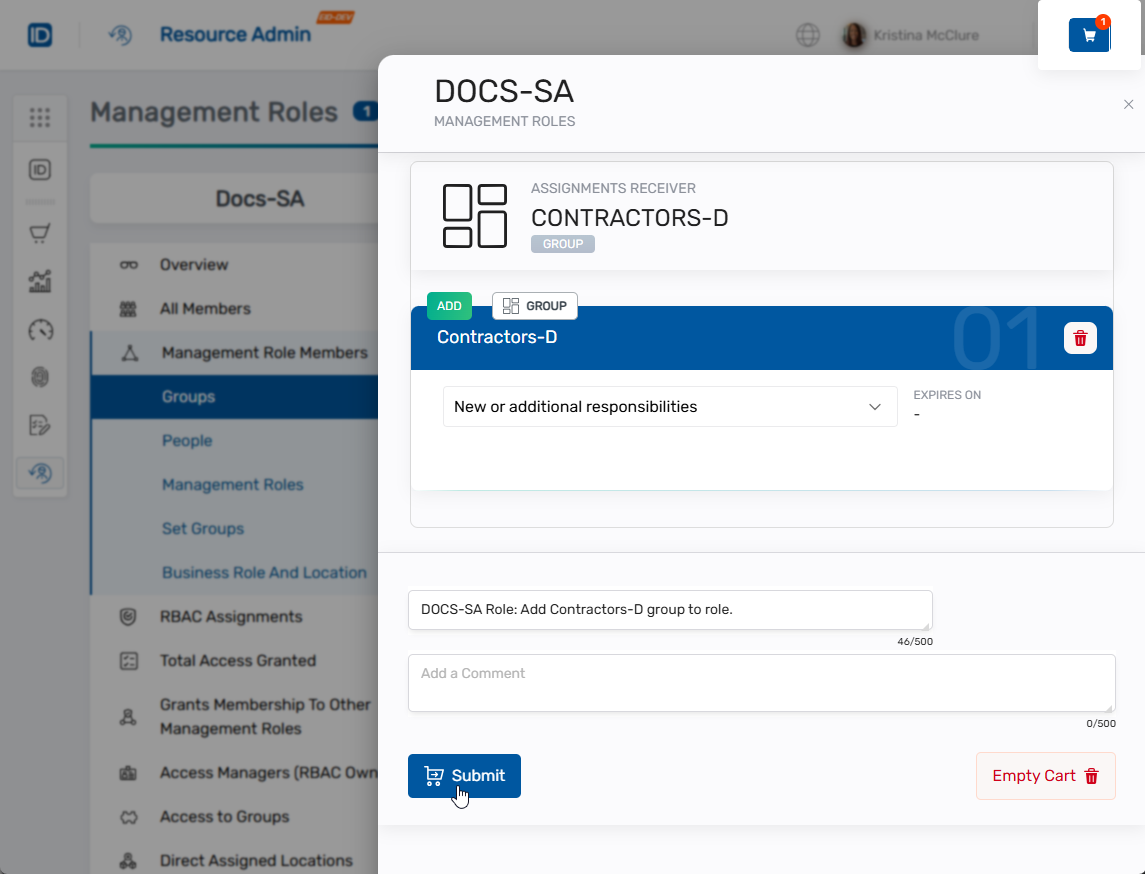
- Review the selected groups and their assignment details.
- Complete the justification:
- Select a predefined justification from the Justification dropdown, OR
- Select Other Justification and enter a detailed comment
- Click Evaulate Request. The system checks to see if adding the group(s) to the role will cause any Separation of Duties violation for people in the group. If this occurs, you must acknowledge the violations to proceed.
- Enter a Business Request Name for the assignment request.
- (Optional) Add additional comments to provide context as needed.
- Click Submit.
Verify the Results
Group assignment may require approval depending on your organization's policies. To verify the assignment:
- Note the request status displayed in the submission status modal.
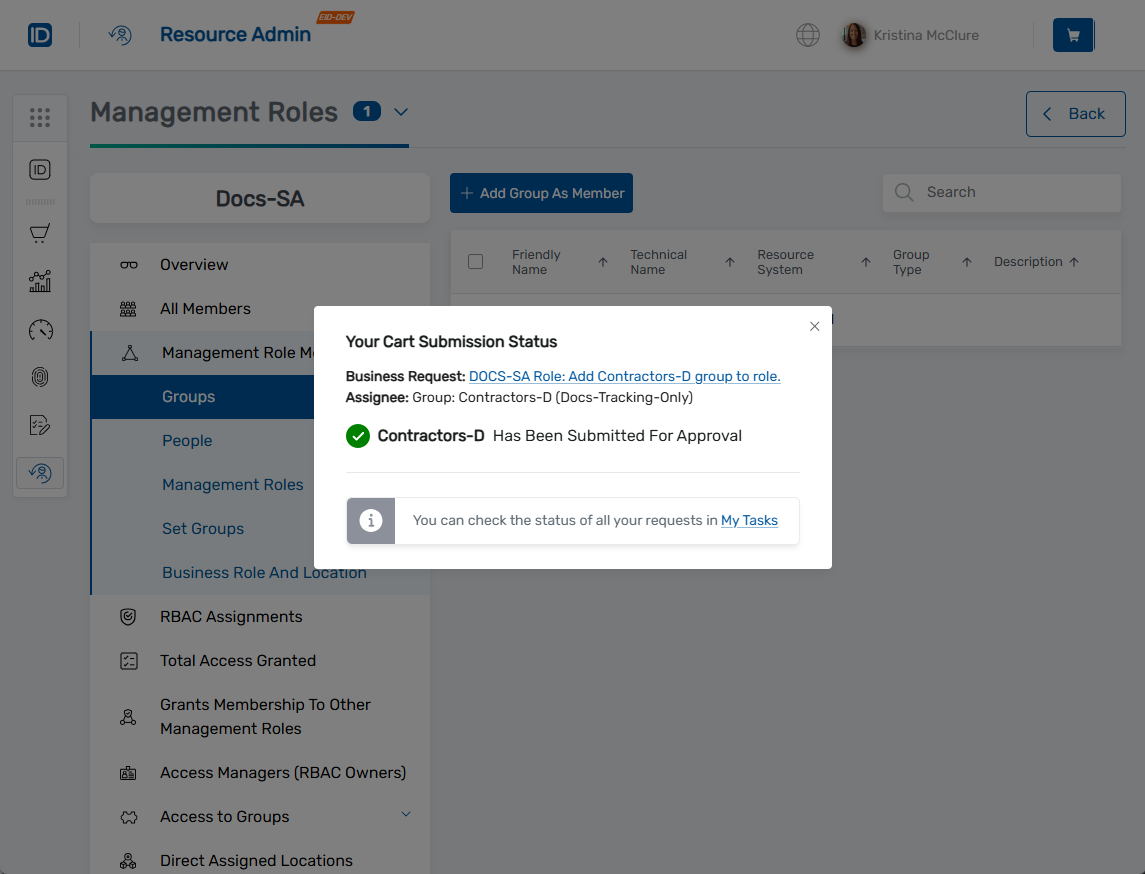
- If approval is required, click the status link to track the request in My Tasks.
- Once the assignment completes, return to the Management Role's Management Role Members > Groups section to confirm the group was added.
Related Topics
- Add People to Management Roles - Add individuals to roles
- Remove Groups from Management Roles - Remove groups from roles
- Edit Group Assignments - Modify group assignments using the wizard
- Edit Management Role Owners & Deputies - Modify role ownership