Add Set Groups to Management Roles
Add Set Groups to Management Roles through a cart-based business request process. Users who meet the Set Group's criteria automatically receive the access granted to the role.
Prerequisites
Before adding Set Groups to Management Roles, ensure you have:
- Access to Resource Admin with permissions to manage the target Management Role
Procedure
-
Navigate to Resource Admin.
-
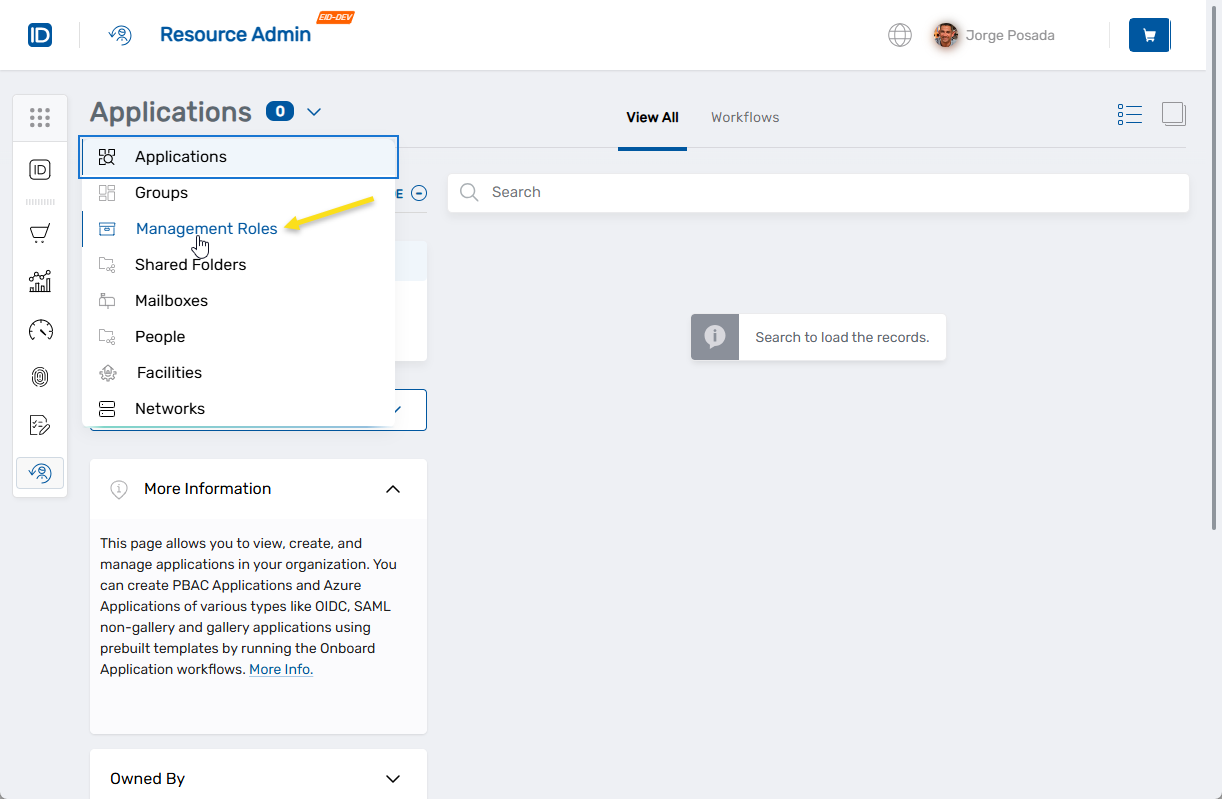
Select Management Roles from the resource type menu.
-
Locate the desired Management Role and click the Details button.

-
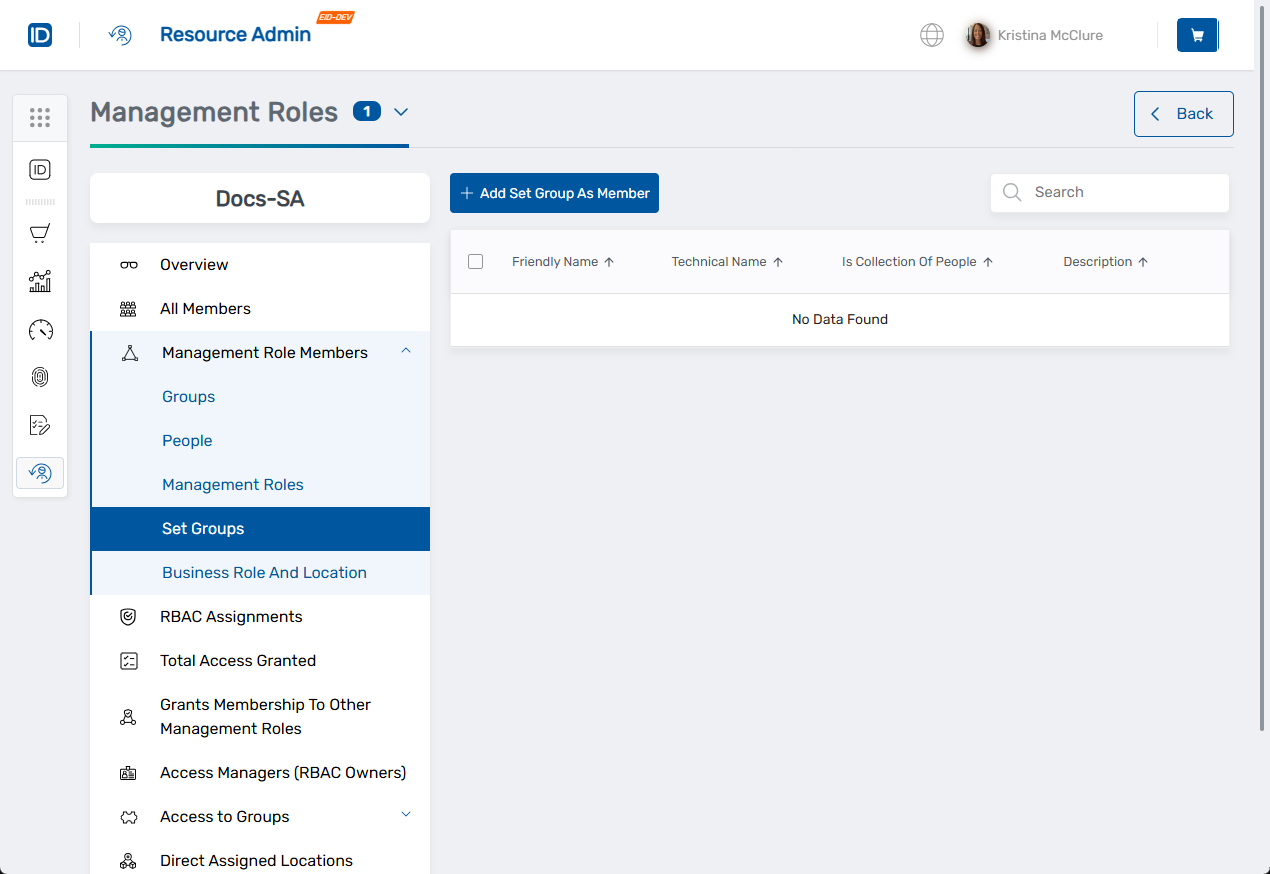
In the left navigation, click Management Role Members > Set Groups.
-
Click Add Set Group As Member.
-
Search for and select Set Groups to add:

- Type the Set Group name in the search field
- Select the Set Group from the search results
- Click Add to move it to the Added list
- Repeat for additional Set Groups
- Use Remove or Remove All to modify selections before proceeding
-
Click Add Set Group As Member to add the action to your cart.
-
Click the Shopping Cart icon at the top of the page.

-
Review the selected Set Groups and their assignment details.
-
Complete the justification:
- Select a predefined justification from the Justification dropdown, OR
- Select Other Justification and enter a detailed comment
-
Enter a Business Request Name for the assignment request.
-
(Optional) Add additional comments to provide context for approvers.
-
Click Submit.

Verify the Results
Set Group assignment may require approval depending on your organization's policies. To verify the assignment:
- Note the request status displayed in the submission status modal.

- If approval is required, click the status link to track the request in My Tasks.
- Once the assignment completes, return to the Management Role's Management Role Members > Set Groups section to confirm the Set Group was added.
Related Topics
- Add People to Management Roles - Add individuals to roles
- Add Groups to Management Roles - Add groups to roles
- Remove Set Groups from Management Roles - Remove Set Groups from roles
- Edit RBAC Membership Policies - Create automatic assignment rules