Manage Resource Access for Management Roles
Management Roles grant members access to applications, groups, systems, and other resources. Use this procedure to add, remove, or modify resource access assignments for a role, including time constraints that control when access is active.
Prerequisites
Before managing resource access, ensure you have:
- Access to Resource Admin with permissions to manage the target Management Role
Procedure
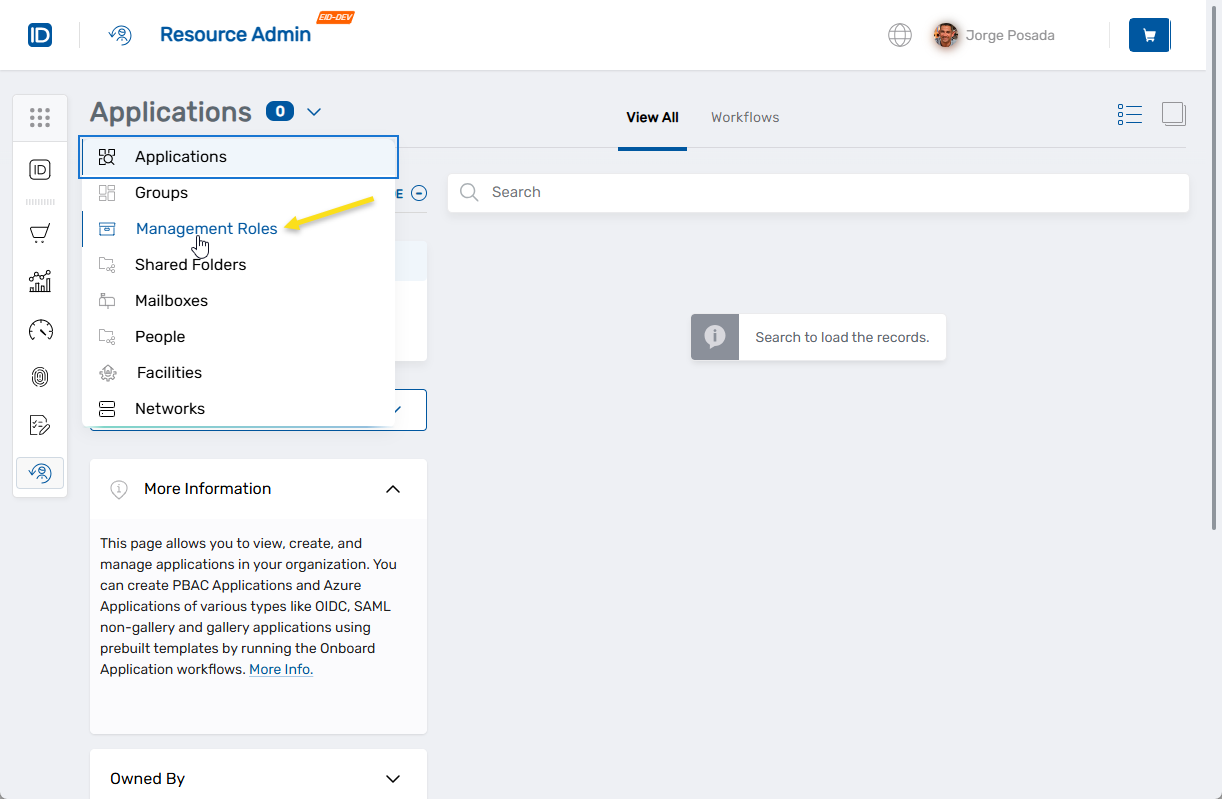
- Navigate to Resource Admin and select Management Roles from the Resource dropdown menu.
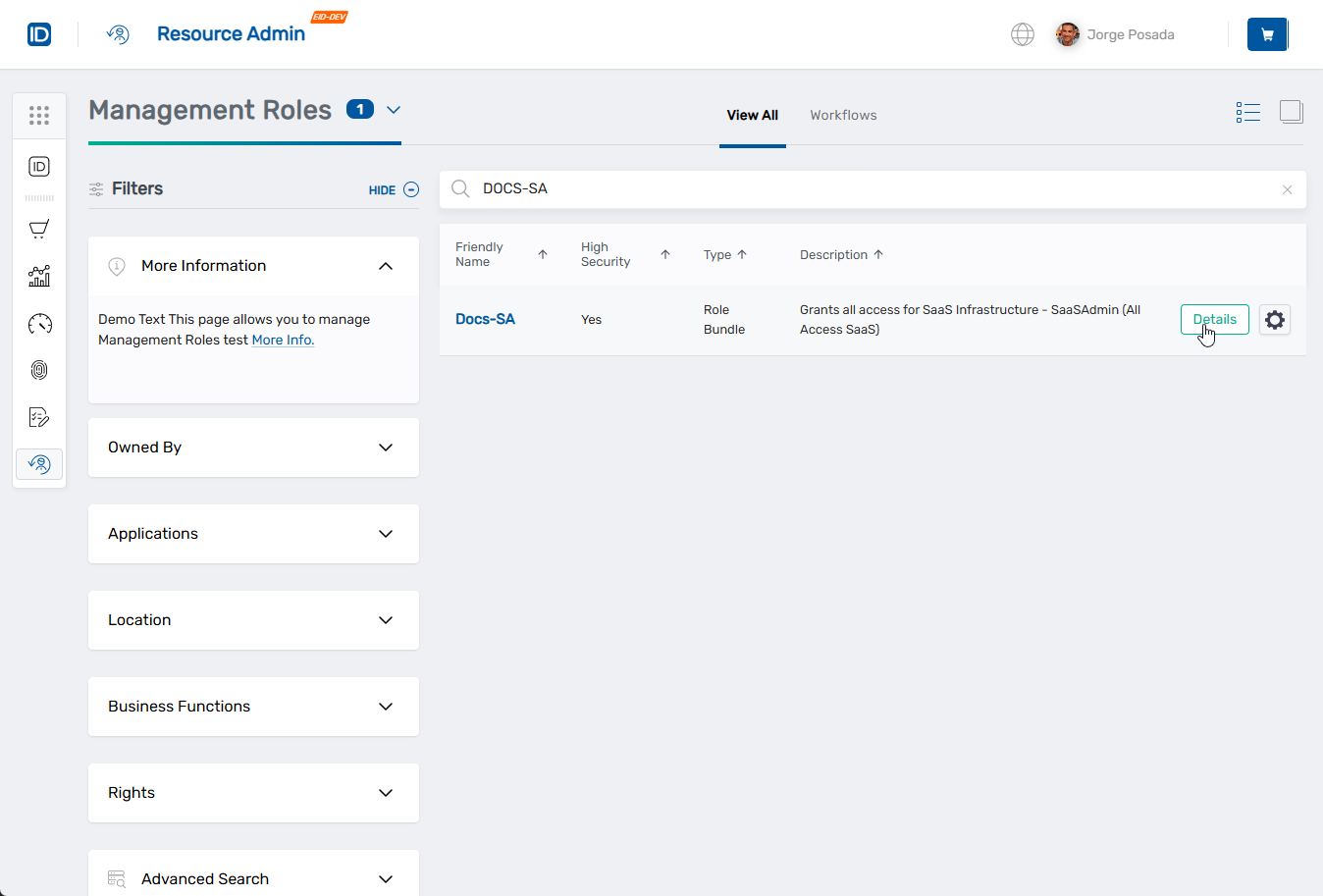
- Locate the Management Role you want to modify and click the Details button.
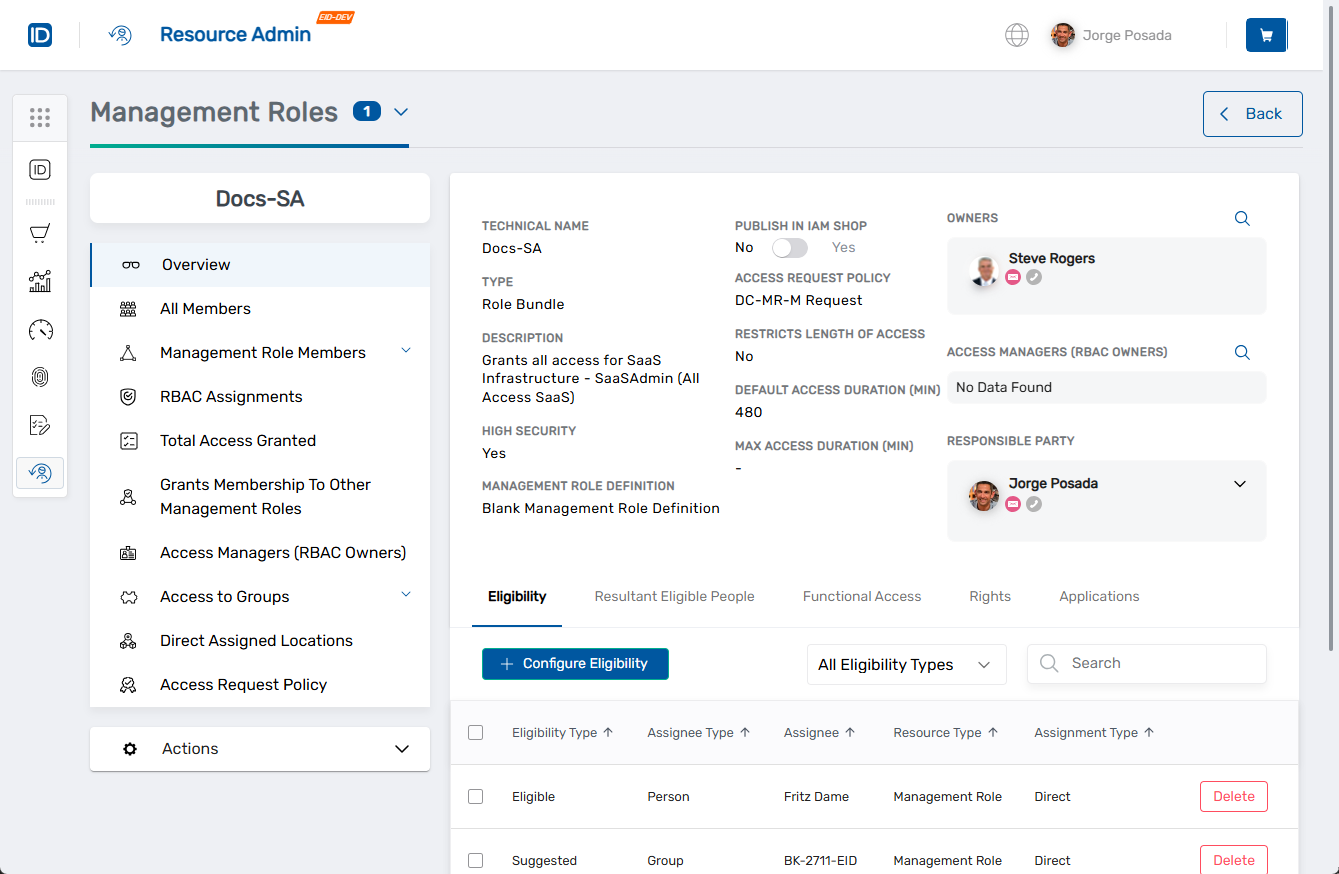
- From the role menu on the left, select RBAC Assignments.
Add New Resource Access
-
Click Add New Access Assignment to grant the role access to additional resources.
-
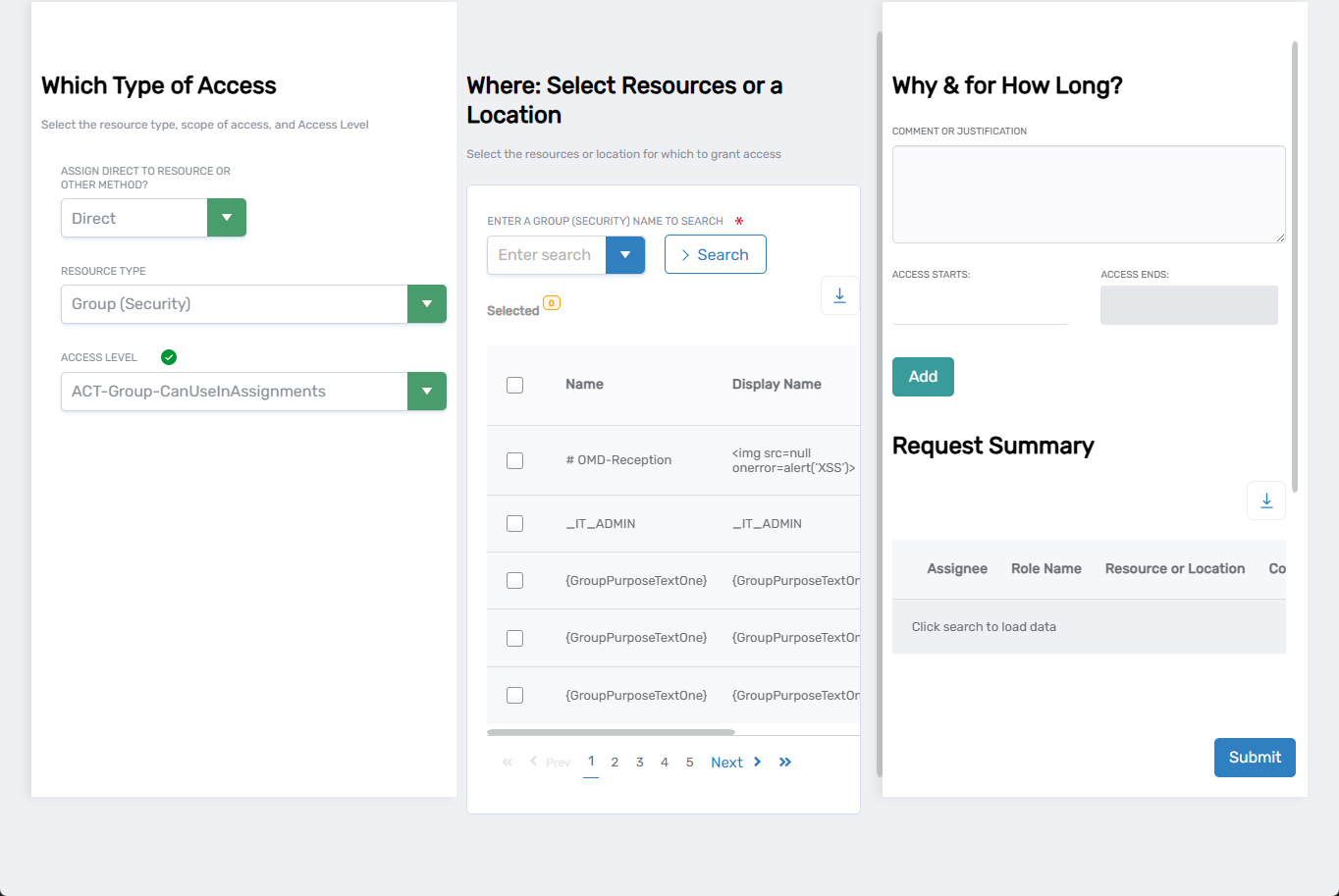
Configure the Which Type of Access section:
- Assign Direct to Resource or Other Method - Select how access is scoped (Direct, By Location, Relative, Belonging to which group/Management Role/Query-Based Collection)
- Resource Type - Select the resource type (e.g., Group, Application, System Account)
- Access Level - Select the permission level (e.g., Access Manager, Member, Viewer)
-
Complete the Where: Select Resources or a Location section:
- Enter the resource or location name in the search field and click Search
- Review the results and check the box next to each resource you want to assign
- Use pagination controls to browse multiple pages if needed
-
Complete the Why & for How Long? section:
- Comment or Justification - Enter a business justification (optional but recommended)
- Access Starts - Leave blank for immediate access, or select a start date and time for scheduled activation
- Access Ends - Leave blank for permanent access, or select an end date and time for temporary access
-
Click Add to include this assignment in your request.
-
To add multiple assignments, repeat steps 1-5. Each assignment accumulates in the Request Summary.
-
Review the Request Summary to verify all assignments are correct and click Submit.
Remove Resource Access
Remove Individual Assignments:
- Locate the assignment you want to remove in the assignments list.
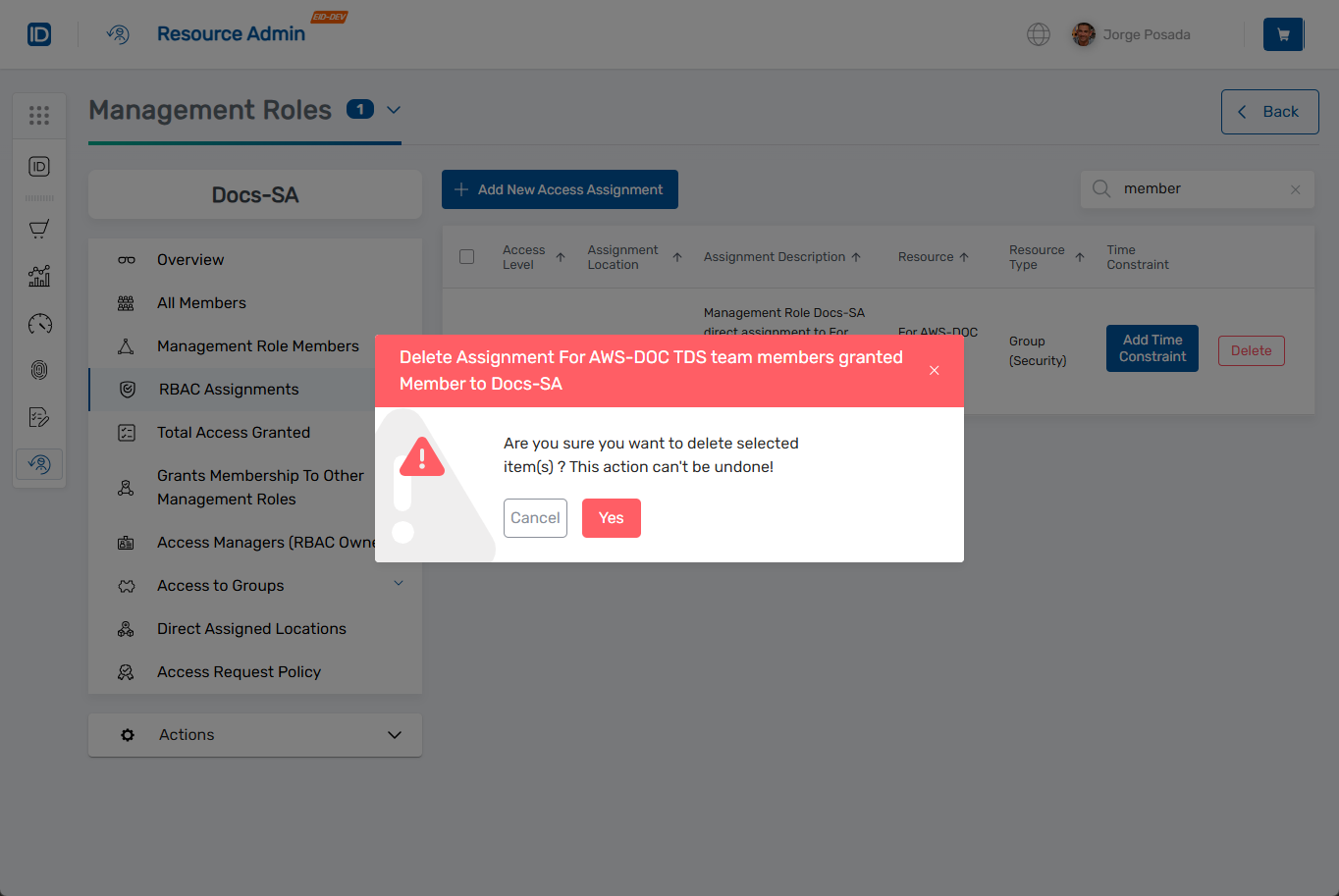
- Click Delete next to the assignment.
- Review the confirmation dialog and click Confirm to permanently remove the access assignment.
Remove Multiple Assignments:
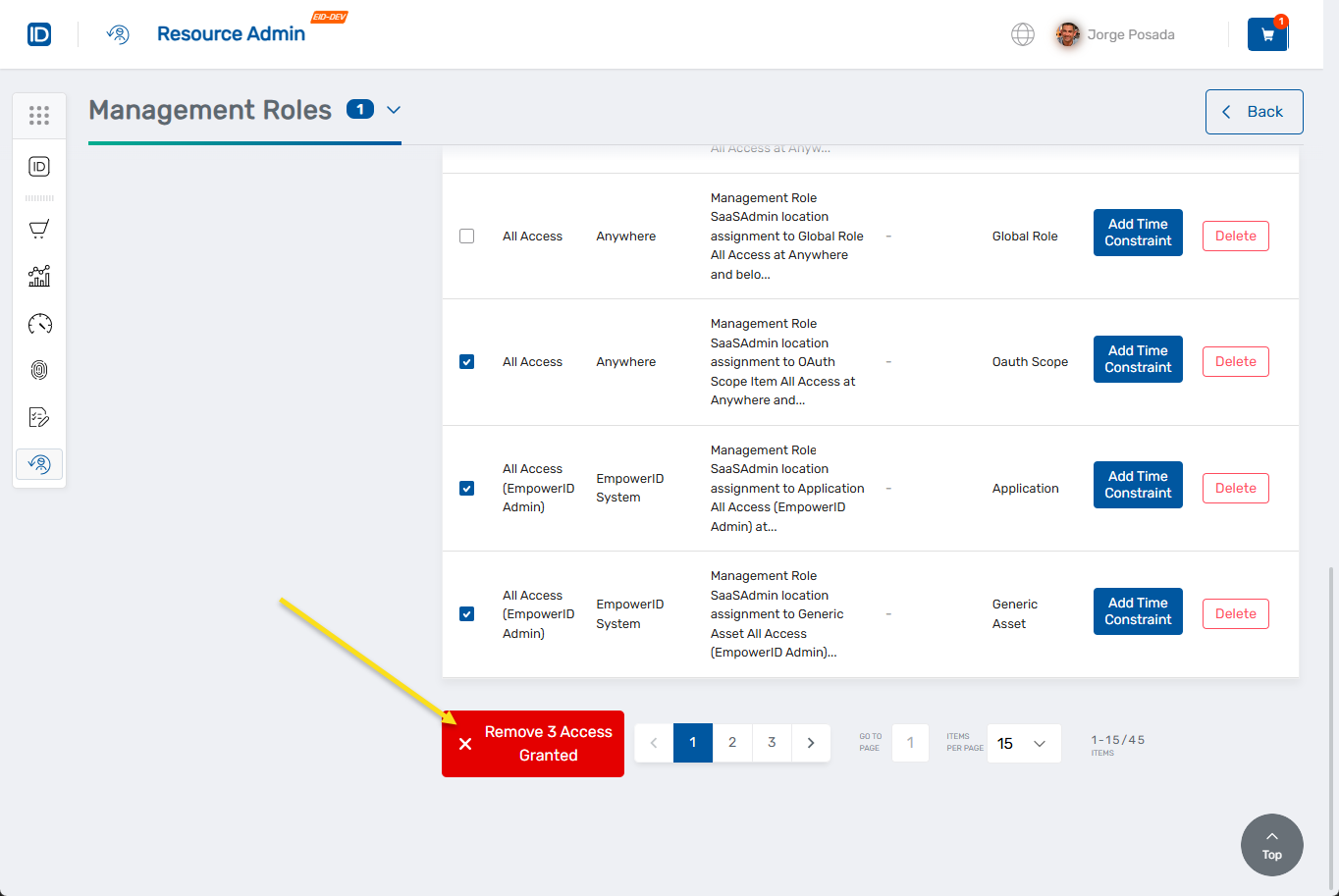
- Check the box next to each assignment you want to remove.
- Click Remove X Access Granted (where X is the number selected) and confirm the bulk removal.
Add or Modify Time Constraints
- Locate the assignment in the assignments list and click Add Time Constraint.
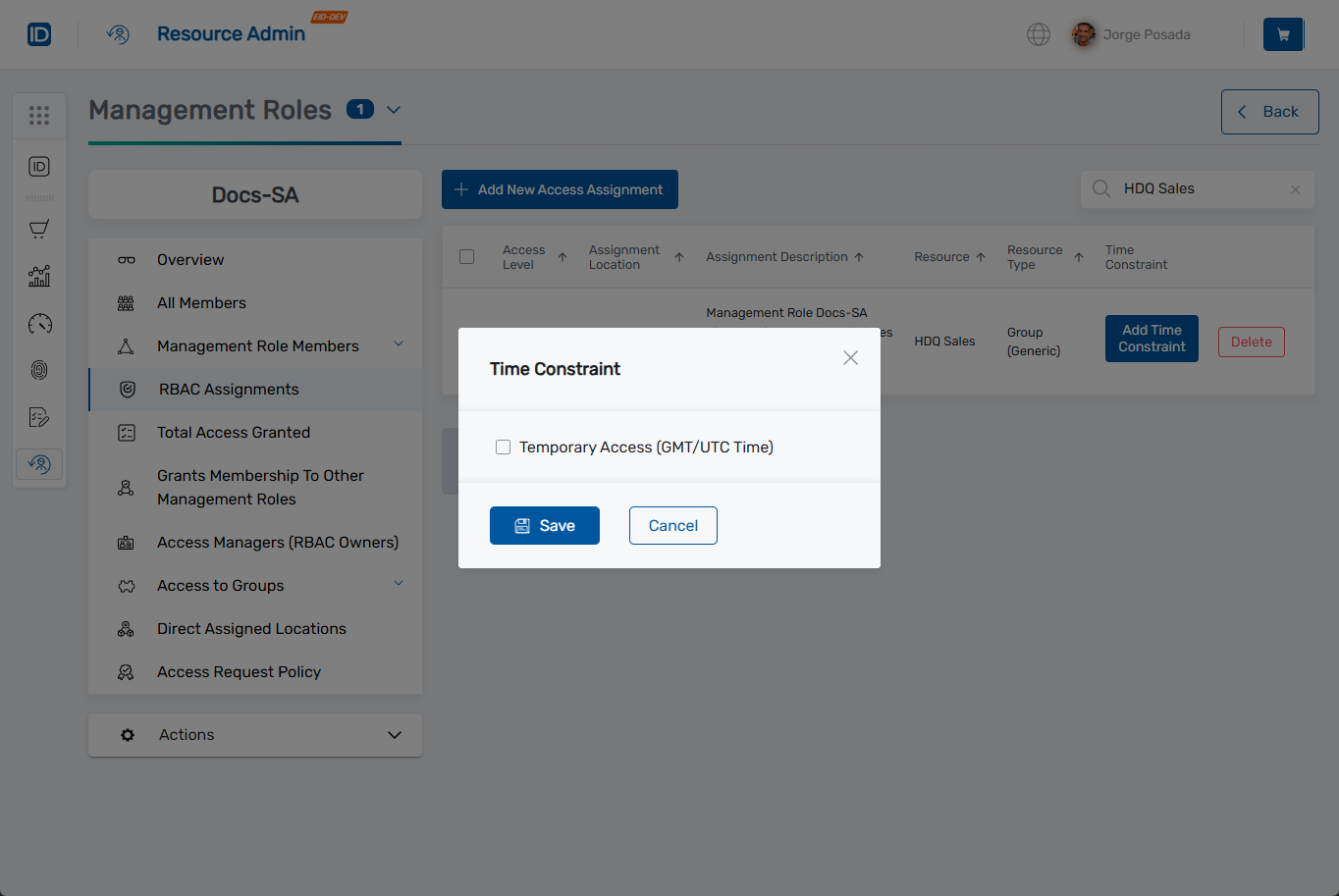
- Configure time restrictions:
- Check Temporary Access (GMT/UTC Time) to enable time constraints
- Access Begins - Click the field and select a start date and time
- Access Ends - Click the field and select an end date and time
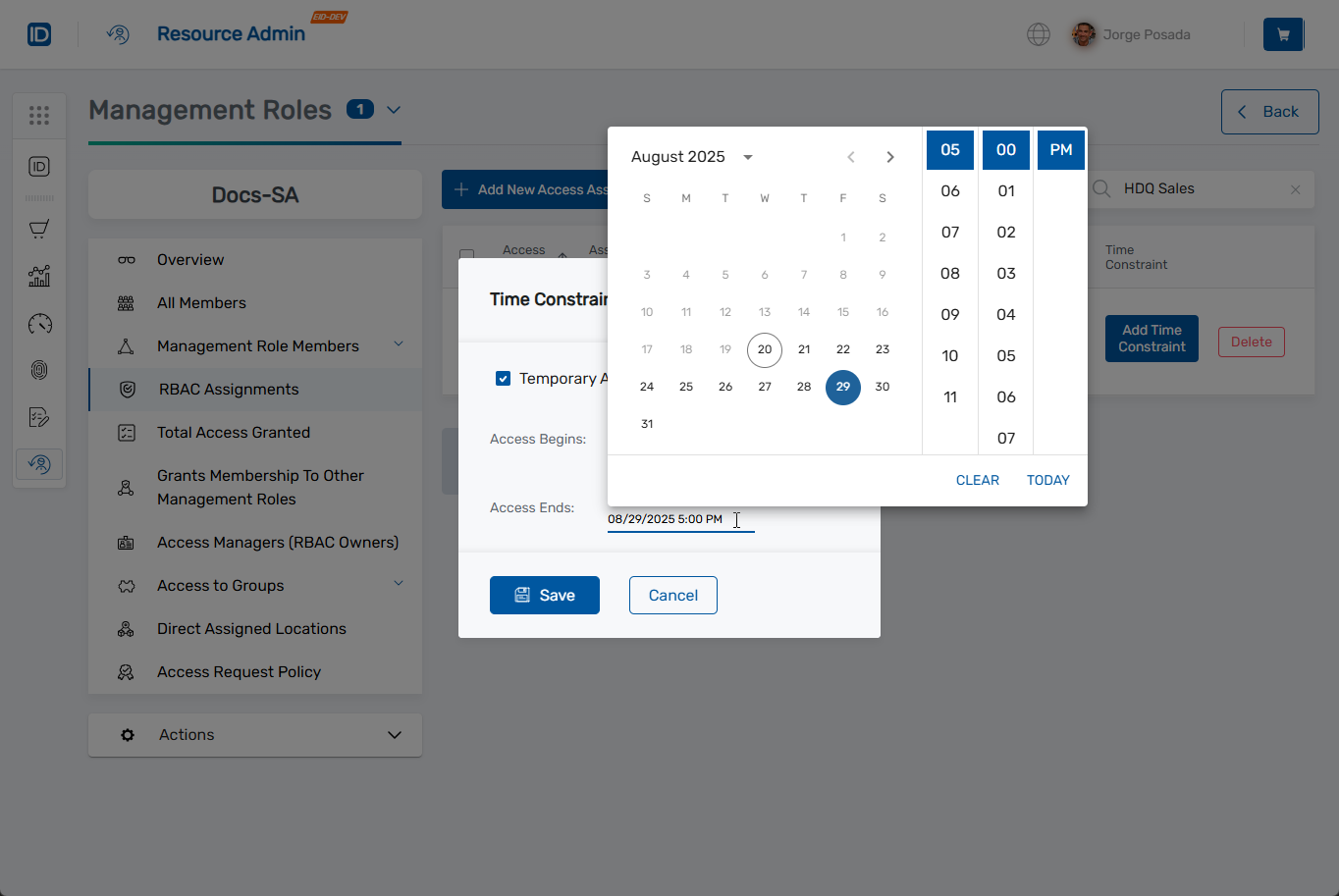
- Click Save to add the constraint to your cart.
- Click the cart icon in the top navigation.
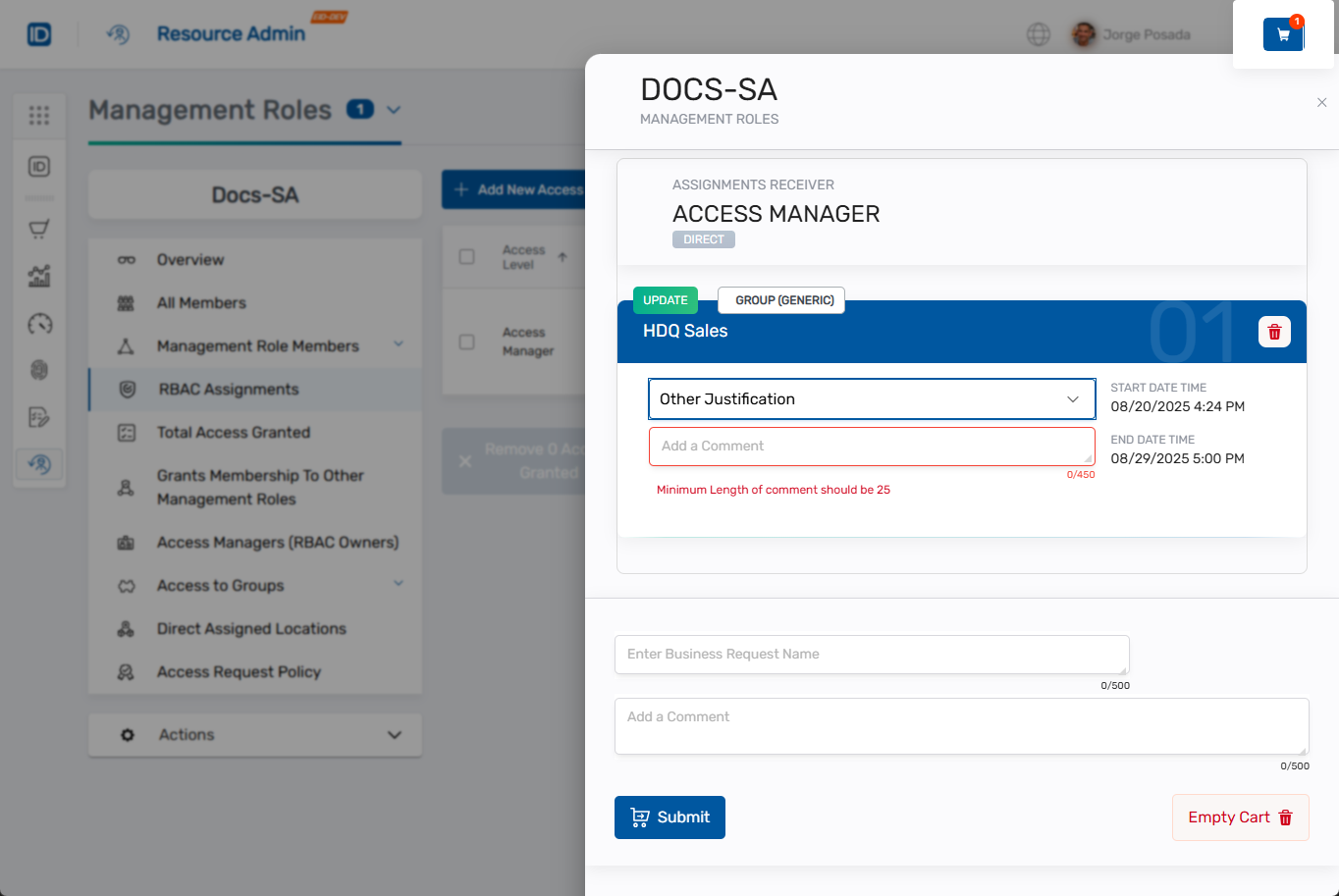
- For each constraint in your cart:
- Select a justification from the dropdown or choose "Other Justification"
- Add a comment explaining the constraint (minimum 25 characters for "Other")
- Enter a Business Request Name to identify the request
- Click Submit to finalize all time constraint adjustments.
Verify the Results
After submitting changes:
- Review the assignments list on the RBAC Assignments page to confirm additions or removals.
- Verify that time constraints appear correctly on applicable assignments.
Note that access assignment changes take effect immediately. All current and future members of the Management Role gain or lose access to resources based on the assignments, and time-constrained assignments automatically activate and expire according to configured schedules.
Related Topics
- Add People to Management Roles - Assign users to roles
- Add Groups to Management Roles - Assign groups to roles
- Approve Management Role Changes - Review and approve role modifications
- Onboard Management Roles - Create new Management Roles