Edit RBAC Membership Policies
RBAC membership policies automatically assign Management Roles based on organizational attributes like department, location, or business role. These policies continuously evaluate user attributes and automatically adjust assignments as users change positions or organizational structures evolve.
Prerequisites
Before modifying RBAC membership policies, ensure you have:
- Access to Resource Admin with permissions to manage the target Management Role
Procedure
-
Navigate to Resource Admin.
-
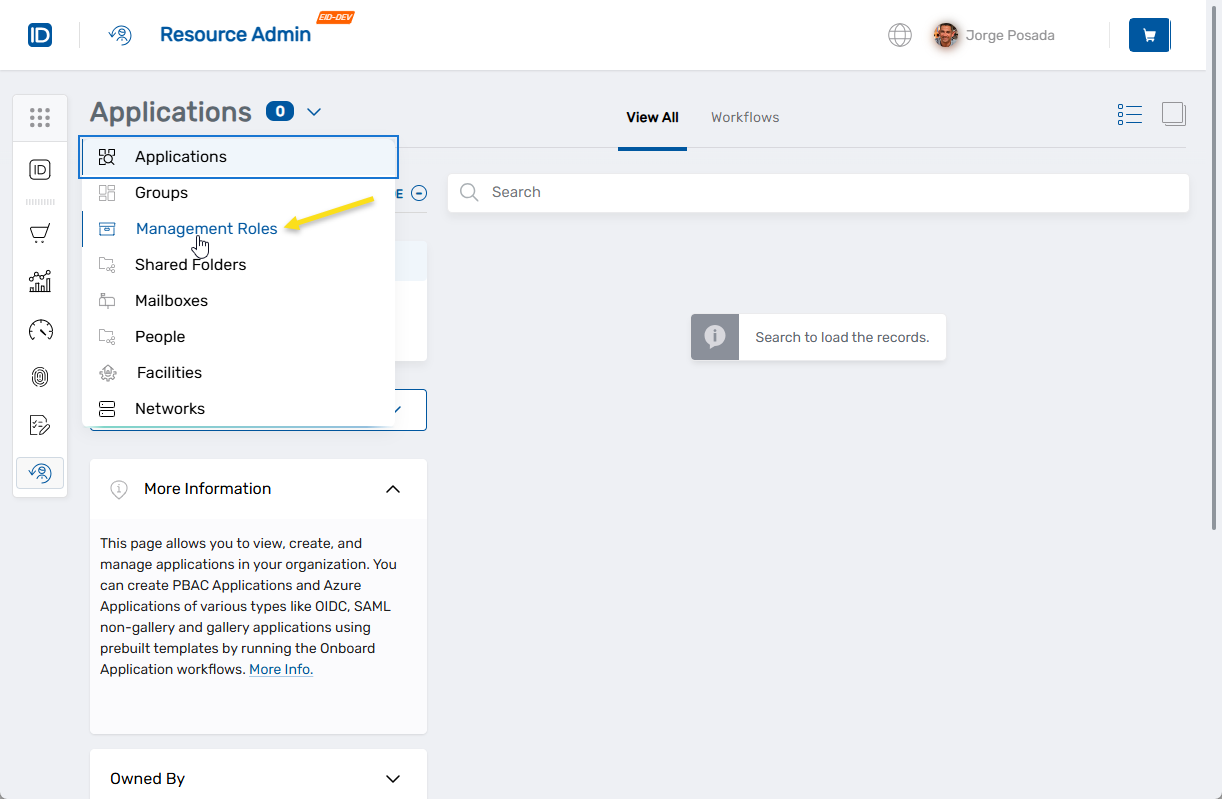
Select Management Roles from the resource type menu.
-
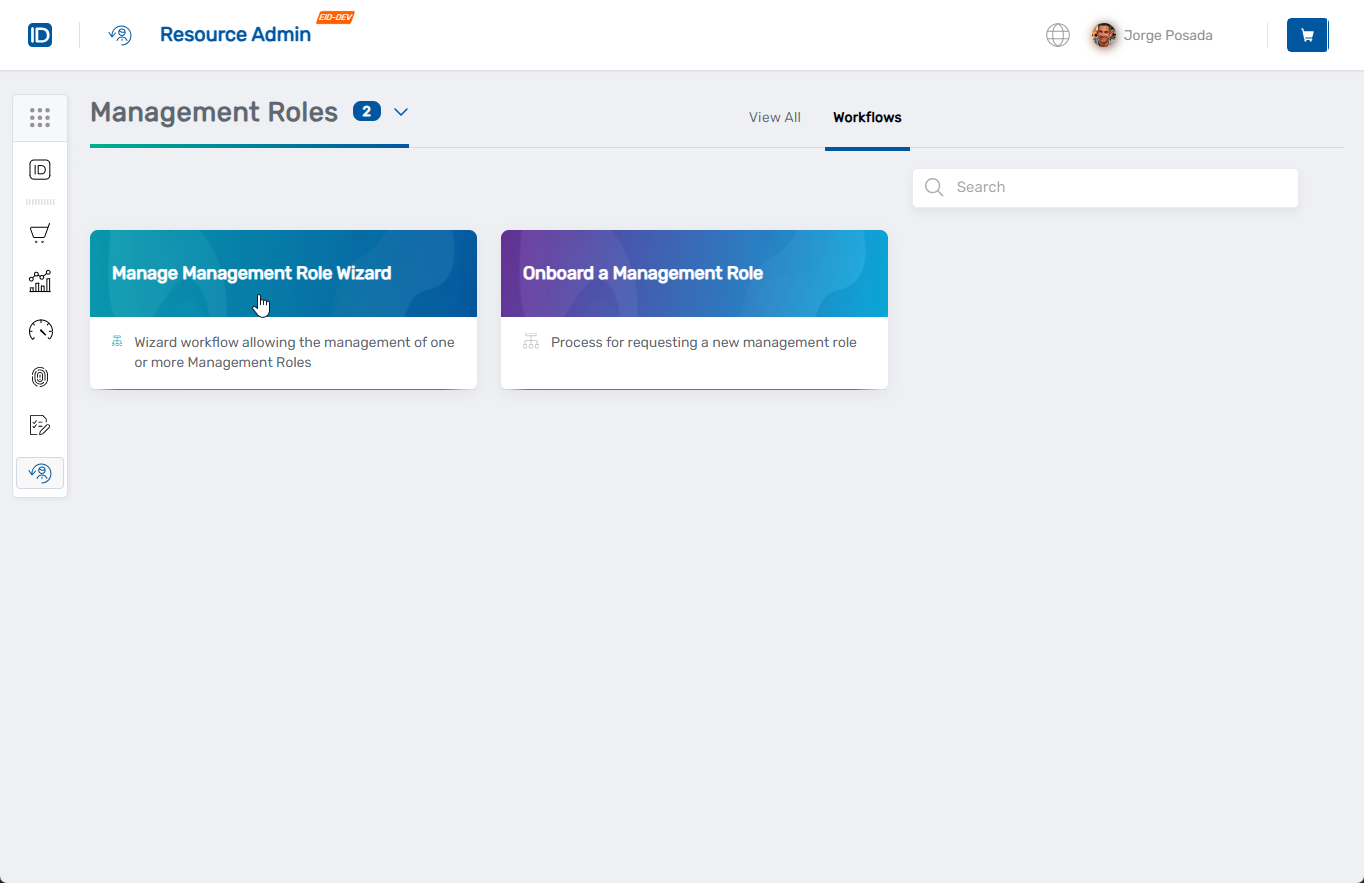
Click the Workflows tab.
-
Find and click Manage Management Role Wizard.
-
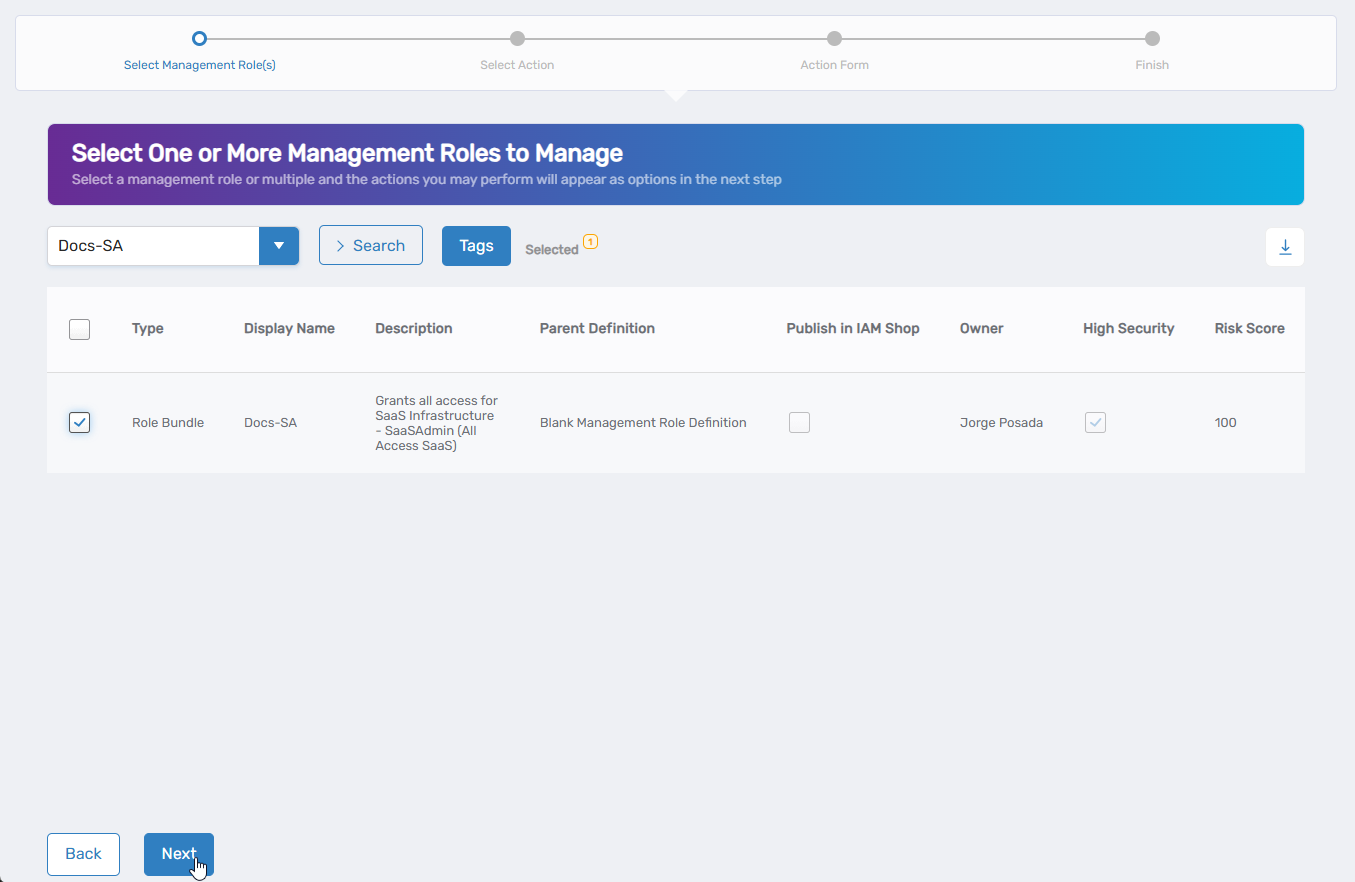
Select the Management Role you want to modify by checking the box next to it and click Next.
-
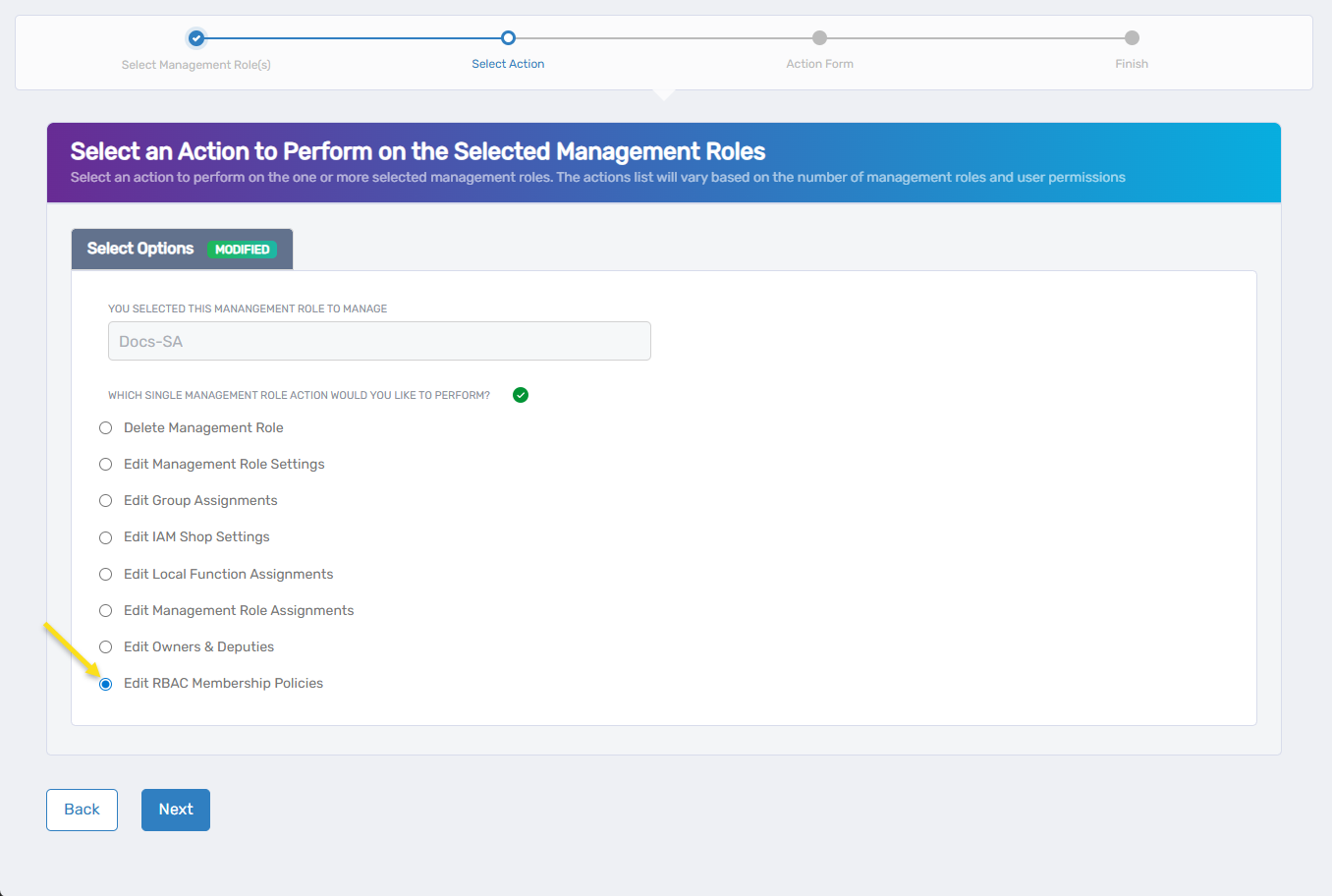
Select Edit RBAC Membership Policies from the available actions and click Next.
-
To add new RBAC membership policies:
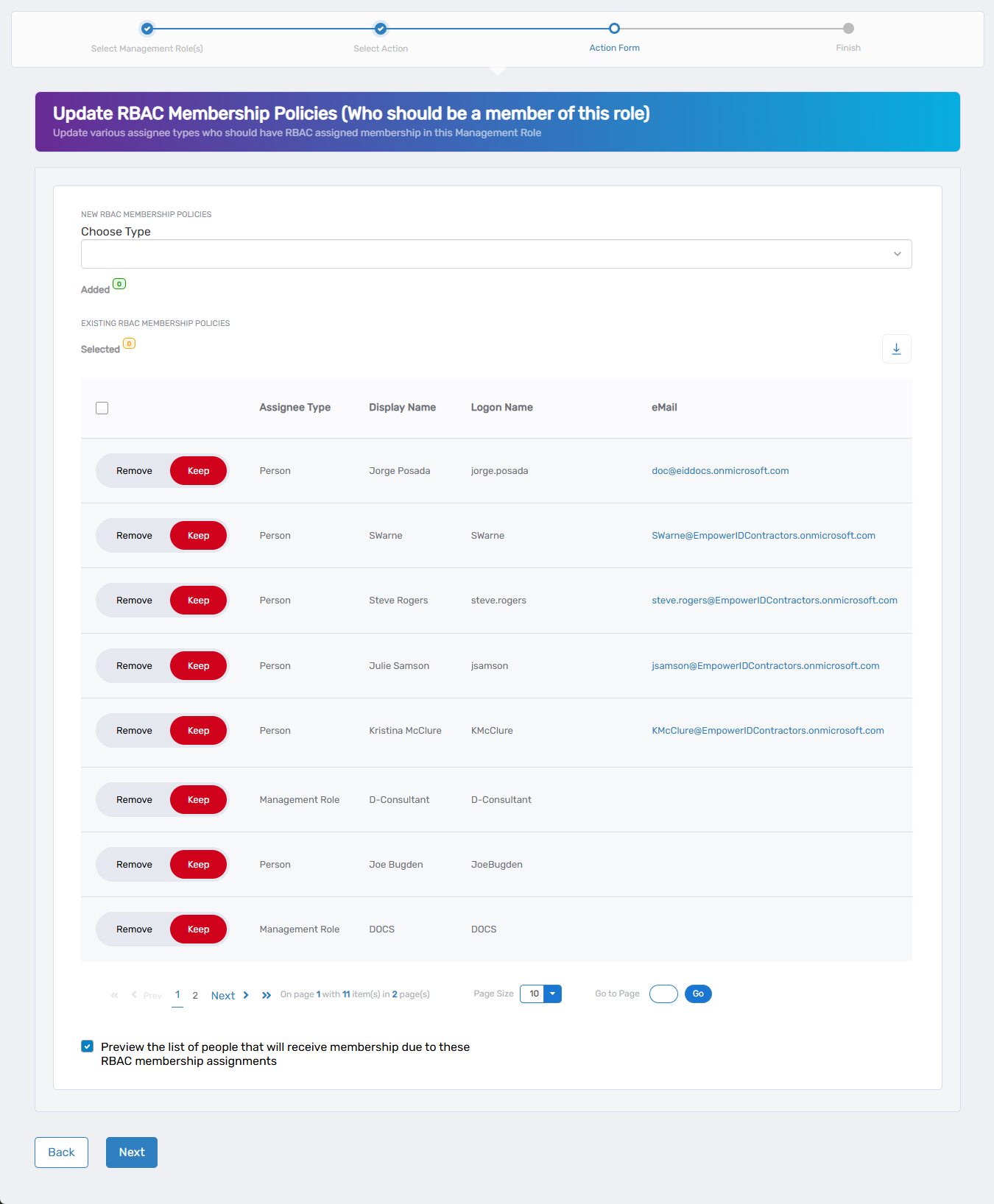
- Select a type from the Choose Type dropdown (Person, Group, SetGroup, Management Role, Business Role and Location, or Location)
- Search for and select the specific person, group, role, or location
- Repeat to add multiple policies
- Use the Added counter to view your selections
-
To remove existing RBAC membership policies:
- Click Remove to delete a policy
- Click Keep to retain it
-
(Optional) Check the Preview membership box to see who will be affected before submitting and click Next.
-
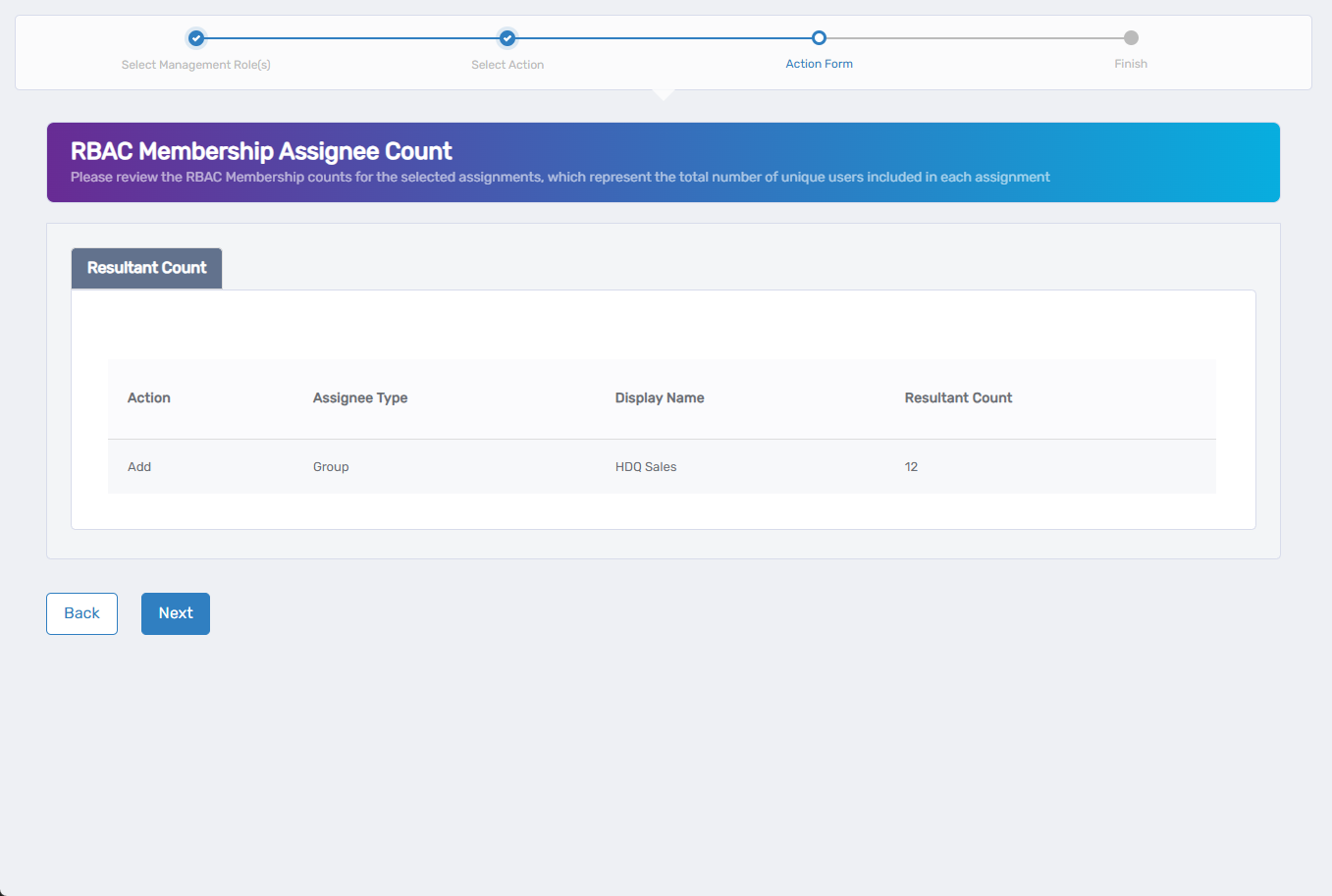
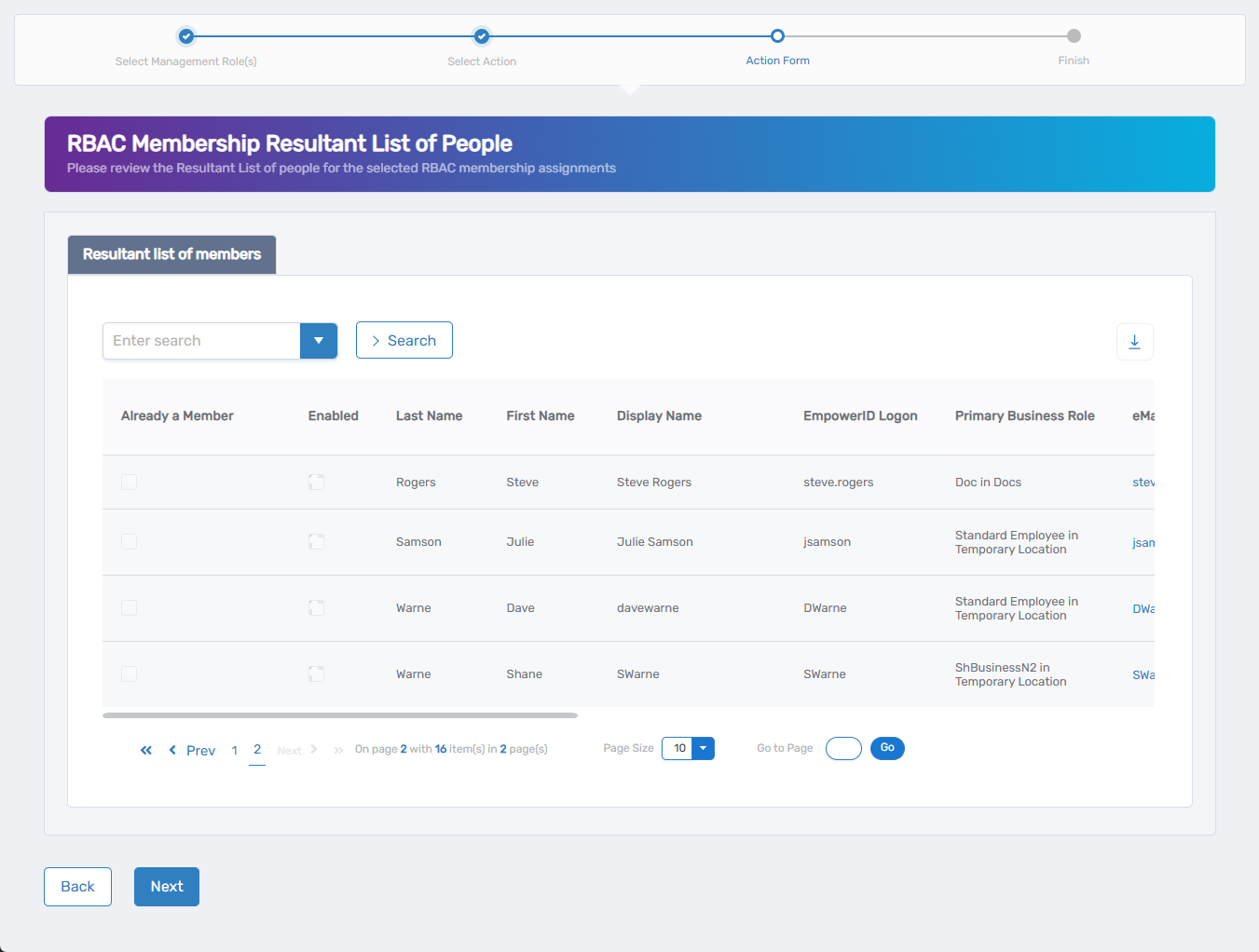
If you selected preview, review the impact and click Next:
- Assignment Counts: Shows action type, assignee type, display name, and user count for each policy
- Detailed People List: Shows individuals who will receive or lose the role
- Assignment Counts: Shows action type, assignee type, display name, and user count for each policy
-
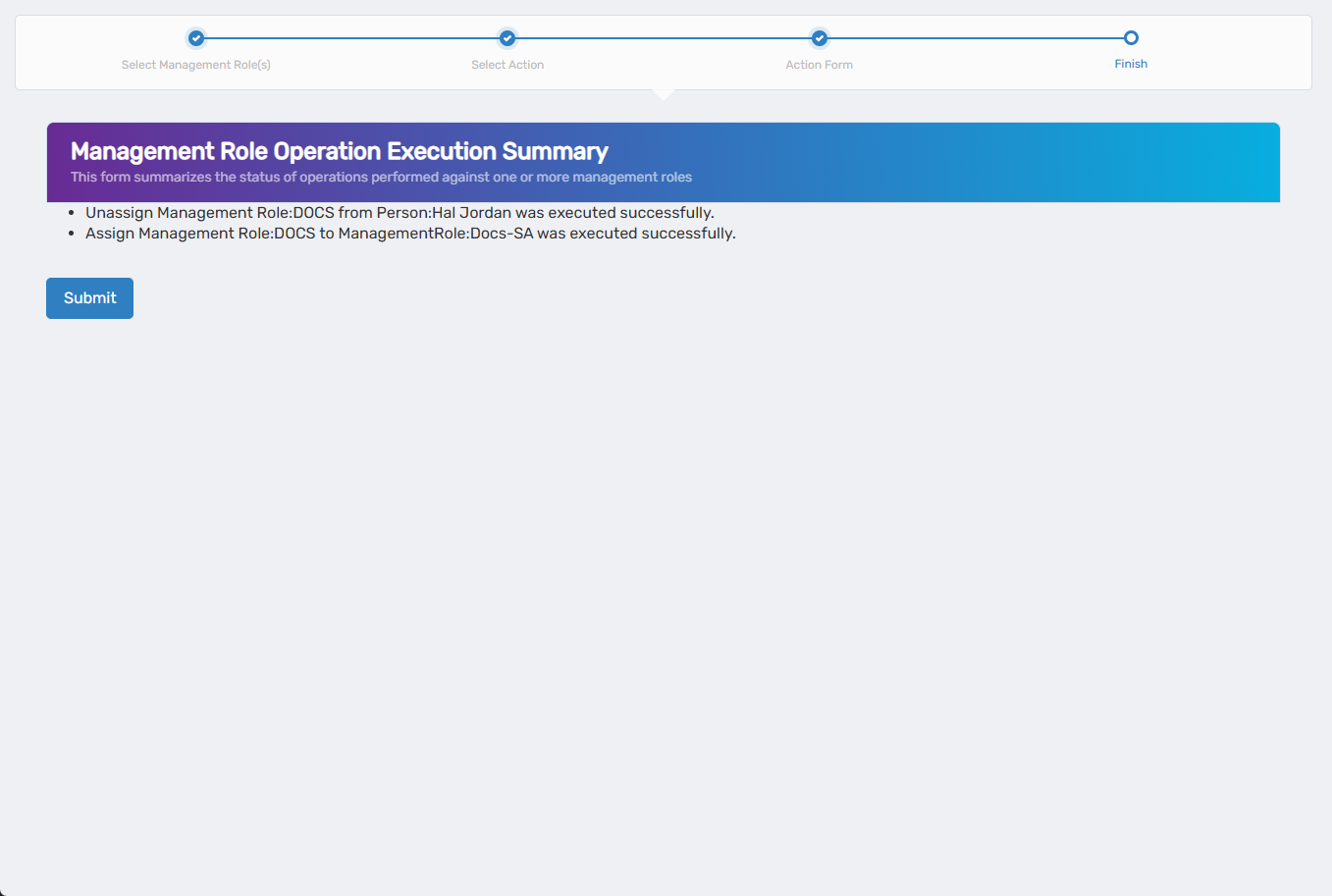
Review the Operation Execution Summary to confirm your changes and click Submit.
-
Choose your next action and click Submit:
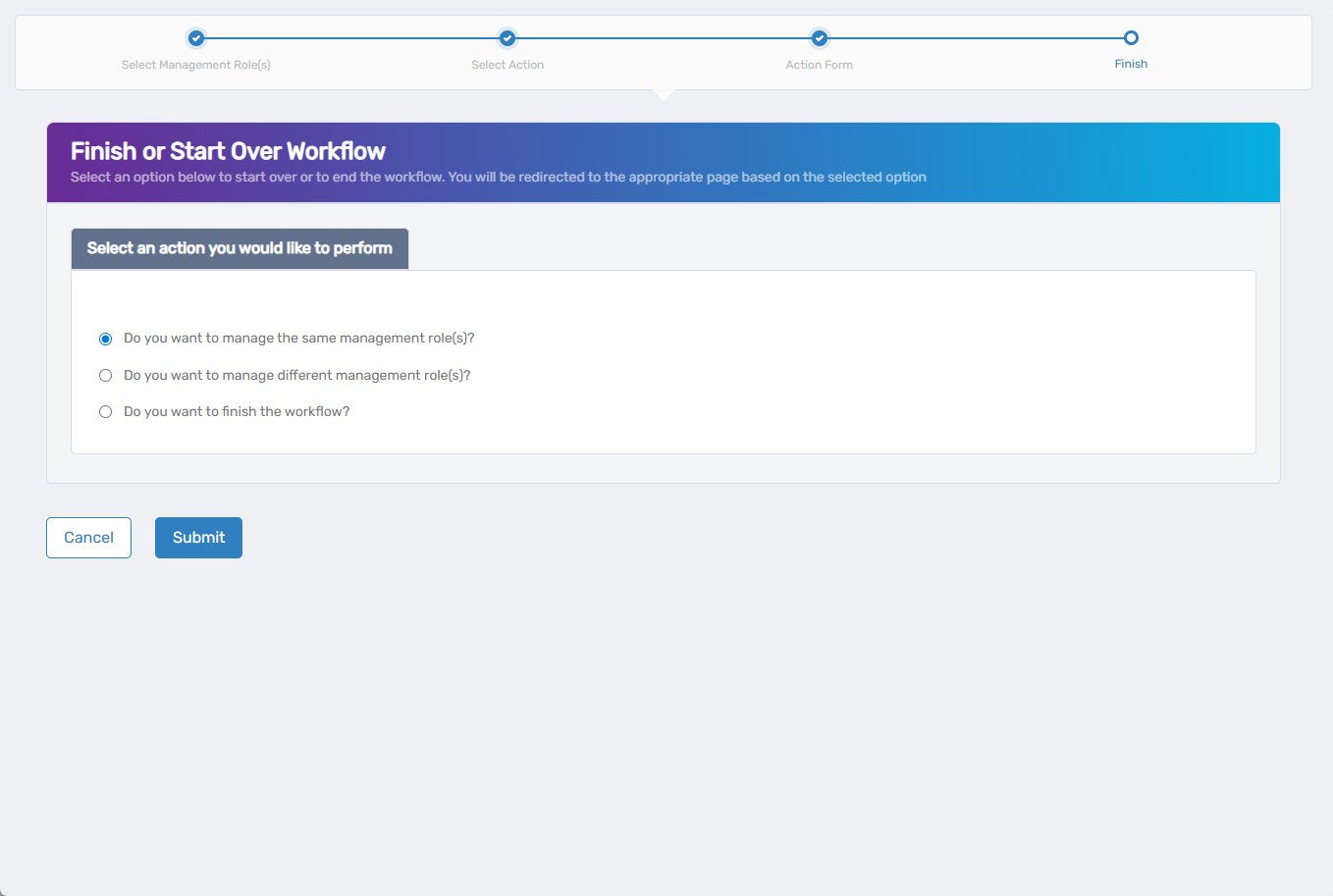
- Do you want to manage the same Management Role? - Perform additional actions on the same role
- Do you want to manage different Management Role(s)? - Work with other Management Roles
- Do you want to finish the workflow? - Exit the wizard
Verify the Results
RBAC policy changes may require approval depending on your organization's policies. To verify the changes:
- After approval, navigate back to Resource Admin > Management Roles.
- Select the Management Role you modified and review the RBAC membership policies to confirm your changes were applied.
Related Topics
- Add People to Management Roles - Directly assign individuals to roles
- Edit Group Assignments - Manage static group assignments
- Edit Management Role Owners & Deputies - Modify role ownership
- Onboard Management Roles - Create new Management Roles