Groups Page
The Groups page is where delegated group owners and administrators manage group memberships, audit changes, and control group access — without needing direct access to Active Directory, Microsoft Entra ID, or other connected directories. Access it by selecting Groups from the Resource Type menu.
To access the Groups page you need:
UI-Res-Admin-MS-Groupsfor full group management, orUI-Res-Admin-MS-Groups-Basefor read-only / limited accessVIS-Res-Admin-MS-API— required for all Resource Admin usersUI-Res-Admin-MS-Common— required for all Resource Admin users
See Assigning Management Roles Needed to Access Resource Admin.
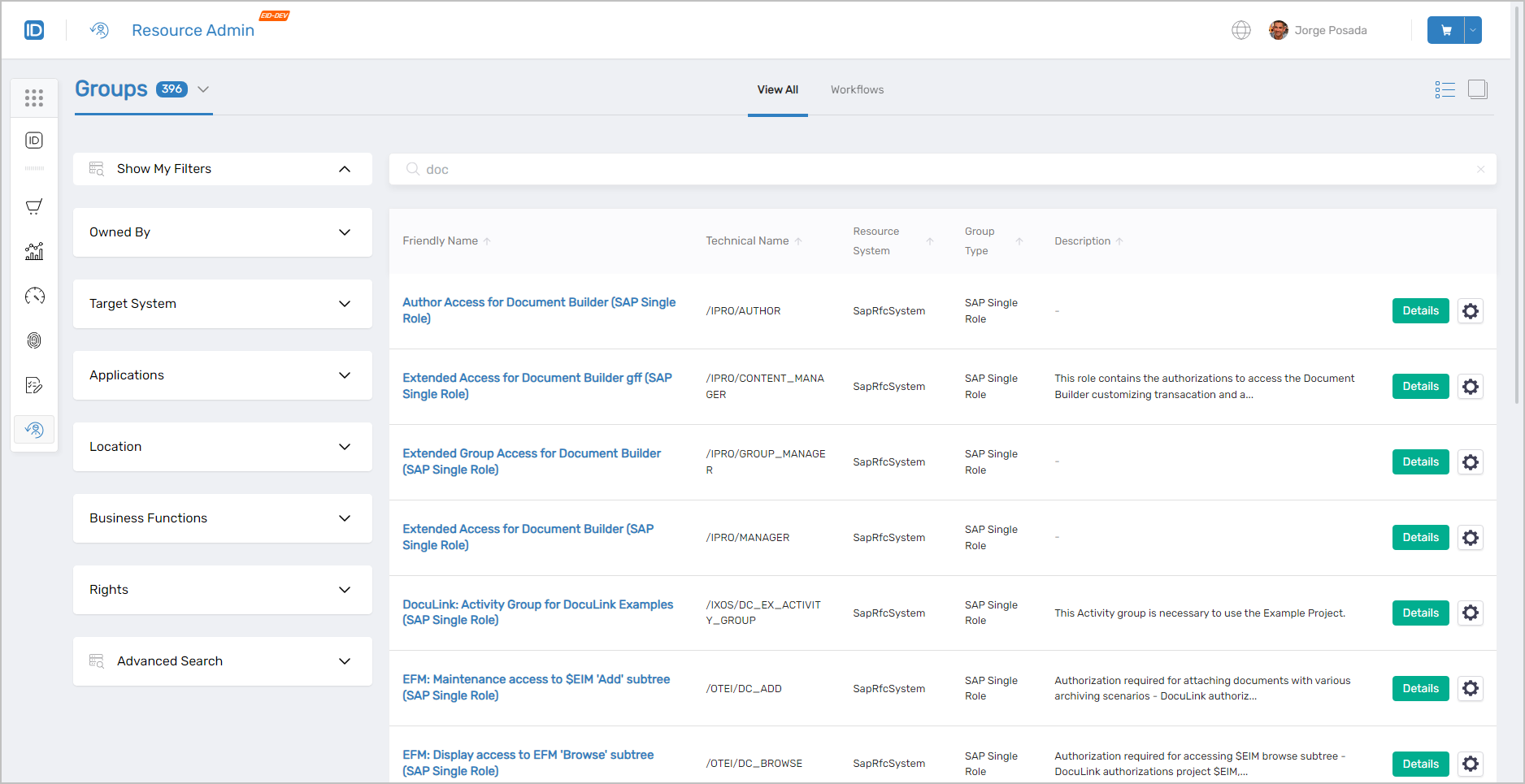 Groups page showing the main interface with filters and group listings
Finding Groups
Search matches against the following attributes simultaneously:
- Name
- FriendlyName
- EmpowerIDName
- EmpowerIDFriendlyName
- LogonName
- NetBiosName
- FQN (Fully Qualified Name)
- DistinguishedName
- Description
Entering "admin" returns every group where that value matches any of the listed attributes.
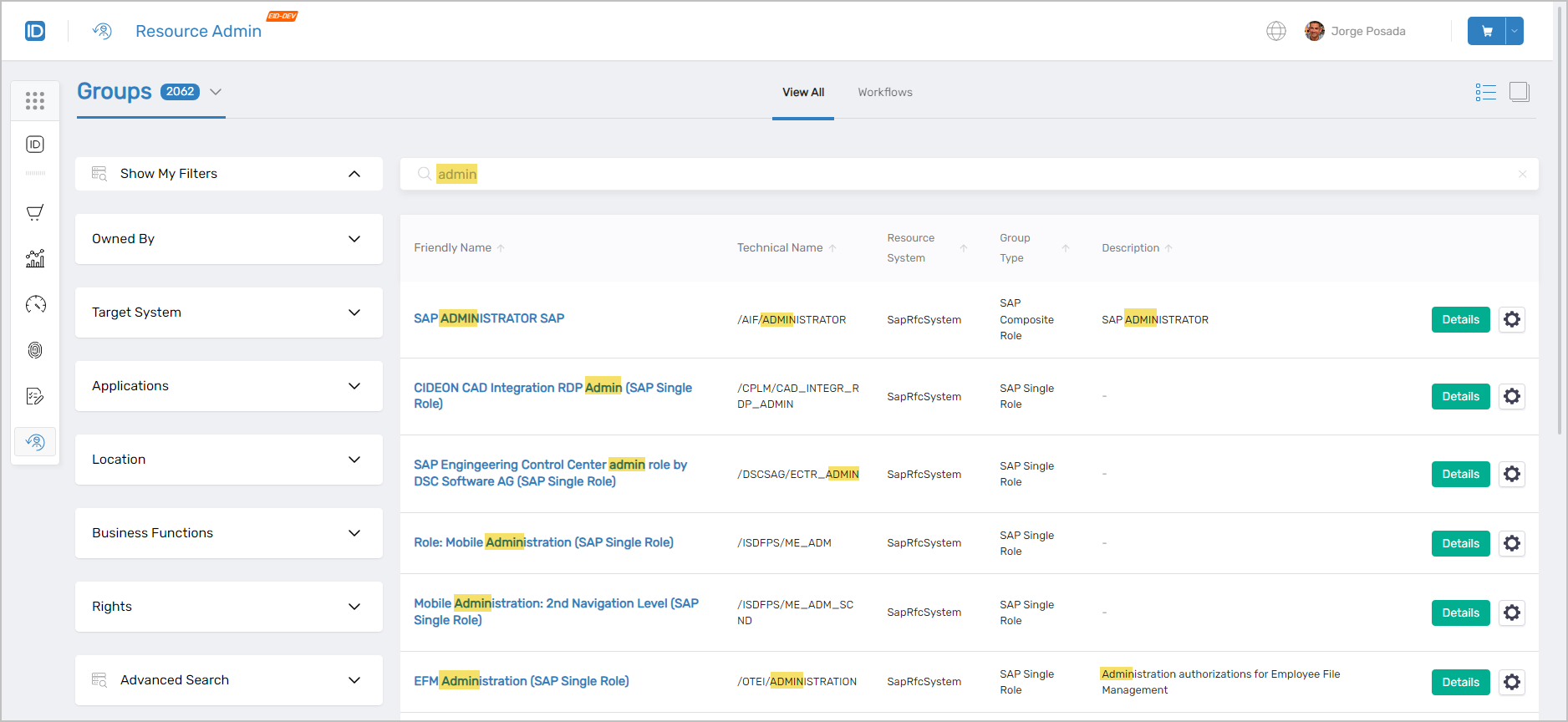 Search results showing groups matching "admin" across various attributes
Group Search Filters
Use filters to narrow a large set of results. Filters can be combined with search terms for granular results.
| Filter | Description |
|---|---|
Owned By | Lists groups by ownership:
|
Target System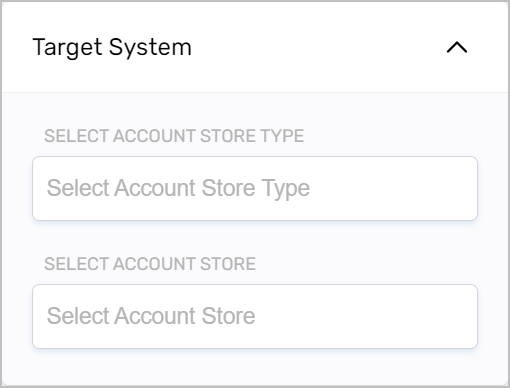 | Filters groups to a specific Account Store Type and/or Account Store. |
Applications | Filters groups to those belonging to the selected application. |
Location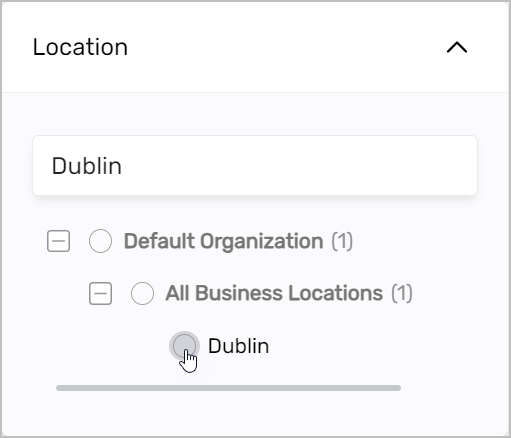 | Filters groups to those belonging to the selected location. |
Business Functions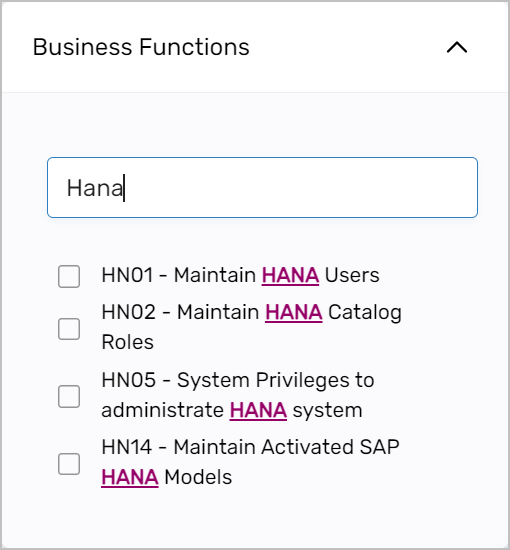 | Filters groups to those that grant the selected business function to members. |
Rights | Filters groups to those that grant the selected rights to members. |
Advanced Search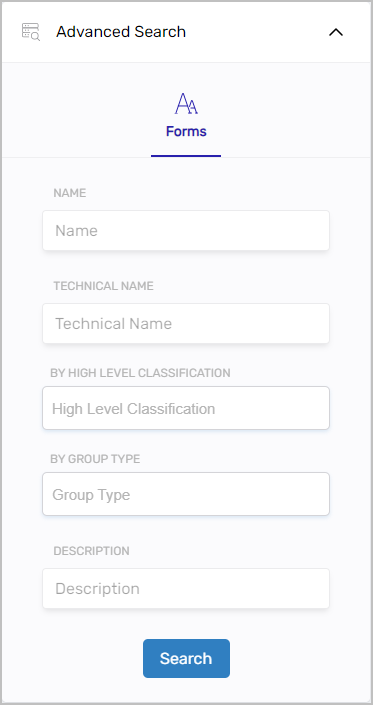 | Attribute-level filtering by Name, Technical Name, High Level Classification, Group Type, or Description. |
The Owned By filter is visible only to users with the appropriate role assignment.
Working with Groups
Select the Details link on a group record to open the group Details view. Select the gear icon to launch the Manage Group Wizard workflow.
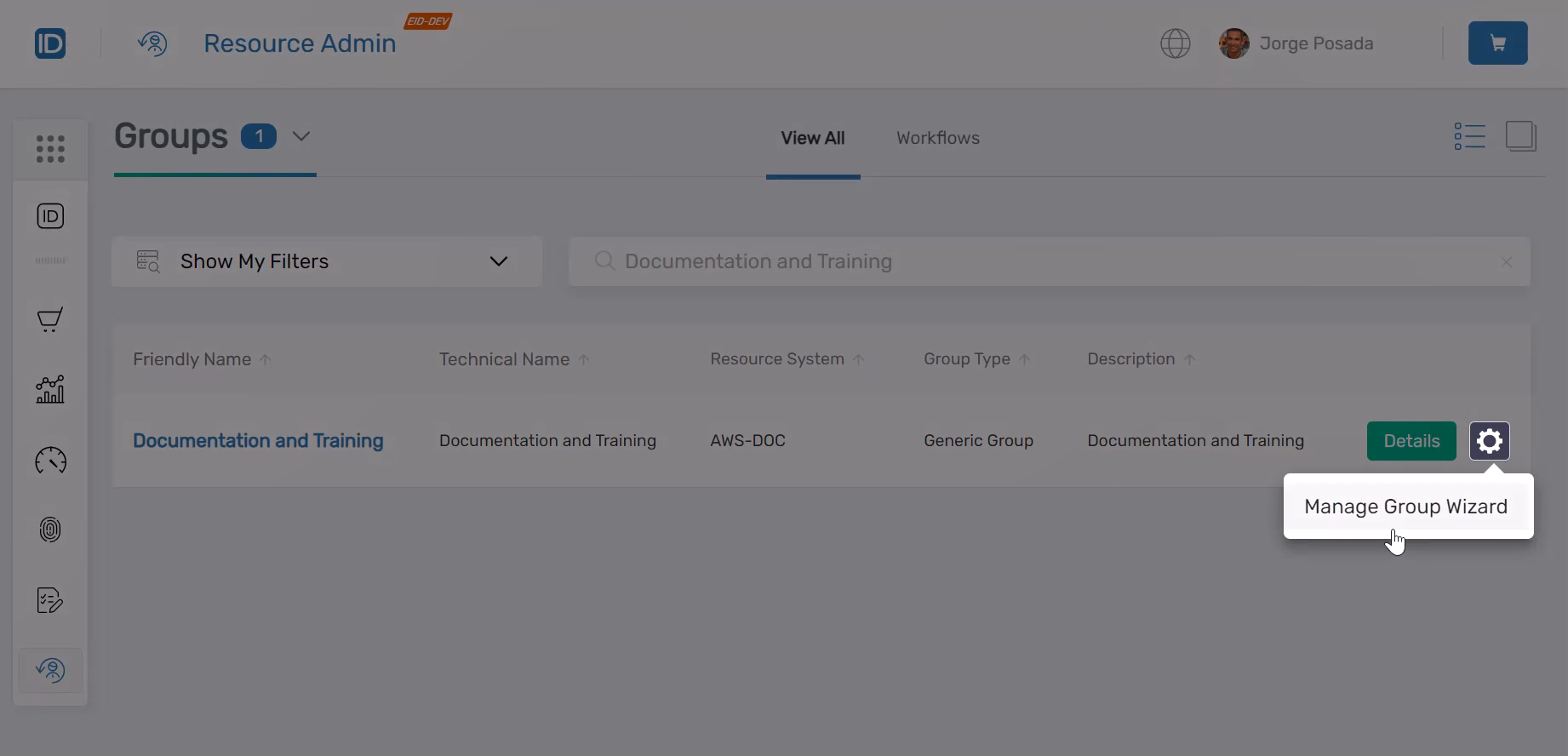 Group record showing Details link and contextual workflow button
Selecting Details opens the Overview page for the group, where you navigate between tabs to manage its configuration, memberships, access assignments, and change history.
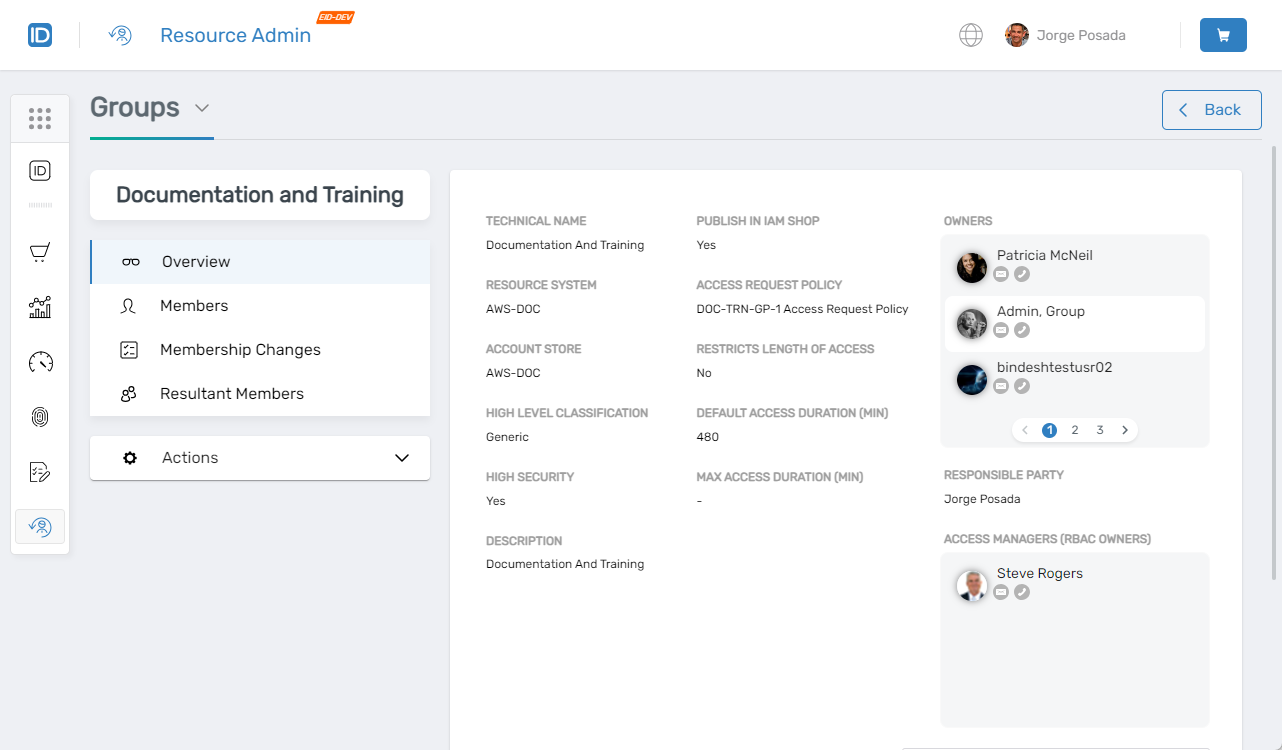 Group overview page with available tabs
Members
Use this tab when you need to add a person as a direct member of the group, remove an existing member, or review the current membership list.
- View, add, and remove direct members
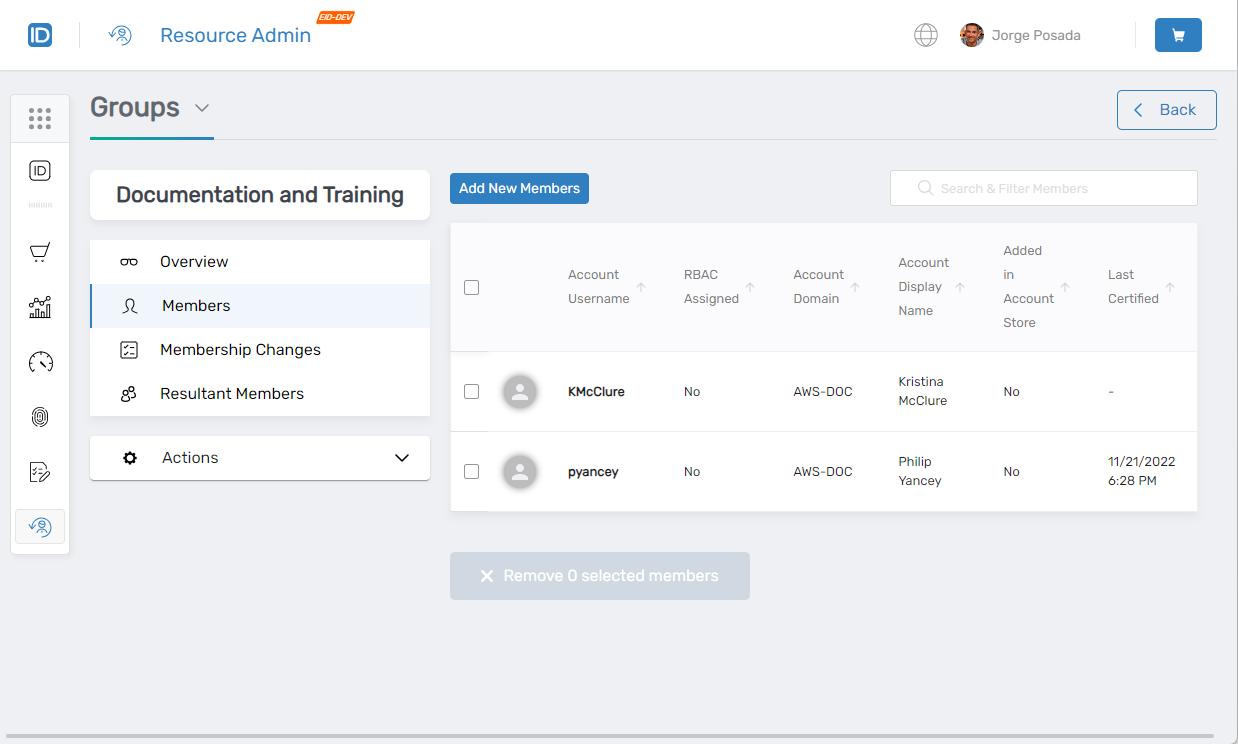 Members tab showing group membership management interface
Membership Changes
Use this tab when you need to audit who was added to or removed from the group, and when those changes occurred. The tab provides a full change history with timestamps and the identity of the person who made each change.
- View membership change history with timestamps and actor details
- Filter by date range, member name, or type of change
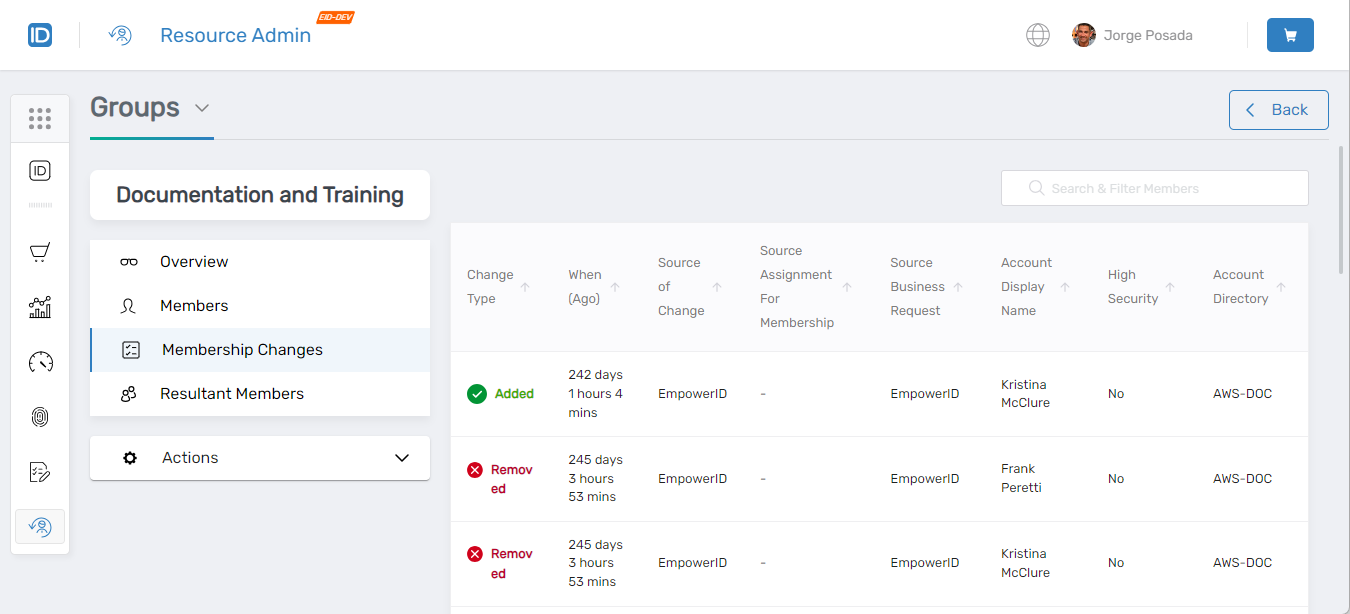 Membership Changes tab showing audit trail of group membership history
RBAC Assignments
Use this tab when you need to grant the group access to a resource through an RBAC assignment, review what access has already been granted, or remove an existing assignment.
- View, add, and remove RBAC access assignments granted to the group
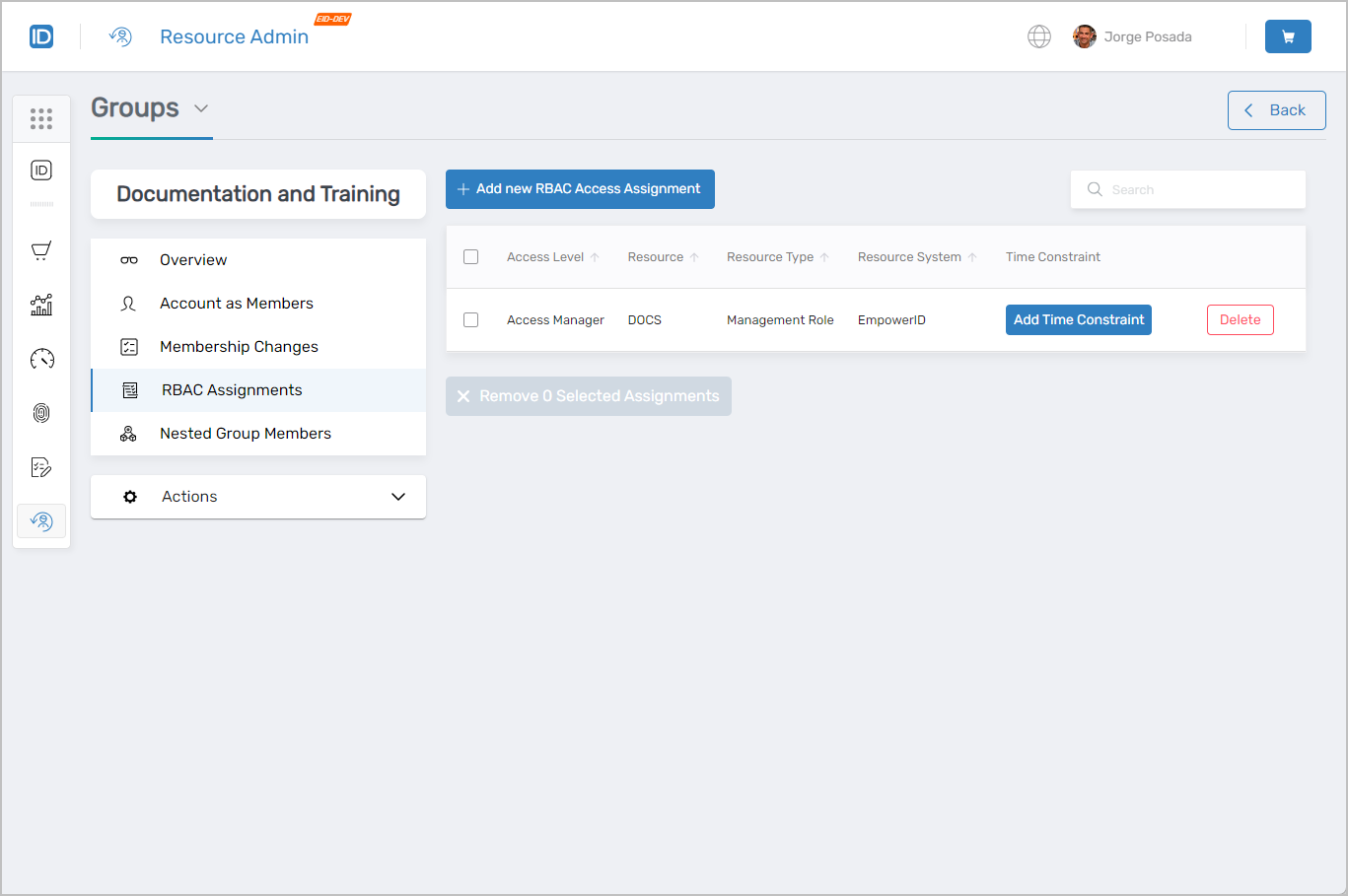 RBAC Assignments tab showing access control management
Nested Group Members
Use this tab when you need to add another group as a member of this group (creating a nested hierarchy), review the current nested structure, or remove a nested group.
- View, add, and remove nested group members
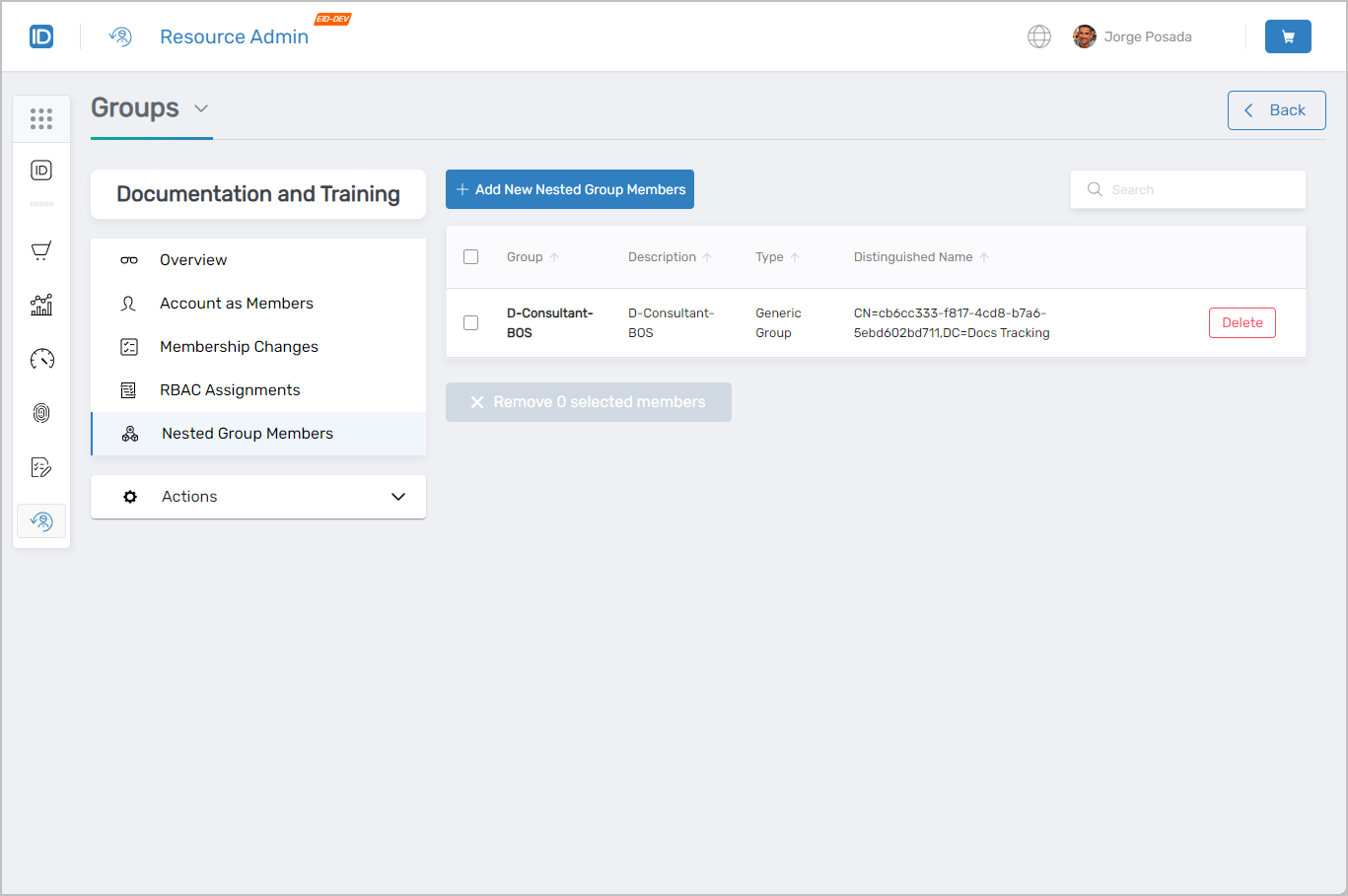 Nested Group Members tab showing hierarchical group structure management
Actions
The Actions tab surfaces context-sensitive workflows based on the currently selected tab. On the Overview tab it launches the Manage Group Wizard.
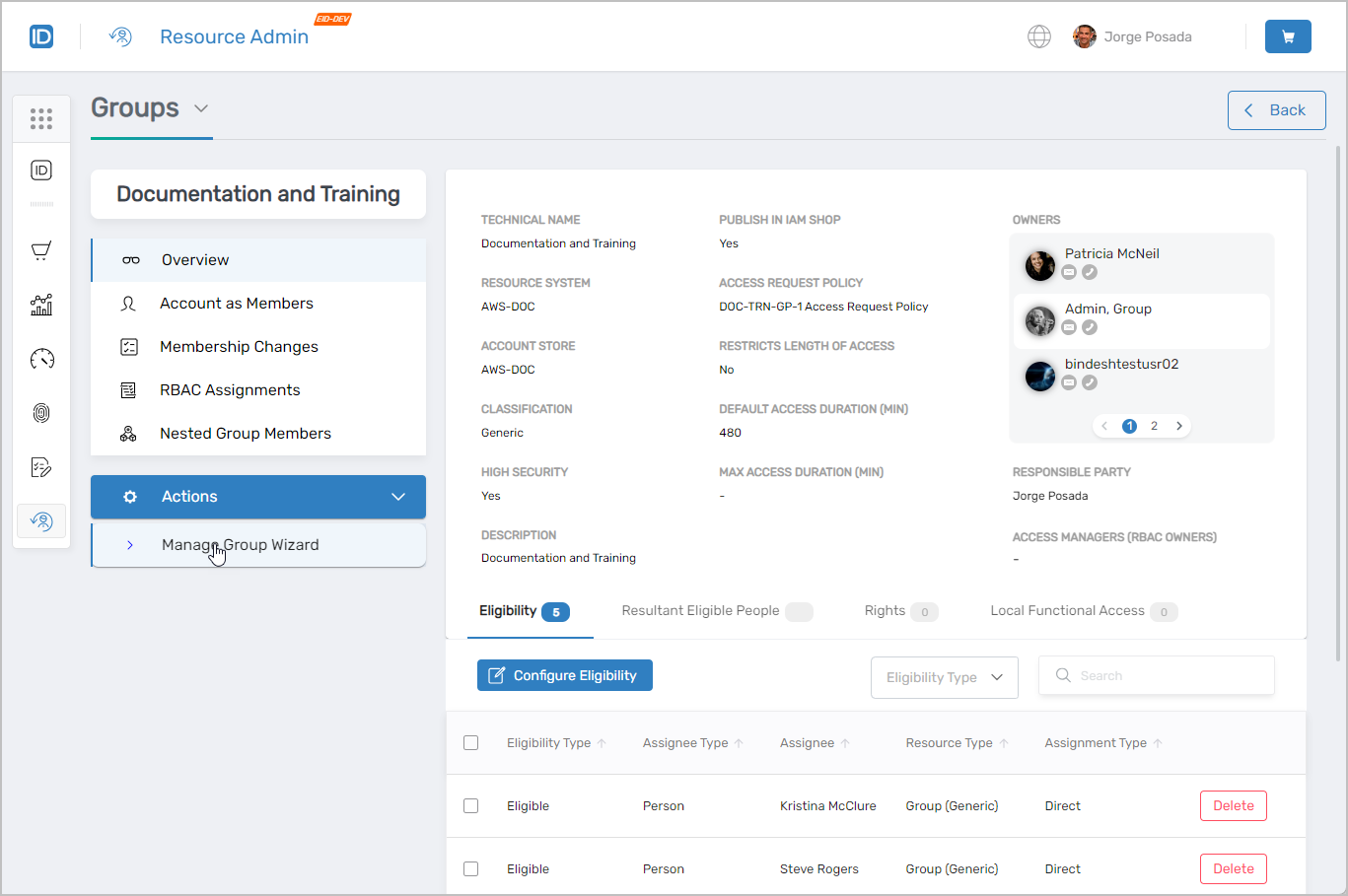 Actions tab showing context-sensitive workflows
Workflows Available from This Page
The Group Workflows page provides a centralized hub for all group management workflows.
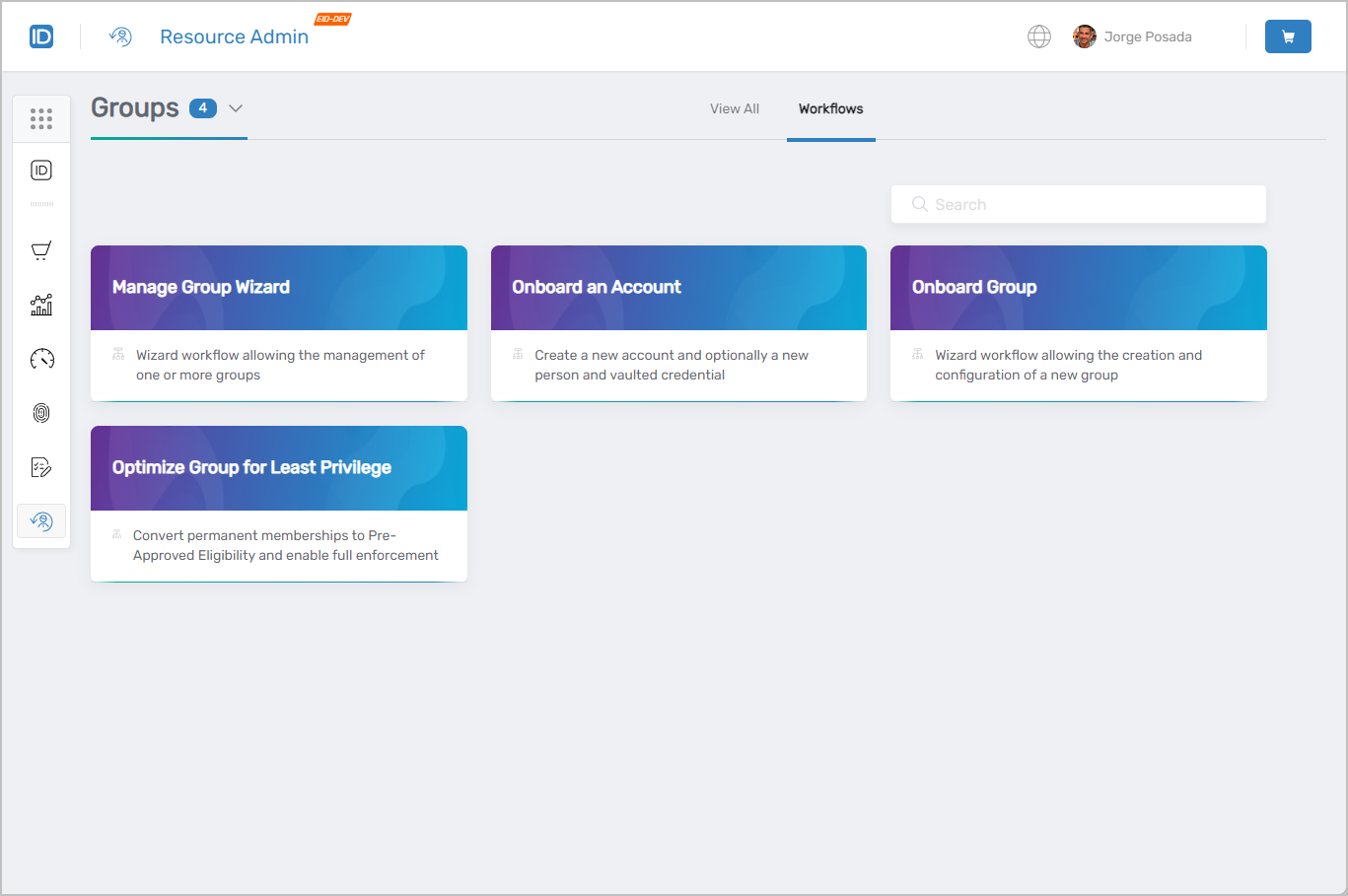 Available workflows for group management
Common Tasks
| Task | Article |
|---|---|
| Onboard a new group | Onboard Groups |
| Import groups from a directory | Import Groups |
| Delete a group | Manually Delete Groups |
| Restore a deleted group | Restore Deleted Groups |
| Add a person to a group | Add People to Groups |
| Add a group to another group | Add Groups to Groups |
| Remove a group from another group | Remove Groups from Groups |
| Configure access to groups in IAM Shop | Access to Groups |
Related Pages
- Navigating Resource Admin – General interface overview
- Applications Page – Application management
- Management Roles Page – Role-based access control administration
- People Page – User onboarding and identity management
- Mailboxes Page – Exchange mailbox administration
- Shared Folders Page – File share access management