Add People to Groups
Add Person objects to groups to grant access to resources and establish group-based permissions. When you add a Person to a group, the user account associated with that Person is added to the group in the corresponding resource system.
Account Requirement
To add a Person to a group in an external account store (such as Azure AD or Active Directory), the Person must have a linked account in that account store.
Prerequisites
- Access to the Resource Admin portal
- Permissions to manage group membership
- The Person must have an account in the target account store (for external groups)
Add People to a Group
- Navigate to the Resource Admin portal.
- Select Groups and click the Workflows tab.
- Click Manage Group Wizard.
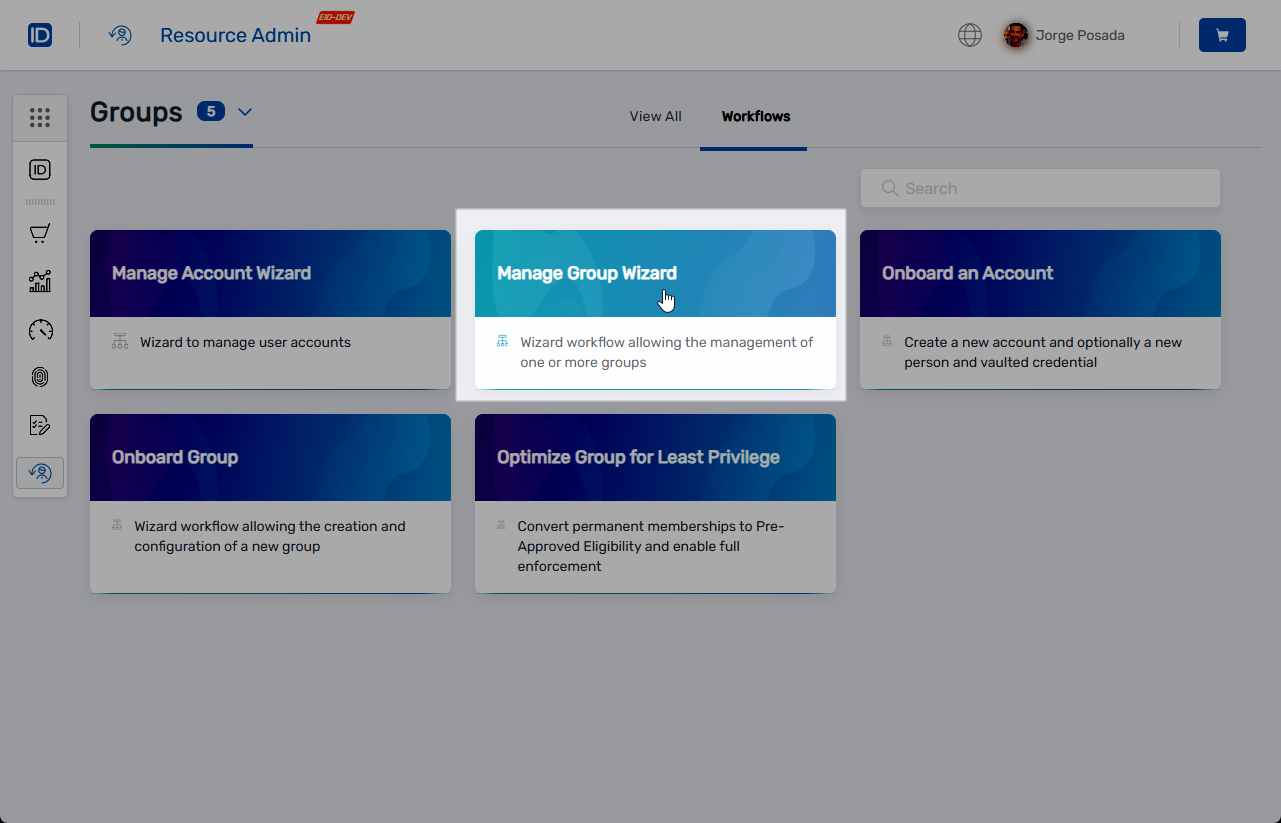
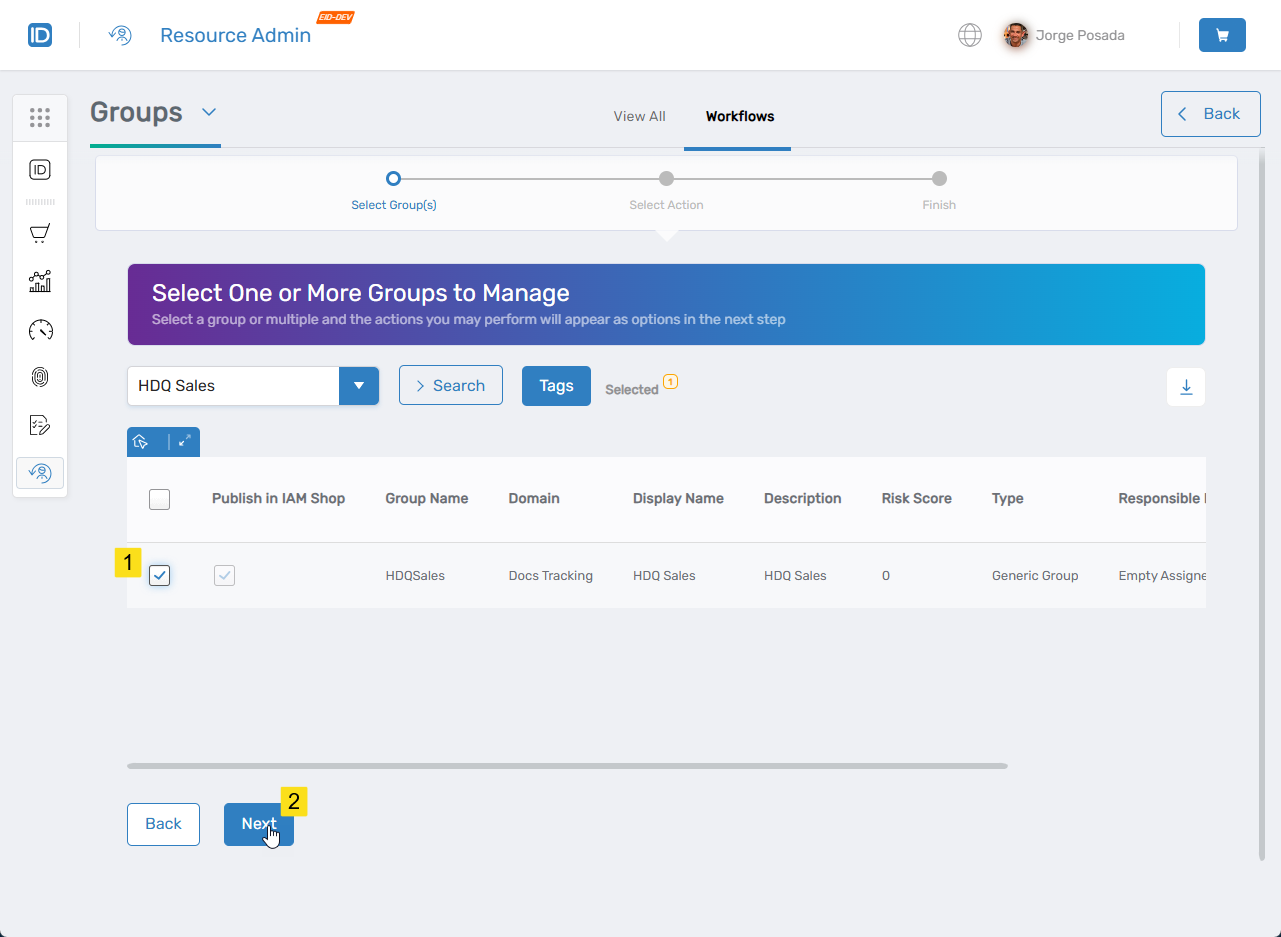
- Search for the target group.
- Select the checkbox beside the group record and click Next.
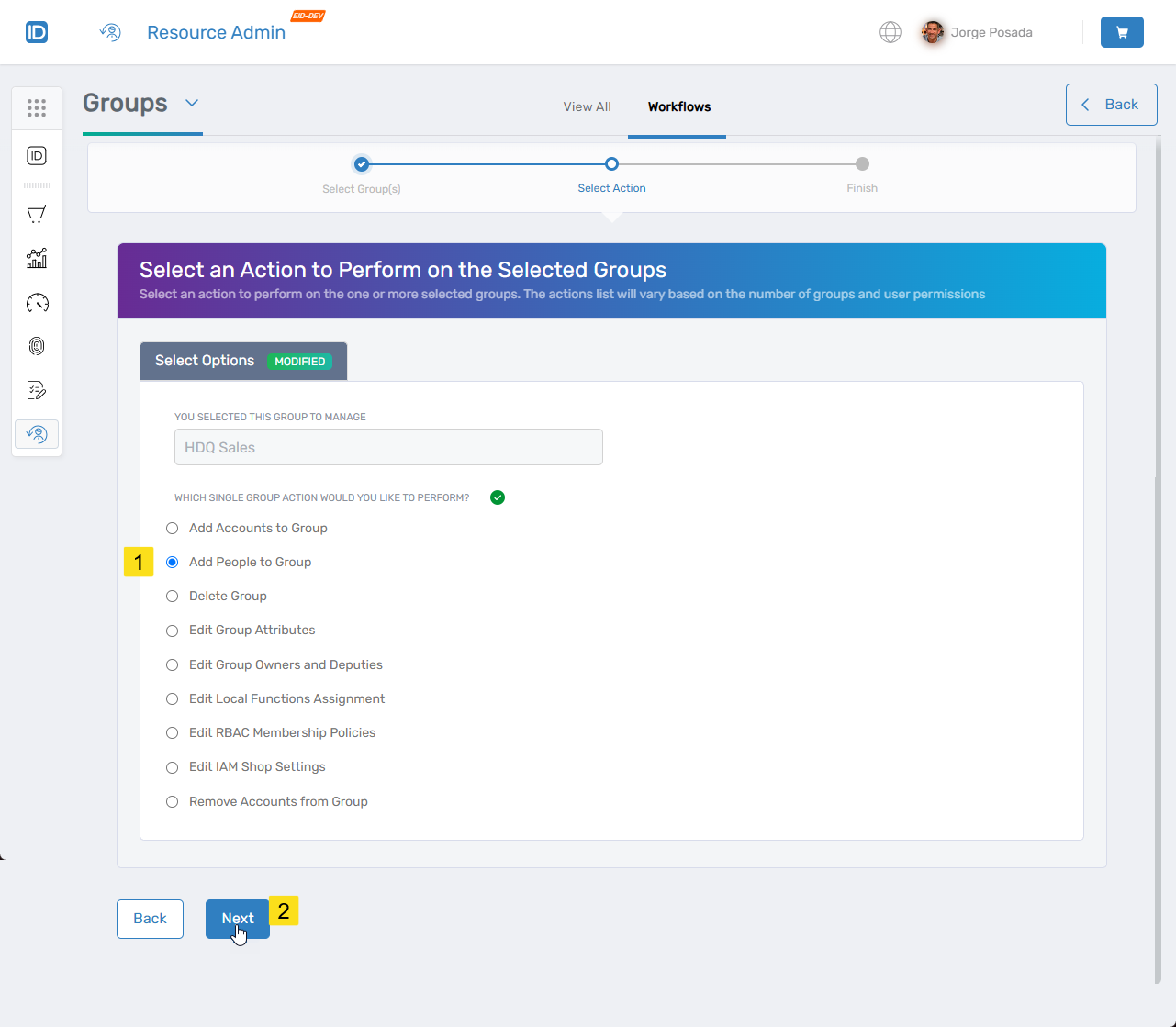
- Under Select Options, select Add People to Group and click Next.
- Search for the Person to add to the group and select the checkbox beside their record.
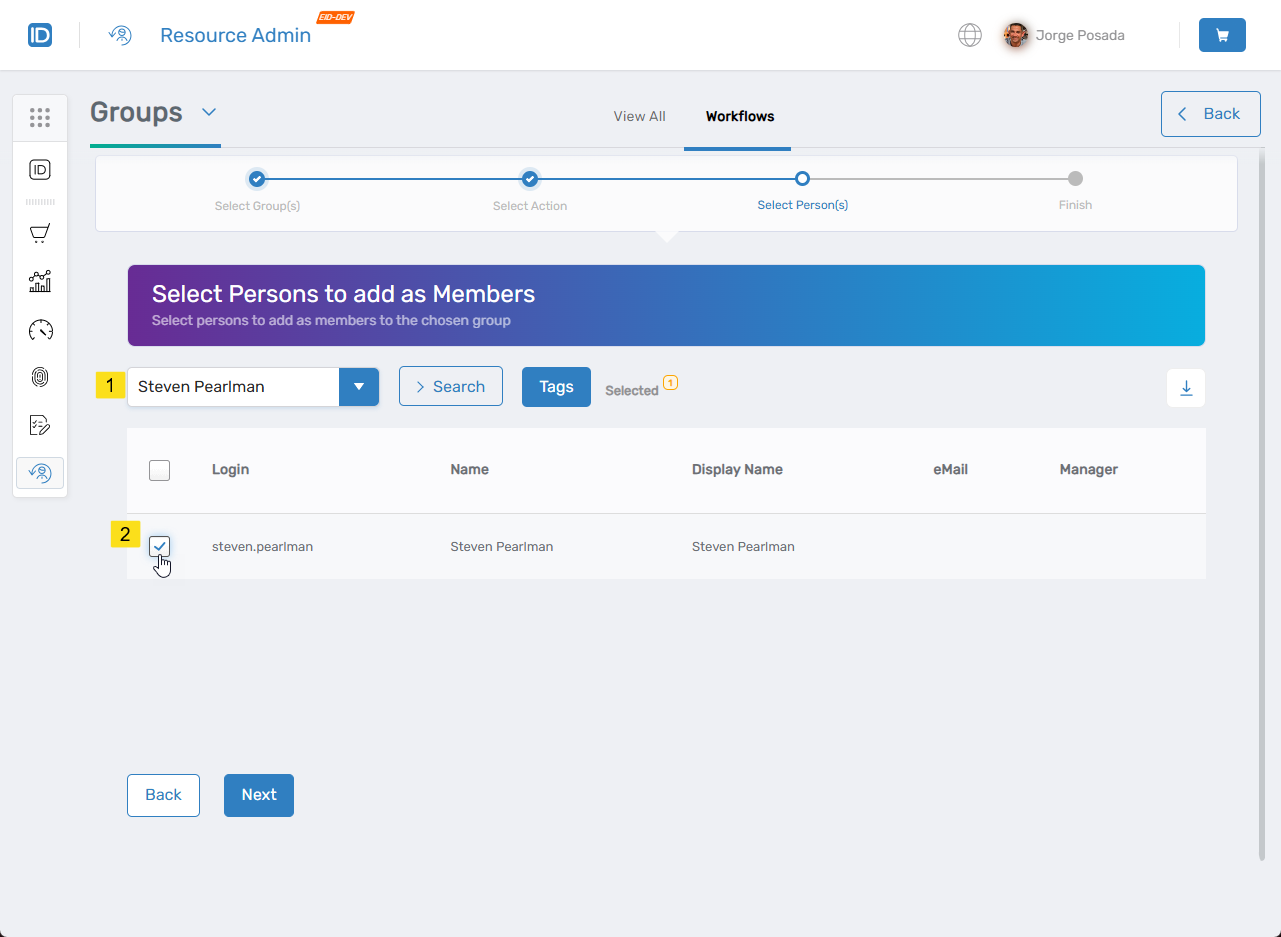
- Click Next.
- Review the Operation Execution Summary and click Submit.
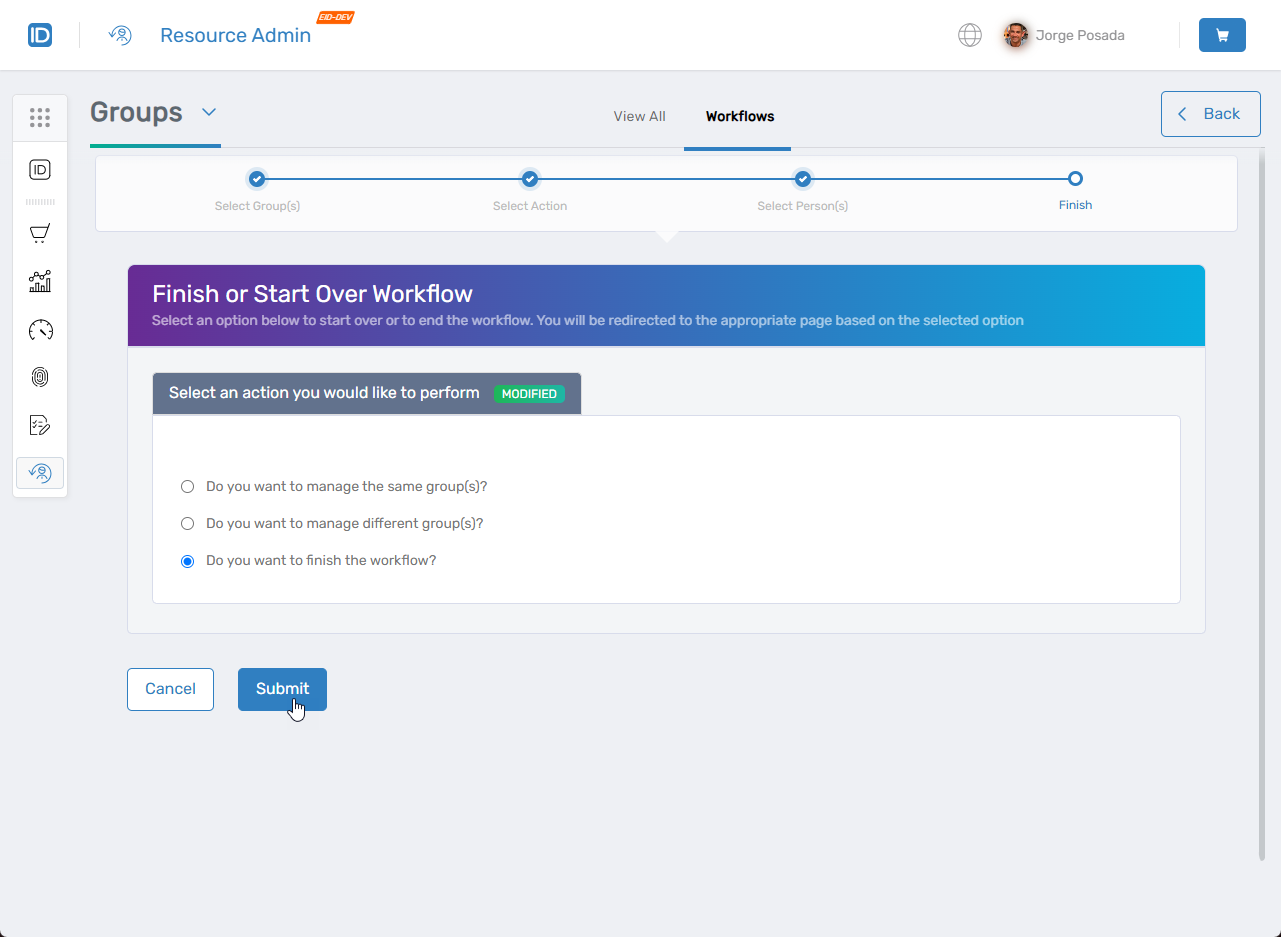
- Select one of the following options and click Submit:
- Start over to manage additional groups
- End the workflow to complete the task
Results
- The Person is added to the selected group
- The Person's associated user account is added to the group in the resource system
- Group membership changes are synchronized to connected account stores
- The Person inherits permissions and access associated with the group
- Group membership changes are recorded in audit logs
Multiple Additions
To add multiple people to the same group, repeat steps 7-8 for each Person before clicking Submit in step 9. The Manage Group Wizard supports batch operations.