Import Groups
When you have group data from an application not connected to EmpowerID, you can import that data using delimited flat files. This approach uses a tracking-only account store to represent the application in EmpowerID, allowing you to manage and audit the group data without creating a full connector.
Import Workflows
EmpowerID provides two workflows for importing group data:
- Create Groups from File – Imports groups from a delimited file
- Create Group Accounts from File – Imports group memberships from a delimited file
Each workflow reads the uploaded file and creates the corresponding objects in the specified tracking-only account store. If matching groups or memberships already exist, the workflow ignores those records to prevent duplicates.
Changes made to imported groups in EmpowerID are not reflected in the source application. To keep data synchronized, make corresponding changes in both systems.
Prerequisites
Before importing groups:
-
Create a tracking-only account store for the application containing the group data. See Creating Tracking-Only Applications.
-
Prepare delimited flat files with the following data:
- One file for groups
- One file for group memberships
-
Ensure required fields are present in each file:
Group file fields:
- Name
- LogonName
- FriendlyName
Group membership file fields:
- AccountLogonName
- GroupLogonName
noteField names in the flat files don't need to match these exactly—they must be mappable to these EmpowerID fields during import. Additional fields can be included and mapped if corresponding EmpowerID fields exist.
Import Groups
-
On the navbar, expand Single Sign-On and select Applications.
-
Search for the tracking-only application and click its Display Name link.
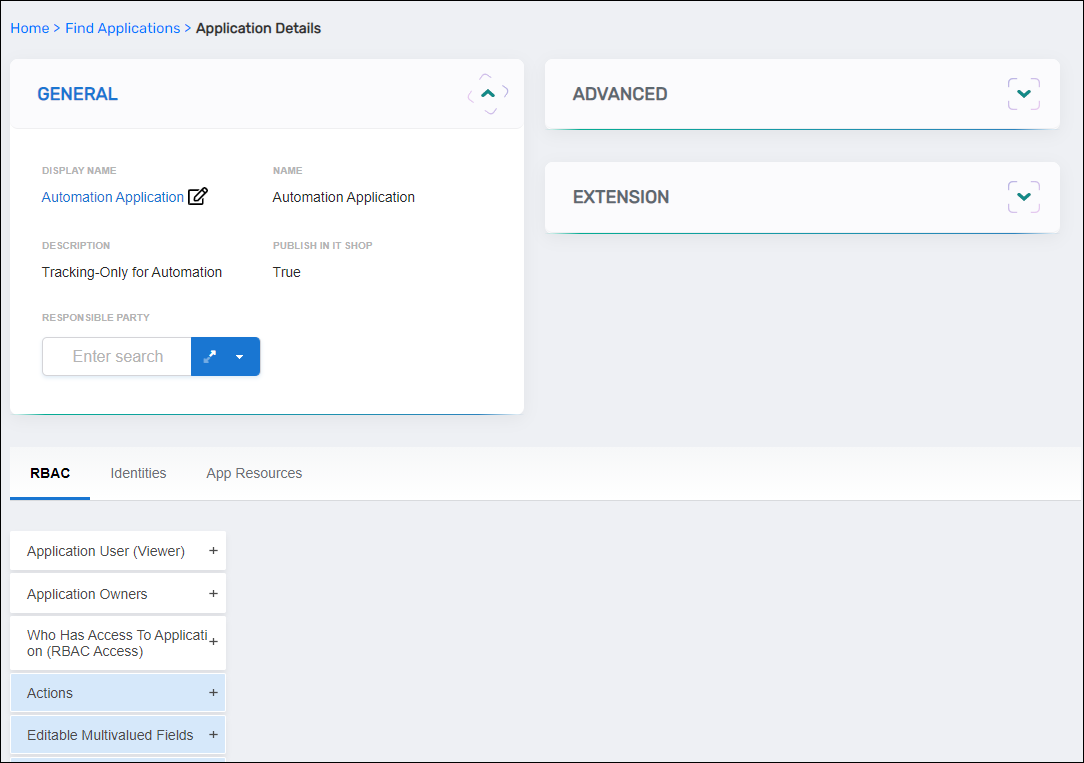
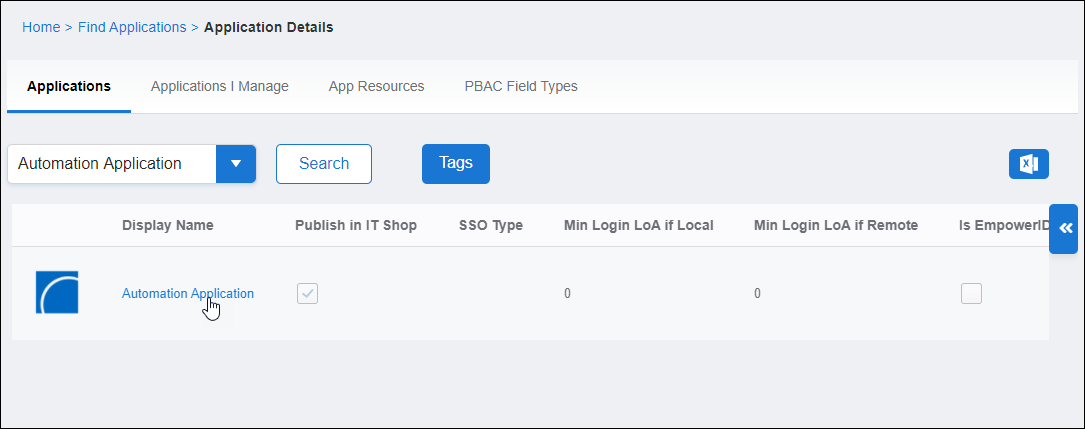 The Application View One page opens.
-
Select the Identities tab.
-
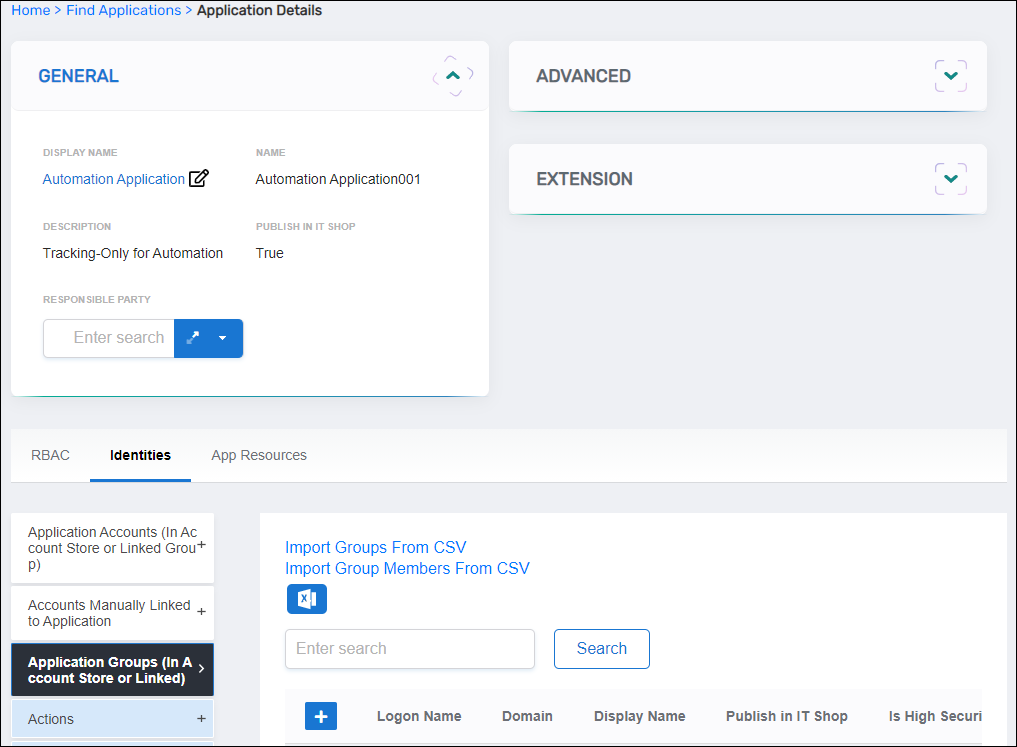
Expand the Application Groups (In Account Store or Linked Group) accordion.
-
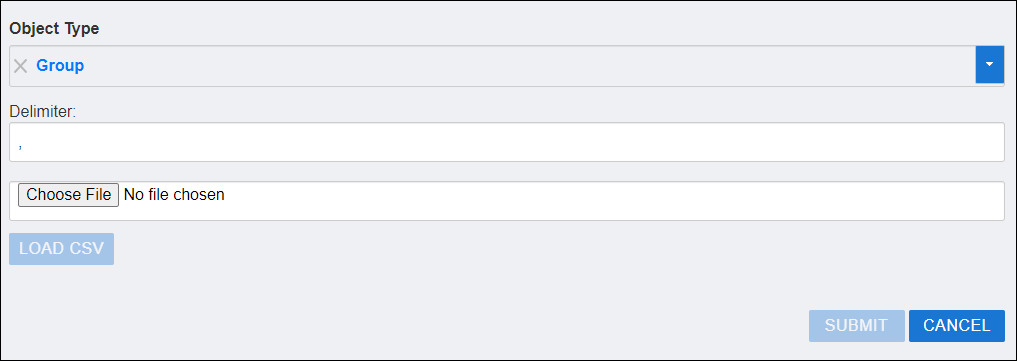
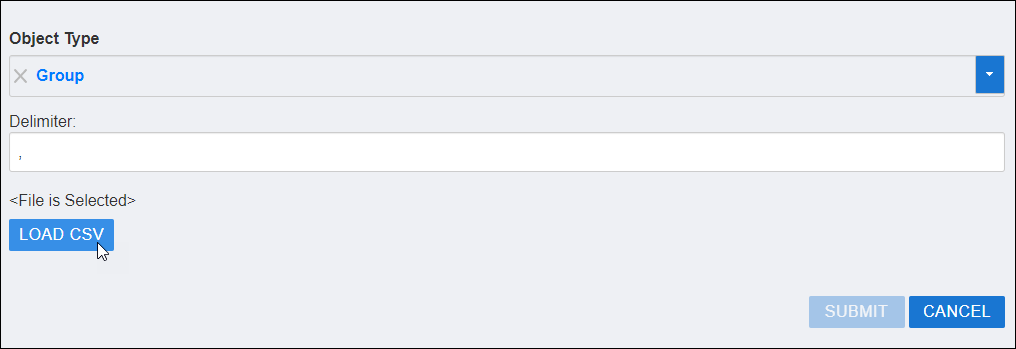
Click Import Groups From CSV. The Create Groups From File workflow opens.
-
In the Delimiter field, enter the field delimiter used in your file (comma is the default).
-
Click Browse and select the file containing your groups. After selection, the button displays "File Selected" and the Load CSV button activates.
-
Click Load CSV.
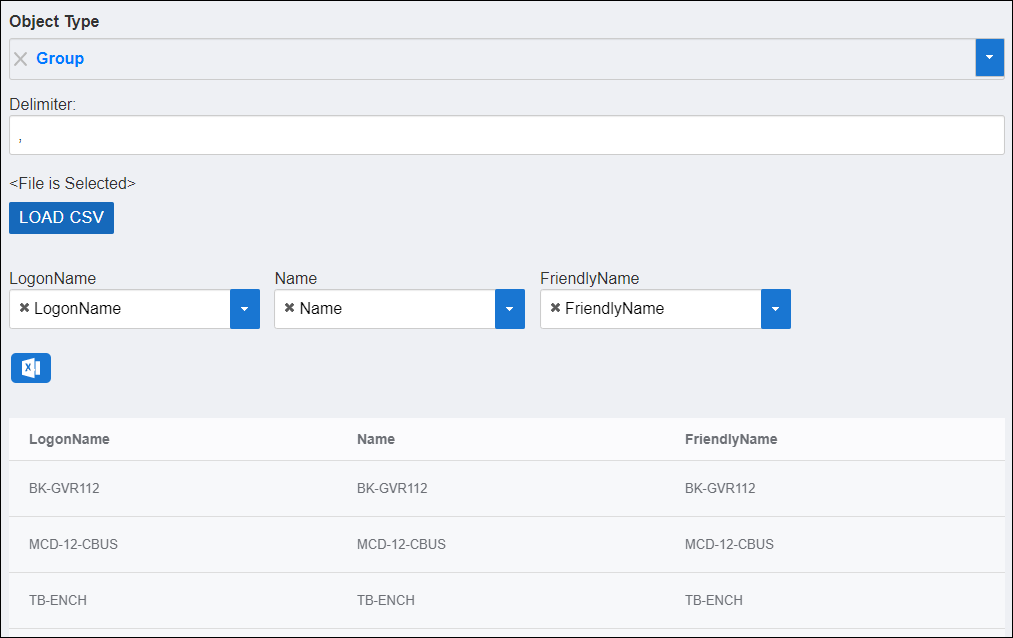
 The form displays the file data with column headers above dropdowns and records in the grid.
-
Map the required fields from your file to EmpowerID fields:
- Name
- LogonName
- FriendlyName
To map a field, type the field name in the dropdown and click to select it.
-
Map additional fields as needed.
tipIf your column headers already match the required EmpowerID field names, the workflow maps them automatically. Fields without corresponding EmpowerID fields are ignored.
-
Click Submit.
-
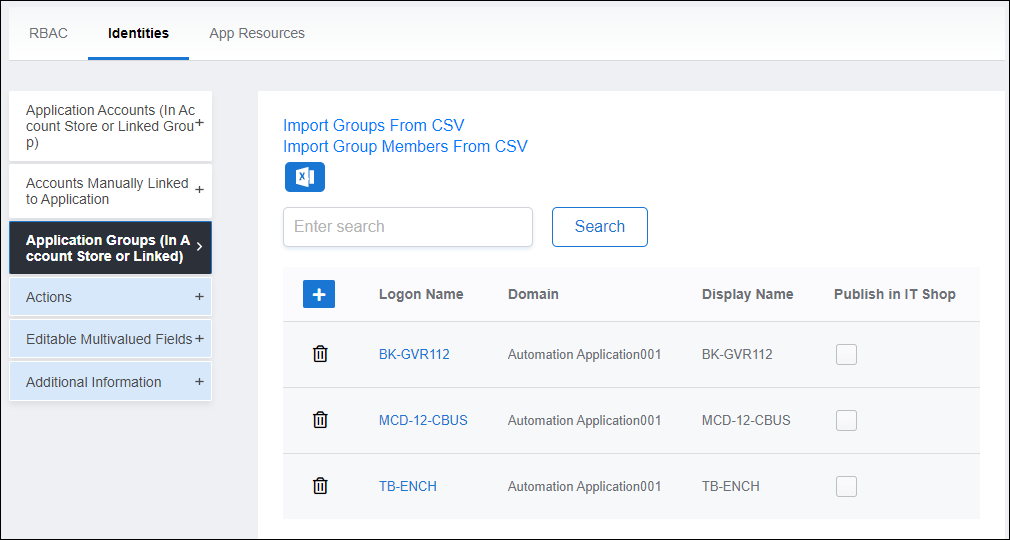
After import completes, click the Search button in the Application Groups accordion to view the imported groups.
Import Group Memberships
- On the navbar, expand Single Sign-On and select Applications.
- Search for the tracking-only application and click the record.
- Expand the Application Groups (In Account Store or Linked Group) accordion.
- Click Import Group Members From CSV.
The Create Group Accounts From File workflow opens.
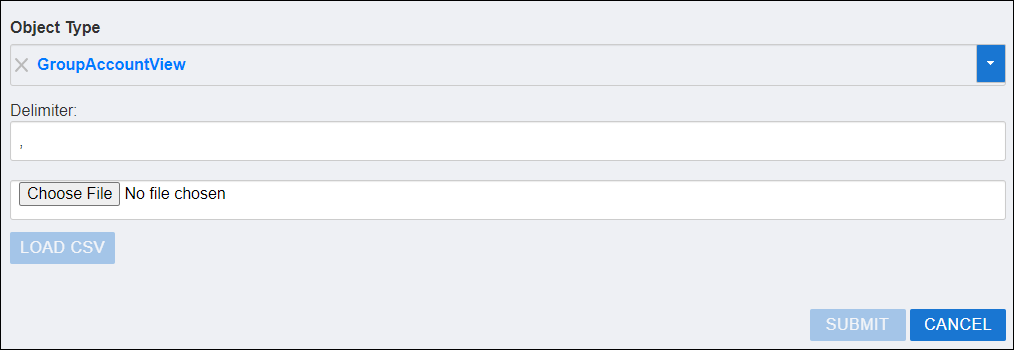
- In the Delimiter field, enter the field delimiter used in your file (comma is the default).
- Click Browse and select the file containing your group memberships.
- Click Load CSV.
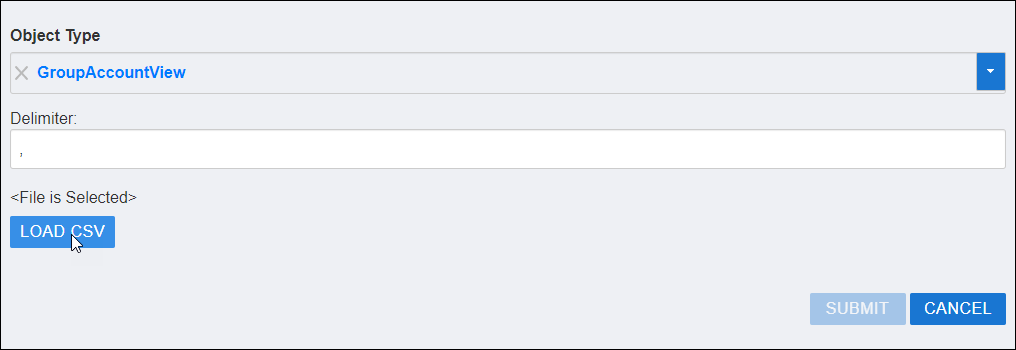 The form displays the file data.
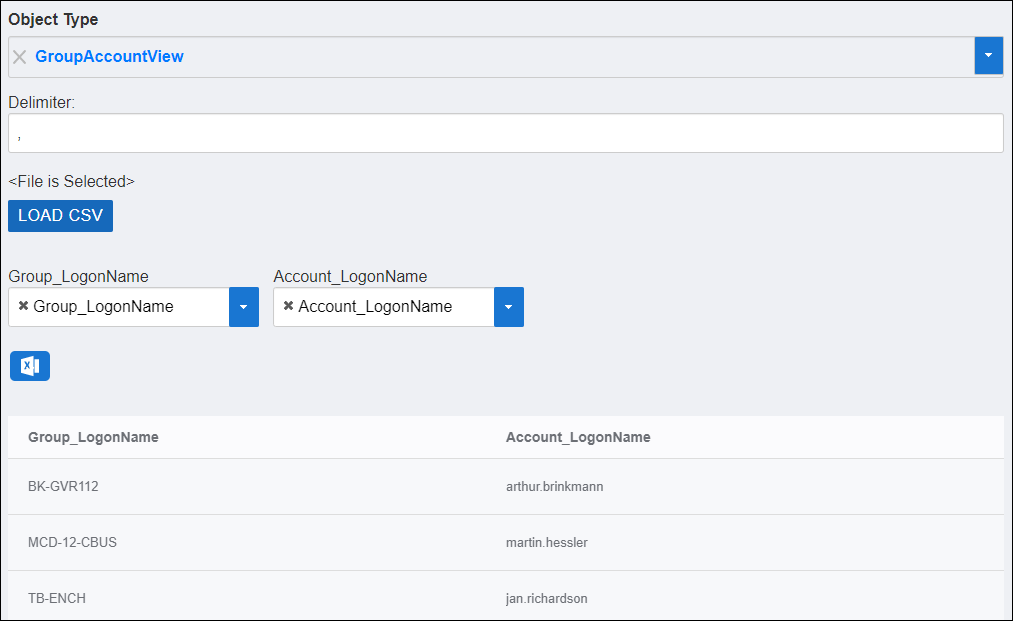
- Map the required fields:
- Account_LogonName – User account login name
- Group_LogonName – Group login name
- Click Submit.
Results
After importing groups:
- Groups are created in the tracking-only account store
- The groups appear in EmpowerID for management and auditing
- Imported groups are visible in the Application Groups accordion
After importing group memberships:
- User accounts are added as members of the specified groups
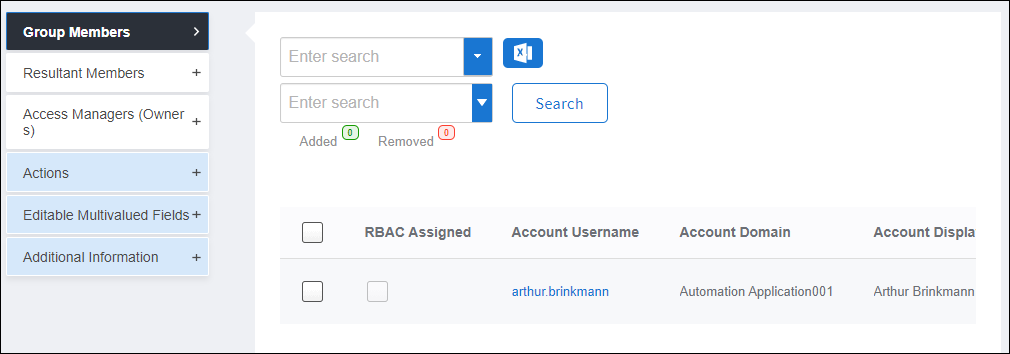
- Memberships are visible in each group's Group Members accordion
- The memberships can be managed like any other group membership in EmpowerID
To verify group membership, use Global Search to locate a group and expand its Group Members accordion.
Related Topics
- Creating Tracking-Only Applications – Set up tracking-only account stores
- Onboard Groups – Create groups through the standard workflow
- About the View One Group Page – Manage imported groups