Add Groups to Groups
Adding groups as members of other groups (nesting) allows members of the nested group to inherit entitlements and delegations from the parent group. This simplifies access management by applying permissions consistently across related groups.
For example, if a parent group has a policy that grants members a home folder, adding a nested group extends that entitlement to all members of the nested group.
Nested groups must belong to the same domain.
Prerequisites
To add groups to groups, you need appropriate access to manage group memberships in EmpowerID.
Add a Nested Group
- Log in to the Resource Admin app in your environment.
- Select Groups as the resource type and search for the parent group.
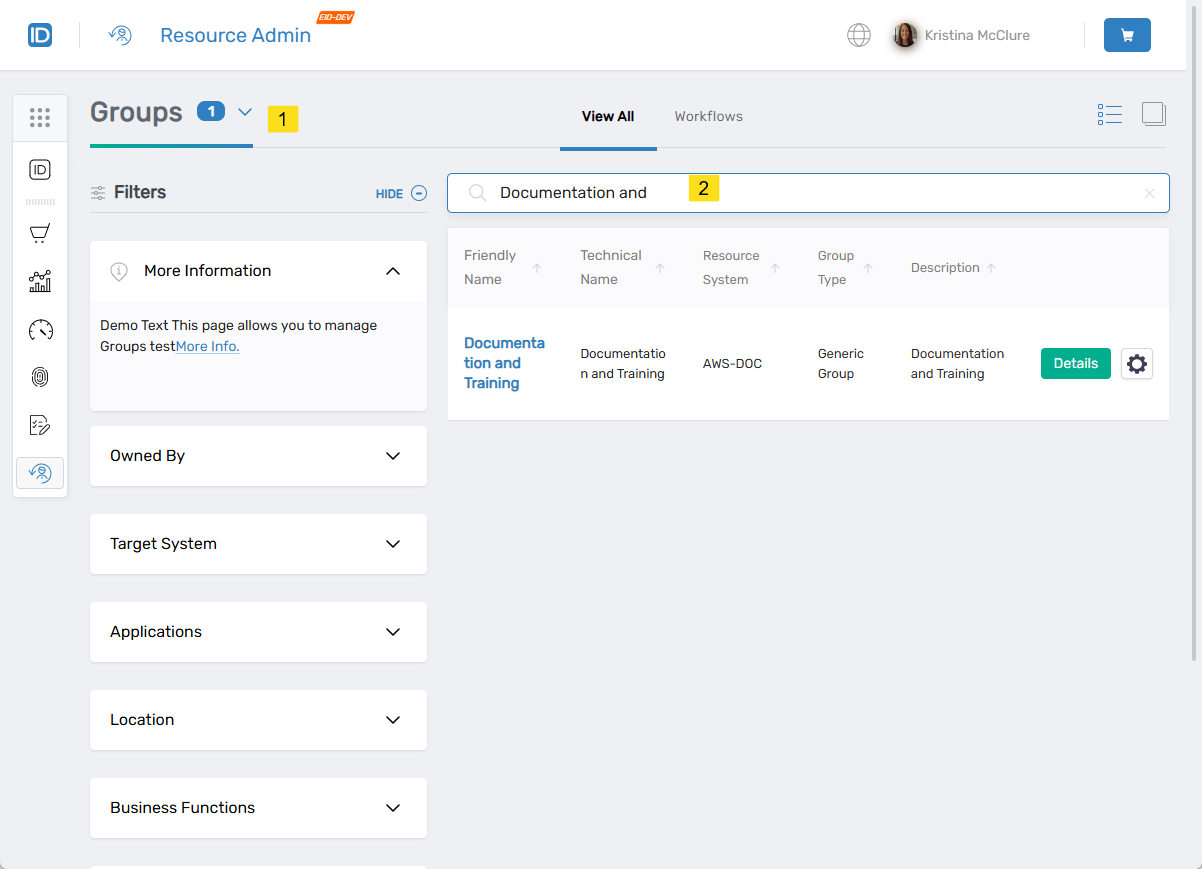
- Click the Details button for the group record.
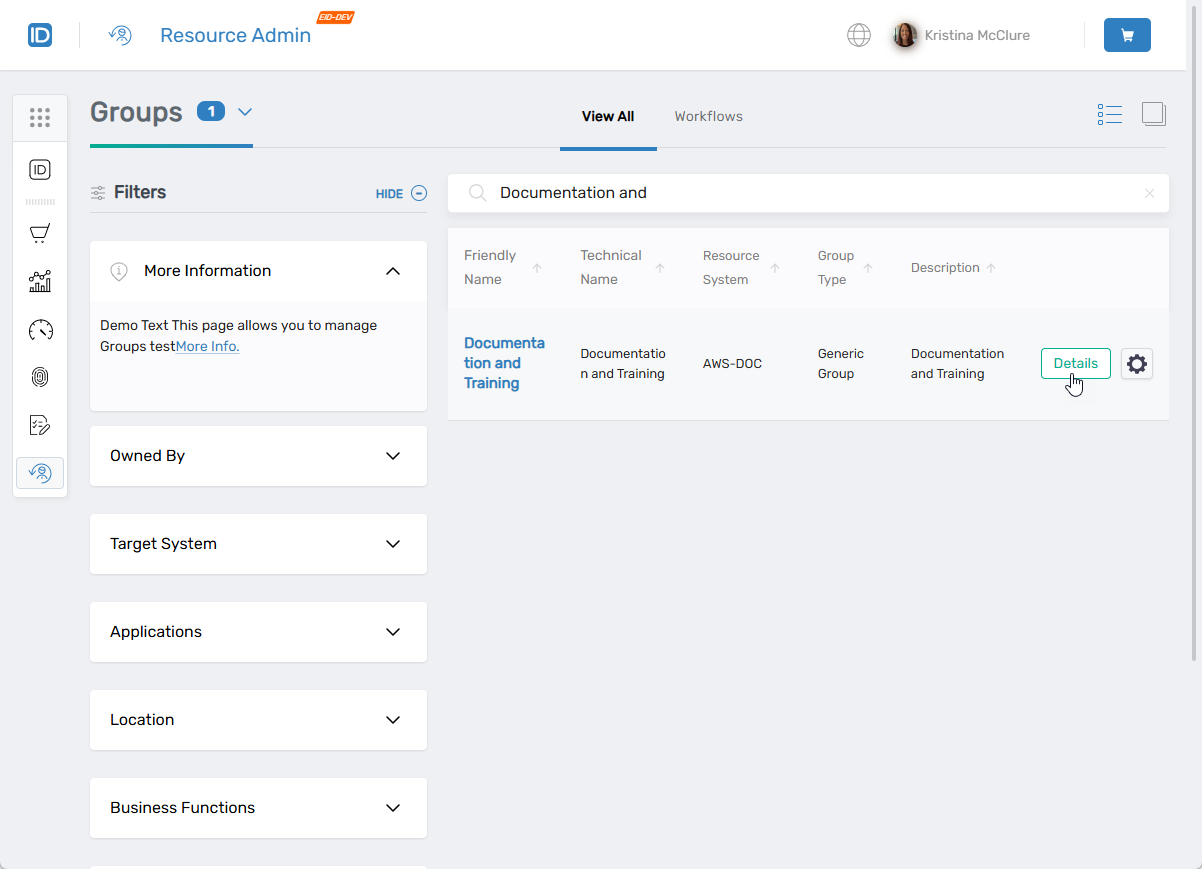
- Select the Nested Group Members menu item.
- Click Add New Nested Group Members.
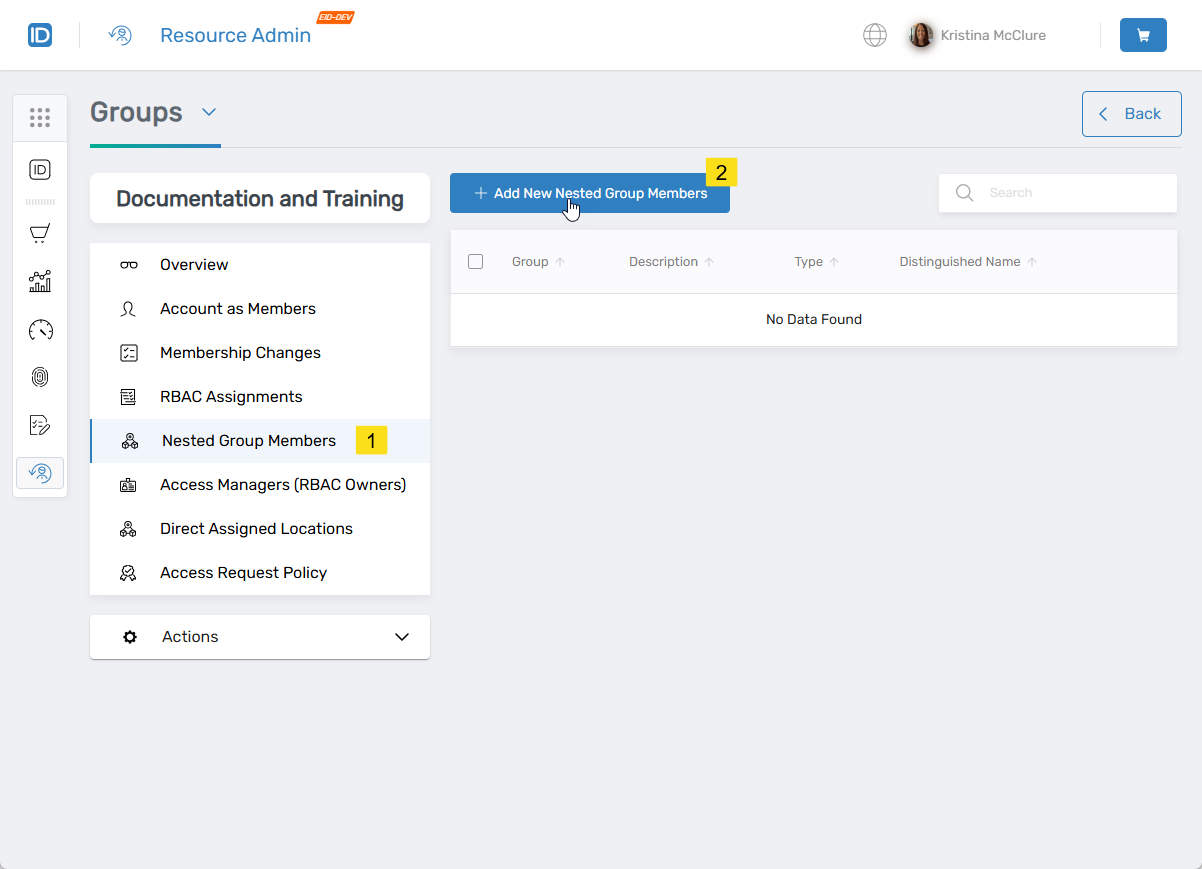
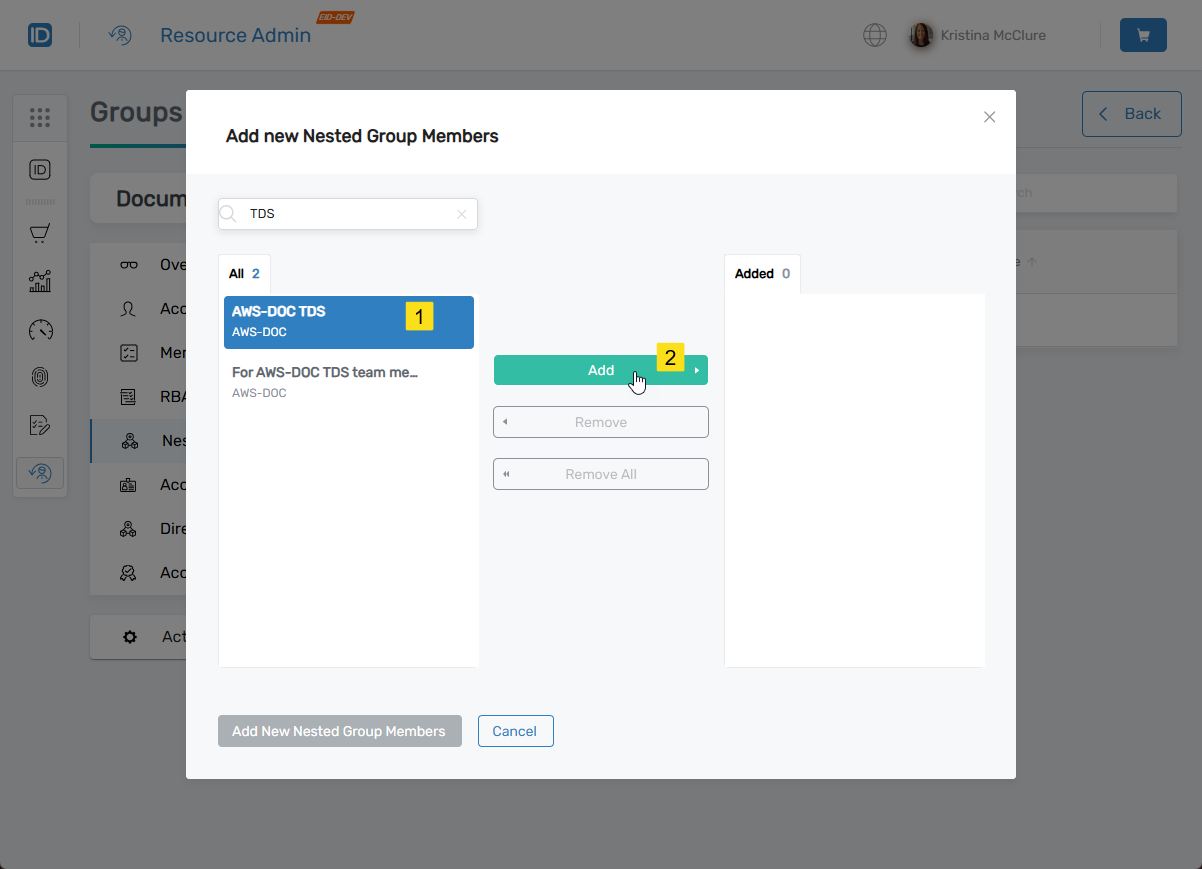
- In the Add New Nested Group Members modal, search for the group you want to nest.
The group appears in the All pane.
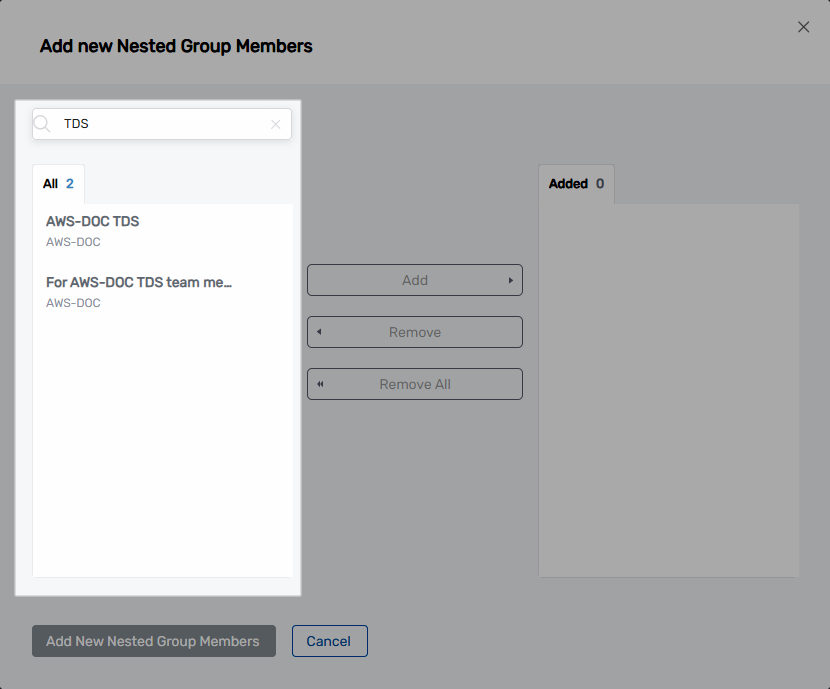
- Click the target group to select it and then click Add.
 The group moves to the Added pane.
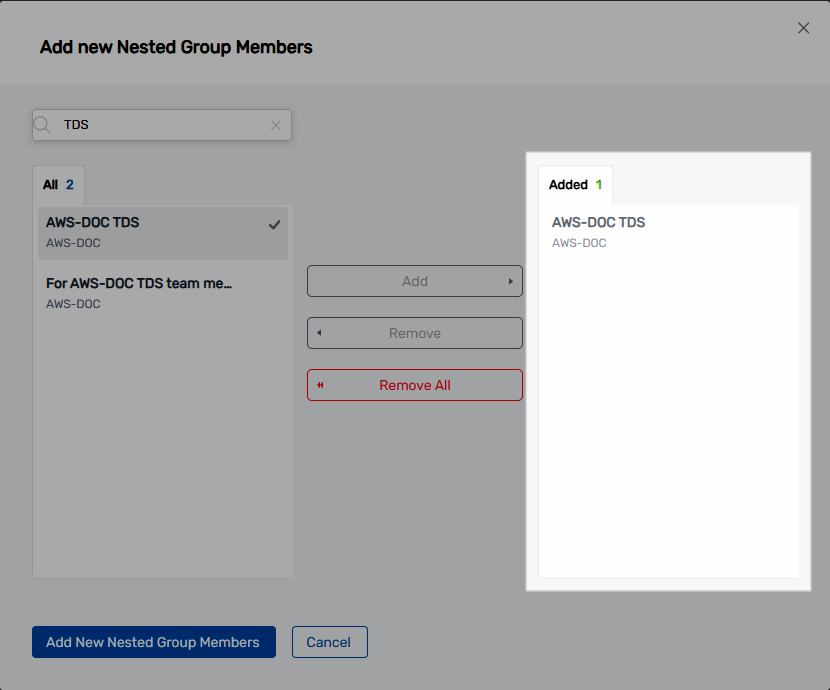
- Repeat steps 6-7 for each additional group you want to nest.
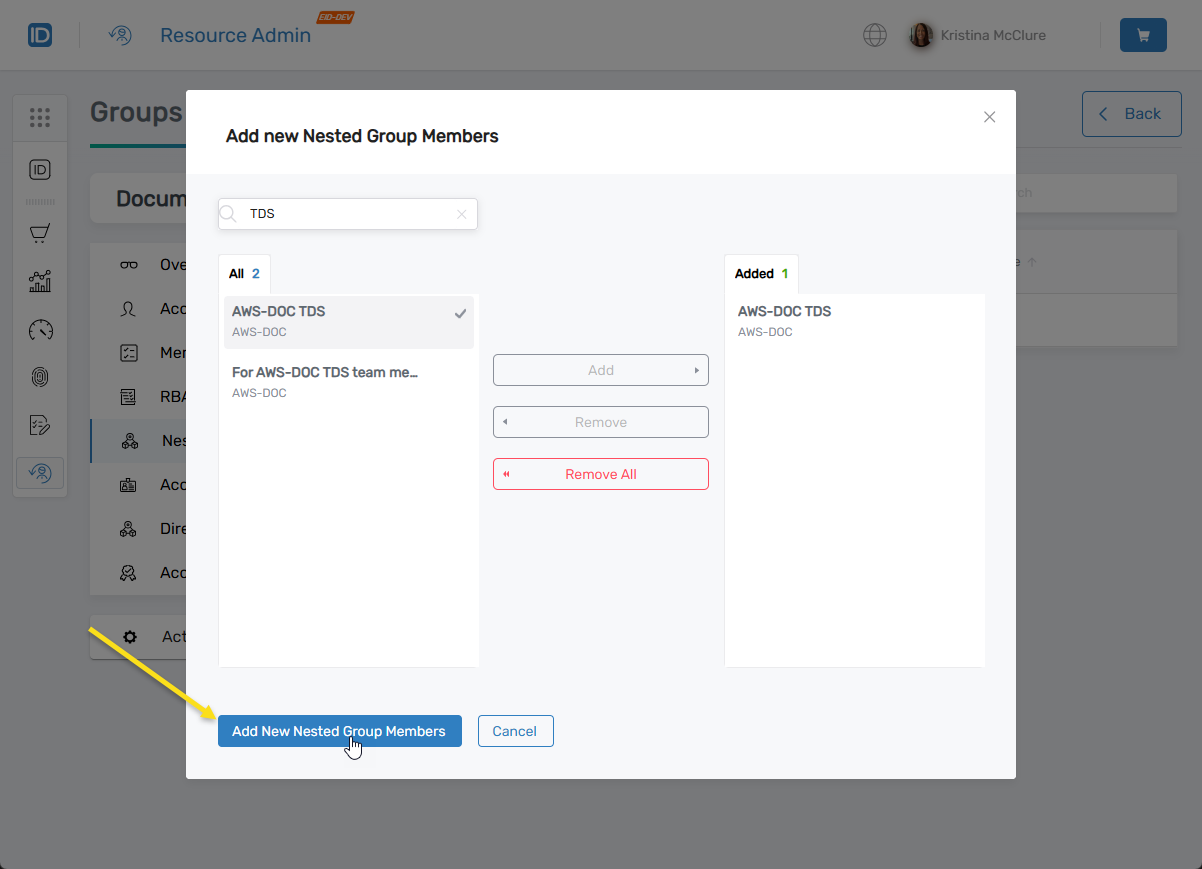
- Click Add New Nested Group Members to add the nesting to the shopping cart, or click Cancel to exit.
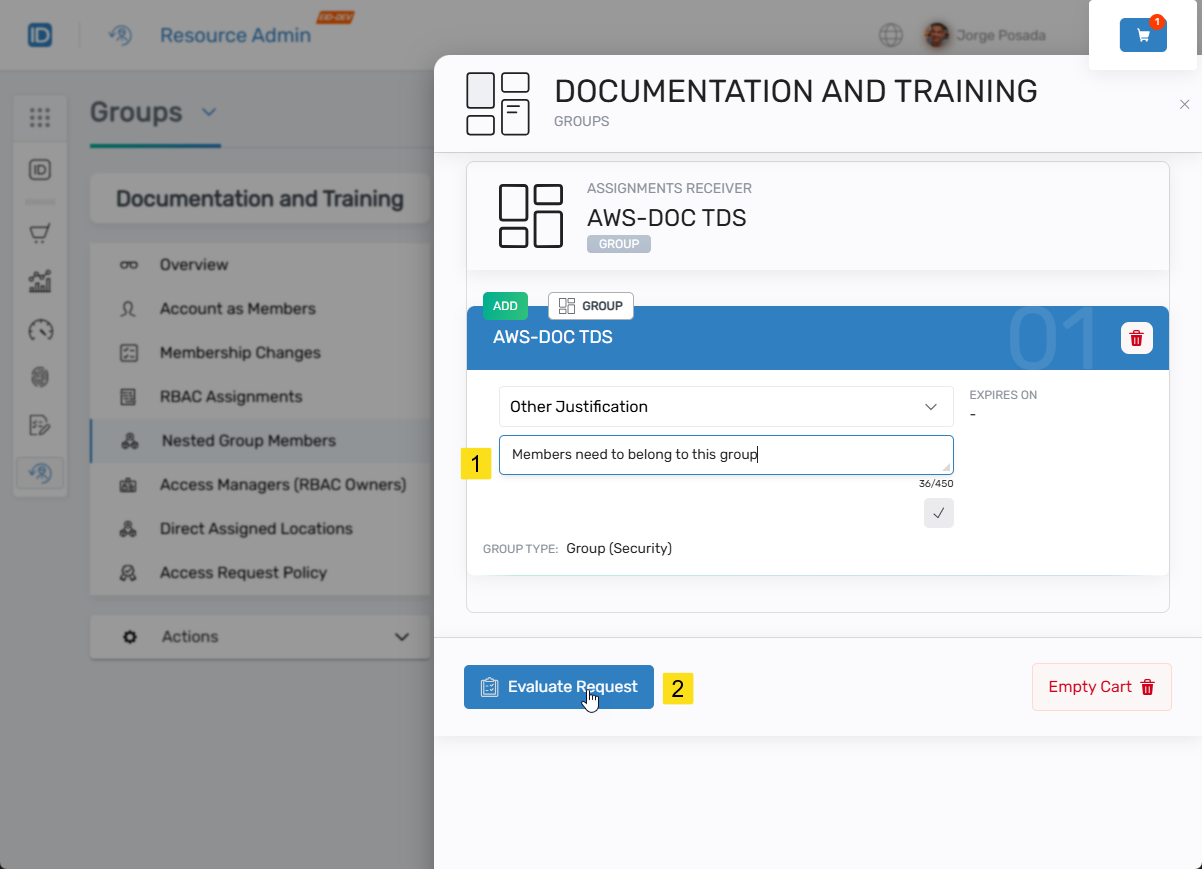
- Click the shopping cart icon to open it.
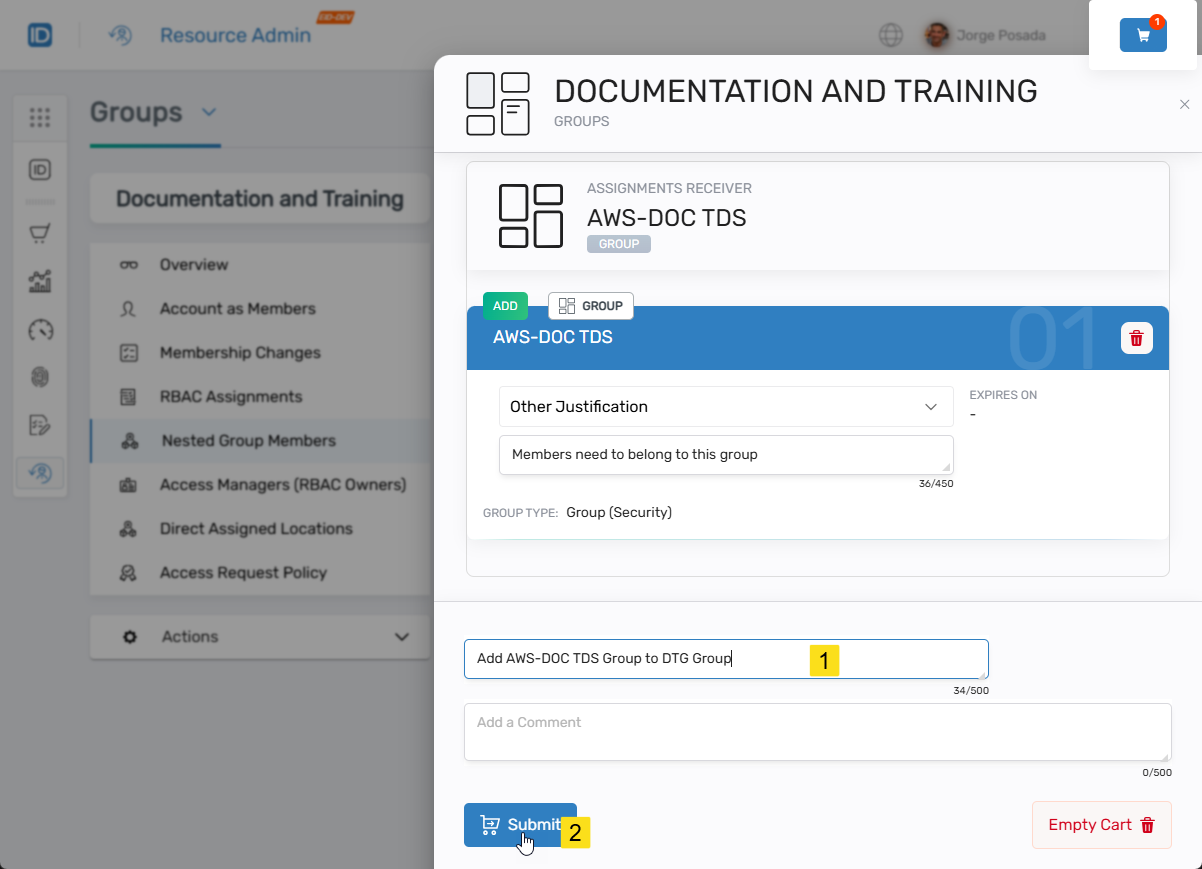
- Enter a comment in the comment field and click Evaluate Request.
- Enter a Business Request Name and click Submit.
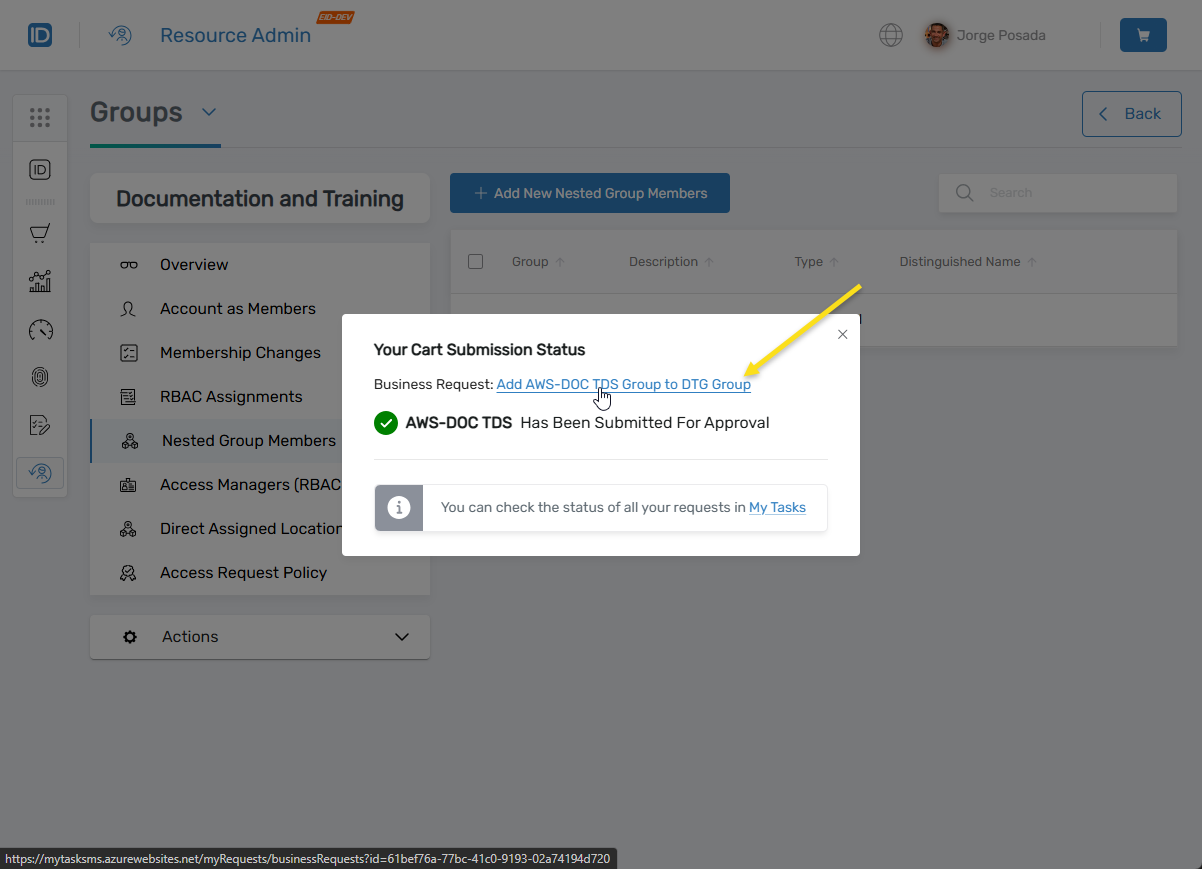
 A message confirms that the request has been submitted for approval.
Review and Approve the Request
-
Click the Business Request link in the submission status modal.
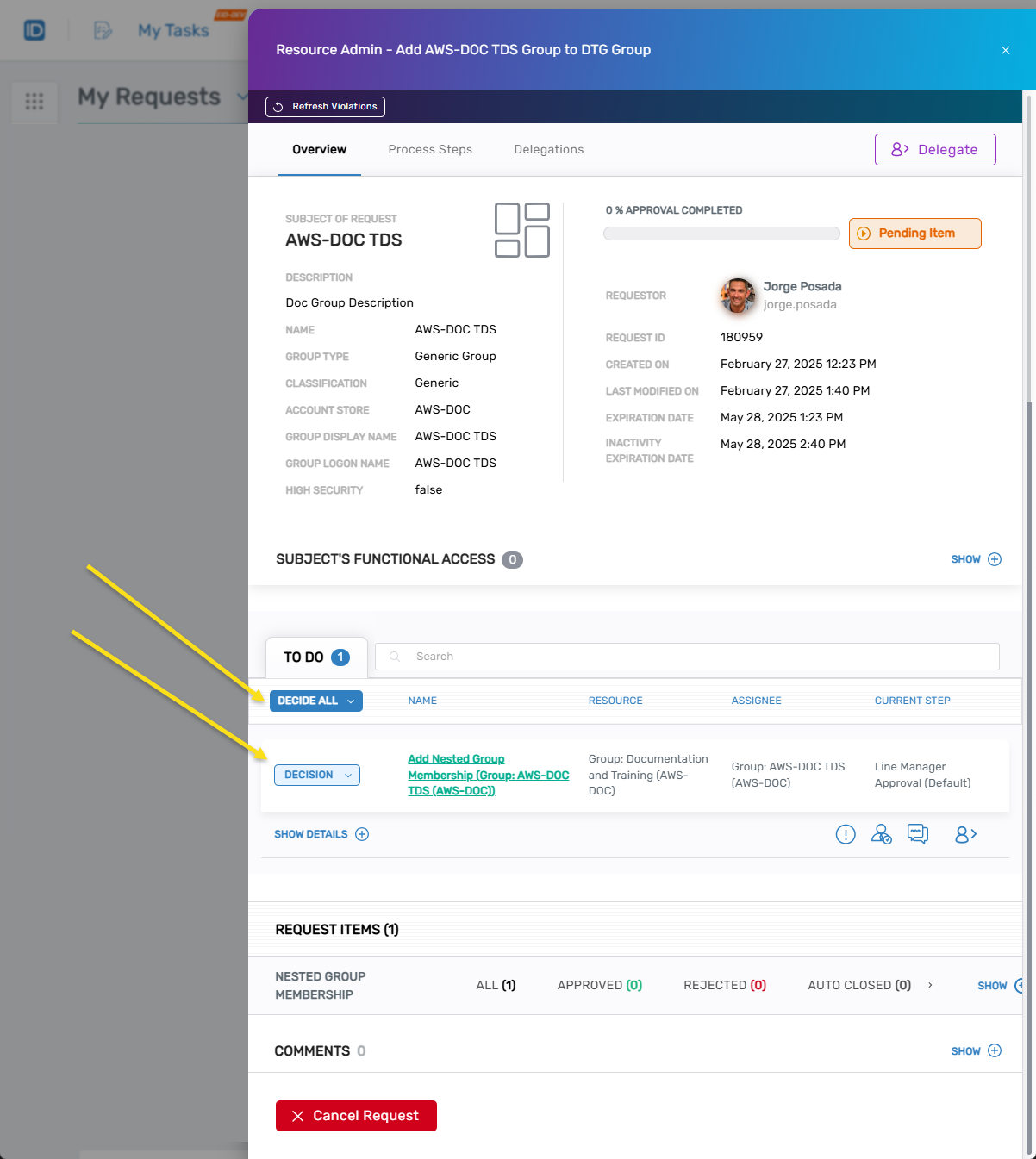
The Request Drawer opens showing request details and approvers.
 tip
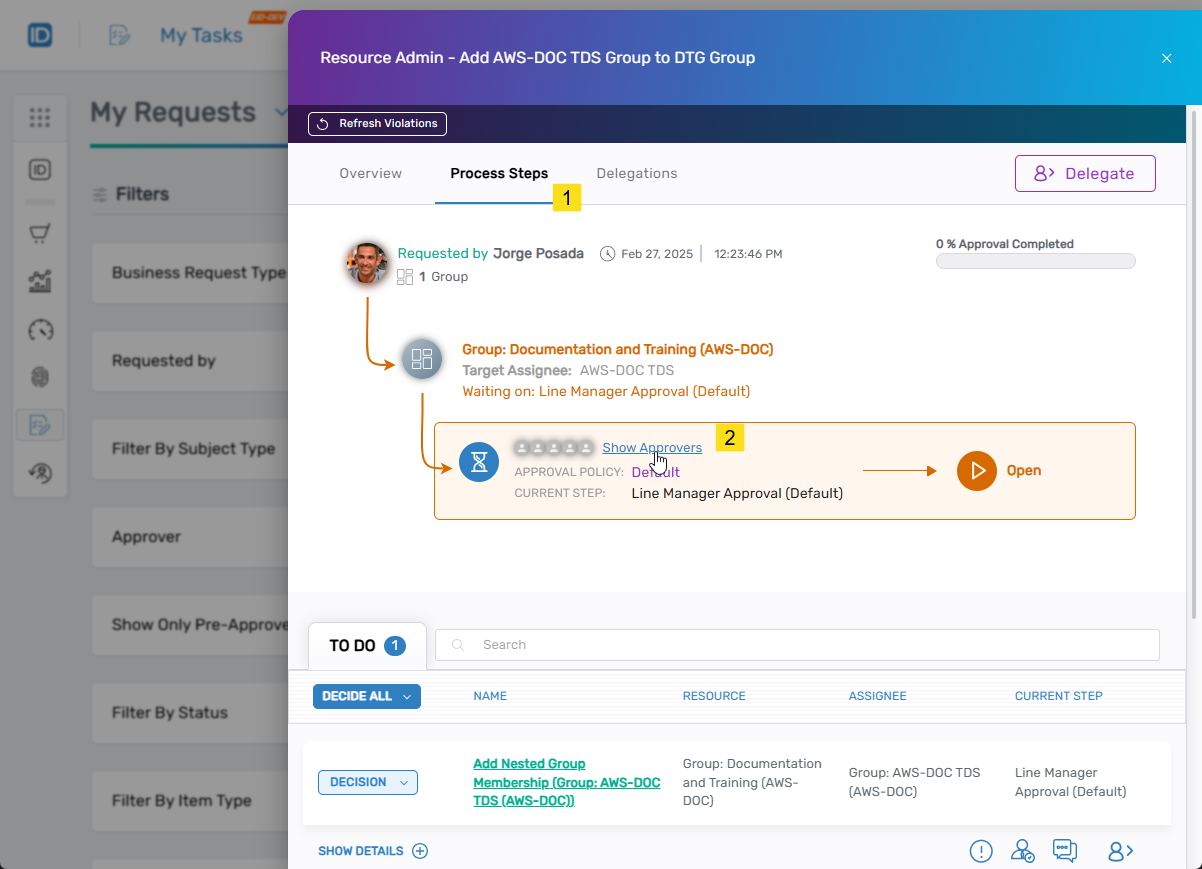
tipIf you are not an approver, navigate to the Process Steps tab and click Show Approvers to view who can approve the request.
-
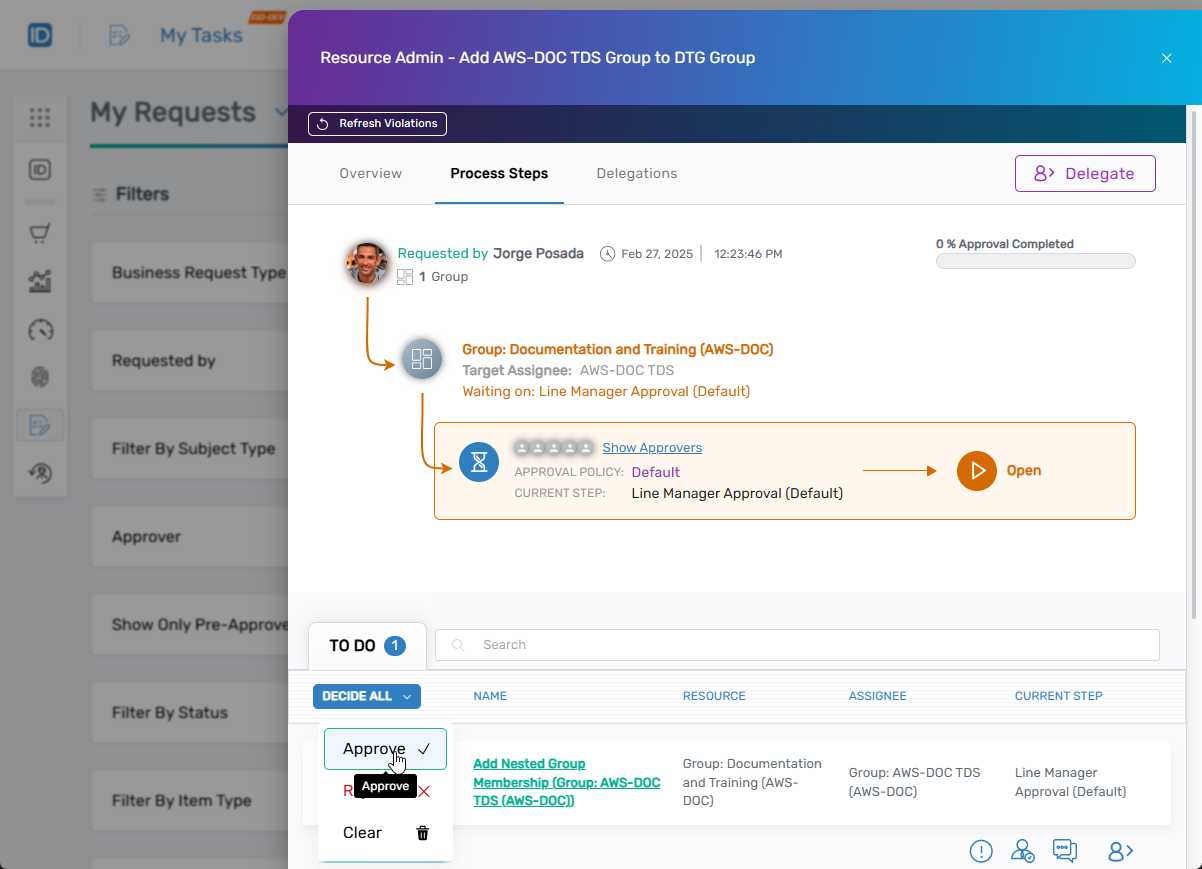
If you are an approver, click the Decision button and select Approve.
-
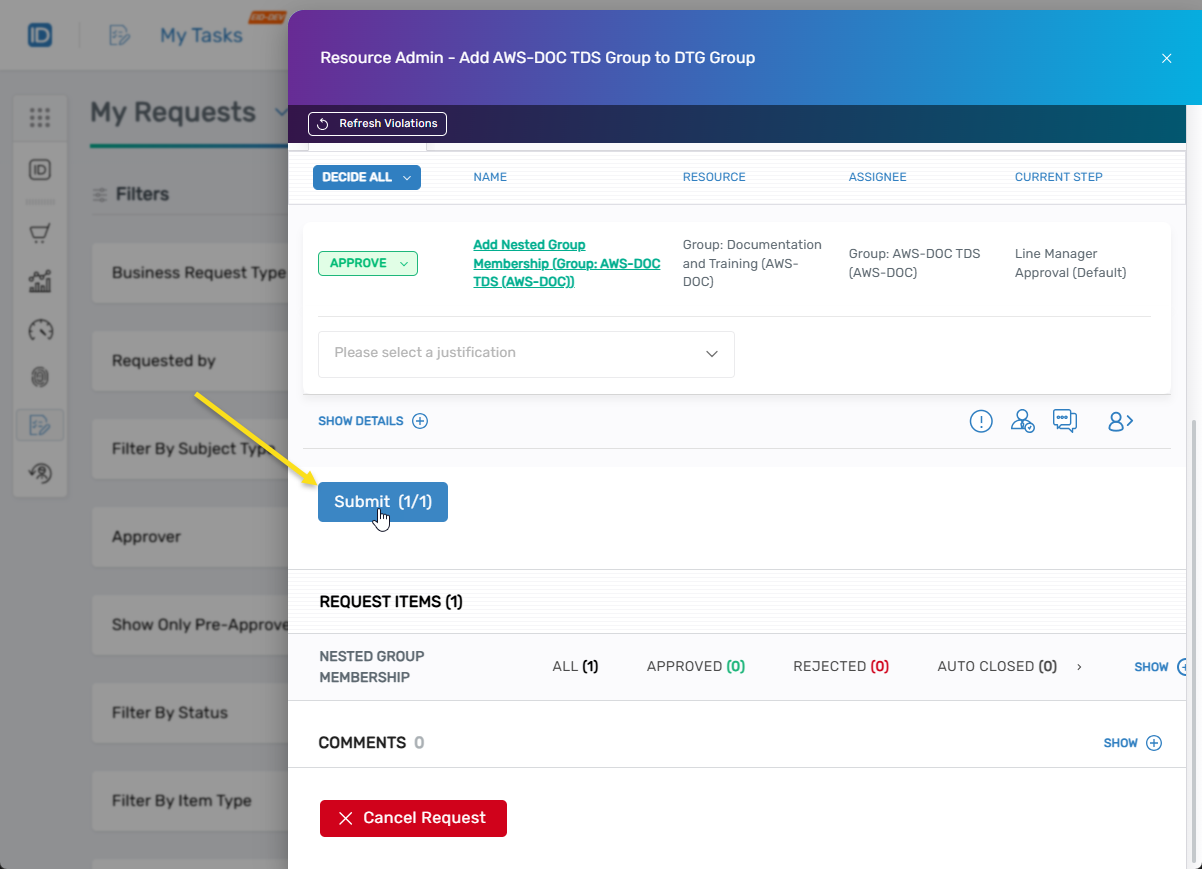
Click Submit.
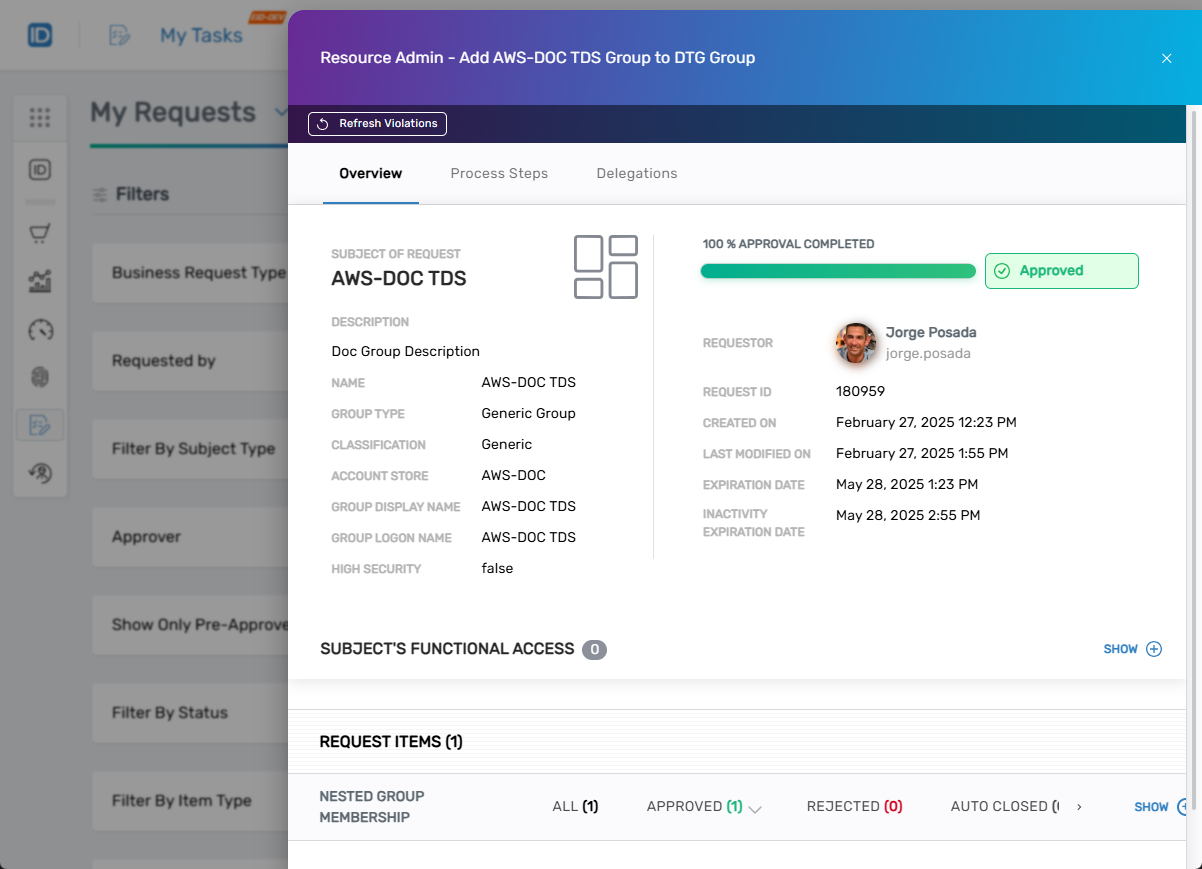
 The task shows 100% Approval Completed.
Results
After approval:
- The nested group is added as a member of the parent group
- Members of the nested group inherit entitlements and delegations from the parent group
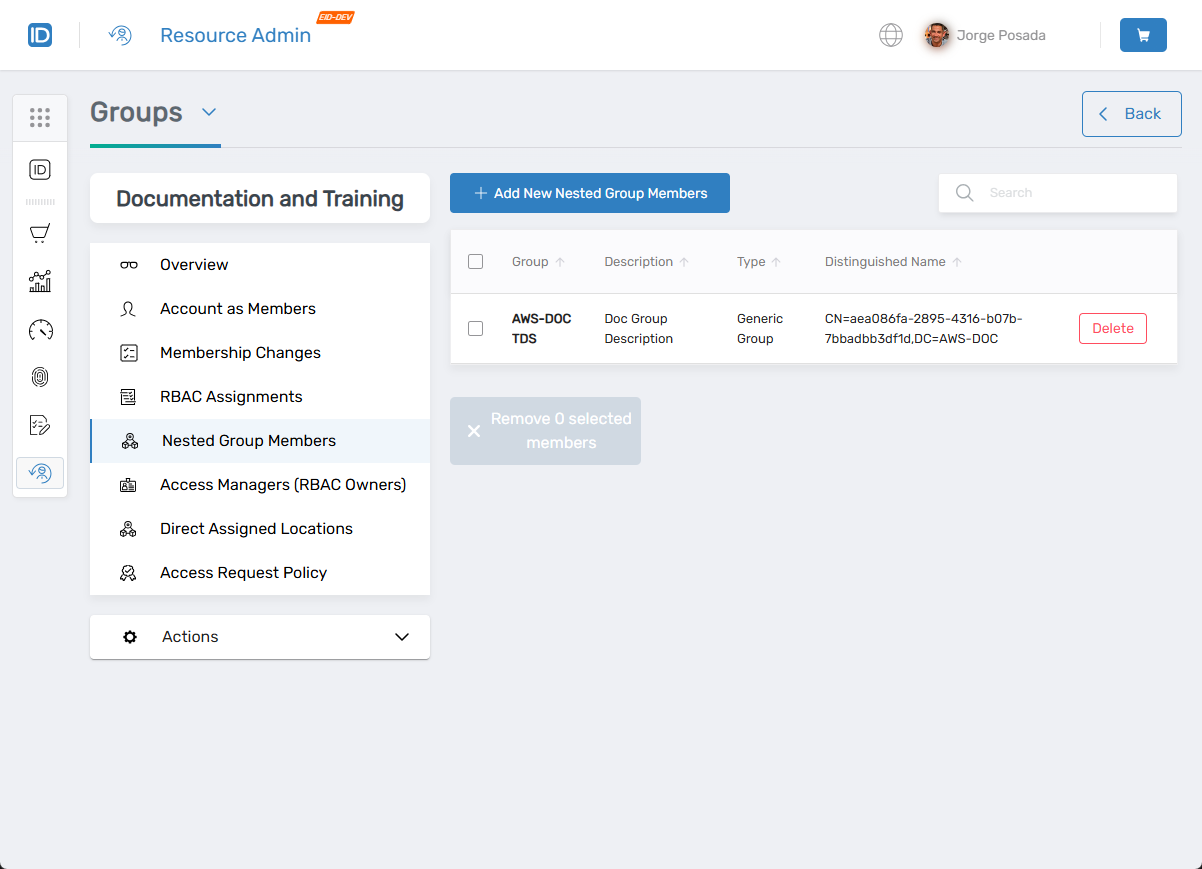
- The nested group appears in the parent group's Nested Group Members list
Related Topics
- Remove Groups from Groups – Remove nested group memberships
- Role-Based Group Memberships – Configure dynamic membership assignments
- About the View One Group Page – Navigate group management interfaces