Sending a Push Notification
You can use push notifications with the EmpowerID Mobile Authenticator app to quickly verify your identity during login. This method is fast, secure, and only requires a tap on your registered mobile device.
If you'd prefer to enter a verification code instead, see Submitting an Authentication Code.
How to Send a Push Notification
- Log in to your EmpowerID portal using your username and password.
- When prompted for multi-factor authentication, click the SEND PUSH button.
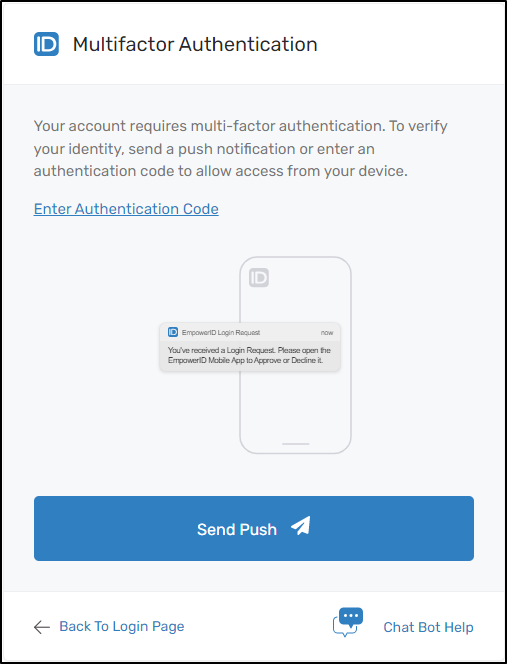
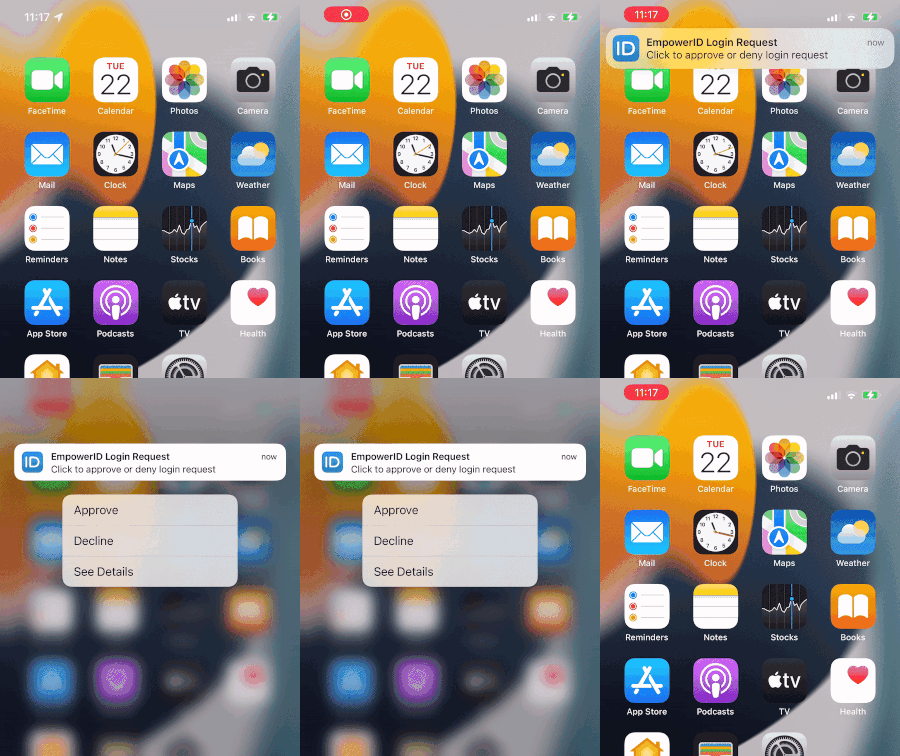
- Look for a push notification on your registered mobile device.
 Note for Android Users
Android users will see a similar notification style on their device.
- Open the notification and tap Approve to confirm the login request.
- Tap Decline if you do not recognize the request.
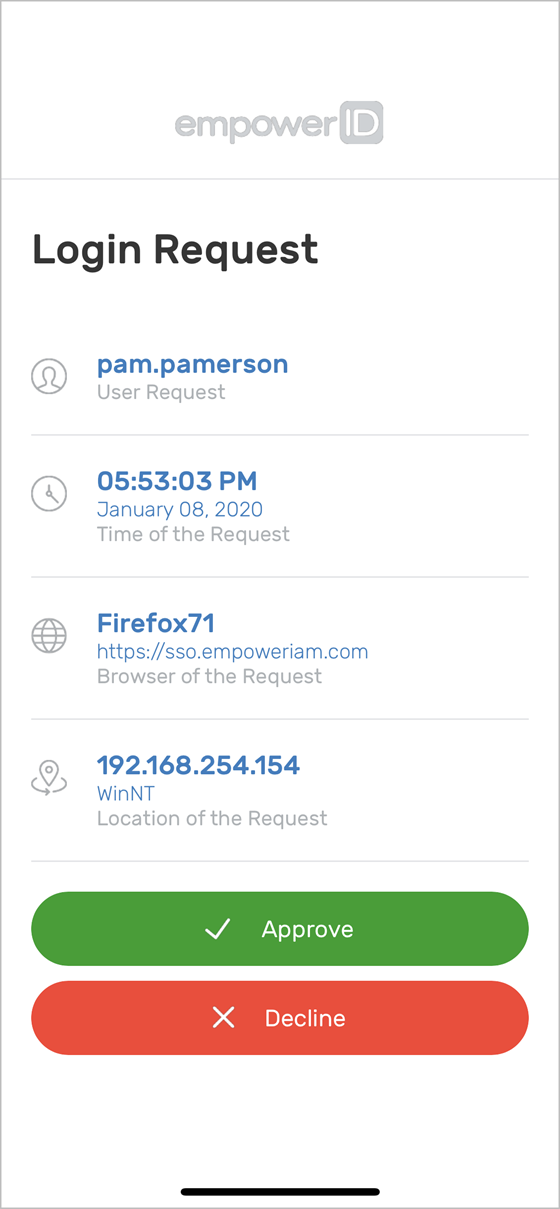
- Tap Decline if you do not recognize the request.
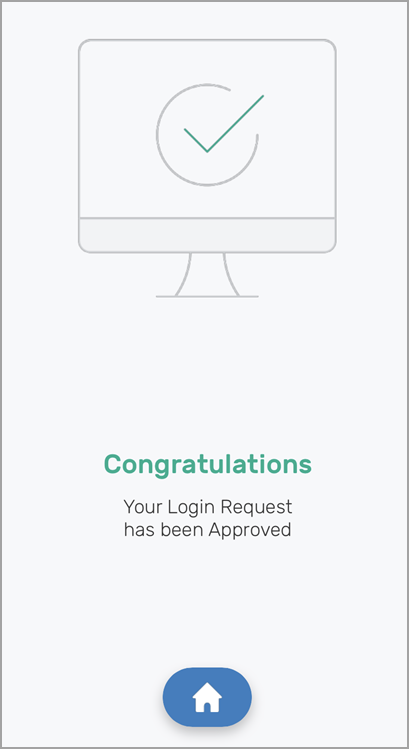
- After responding, you'll see a confirmation message in the app.
📲Having Trouble?
If you don’t receive a push notification:
- Make sure your phone has an active internet connection
- Ensure notifications are enabled for the EmpowerID app