Use Yubiko One-Time Password (OTP) for MFA in EmpowerID
If your organization has enabled Yubico One-Time Password (OTP) for multi-factor authentication (MFA), you can use a Yubikey device to securely log in using a time-sensitive token generated by the key.
This guide shows you how to authenticate using your Yubikey as a second factor in EmpowerID.
Overview
Yubico OTP generates a one-time password when you touch the key, providing a secure MFA option. This method ensures your identity is verified with something you physically possess.
If MFA is optional for your account, you do not need to use this method unless your organization requires it.
What You’ll Need
- An EmpowerID account
- A Yubikey device issued and registered to you
- A browser and OS that support Yubikey input (USB-compatible)
- Access to the EmpowerID Web portal
The MFA options available to you depend on your administrator. You may see more or fewer options than shown in the screenshots.
Steps to Authenticate Using Yubiko One-Time Password
1. Log In to the EmpowerID Web Portal
- Navigate to your organization's EmpowerID login page.
- Enter your username and password as usual.
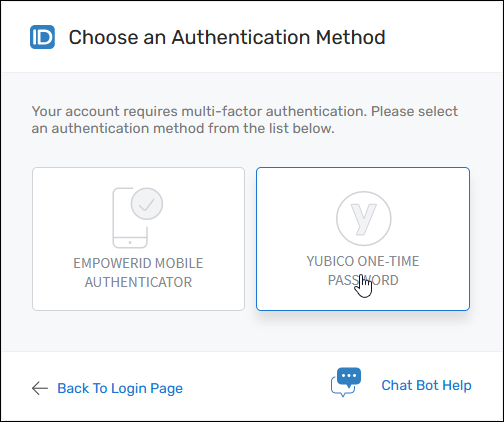
2. Choose Yubico One Time Password
- If MFA is optional or you have multiple options, select Yubico One Time Password.
- Click Submit.
3. Generate and Submit the OTP
- Plug your Yubikey into your computer’s USB port.
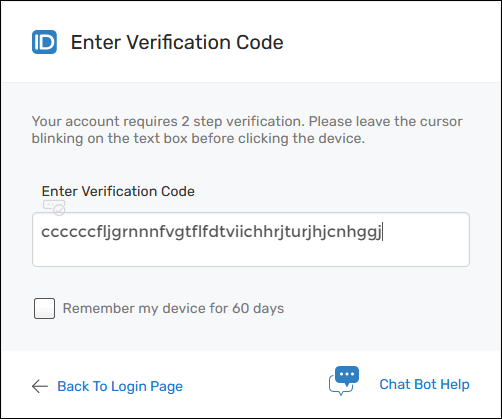
- Click into the Enter Verification Code field.
- Touch the gold disk or button on your Yubikey to generate the OTP.
You will see a string of characters appear in the field—this is your unique one-time password.
4. Complete Authentication
- If no additional MFA steps are required, you will be logged in.
The next time you log in, simply plug in your Yubikey and repeat these steps to authenticate.
If you are asked for another factor, select the desired authentication method and follow the instructions on screen.
Troubleshooting
Problem: No OTP appears when pressing the key
Solution: Ensure the Yubikey is properly connected and the correct field is focused. Try another USB port if necessary.
Problem: Authentication fails
Solution: Confirm your key is registered and associated with your EmpowerID Person. Contact your administrator for verification.
Problem: Prompt doesn’t recognize Yubikey
Solution: Check browser support and make sure no other security software is interfering with input.