How to Use Device Registration for MFA in EmpowerID
If your organization has enabled Device Registration for multi-factor authentication (MFA), you can register your current device to simplify future logins. Once registered, you’ll be able to log in more quickly from that same browser and device—without repeating MFA steps.
This guide walks you through registering your device and using it as a second authentication factor.
Overview
Device Registration offers a secure, convenient way to streamline logins by verifying your identity once, then remembering your trusted device for future sessions.
What You’ll Need
- An EmpowerID account
- MFA enabled and Device Registration allowed by your administrator
- A device (desktop, laptop, etc.) and web browser that supports cookies
- A valid delivery method to receive the verification code (SMS, email, etc.)
If you’re not sure which MFA options are enabled for you, contact your system administrator before starting.
Steps to Register Your Device
1. Log in to the EmpowerID Web Portal
- Visit your organization’s EmpowerID web portal.
- Enter your username and password to sign in.
2. Choose Device Registration
- If MFA is optional or you have multiple methods available, you’ll see the Device Registration option.

3. Click Device Registration
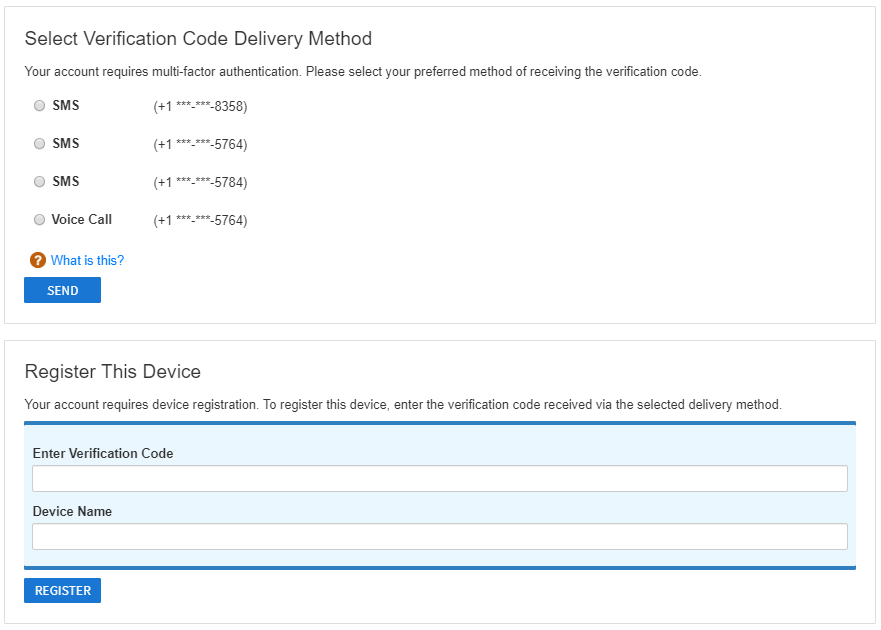
- A screen will prompt you to select how to receive your verification code.
4. Select Delivery Method and Send the Code
- Choose your preferred delivery method (such as SMS).
- Enter the necessary contact details (e.g., mobile number).
- Click Send.

5. Enter the Code and Register the Device
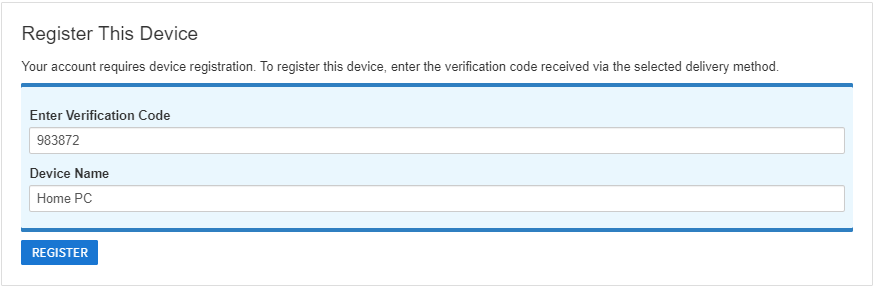
- When the code arrives, enter it into the Verification Code field.
- Provide a descriptive name in the Device Name field (e.g., “Work Laptop - Chrome”).
- Click Register.
What Happens Next
If your code is valid and no additional MFA is required, you’ll be logged in and your browser/device will be remembered.
The next time you log in from this same setup, EmpowerID will recognize your device and let you skip additional MFA steps.
EmpowerID stores your device registration as a browser cookie. This means:
- The registration only applies to the specific browser and device you used during registration.
- If you use a different browser or device, you’ll need to register it separately.
Troubleshooting
Problem: I don't see Device Registration as an option
Solution: Confirm with your admin that Device Registration is enabled for your policy.
Problem: Didn't receive the code
Solution: Double-check the delivery method and your contact details. Request the code again if needed.
Problem: My device wasn’t remembered
Solution: Ensure cookies are enabled in your browser. If cookies were cleared or expired, re-register the device.