How to Use EmpowerID One-Time Passwords (OTP)
EmpowerID One-Time Passwords (OTP) provide a secure second layer of authentication for your account. When enabled, OTP helps prevent unauthorized access by requiring a time-sensitive verification code sent through your selected delivery method.
If Multi-Factor Authentication (MFA) is optional for your account, this method is only needed if required by your organization’s security policies.
Overview
This guide walks you through how to authenticate using EmpowerID One-Time Passwords during the login process.
What You’ll Need
- An active EmpowerID user account
- At least one OTP delivery method configured (e.g., SMS or email)
- Access to the device or channel (e.g., mobile phone or email) where you’ll receive the code
If you don’t receive the OTP code, double-check your delivery information or contact your administrator to verify your settings.
Steps to Authenticate Using OTP
1. Log In as Usual
- Go to your organization's EmpowerID web portal and log in with your username and password.
2. Select EmpowerID One-Time Password
- If MFA is optional or you have multiple authentication methods available, choose EmpowerID One Time Password.
- Click Submit.
The MFA options available to you depend on your administrator's settings. You may see more or fewer options than shown here.
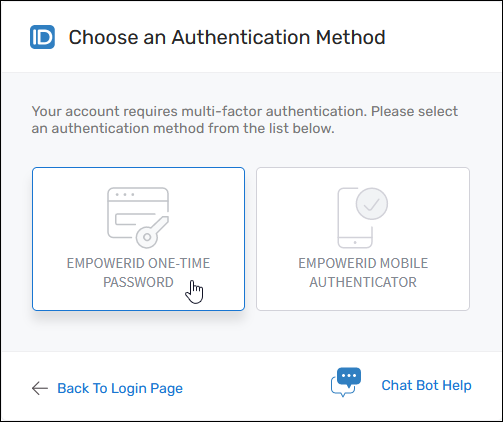
You’ll be prompted to select how you want to receive your verification code.
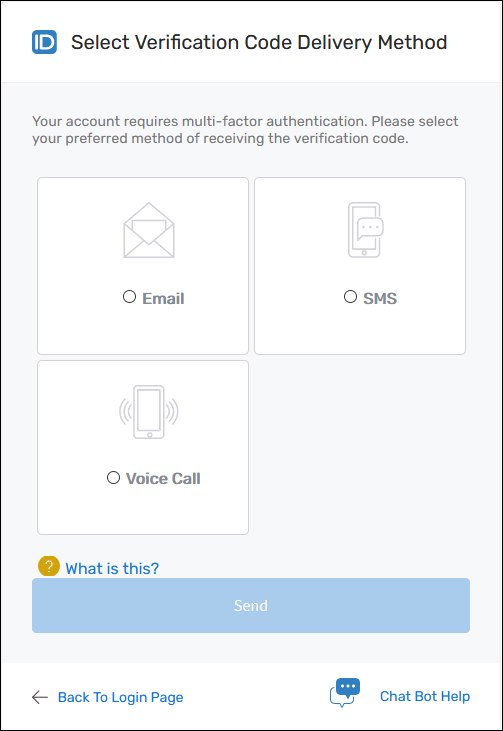
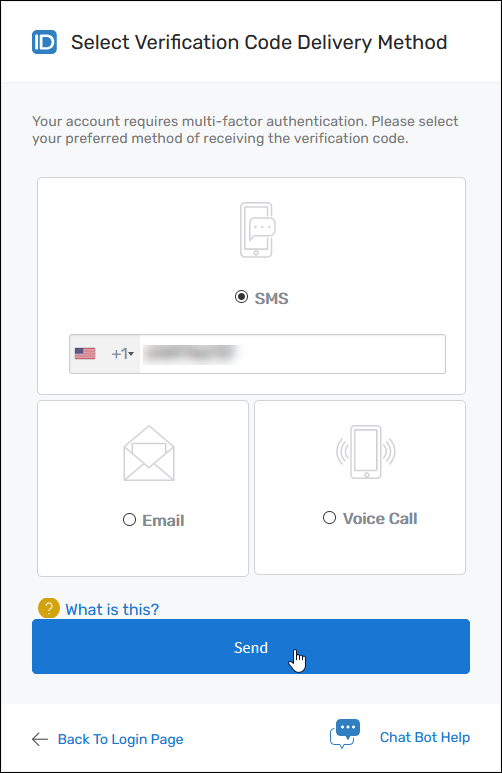
3. Choose Delivery Method and Send Code
- Select your preferred delivery method (e.g., SMS or email).
- Enter any required delivery details (like your mobile number).
- Click Send.
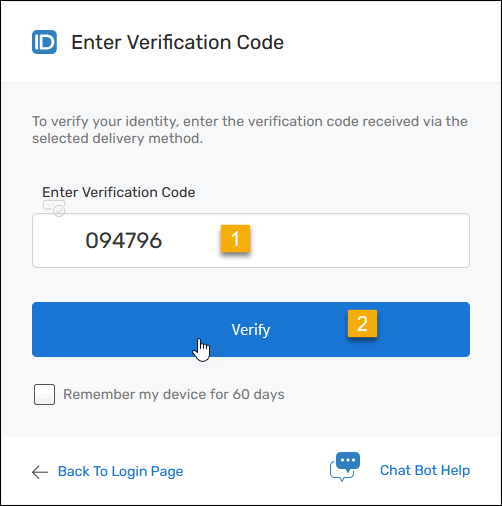
4. Enter the Verification Code
- Check your selected delivery channel for the code.
- Enter the received code into the Enter Verification Code field.
- Click Verify.
What Happens Next
If the verification is successful and no additional MFA factors are required, you’ll be logged in immediately.
On future logins, if EmpowerID OTP is your selected method, you'll repeat these steps to authenticate.
Troubleshooting
Problem: Didn’t receive the code
Solution: Confirm the delivery method was correct and check spam/junk folders (for email). You may also resend the code.
Problem: Code expired
Solution: Request a new OTP by re-initiating the process. Codes are time-sensitive for security.
Problem: Verification failed
Solution: Double-check that the code you entered matches exactly. Ensure you're using the most recent code sent.