Use FIDO Authentication with Passkeys in EmpowerID
If your organization has enabled FIDO Authentication with Passkeys for Multi-Factor Authentication (MFA), you can use a registered FIDO2 security key to authenticate during login. This method allows for a strong, phishing-resistant second factor and may even support passwordless or usernameless login flows depending on your organization’s configuration.
To use this feature, you must have already registered a FIDO2 security key with EmpowerID.
Overview
When enabled, FIDO Authentication with Passkeys prompts you to authenticate using a token generated by your FIDO2 security key. Depending on your organization’s policies, this may be one of several MFA methods you can choose from—or it may be required exclusively.
What You’ll Need
- A valid EmpowerID account
- A FIDO2 security key already registered
- Access to your organization’s Web portal
- A browser and operating system that support WebAuthn (e.g., Chrome, Edge, Windows Hello)
If you're logging in from a new device or browser, make sure your security key is plugged in and ready before starting.
Steps to Use FIDO Authentication with Passkeys
1. Log in to the EmpowerID Web Portal
- Visit your organization’s EmpowerID login page.
- Enter your username and password.
2. Choose FIDO2 WebAuthn for MFA
- If MFA is optional or you have multiple options, select FIDO2 WebAuthn and click Submit.
The MFA options available to you depend on your administrator. You may see more or fewer options than shown below.
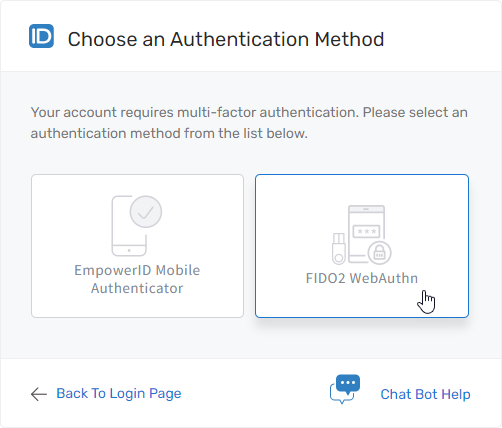
Note: If FIDO2 WebAuthn is required for your account, you will not see a method selection screen. Instead, you’ll be prompted directly to insert your security key.
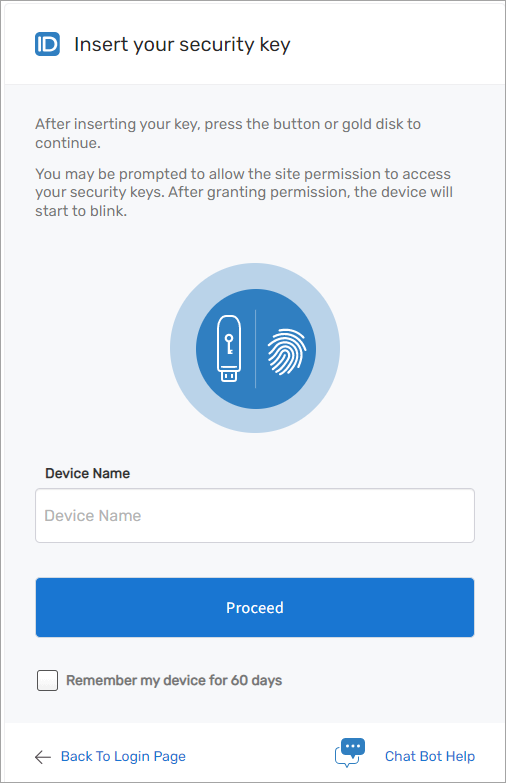
3. Set Up the Security Key (First-Time Use)
- If this is your first time using this method, you’ll be asked to:
- Insert your security key
- Enter a Device Name
- Click Proceed
4. Authenticate Using Windows Security
- A Windows Security dialog will appear.
- Select your preferred authentication method (e.g., fingerprint, PIN, external key).
- Click OK to confirm.
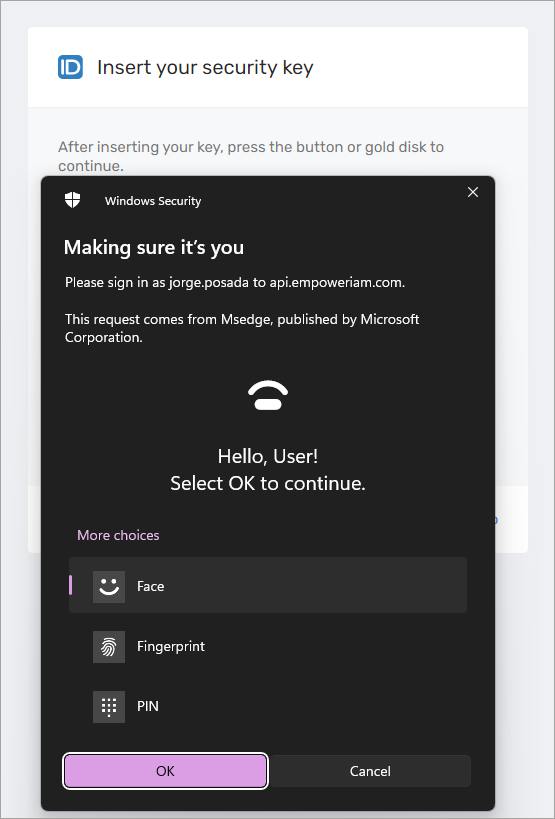
Note: You may not see all options shown in the screenshot. Available methods depend on your OS and device setup.
5. Wait for Device Authentication
- EmpowerID will validate your security key.
- If successful, your session will continue.
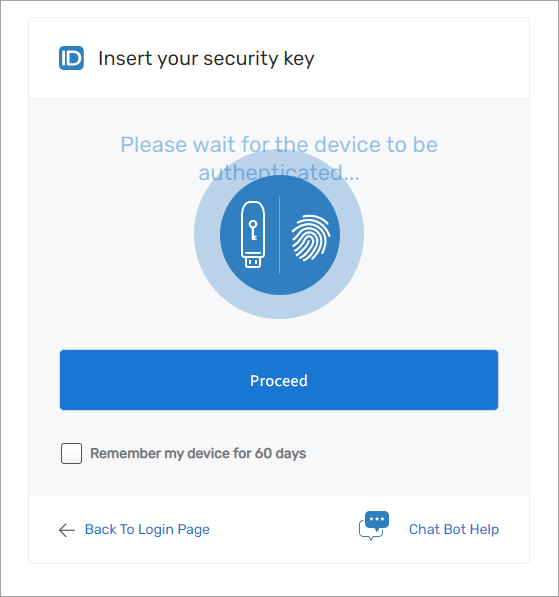
If you are asked for another factor, simply select the desired authentication method and follow the on-screen instructions.
What Happens Next
Once authenticated, you will be logged in and granted access to your EmpowerID session. Your security key remains available for future logins wherever FIDO2 is accepted.
Troubleshooting
Problem: No prompt to insert security key
Solution: Ensure FIDO2 WebAuthn is enabled and supported by your browser. Try a different browser or check with your administrator.
Problem: Security key not recognized
Solution: Make sure the key is fully inserted and functional. Restart your browser or device if necessary.
Problem: Windows Security dialog doesn’t appear
Solution: Ensure you're using a supported operating system (e.g., Windows 10+) and browser with WebAuthn capabilities.