Register a FIDO2 Security Key in EmpowerID
If your organization has enabled FIDO2 WebAuthn, you can register a FIDO2 security key to enable passwordless and even usernameless authentication. Once your key is registered, you'll be able to log in without entering your username or password.
This article walks you through the complete process of registering a FIDO2 key in the EmpowerID My Tasks portal.
What You’ll Need
- An EmpowerID account with access to the My Tasks portal
- A FIDO2-compliant security key (USB, NFC, or built-in platform authenticator)
- A supported browser that enables WebAuthn (e.g., Chrome, Edge, Firefox)
Before starting, ensure your FIDO2 security key is nearby and ready for use. Some keys require a touch or gesture to activate during registration.
Steps to Register Your Security Key
1. Log in to the My Tasks Portal
- Access your organization’s My Tasks portal.
- Log in with your EmpowerID credentials.
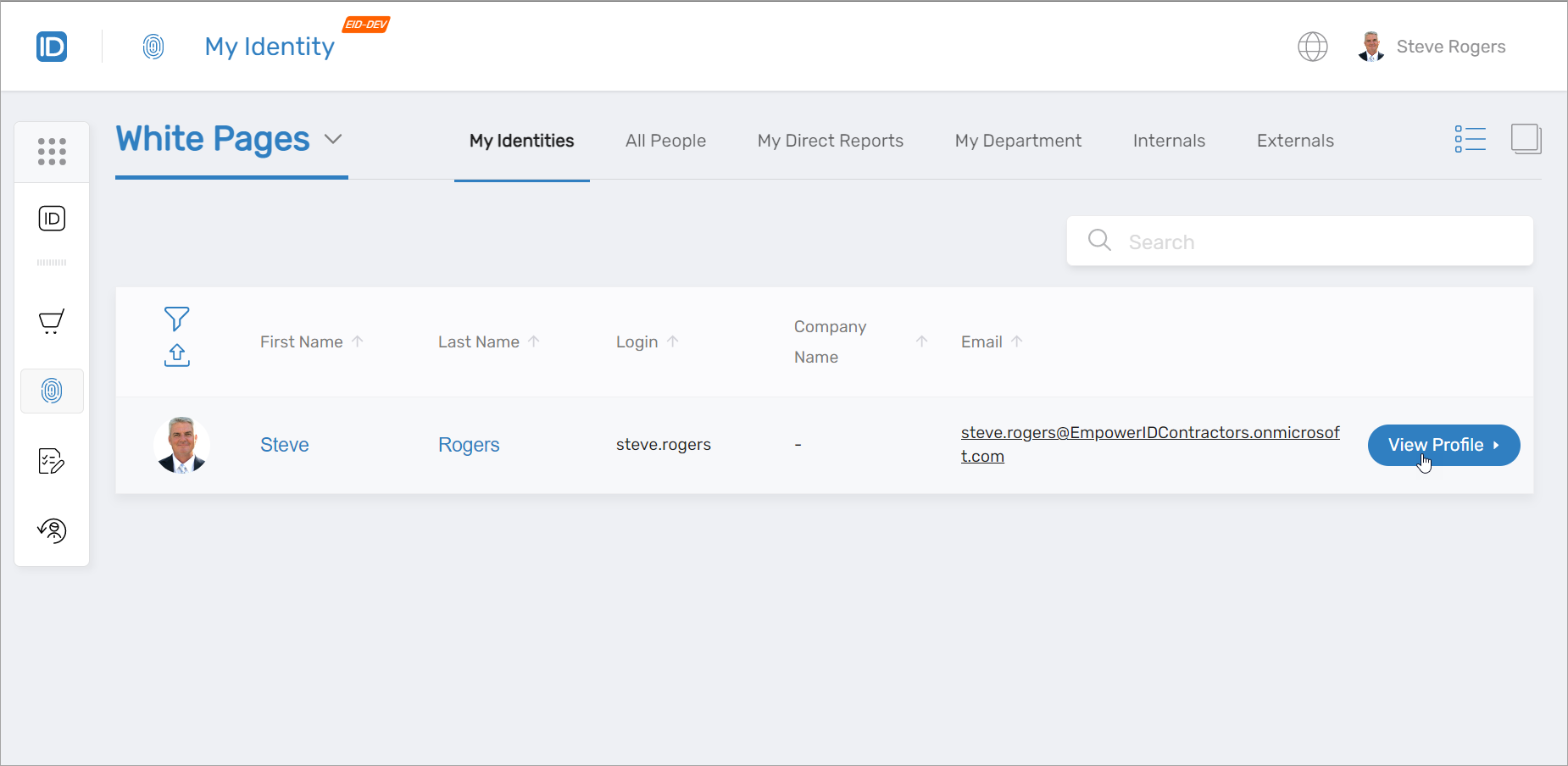
2. Open Your Identity Profile
- Click View Profile on your identity record.
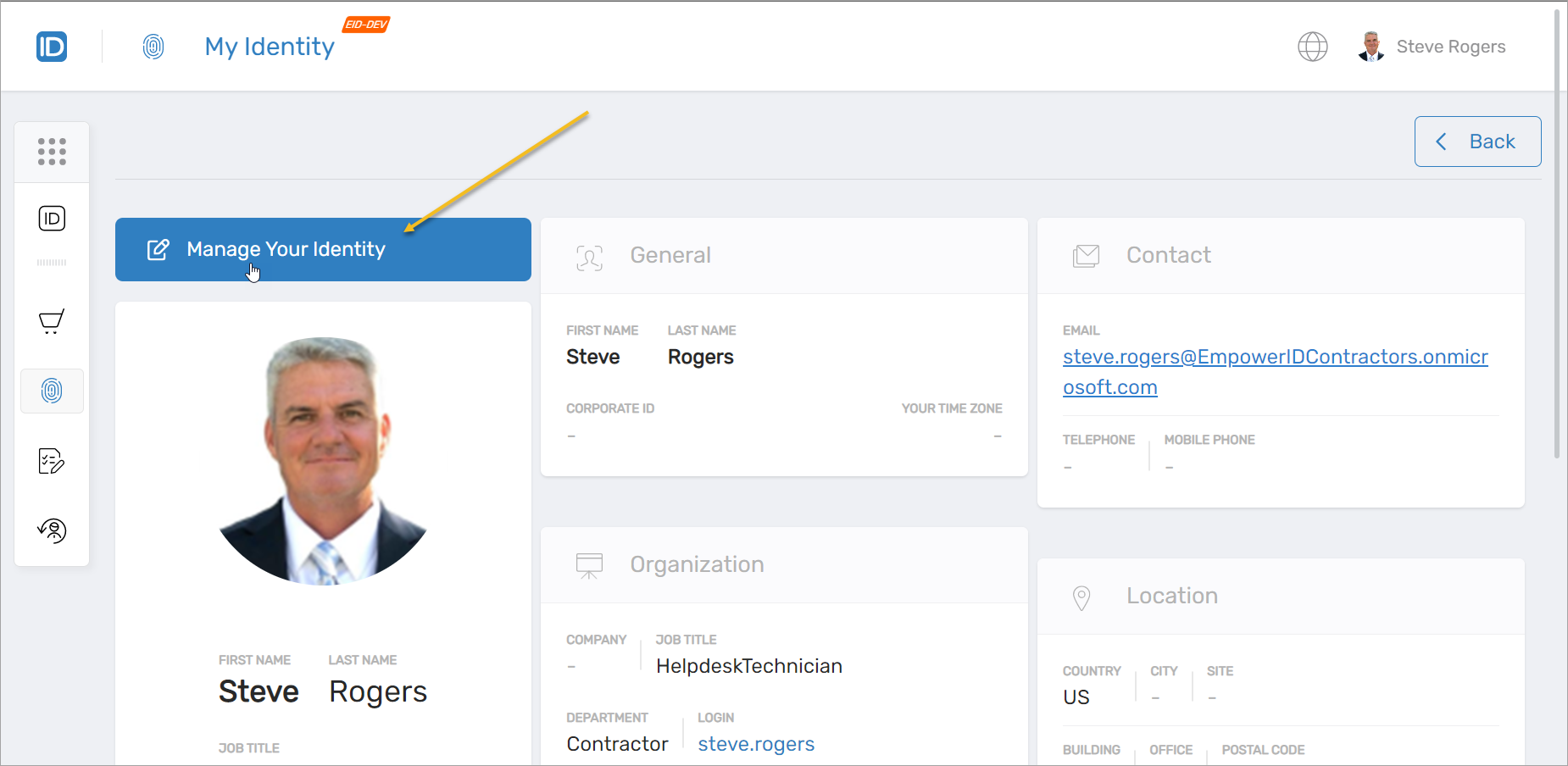
3. Manage Your Identity
- Click the Manage Your Identity button.
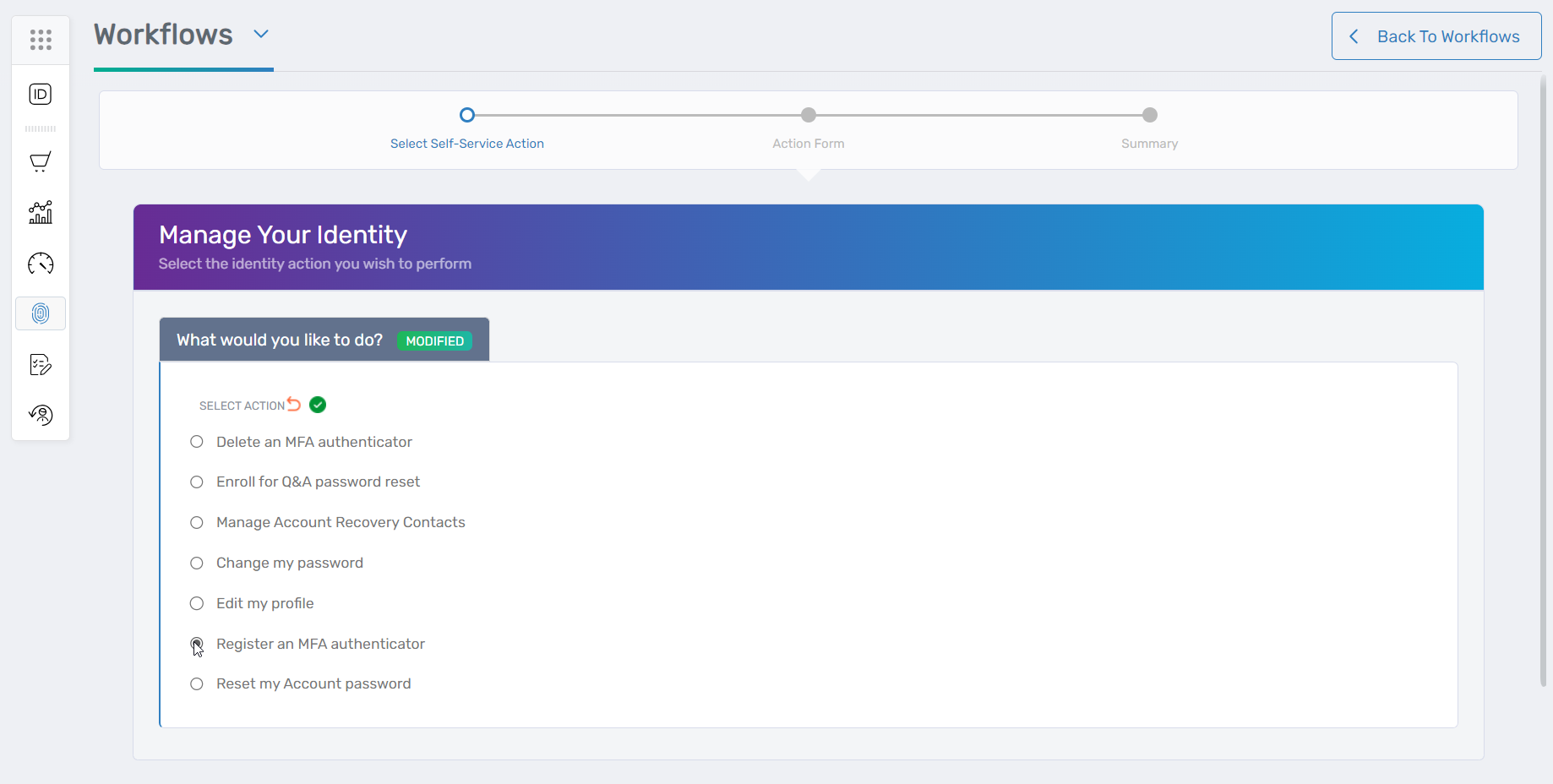
4. Start MFA Authenticator Registration
- Under What would you like to do?, select Register an MFA authenticator.
5. Choose FIDO2 WebAuth as the Method
- On the Select Multifactor Authentication Type screen, choose FIDO2 WebAuth.
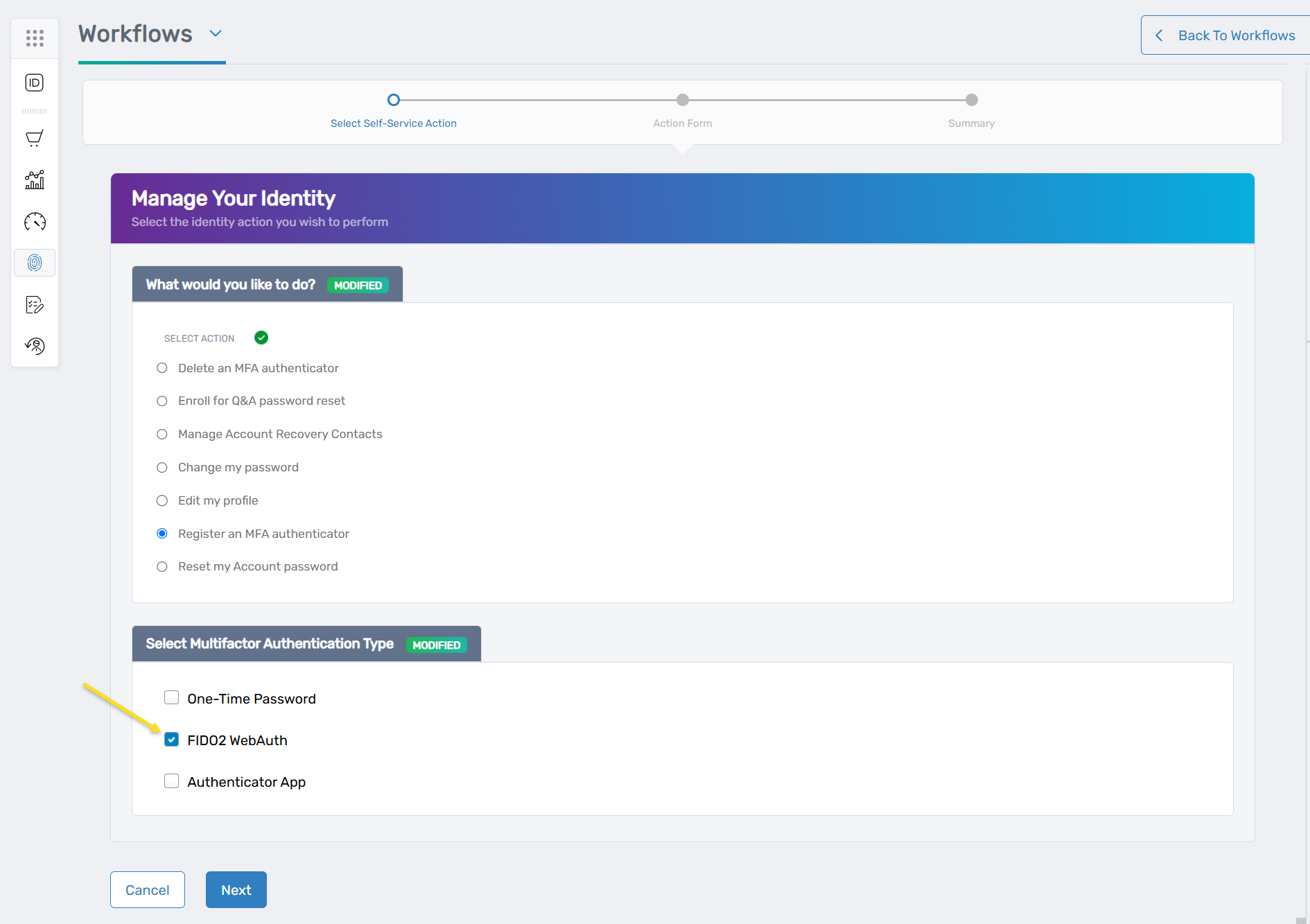
6. Continue to Key Registration
- Click Next to proceed.
7. Register Your Security Key
- Insert your FIDO2 security key or activate your built-in authenticator.
- Provide a name for your device so you can identify it later.
- Click Proceed.
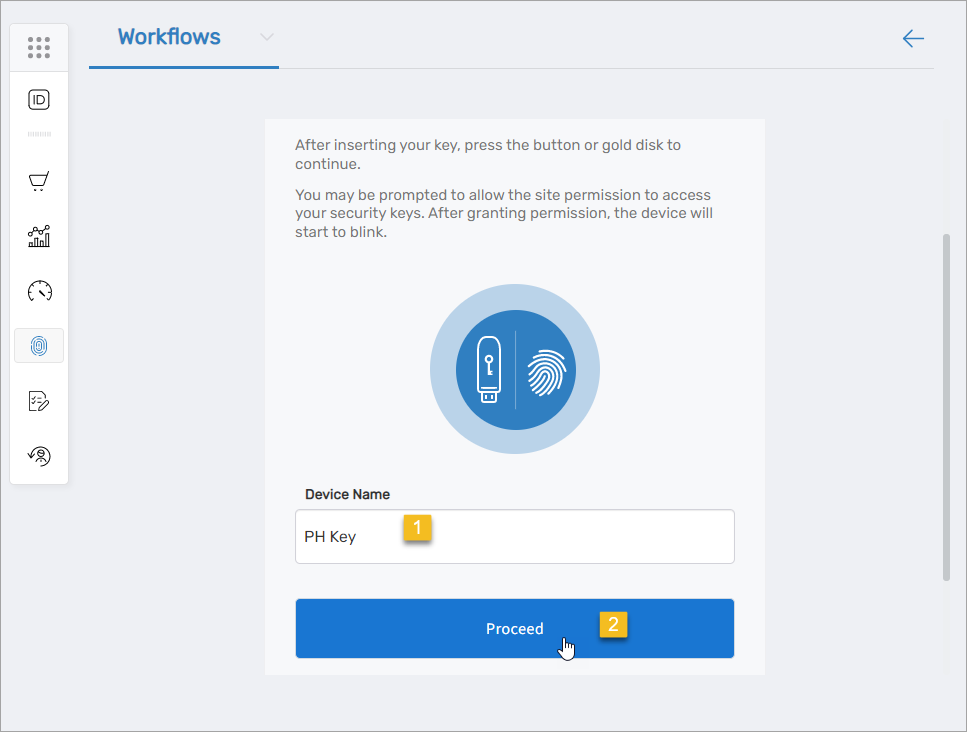
8. Verify Identity
- When prompted, select External security key or built-in sensor to confirm your identity using the key.
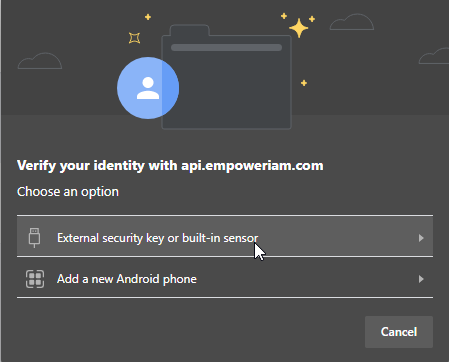
9. Wait for Confirmation
- The system will authenticate the device.
- You’ll see a confirmation message when registration is complete.
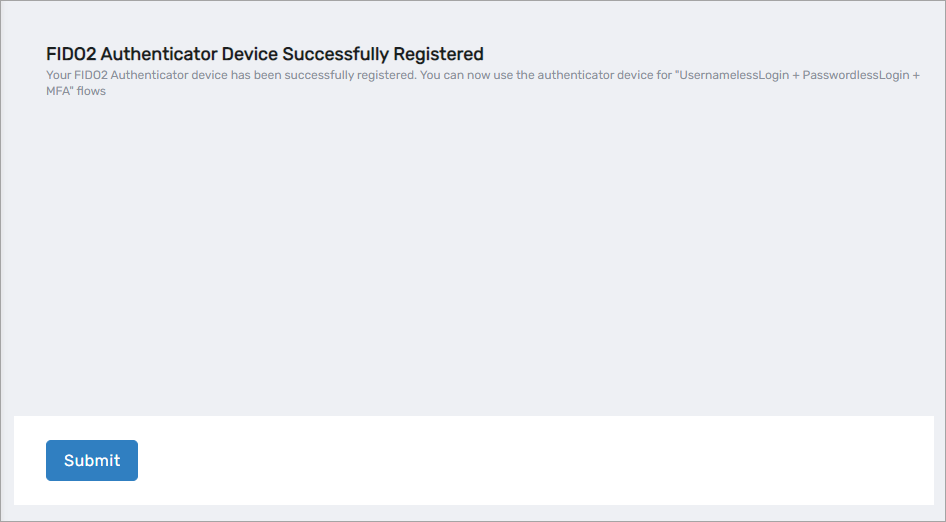
10. Finalize Registration
- Click Submit to close the confirmation window.
What Happens Next
Your FIDO2 security key is now successfully registered. You can use it for:
- Passwordless login (no password required)
- Usernameless login (no username or password required)
This key can now be used in any MFA workflows where FIDO2 is enabled.
Troubleshooting
Problem: Key not recognized during registration
Solution: Make sure the key is inserted properly and supported by your browser. Try a different USB port or browser.
Problem: Prompt doesn’t appear
Solution: Check that WebAuthn is supported and enabled in your browser. Disable pop-up blockers if necessary.
Problem: Registration fails at verification step
Solution: Ensure you're interacting with the key correctly (tap, fingerprint, etc.), and that the correct authenticator is selected.