Forgot Password
If you’ve forgotten your EmpowerID account password, you can reset it directly from the EmpowerID Mobile Authenticator app. This guide walks you through the steps to securely create a new password and regain access to your account.
Resetting a Forgotten Password
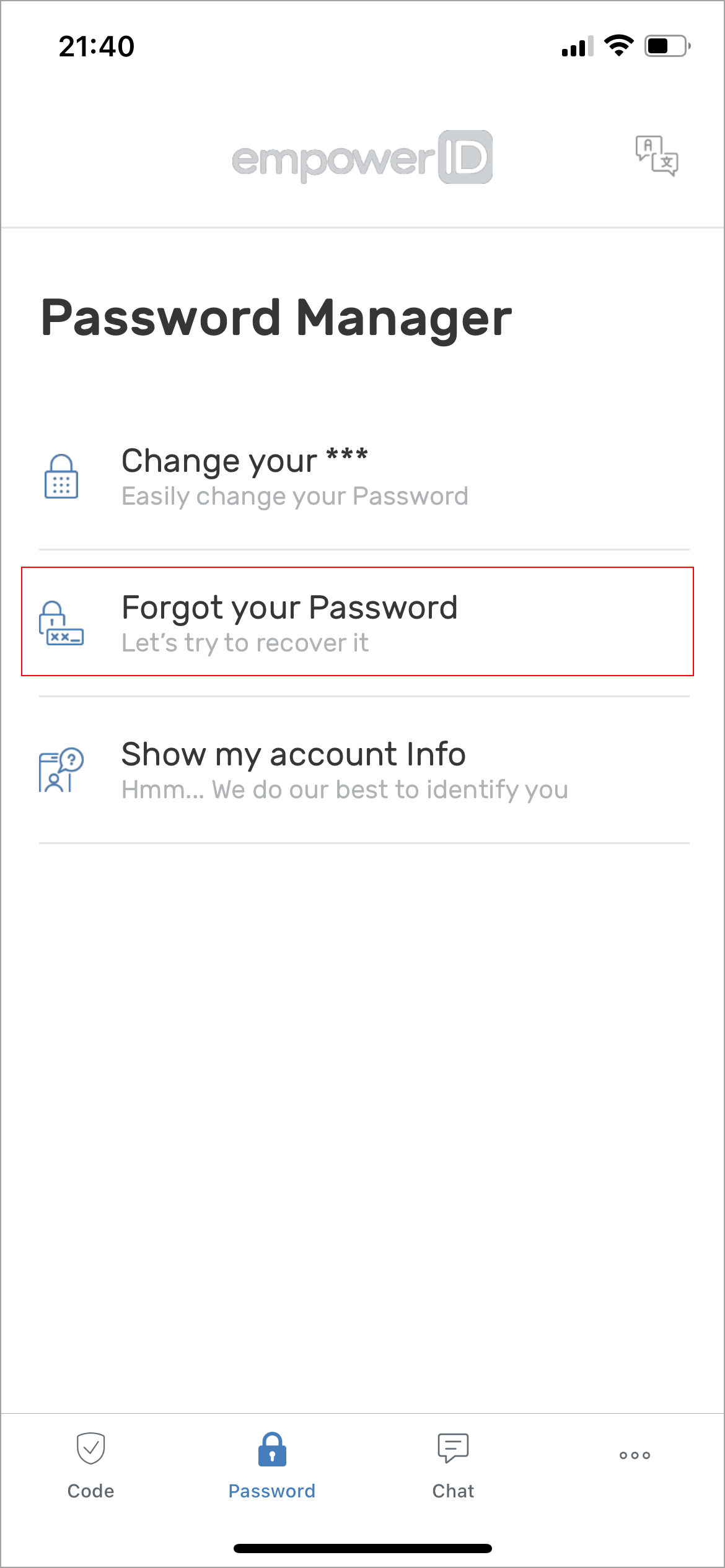
- Tap the Password tab and select Forgot your Password.
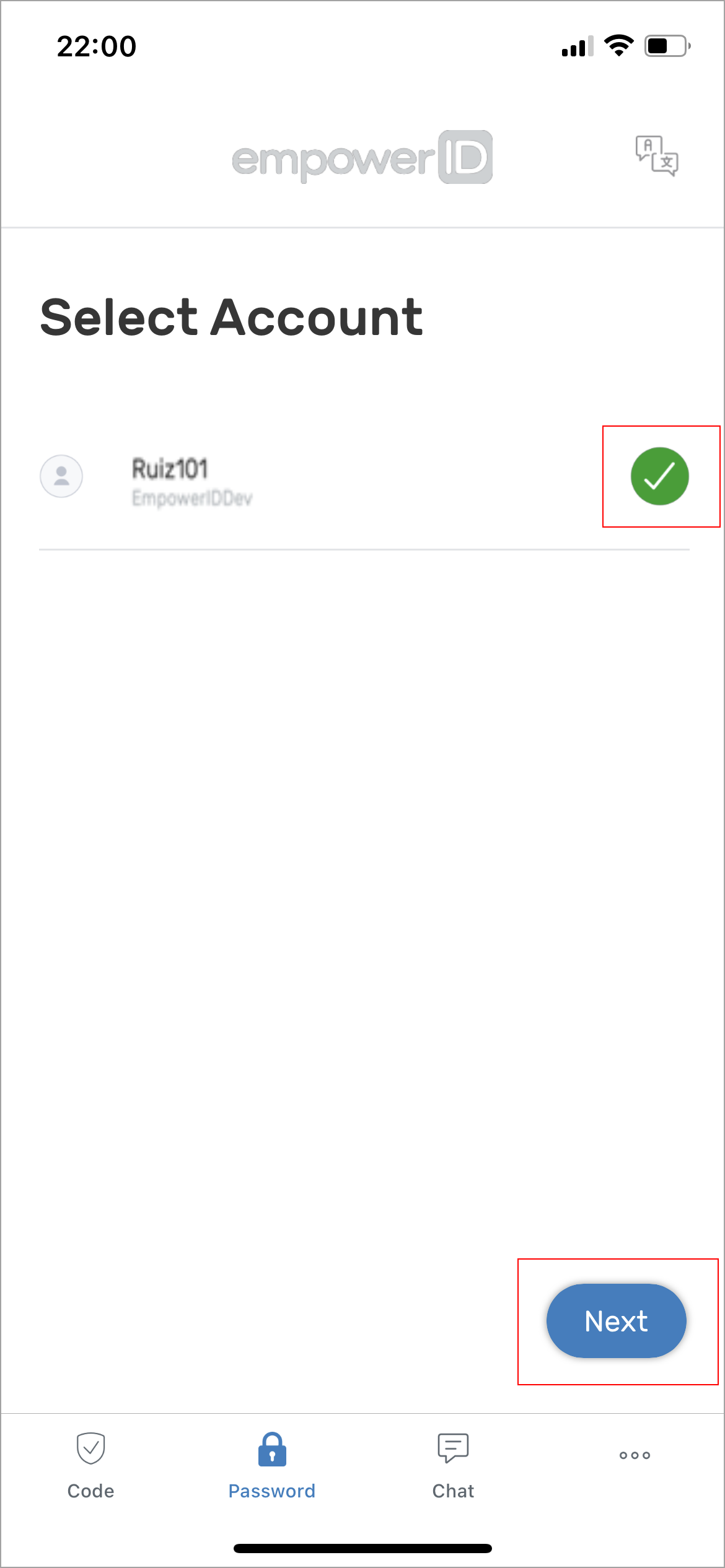
- Select the account you need to reset and tap Next.
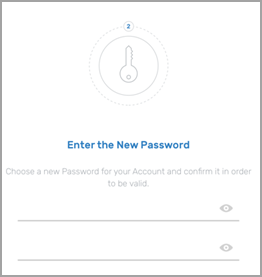
- Enter a new password in both fields and confirm it.
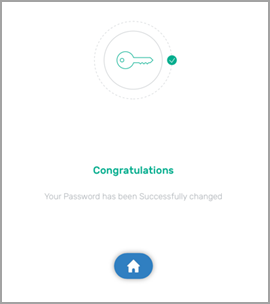
- You will receive a message confirming your password has been successfully changed.
Once complete, you can log in using your updated password.