Change Password
You can easily update the password for your connected accounts using the EmpowerID Mobile Authenticator app. This guide walks you through each step of the password change process.
Password Management
You can use the EmpowerID Mobile Authenticator app to change the password for any connected account, either individually or across all linked accounts.
How to Change Your Password
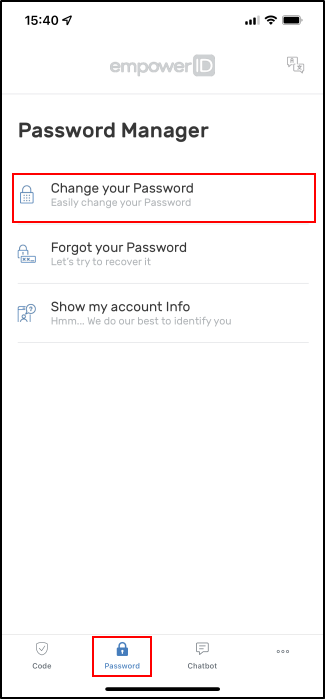
- Tap the Password tab in the app, then select the Change Password option.
- Select the account you want to change the password for and click Next.
- Choose whether to change the password for:
- All Accounts
- Only for This Account
- Tap Next to continue.
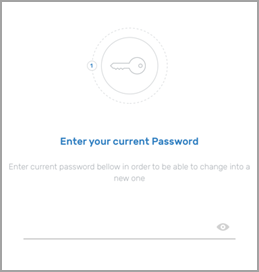
- Enter your current password to validate your identity.
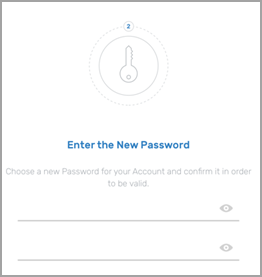
- After your current password is validated, enter and confirm your new password in the fields provided.
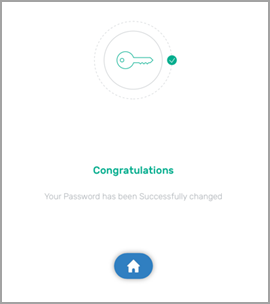
- A confirmation message will appear when the password has been changed successfully.