Use Security Key Universal 2nd Factor (U2F) in EmpowerID
If your organization has enabled Security Key - Universal 2nd Factor (U2F) for multi-factor authentication (MFA), you can use a physical security key to authenticate as a second factor during login.
This guide explains how to authenticate using a U2F key in EmpowerID.
Overview
U2F provides an extra layer of security by verifying your identity with a physical device. EmpowerID uses a certificate linked to your U2F security key to authenticate you securely.
If MFA is optional for your account, you don’t need to use this method unless required by your organization. If it is required, you must complete U2F authentication before gaining access to resources.
The MFA options available to you depend on your administrator. You may see more or fewer options than shown below.
What You’ll Need
- An EmpowerID account
- A registered U2F security key (e.g., YubiKey)
- A browser that supports U2F/WebAuthn (e.g., Chrome, Edge)
Steps to Authenticate Using U2F Security Key
1. Log In to the EmpowerID Web Portal
- Navigate to your organization’s EmpowerID login page.
- Enter your credentials to log in.
2. Select U2F as Your MFA Method (If Prompted)
- If MFA is optional or you have multiple methods available, choose Security Key Universal 2nd Factor and click Submit.
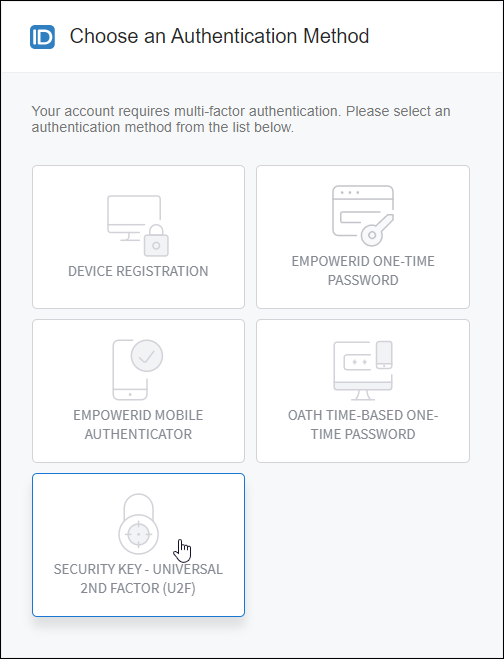
If U2F is required, you will skip this selection step and be prompted immediately to insert your key.
3. Insert Your Security Key
- You’ll see a message prompting you to insert your security key.
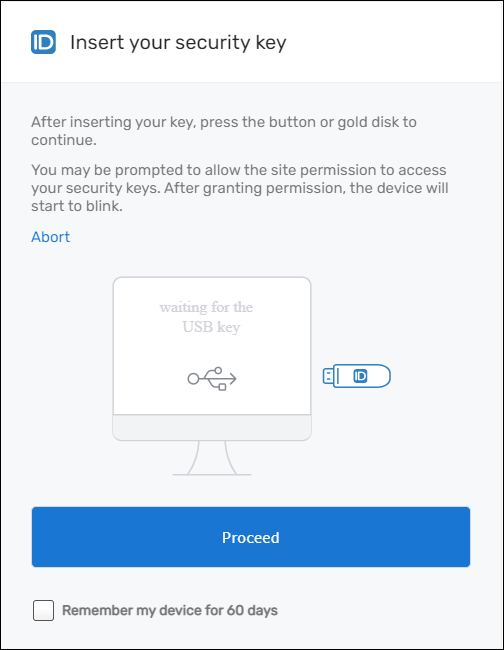
- Insert the key into your device’s USB port.
4. Activate the Key
- Press the button or gold disk on the key to confirm authentication.
EmpowerID generates a certificate for your security key that is permanently tied to your EmpowerID Person. This means no other user can use your security key to authenticate using Universal 2nd Factor.
If additional MFA is required for your account, you’ll be prompted to select and complete another authentication method. Just follow the on-screen steps to finish the login process.
Troubleshooting
Problem: EmpowerID doesn’t prompt for the key
Solution: Ensure your browser supports U2F and your key is fully inserted. Try a different browser if needed.
Problem: Key not recognized
Solution: Reinsert the key and try again. Make sure no other app is attempting to use the key at the same time.
Problem: Unable to complete authentication
Solution: Ensure the key is registered and associated with your EmpowerID Person. Contact your administrator if unsure.