Register Additional Mobile Devices
Users can register multiple mobile devices to an account that allows using Push and Passcode Multi-factor Authentication for logging into their EmpowerID account. Please follow the steps below to configure additional devices if you have already registered one.
Please ensure that the person also has other multifactor authentication methods enabled along with EmpowerID Mobile Authenticator. To request a token a person will have to authenticate via other MFA options besides the Mobile Authenticator App.
-
Login to EmpowerID using your credentials.
-
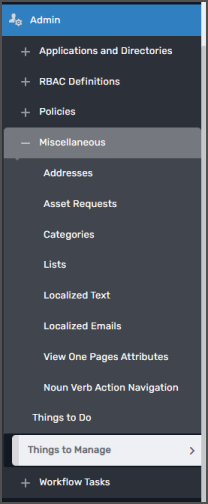
Navigate to Admin → Miscellaneous → Things to Manage
-
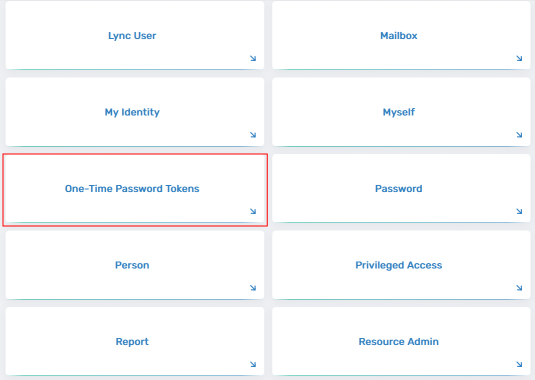
Please click on One Time Password Tokens & Create.

-
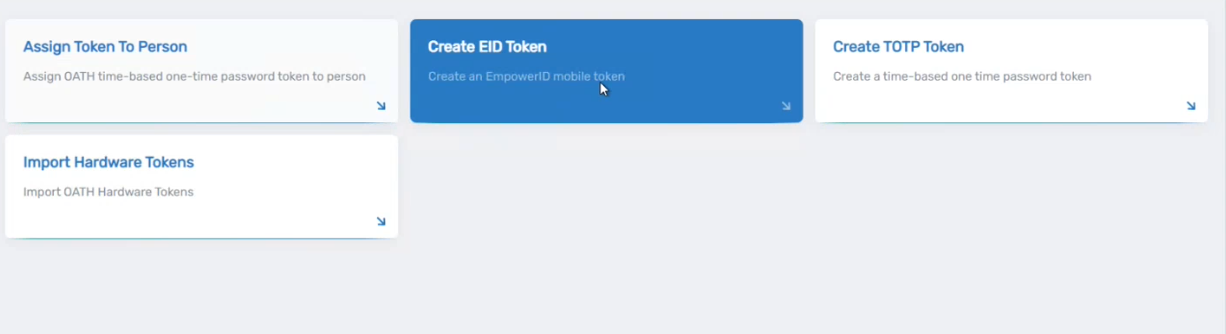
Click on Create EID Token button.
-
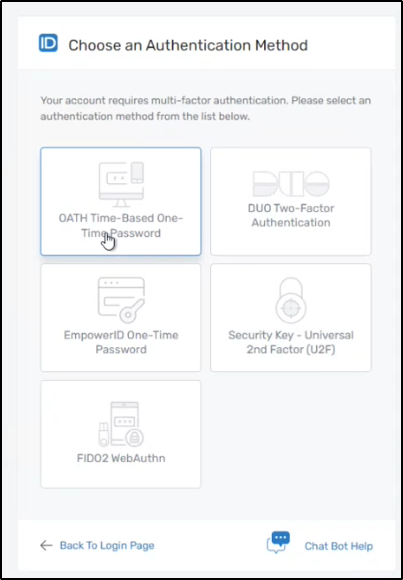
EmpowerID will authenticate identity using multifactor authentication.
💡TipPlease ensure that the person has multiple multifactor authentication methods enabled and select the one not used while logging in.
For example purposes, OATH Time-Based-One-Time Password is selected in the screenshot.
-
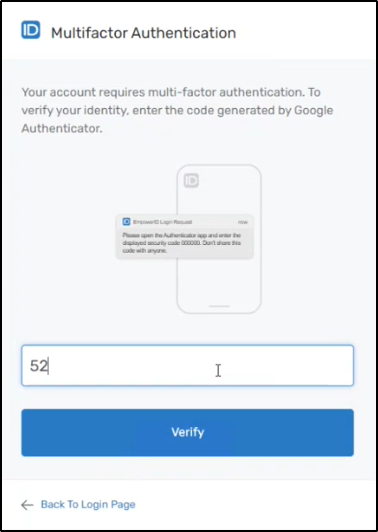
Based on the selected MFA, additional steps will be shown to the user in EID for authentication. Since OATH Time-Based-One-Time Password was selected earlier in this example, a prompt to enter the code will be provided.
-
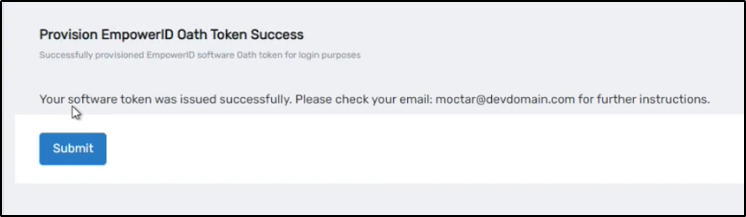
The user can see a success message that an email is sent with a token.
-
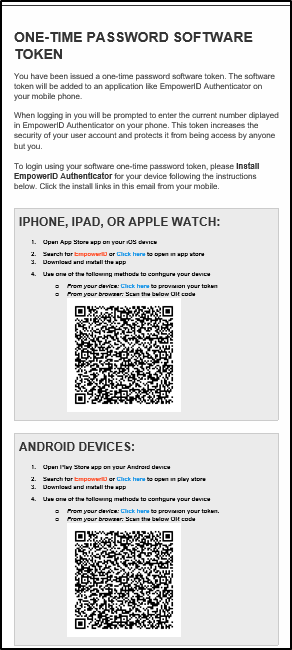
The user will receive an email with a QR code, including other details. Please follow the instructions provided herein Registering a Mobile Device to register additional devices or additional apps. QR codes for both IOS and Android devices are provided in the Email.