Edit Mailbox Quota and Restrictions
When you need to control mailbox storage usage, set message size limits, or configure other email restrictions, you can modify mailbox quota and restriction settings. This helps manage server resources and ensure appropriate email usage across your organization.
Use this workflow when mailboxes are running out of space, you need to enforce message size policies, or when implementing storage management standards across different user groups.
Before You Start
Make sure you have:
- Appropriate permissions to manage quota settings for the specific mailbox you want to modify.
- Understanding of your organization's storage policies and limits.
- Knowledge of appropriate quota levels for different types of users or mailboxes.
- Decisions about message size restrictions and other email limitations.
Get Started
- Navigate to the Resource Admin portal
- Select Mailboxes from the resource type menu
- Click the Workflows tab
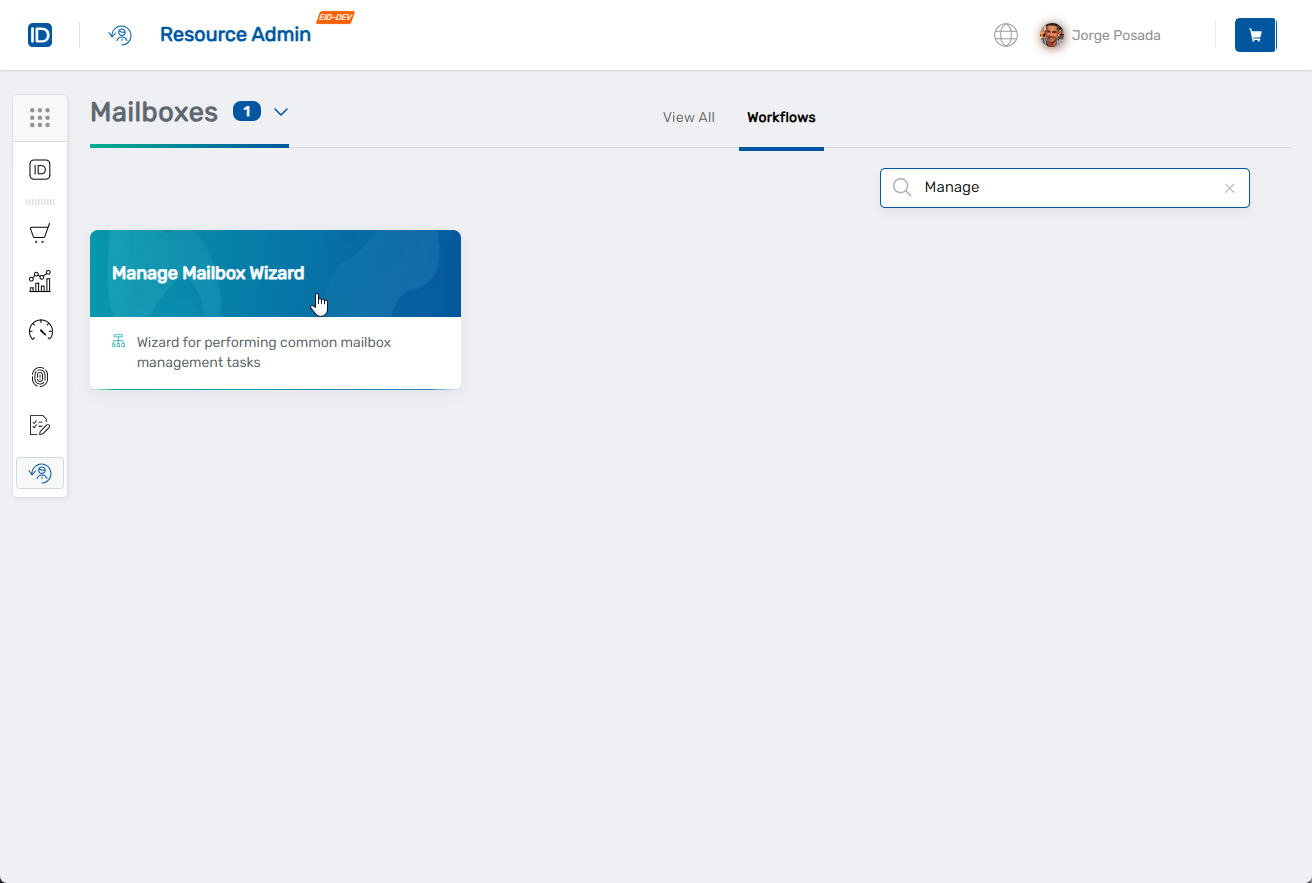
- Find and click Manage Mailbox Wizard
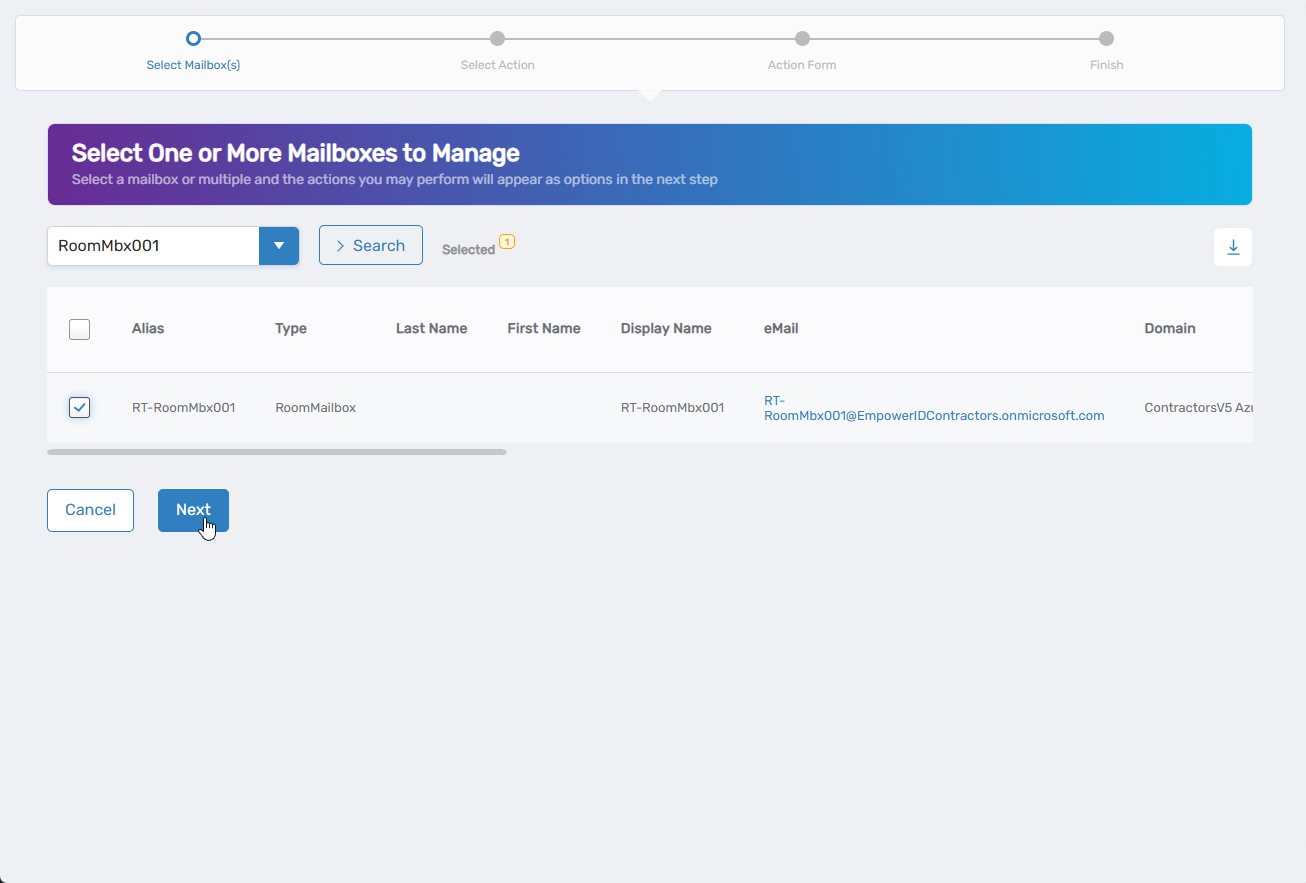
- Search for the mailbox you want to modify, then check the box next to it and click Next
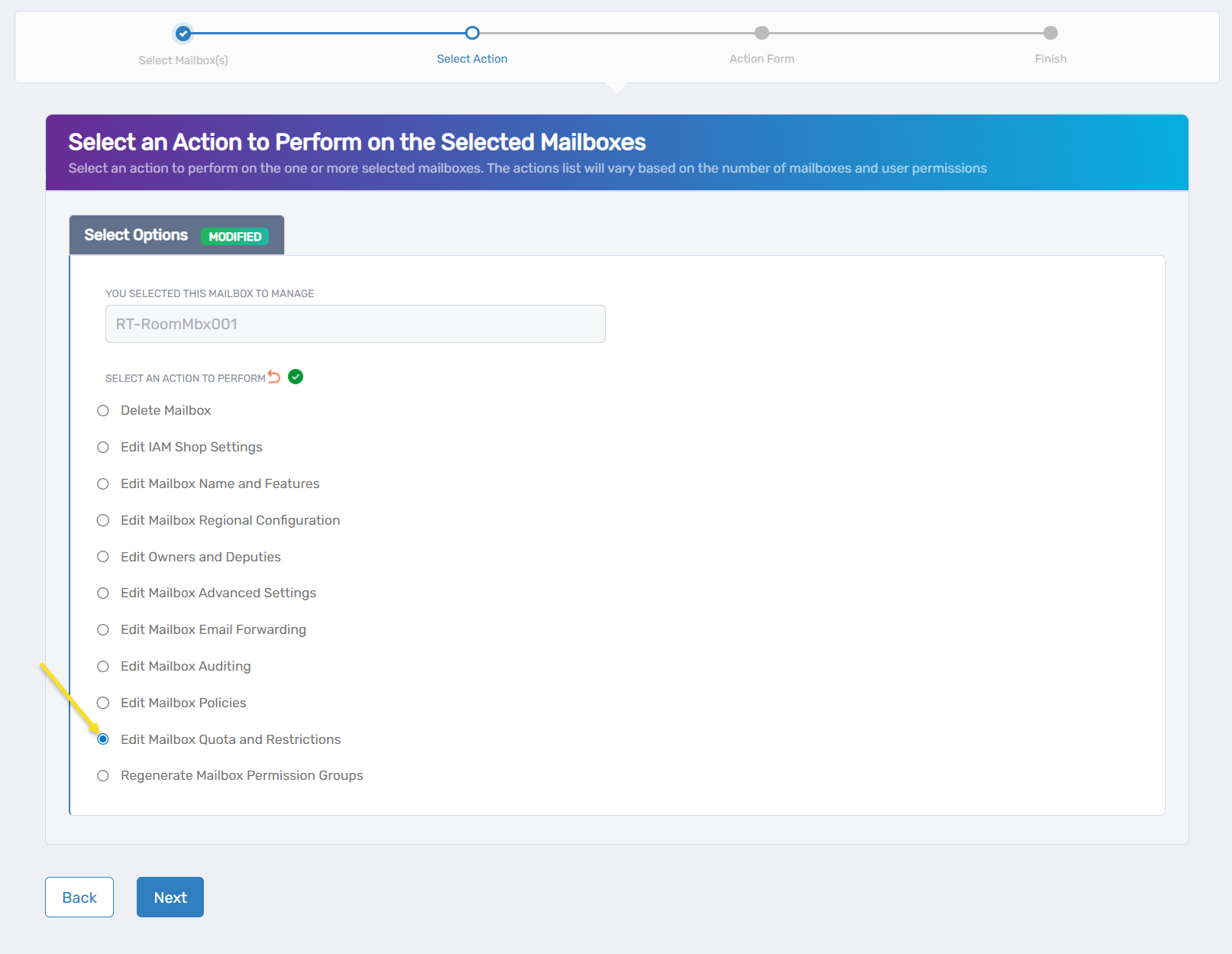
- Select Edit Mailbox Quota and Restrictions from the available actions
- Click Next to proceed to the quota configuration
Configure Mailbox Quotas and Restrictions
The interface is organized into two main sections: Quota Settings and Message Size Restrictions.
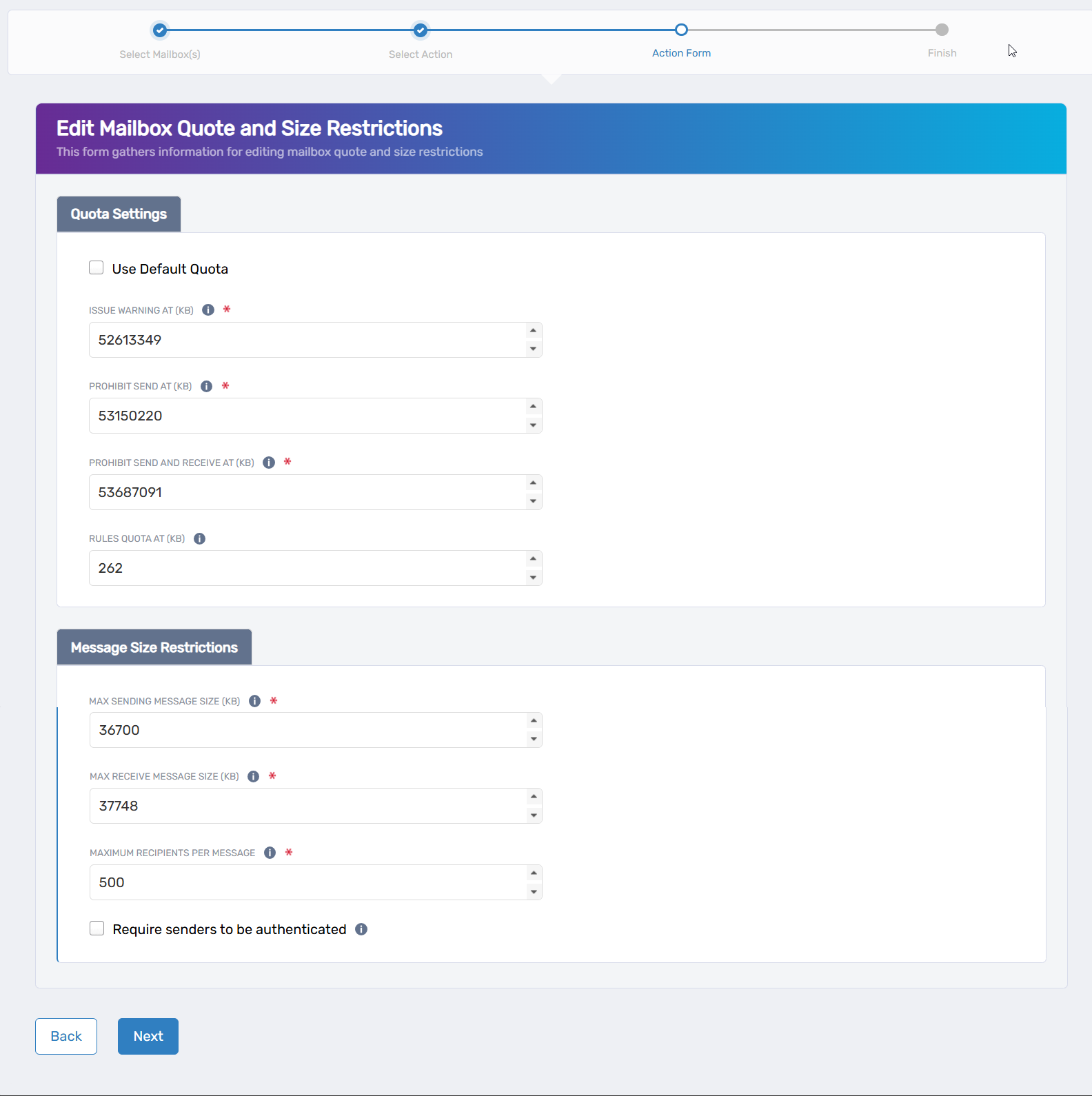
- Configure Quota Settings:
- Use Default Quota: Check this box to apply the default quota settings from the mailbox database.
- Issue Warning At (KB): Set the storage limit (in kilobytes) where users receive a warning about mailbox size.
- Prohibit Send At (KB): Set the storage limit where users can receive but not send email.
- Prohibit Send and Receive At (KB): Set the maximum storage limit where all email activity is blocked.
- Rules Quota At (KB): Configure the storage limit for mailbox rules and other client-side features.
- Configure Message Size Restrictions:
- Max Sending Message Size (KB): Specify the largest message size (in kilobytes) users can send from this mailbox.
- Max Receive Message Size (KB): Set the largest message size this mailbox can receive.
- Maximum Recipients Per Message: Limit the number of recipients allowed in a single email message.
- Require senders to be authenticated: Check this box to require authentication for all incoming messages.
- Click Next to proceed with your changes.
Complete the Workflow
-
Review the Operation Execution Summary to confirm your changes were applied successfully:
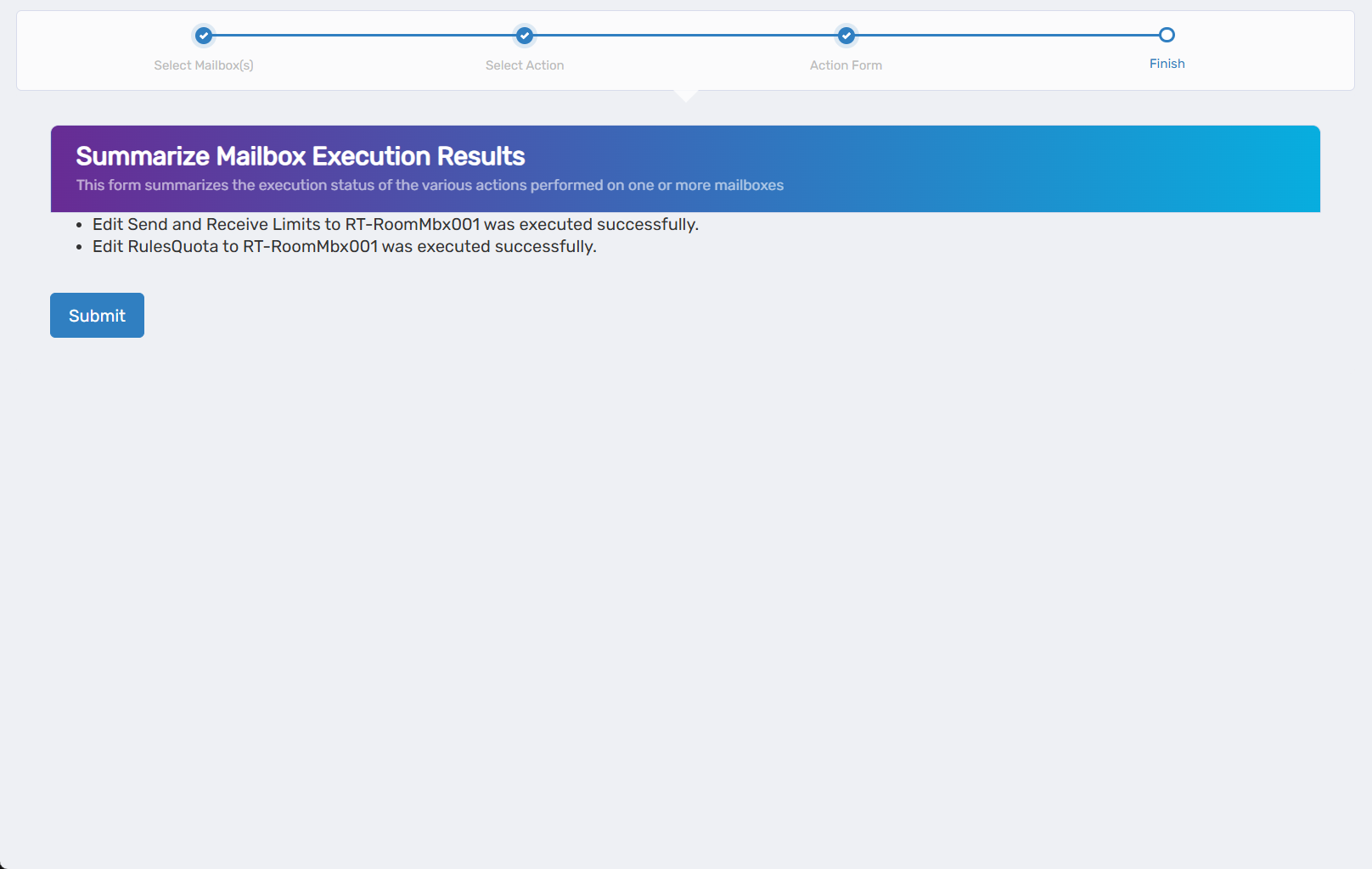 The summary shows the specific quota and restriction settings that were updated.
 -
Click Submit to continue.
-
Choose your next action:
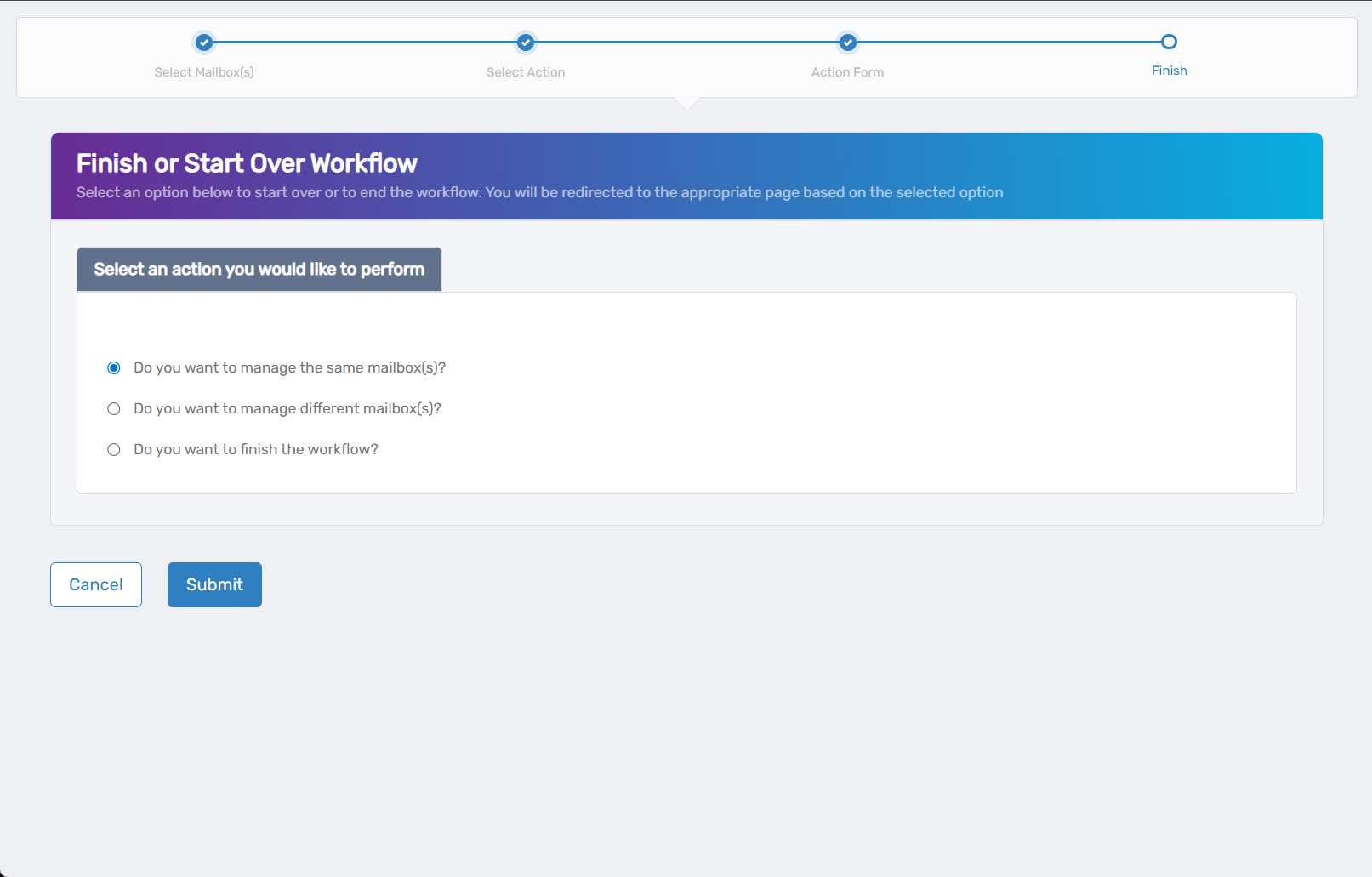
- Do you want to manage the same Mailbox? - Select this to perform additional actions on the same mailbox.
- Do you want to manage different Mailbox(es)? - Select this to work with other mailboxes.
- Do you want to finish the workflow? - Select this to complete the process and exit the wizard.
-
Click Submit to proceed with your selected option.
Verify Your Changes
After completing the workflow:
- Check quota enforcement by reviewing current mailbox usage against new limits.
- Test message size restrictions by attempting to send messages near the size limits.
- Verify warning notifications are sent when storage thresholds are reached.
- Confirm retention settings are working as expected for deleted items.
What Happens Next
- Storage quotas take effect immediately and are enforced on the next email activity.
- Warning messages are sent to users when they approach storage limits.
- Send restrictions are applied immediately when storage thresholds are exceeded.
- Message size limits are enforced for all new incoming and outgoing messages.
- Retention policies apply to newly deleted items based on the configured timeframe.
If You Run Into Problems
Users not receiving quota warnings: Verify that warning thresholds are set below the send restriction limits and that notification systems are functioning.
Message size restrictions not working: Check that both send and receive limits are configured appropriately and that Exchange transport rules aren't overriding the settings.
Quota changes not taking effect: Storage quota enforcement may require a brief delay. Wait 10-15 minutes and check mailbox properties again.
Database defaults not applying: Ensure the mailbox database has appropriate default values configured and that inheritance settings are enabled.
Related Actions
- To configure mailbox features and protocols, see Edit Mailbox Name and Features
- To modify ownership and administrative access, see Edit Mailbox Owners and Deputies
- To set up email forwarding, see Edit Mailbox Email Forwarding
- To configure advanced mailbox settings, see Edit Mailbox Advanced Settings