Edit Mailbox Email Forwarding
When you need to redirect email messages from one mailbox to another address, you can configure email forwarding settings. This is useful for routing messages to alternative destinations, consolidating email management, or ensuring continued message delivery during organizational changes.
Use this workflow when you need to redirect mailbox messages to different recipients, consolidate email from multiple sources, or ensure message continuity during transitions.
Before You Start
Make sure you have:
- Appropriate permissions to manage forwarding settings for the specific mailbox you want to modify.
- The correct destination email address where messages should be forwarded.
- Understanding of whether messages should be kept in the original mailbox or only forwarded.
- Knowledge of any organizational policies regarding email forwarding and data retention.
Get Started
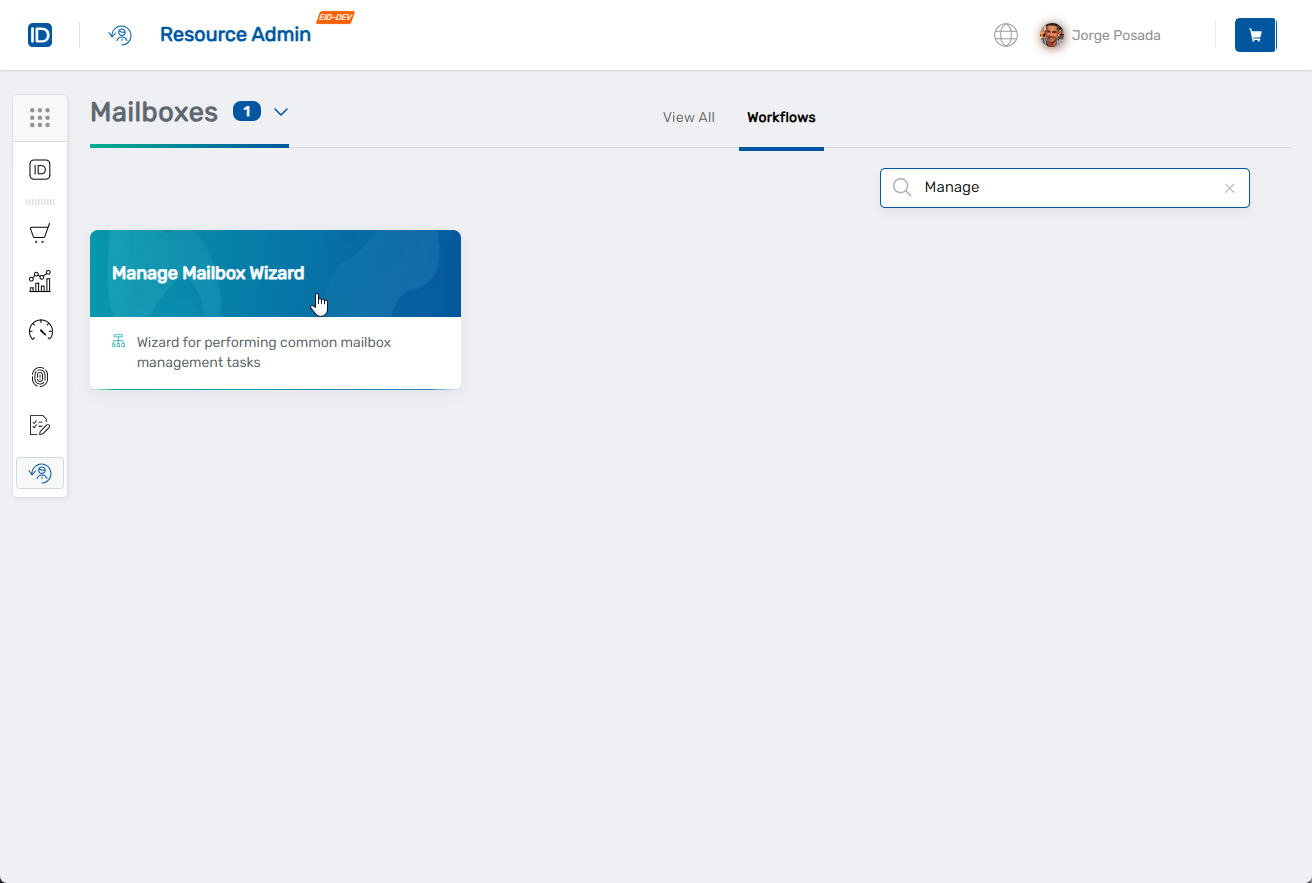
- Navigate to the Resource Admin portal
- Select Mailboxes from the resource type menu
- Click the Workflows tab
- Find and click Manage Mailbox Wizard
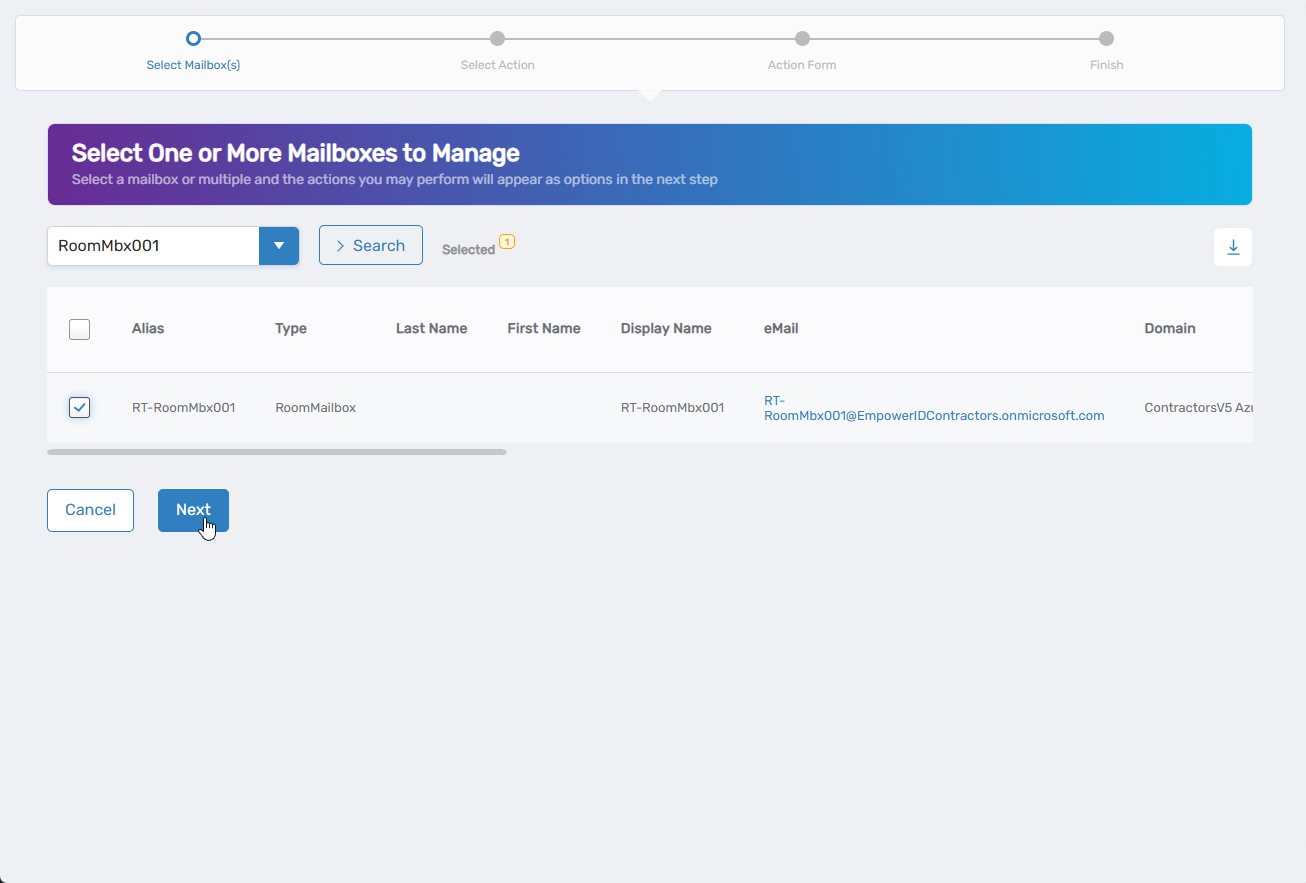
- Search for the mailbox you want to modify, then check the box next to it and click Next
- Select Edit Mailbox Email Forwarding from the available actions
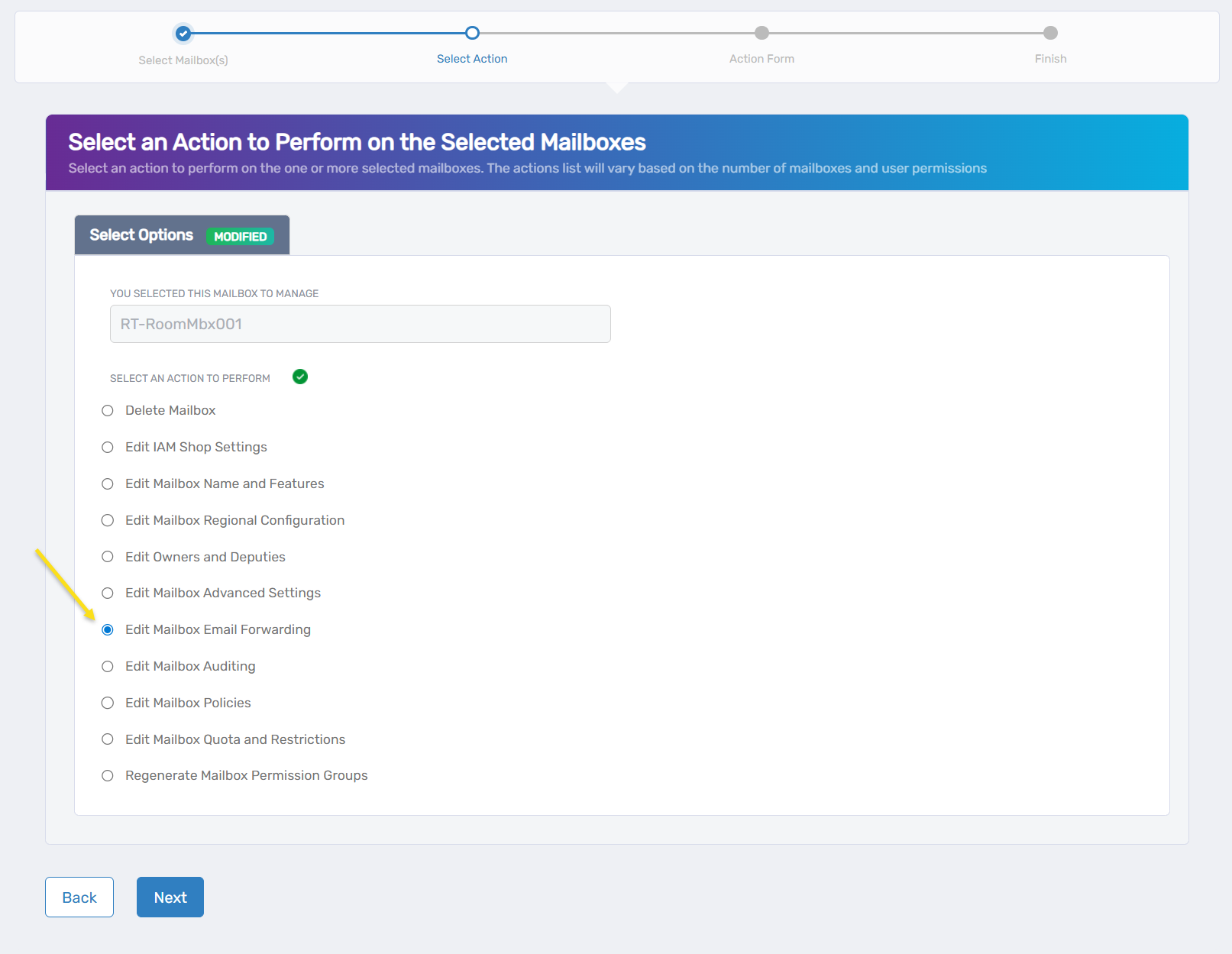
- Click Next to proceed to the forwarding configuration
Configure Email Forwarding Settings
The interface displays a simple forwarding configuration with conditional fields that appear when forwarding is enabled.
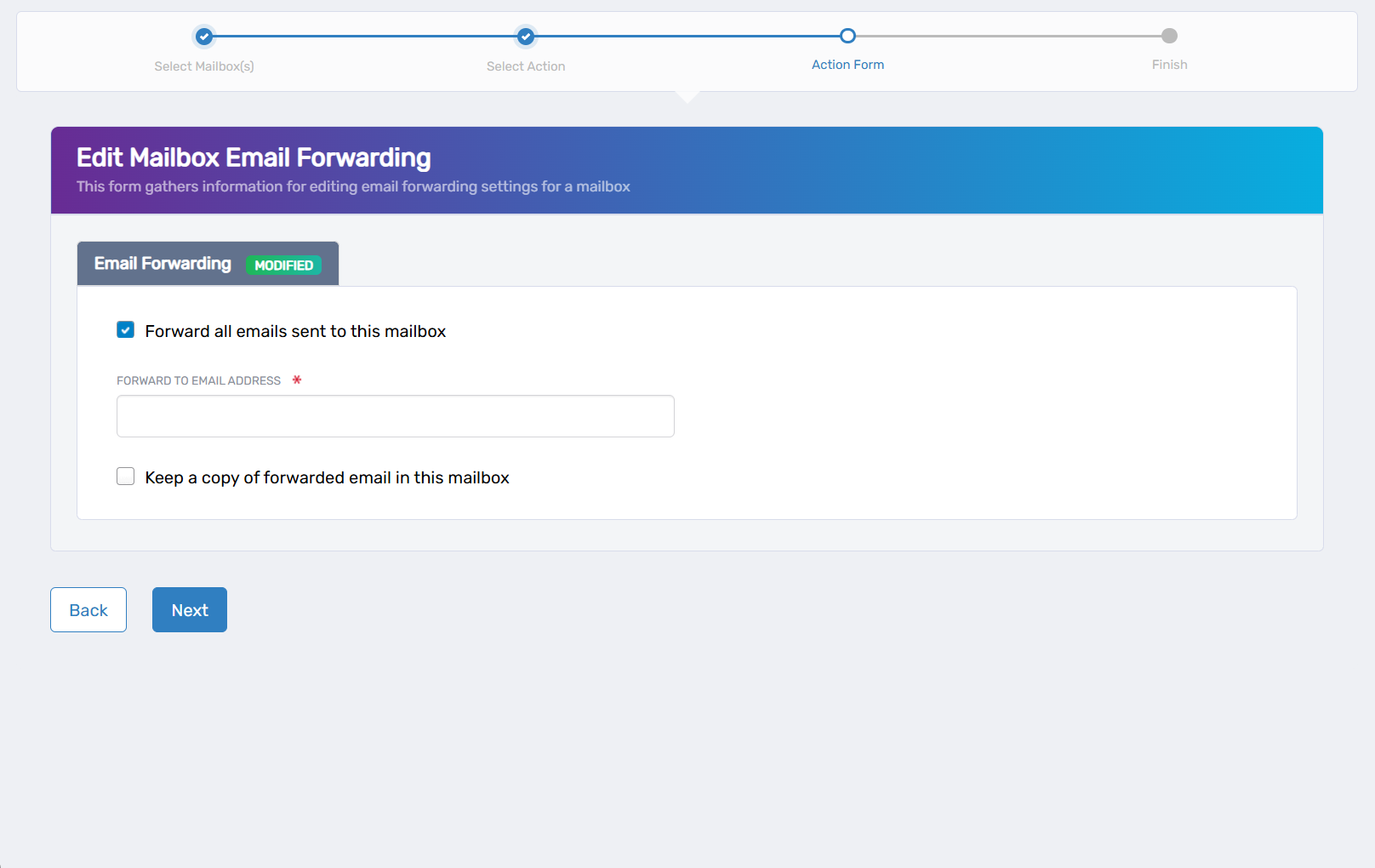
- Enable email forwarding:
- Forward all emails sent to this mailbox: Check this box to activate email forwarding for the mailbox.
- Configure forwarding details (these fields appear when forwarding is enabled):
- Forward to Email Address: Enter the destination email address where messages should be sent.
- Keep a copy of forwarded email in this mailbox: Check this option to retain copies of messages in the original mailbox while also forwarding them. Leave unchecked to forward messages without keeping copies.
- Click Next to proceed with your changes.
Complete the Workflow
-
Review the Operation Execution Summary to confirm your changes were applied successfully:
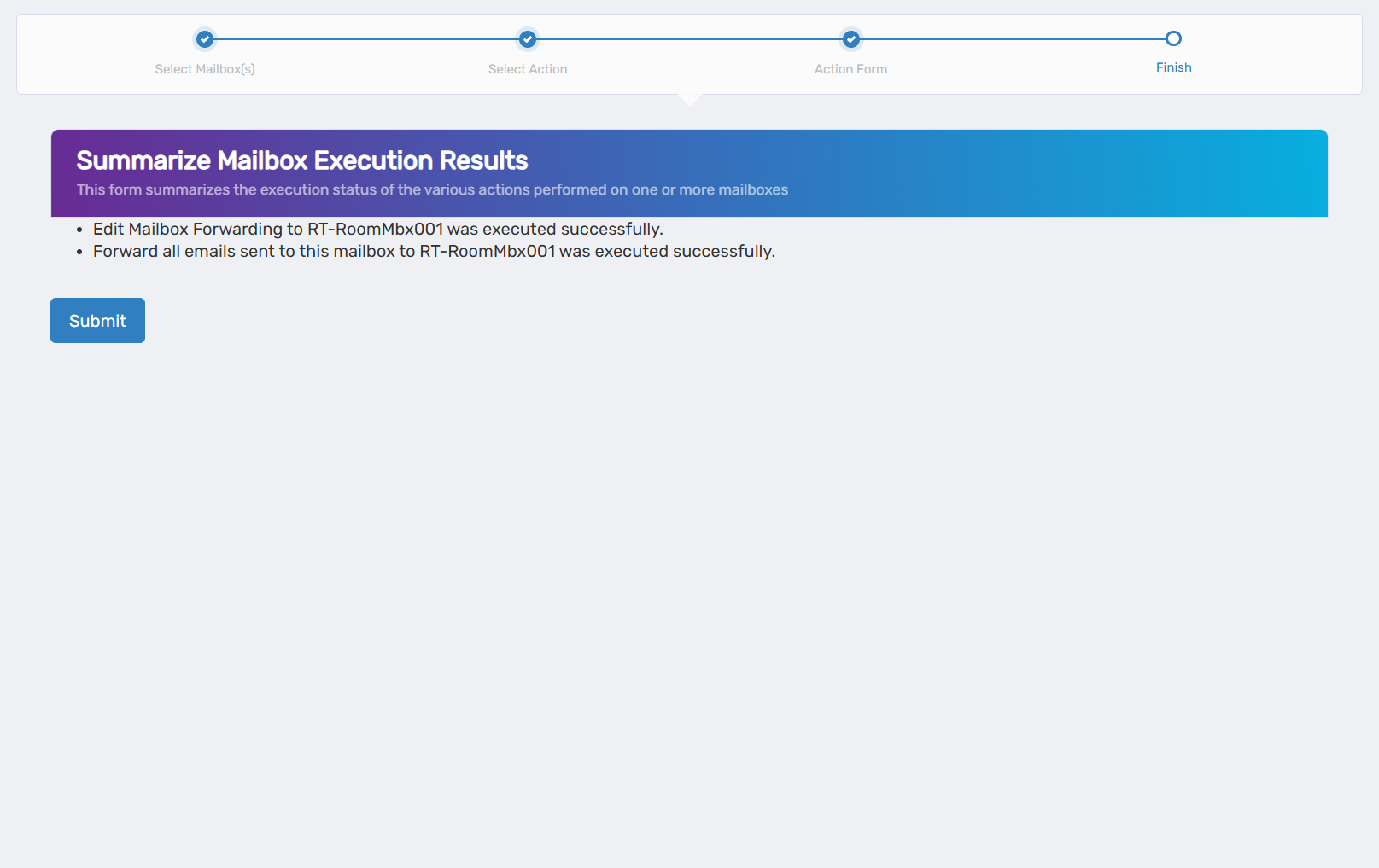 The summary shows the specific forwarding settings that were updated.
 -
Click Submit to continue.
-
Choose your next action:
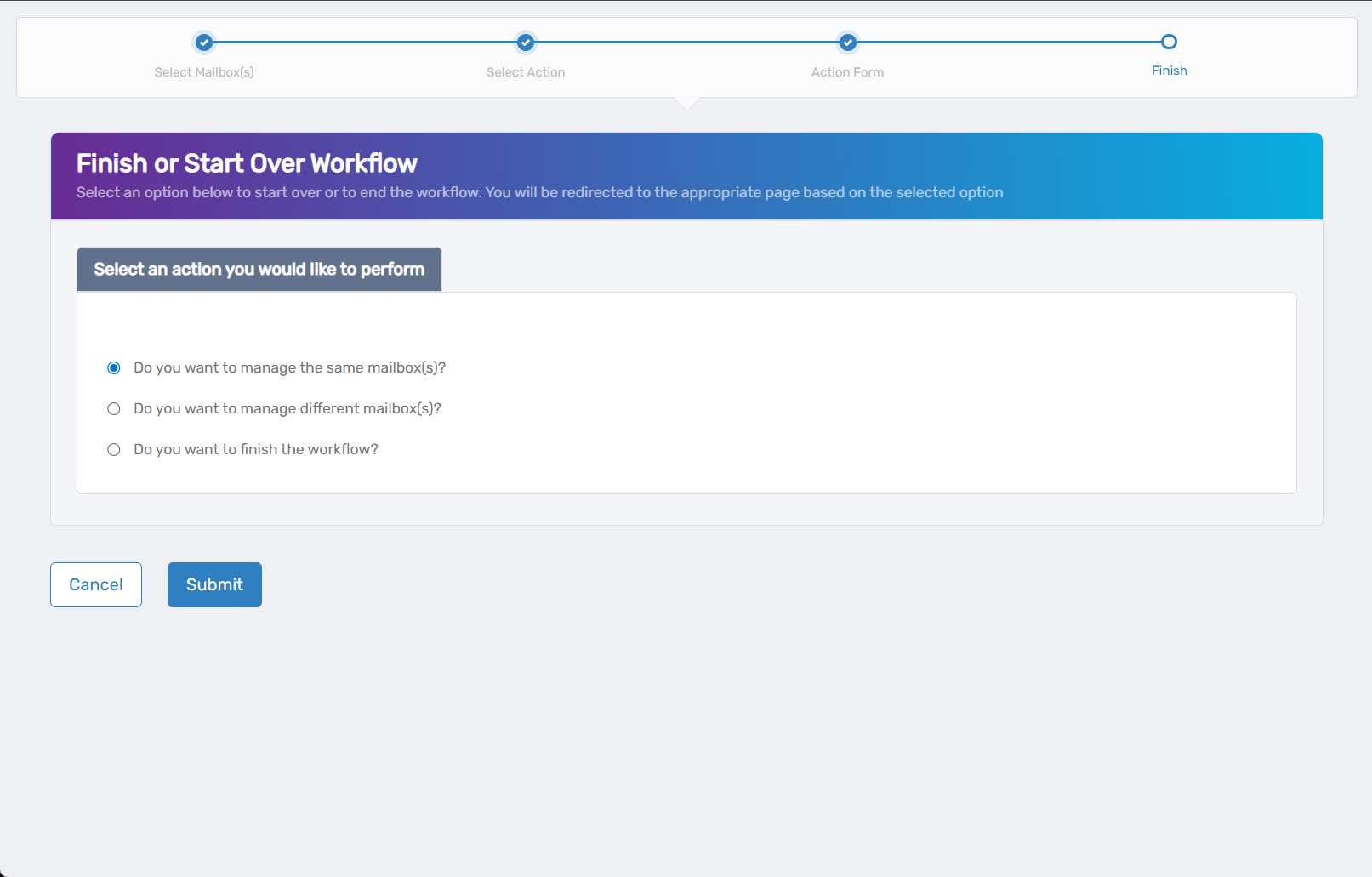
- Do you want to manage the same Mailbox? - Select this to perform additional actions on the same mailbox.
- Do you want to manage different Mailbox(es)? - Select this to work with other mailboxes.
- Do you want to finish the workflow? - Select this to complete the process and exit the wizard.
-
Click Submit to proceed with your selected option.
Verify Your Changes
After completing the workflow:
- Test forwarding functionality by sending a test message to the original mailbox.
- Check the destination address to confirm messages are being forwarded correctly.
- Verify message retention in the original mailbox matches your configuration.
- Confirm forwarding rules are working as expected for internal vs external messages.
What Happens Next
- Email forwarding takes effect immediately for new incoming messages.
- Forwarded messages appear in the destination mailbox with original sender information preserved.
- Message retention in the original mailbox depends on your "deliver and forward" vs "forward only" setting.
- Forwarding loops are automatically prevented by Exchange to avoid circular forwarding.
If You Run Into Problems
Messages not being forwarded: Verify the destination email address is valid and that the forwarding feature is enabled. Check for any transport rules that might block forwarding.
Forwarded messages missing: Confirm the destination mailbox has sufficient storage space and that anti-spam filters aren't blocking the forwarded messages.
Original messages still arriving: If you selected "Forward Only" but messages still appear in the original mailbox, verify the configuration and wait a few minutes for settings to take effect.
External forwarding blocked: Some organizations restrict forwarding to external domains. Check with your Exchange administrator about forwarding policies.
Related Actions
- To configure mailbox quota and size restrictions, see Edit Mailbox Quota and Restrictions
- To modify mailbox features and protocols, see Edit Mailbox Name and Features
- To manage ownership and administrative access, see Edit Mailbox Owners and Deputies
- To configure advanced mailbox settings, see Edit Mailbox Advanced Settings