About Resource Admin
EmpowerID's Resource Admin is a central application designed to give you full control over the resources you own—and the ones you're authorized to manage. It serves as the operations hub for administering applications, groups, roles, and shared folders, all within a streamlined, role-based interface.
Whether you're an IT administrator, application owner, or delegated business stakeholder, Resource Admin provides streamlined access to the resources you're permitted to manage, based on your role and permissions.
What Is Resource Admin?
Resource Admin is part of the EmpowerID platform's delegated administration and identity governance suite. It provides a web-based interface for managing resource objects across the enterprise—whether they originate in Active Directory, Azure, databases, cloud apps, or file systems.
It displays only the resources you’re authorized to manage, based on your role and permissions and lets you take action through workflows, policies, or direct configuration screens.
Who Uses Resource Admin and Why
| Persona | Typical Goals |
|---|---|
| IT Admin | Manage access to applications, shared folders, and groups at scale. Delegate permissions securely. |
| Department Manager | Maintain group membership, approve access, request changes for owned apps. |
| Application Owner | Monitor and adjust entitlements to cloud or on-prem apps you own. |
What You Can Do With Resource Admin
1. Application Management
Admins and app owners can:
- Onboard new applications
- View applications they own or manage
- Configure app settings
- Adjust access policies
- Launch workflows such as "Manage Application Wizard"
2. Group Management
Admins and group owners can:
- Onboard new groups
- View all groups you own or administer
- Review group membership and usage
- Add/remove group members
- Initiate workflows such as "Manage Group Wizard"
3. Role Management
Admins and role owners can:
- Onboard new Management Roles
- Assign roles and view entitlements
- Adjust permissions via role policies
- View who has access and why
4. Shared Folder Management
Admins and shared folder owners can:
- View and filter by UNC path
- Create and delete shared folders
- Adjust access via eligibility and RBAC assignments
- Change ownership or revoke access
Navigating the Interface
📸 Visual Orientation Tip: Screenshots in this section show a full-access view. Your screen may vary based on your permissions.
When you log in to Resource Admin, your homepage is personalized based on your level of access:
Key Interface Elements
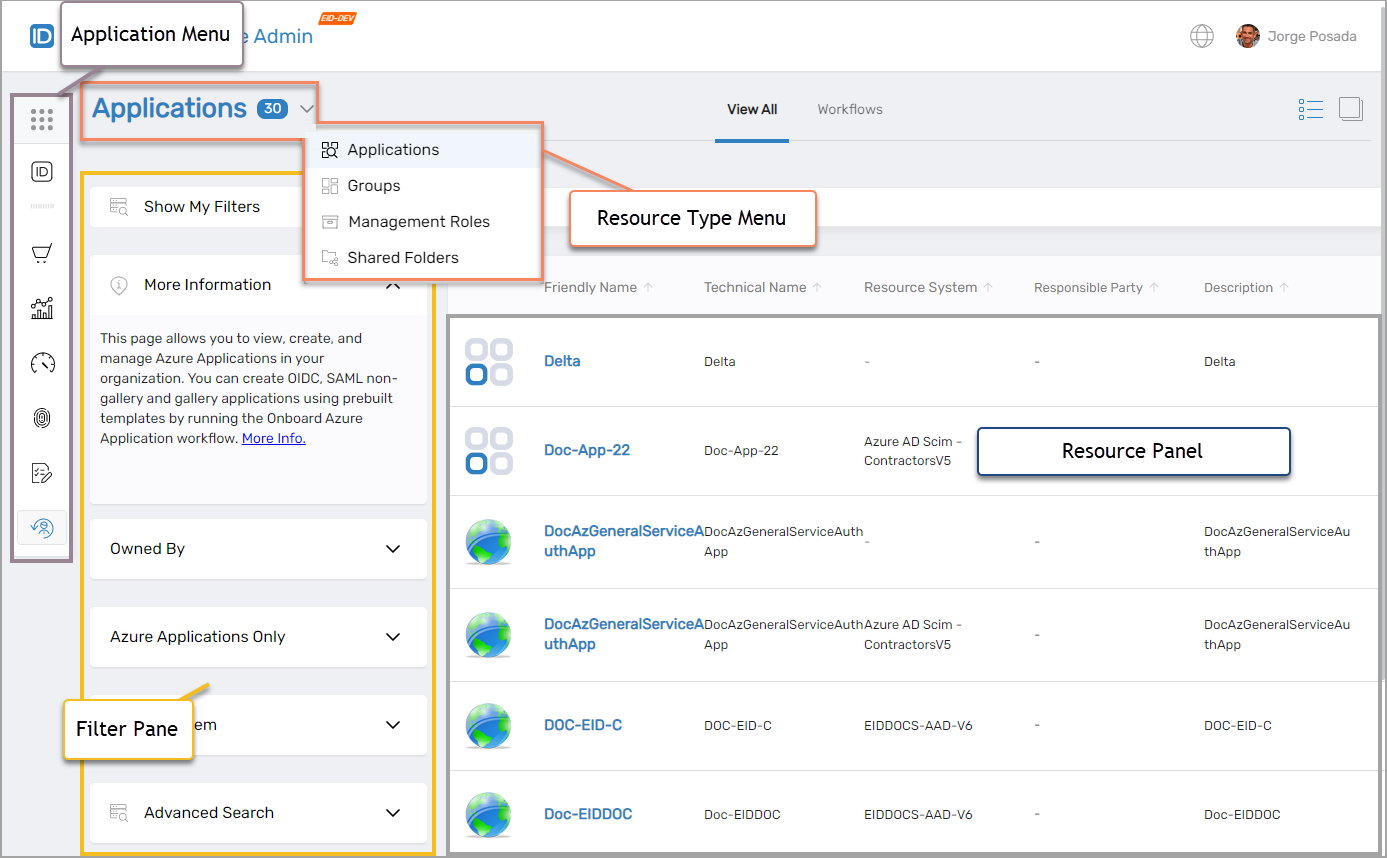
From the homepage, you’ll see a main menu on the left and resource tiles in the main content pane. Each section allows you to take direct actions or launch workflows.
Each area of the Resource Admin interface provides direct access to management tasks. Use the visuals below to familiarize yourself with the layout:
-
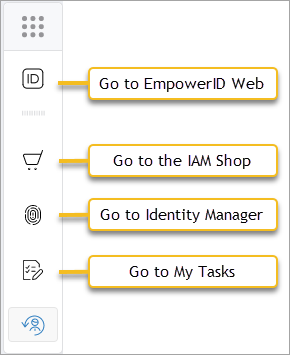
Application Menu: Access other EmpowerID apps.
-
Resource Panel: Lists resources in card or grid view. Launch Details or Wizard workflows from each card.

-
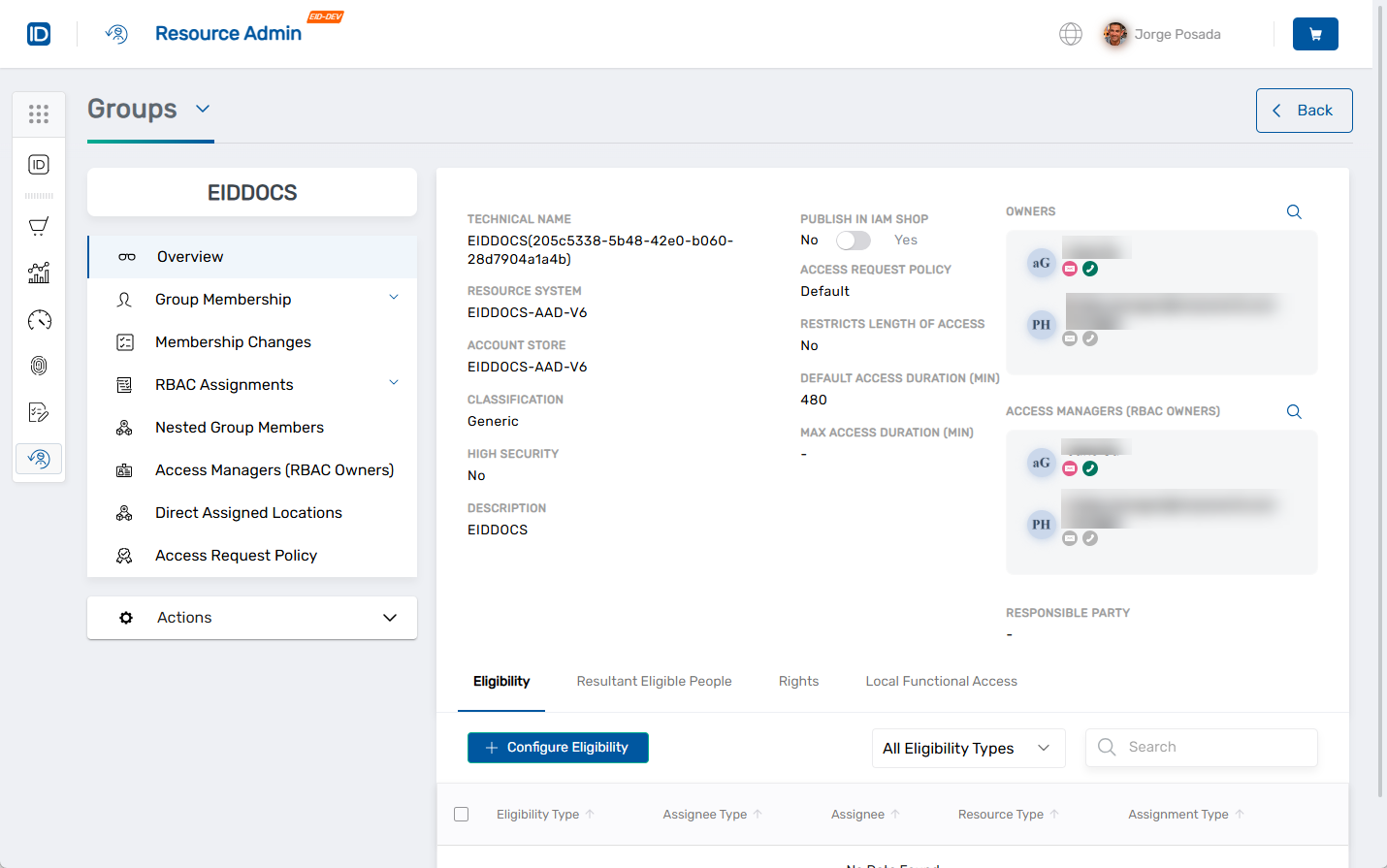
Overview Pages: Clicking Details opens a tabbed interface where you can review details, manage memberships, adjust permissions, or track audit history, depending on the resource type.
-
Workflows Page: View and initiate workflows such as “Manage Group Wizard,” “Onboard a Management Role,” or “Transfer Responsibility,” depending on the selected resource and your access rights.
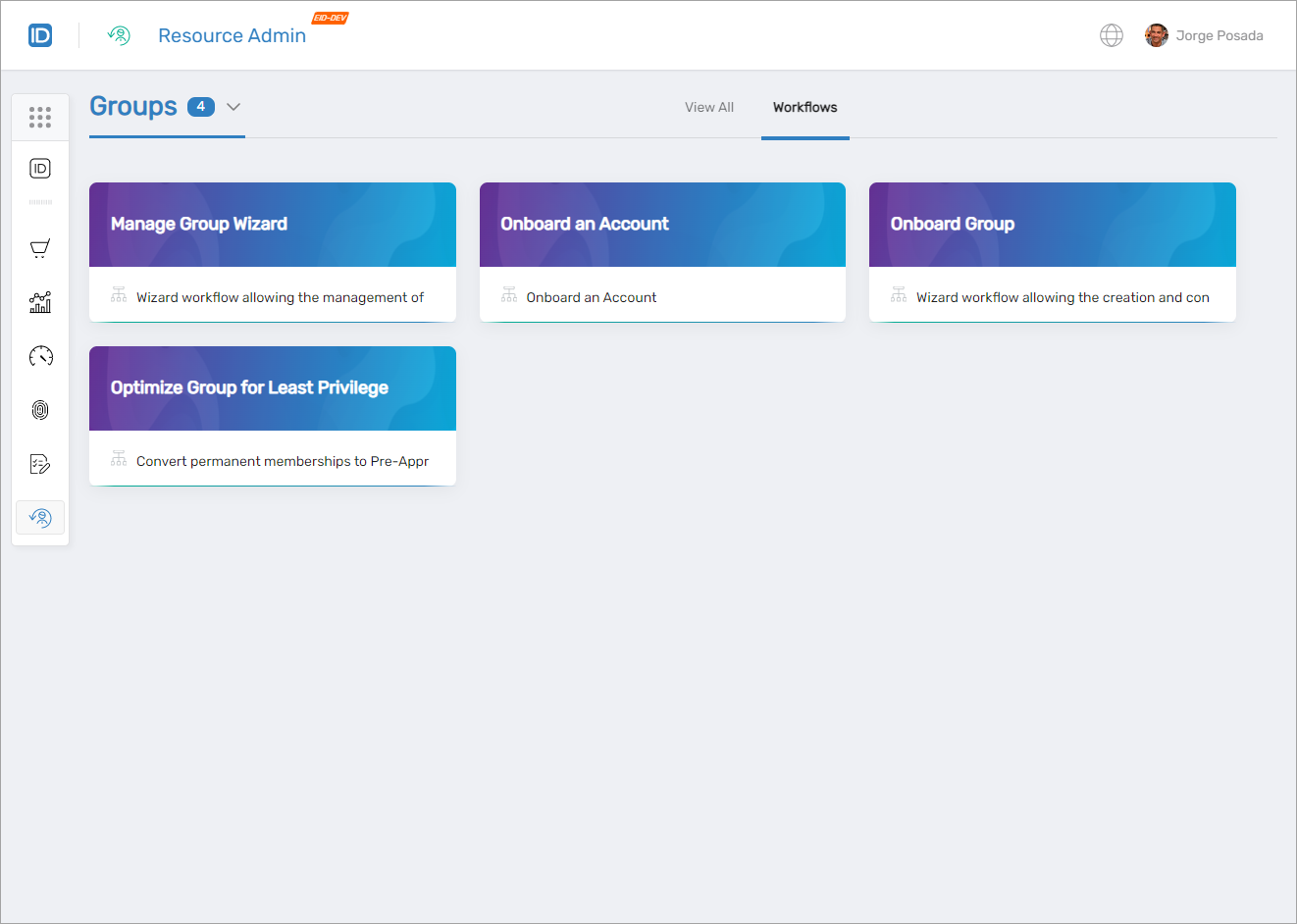
Worflows Page for Groups
Using Filters to Find Resources
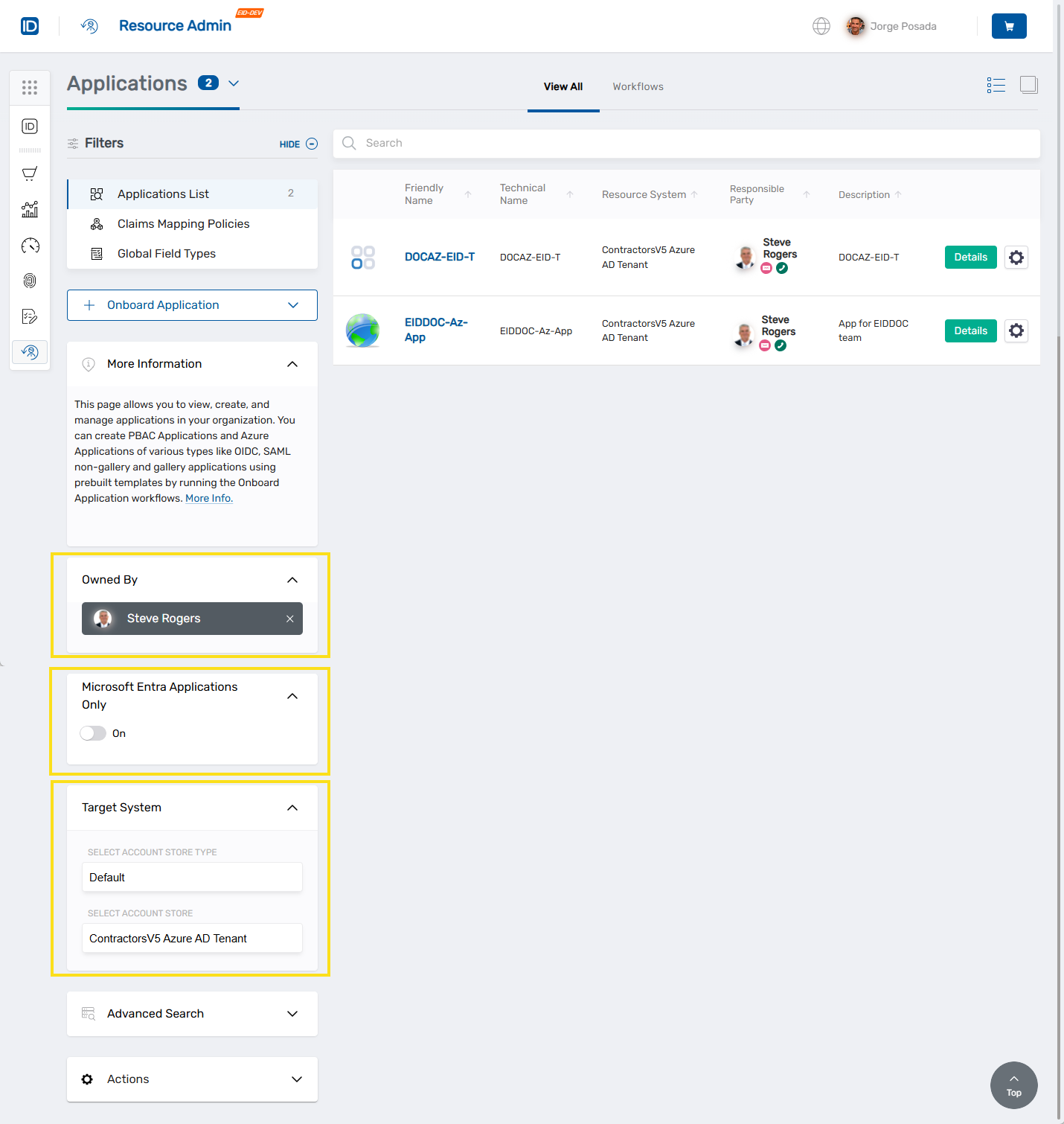
Filters allow you to narrow down resource visibility with precision. You can apply multiple filters together for targeted results.
| Filter | Use It To... |
|---|---|
| Owned By | Show only your resources, anyone’s, or specify another user |
| Entra Applications Only | View Entra-based apps only (Apps tab) |
| Target System | Filter by Account Store Type or Account Store |
| Applications | Narrow to groups or roles related to a specific application |
| Location | View resources tied to a business location |
| Business Functions | Filter by function for roles/groups |
| Rights | Show roles/groups with specific system rights |
| UNC Path | Find folders under a known path |
| Advanced Search | Use keyword or field-driven filtering |
Troubleshooting
- Missing resources or tabs? Your role or permissions may restrict visibility.
- Can’t launch a workflow? You may not have access to initiate that action—check with your admin.
- Unexpected filter results? Try clearing filters or double-checking your Target System settings.
What Happens Next
You're ready to dive deeper into managing resources. Choose the next topic based on your role:
- Manage applications
- Manage groups
- Manage shared folders
- Manage Management Roles
- Manage Mailboxes
- Manage People
By integrating Resource Admin into your daily workflows, you’ll maintain secure, role-based control over enterprise resources.