Edit Mailbox Name and Features
When you need to configure email access methods, enable or disable features, or update mailbox properties, you can modify mailbox features and settings. This allows you to control how mailboxes function and which Exchange features are available.
Use this workflow when you need to configure how mailboxes function - enabling calendar auto-accept for meeting rooms, controlling email protocol access, or adjusting visibility in the Global Address List.
Before You Start
Make sure you have:
- Appropriate permissions to manage the specific mailboxes you want to modify.
- Understanding of which email access protocols should be enabled for each mailbox.
- Knowledge of any organizational policies regarding mailbox access.
- Decisions about calendar auto-accept settings and other feature requirements.
Get Started
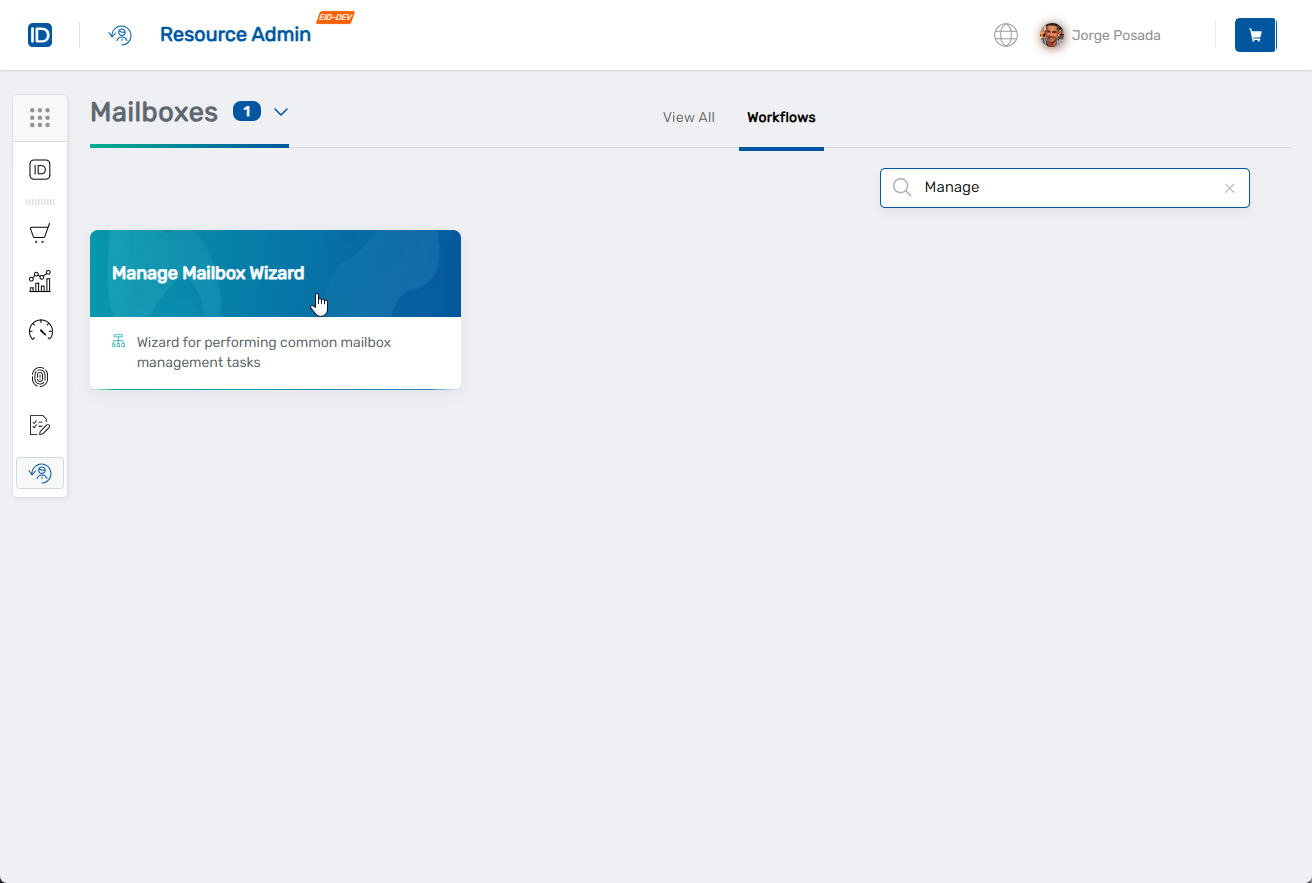
- Navigate to the Resource Admin portal
- Select Mailboxes from the resource type menu
- Click the Workflows tab
- Find and click Manage Mailbox Wizard
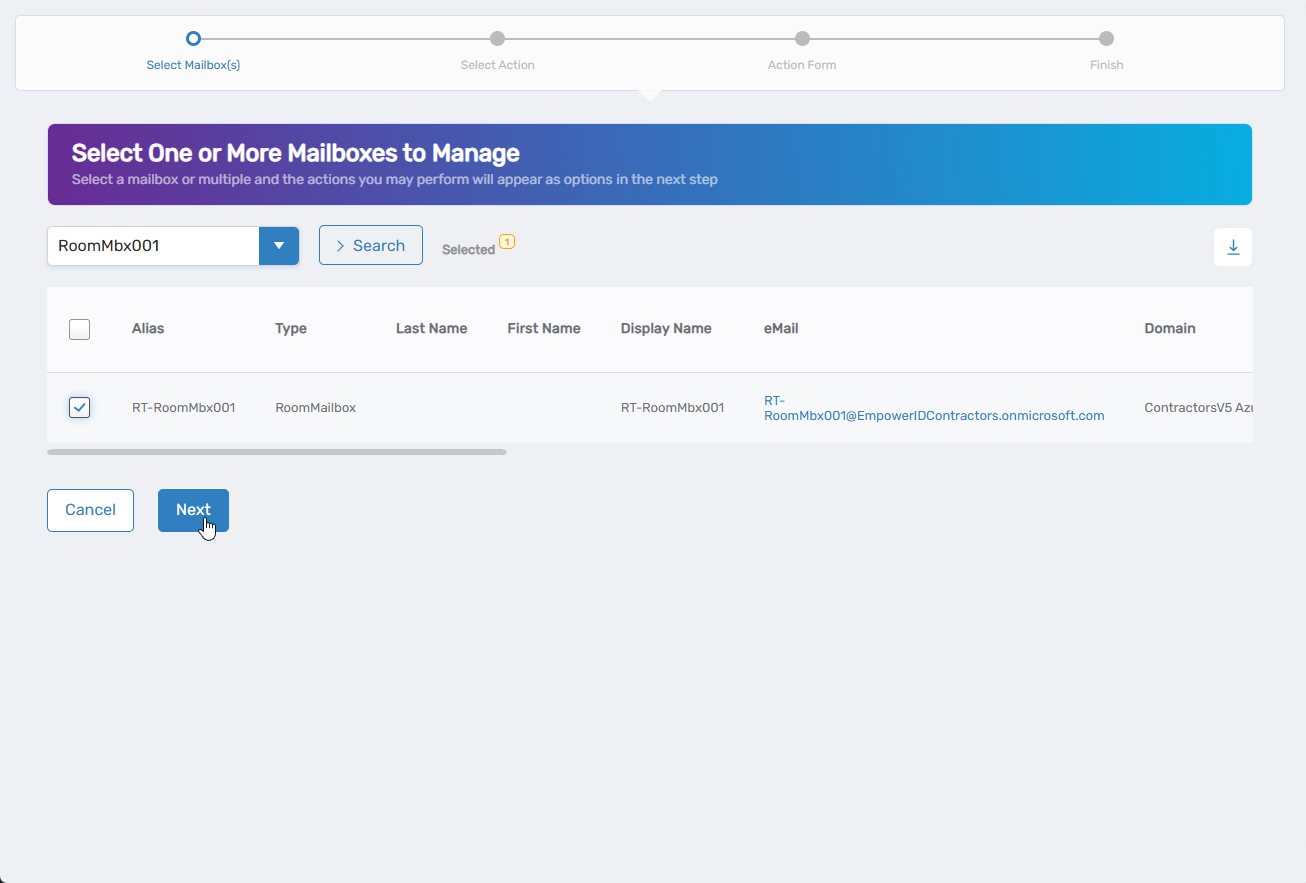
- Search for the mailbox you want to modify, then check the box next to it and click Next
- Select Edit Mailbox Name and Features from the available actions
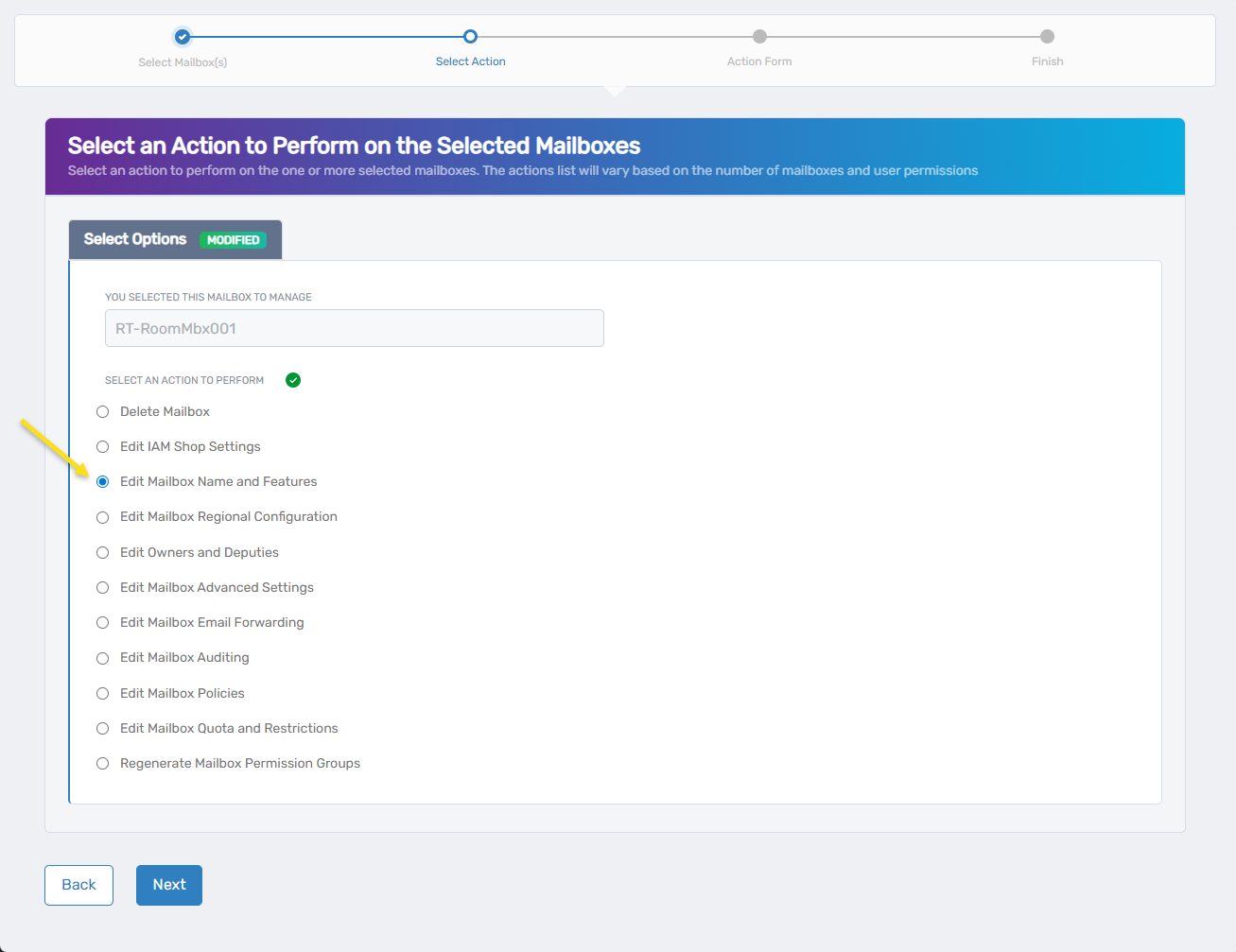
- Click Next to proceed to the mailbox configuration
Configure Mailbox Features and Properties
The interface displays the current mailbox configuration that you can modify. Note that some fields like Display Name, Name, Path, and Alias are read-only and cannot be changed through this workflow.
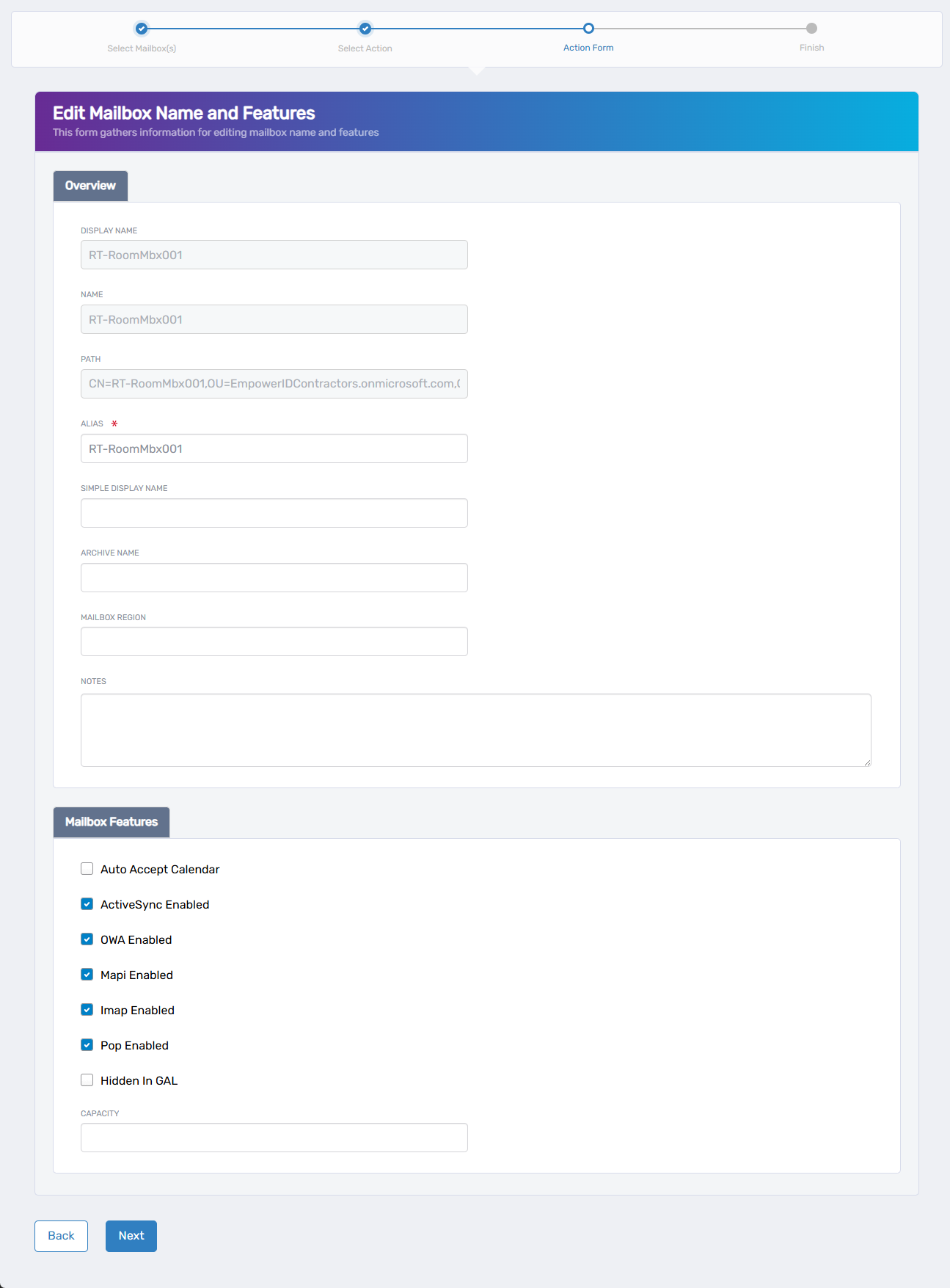
- Update editable mailbox information:
- Simple Display Name: Update the simplified display name for the mailbox.
- Archive Name: Modify the name of the mailbox's archive (if archive is enabled).
- Mailbox Region: Set the geographical region for the mailbox.
- Notes: Add or update administrative notes about the mailbox.
- Capacity: Configure mailbox storage capacity settings.
- Configure mailbox features:
- Auto Accept Calendar: Check to enable automatic calendar invitation acceptance (useful for resource mailboxes and automated responses).
- ActiveSync Enabled: Check to allow mobile device synchronization.
- OWA Enabled: Check to enable Outlook Web Access.
- Mapi Enabled: Check to allow MAPI protocol access.
- Imap Enabled: Check to enable IMAP protocol.
- Pop Enabled: Check to allow POP3 protocol access.
- Hidden in GAL: Check to hide the mailbox from the Global Address List.
- Click Next to proceed with your changes.
Complete the Workflow
- Review the Operation Execution Summary to confirm your changes were applied successfully:
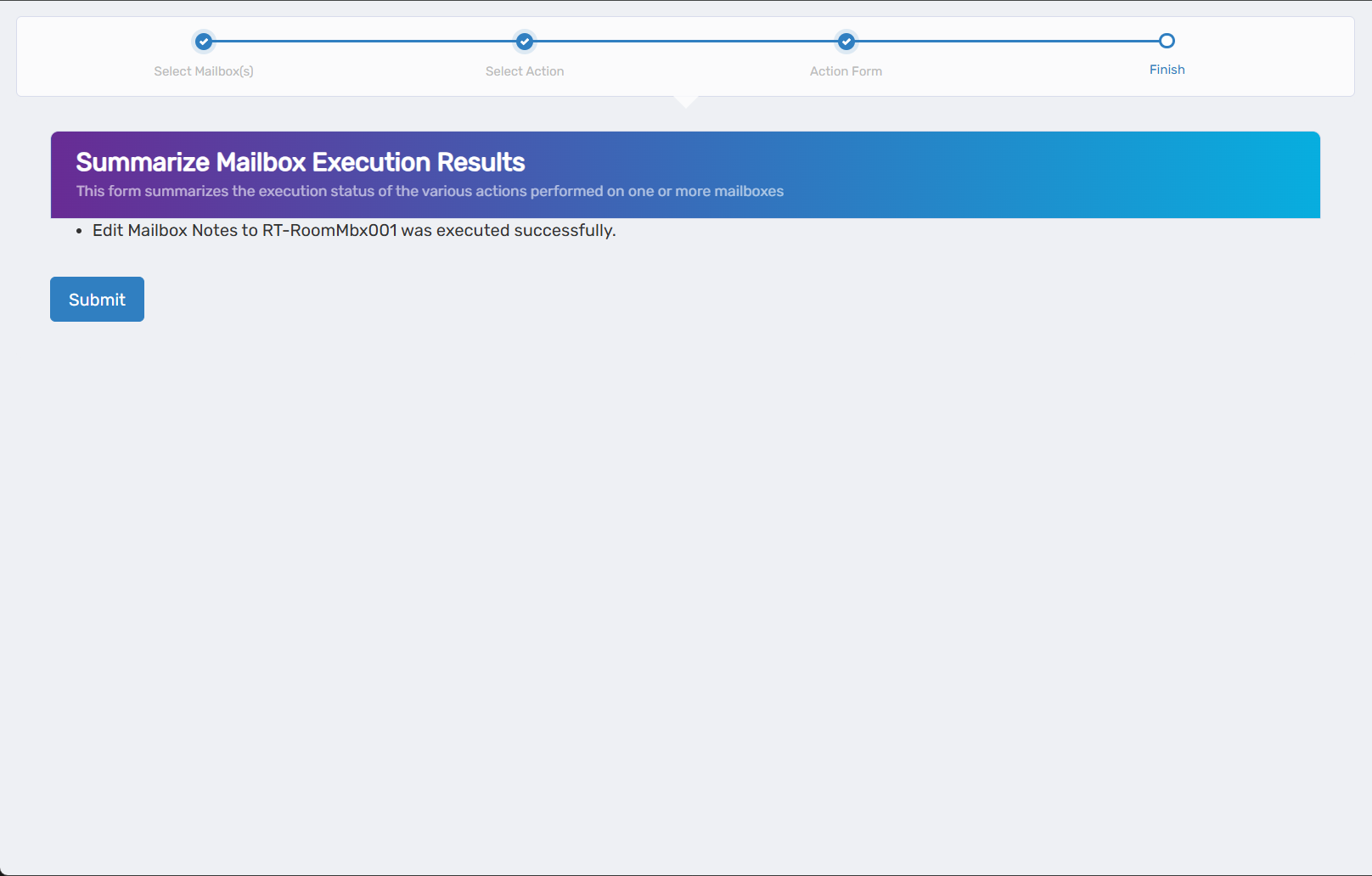 The summary shows the specific mailbox properties and features that were updated.
 - Click Submit to continue.
- Choose your next action:
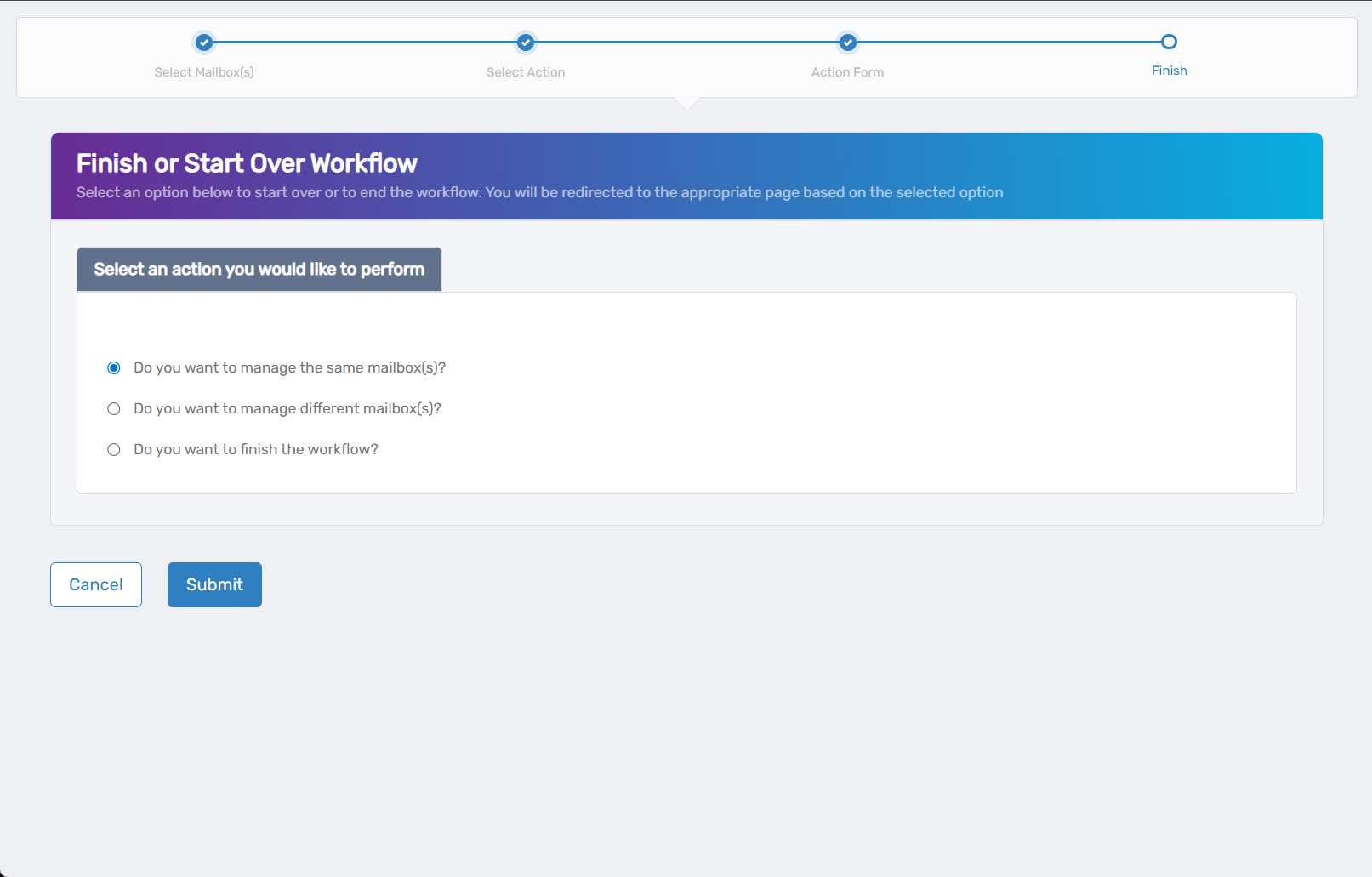
- Do you want to manage the same Mailbox(es)? - Select this to perform additional actions on the same mailboxes
- Do you want to manage different Mailbox(es)? - Select this to work with other mailboxes
- Do you want to finish the workflow? - Select this to complete the process and exit the wizard
- Click Submit to proceed with your selected option.
Verify Your Changes
After completing the workflow:
- Test email access methods to ensure enabled protocols are working properly.
- Verify calendar auto-accept functionality for resource mailboxes (if enabled).
- Check Global Address List visibility to confirm the mailbox appears or is hidden as intended.
- Confirm capacity settings are appropriate for the mailbox's needs.
What Happens Next
- Protocol changes take effect immediately for new connections.
- Calendar auto-accept settings apply to new meeting invitations received after the change.
- Global Address List visibility changes appear within minutes.
- Capacity changes may require mailbox database maintenance to take full effect.
If You Run Into Problems
Protocol access doesn't work after enabling: Some email clients may need to be restarted or reconfigured. Mobile devices may need to remove and re-add the account for ActiveSync changes.
Calendar auto-accept not working: Verify the mailbox is properly configured and that the meeting organizer has appropriate permissions to book the resource.
Hidden mailbox still appears in GAL: Global Address List changes may take up to 15 minutes to propagate. Force a refresh in Outlook or wait for the next synchronization cycle.
Capacity settings don't take effect: Mailbox quota changes may require database maintenance. Contact your Exchange administrator if storage limits aren't being enforced.
Related Actions
- To modify email forwarding settings, see Edit Mailbox Email Forwarding
- To configure mailbox permissions, see Edit Owners and Deputies
- To set up mailbox quotas, see Edit Mailbox Quota and Restrictions
- To configure advanced mailbox features, see Edit Mailbox Advanced Settings