Edit Mailbox Auditing
When you need to track and monitor mailbox activities for compliance, security, or administrative purposes, you can configure mailbox auditing settings. This enables detailed logging of user actions and administrative activities performed on the mailbox.
Use this workflow when you need to enable compliance monitoring, track suspicious activities, meet regulatory requirements, or investigate mailbox access patterns for security purposes.
Before You Start
Make sure you have:
- Appropriate access to manage auditing settings for the specific mailbox you want to modify.
- Understanding of your organization's compliance and security monitoring requirements.
- Knowledge of which activities should be audited and logged.
- Decisions about audit log retention and storage considerations.
Get Started
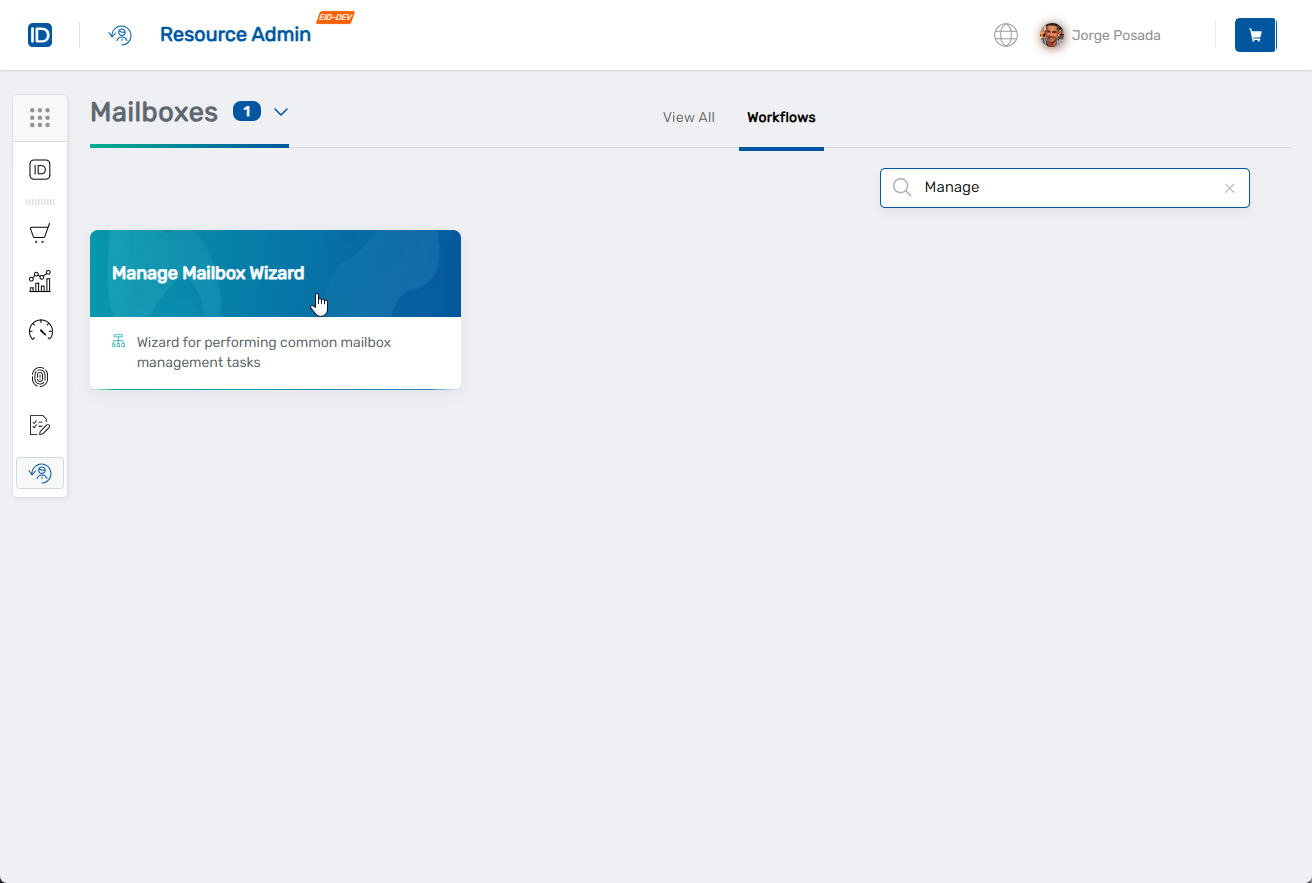
- Navigate to the Resource Admin portal
- Select Mailboxes from the resource type menu
- Click the Workflows tab
- Find and click Manage Mailbox Wizard
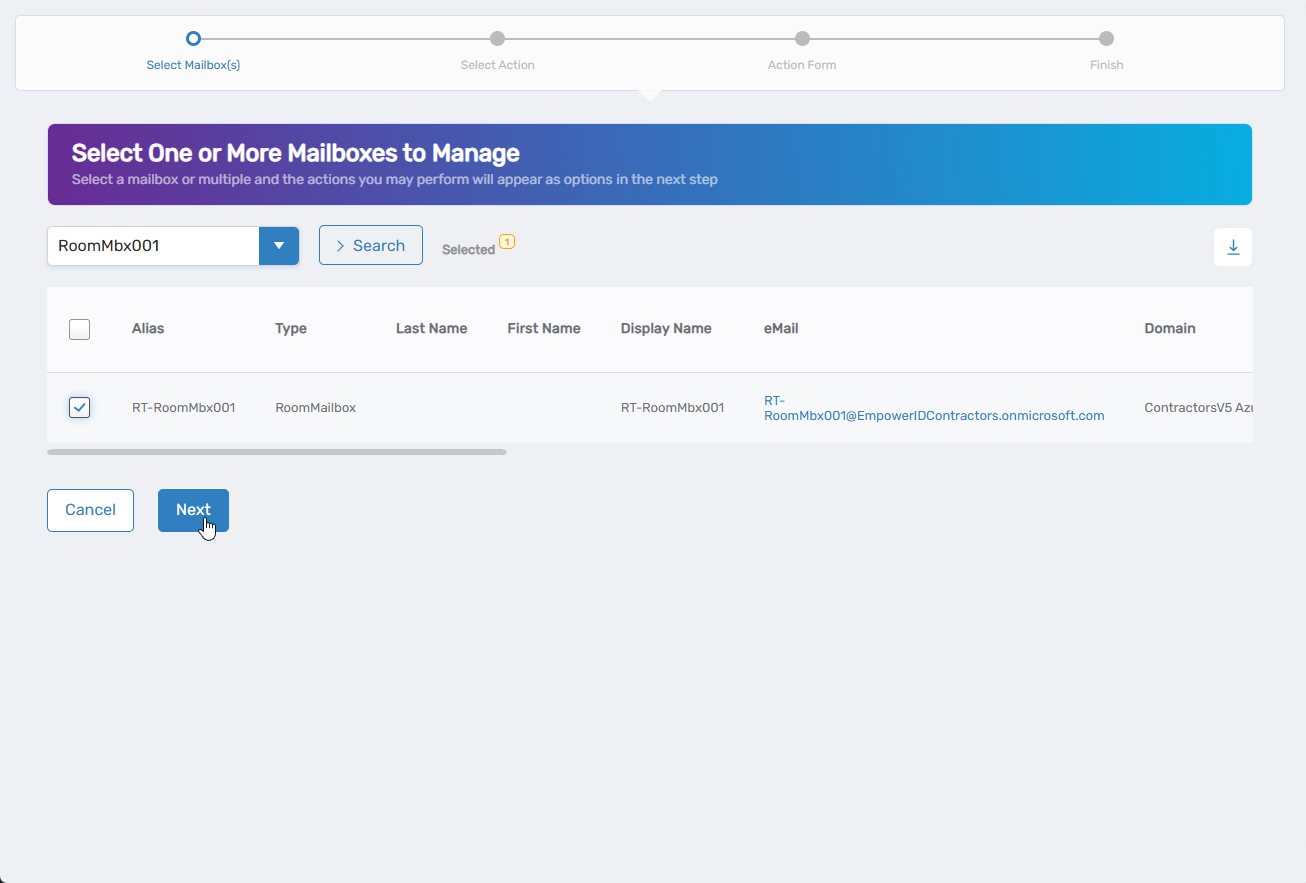
- Search for the mailbox you want to modify, then check the box next to it and click Next
- Select Edit Mailbox Auditing from the available actions
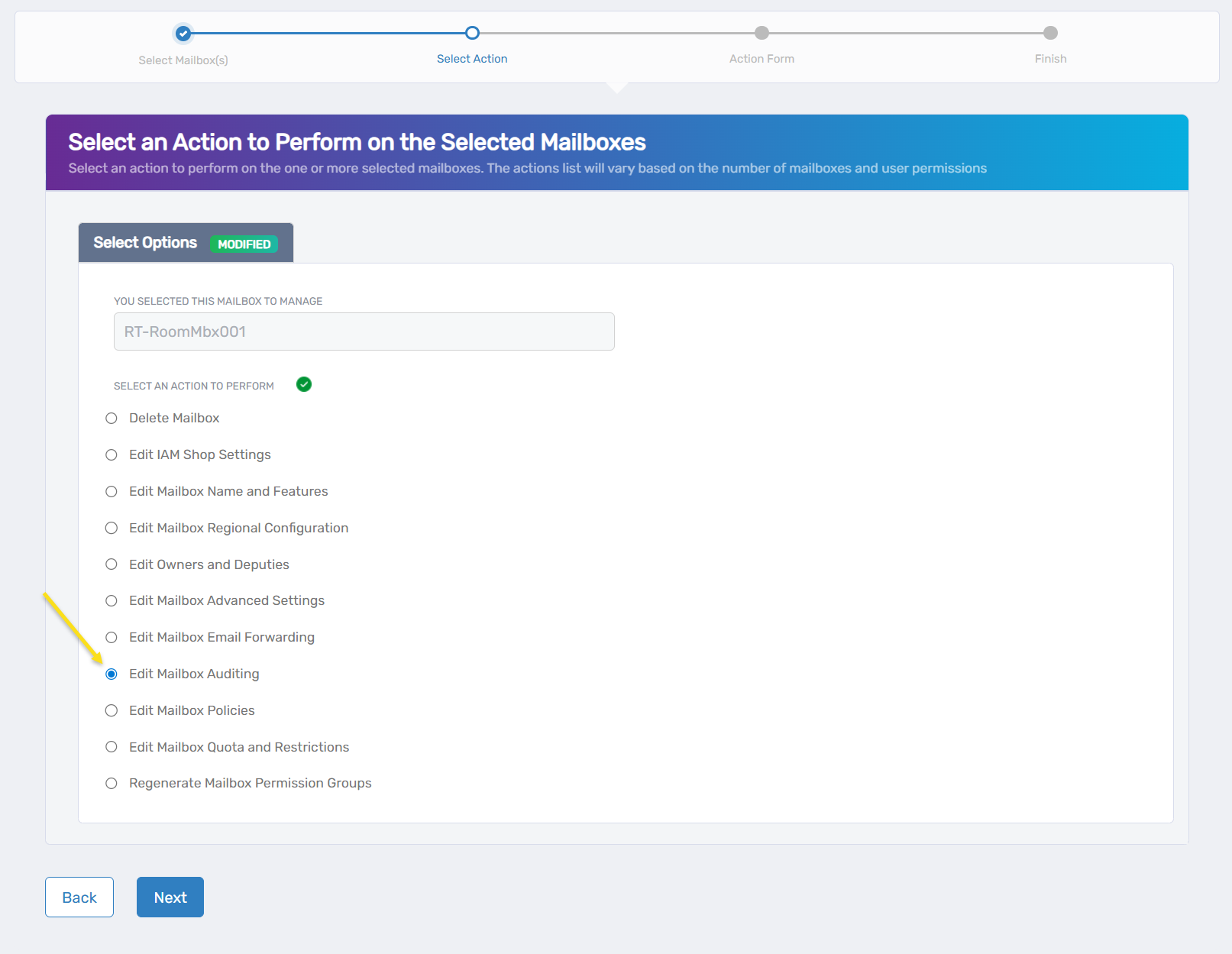
- Click Next to proceed to the auditing configuration
Configure Mailbox Auditing Settings
The interface displays basic auditing configuration options under the General tab, with an Audit section and additional settings that appear when auditing is enabled.
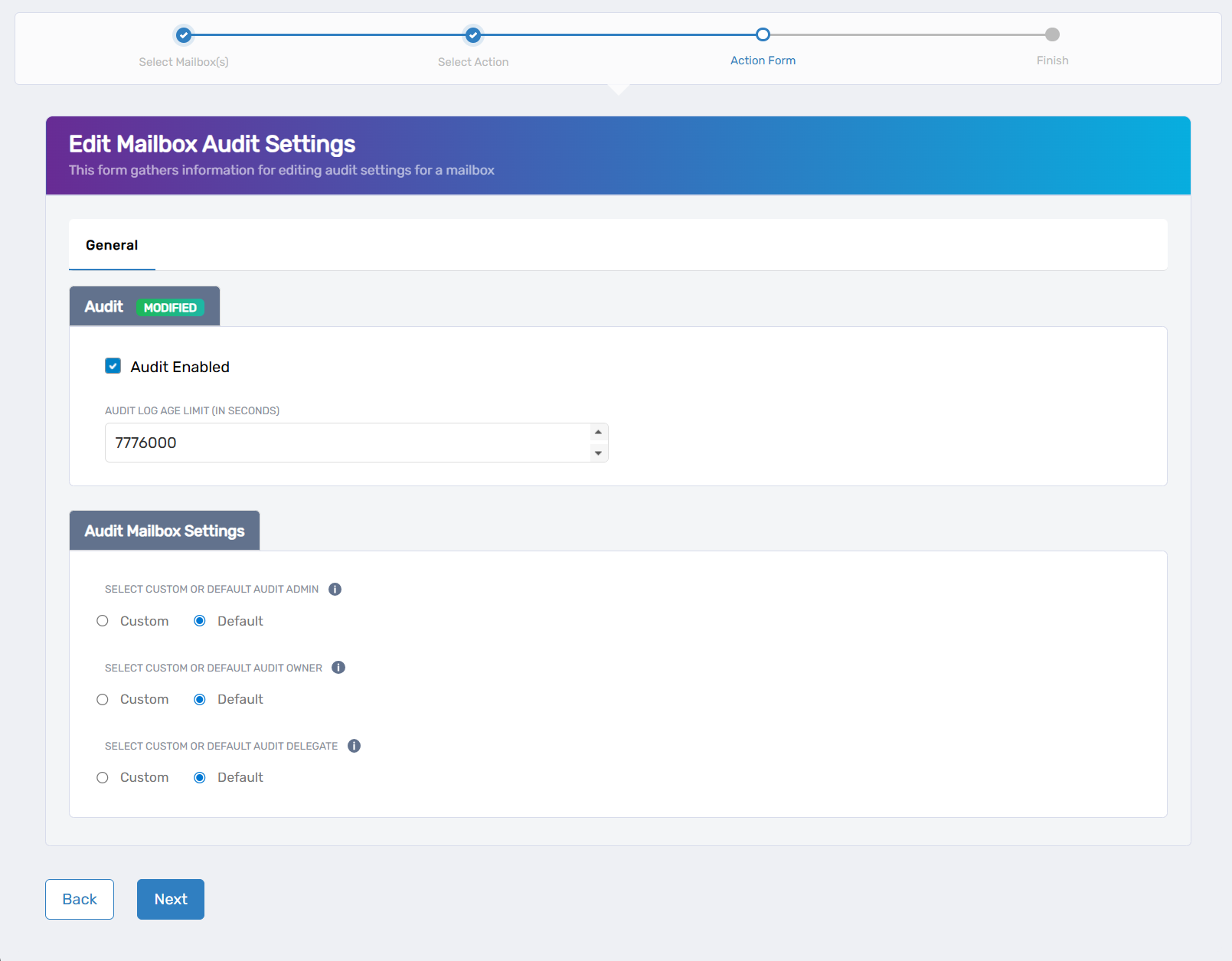
- Enable mailbox auditing:
- Audit Enabled: Check this box to activate auditing for the mailbox.
- Configure audit retention:
- Audit Log Age Limit (in seconds): Set how long audit logs are retained before automatic deletion. Enter the retention period in seconds.
- Configure audit mailbox settings (these options appear when audit is enabled):
- Select Custom or Default Audit Admin: Choose whether to use custom settings or default configuration for auditing administrative actions.
- Select Custom or Default Audit Owner: Choose whether to use custom settings or default configuration for auditing mailbox owner actions.
- Select Custom or Default Audit Delegate: Choose whether to use custom settings or default configuration for auditing delegate actions.
- Click Next to proceed with your changes.
Complete the Workflow
-
Review the Operation Execution Summary to confirm your changes were applied successfully:
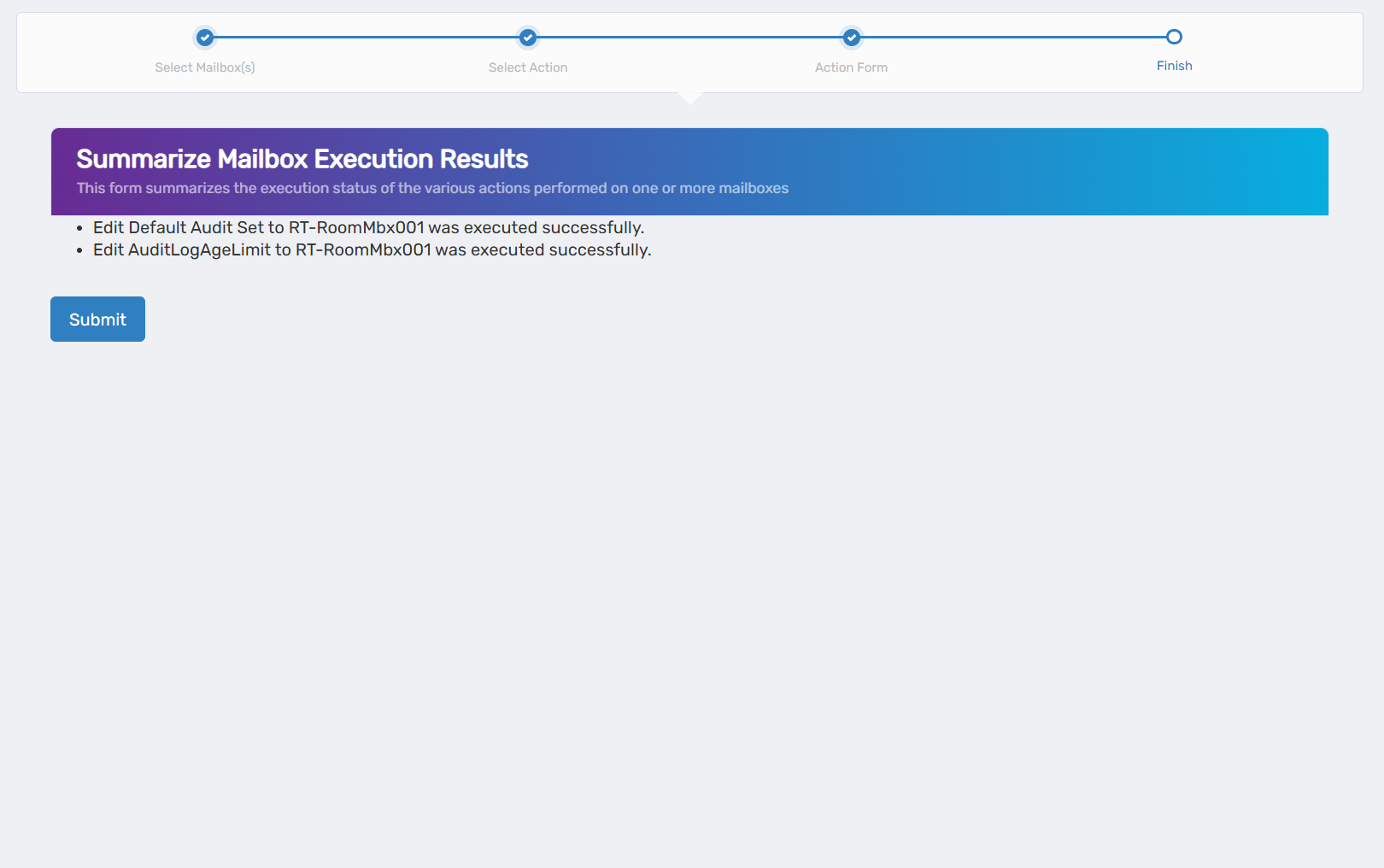 The summary shows the specific auditing settings that were updated.
 -
Click Submit to continue.
-
Choose your next action:
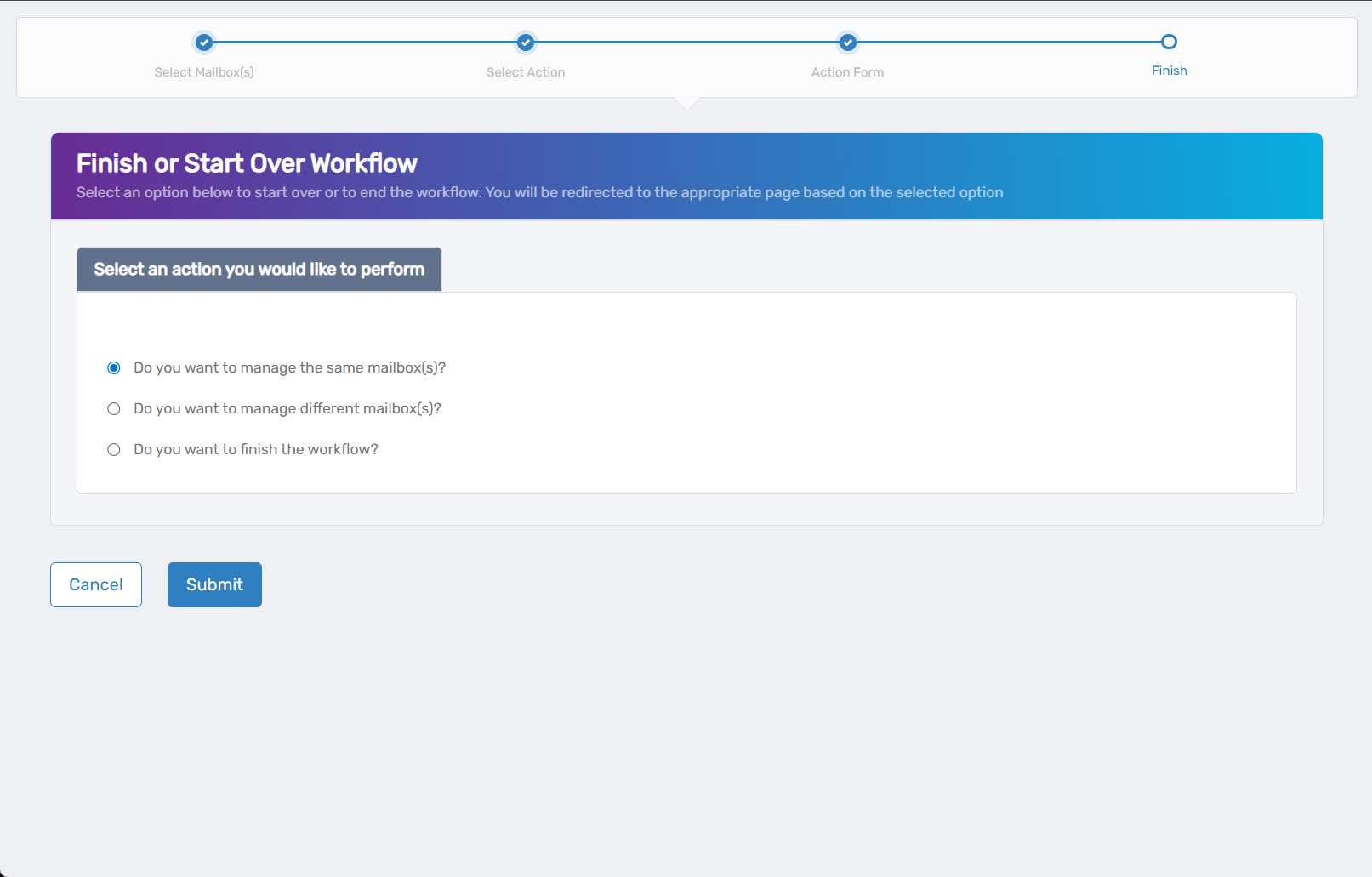
- Do you want to manage the same Mailbox? - Select this to perform additional actions on the same mailbox.
- Do you want to manage different Mailbox(es)? - Select this to work with other mailboxes.
- Do you want to finish the workflow? - Select this to complete the process and exit the wizard.
-
Click Submit to proceed with your selected option.
Verify Your Changes
After completing the workflow:
- Check audit log generation by performing test activities on the mailbox.
- Verify audit settings are active in Exchange management tools.
- Confirm log retention periods match your compliance requirements.
- Test audit reporting to ensure logs are accessible for security reviews.
What Happens Next
- Audit logging begins immediately for all enabled activities.
- Audit logs are generated in the Exchange audit log system for review and reporting.
- Log retention follows the configured age limit settings.
- Performance impact may be minimal but should be monitored for high-activity mailboxes.
If You Run Into Problems
Audit logs not appearing: Verify that Exchange auditing is enabled at the organization level and that sufficient time has passed for log generation.
Performance issues: Consider reducing the scope of audited activities or adjusting retention periods if mailbox performance is impacted.
Storage concerns: Monitor audit log storage usage and adjust retention settings if logs consume excessive disk space.
Missing audit events: Check that the specific activities you want to track are enabled in the audit configuration and that users have appropriate permissions.
Related Actions
- To configure advanced mailbox settings, see Edit Mailbox Advanced Settings
- To manage mailbox permissions, see Edit Mailbox Owners and Deputies
- To set up mailbox quotas, see Edit Mailbox Quota and Restrictions
- To configure basic mailbox features, see Edit Mailbox Name and Features