Delete Mailboxes
When mailboxes are no longer needed due to organizational changes, employee departures, or resource decommissioning, you can permanently delete them from the email environment. This action removes the mailbox and all its contents permanently.
Use this workflow when mailboxes are no longer needed and should be permanently removed from the system. Ensure all important data has been archived or transferred before deletion.
Before You Start
Make sure you have:
- Required access to delete the specific mailboxes you want to remove.
- Confirmation that the mailboxes are no longer needed.
- Verification that all important data has been archived or transferred.
- Understanding of any organizational policies regarding mailbox deletion and data retention.
Get Started
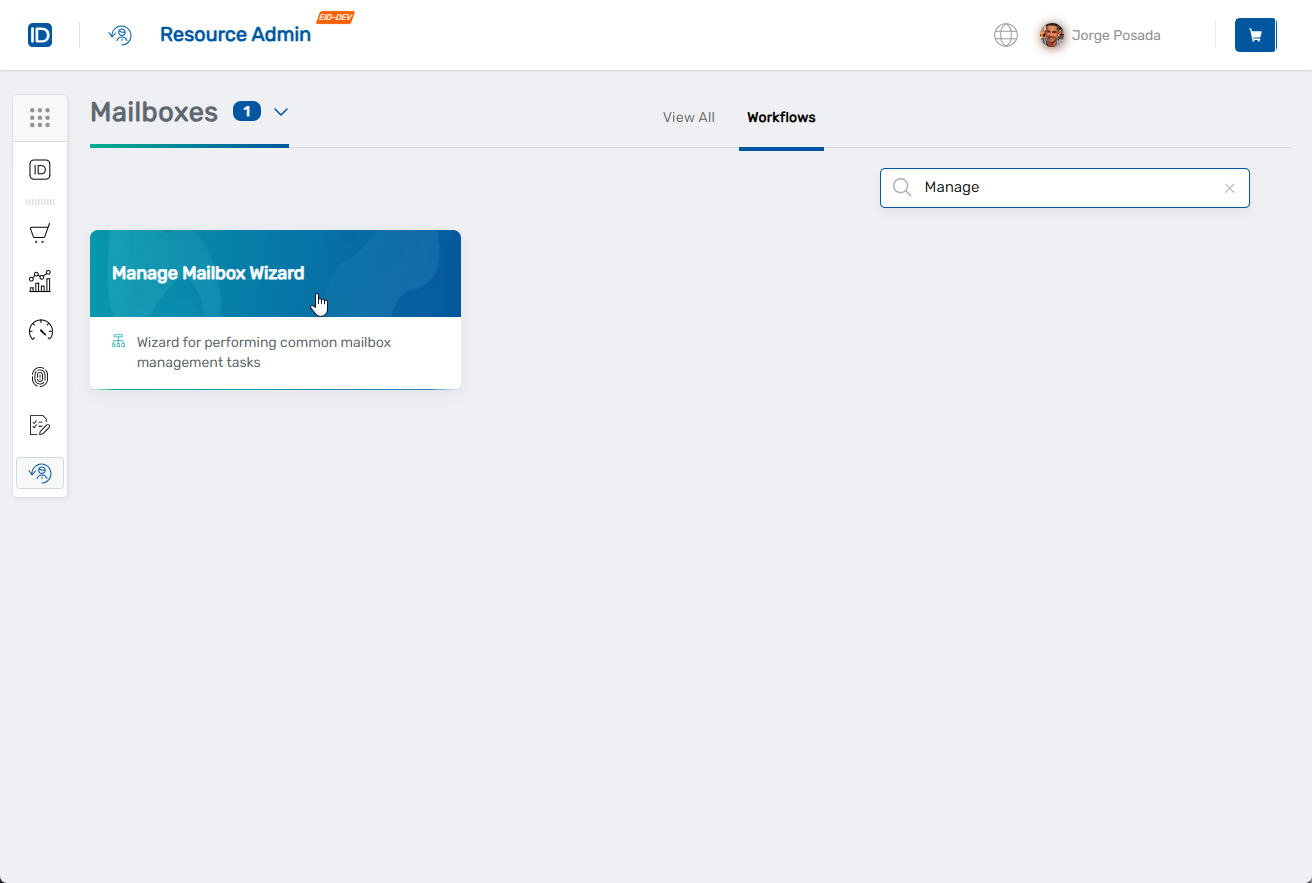
- Navigate to the Resource Admin portal
- Select Mailboxes from the resource type menu
- Click the Workflows tab
- Find and click Manage Mailbox Wizard
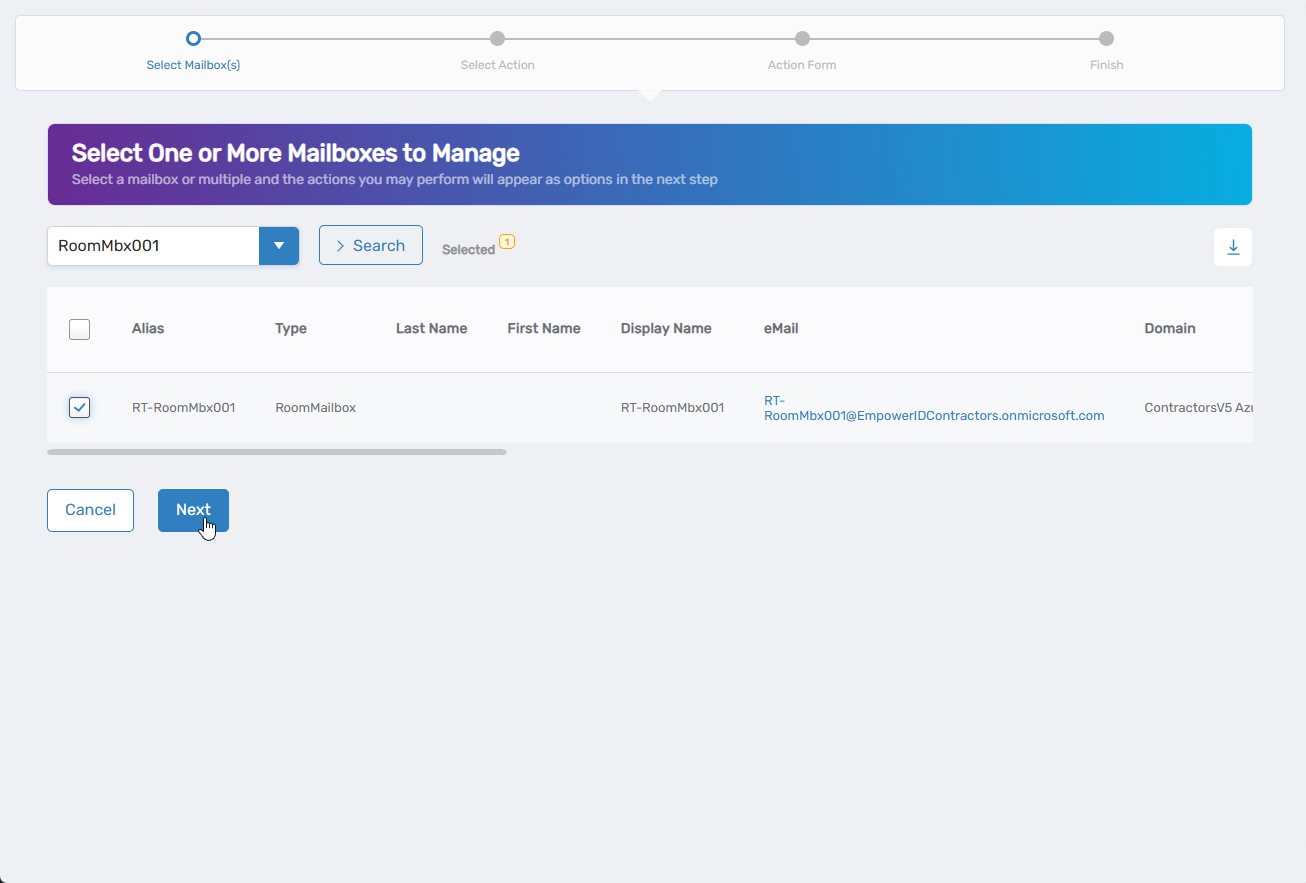
- Search for and select the mailboxes you want to delete by checking the boxes next to them, then click Next
- Select Delete Mailboxes from the available actions
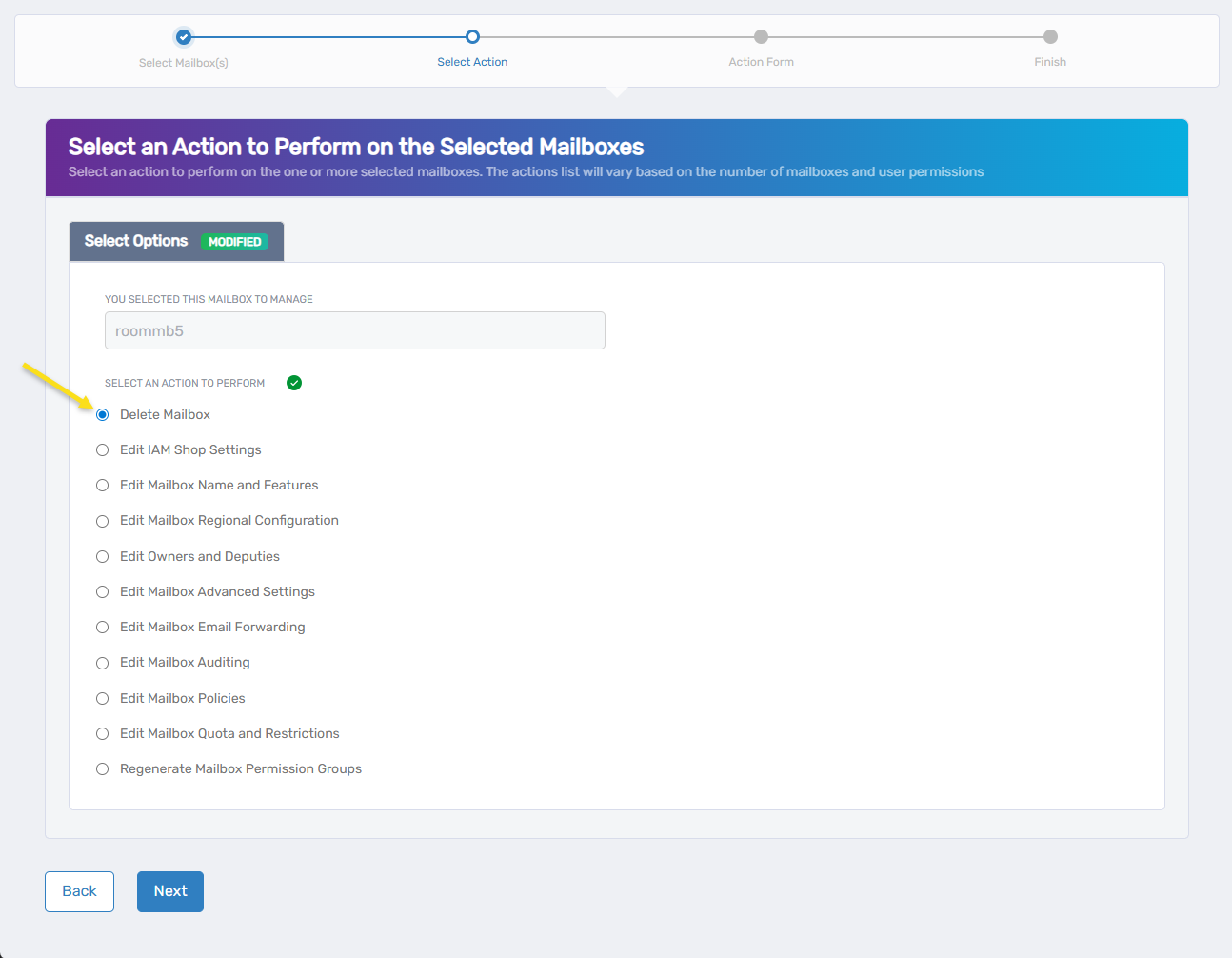
- Click Next to proceed to the deletion confirmation
Confirm Mailbox Deletion
The interface displays a confirmation screen that lists the specific mailboxes to be deleted and requires acknowledgment of the deletion warning.
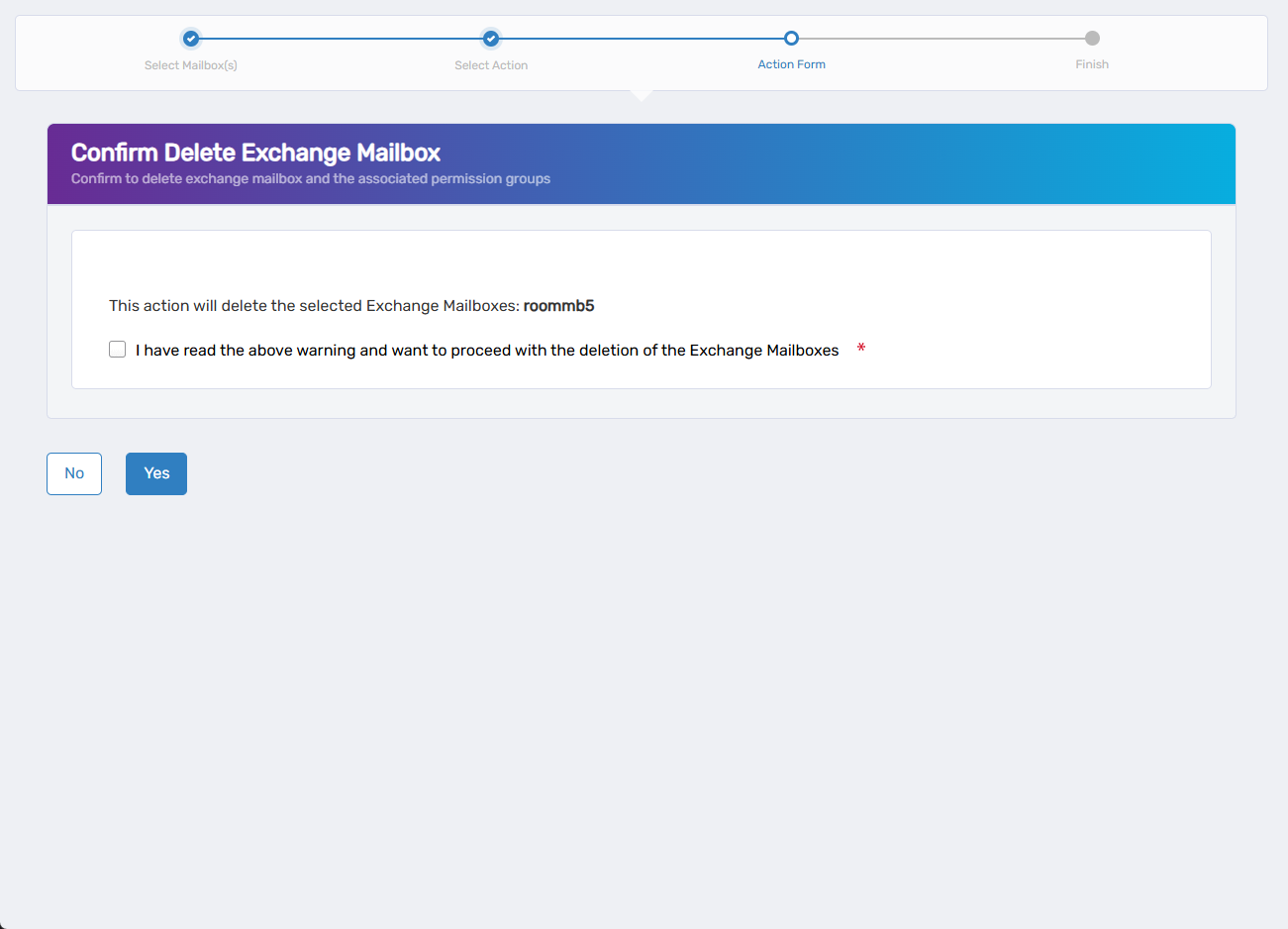
- Review the mailboxes to be deleted:
- The system displays "This action will delete the selected Exchange Mailboxes:" followed by the mailbox names.
- Verify that only the intended mailboxes are listed for deletion.
- Check that you have selected the correct mailboxes and not others by mistake.
- Acknowledge the deletion warning:
- Check the box for "I have read the above warning and want to proceed with the deletion of the Exchange Mailboxes."
- This confirmation is required before you can proceed with the deletion.
- Proceed or cancel:
- Click Yes to confirm and proceed with the deletion.
- Click No to cancel the deletion. You'll see options to manage different mailboxes or finish the workflow without deleting anything.
Complete the Workflow
-
Review the Operation Execution Summary to confirm the deletion was completed successfully:
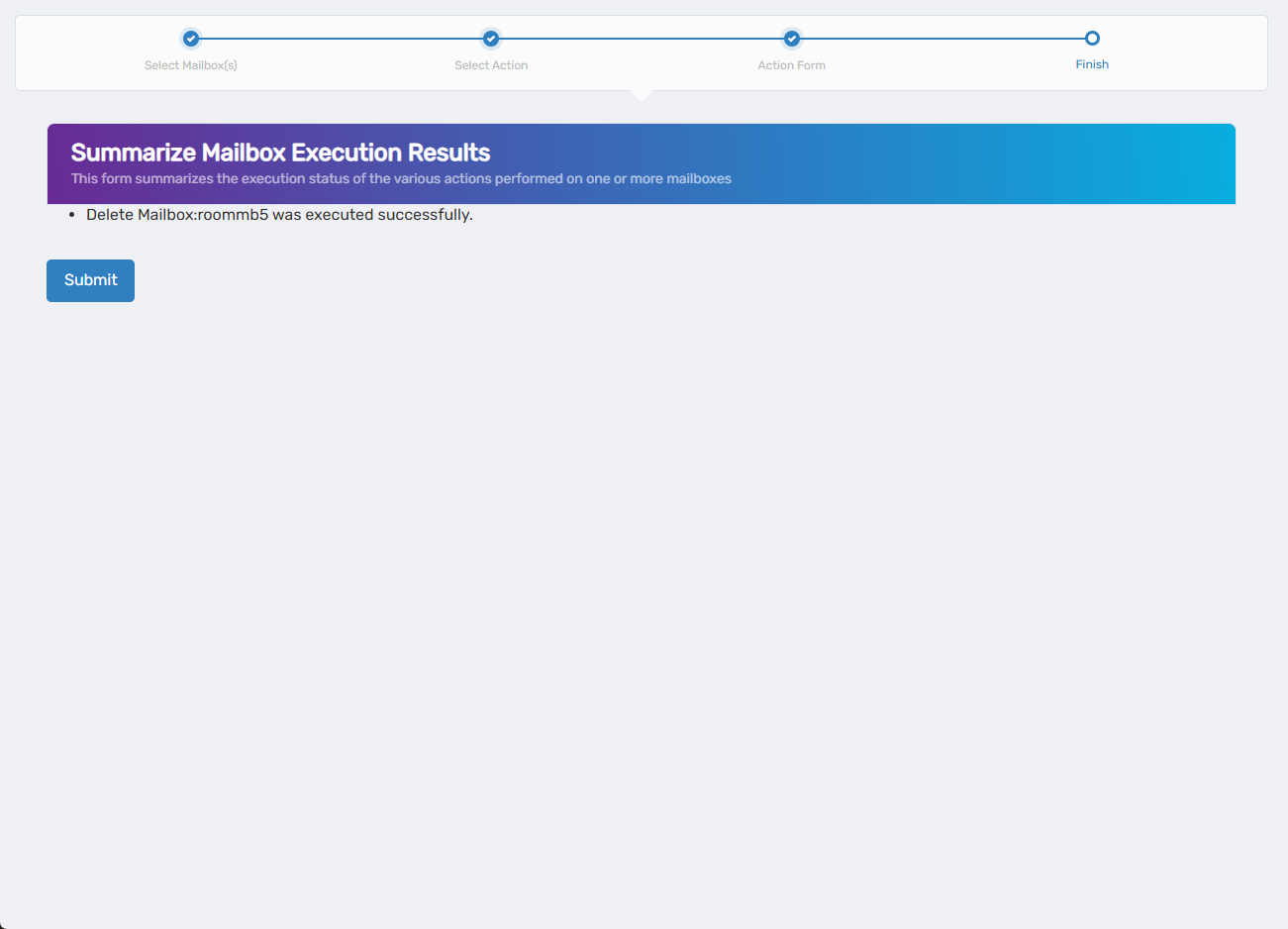 The summary shows which mailboxes were successfully deleted.
 -
Click Submit to continue.
-
Choose your next action:
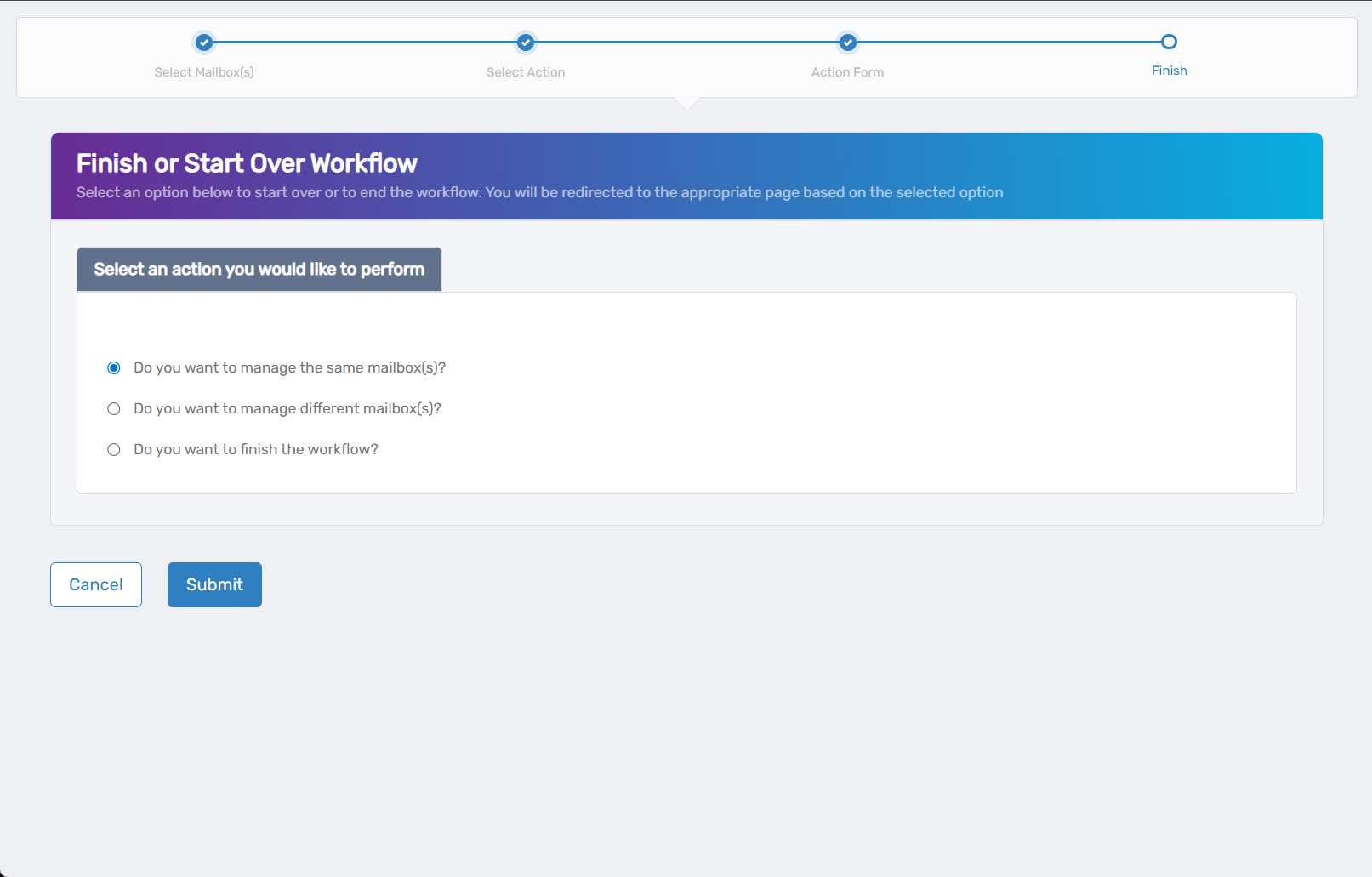
- Do you want to manage different Mailbox(es)? - Select this to work with other mailboxes.
- Do you want to finish the workflow? - Select this to complete the process and exit the wizard.
-
Click Submit to proceed with your selected option.
Verify the Deletion
After completing the workflow:
- Check that mailboxes no longer appear in the mailbox list or directory.
- Verify that associated accounts are handled according to your organizational policies.
- Confirm that any automated processes or applications depending on these mailboxes are updated.
- Document the deletion for audit and compliance purposes if required.
What Happens Next
- Mailboxes are permanently removed from the email environment.
- All mailbox content is deleted including emails, calendar items, contacts, and folders.
- Associated policies and settings are removed along with the mailboxes.
- Recovery is not possible once the deletion process is complete.
If You Run Into Problems
Cannot delete mailbox: Verify that you have sufficient access to delete mailboxes and that the mailboxes are not protected by retention policies or legal holds.
Deletion fails: Check if the mailboxes have dependencies or are referenced by other systems that need to be addressed first.
Partial deletion: Some mailboxes may fail to delete while others succeed. Review the error messages and address any specific issues before retrying.
Access denied: Ensure you have the appropriate administrative access to perform mailbox deletions in your organization.
Related Actions
- To modify mailbox settings instead of deleting, see Edit Mailbox Name and Features
- To configure email forwarding before deletion, see Edit Mailbox Email Forwarding
- To manage mailbox ownership, see Edit Mailbox Owners and Deputies