Edit IAM Shop Settings
When you need to modify how mailboxes appear and behave in the IAM Shop self-service portal, you can update IAM Shop settings. This controls whether mailboxes are requestable, who can see and request them, and what approval processes apply to requests.
Use this workflow when changing mailbox visibility in self-service, updating approval policies, modifying who can request mailboxes, or enabling/disabling self-service access for mailboxes.
Before You Start
Make sure you have:
- Required access to manage IAM Shop settings for the specific mailbox you want to modify.
- Knowledge of who should be able to see and request the mailbox.
- Understanding of what approval policies should apply.
- Decisions about whether the mailbox should be available for self-service requests.
Get Started
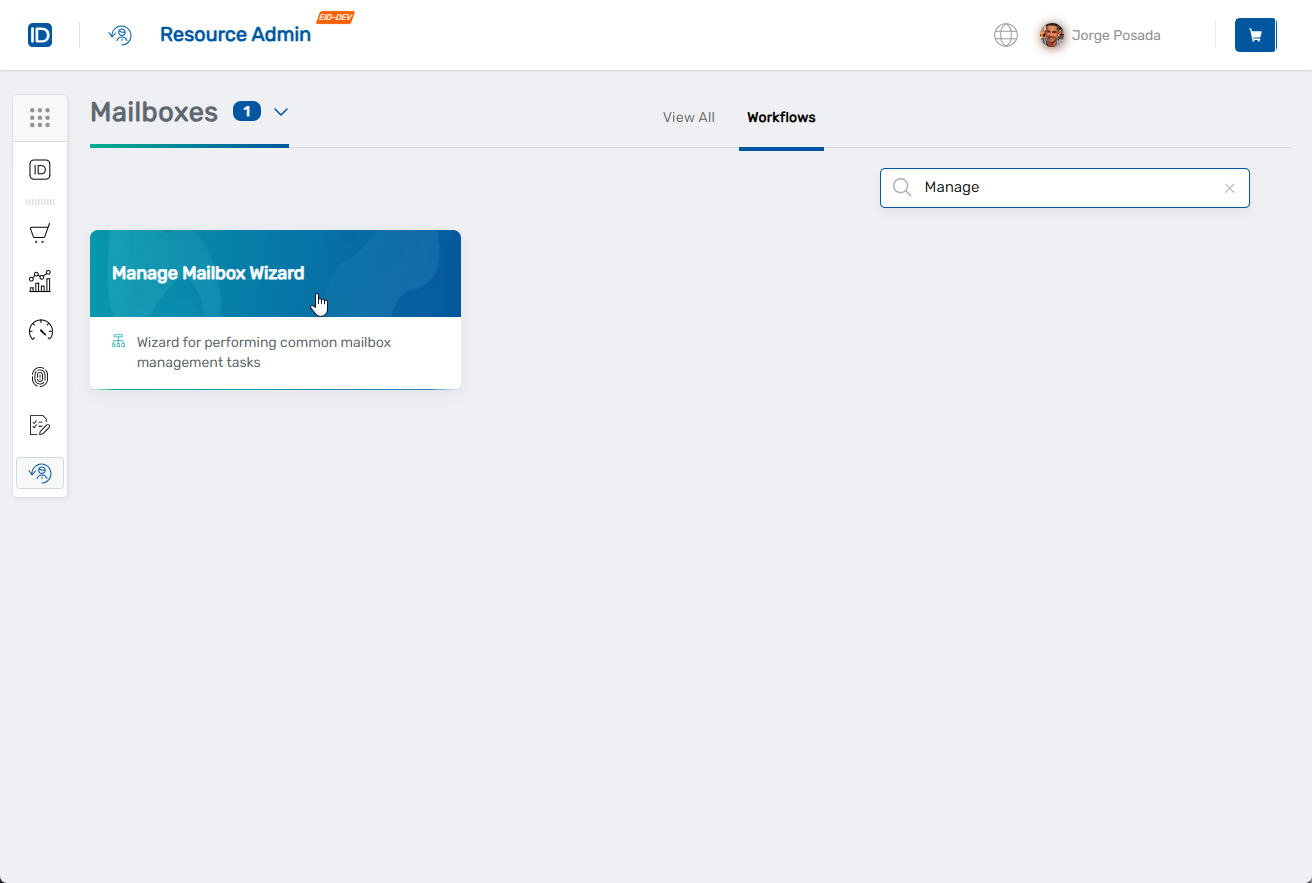
- Navigate to the Resource Admin portal
- Select Mailboxes from the resource type menu
- Click the Workflows tab
- Find and click Manage Mailbox Wizard
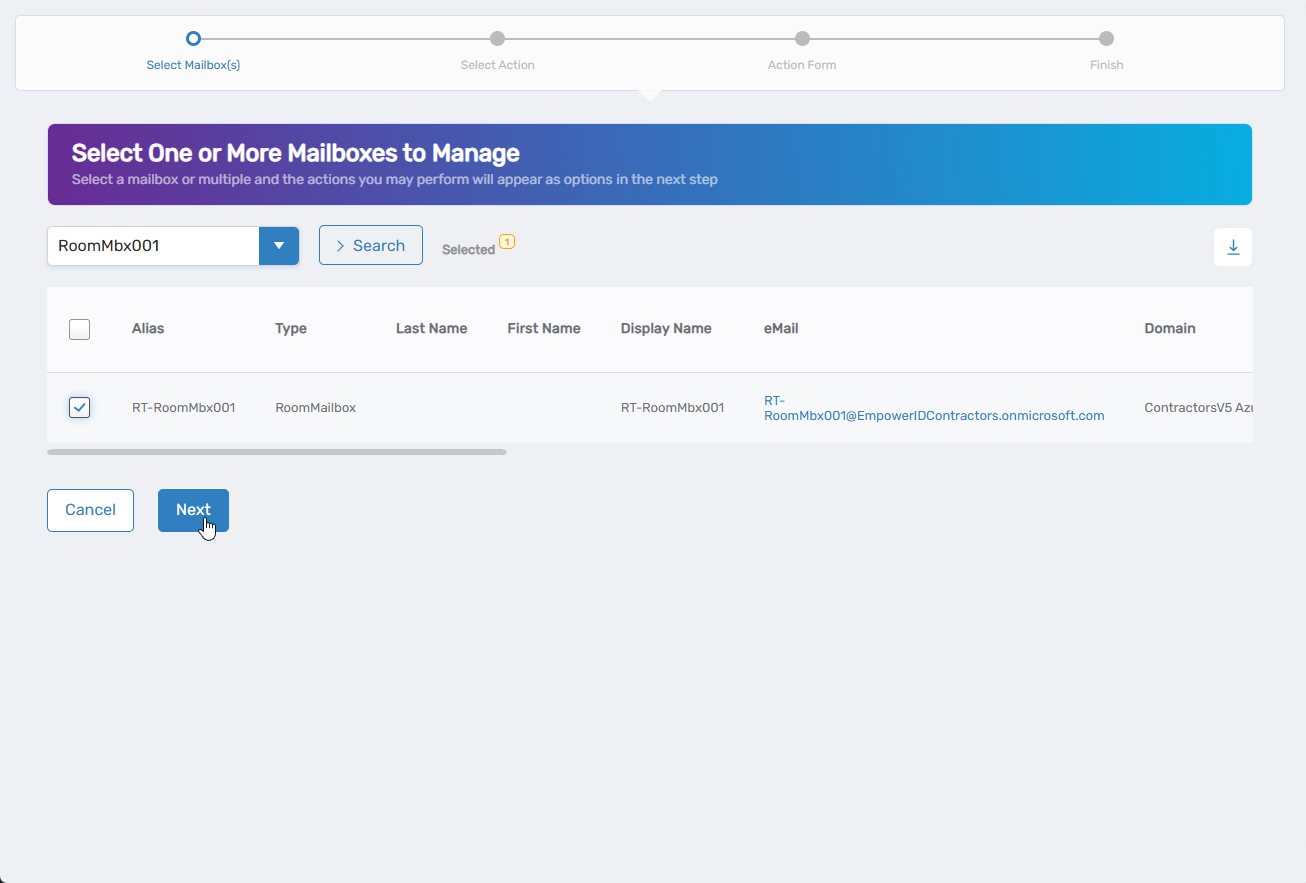
- Search for the mailbox you want to modify, then check the box next to it and click Next
- Select Edit IAM Shop Settings from the available actions
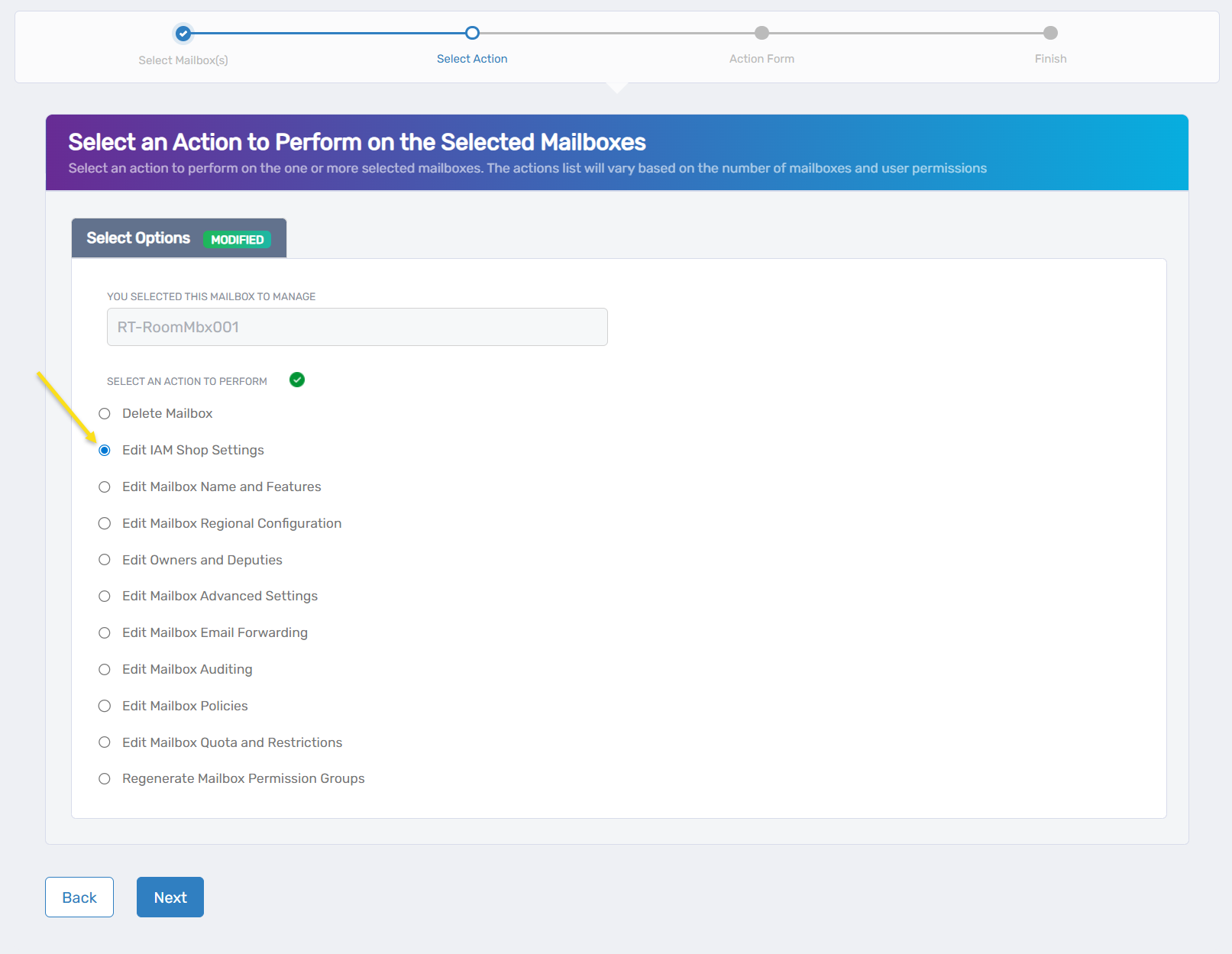
- Click Next to proceed to the IAM Shop configuration
Update IAM Shop Settings
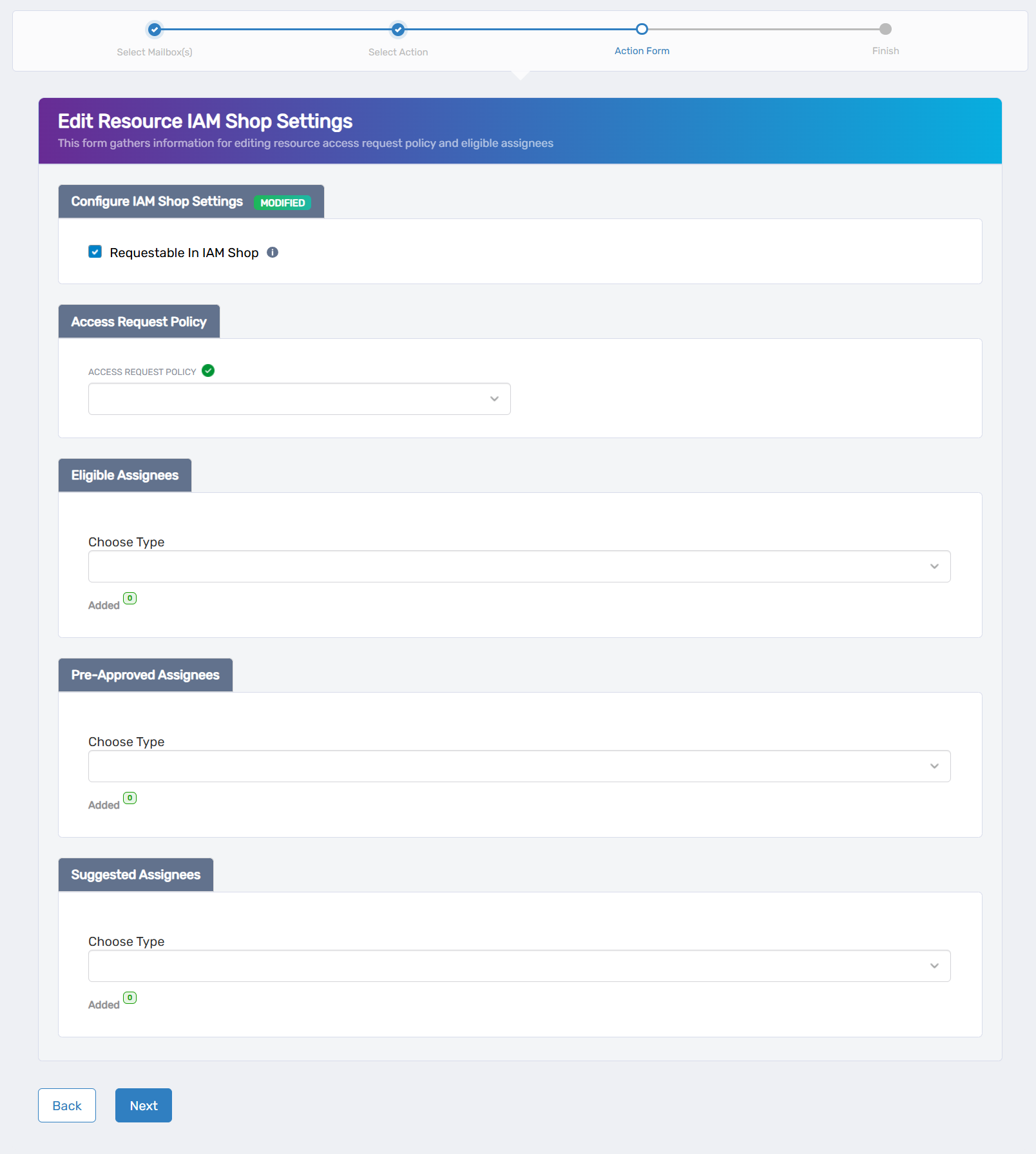
The interface displays IAM Shop configuration options for controlling mailbox visibility and requestability in the self-service portal.
-
Enable or configure the IAM Shop settings:
- Requestable in IAM Shop: Check this box to make the mailbox available for self-service requests.
-
Configure request processing (if requestable is enabled):
- Access Request Policy: Select the policy that defines how requests for this mailbox are processed and approved.
-
Select assignees for different access levels:
- Eligible Assignees: Choose who can request access to the mailbox. These requests will be routed for approval based on the selected Access Request Policy.
- Preapproved Assignees: Select users who can activate mailbox access without requiring human approval. The system automatically fulfills their access when activated.
- Suggested Assignees: Choose users who see this mailbox highlighted as a recommendation in the IAM Shop. If they request it, the standard approval policy applies.
-
Configure assignee selections:
- Use the search fields to find and add people, groups, or roles for each assignee type.
- Review existing assignees and choose to remove or keep them as needed.
- Use the Added counter to view your new selections.
-
Click Next to proceed.
Complete the Workflow
- Review the Operation Execution Summary to confirm your changes were applied successfully.
- Click Submit to continue.
- Choose your next action:
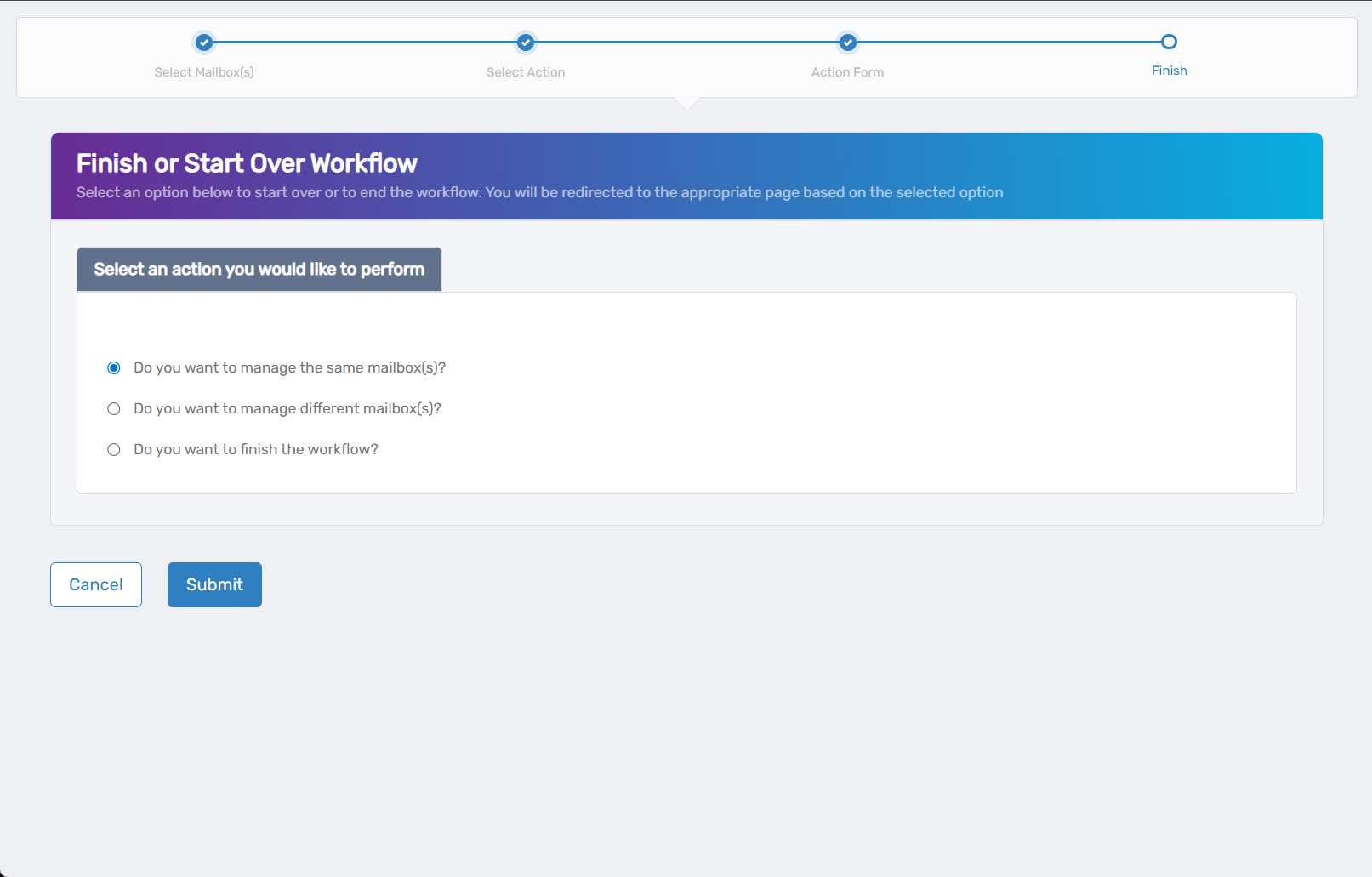
- Do you want to manage the same Mailbox? - Select this to perform additional actions on the same mailbox.
- Do you want to manage different Mailbox(es)? - Select this to work with other mailboxes.
- Do you want to finish the workflow? - Select this to complete the process and exit the wizard.
- Click Submit to proceed with your selected option.
Verify Your Changes
After completing the workflow:
- Check IAM Shop visibility to confirm the mailbox appears or is hidden as intended.
- Test request functionality if the mailbox was made requestable.
- Verify approval workflows are working correctly for eligible assignees.
- Confirm preapproved access works as expected for designated users.
What Happens Next
- IAM Shop settings changes may generate business requests that require approval before taking effect.
- Mailbox visibility in the IAM Shop is updated based on your configuration.
- Eligible users can see and request the mailbox if it's configured as requestable.
- Preapproved users can activate mailbox access without approval workflows.
- Suggested users see the mailbox recommended in their IAM Shop interface.
If You Run Into Problems
Users can't see the mailbox in IAM Shop: Check that the users are included in the Eligible Assignees list and that the mailbox is configured as requestable.
Approval policies don't work as expected: Verify that the selected Access Request Policy is configured correctly and active.
Preapproved access not working: Confirm that users are properly configured in the Preapproved Assignees list and that there are no conflicting policies.
Related Actions
- To configure basic mailbox features, see Edit Mailbox Name and Features
- To modify ownership and administrative access, see Edit Mailbox Owners and Deputies
- To configure advanced mailbox settings, see Edit Mailbox Advanced Settings
- To manage mailbox policies, see Edit Mailbox Policies