Search Tag Policy
Search Tag Policies in EmpowerID allow administrators to automatically assign tag values to resource objects for improved filtering, faceted navigation, and reporting. These policies can be applied to actors such as Locations, Groups, Query-Based Collections, and Management Roles, allowing tags to propagate across hierarchical structures.
Use Cases
Search Tag Policies are commonly used to:
- Categorize People or other resources (e.g., "Contractor", "Partner", "Internal Audit")
- Improve the precision of Find page searches
- Support faceted filtering of large datasets
- Automatically apply tags based on membership or hierarchy
Creating and Assigning a Search Tag Policy
To create and configure a policy:
- Go to Admin > Policies > Resource Tag Policies.
- Click Add New Search Tag Policy.
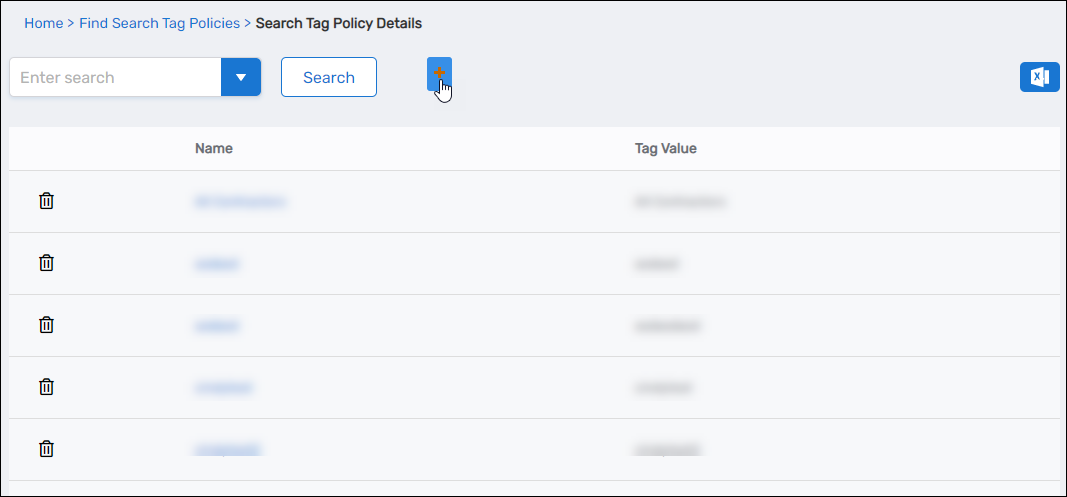
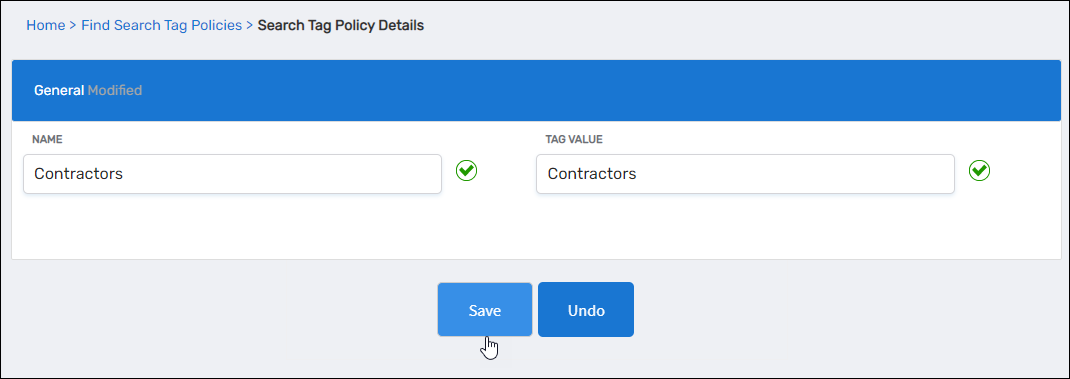
- In the dialog, enter:
- Name — A descriptive label for the policy (e.g.,
Contractor) - Tag Value — The tag to apply (e.g.,
Contractor)
- Name — A descriptive label for the policy (e.g.,
- Click Save.
 The Policy Assigned To pane appears after saving.
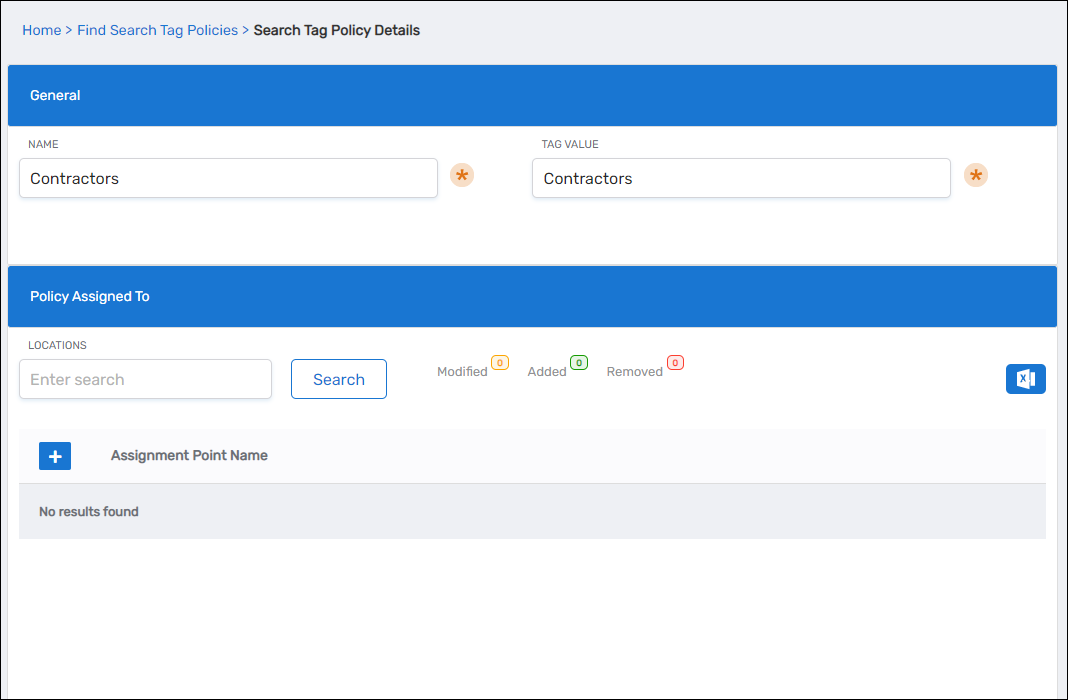
- In the Policy Assigned To pane, click Add Assignment Point next to the actor type you want to target (Location, Group, Management Role, etc.).
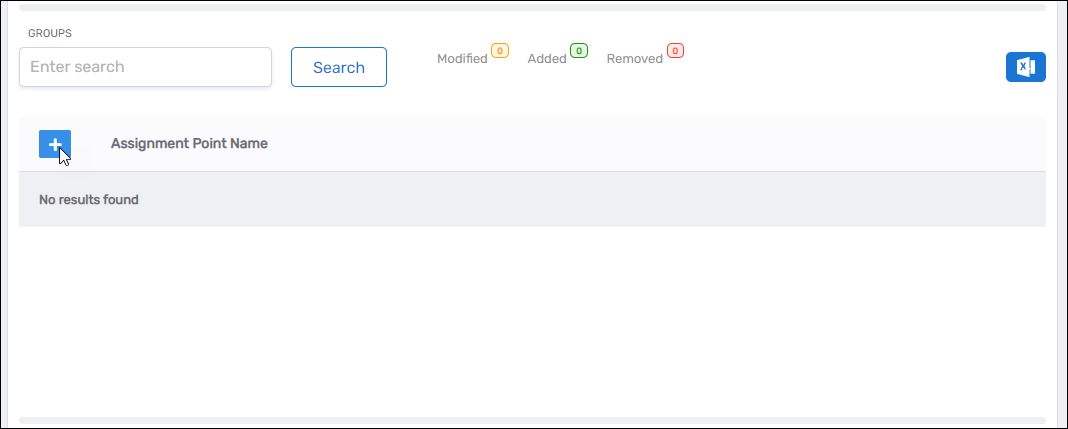
- In the Add Entry dialog, search for and select the actor.
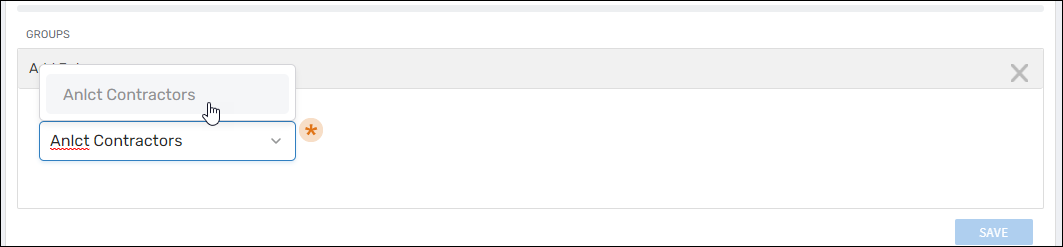
- Click Save to confirm the assignment.
- Click Save on the main policy page to finalize the configuration.
How Search Tag Policies Take Effect
After a policy is saved and assigned:
- Existing resources affected by the assignment receive the tag automatically.
- New resources that enter the assignment scope later (such as members joining a group or items being added to a QBC) also receive the tag.
- Hierarchical entities, such as Locations and Management Roles, propagate tags to child objects unless superseded by another policy.
These updates are handled by the EmpowerID Policy Engine and do not require a manual refresh or environment recycle.
Using Search Tags in EmpowerID
Once tags are applied, they can be used throughout EmpowerID to filter and refine search results. Tag filtering is supported in Find pages such as:
- Find People
- Find Groups
- Find Locations
Tags may also appear on resource-detail pages that support displaying Search Tags (e.g., Person). Even if a resource does not display tags on its detail page, the tags remain stored and searchable.
Searching with Multiple Tags
Search Tags can be combined to narrow results. When multiple tags are selected, EmpowerID applies them cumulatively, returning only resources that contain all selected tags.
For example, selecting Contractor, Manager, and API filters the result set to resources that have all three tags.
Tag Suggestions and Narrowing
When selecting tags:
- EmpowerID shows only valid tag values that exist in the system.
- As additional tags are added, available suggestions may narrow to reflect the current search context.
- The UI prevents invalid or non-matching combinations of tags.
This guided filtering experience helps users quickly build precise searches without needing to memorize tag values.