Configure EmpowerID OrgZone and OrgRole Tree Views
Users navigating OrgZone and OrgRole structures may face challenges in environments with large hierarchies. EmpowerID provides configurable settings that control the visibility of Browse tabs, Search tabs, and inline tree search functionality. Updating these settings allows administrators to tailor the interface for usability and organizational needs.
This premium rewrite keeps all functional meaning from the original article but improves clarity, structure, and readability. All screenshots are preserved and moved out of the table for a cleaner, more professional documentation layout.
OrgZone & OrgRole Tree View Configuration Settings
The following EmpowerID System Settings control the behavior of Location (OrgZone) and Business Role (OrgRole) tree viewers.
| Setting | Description |
|---|---|
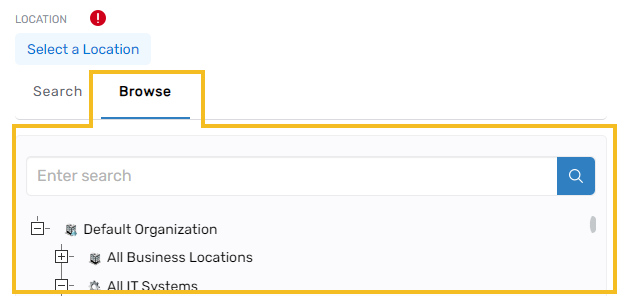
| EIDBusinessLocationTreeAllowBrowseTab | Shows or hides the Browse tab for the Location tree viewer. Default: True. |
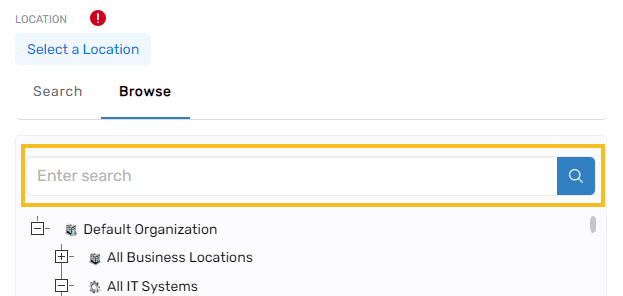
| EIDBusinessLocationTreeAllowSearchOnTree | Enables or disables the inline search bar directly on the Location tree. Default: True. |
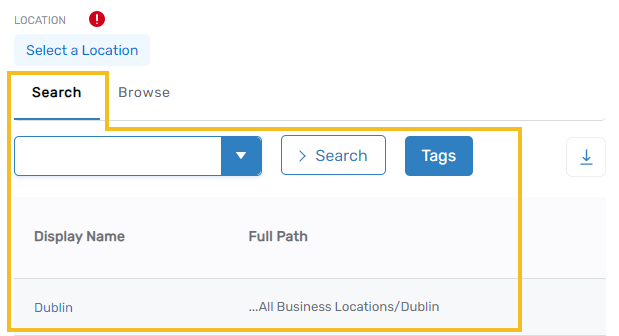
| EIDBusinessLocationTreeAllowSearchTab | Controls visibility of the Search tab in the Location tree viewer. Default: True. |
| EIDBusinessLocationTreeBrowseIsDefaultTab | Determines whether the Browse tab is the default tab for Location trees. Default: False. |
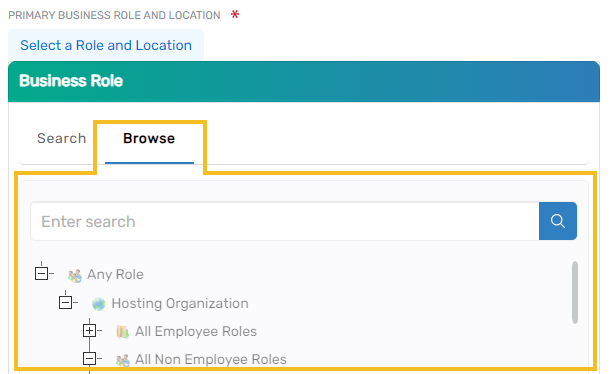
| EIDBusinessRoleTreeAllowBrowseTab | Shows or hides the Browse tab for the Business Role tree viewer. Default: True. |
| EIDBusinessRoleTreeAllowSearchOnTree | Enables or disables the inline search bar directly on the Role tree. Default: True. |
| EIDBusinessRoleTreeAllowSearchTab | Controls visibility of the Search tab in the Business Role tree viewer. Default: True. |
| EIDBusinessRoleTreeBrowseIsDefaultTab | Determines whether the Browse tab is the default tab for Role trees. Default: False. |
Settings beginning with EIDBusinessLocationTree apply to the Location (OrgZone) tree.
Settings beginning with EIDBusinessRoleTree apply to the Role (OrgRole) tree.
All settings behave consistently across both structures.
Screenshot Reference
Below are the visual examples originally embedded in the table, grouped for clarity.
Location Tree Viewer Examples
Browse tab visible:
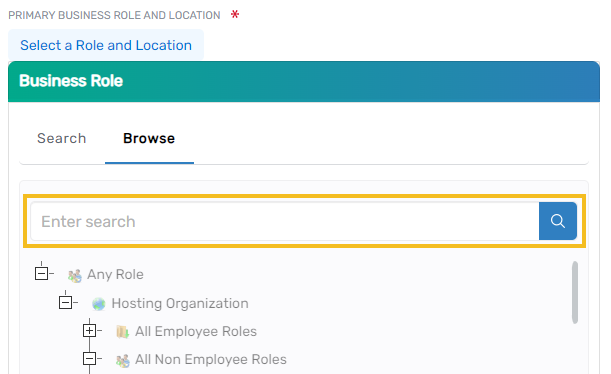
Inline search enabled:
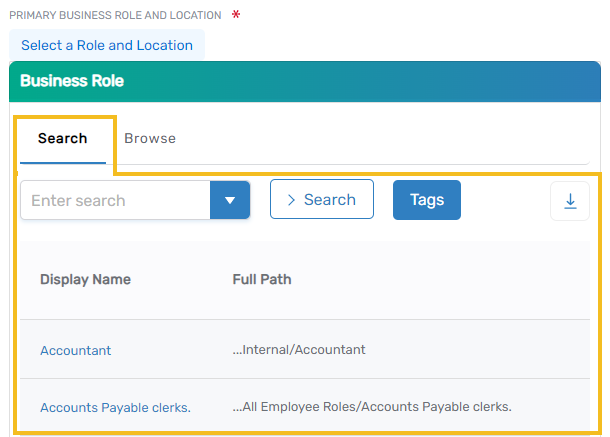
Search tab visible:
Business Role Tree Viewer Examples
Browse tab visible:
Inline search enabled:
Search tab visible:
Editing Configuration Settings
You can update any OrgZone or OrgRole tree view setting to modify how users explore locations or business roles.
Step 1 — Open EmpowerID System Settings
- Sign in with a user account that has the SaaS Admin role.
This role provides access to administrative UI pages. - Navigate to:
Infrastructure Admin > EmpowerID Servers and Settings > EmpowerID System Settings - Search for EIDBusiness to display all tree-related settings.
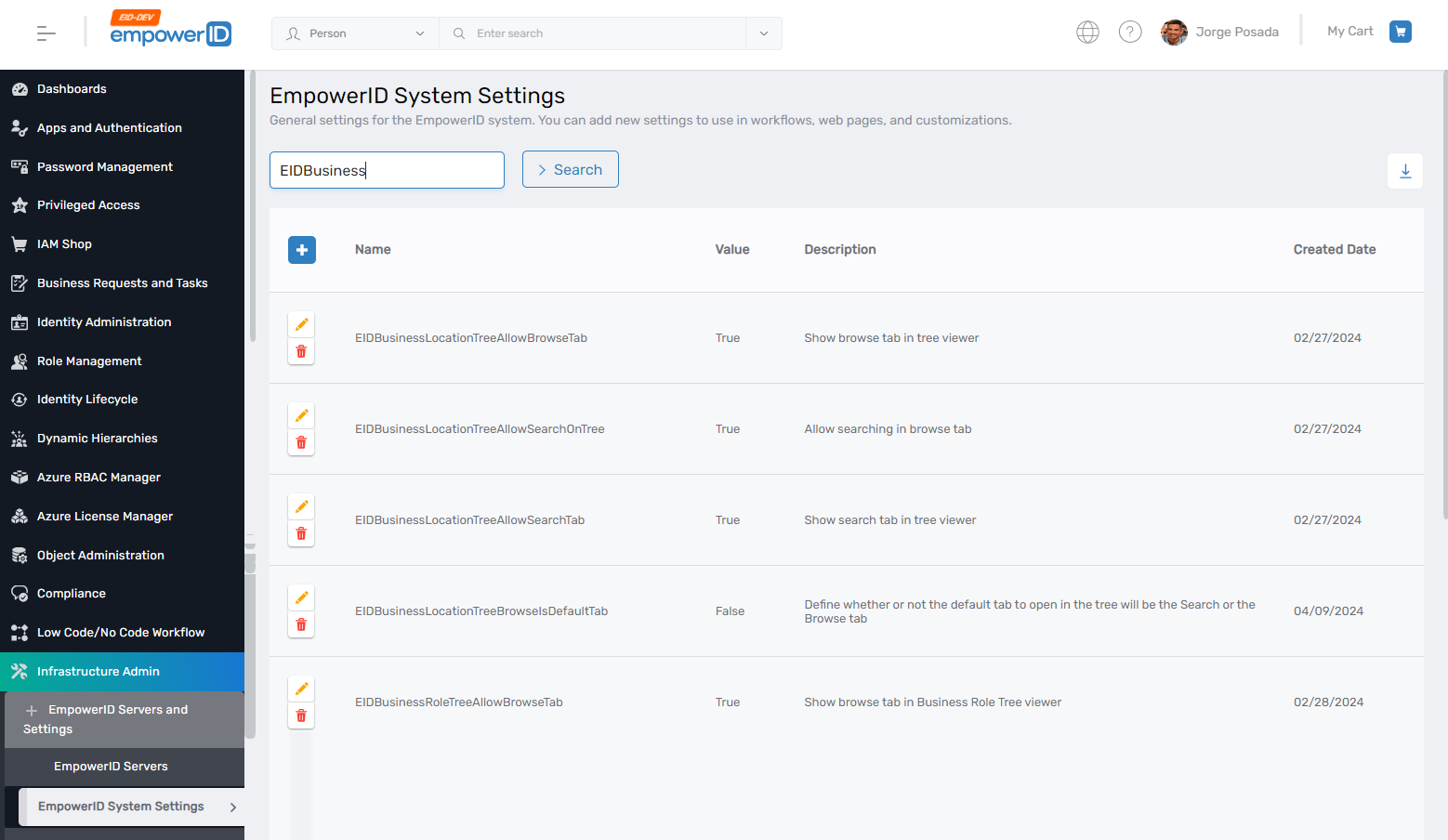
Step 2 — Modify a Setting
- Click the Edit (pencil) icon for the setting you want to change.
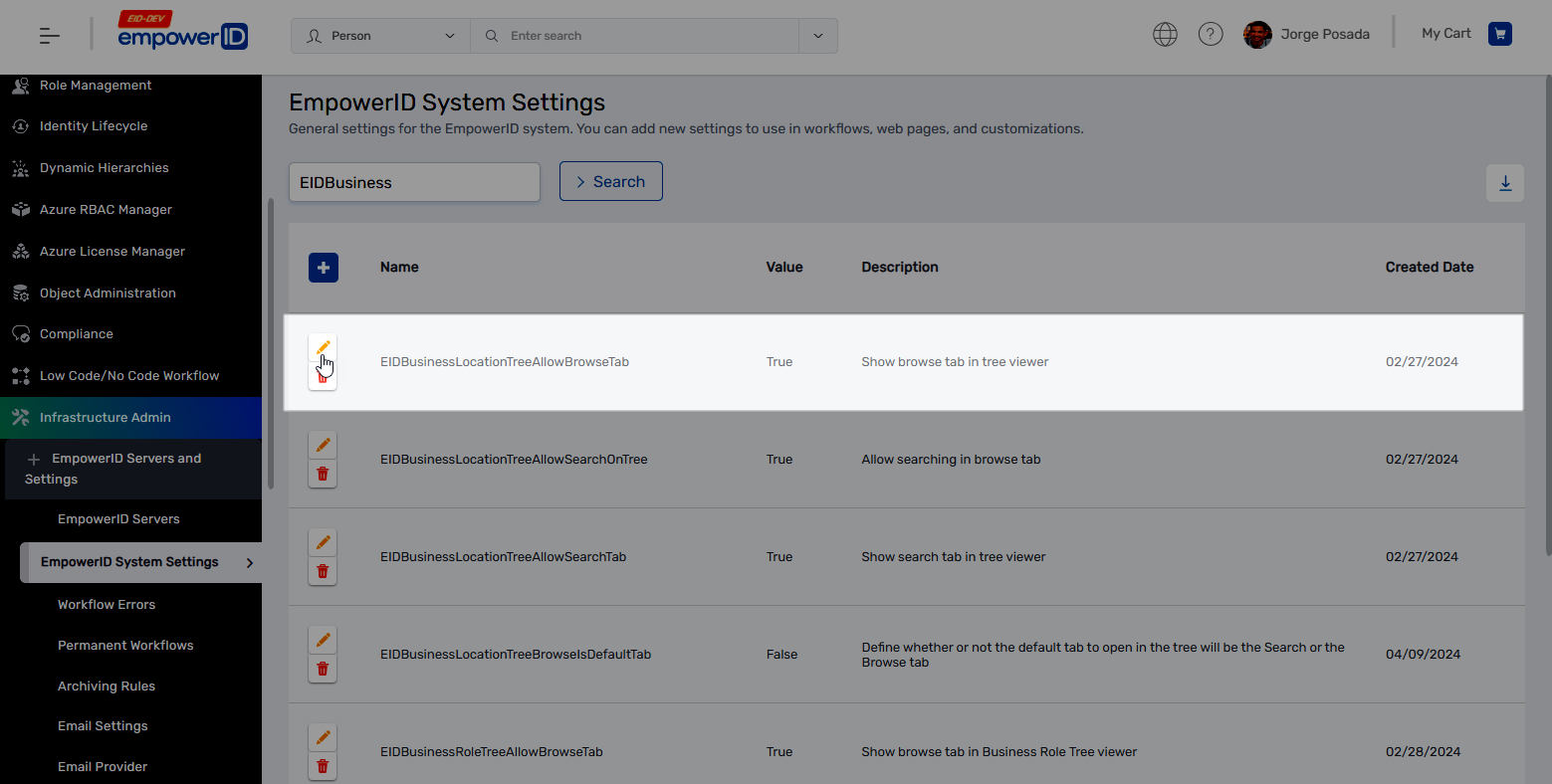
- Change the Value between True or False.
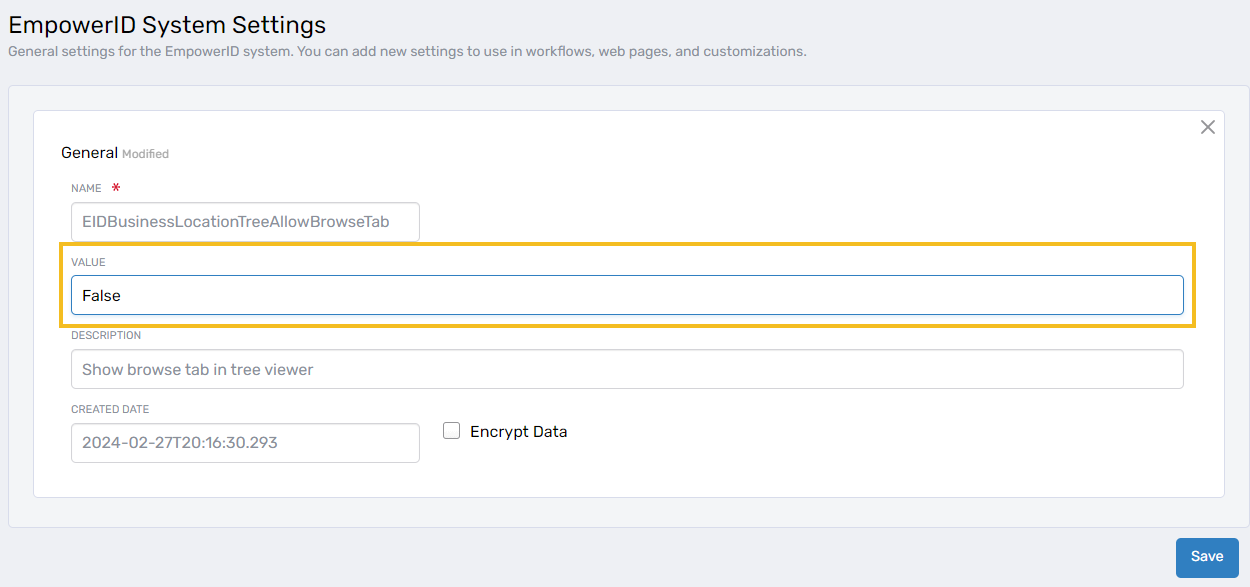
- Click Save to apply your update.
Verifying Your Changes
To confirm your configuration update:
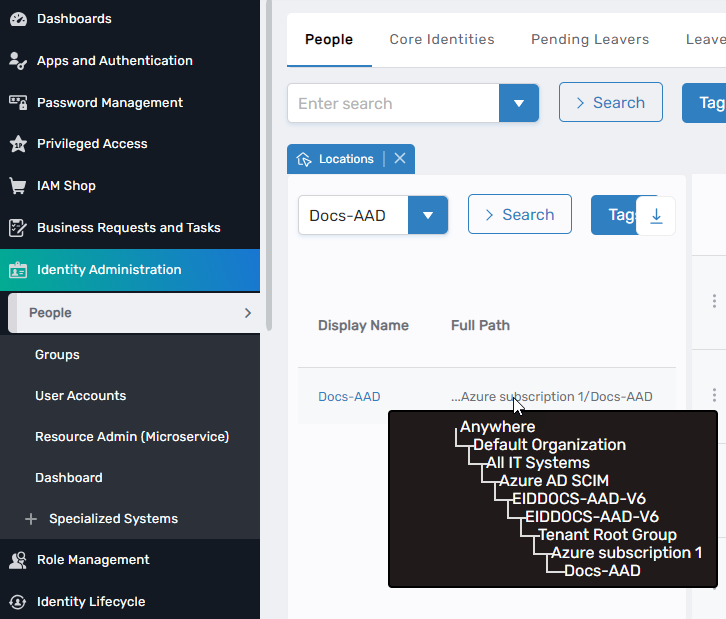
- Navigate to any page that includes a Location or Role tree viewer.
- Hover over the displayed path to expand the tree component.
- Confirm that the Browse tab, Search tab, or inline search bar reflects your updated setting.
Summary
By adjusting these settings, administrators can tailor the browsing and searching experience for OrgZone and OrgRole structures. Whether simplifying navigation or enabling inline search, these configuration options allow organizations to customize the interface according to their preferred workflows.