Configure EmpowerID Email Send Options
EmpowerID provides flexible email delivery options for system notifications, workflow messages, and approval-related communication. You can configure SMTP, SendGrid, and Exchange Web Services (EWS), set provider priority, and enable email-based approvals. This rewritten version preserves all original functionality while presenting the material in a clearer, more structured, and premium documentation format.
Prerequisites
- EmpowerID administrative access
- SMTP relay access (for SMTP configurations)
- SendGrid account + API key (for SendGrid delivery)
- Exchange/Office 365 mailbox + EWS endpoint (for EWS delivery)
- Vaulted service account credentials for authenticated email providers
- Workflow Studio access (for enabling email approvals)
Email Delivery Methods Overview
| Scenario | Description |
|---|---|
| Simple SMTP Relay | Sends email through an unauthenticated SMTP relay for standard notifications. |
| Authenticated SMTP | Uses a vaulted domain account and supports SSL, TLS, and port configuration. |
| Exchange Web Services (EWS) | Sends email via Exchange or Office 365 using an authenticated mailbox. |
| SendGrid | Uses SendGrid's API-based email delivery method. |
| Email Approvals | Allows approvers to accept or reject requests directly from their inbox. |
When Authenticated SMTP is enabled, the mailbox selected for processing overrides the configured SMTP From Address.
For non‑Exchange SMTP solutions, create a tracking‑only account store with vaulted credentials.
Configuration Procedures
Each section below walks through configuring an available delivery method.
1. Configure Simple SMTP Relay
- Go to Infrastructure Admin > EmpowerID Servers and Settings > Email Settings.
- Set Email Delivery Mode to SMTP.
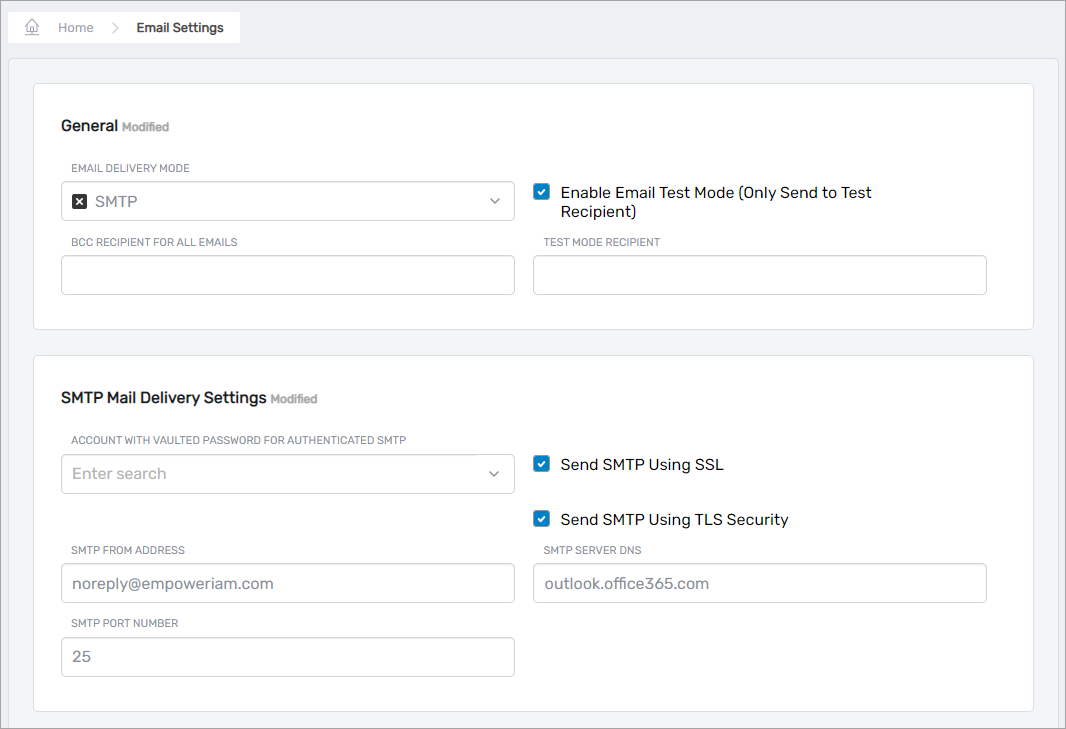
- Configure the following fields:
- BCC Recipient for All Emails (optional)
- Enable Email Test Mode
- Test Mode Recipient
- Account with Vaulted Password for Authenticated SMTP — leave blank for simple relay
- Send SMTP Using SSL
- Send SMTP Using TLS Security
- SMTP From Address
- SMTP Port Number
- Click Save.
2. Configure Authenticated SMTP Relay
- Navigate to Infrastructure Admin > EmpowerID Servers and Settings > Email Settings.
- Set Email Delivery Mode to SMTP.
- Complete the following fields:
- BCC Recipient for All Emails
- Enable Email Test Mode
- Test Mode Recipient
- Account with Vaulted Password for Authenticated SMTP — ensure a vaulted account is selected
- Send SMTP Using SSL
- Send SMTP Using TLS Security
- SMTP From Address
- SMTP Port Number
- Click Save.
Vault the SMTP Account Password
- In Email Settings, click the account under Account With Vaulted Password For Authenticated SMTP.
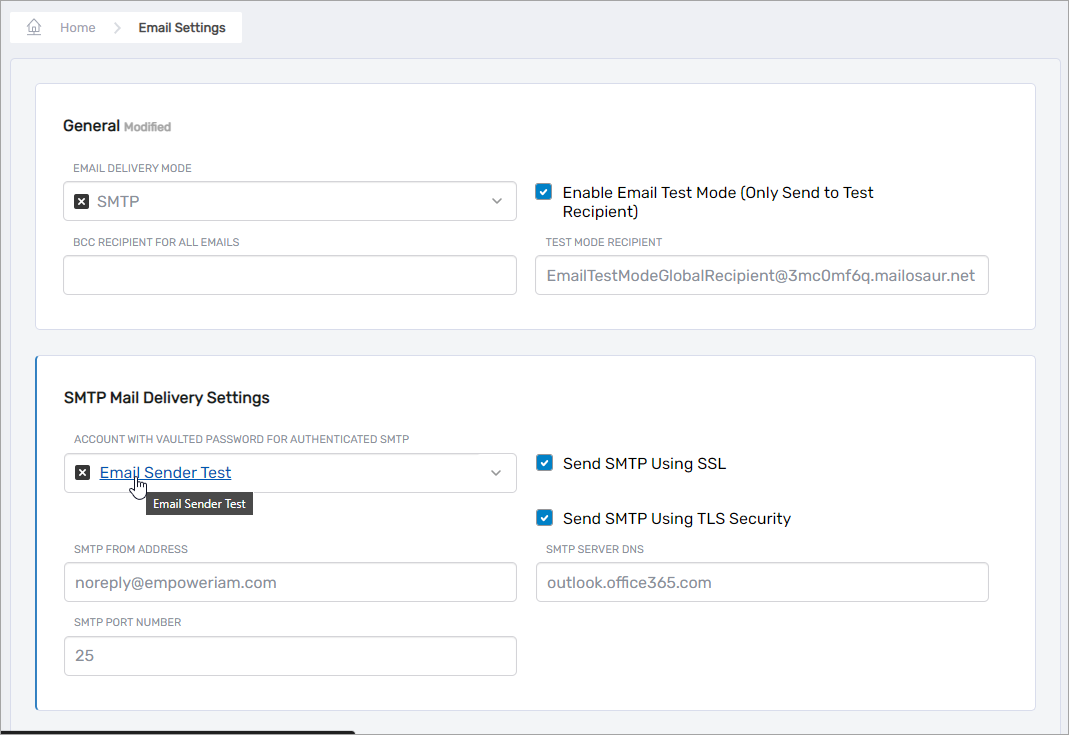
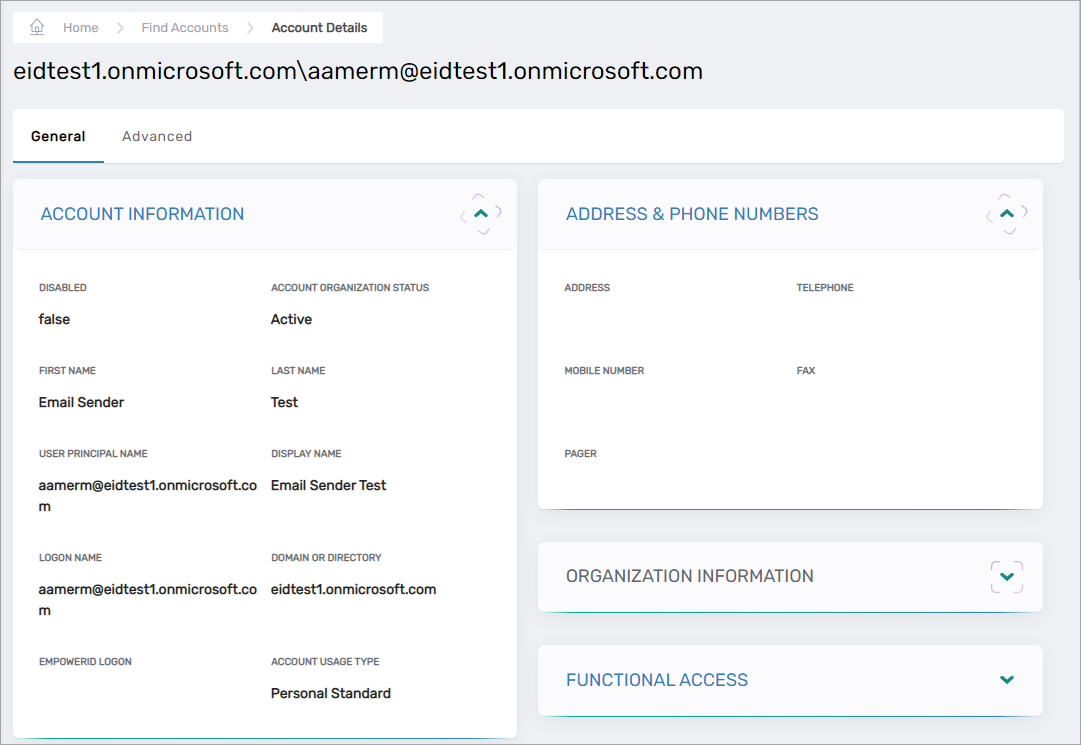
This opens the View One page for the user account.
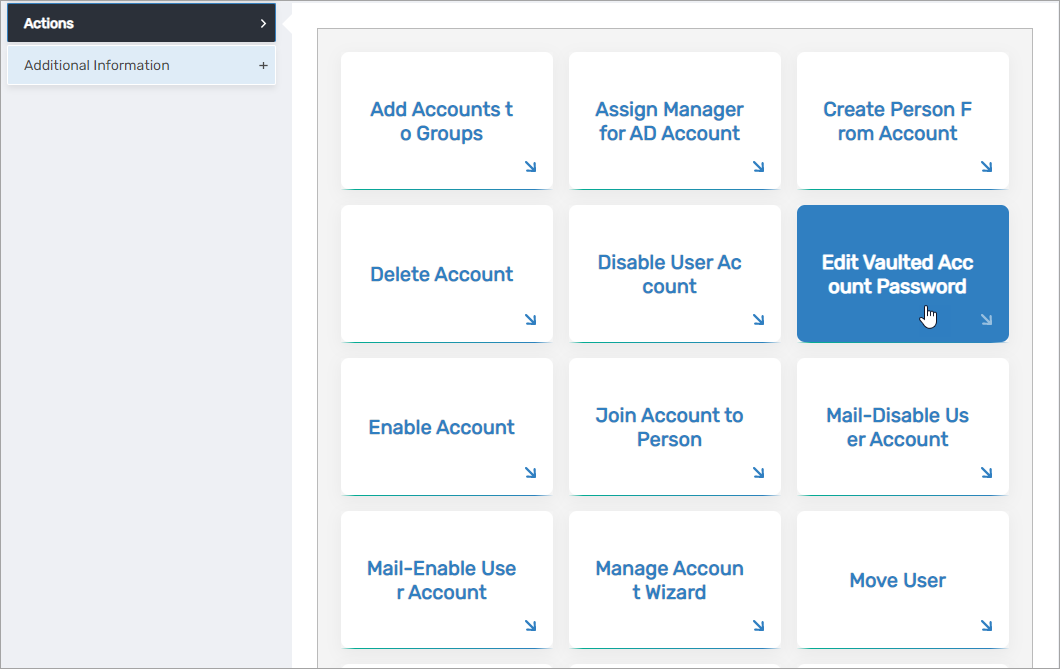
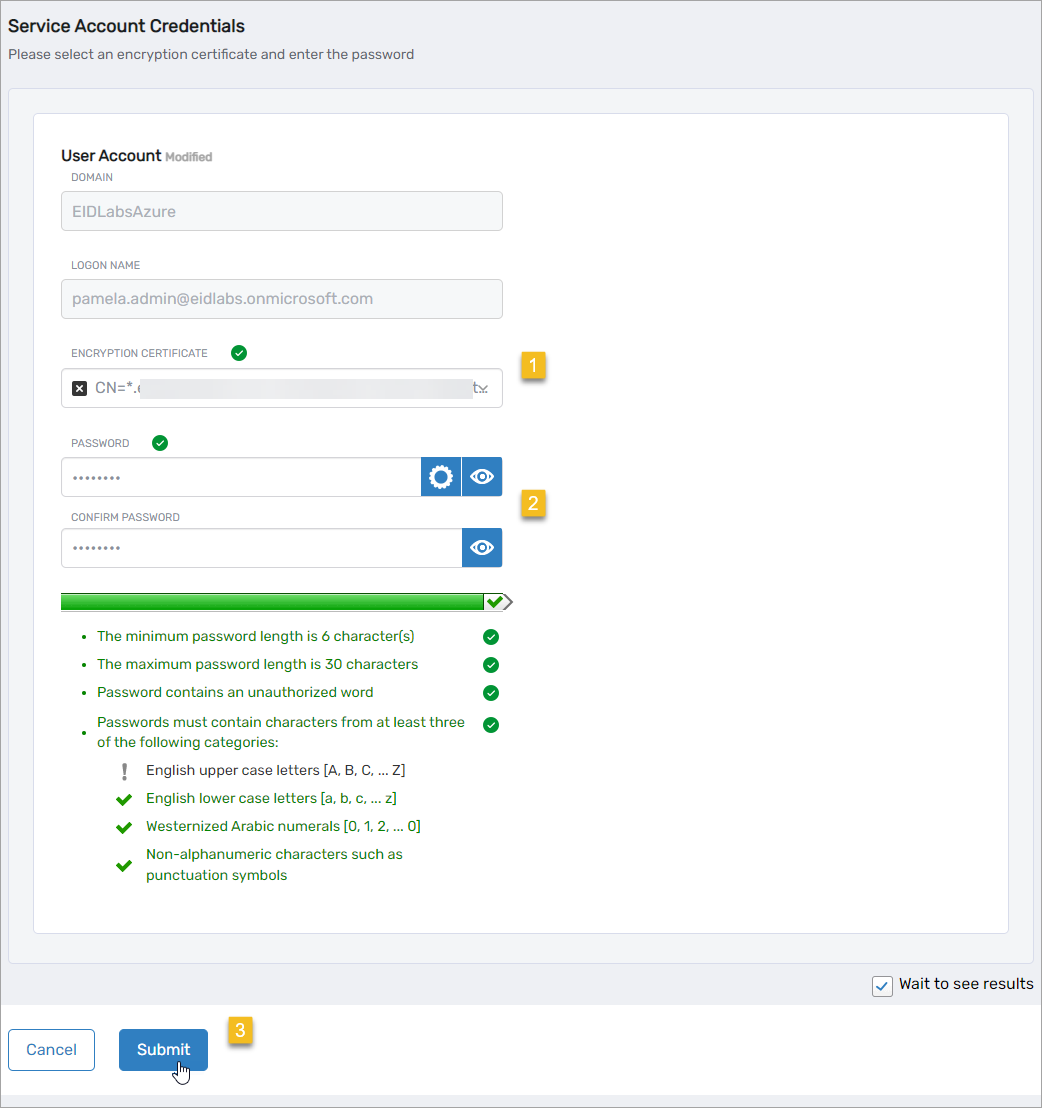
- Expand Actions and select Edit Vaulted Account Password.
- In the Service Account Credentials form:
- Select an Encryption Certificate
- Enter and confirm the password
- Click Submit
3. Configure Exchange Web Services (EWS)
- Go to Infrastructure Admin > EmpowerID Servers and Settings > Email Settings.
- Set Email Delivery Mode to Exchange EWS.
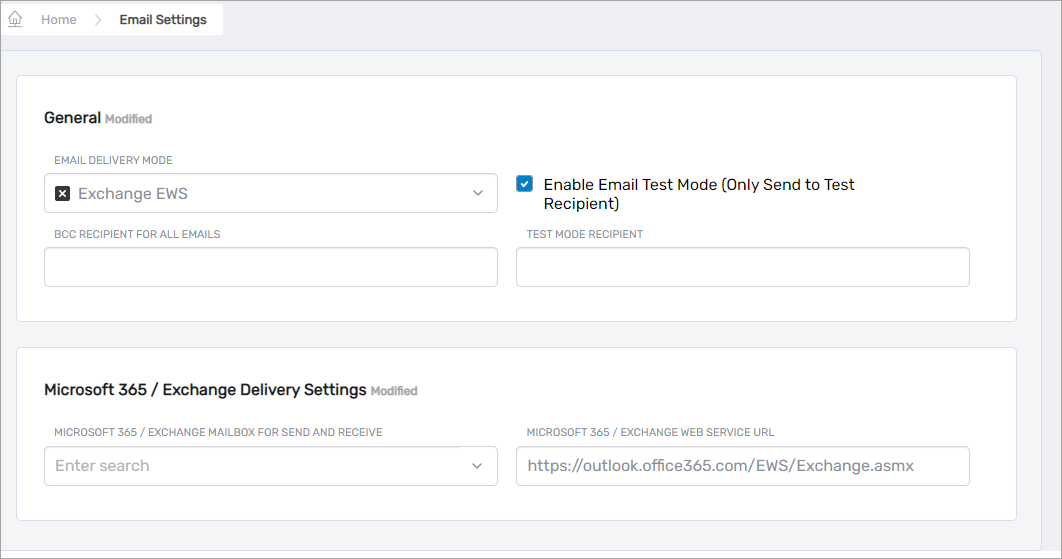
- Configure:
- BCC Recipient for All Emails
- Enable Email Test Mode
- Test Mode Recipient
- Microsoft 365 / Exchange Delivery Settings — select a mailbox-enabled account
- Microsoft 365 / Exchange Web Service URL — e.g.,
https://outlook.office365.com/EWS/Exchange.asmx
- Click Save.
4. Configure SendGrid Delivery
Complete SendGrid domain authentication and generate an API key before configuring EmpowerID.
Reference: SendGrid Documentation.
- Go to Infrastructure Admin > EmpowerID Servers and Settings > Email Settings.
- Configure:
- Email Delivery Mode — set to SendGrid
- SendGrid API Key — enter your API key
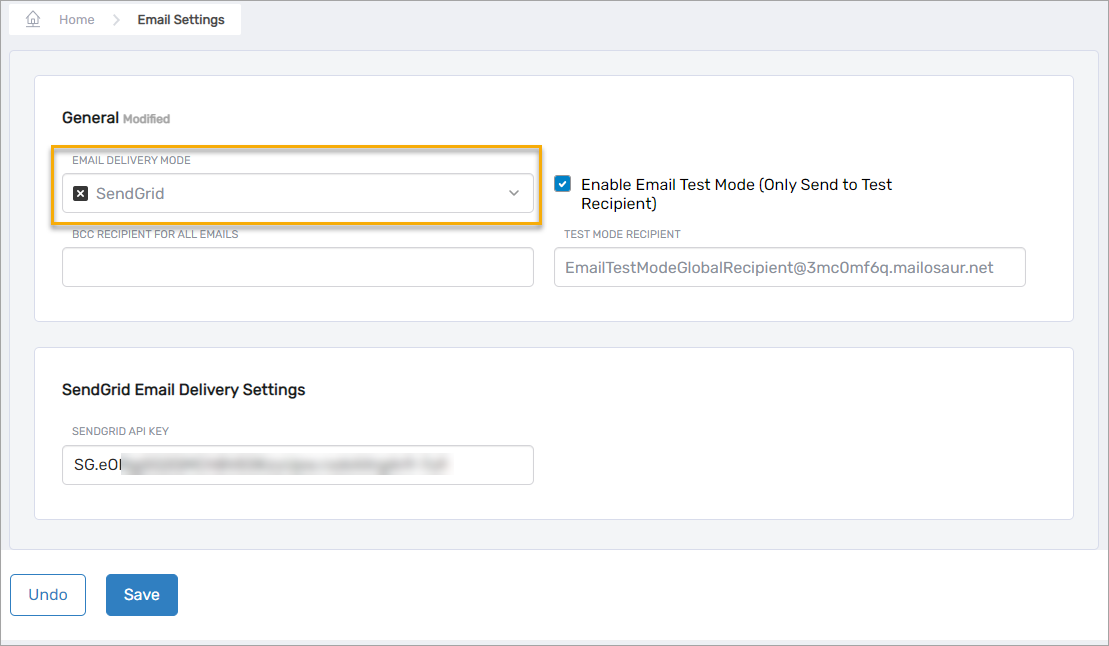
- Click Save.
5. Configure Email Provider Priority
EmpowerID supports using multiple email delivery providers with prioritized fallback.
- Open Infrastructure Admin > EmpowerID Servers and Settings > Email Provider.
- Click Edit for a provider.
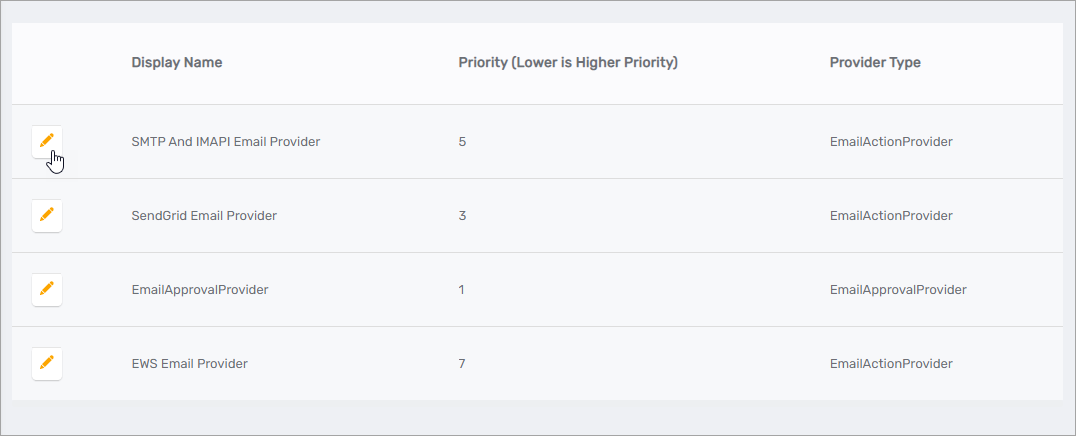
- Adjust the Priority value:
- Lower numbers = higher priority
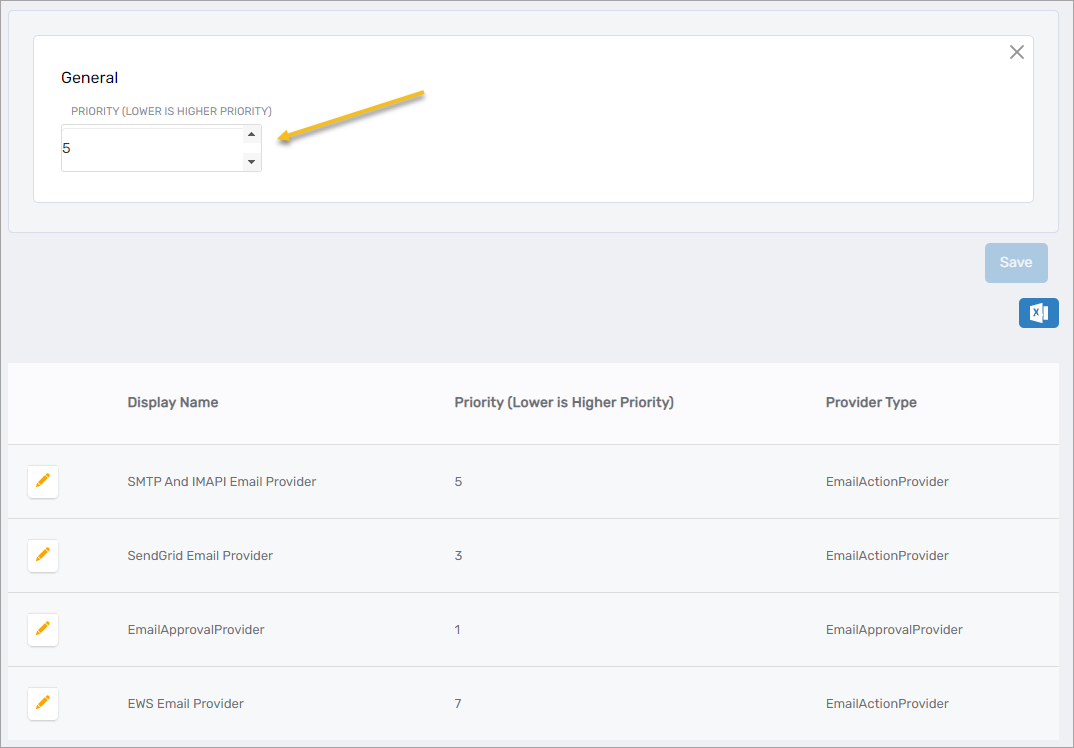
- Lower numbers = higher priority
- Repeat as needed for other providers.
6. Enable Email Approvals
To enable email approvals:
- The workflow must have EnableBulkApproval = true in Workflow Studio.
- Either Authenticated SMTP or EWS must be configured first.
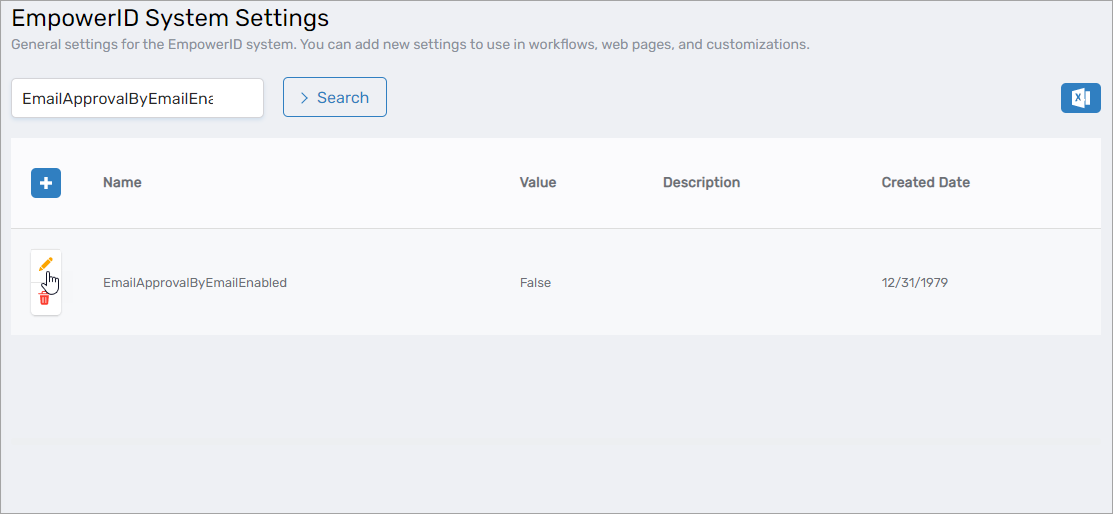
- Go to Infrastructure Admin > EmpowerID Servers and Settings > EmpowerID System Settings.
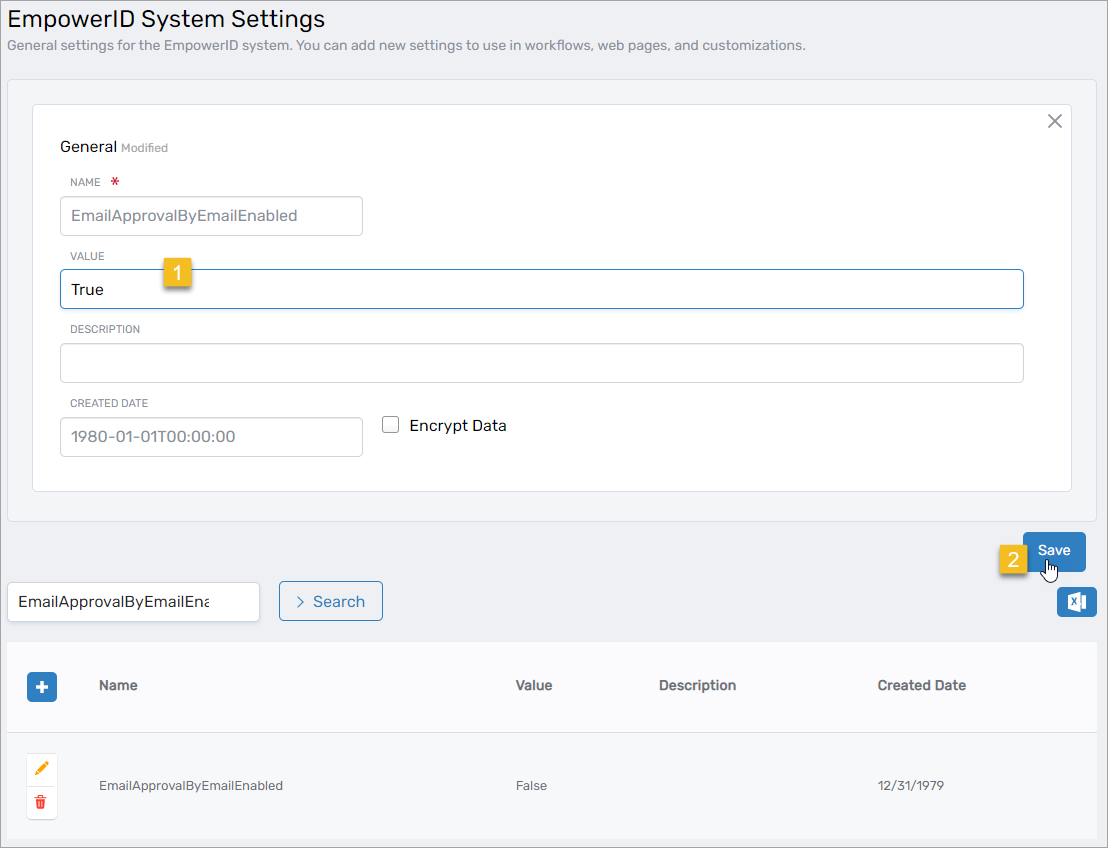
- Search for EmailApprovalbyEmailEnabled.
- Click Edit.
- Set Value to True and click Save.
Summary
With email delivery options configured, EmpowerID can send system notifications and support approvals across SMTP, SendGrid, and EWS. Provider priority and vaulted credentials ensure secure, predictable email processing.