EmpowerID System Settings
EmpowerID provides a centralized interface for managing platform-wide configuration values known as System Settings. These settings define global platform behaviors related to authentication, workflows, email operations, system features, and integration logic.
To make changes, administrators use the EmpowerID System Settings page to search for a configuration key, open its edit dialog, and update its value.
Prerequisites
ℹ️ You must be a member of the SaaS Admin Management Role to access and modify System Settings.
Accessing and Editing System Settings
Follow the steps below to locate and modify EmpowerID System Settings.
-
Navigate to the System Settings page
Go to Infrastructure Admin > EmpowerID Servers and Settings > EmpowerID System Settings from the navbar. -
Locate the setting
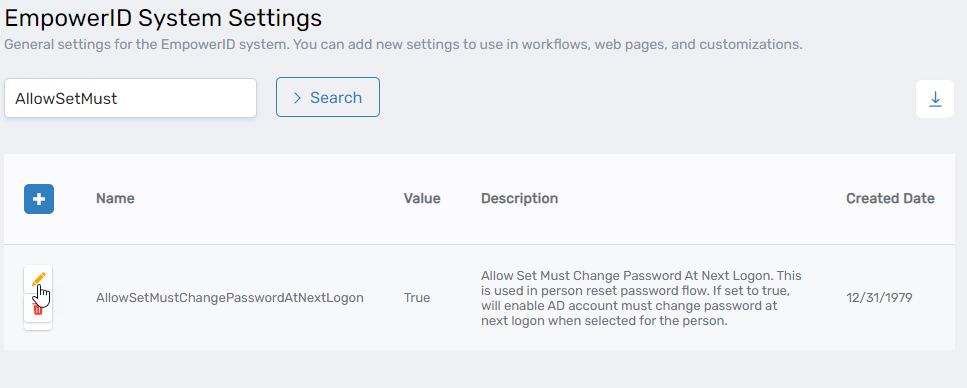
Use the search box on the System Settings page to find the configuration you want to modify.
Click the Edit icon next to the setting.
-
Modify the setting
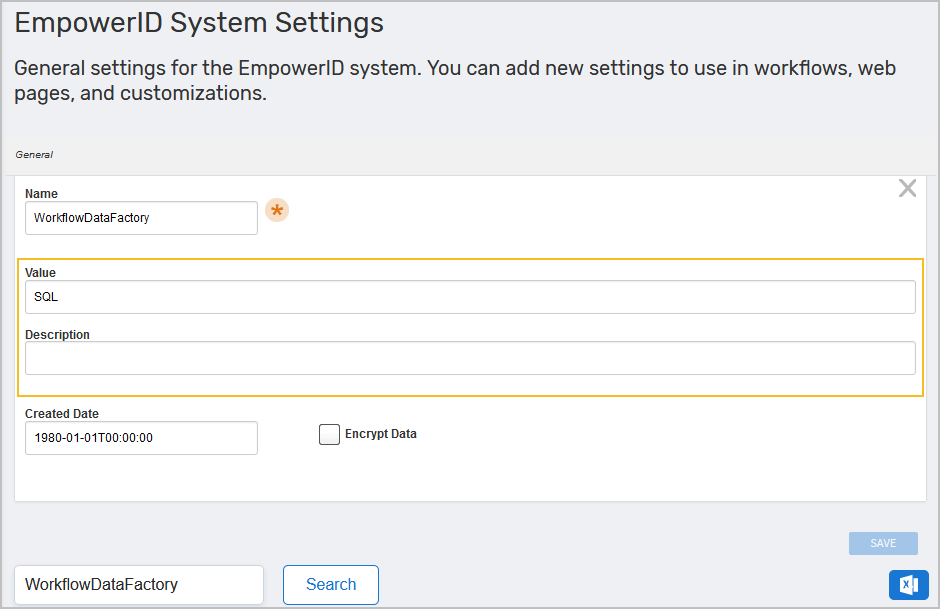
In the edit dialog, the following fields may be updated:- Value — Enter the new value.
- Description — (Optional) Update the text for clarity.
- Encrypt Data — Select this option to encrypt the value.
⚠️ When enabled, the value becomes unreadable in the UI and cannot be retrieved from the web interface.
-
Save your changes
Click Save to apply the updated configuration.