Edit Management Role Assignments
Bundle Management Roles together by adding or removing role assignments. This creates role bundles where assigning one role automatically grants additional roles, streamlining access management for users with multiple responsibilities.
Prerequisites
Before modifying Management Role assignments, ensure you have:
- Access to Resource Admin with permissions to manage the target Management Role
- Understanding that bundling roles means anyone who receives the parent role automatically gets all bundled roles
Procedure
-
Navigate to Resource Admin.
-
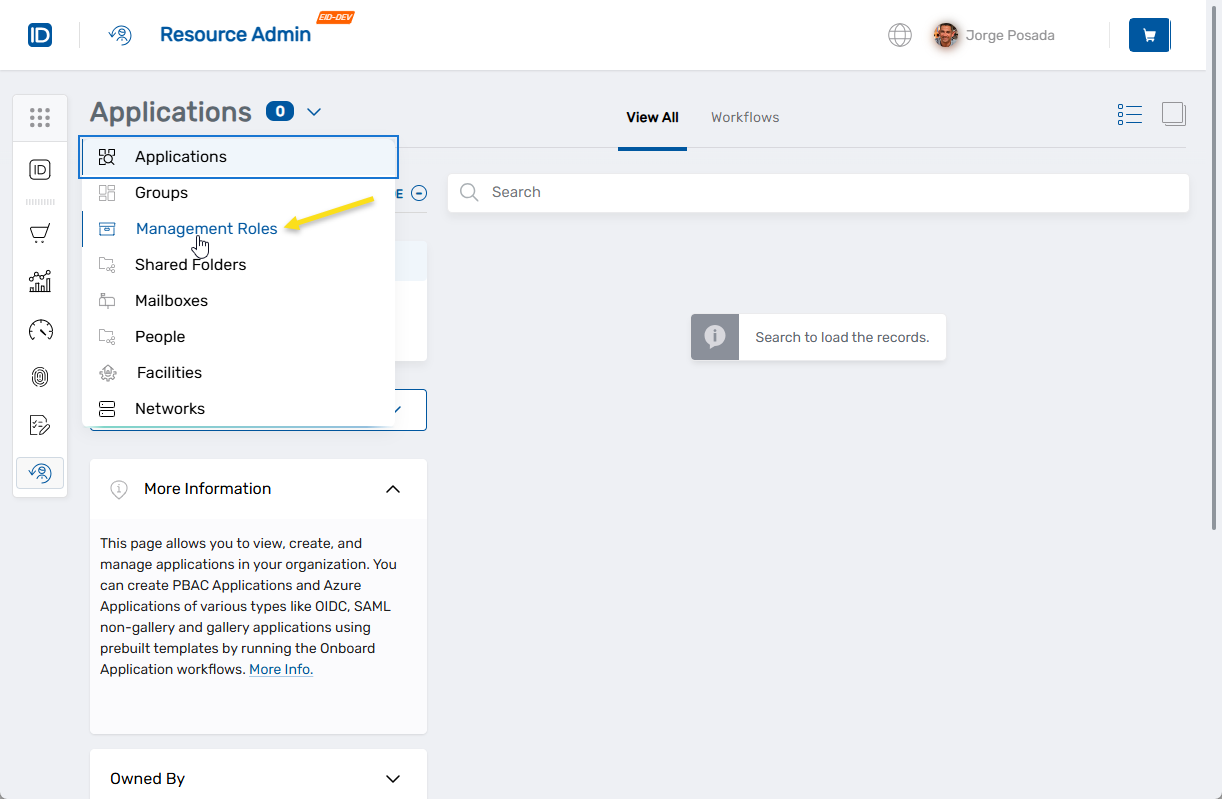
Select Management Roles from the resource type menu.
-
Click the Workflows tab.
-
Find and click Manage Management Role Wizard.
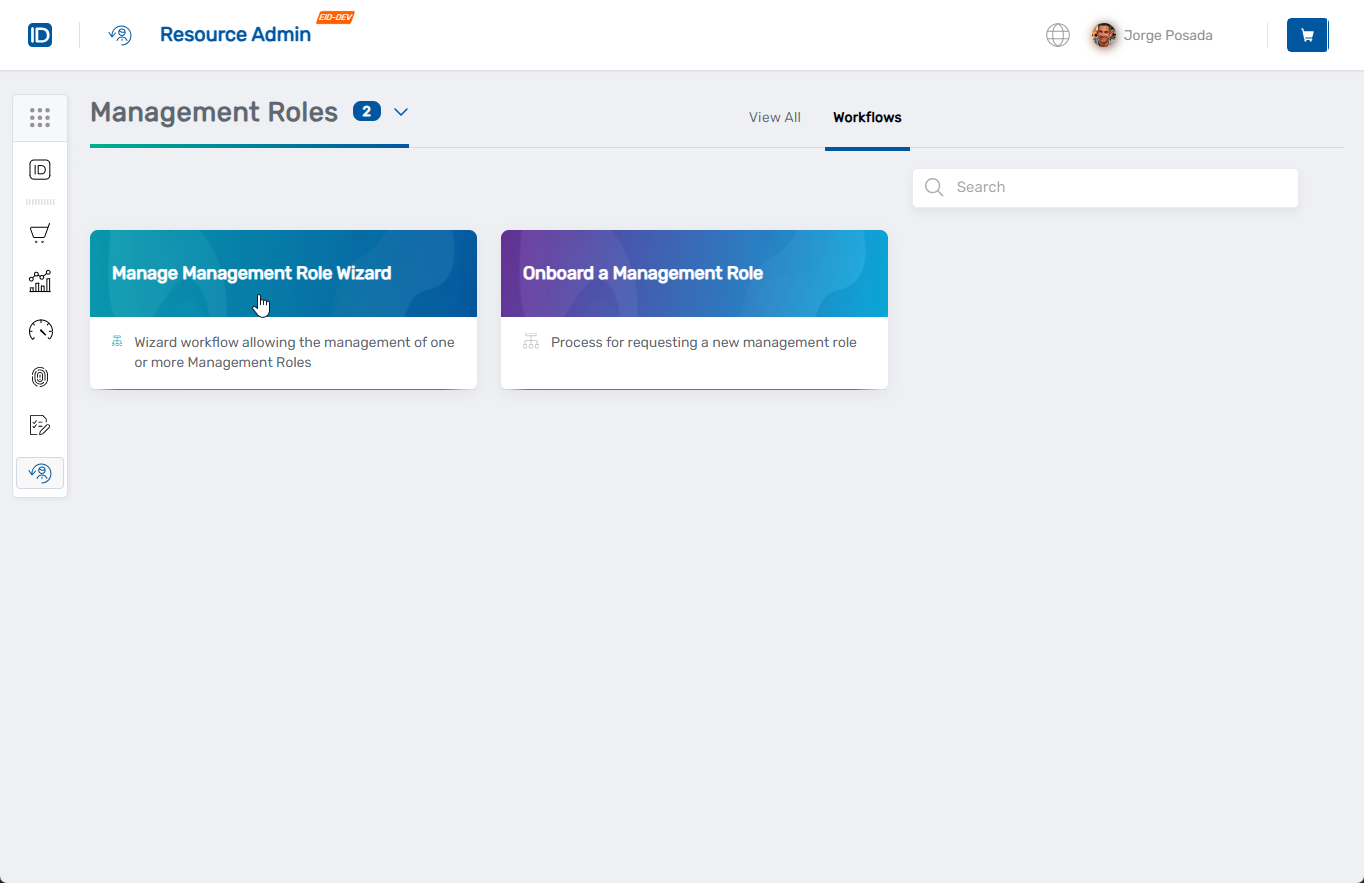 The workflow opens.
 -
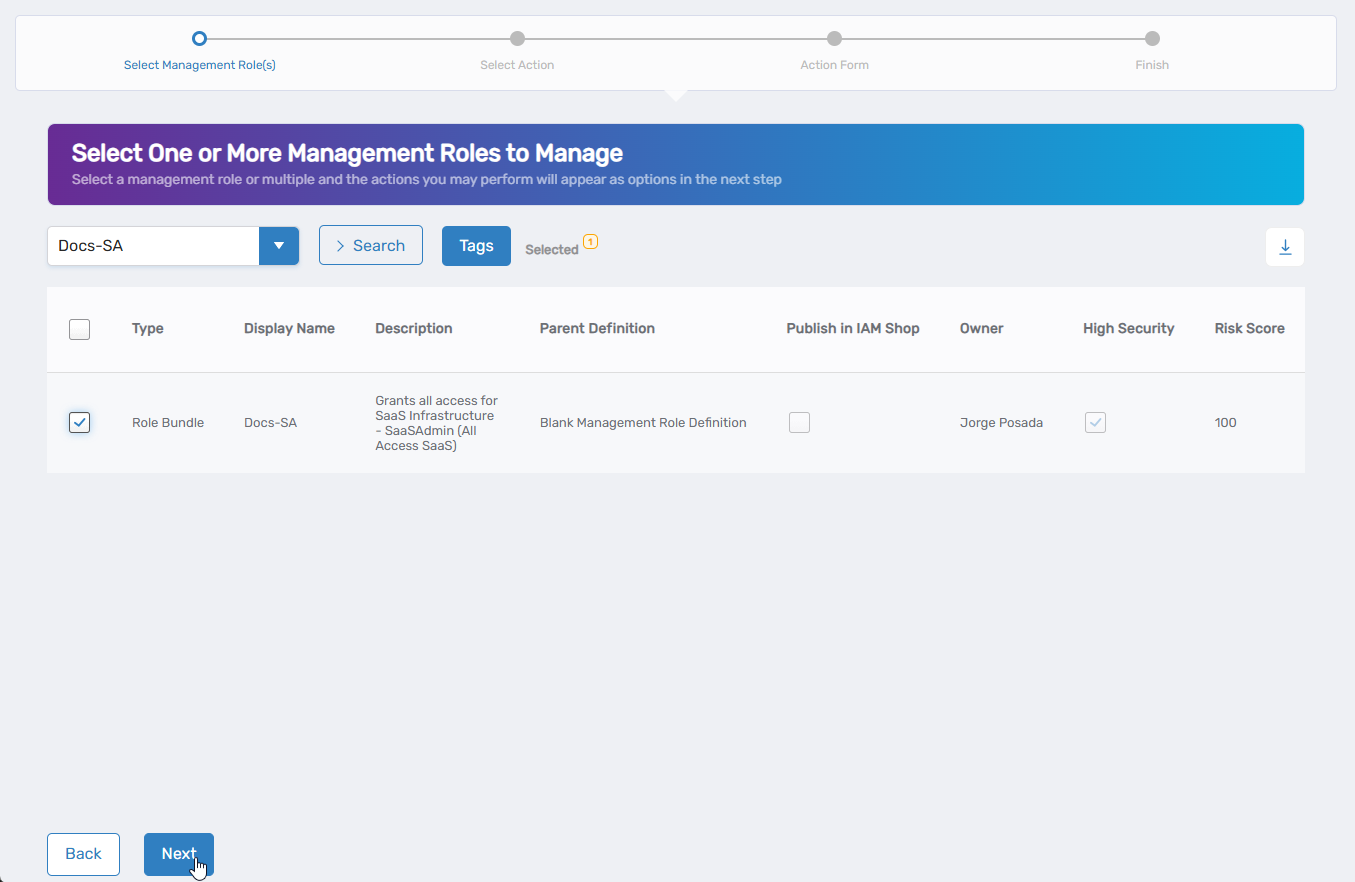
Select the Management Role you want to modify by checking the box next to it.
-
Click Next.
-
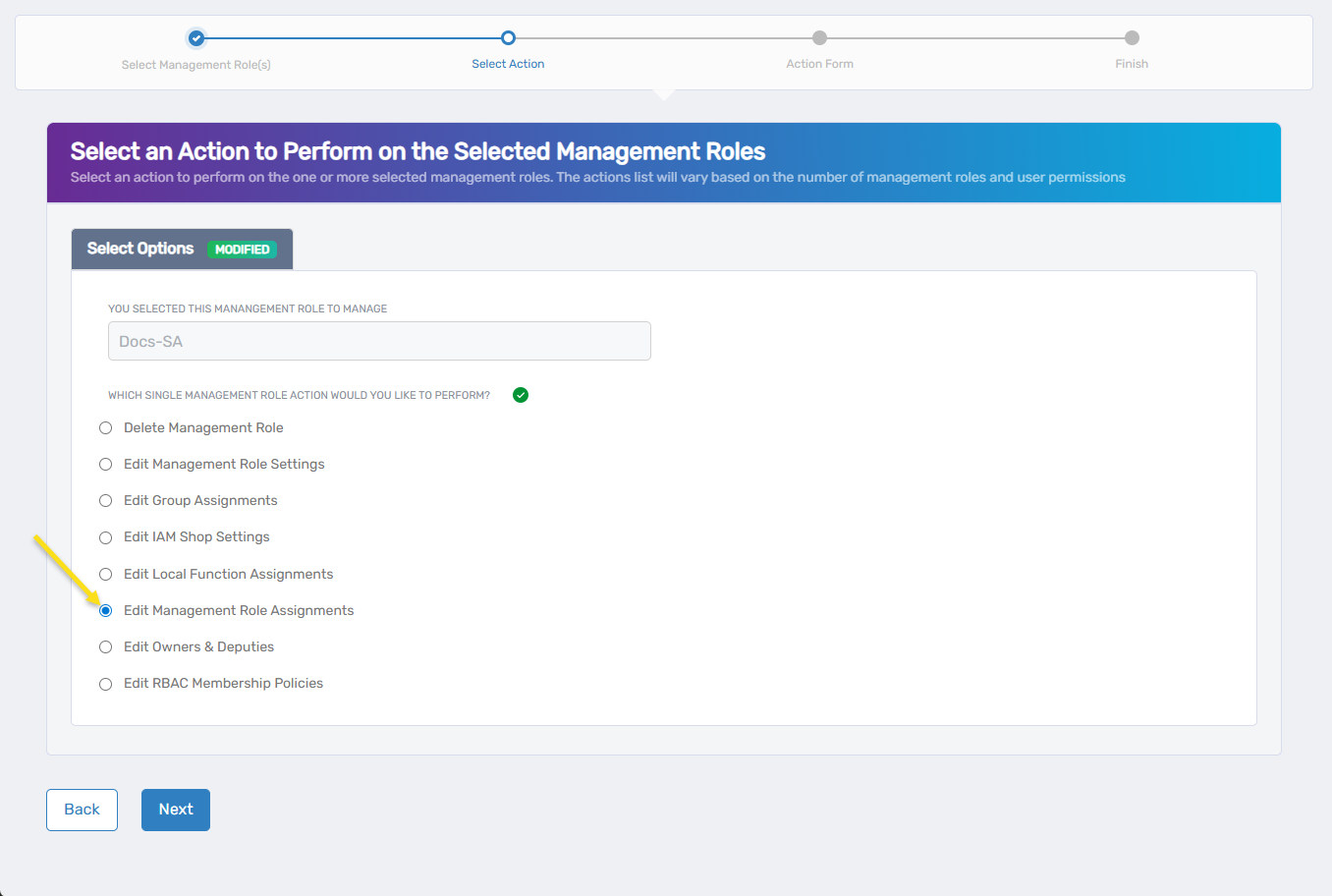
Select Edit Management Role Assignments from the available actions.
-
Click Next to proceed to the role assignment configuration.
-
If the role has current bundled roles, they display in the grid:
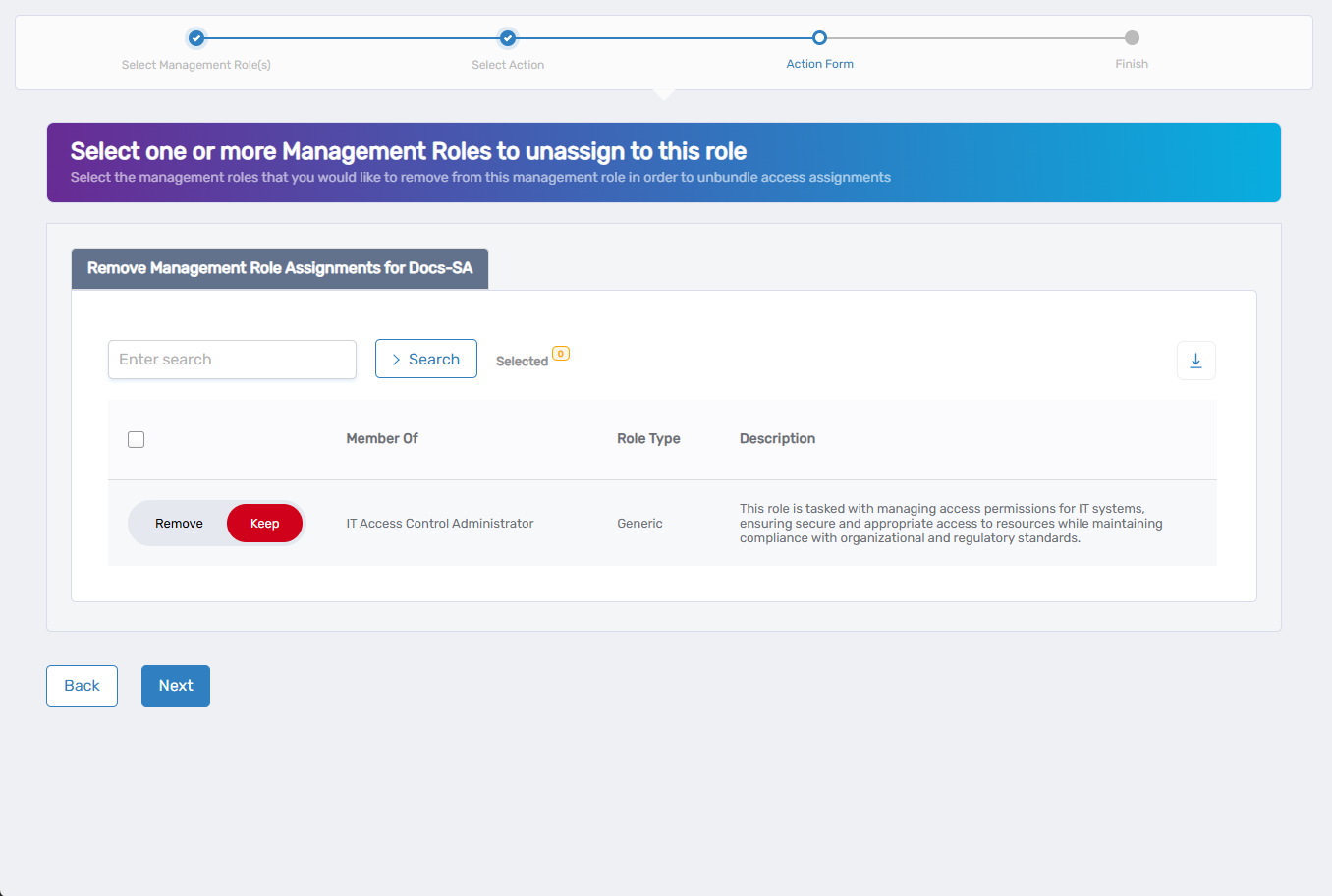
- Use the search functionality to find specific roles if needed
- Click Remove to delete a role from the bundle
- Click Keep to retain it
If the role has no existing Management Role assignments, skip to step 11.
-
Click Next to proceed to adding new assignments.
-
To add new Management Role assignments:

- Use the search field to find specific roles, or click the dropdown arrow for advanced search options
- Check the box next to each Management Role you want to bundle
- Repeat as needed to add multiple roles
Skip this step if you only want to remove existing assignments.
-
Click Next to proceed to the Operation Execution Summary.
-
Review the Operation Execution Summary to confirm your changes:
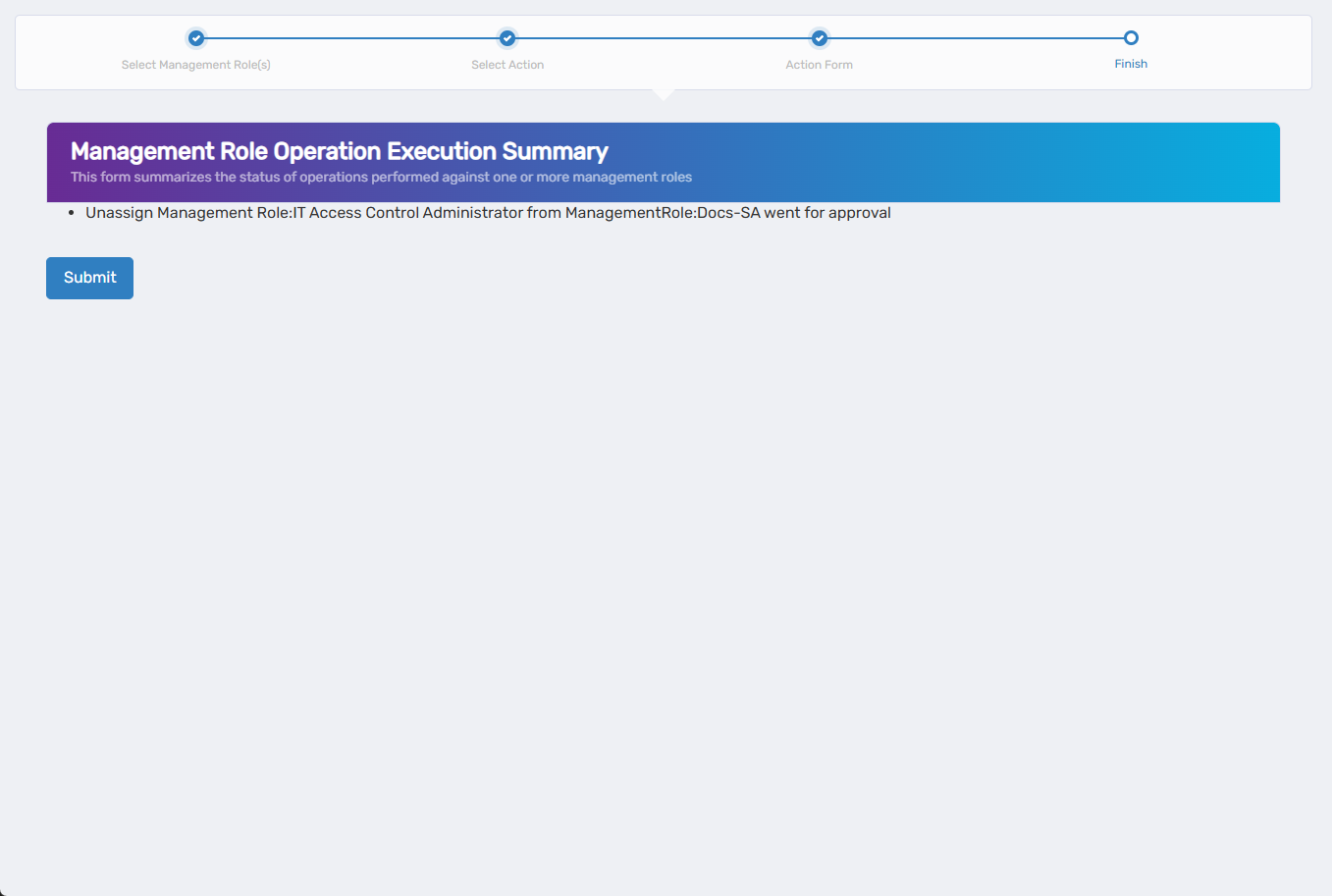
The summary shows the specific Management Role assignments that were added or removed. -
Click Submit.
-
Choose your next action:
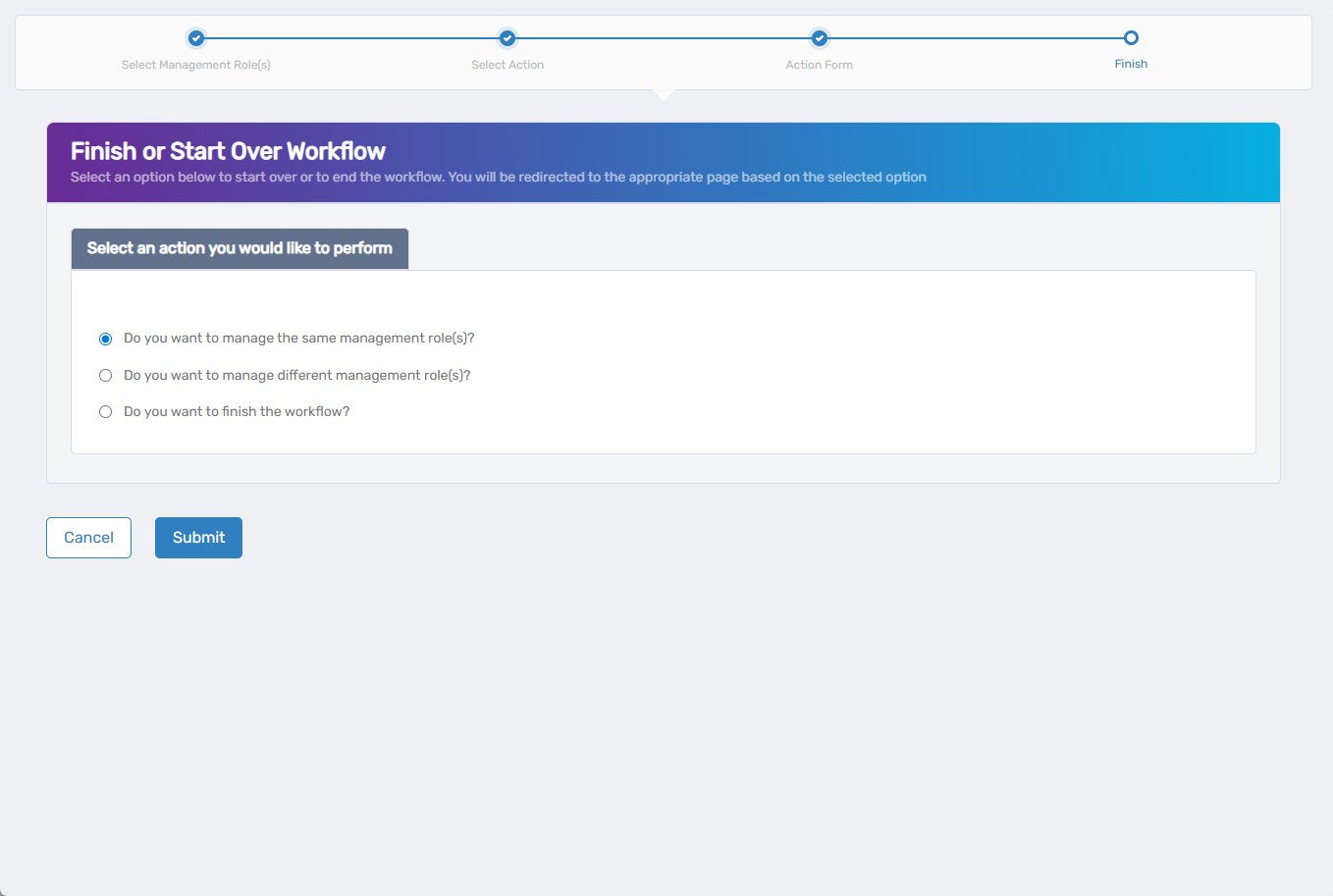
- Do you want to manage the same Management Role? - Perform additional actions on the same role
- Do you want to manage different Management Role(s)? - Work with other Management Roles
- Do you want to finish the workflow? - Exit the wizard
-
Click Submit to proceed with your selected option.
Verify the Results
Management Role assignment changes may require approval depending on your organization's policies. To verify the changes:
- After approval, navigate back to Resource Admin > Management Roles.
- Search for and select the Management Role you modified.
- Review the bundled role assignments to confirm additions or removals.
- Verify that users who have the parent role now receive or no longer receive the bundled roles.
Related Topics
- Onboard Management Roles - Create new Management Roles with initial role bundles
- Add Management Roles to Management Roles - Direct method for bundling roles
- Edit Management Role Owners & Deputies - Manage role ownership
- Edit Management Role Settings - Modify other role configuration options