Delete Management Role
When Management Roles are no longer needed, you can delete them from the system using the Manage Management Role Wizard. This process permanently removes the role and cleans up all associated assignments and configurations.
Prerequisites
Before deleting a Management Role, ensure you have:
- Access to Resource Admin with permissions to delete Management Roles
- Understanding of the role's current usage and potential impact
Procedure
- Navigate to Resource Admin.
- Select Management Roles from the resource type menu.
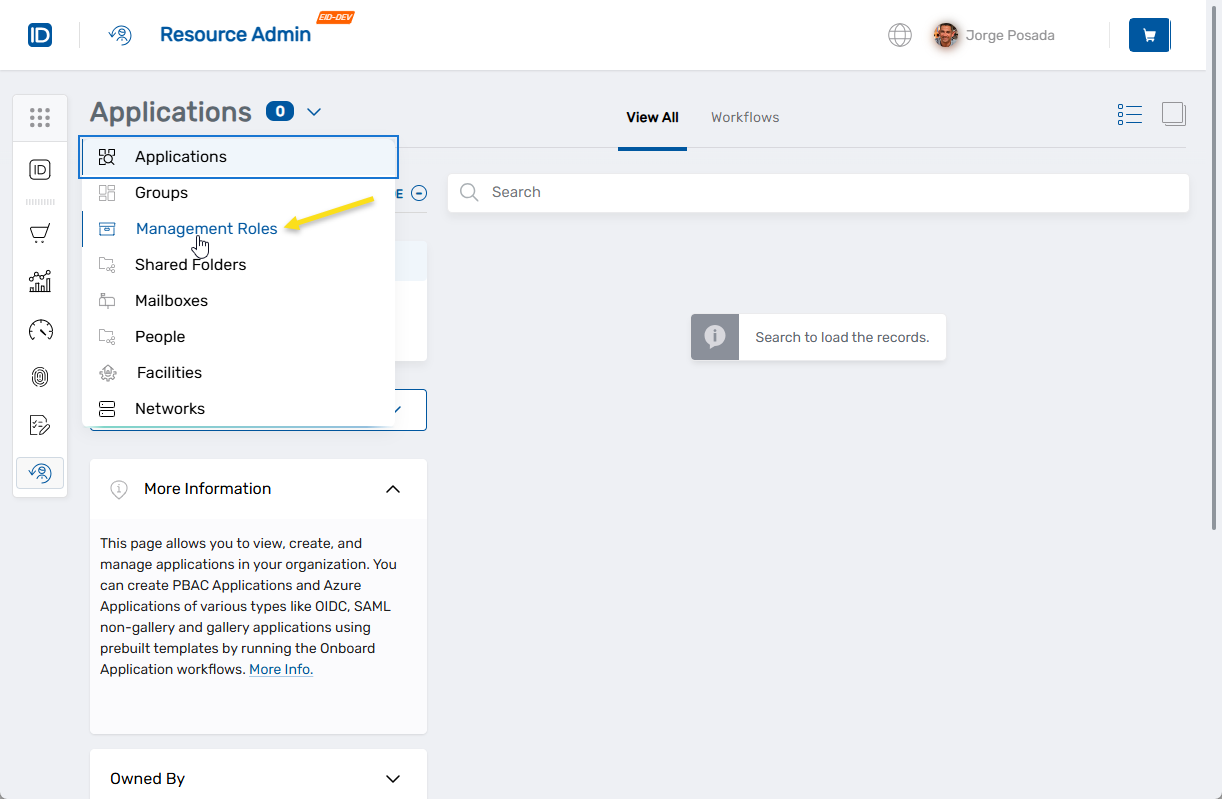
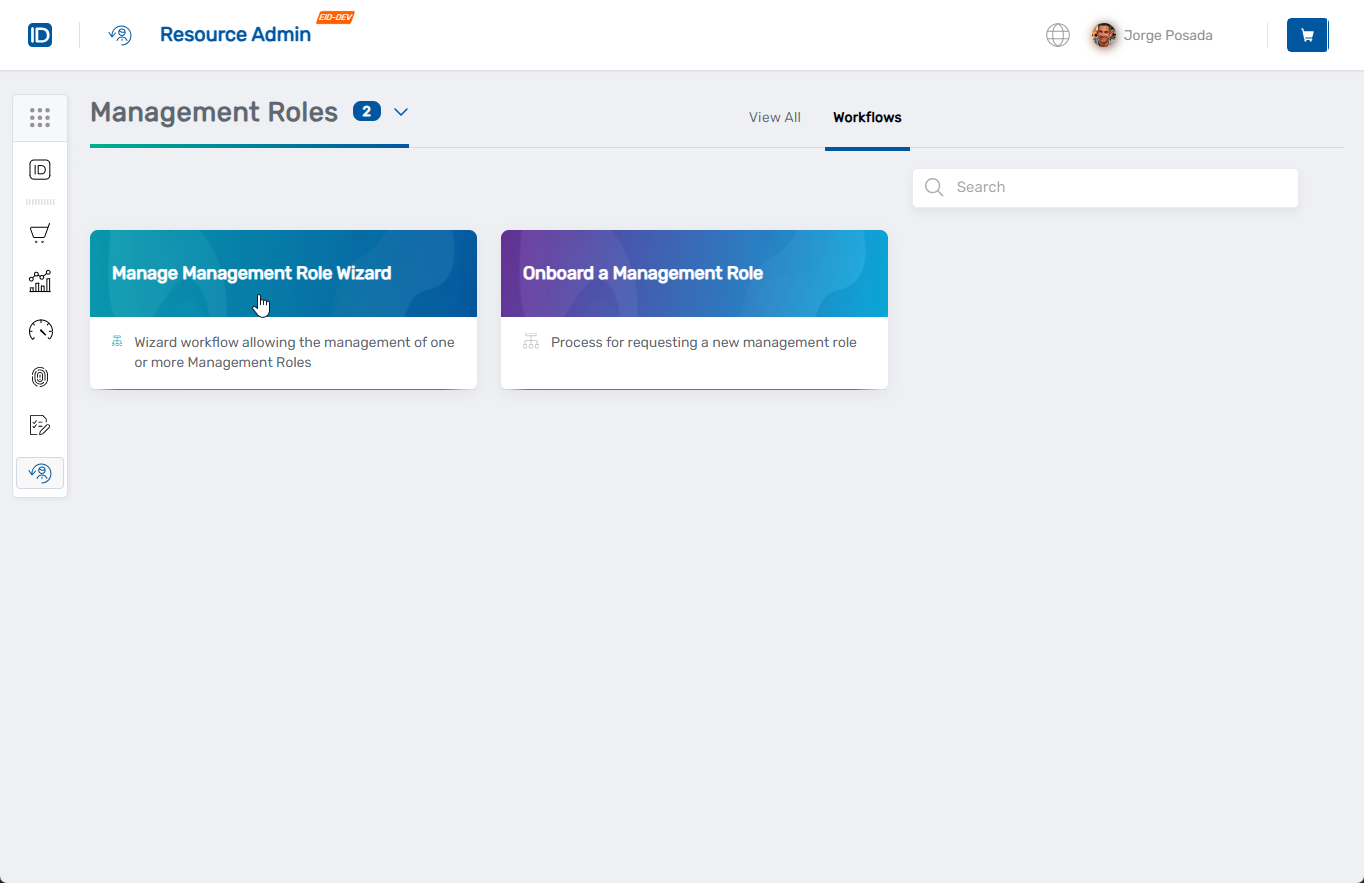
- Click the Workflows tab.
- Find and click Manage Management Role Wizard.
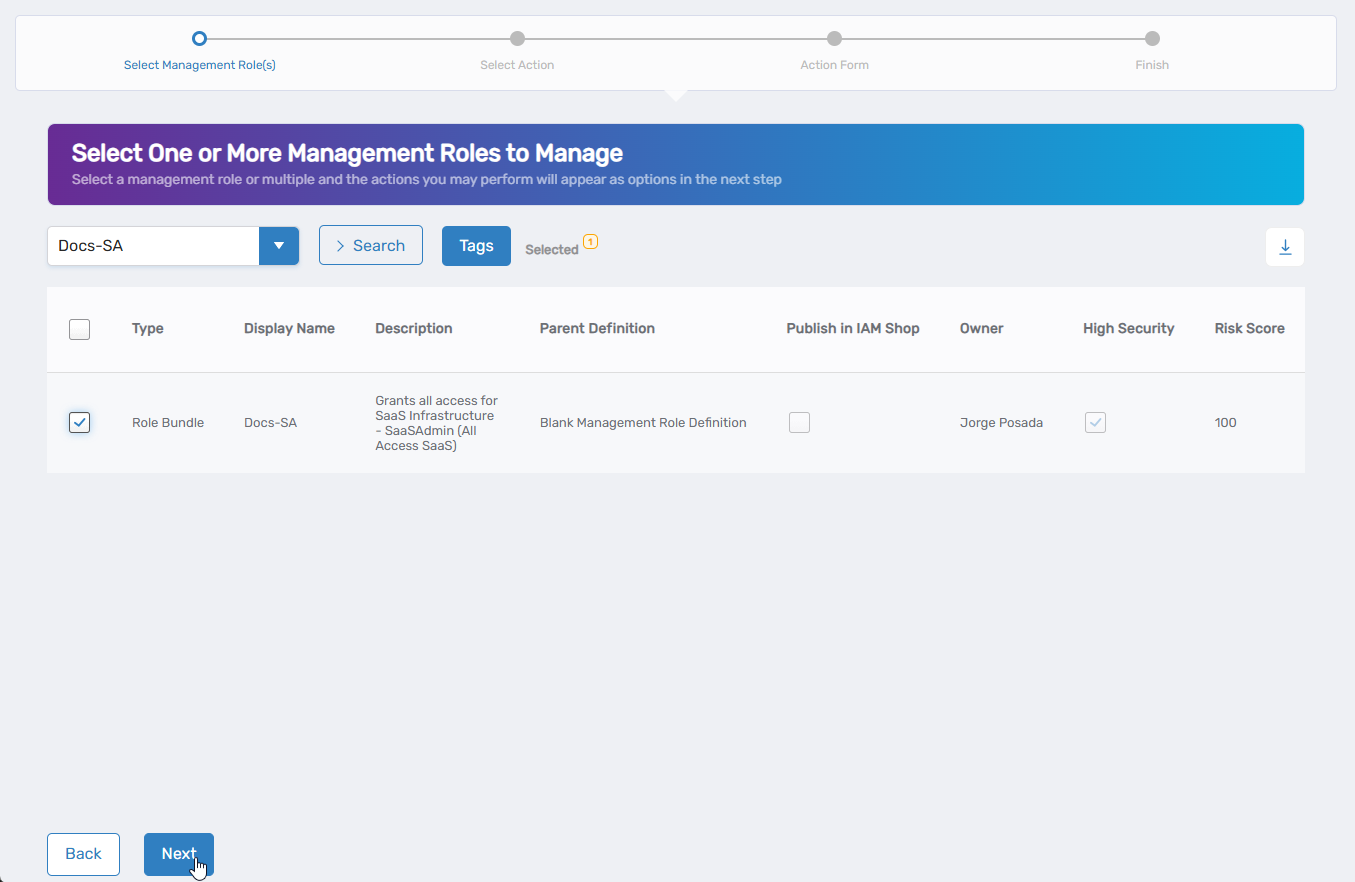
- Select the Management Role you want to delete by checking the box next to it and click Next.
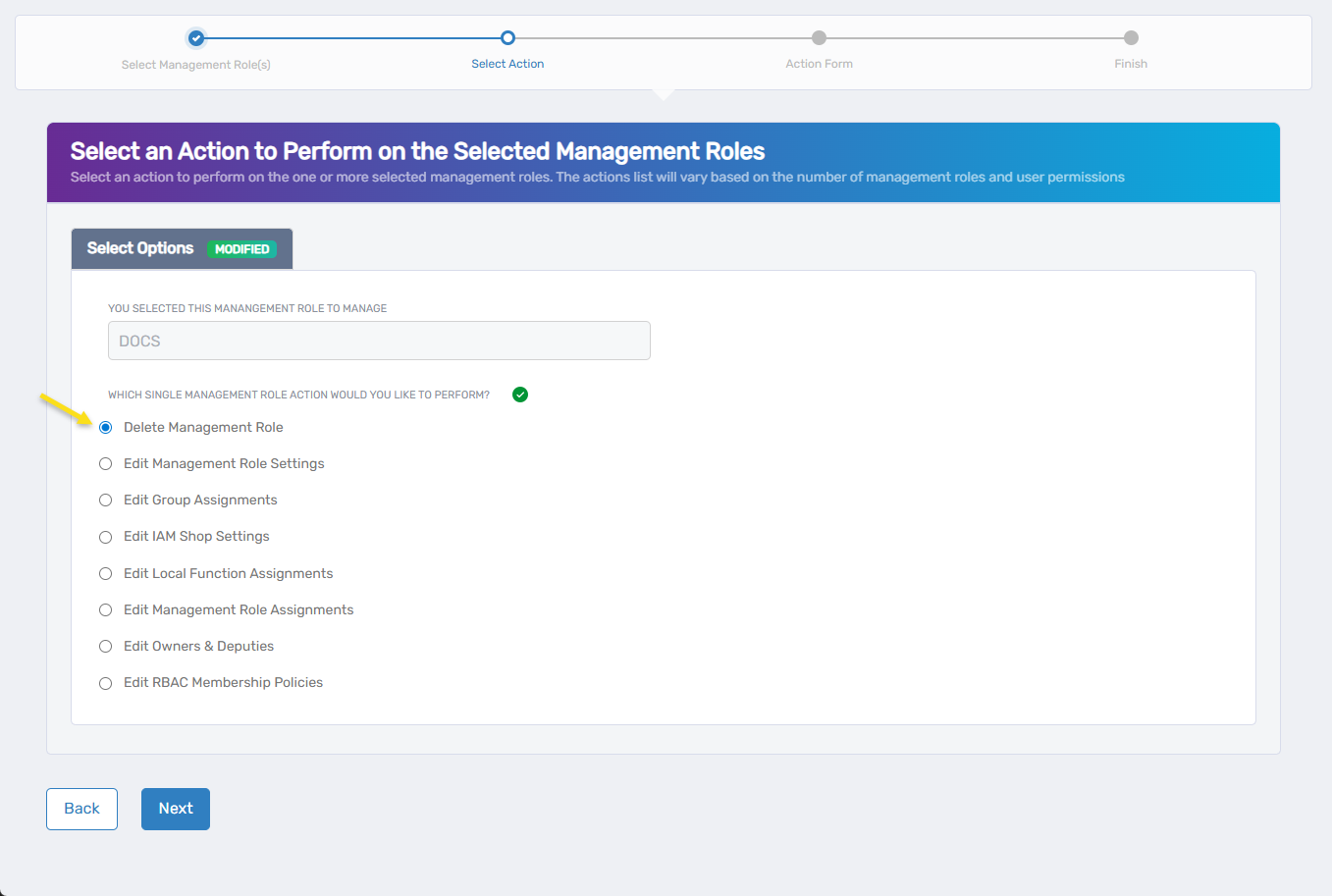
- Select Delete Management Role from the available actions and click Next.
- Review the deletion impact on the confirmation screen:
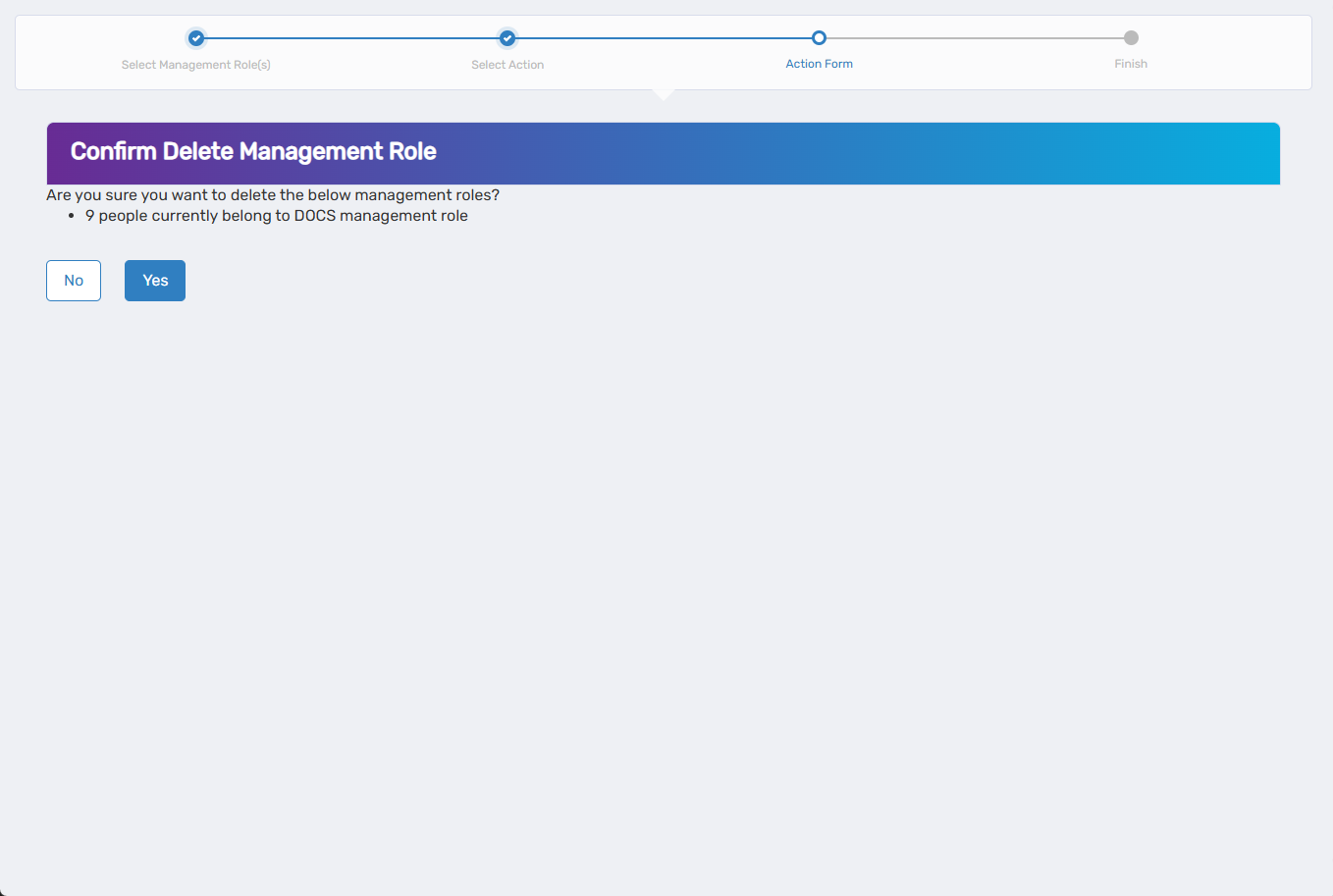
- Current assignments and dependencies
- Users who will lose access when the role is deleted
- Potential disruption to business operations
- Click Yes to confirm the deletion.
- Review the Operation Execution Summary to confirm the deletion was submitted successfully and click Submit.
- Choose your next action and click Submit:
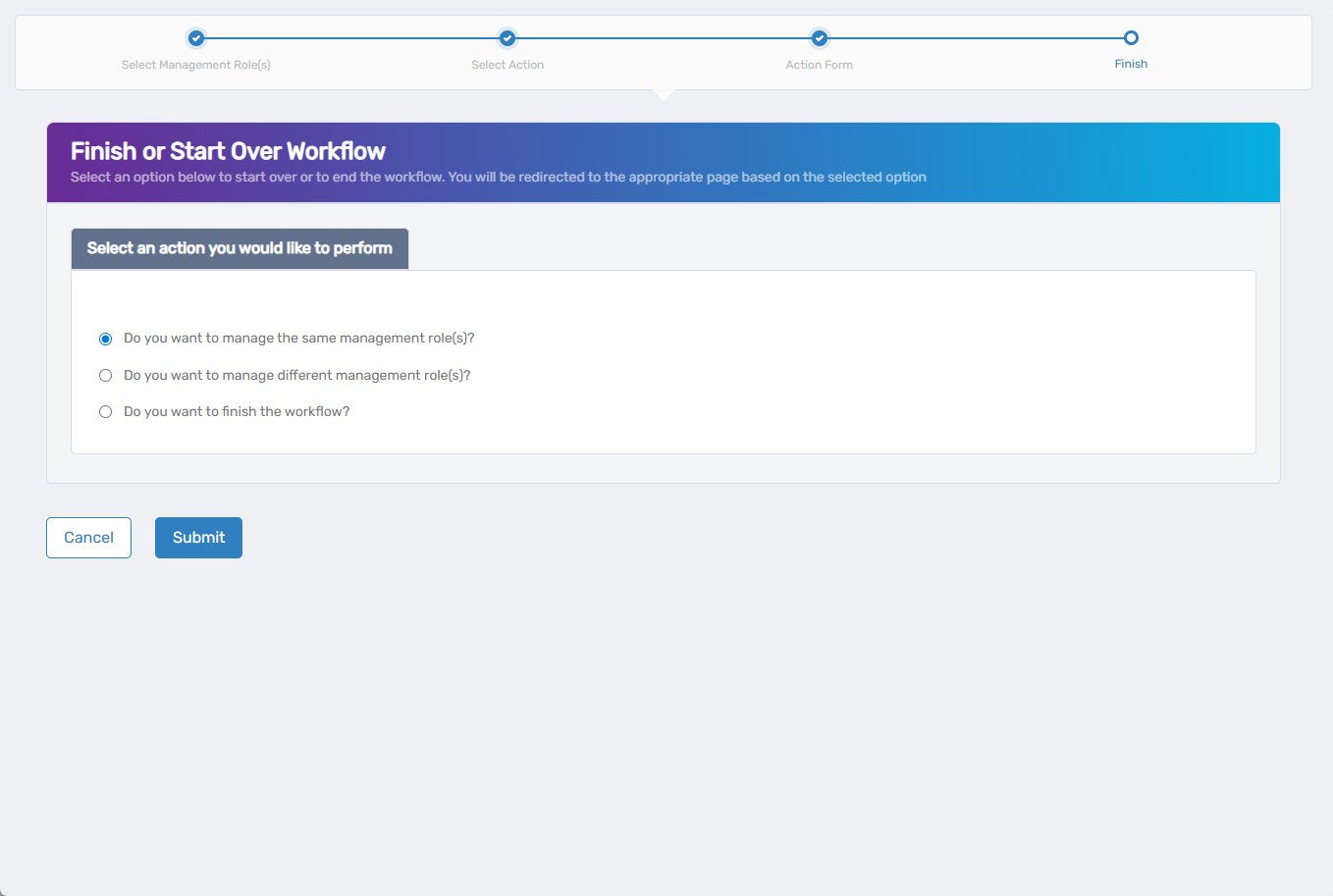
- Do you want to manage different Management Role(s)? - Select this to delete or modify other roles
- Do you want to finish the workflow? - Select this to exit the wizard
Verify the Results
Role deletion may require approval depending on your organization's policies. To verify the deletion:
- After approval, navigate back to Resource Admin > Management Roles.
- Search for the deleted role by name to confirm it no longer appears in the system.
- Verify that users who had the role no longer have access granted through it by checking their access assignments.
Related Topics
- Onboard Management Roles - Create new Management Roles
- Edit Management Role Settings - Modify existing roles instead of deleting
- Remove Users from Management Roles - Remove specific members without deleting the role
- Approve Management Role Changes - Approve role deletion requests