Edit Local Function Assignments
Local functions are system-specific, business unit-specific, or location-specific activities that define what users can do within EmpowerID. Assigning local functions to a Management Role grants all role members the ability to perform those specific tasks.
Prerequisites
Before modifying local function assignments, ensure you have:
- Access to Resource Admin with permissions to manage the target Management Role
- Understanding of the local functions you plan to assign and their system-specific capabilities
Procedure
-
Navigate to Resource Admin.
-
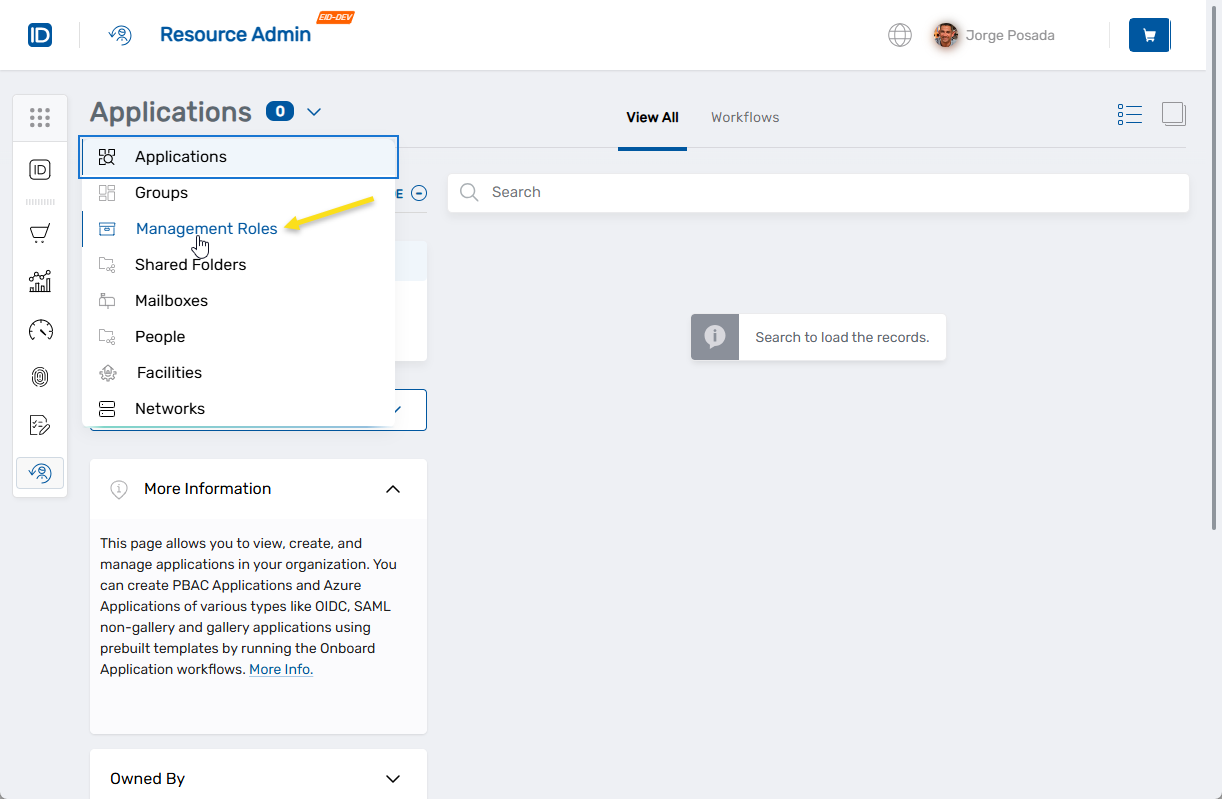
Select Management Roles from the resource type menu.
-
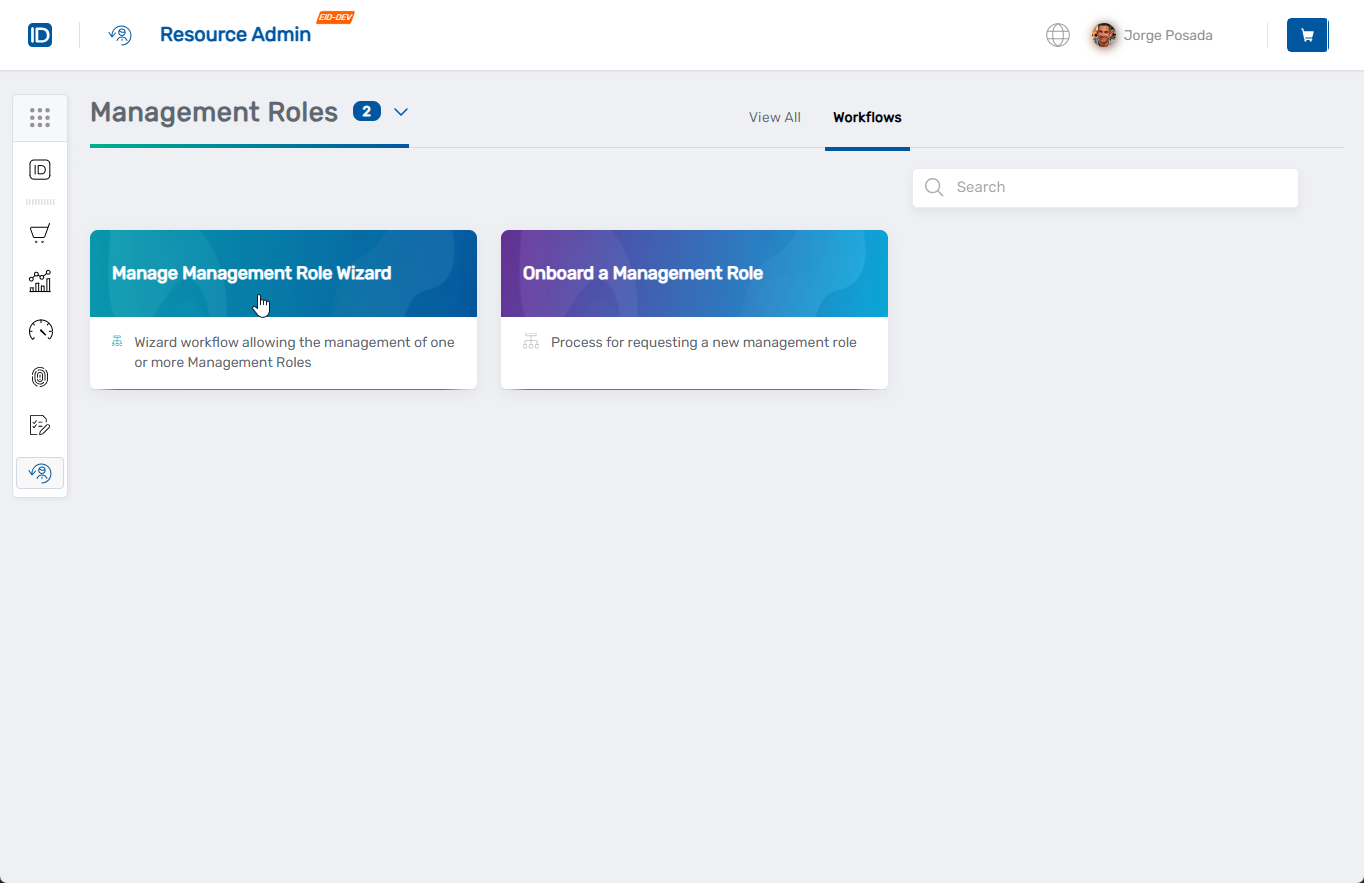
Click the Workflows tab.
-
Find and click Manage Management Role Wizard.
-
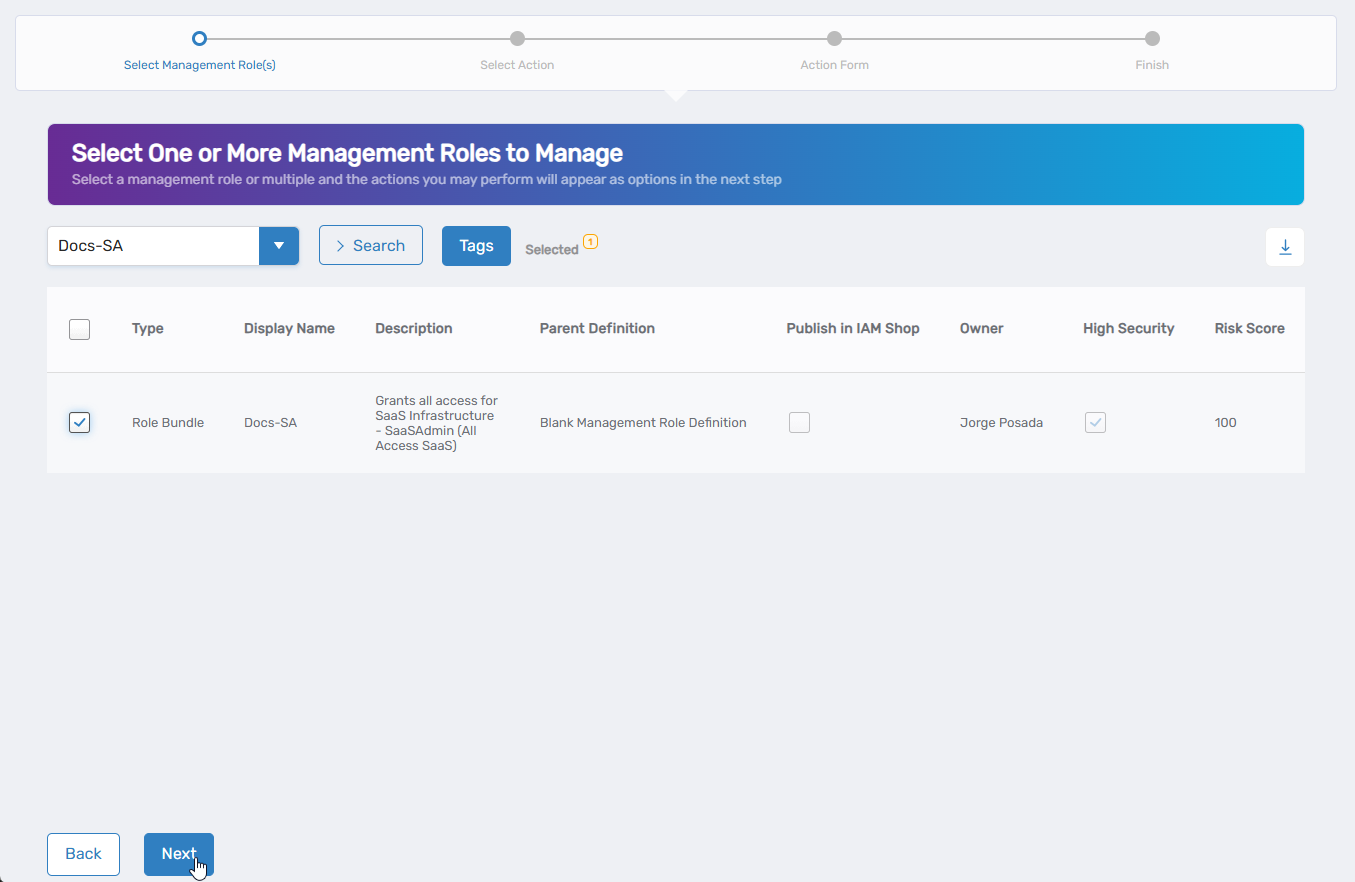
Select the Management Role you want to modify by checking the box next to it and click Next.
-
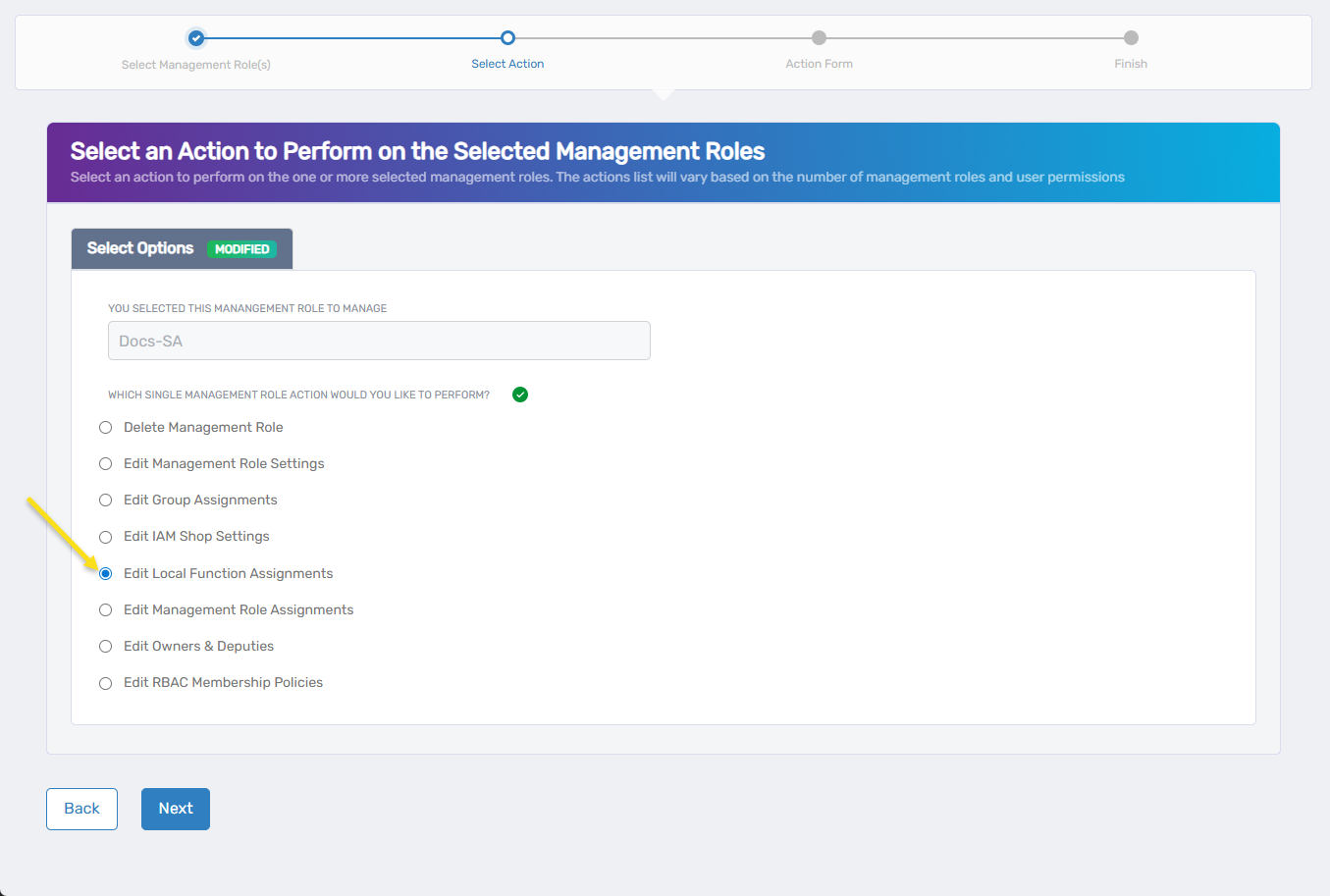
Select Edit Local Function Assignments from the available actions and click Next.
-
If the role has existing local function assignments, they appear in the grid showing function details:
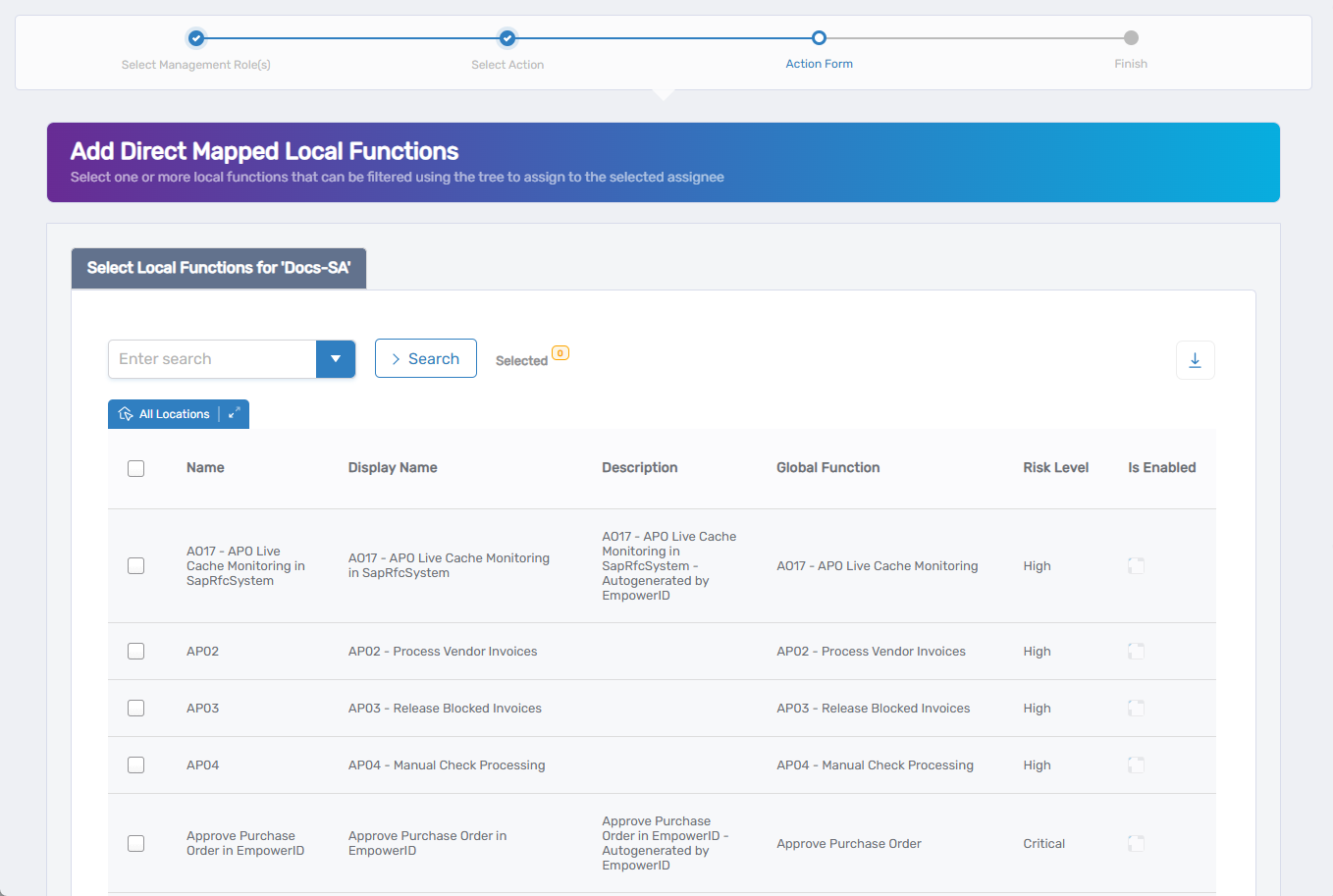
- Use the search functionality to find specific functions if needed
- Click Unassign to remove a function assignment
- Keep it as Assigned to retain it
If the role has no existing local function assignments, skip to step 9.
-
Click Next to proceed to adding new assignments.
-
To add new local function assignments:
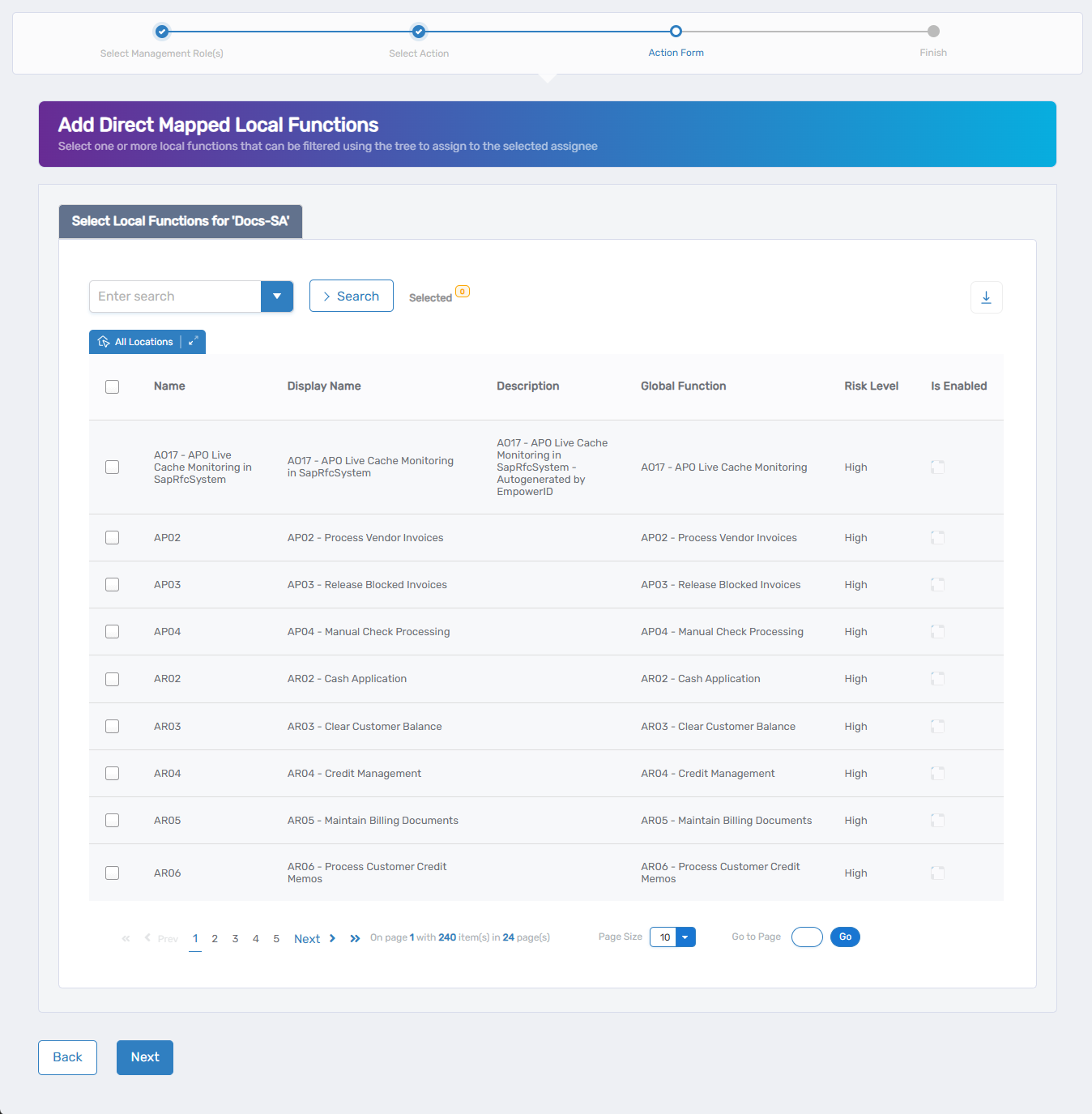
- Use the search field to find specific local functions, or click the dropdown arrow for advanced search options
- Use the location filter to narrow functions by specific locations if needed
- Check the box next to each local function you want to assign
- Review the function's risk level before assigning to ensure it's appropriate
- Repeat to add multiple functions
Skip this step if you only want to remove existing assignments.
-
Click Next to review the Operation Execution Summary.
-
Review the Operation Execution Summary to confirm your changes:
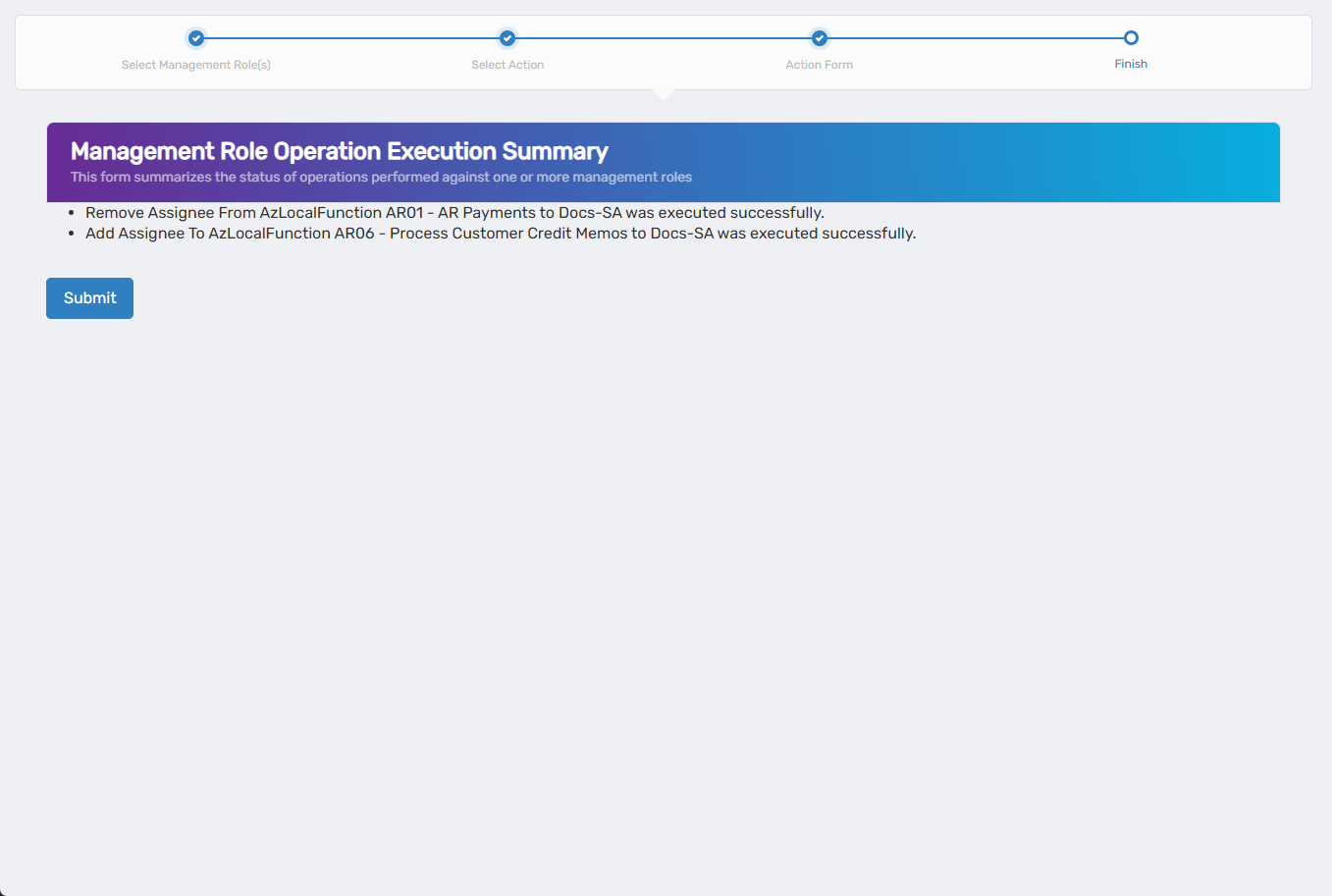
The summary shows the specific local function assignments that were added or removed. -
Click Submit.
-
Choose your next action:
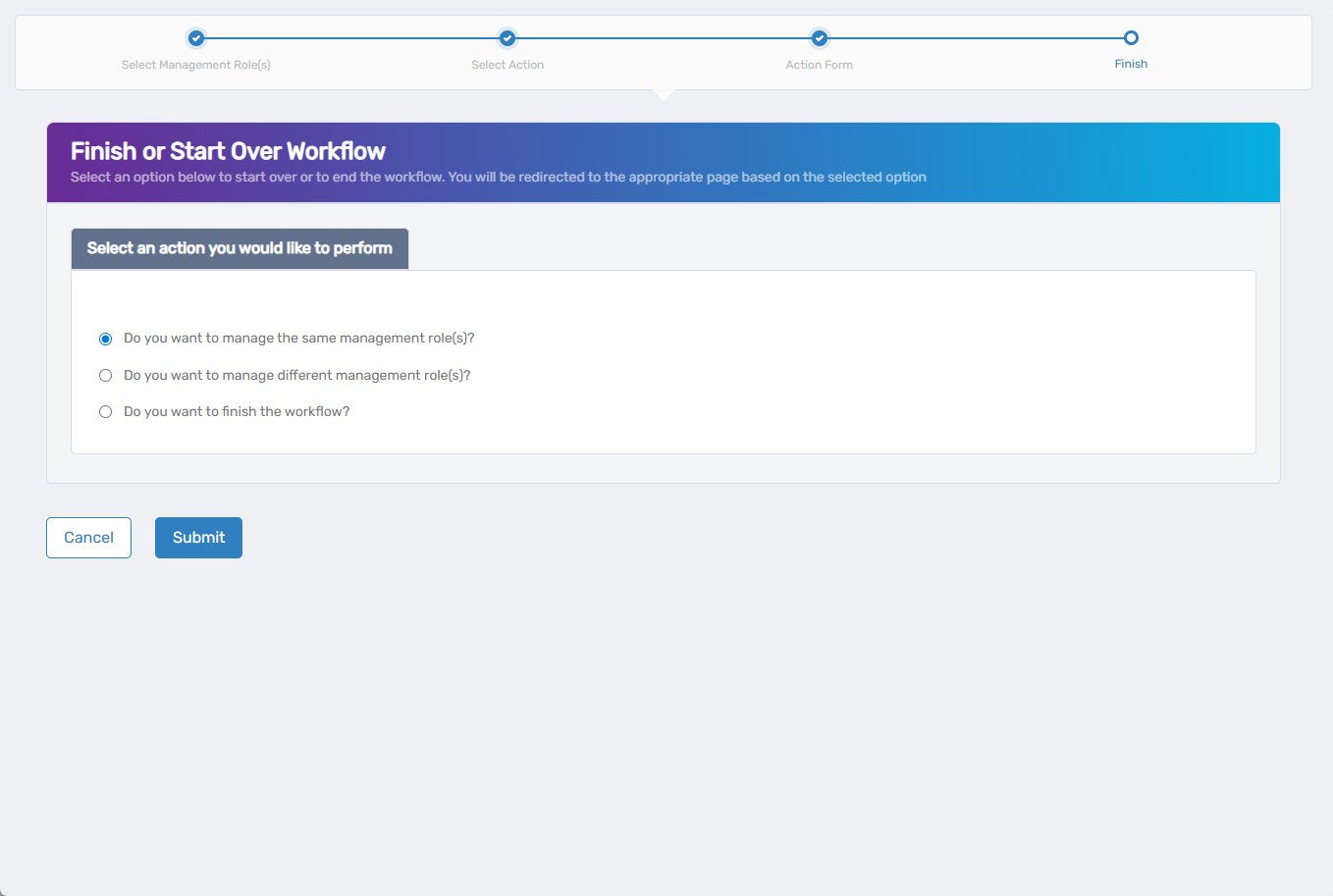
- Do you want to manage the same Management Role? - Perform additional actions on the same role
- Do you want to manage different Management Role(s)? - Work with other Management Roles
- Do you want to finish the workflow? - Exit the wizard
-
Click Submit to proceed with your selected option.
Verify the Results
Local function assignment changes may require approval depending on your organization's policies. To verify the changes:
- After approval, navigate back to Resource Admin > Management Roles.
- Search for and select the Management Role you modified.
- Review the role's local function assignments to confirm additions or removals.
- Verify that role members can perform newly assigned functions or no longer have access to removed functions.
Related Topics
- Onboard Management Roles - Create new Management Roles with initial function assignments
- Edit Management Role Settings - Modify other role configuration options
- Edit Management Role Owners & Deputies - Manage role ownership
- Delete Management Role - Remove roles that are no longer needed