Remove Accounts from Group
When you need to revoke user accounts' access to group-based resources, you can remove these accounts from existing groups. This immediately removes their access to all resources and systems that the group provides access to.
Access Requirements: You must have appropriate permissions to manage the specific Groups you want to modify.
Use this workflow when users no longer need group-based access, during role changes or departures, or when removing inappropriate access assignments.
Before You Start
Make sure you have:
- Knowledge of which accounts need to be removed from which groups
- Understanding of what access will be revoked when accounts are removed
- Confirmation that the accounts should lose all group-based access
Get Started
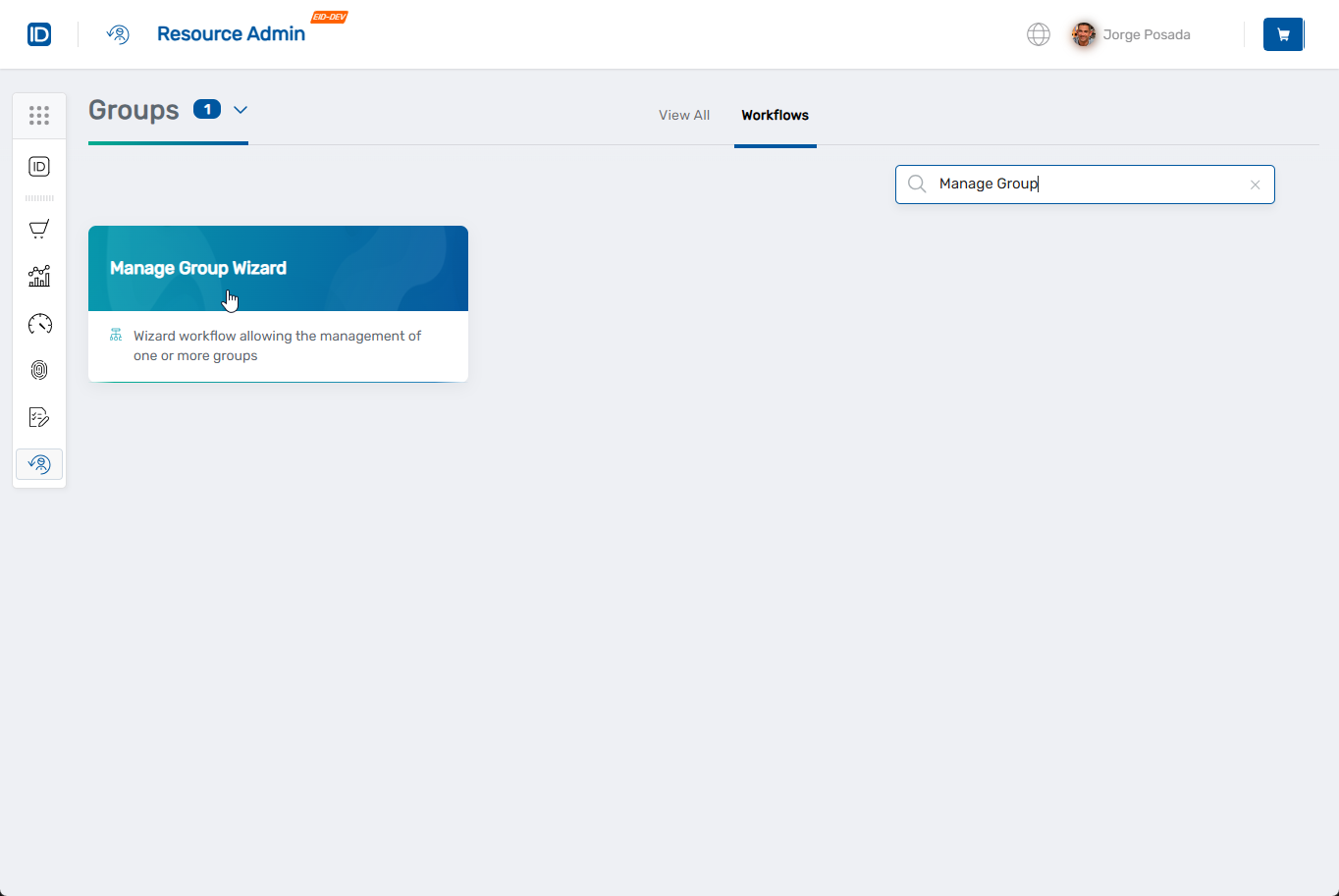
- Navigate to the Resource Admin portal
- Select Groups from the resource type menu
- Click the Workflows tab
- Find and click Manage Group Wizard
- Search for the Group(s) you want to remove accounts from, then check the box next to each group and click Next
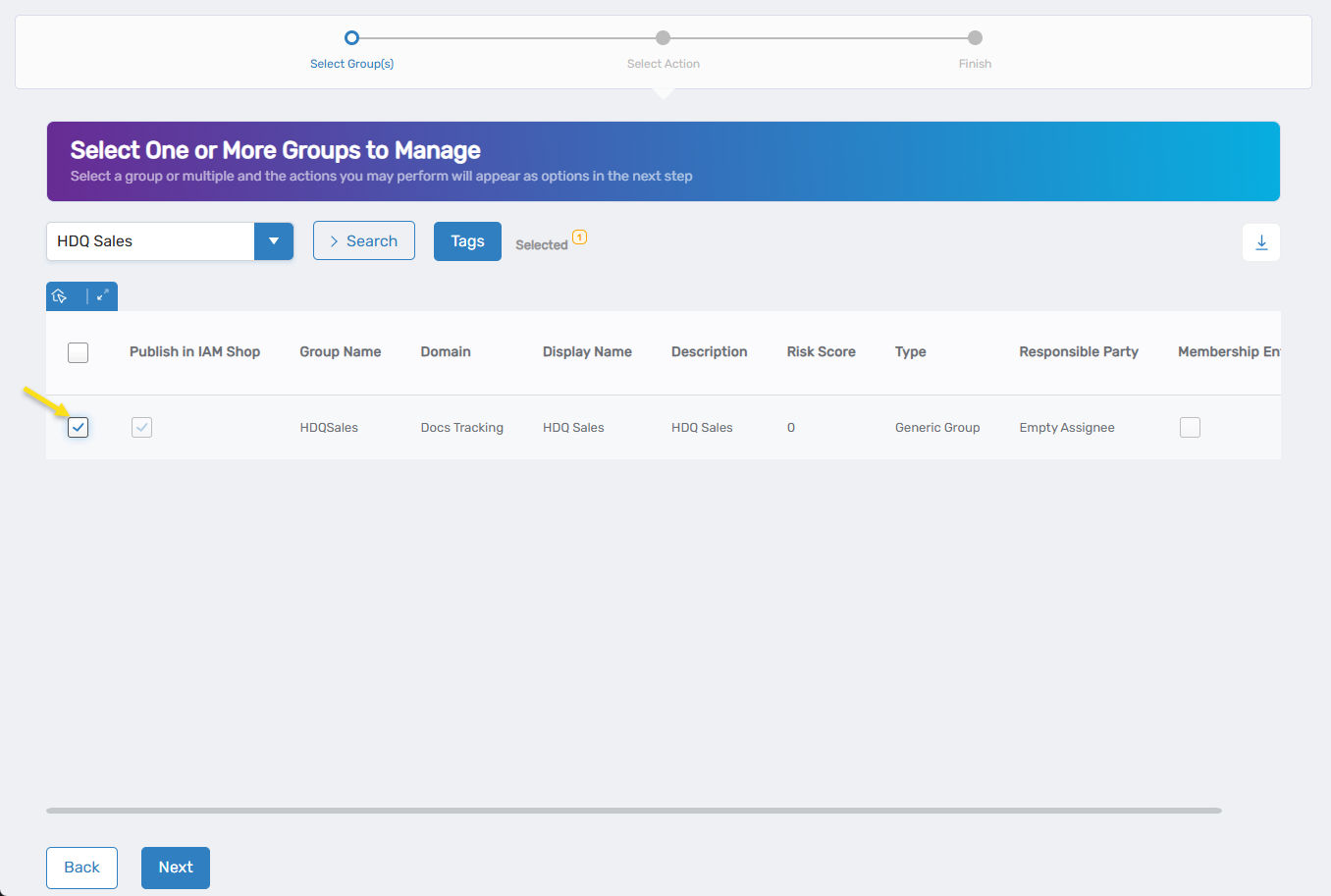 You can select multiple groups if you want to remove the same accounts from several groups at once.
 - Select Remove Accounts from Group from the available actions
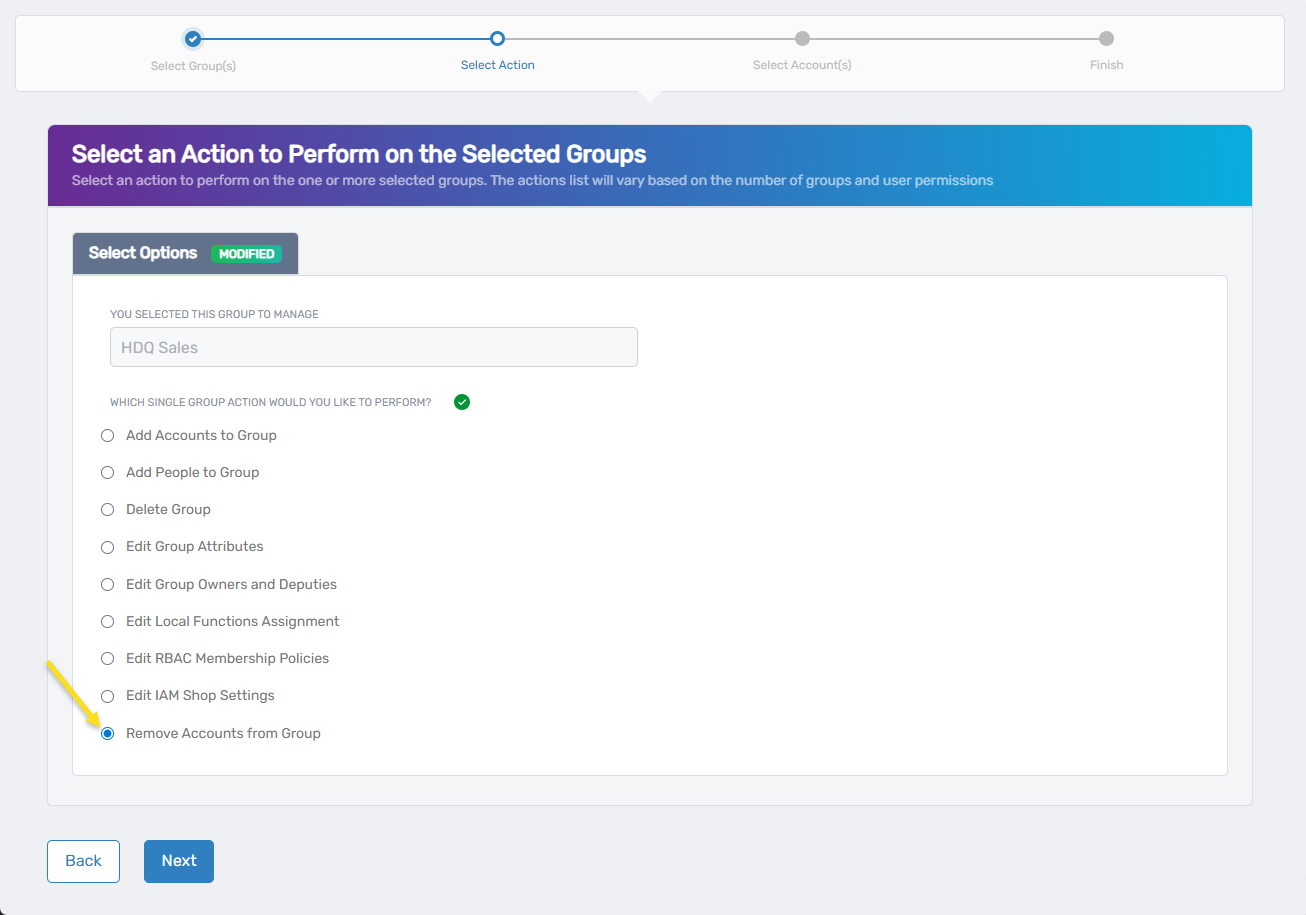
- Click Next to proceed to the account selection interface
Remove Accounts from the Groups
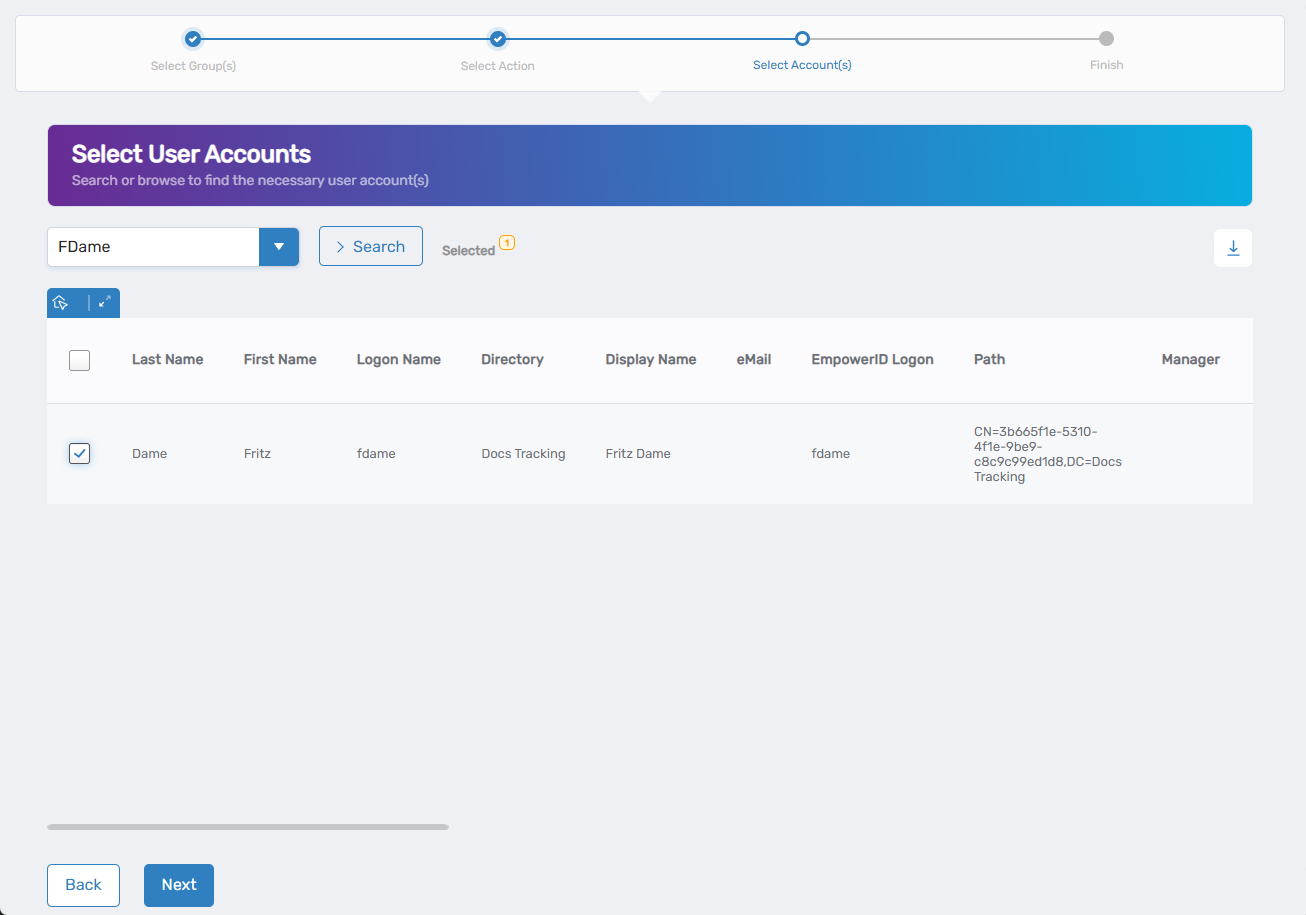
- Search for and select the accounts you want to remove from the selected group(s):
- Use the search field or dropdown to find specific accounts by various account attributes.
- Check the box next to each account you want to remove from the group(s).
- The table displays account information to help you identify the correct accounts.
- Use the Selected counter to track how many accounts you've chosen.
- Repeat as needed to remove multiple accounts from the group(s).
- Review your selections to ensure you're removing the correct accounts.
- Click Next to proceed.
Complete the Workflow
- Review the Operation Execution Summary to confirm your changes were applied successfully:
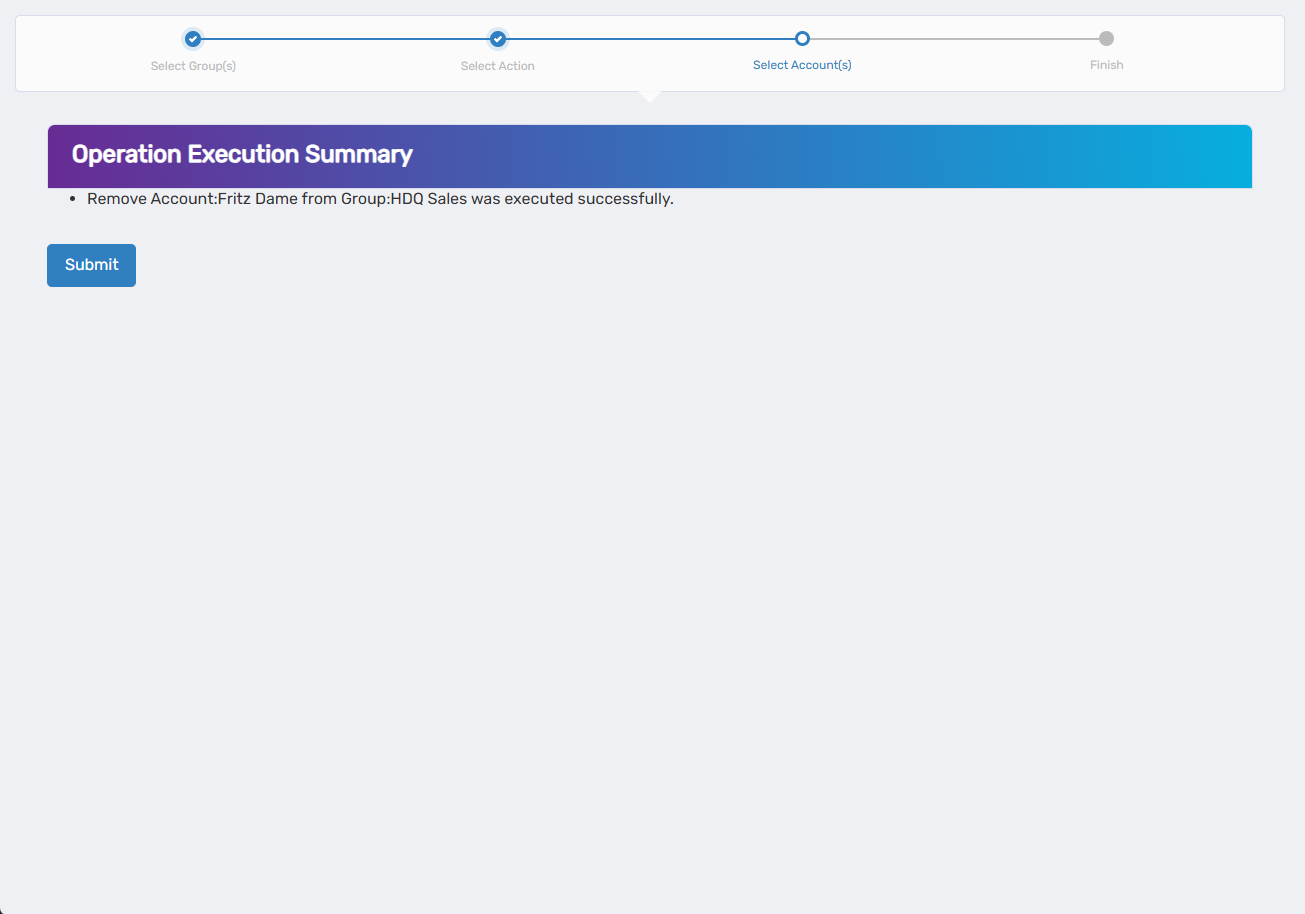 The summary shows the specific accounts that were removed from the group(s).
 - Click Submit to continue.
- Choose your next action:
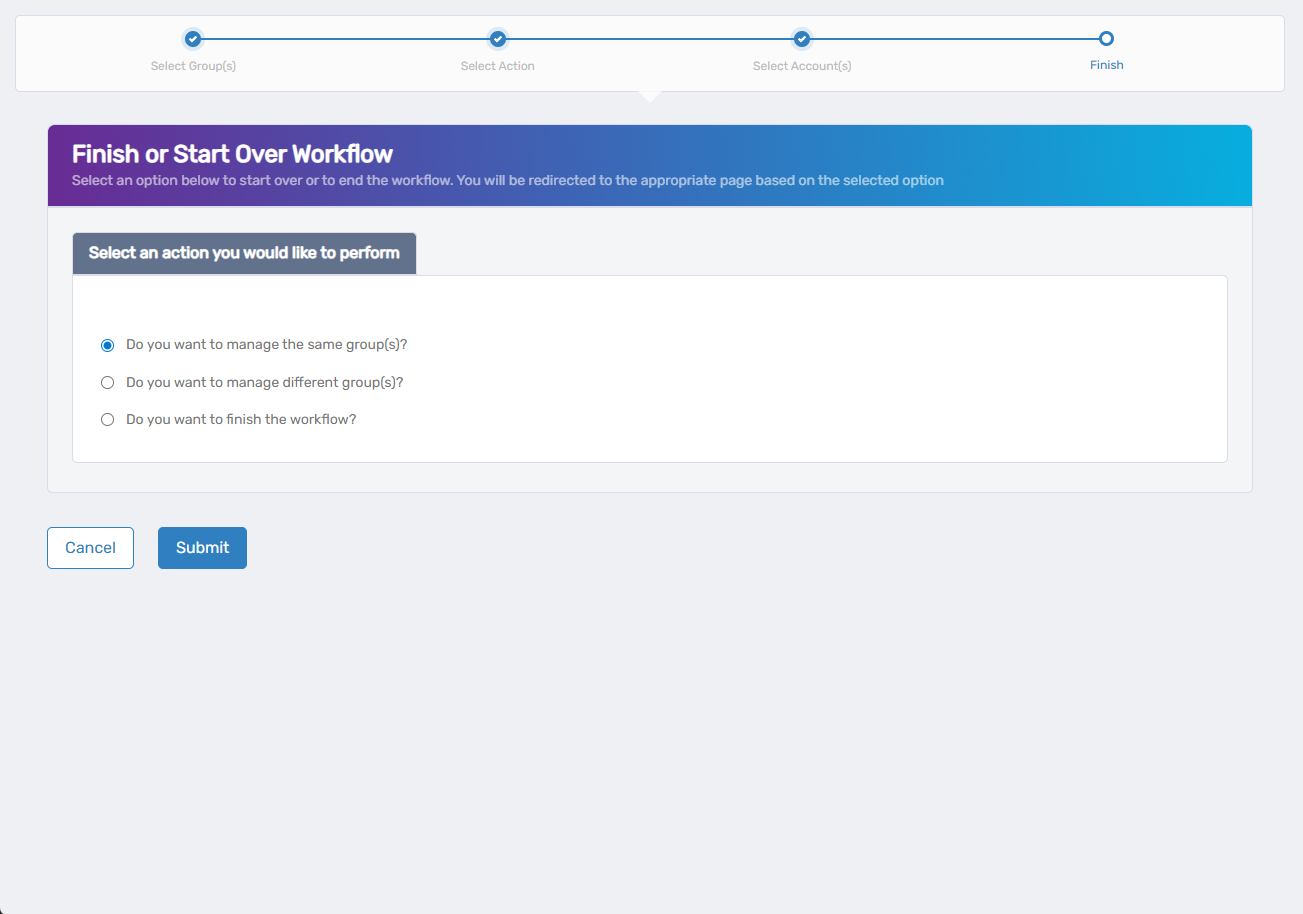
- Do you want to manage the same Group? - Select this to perform additional actions on the same group.
- Do you want to manage different Group(s)? - Select this to work with other Groups.
- Do you want to finish the workflow? - Select this to complete the process and exit the wizard.
- Click Submit to proceed with your selected option.
What Happens Next
- Removed accounts immediately lose access to all resources and systems associated with the selected group(s).
- Users will no longer be able to access group-based resources through their account memberships.
- Account holders will lose the access levels previously granted by group membership.
- Group membership changes may trigger notifications to group owners or administrators.
If You Run Into Problems
Can't find the account you want to remove: Verify the account is currently a member of the selected group. Only existing group members will appear in the removal list.
Account appears to be removed but still has access: Group membership changes are immediate, but some systems may require services to restart or refresh to revoke access completely.
Removed wrong accounts by mistake: Use the Add Accounts to Group workflow to restore accounts that were removed in error.
Related Actions
- To add accounts back to groups, see Add Accounts to Groups.
- To add users to groups, see Add People to Groups.
- To modify group ownership, see Edit Group Owners and Deputies.