Edit Local Functions Assignment
When you need to modify which local functions are assigned to a Group, you can add or remove these assignments to grant or revoke specific system capabilities for group members. Local functions are system-specific capabilities that define what users can do within particular applications or environments.
Access Requirements: You must have appropriate permissions to manage the specific Group you want to modify.
Use this workflow when adjusting system access for groups, adding new functional capabilities to existing groups, or removing access to functions that are no longer needed.
Before You Start
Make sure you have:
- Knowledge of which local functions should be available to the Group
- Understanding of how function assignments affect group member capabilities
- Decisions about which functions to add or remove from the group
Get Started
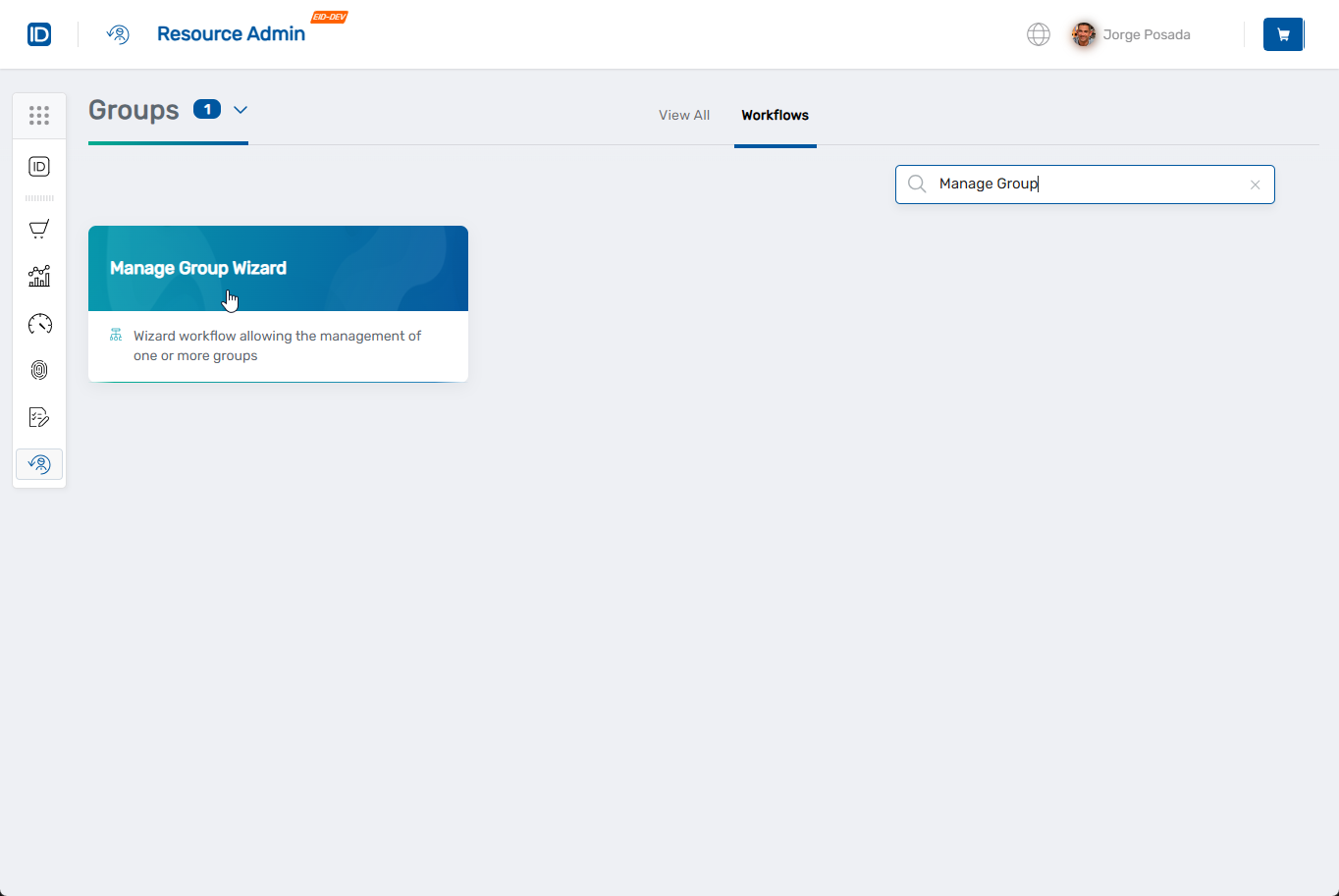
- Navigate to the Resource Admin portal
- Select Groups from the resource type menu
- Click the Workflows tab
- Find and click Manage Group Wizard
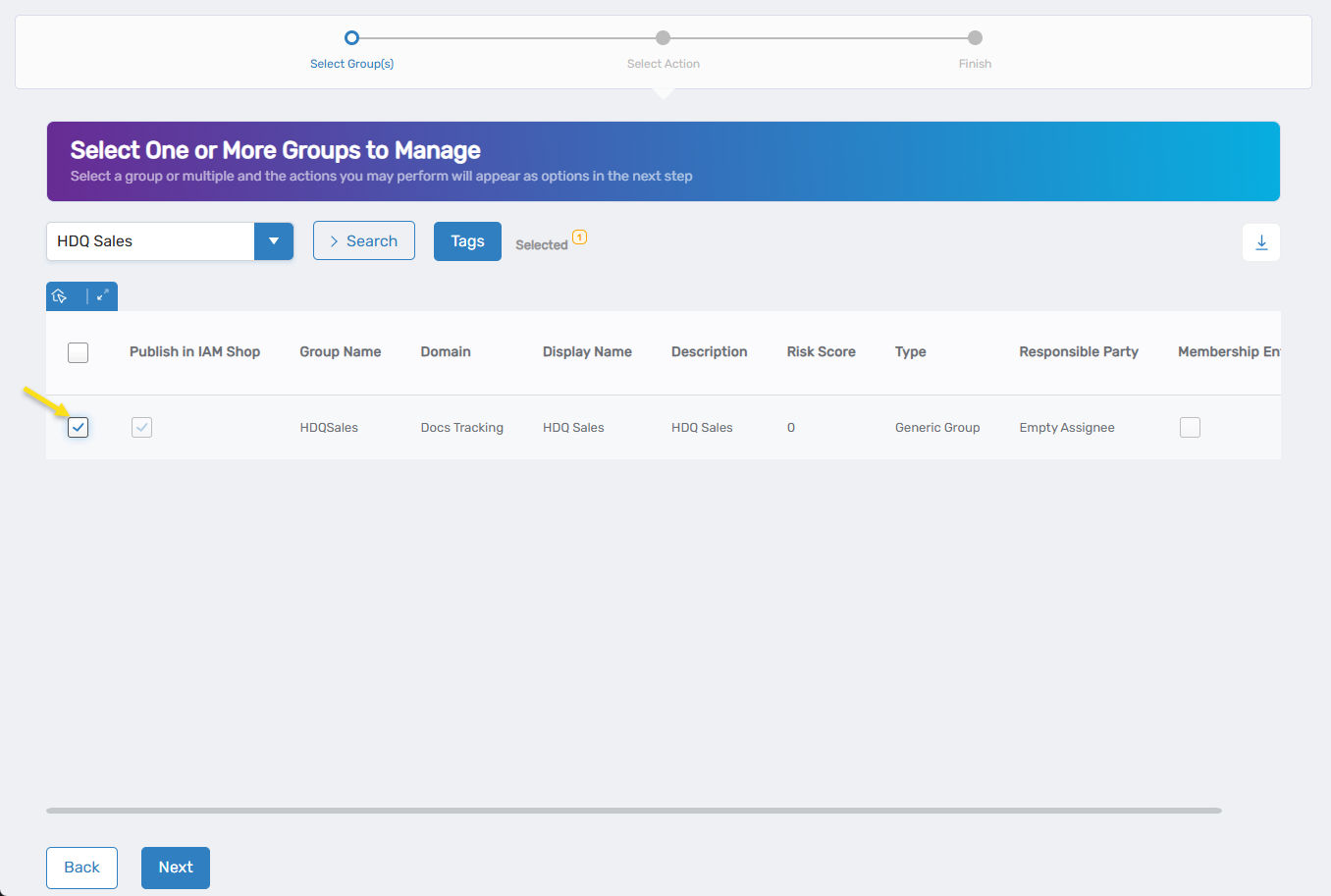
- Search for the Group you want to modify, then check the box next to it and click Next
- Select Edit Local Functions Assignment from the available actions
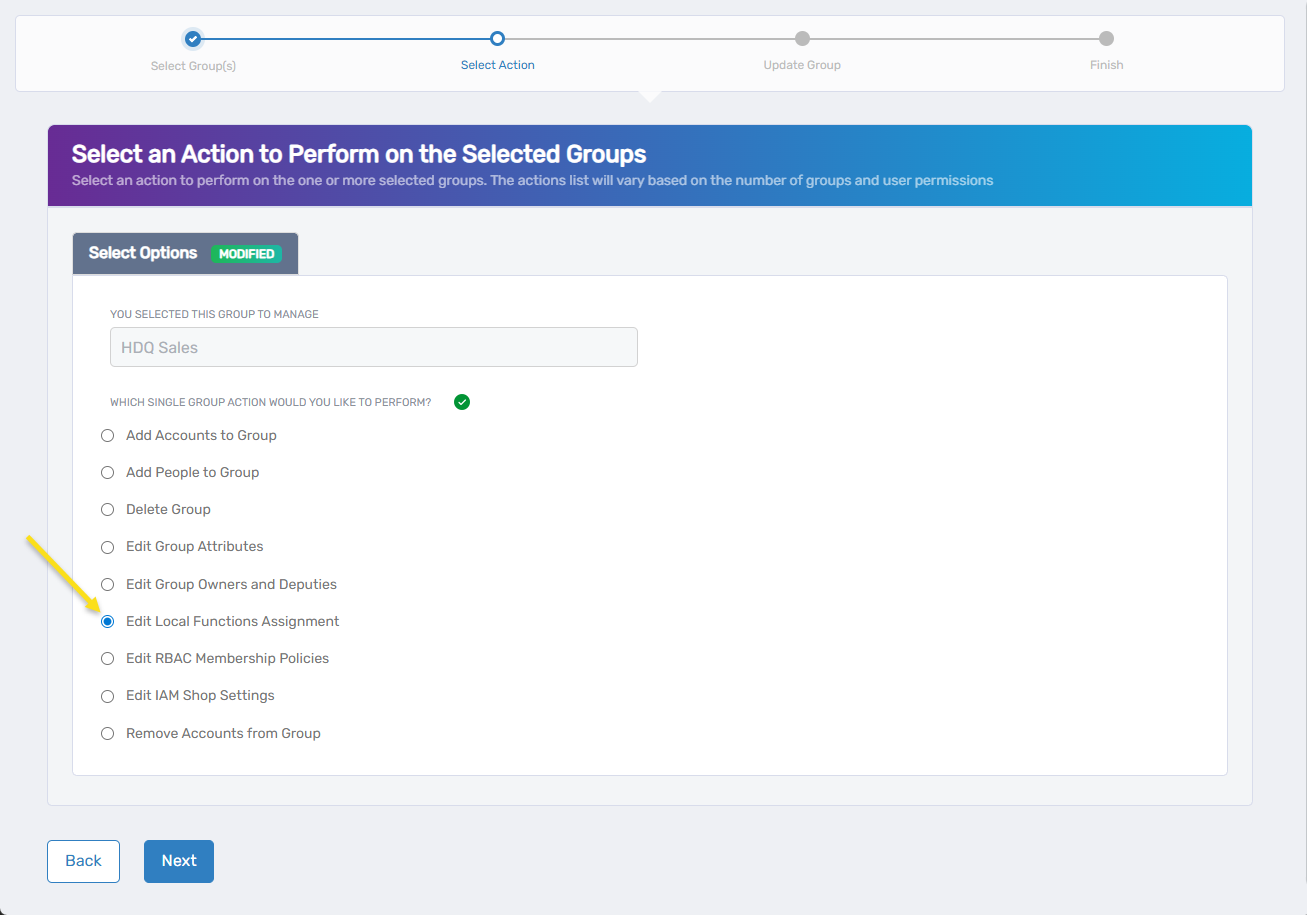
- Click Next to proceed to the local function assignment configuration
Update Local Function Assignments
The workflow will vary depending on whether the group currently has local function assignments. If no functions are currently assigned, you'll proceed directly to adding new assignments.
-
Remove existing local function assignments (if the group has current assignments):
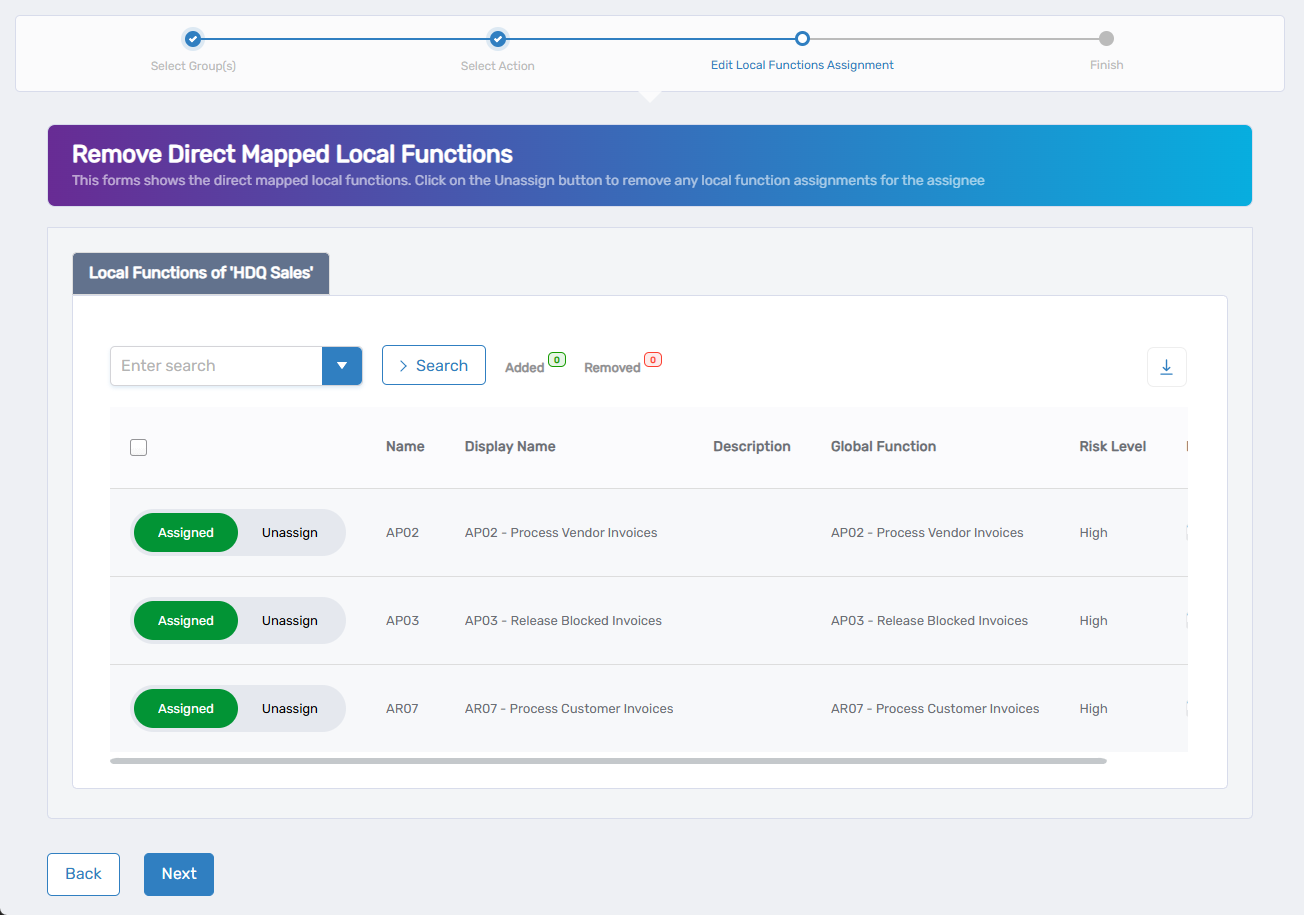
- Current function assignments are displayed in a table showing function details including Name, Display Name, Description, Global Function, Risk Level, and status.
- Use the search functionality to find specific functions to remove.
- Click Unassign to remove a function assignment or keep it as Assigned to retain it.
- Click Next to proceed to adding new assignments.
-
Add new local function assignments:
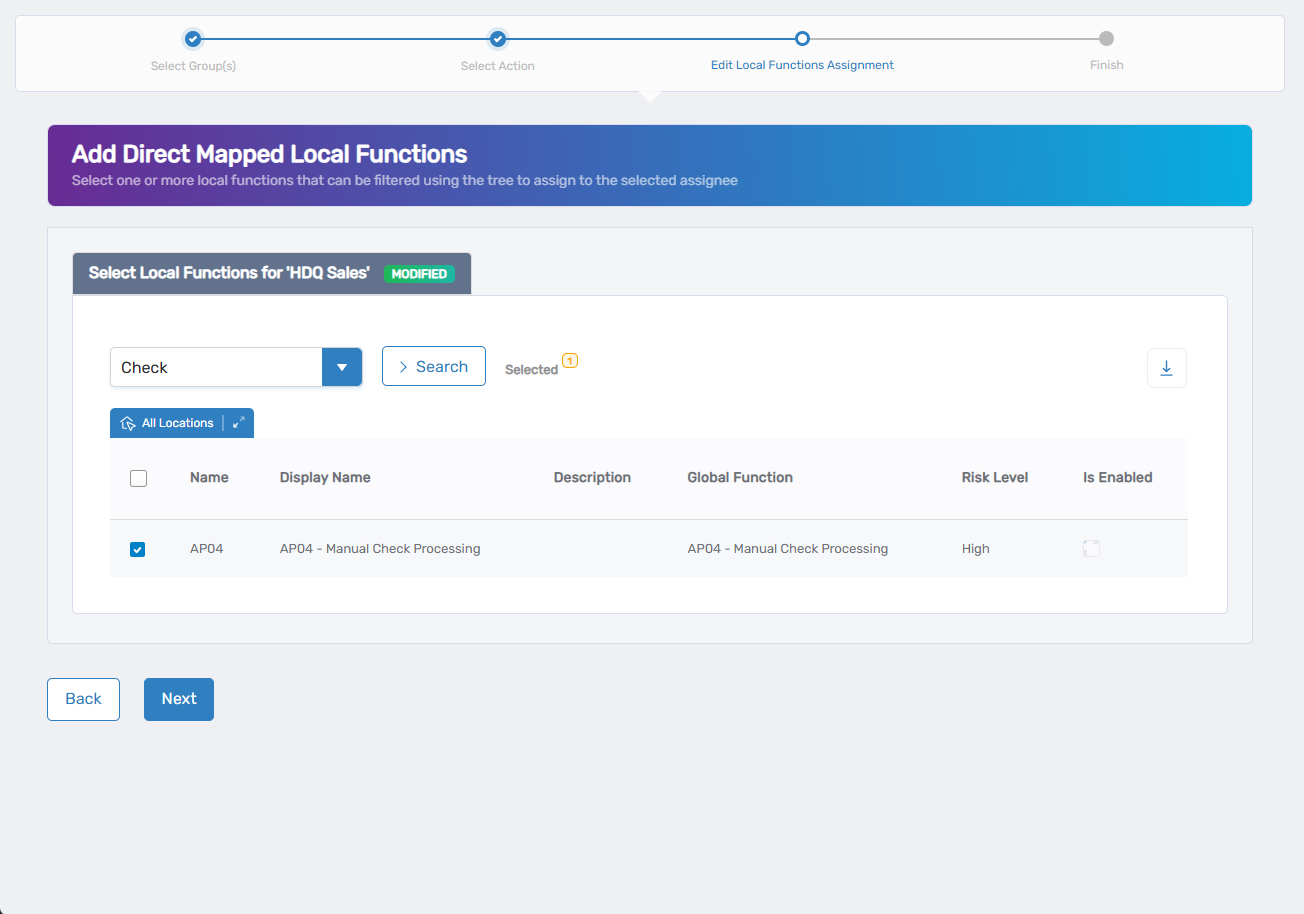
- Use the search field to find specific local functions, or click the dropdown arrow for advanced search options.
- Use the location filter to narrow functions by specific locations if needed.
- Check the box next to each local function you want to assign to this group.
- Repeat as needed to add multiple functions.
- Click Next to proceed to confirmation.
Complete the Workflow
- Review the Operation Execution Summary to confirm your changes were applied successfully:
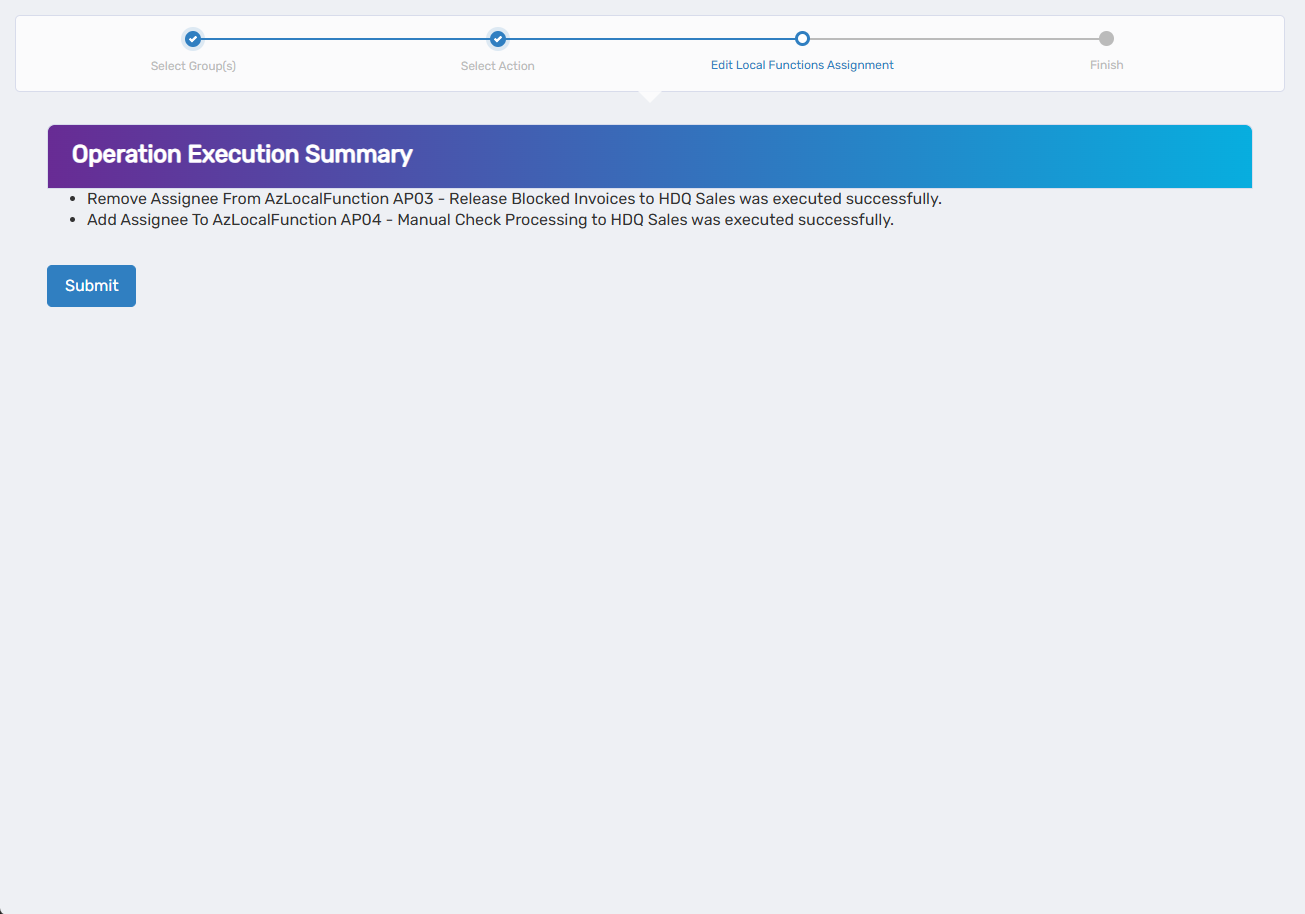 The summary shows the specific local function assignments that were added or removed.
 - Click Submit to continue.
- Choose your next action:
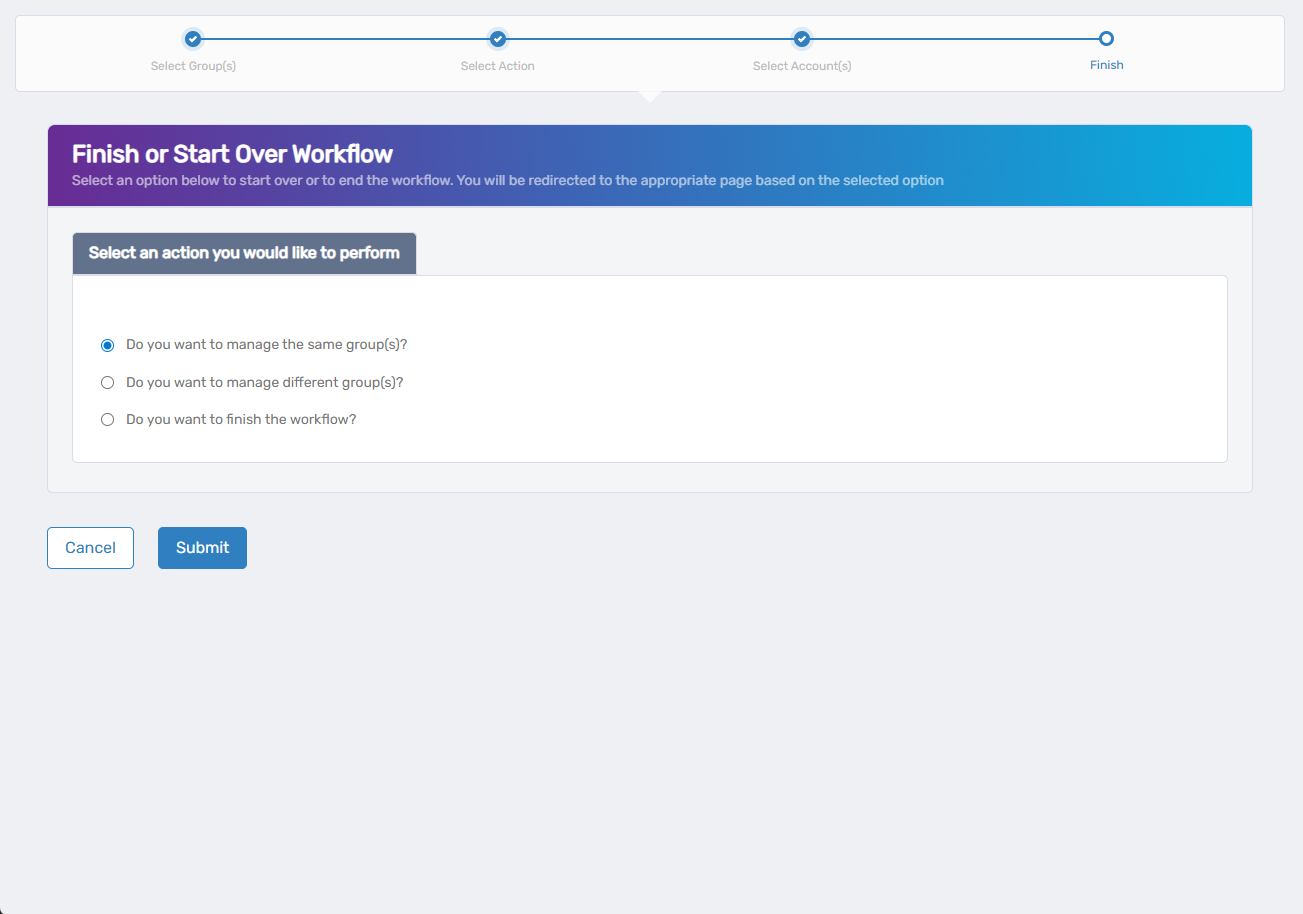
- Do you want to manage the same Group? - Select this to perform additional actions on the same group.
- Do you want to manage different Group(s)? - Select this to work with other Groups.
- Do you want to finish the workflow? - Select this to complete the process and exit the wizard.
- Click Submit to proceed with your selected option.
What Happens Next
- Local function assignment changes may generate business requests that require approval before taking effect.
- Once changes are applied, users with this Group membership will gain or lose access to the assigned system functions.
- New function assignments expand the capabilities available to group members.
- Removed function assignments restrict access to those specific system operations.
If You Run Into Problems
Can't find the local function to assign: Verify the function exists in the system and you have permission to assign it to Groups.
Changes don't appear to take effect: Local function assignments may require approval before taking effect. Check for pending business requests.
Related Actions
- To modify group membership, see Add People to Groups or Add Accounts to Groups.
- To update group ownership, see Edit Group Owners and Deputies.
- To configure automatic membership, see Edit RBAC Membership Policies.