Edit Group Attributes
When organizational changes occur or you need to update group documentation, you can modify specific attributes of existing Groups. This workflow allows you to update descriptions, notes, custom extension attributes, and deletion protection settings without recreating the group.
Access Requirements: You must have appropriate permissions to manage the specific Groups you want to modify.
Use this workflow when organizational changes require updates to group properties, when correcting group information, or when adjusting group attributes for better management and visibility.
Before You Start
Make sure you have:
- Knowledge of which group attributes need to be updated
- Understanding of how attribute changes may affect group visibility and management
- Decisions about new values for the group properties you want to modify
Get Started
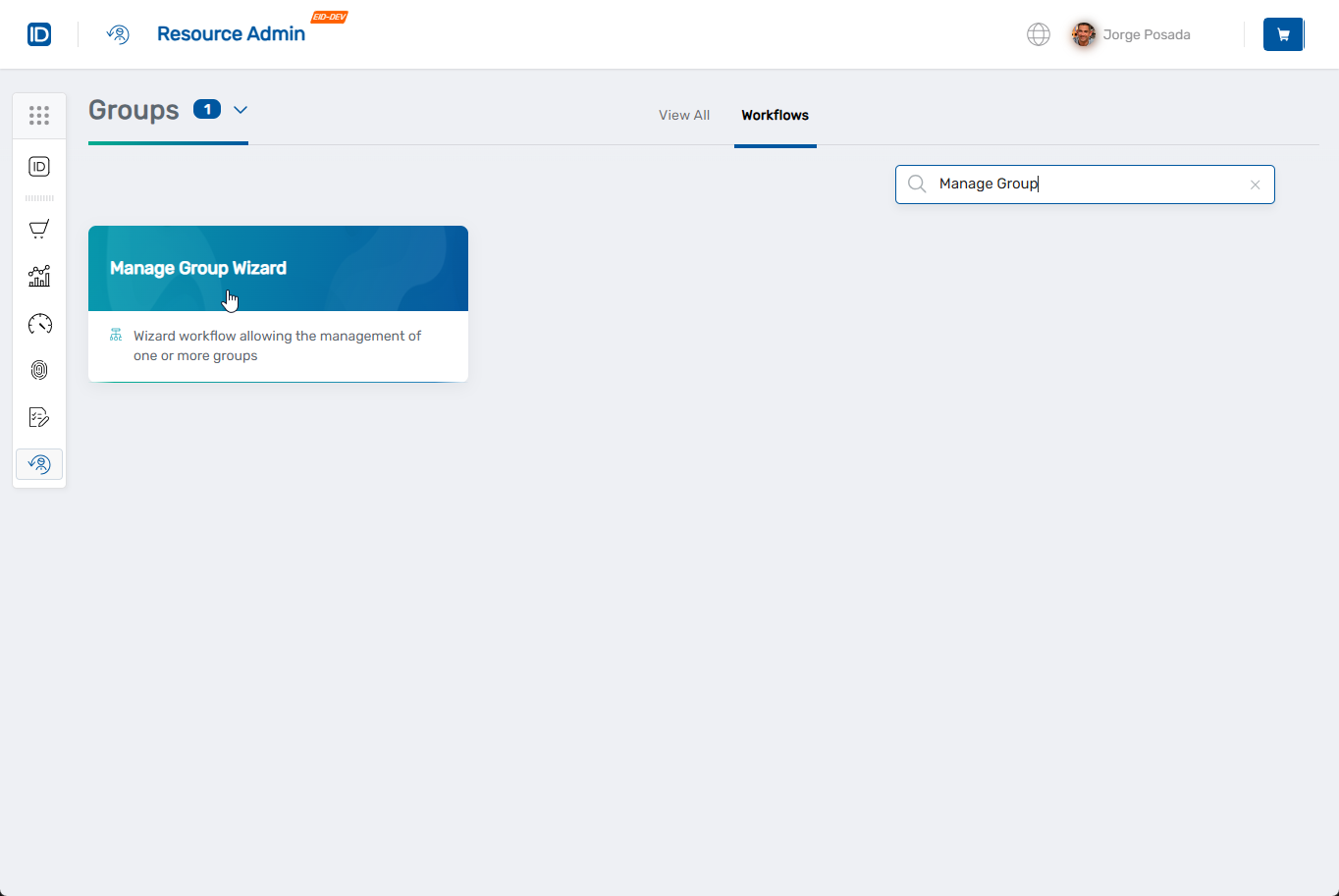
- Navigate to the Resource Admin portal
- Select Groups from the resource type menu
- Click the Workflows tab
- Find and click Manage Group Wizard
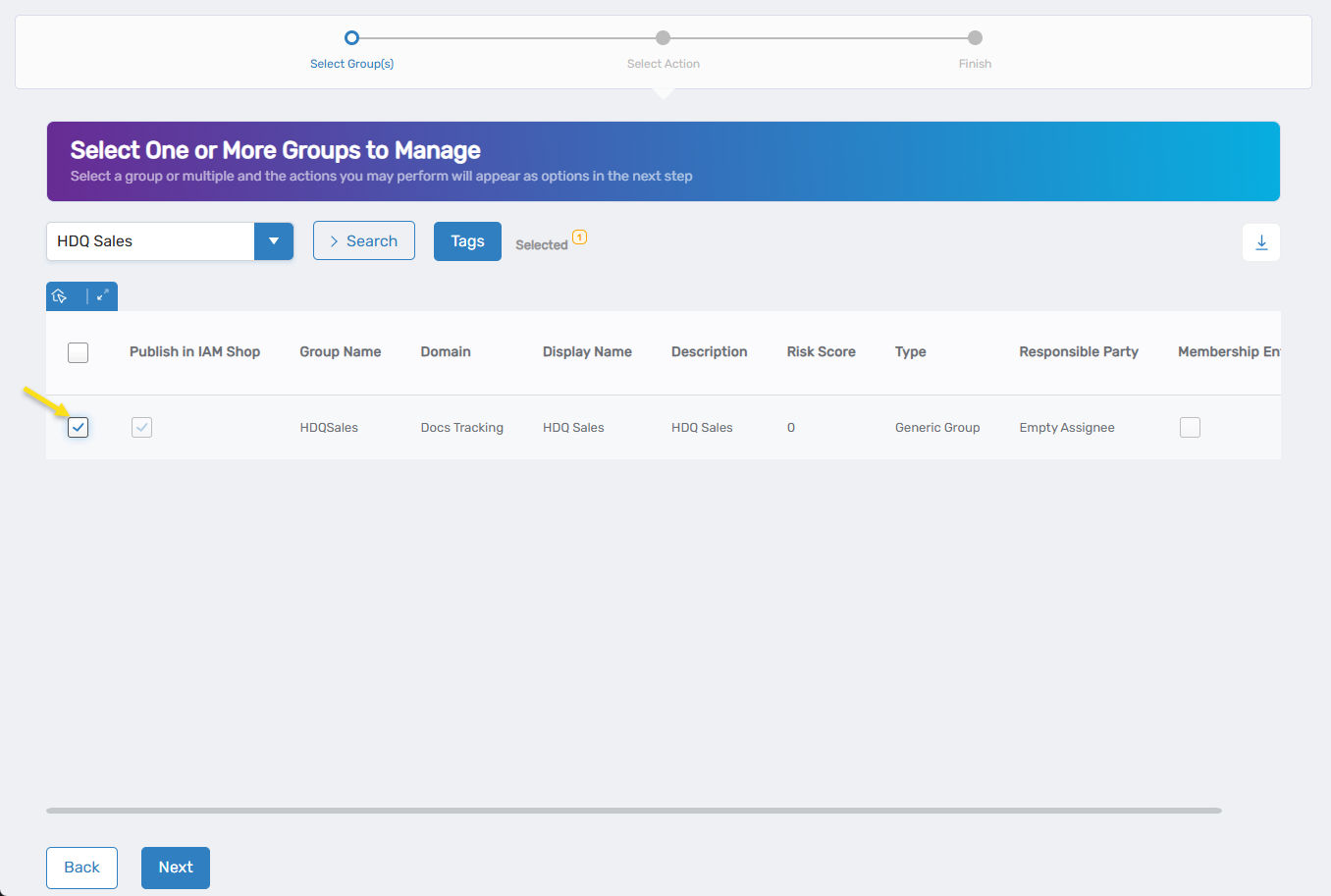
- Search for the Group you want to modify, then check the box next to it and click Next
- Select Edit Group Attributes from the available actions
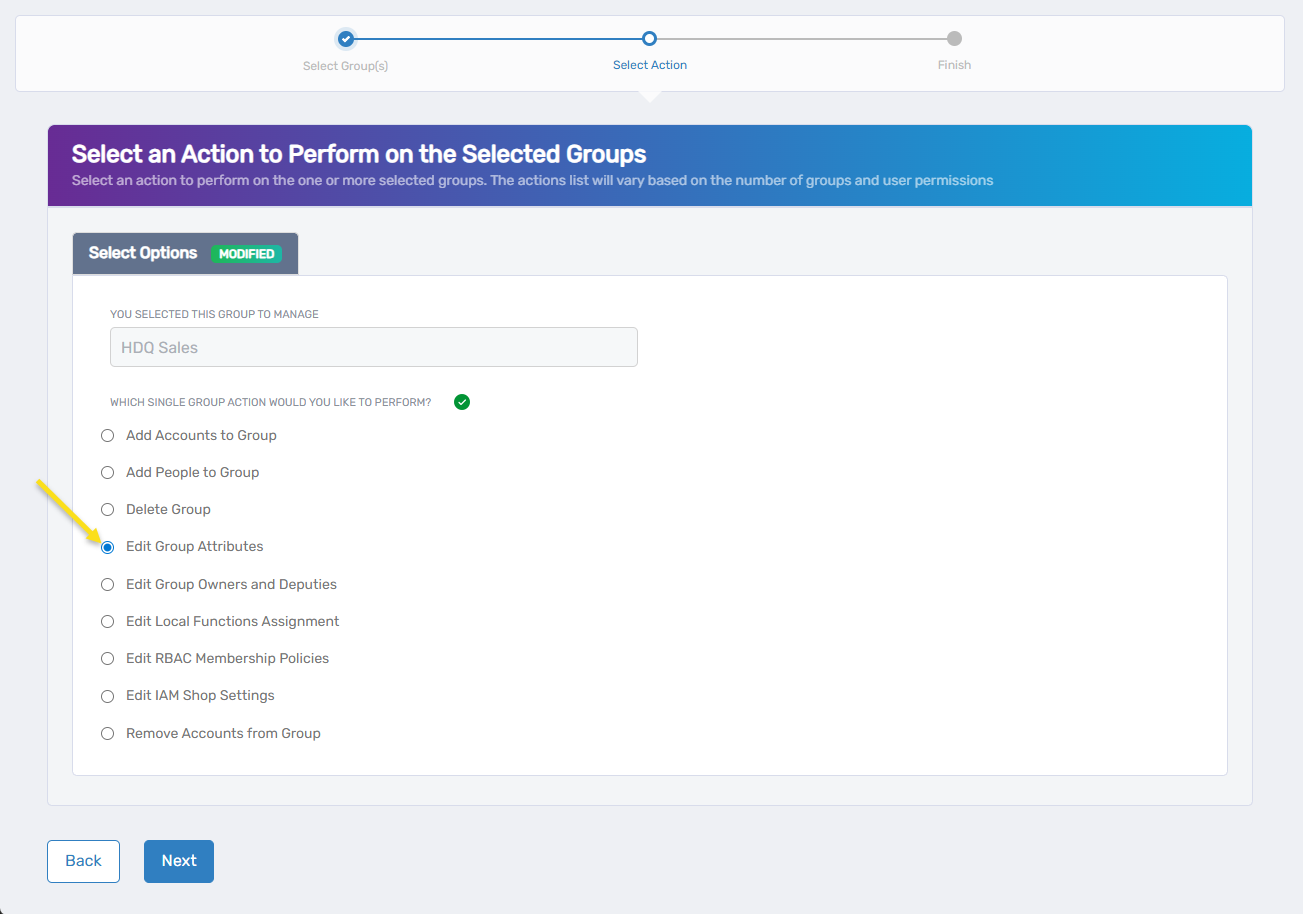
- Click Next to proceed to the attributes configuration interface
Edit Group Attributes
The Edit Group interface provides three tabs with different attribute categories you can modify.
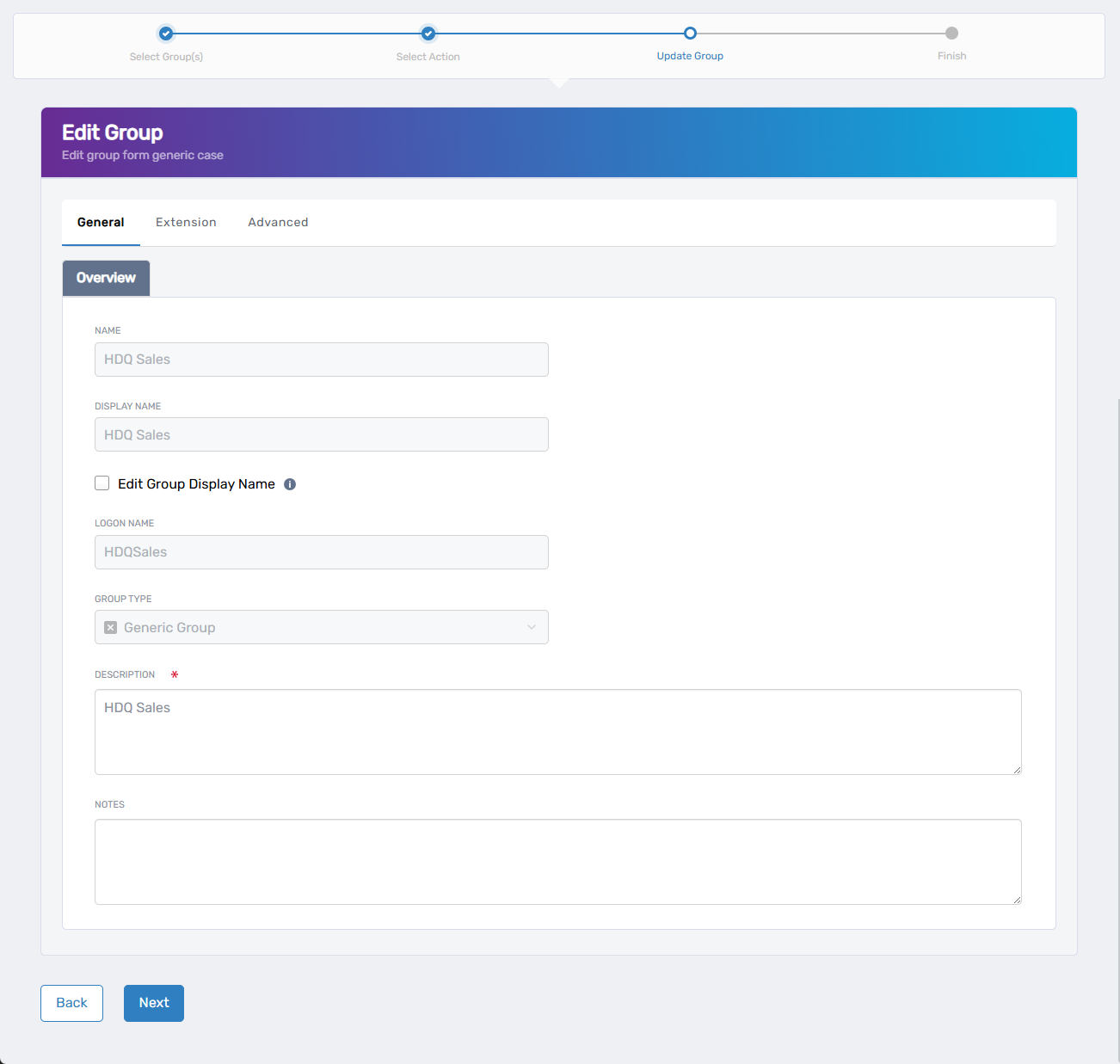
- Update attributes on the General tab:
- Description: Update the description of the group's purpose, membership criteria, and access provided.
- Notes: Add or modify any additional notes or comments about the group.
- Edit Group Display Name: Check this box to enable editing of the group name and display name fields.
- When checked, Suggested Name and Suggested Display Name fields become available for modification.
- Configure Extension Attributes (Extension tab):
- Extension Attributes 1-15: Configure custom attributes specific to your organizational needs and requirements.
- Each extension attribute provides a text field for custom values.
- Modify Advanced Options (Advanced tab):
- Do Not Allow Delete: Check this option to prevent accidental deletion of the group within the EmpowerID uI.
- Additional read-only fields display group metadata (Group ID, Group GUID, creation dates, Distinguished Name).
- Review your changes to ensure all modifications are correct.
- Click Next to proceed to confirmation.
Complete the Workflow
- Review the Operation Execution Summary to confirm your changes were applied successfully:
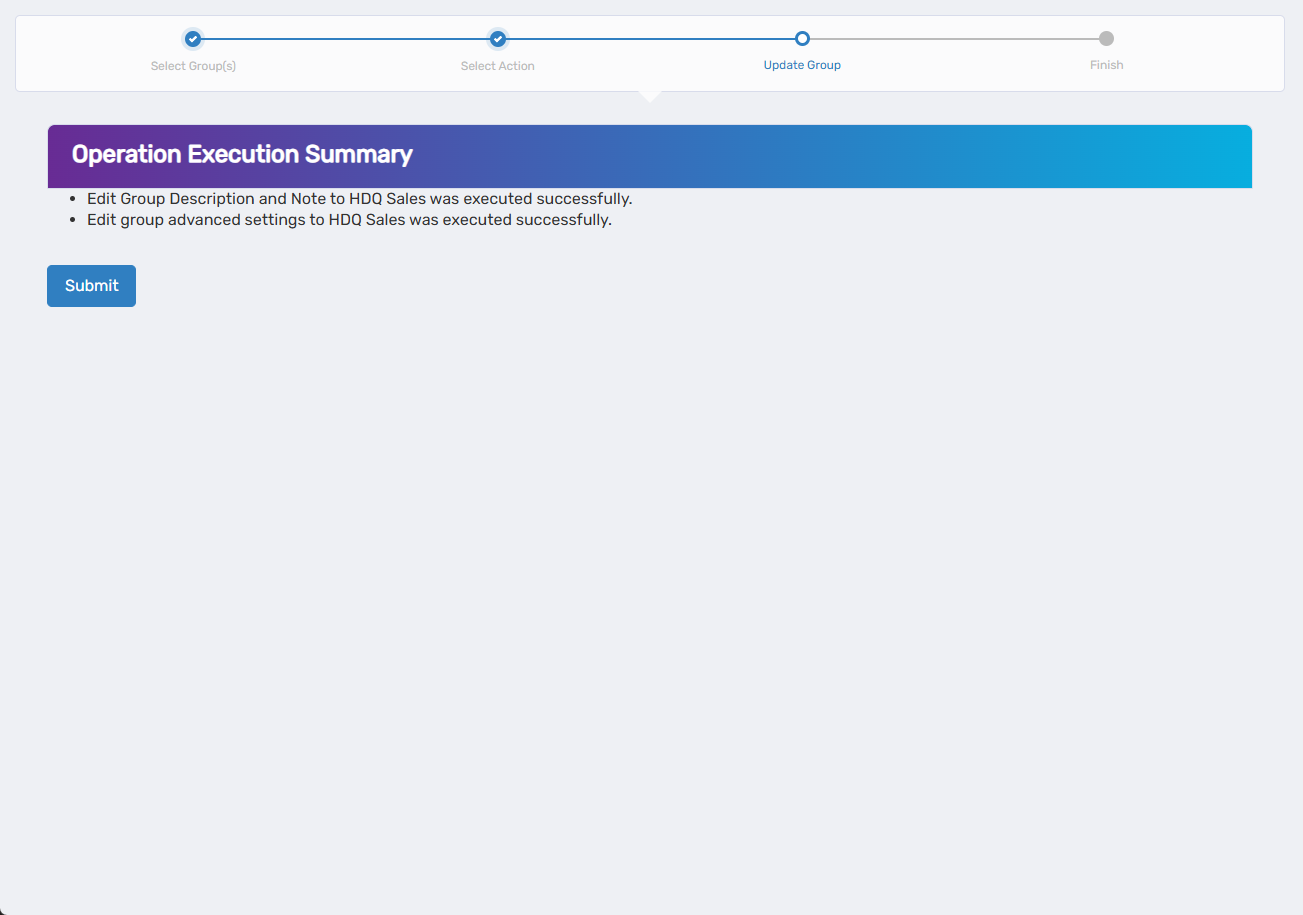 The summary shows the specific attributes that were modified.
 - Click Submit to continue.
- Choose your next action:
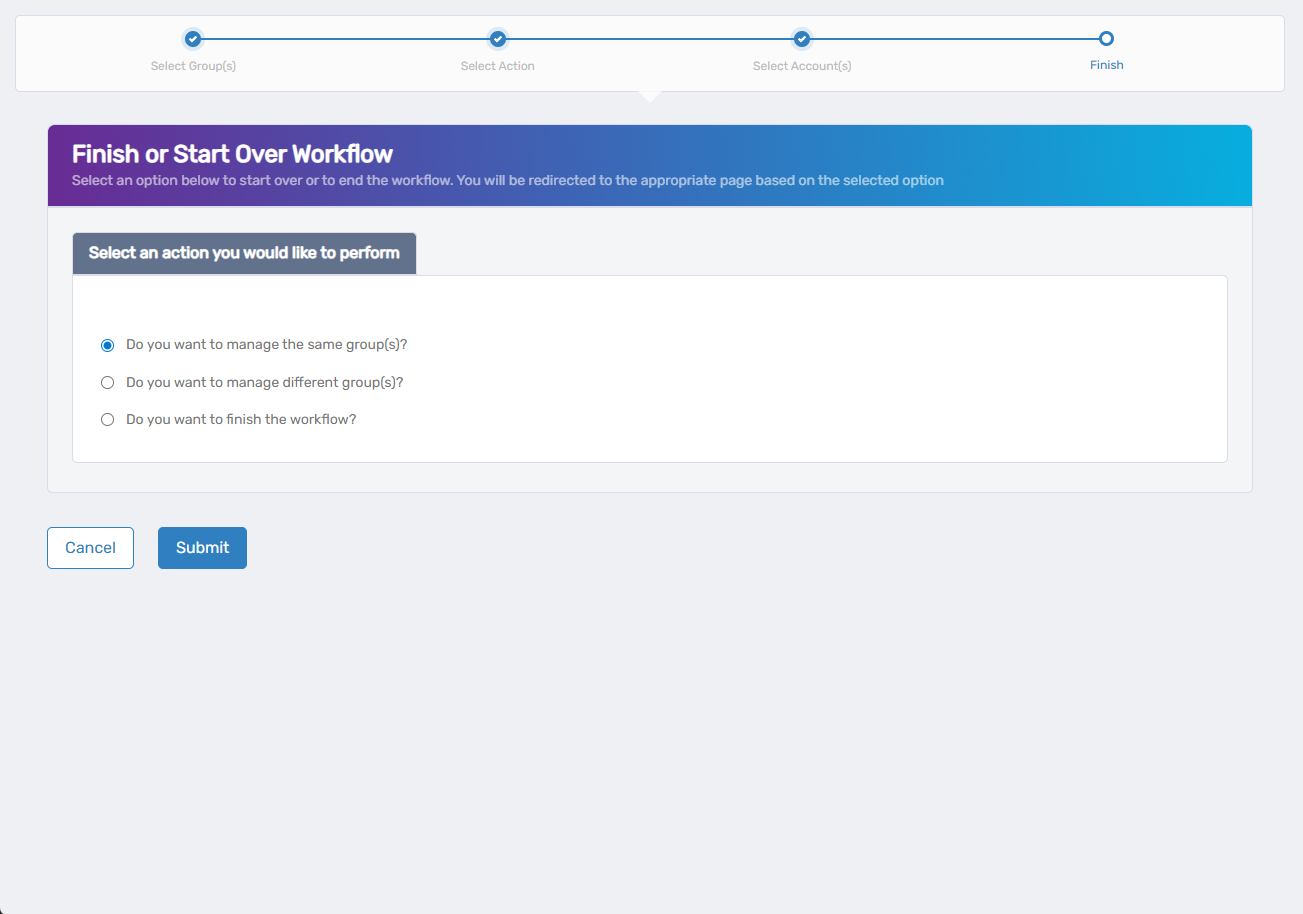
- Do you want to manage the same Group? - Select this to perform additional actions on the same group.
- Do you want to manage different Group(s)? - Select this to work with other Groups.
- Do you want to finish the workflow? - Select this to complete the process and exit the wizard.
- Click Submit to proceed with your selected option.
What Happens Next
- Attribute changes take effect immediately and are reflected throughout the system.
- Updated display names and descriptions appear in user interfaces and self-service portals.
- Group members retain their existing access while the group attributes are updated.
If You Run Into Problems
Can't modify certain attributes: Some group attributes may be locked or require additional permissions to change. Contact your administrator if needed fields are not editable.
Changes don't appear in all systems: While attribute changes are immediate, some interfaces may require a refresh to display updated information.
Related Actions
- To modify group membership, see Add People to Group or Add Accounts to Group.
- To update group ownership, see Edit Group Owners and Deputies.
- To configure self-service settings, see Edit IAM Shop Settings.