Interact with Collaboration Tasks
In addition to addressing business request tasks that arise when other users request access to resources via the IAM Shop, you may also need to interact with another category of tasks called "collaboration tasks." As the name suggests, collaboration tasks focus on facilitating communication between users to address various needs, such as reviewing documents, offering feedback, and obtaining approvals before taking action.
For example, before deleting user accounts from the system, the person responsible for this task may want to consult with other relevant parties before proceeding. In such situations, collaboration tasks serve as an effective means to ensure that multiple perspectives are considered before making a decision.
Interact with collaboration tasks
- Navigate to the My Tasks App portal for your organization.
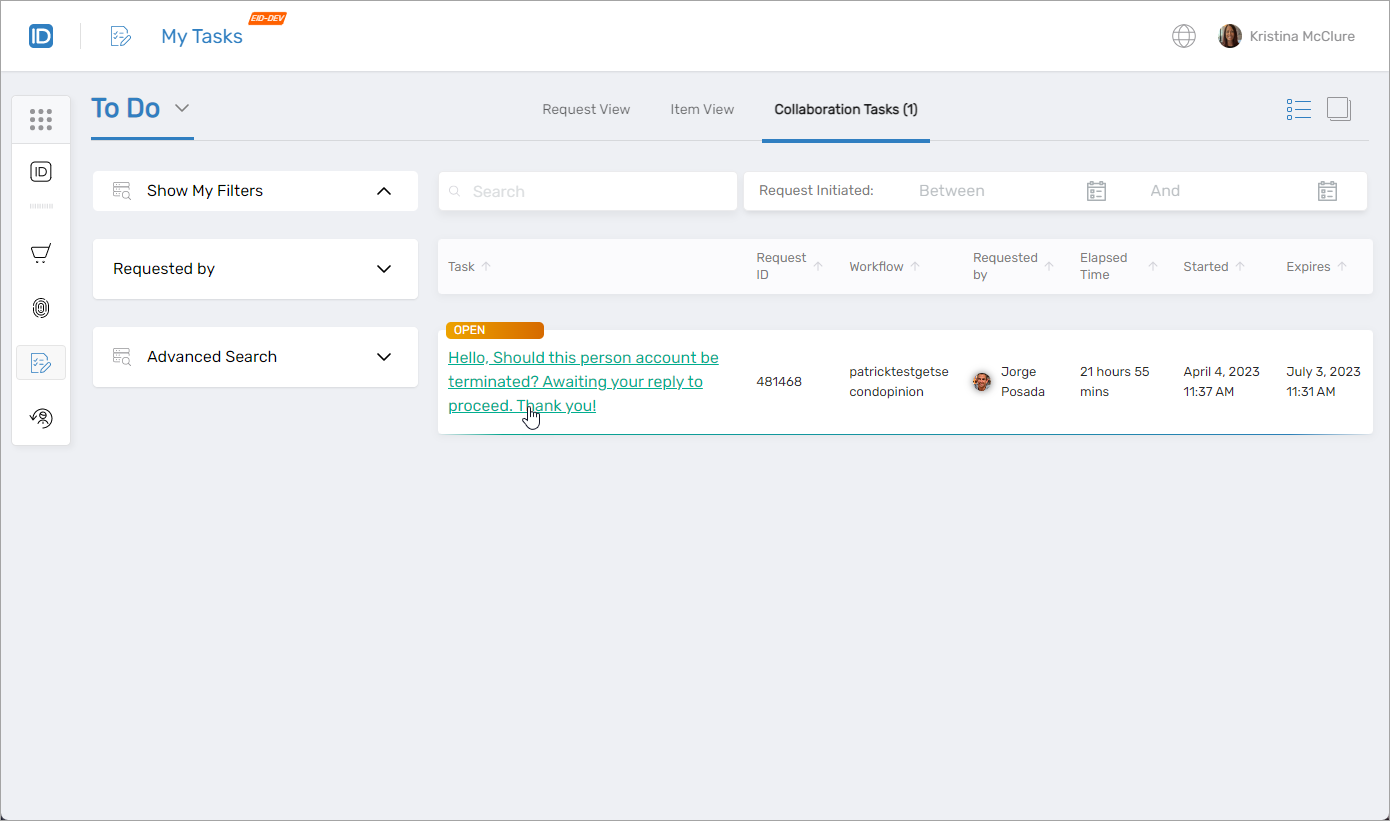
- Select To Do from the dropdown menu in My Tasks and click the Collaboration Tasks tab.
- Click the Task link for the collaboration task you want to interact with.
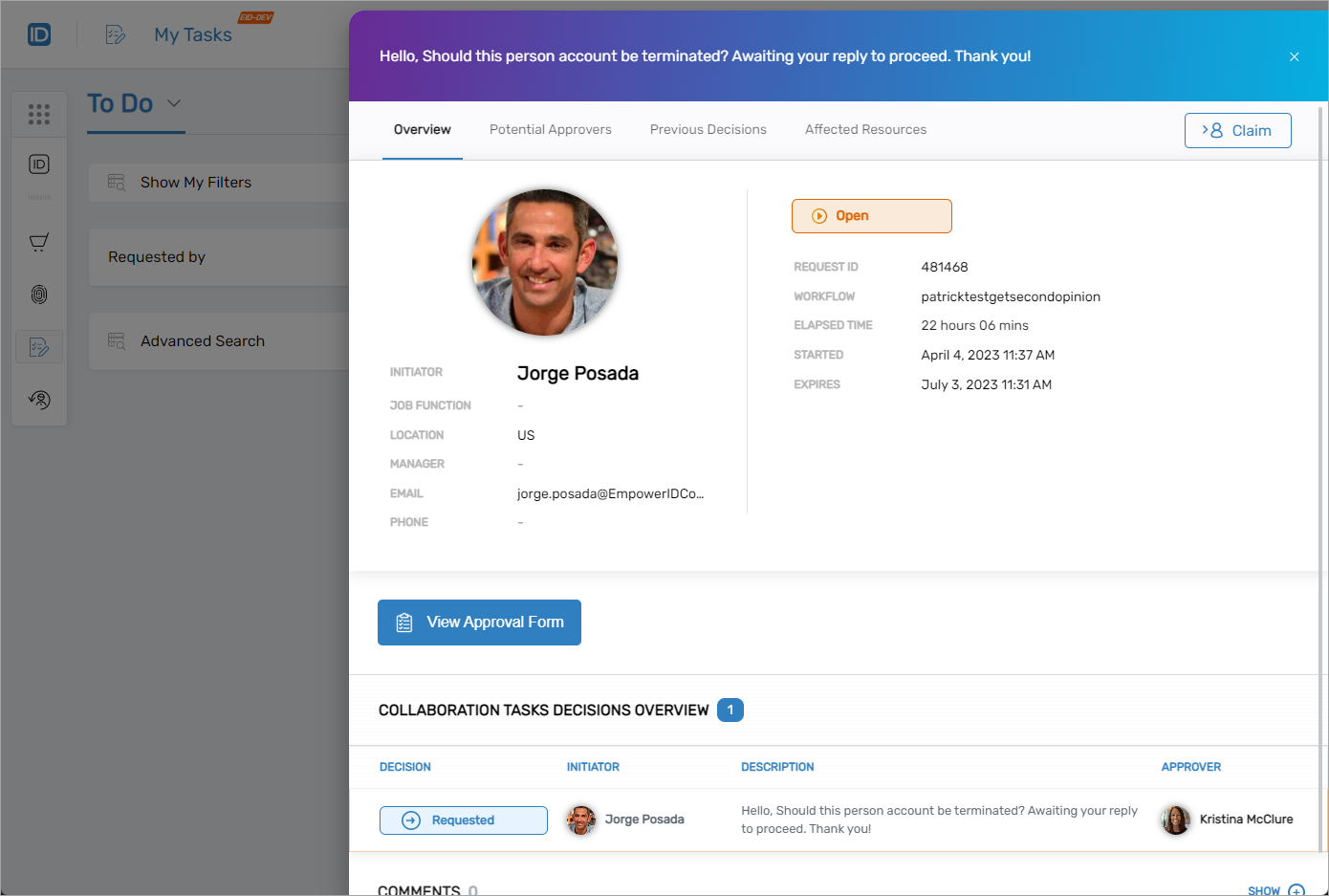
This opens the card for the collaboration task. From this card, you can view more information about the task, delegate the task to another user, assign additional approvers, and submit a decision.
- 📤 Delegate Task
- 👥 Add Approvers
- 📝 Submit Decision
To delegate collaboration tasks to other people, do the following:
- From any tab of the Collaboration card, click the Delegate button and select Assign this Task.
- Enter the name of the person to whom you want to assign the task and then click the tile for that person.
- Click Assign This Task.
You can remove a delegation by clicking the Assigned by notification and selecting Unassign this task as shown below.
To add additional approvers for the collaboration task, do the following:
- From any tab of the Collaboration card, click the Delegate button and select Add Additional Approvers.
- Enter the name of the person to whom you want to add as an approver and then click the tile for that person.
- Repeat to add other approvers as needed.
- Click Add Additional Approvers.
You should see the new approver listed under Potential Approvers.
To submit a decision for the collaboration task, do the following:
- From the Overview tab of the Collaboration card, click View Approval Form.
- Enter an appropriate decision for the task and then click Submit.