Cancel Pending Requests
If you submitted a business request that is still pending approval—or have administrative rights to cancel requests submitted by others—you can cancel those requests from within the My Tasks App.
Before You Begin
When Can Requests Be Canceled?
You can only cancel a request or request item if the following conditions are met:
Business Request:
- Status is Not Ready or Open, Pending Approval
- At least one request item is still pending
- You are the request initiator or have cancel permissions
Business Request Item:
- Status is Not Ready or Open, Pending Approval
- You are the request initiator or have cancel permissions
Access Considerations
Only users with administrative rights can cancel business requests or request items they did not initiate.
Cancel a Request You Initiated
- Go to the My Tasks App portal for your organization.
- Select My Requests from the dropdown.
- Use the search field to filter requests as needed.
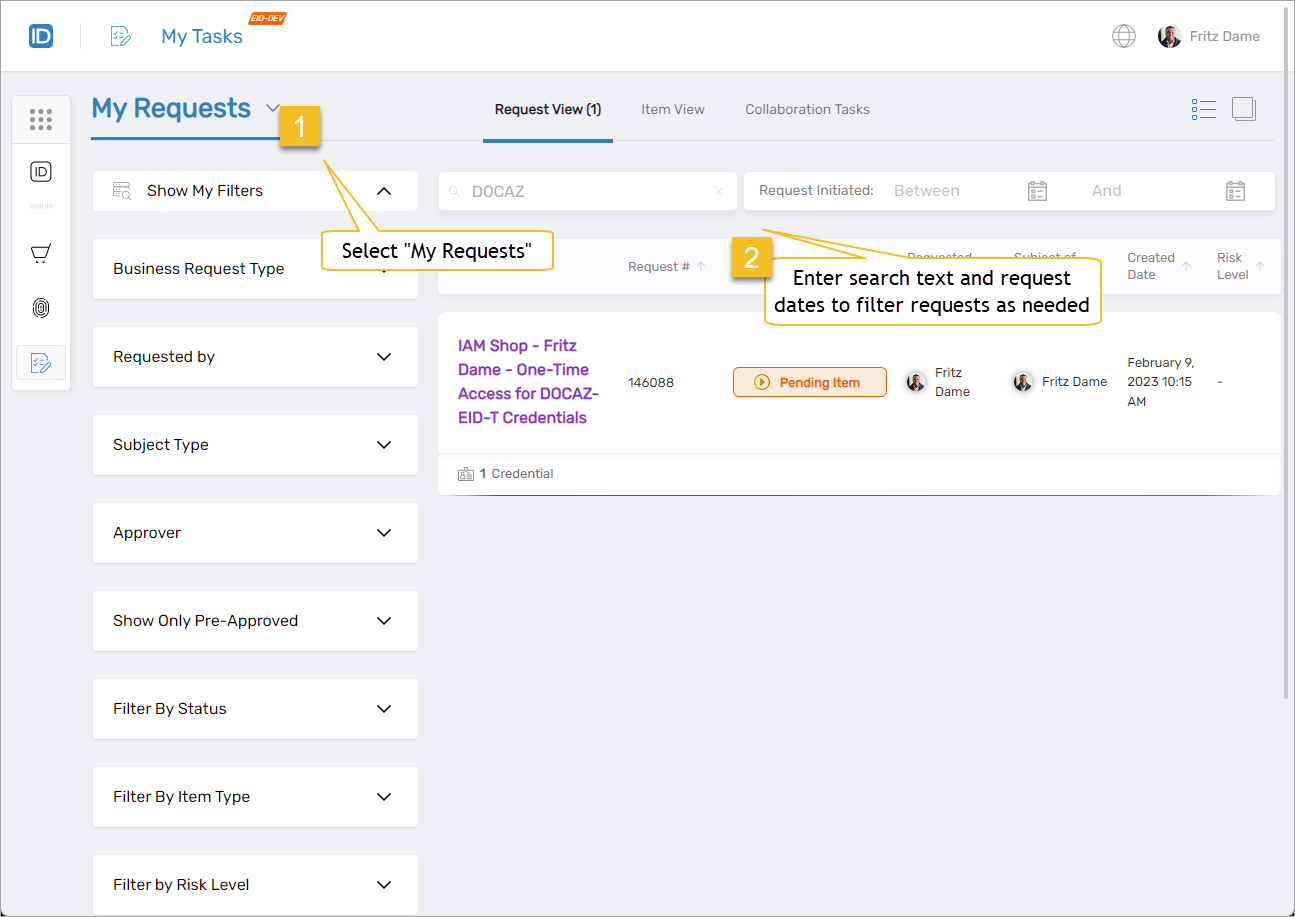
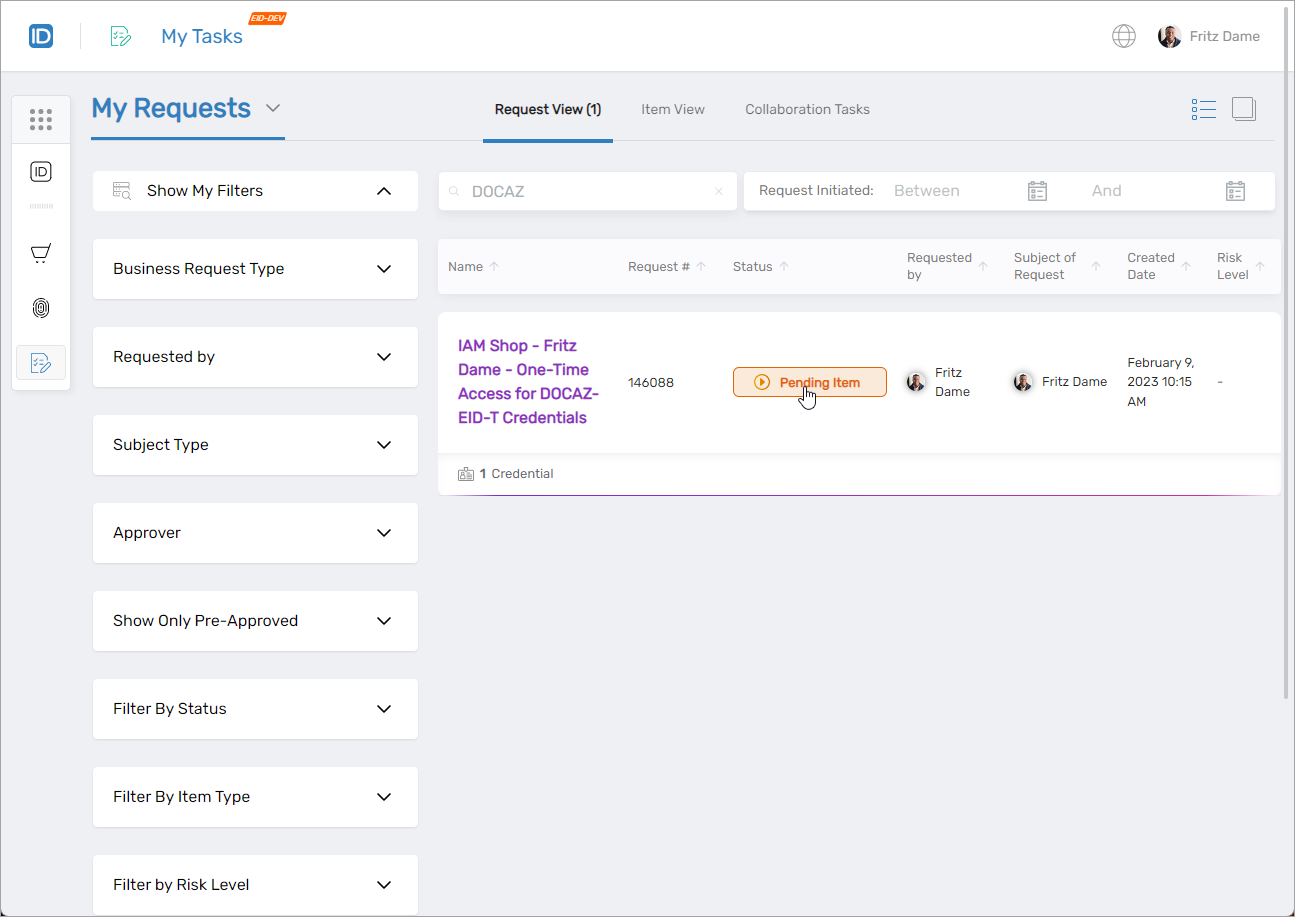
- Click Pending Item next to the request you want to cancel.
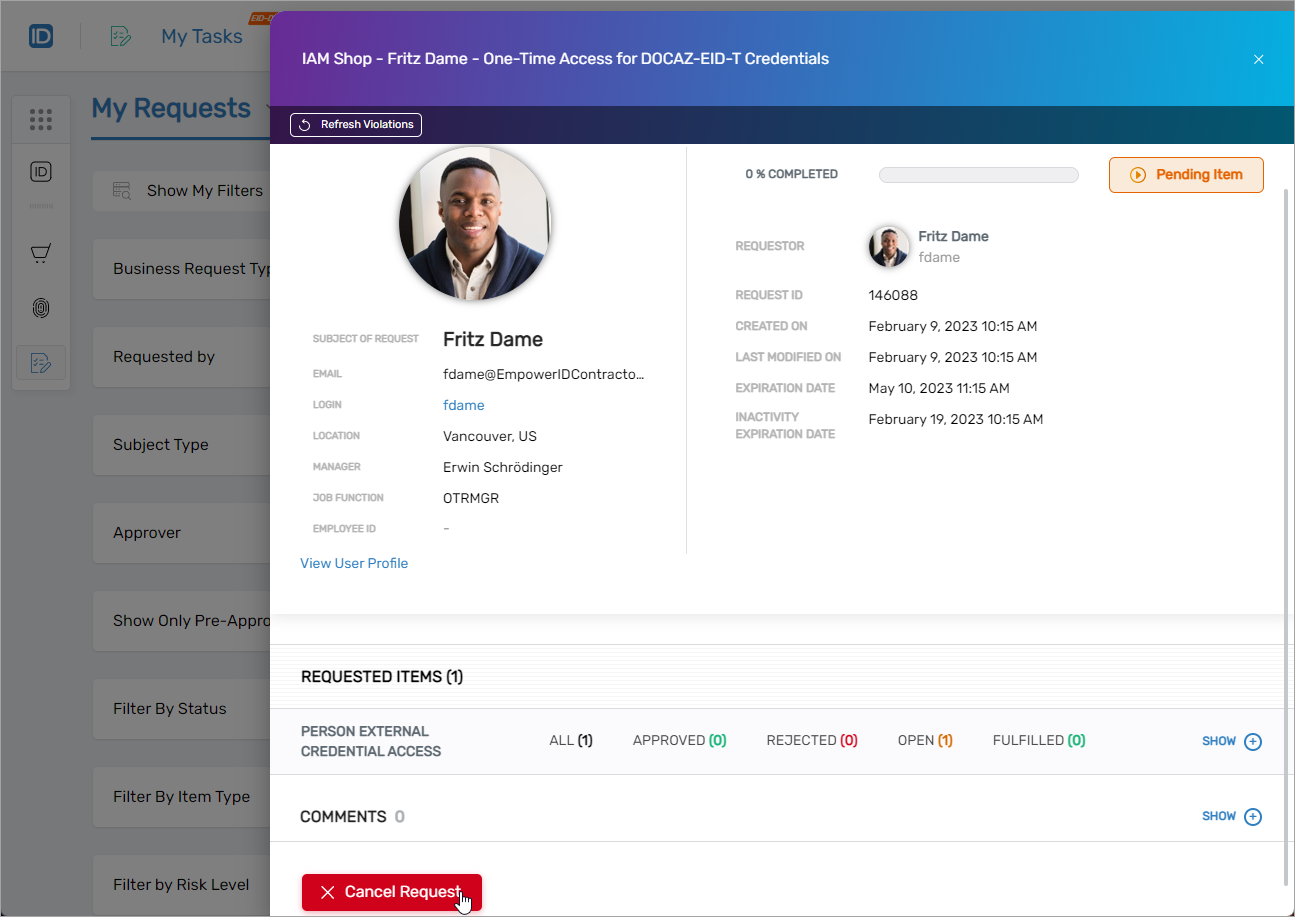
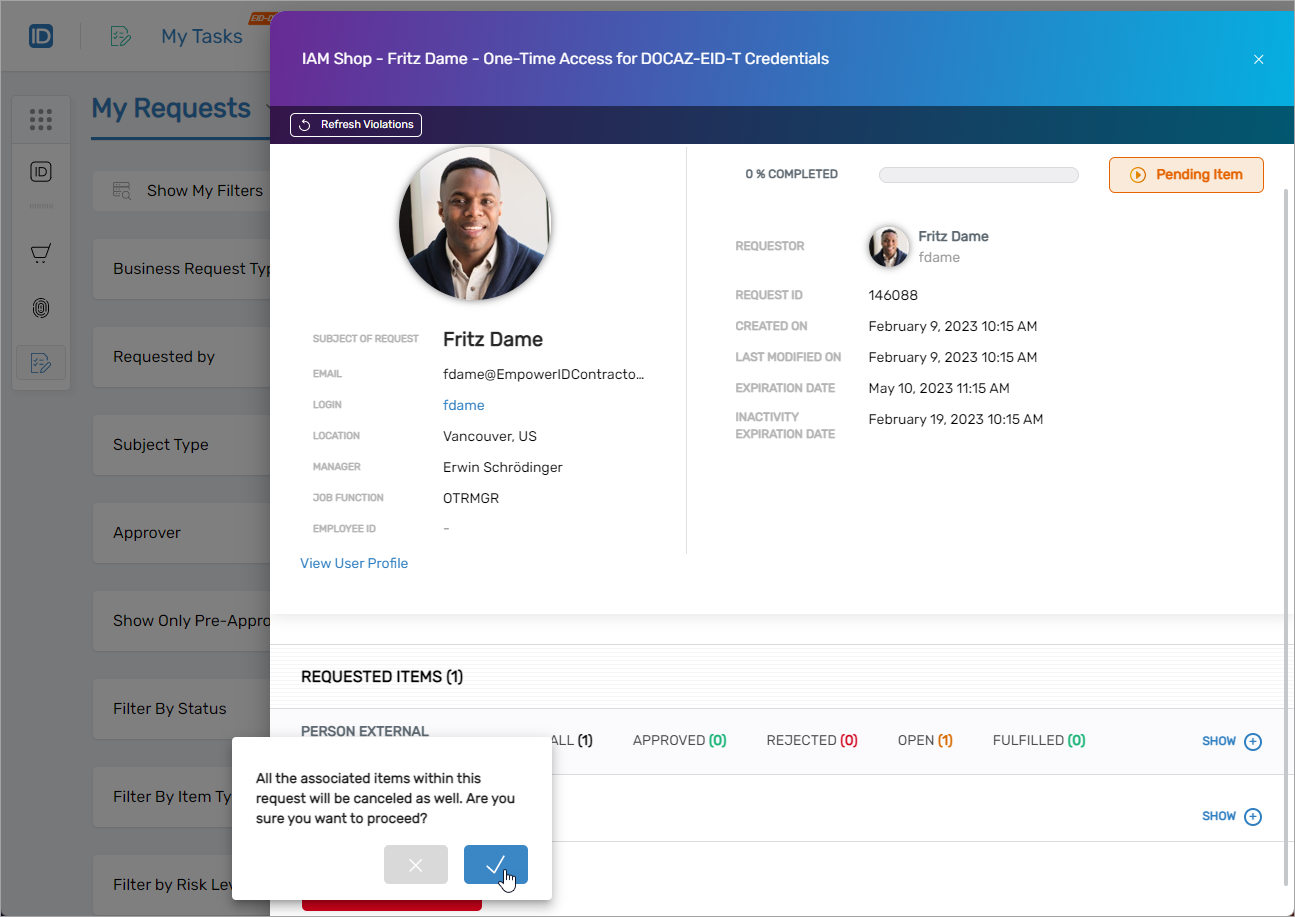
- In the Overview tab, click Cancel Request.
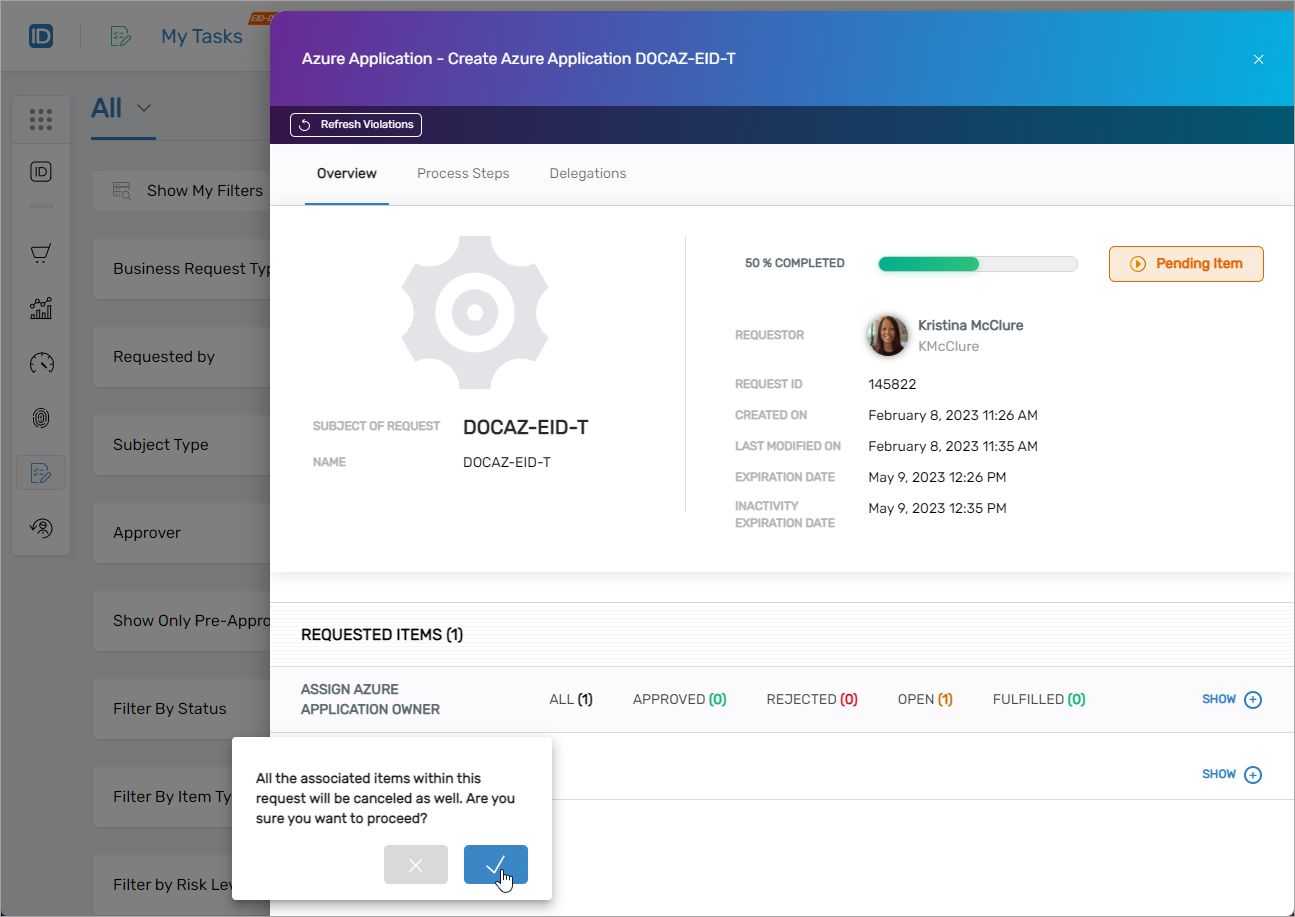
- Click Confirm to finalize the cancellation.
Cancel a Request Submitted by Someone Else
To cancel someone else's request, you must have the proper administrative rights.
- Log into the My Tasks App portal as a user with cancel access.
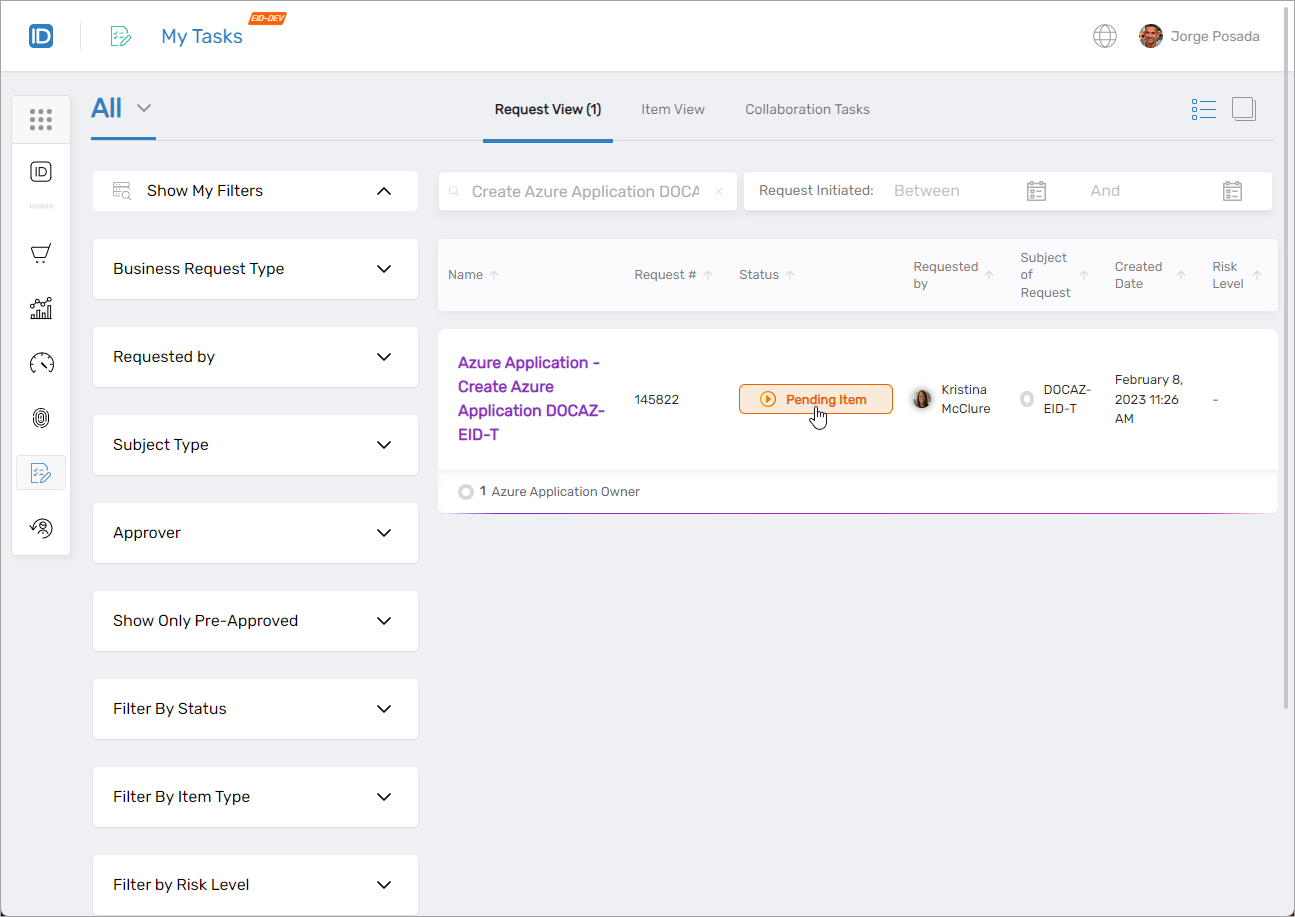
- From the dropdown, select To Do (for tasks assigned to you) or All.
- Search for the request you want to cancel.
- Click Pending Item for the request.
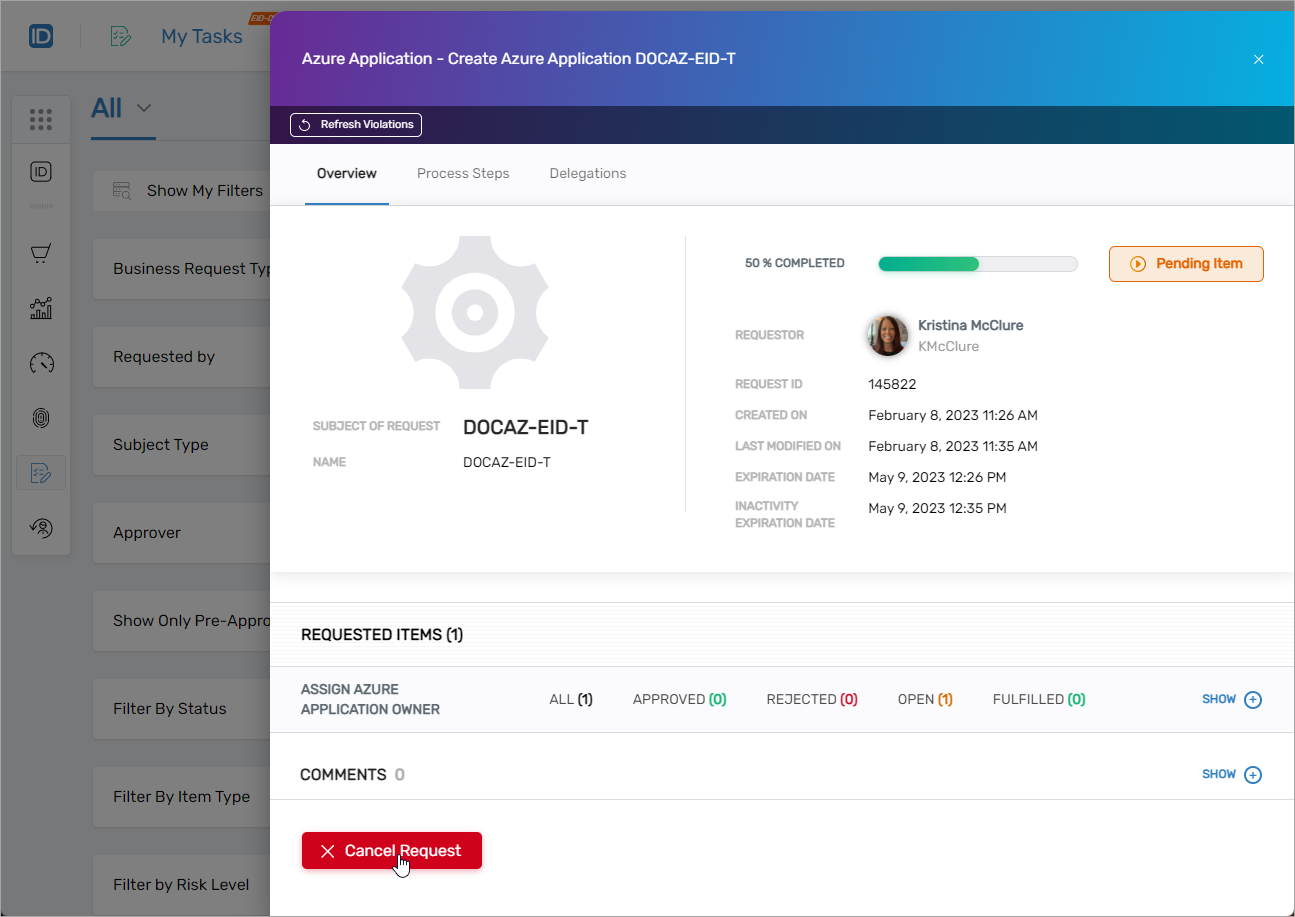
- On the Overview tab, click Cancel Request.
 info
infoIf the Cancel Request button is not visible, you do not have the required permissions to cancel this request.
- Click Confirm to complete the cancellation.