Shop for Resources
The IAM Shop allows you to search for and request access to available resources—such as groups, applications, or roles—based on your eligibility. These requests are submitted as Business Requests and routed through your organization’s Approval Flow policies.
Make sure:
- You are eligible to request the resource
- You are logged into the IAM Shop portal for your organization
- You know the type or name of the resource you want to request
If you cannot find a specific resource, it is likely that you are not eligible to request it.
Steps to Shop for Resources
1. Open the IAM Shop Portal
- Navigate to the IAM Shop portal for your organization.
2. Select a Resource Type and Search
-
From the Resource Type dropdown, select the type of resource (e.g., Groups, Business Roles).
-
Search for the specific resource.
Example: To request membership in a group calledDTG, select Groups and search for DTG.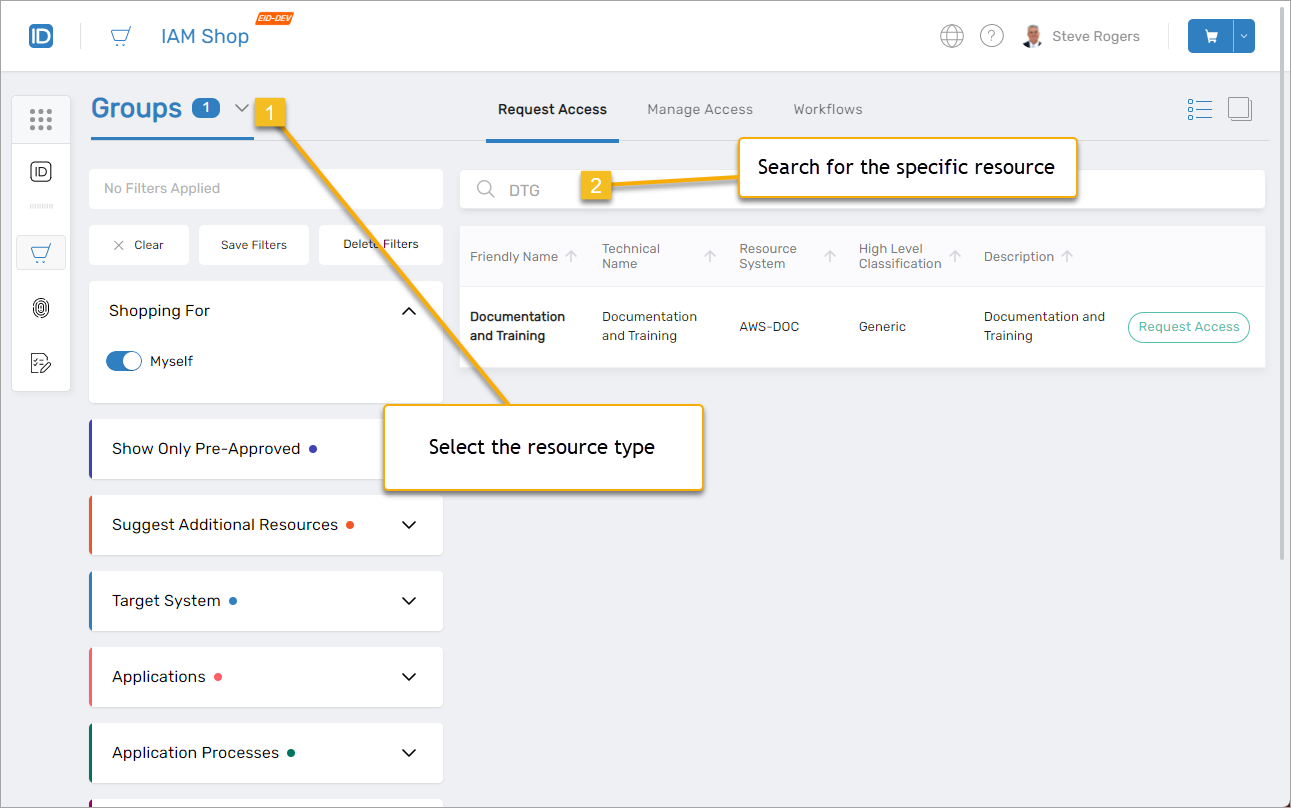
3. Click Request Access
-
Click Request Access next to the resource.
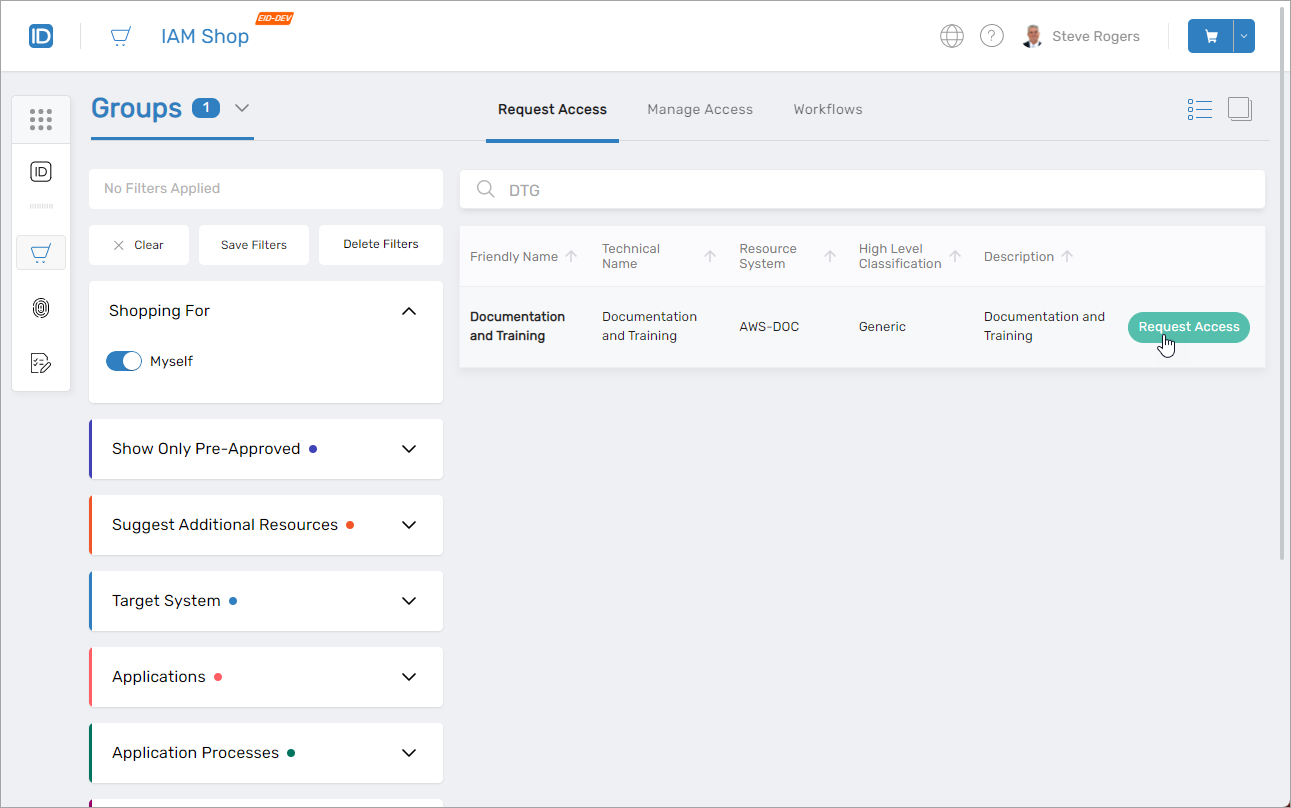
If you see an Activate button instead of Request Access, that means you're preapproved for this item. Click Activate to gain immediate access.
4. Review and Set Request Details
-
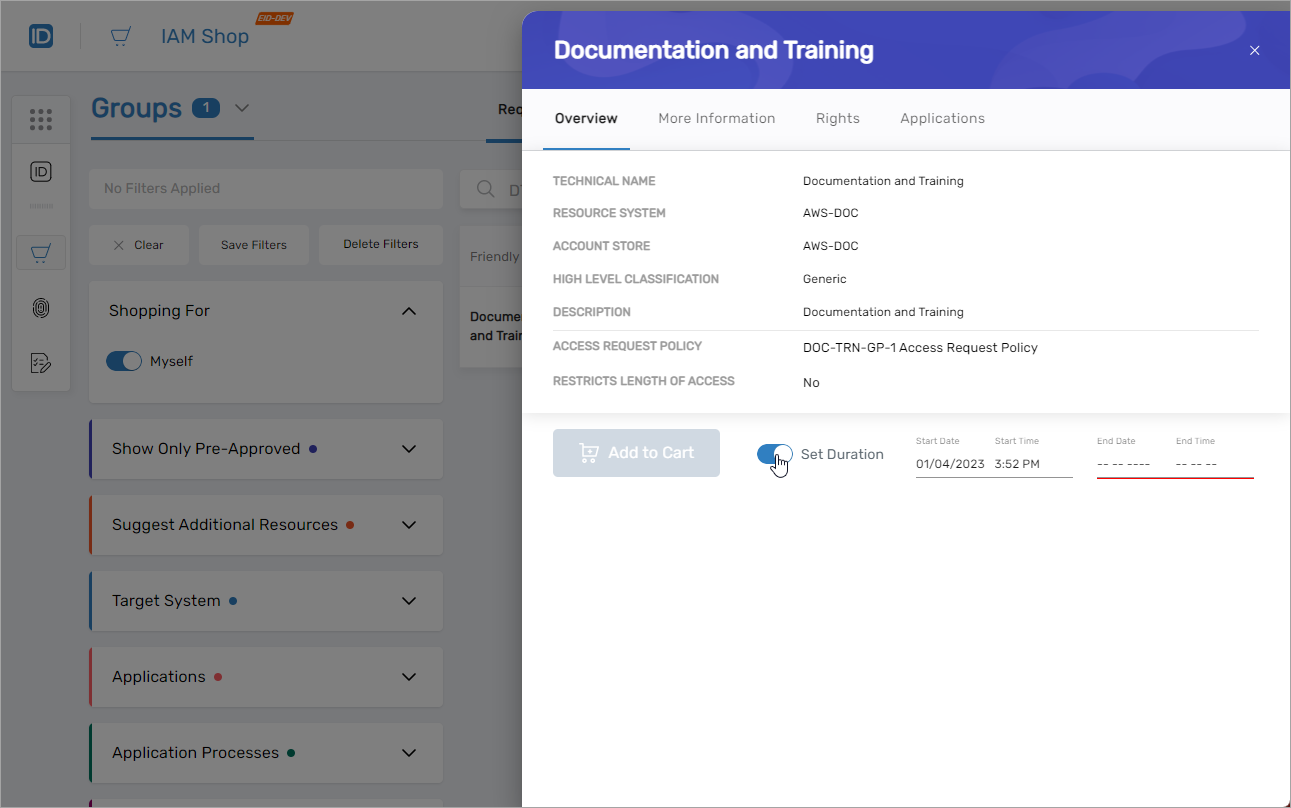
A details card opens. If needed, toggle Set Duration and enter the start and end times to request temporary access.
5. Add the Resource to Your Cart
-
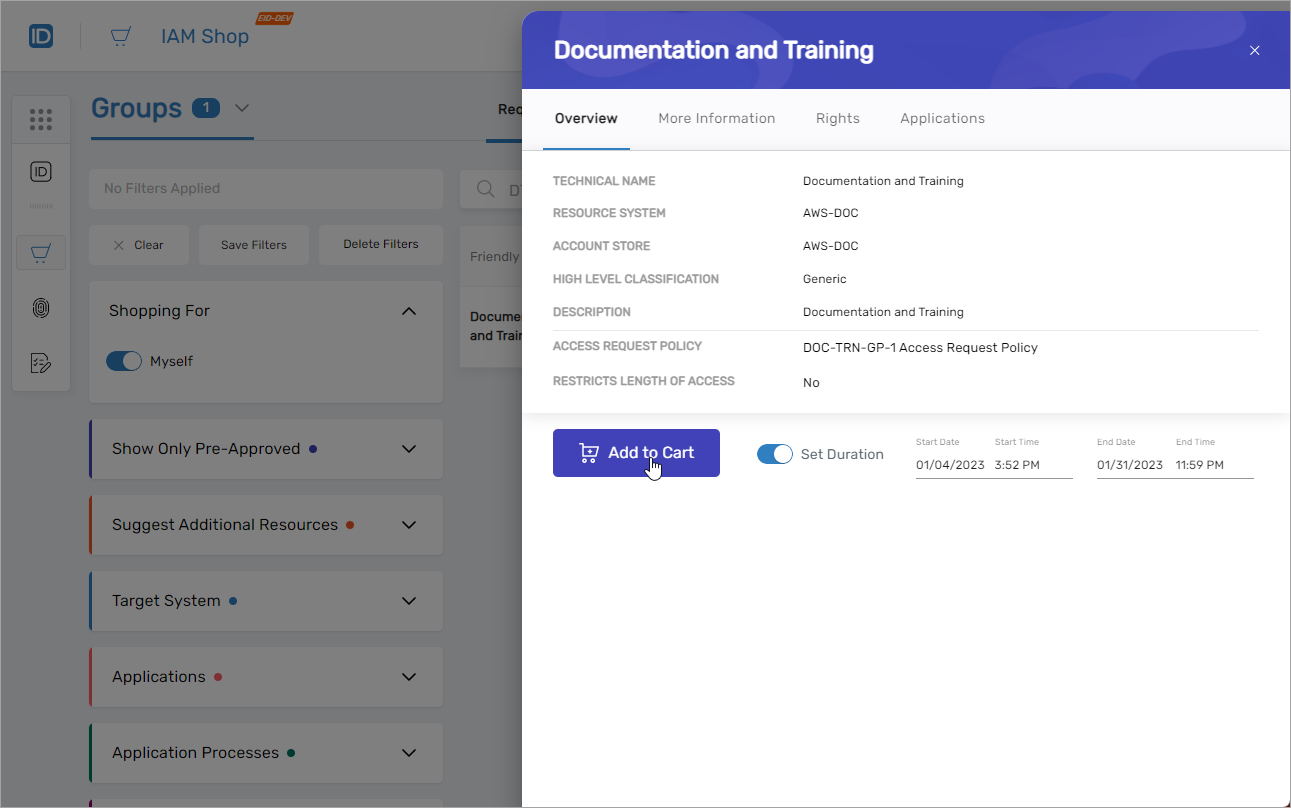
Click Add to Cart.
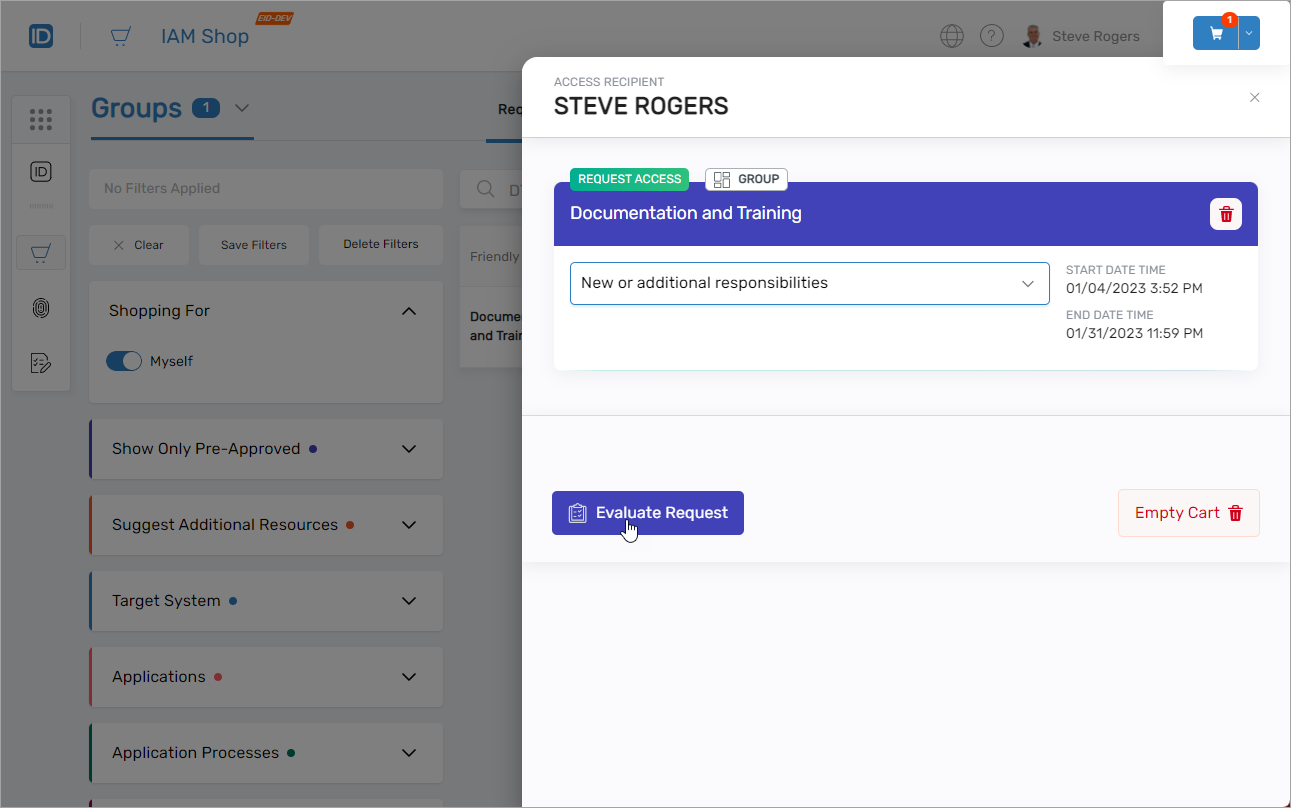
6. Open the Shopping Cart
- Click the Cart icon at the top of the page to view your pending requests.
7. Provide Justification
- In the cart, select a Reason from the dropdown or enter an optional comment.
8. Evaluate for Risk
-
Click Evaluate Request to check for any risk violations.
9. Review Any Risk Violations
-
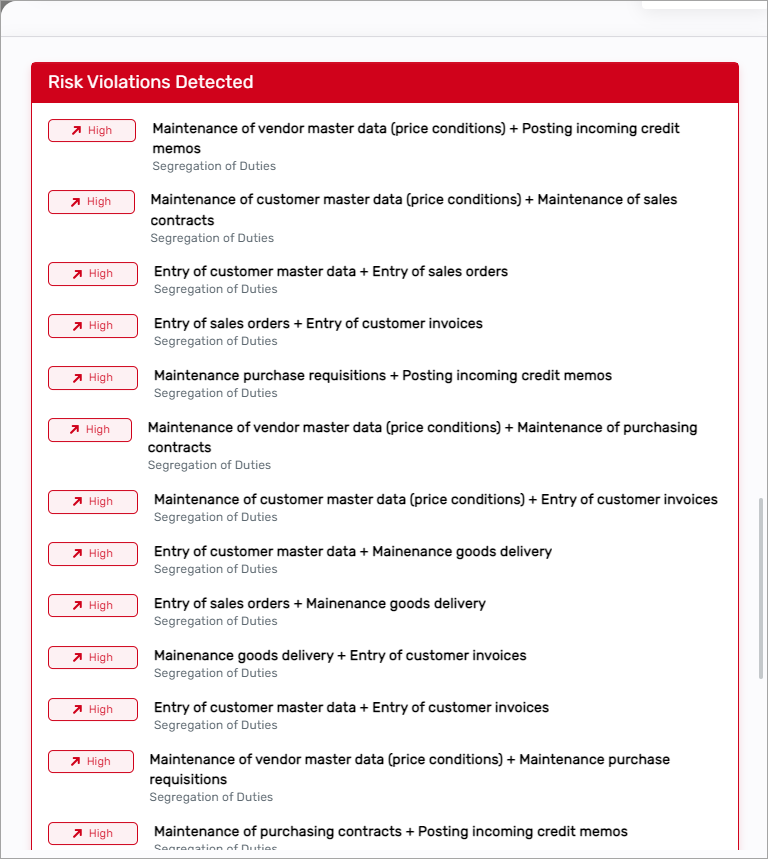
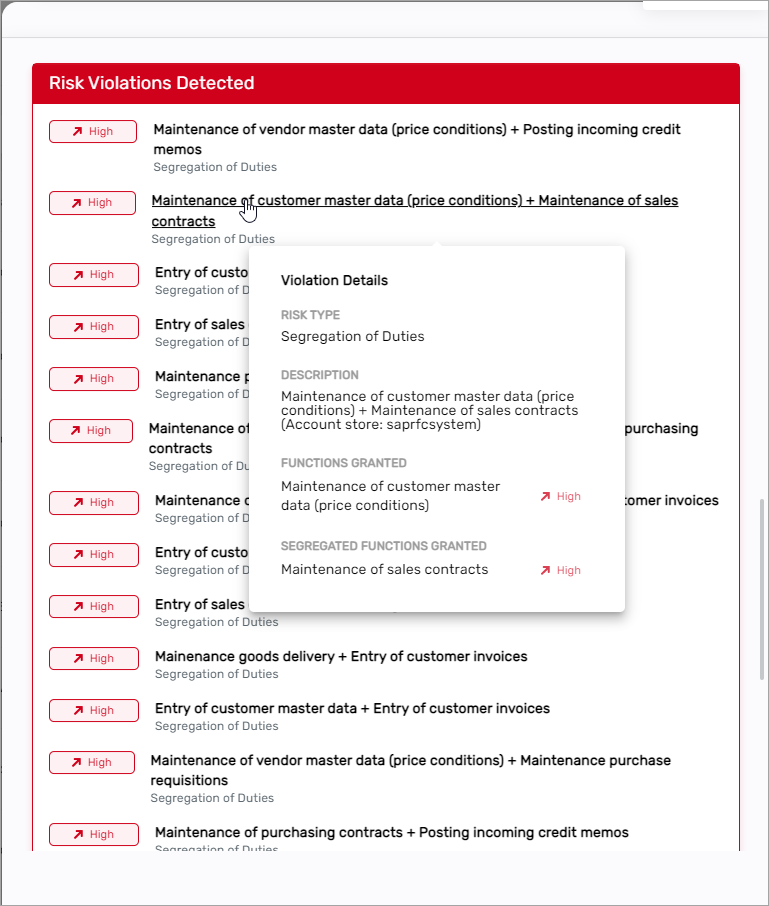
If any violations are found, they appear below the item. Hover over the alert to view details, such as Risk Type and the conflicting Functions.
-
If you still want to proceed, check I acknowledge these violations and wish to request access.
If you decide not to proceed, click the Trash Can icon to remove the item from your cart.
10. Complete the Business Request
-
Enter a Business Request Name to help approvers identify your request.
Example:Jane Smith - DTG Group Membership Request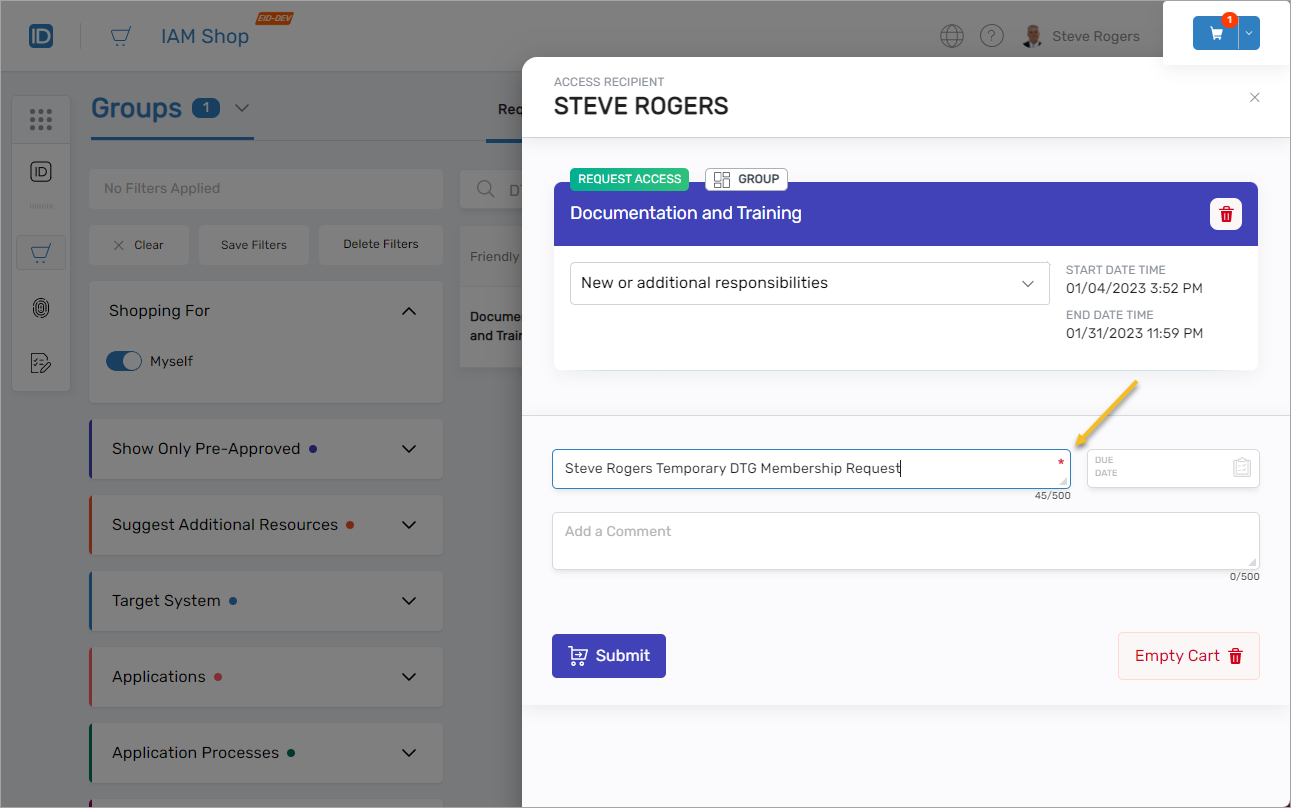
-
Optionally enter a Due Date and additional Comment.
11. Submit the Request
- Click Submit to send the request for approval.
12. Confirm Submission
-
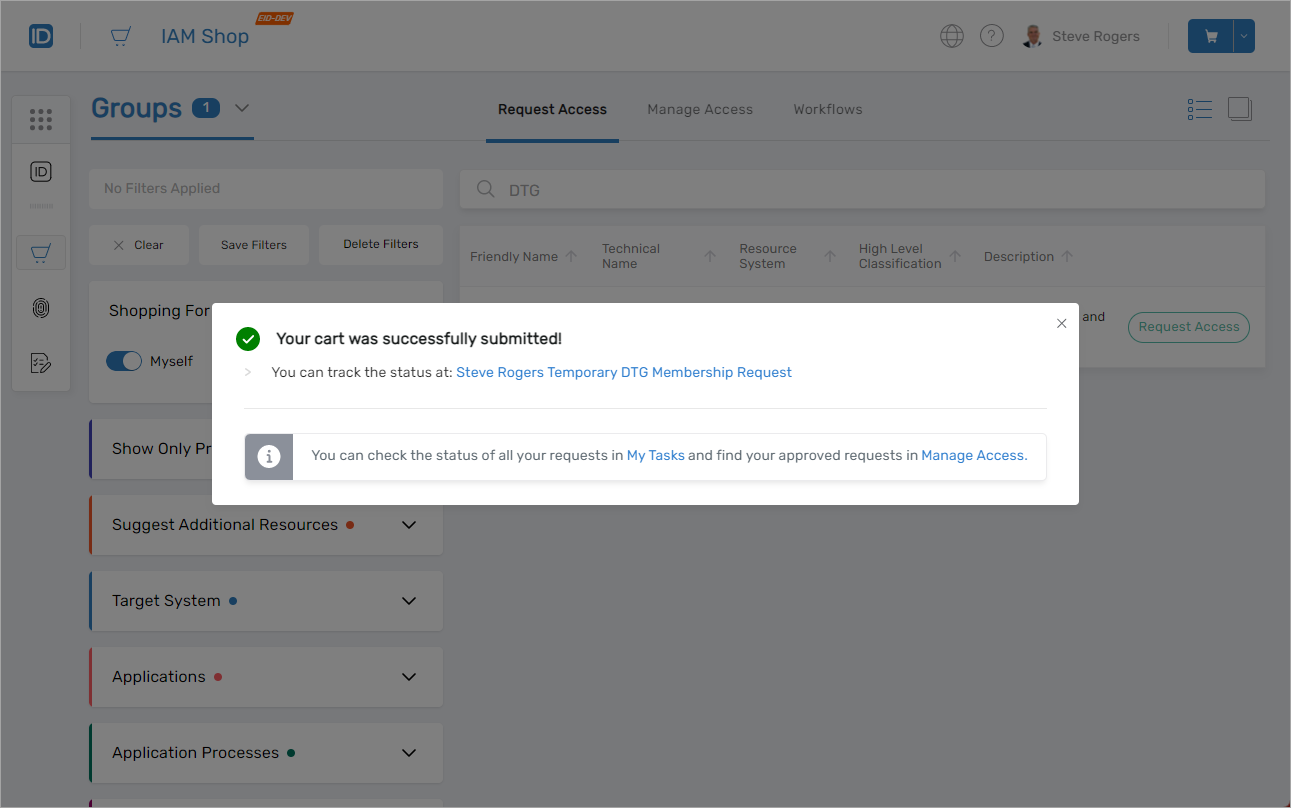
A confirmation window will appear stating the cart was submitted successfully.
-
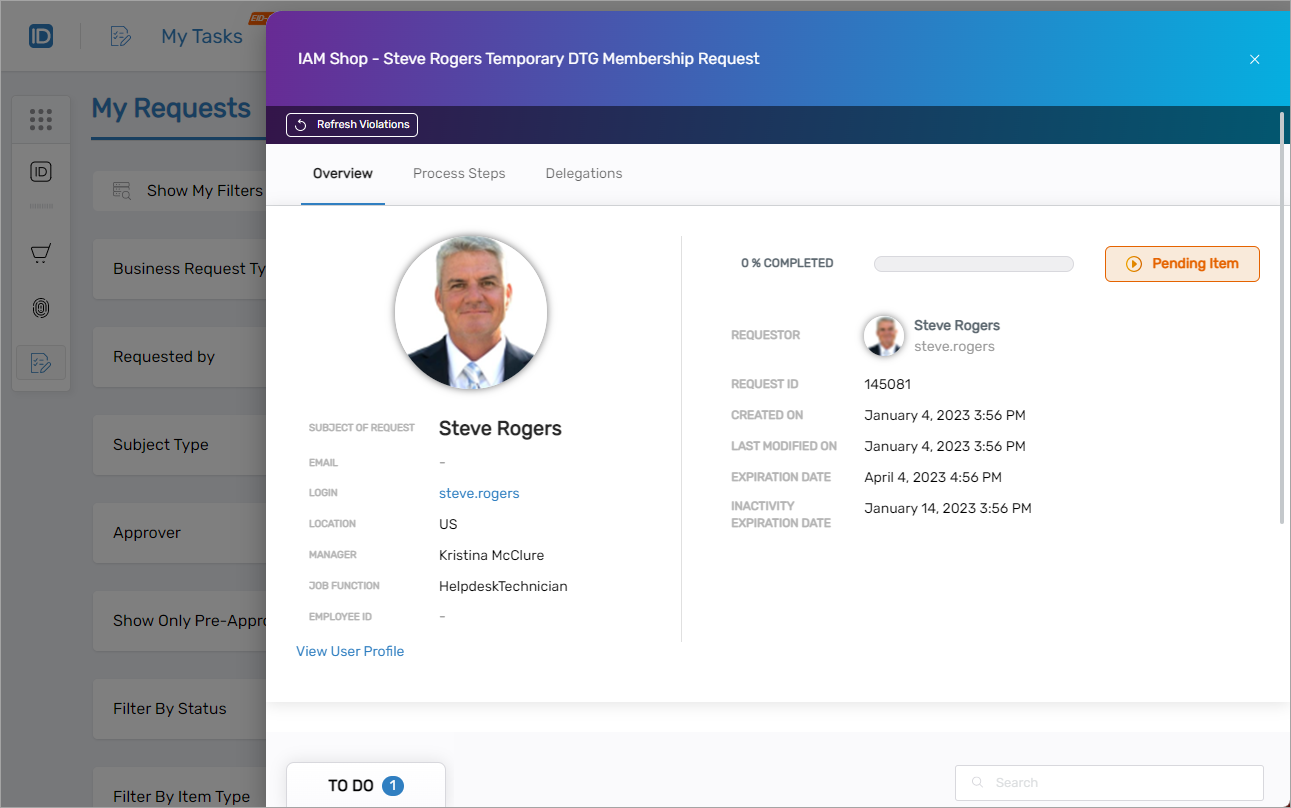
Click the link to go directly to the My Requests page in the My Tasks application. There you can track approval status, see request details, and view required approvals.
What Happens Next
Your Business Request is now submitted and routed to the appropriate approvers. You can monitor the progress or cancel the request from the My Tasks > My Requests page.