Respond to Business Requests
If you are a manager, resource owner, or other user delegated the ability to respond to business requests submitted by people within your organization, EmpowerID routes their requests to you, creating tasks for you to complete. As a delegated responder, you can approve business requests, reject business requests, set time constraints for requests, or delegate the decision to another person within your organization.
Respond to Business Requests
- Navigate to the My Tasks App portal for your organization.
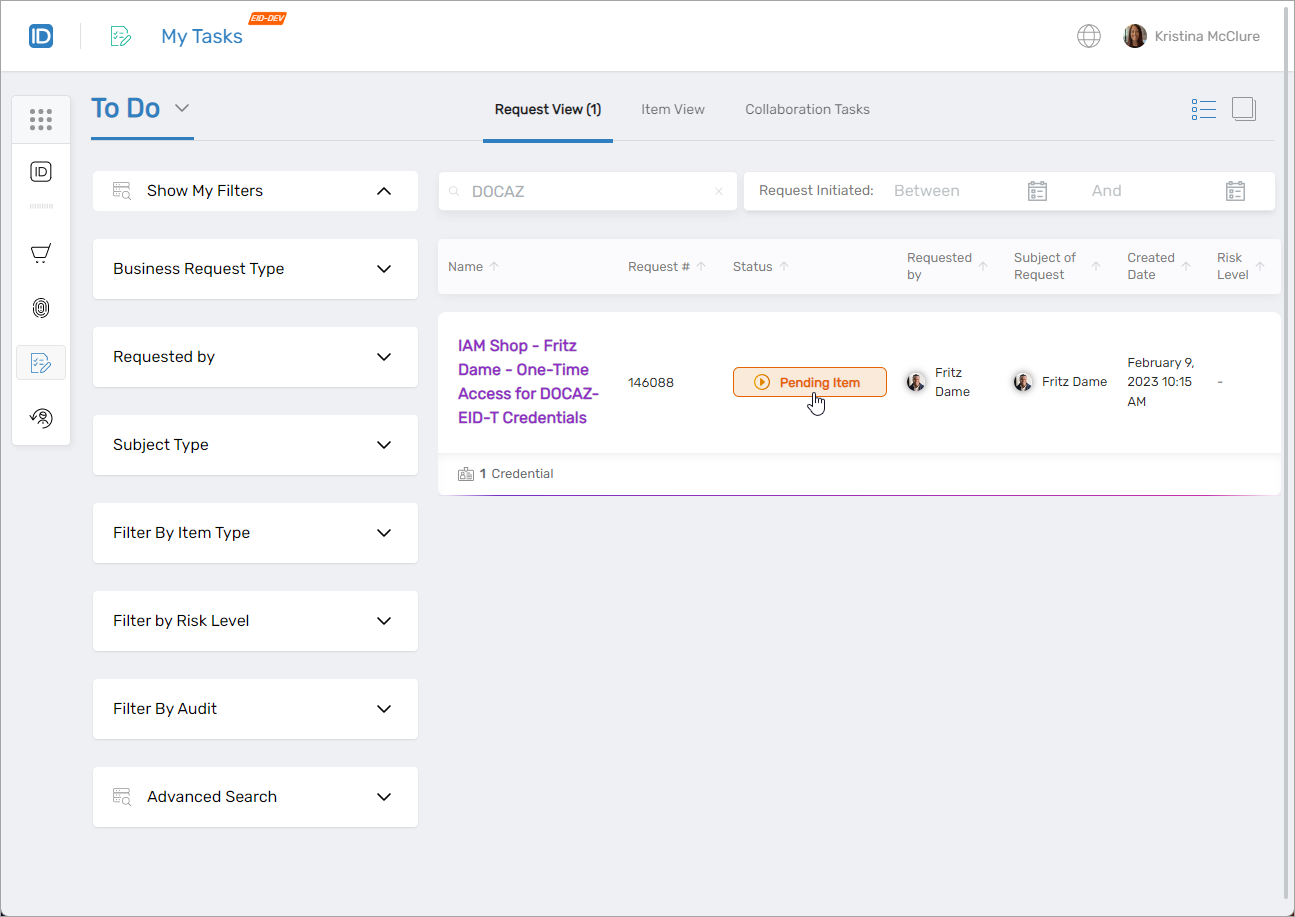
- In My Tasks, select To Do from the dropdown menu and search for the request you want to respond to.
- Click the Pending Item link.
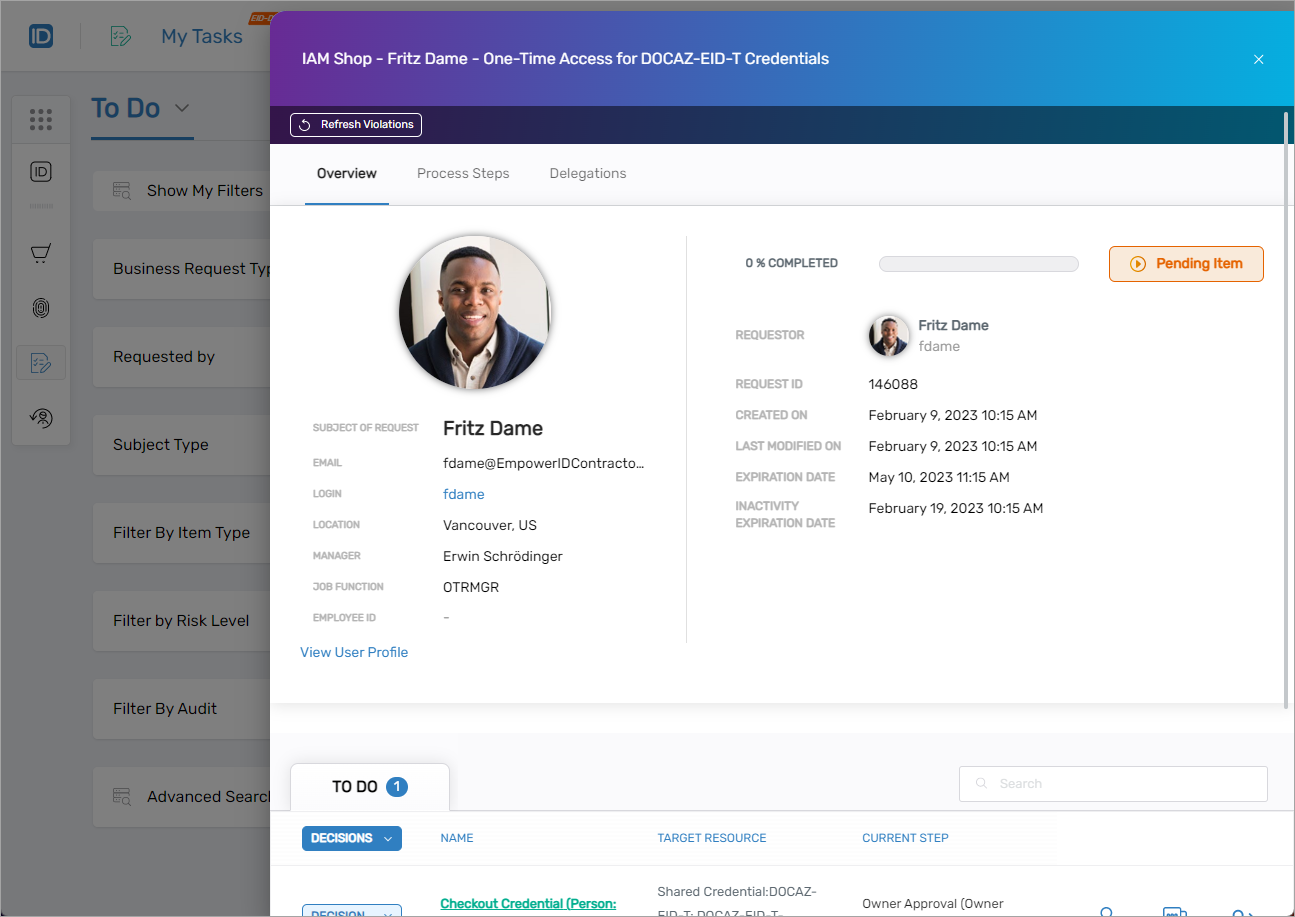
This opens the Card view for the task. From here, you can view details about the pending request and perform tasks, including:
- View where the task is in the approval process
- Delegate the task to other people within your organization for approval or rejection
- Approve the request
- Reject the request
- 👥 Delegate Approval
- ⏰ Set Time Constraints
- ✅ Approve Request
- ❌ Reject Request
To delegate approval tasks to other people, do the following:
- Select the Delegations tab.
- In the To Do pane, click the Delegate icon and select Add Additional Approvers.
- Enter the name of the person to whom you want to assign the task and then click the tile for that person.
- Click Add Additional Approvers.
- Expand the Plus (+) symbol beside the delegation type you just made.
You should see the new delegation.
You can view and assign delegations from the Overview and Process Steps tabs as well.
To edit or set a time constraint for a request item, do the following:
- Select the Item View tab and click the link for the request item.
- In the Overview pane, click the Time Constraint icon for the Access Start Date field.
- Click the Edit button beside the Start Date and edit the date and time as needed.
- Click the Edit button beside the End Date and edit the date and time as needed.
- Click Save to save your changes.
You can clear the time constraint changes by clicking Undo Date Changes.
To approve requests, do the following:
- Select the Process Steps tab.
- In the To Do pane, click the Decision drop-down beside the request you want to approve and then select Approve.
- Enter a comment in the Add a decision comment field and then click Submit.
Before submitting a decision, you can clear it for any task by clicking the Clear button.
To reject requests, do the following:
- Select the Process Steps tab.
- In the To Do pane, click the Decision drop-down beside the request you want to reject and then select Reject.
- Enter a comment in the Add a decision comment field and then click Submit.
Before submitting a decision, you can clear it for any task by clicking the Clear button.