View the Status of Your Requests
When you request access to a resource in EmpowerID, the request becomes a Business Request. You can track its progress—including approvals, comments, delegations, and risk violations—through the My Tasks application.
You must have submitted a request through the IAM Shop in order to view its status in My Tasks.
View the Request Status
-
Navigate to the My Tasks App portal for your organization.
-
Select My Requests from the navigation menu and search for the request you want to view.
-
Click the Pending Item (or Pending) status link to open the Request card.
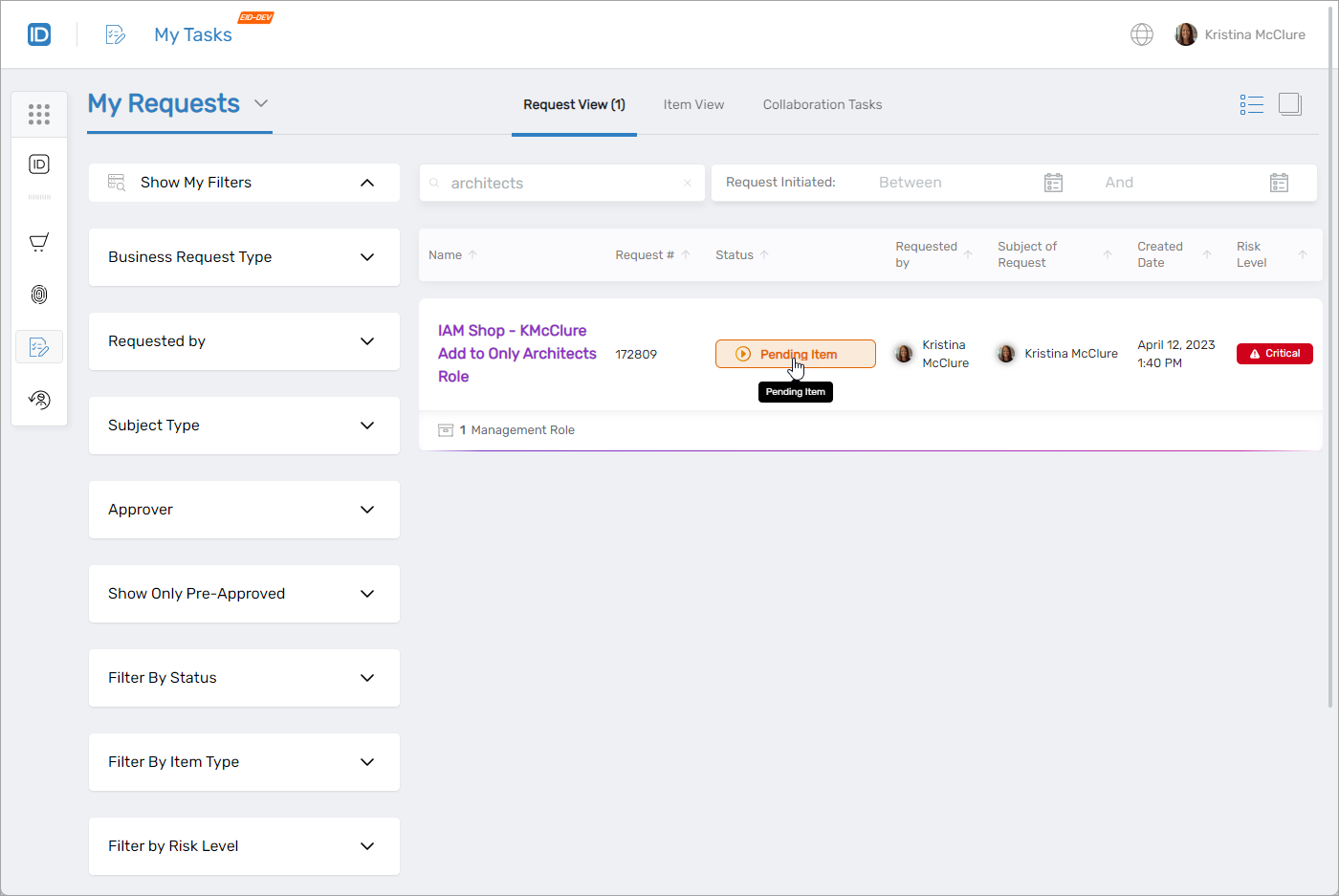
The Request card opens with multiple tabs that provide detailed status and tracking information.
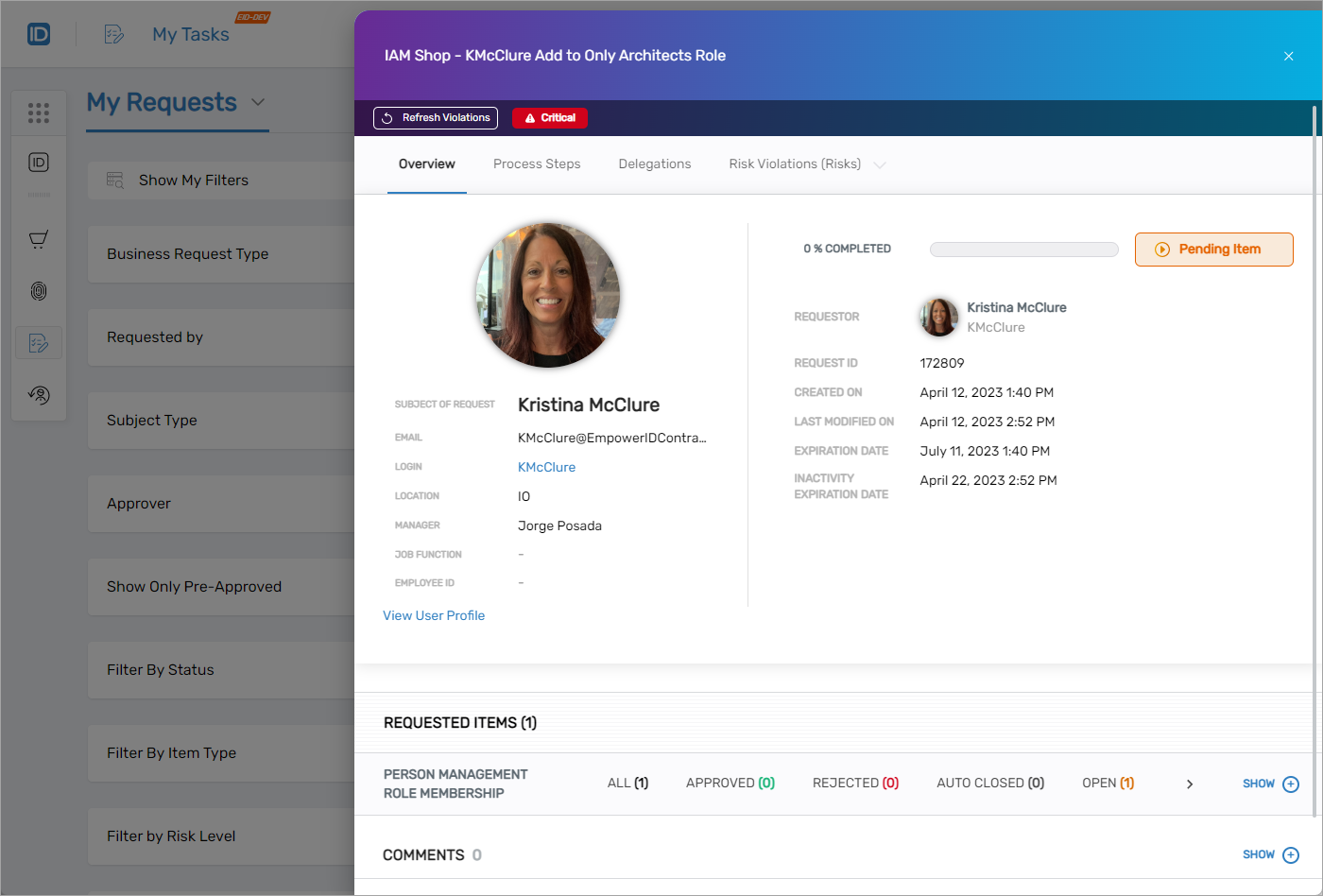
Overview Tab
The Overview tab appears by default. It provides a summary of the request, including general request information, requestor and approver details, and a section to add comments or cancel the request (if allowed).
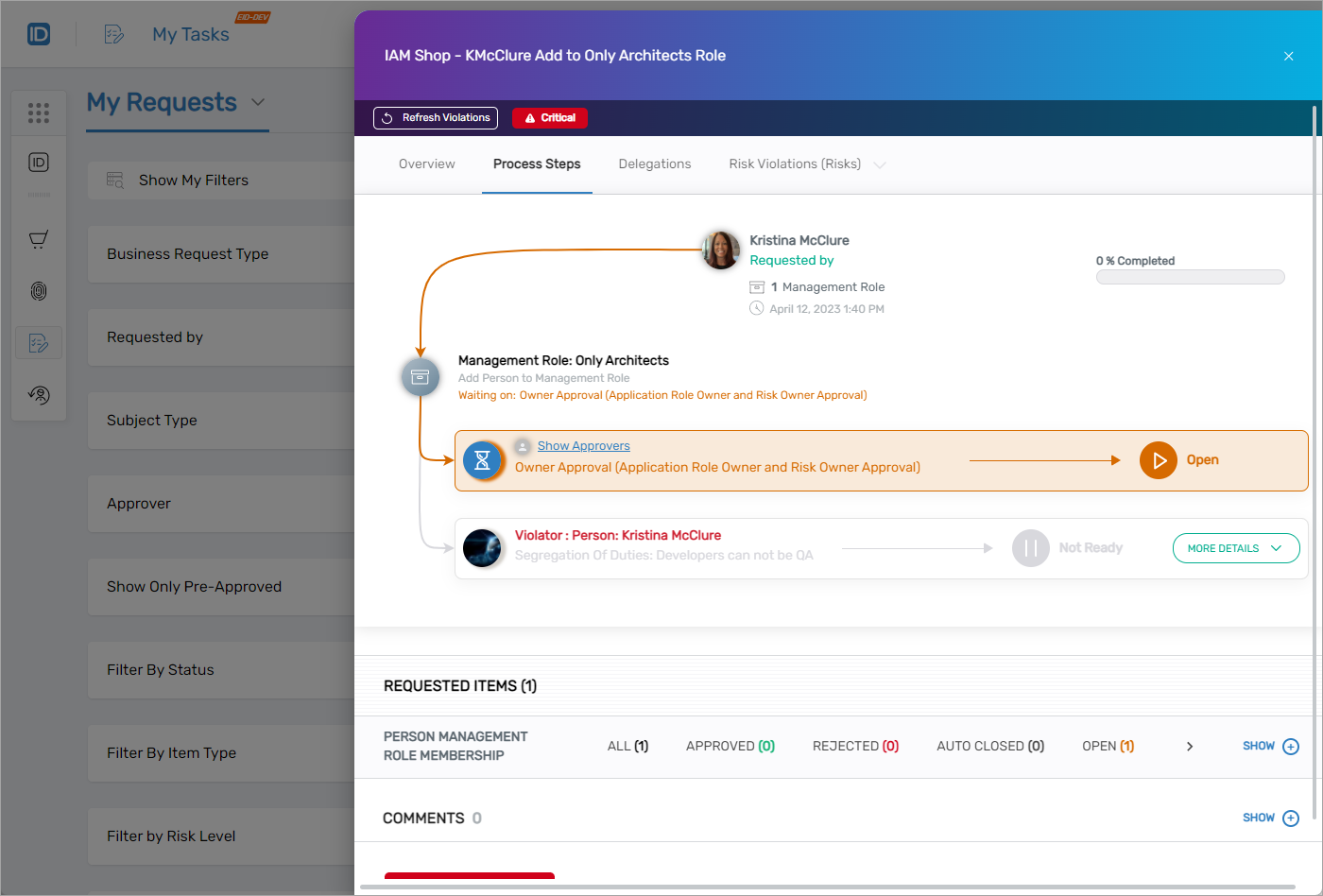
Process Steps Tab
The Process Steps tab shows where the request is in the approval process. This includes the sequence of approvals needed and the current step.
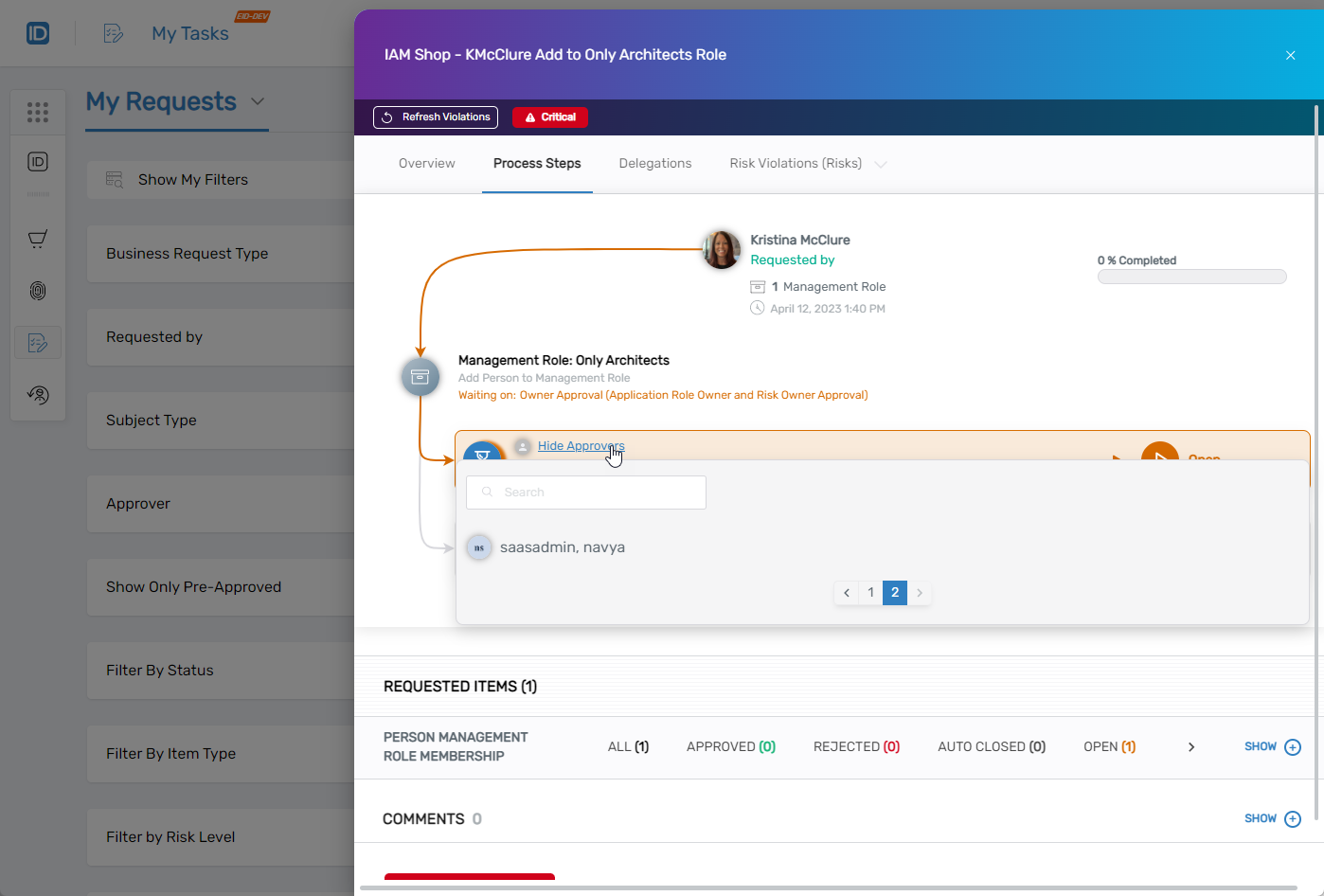
Click Show Approvers to view the individual approvers for each step. Click Hide Approvers to collapse the list.
Delegations Tab
If an approver has delegated the request to another person, the Delegations tab will display that information.
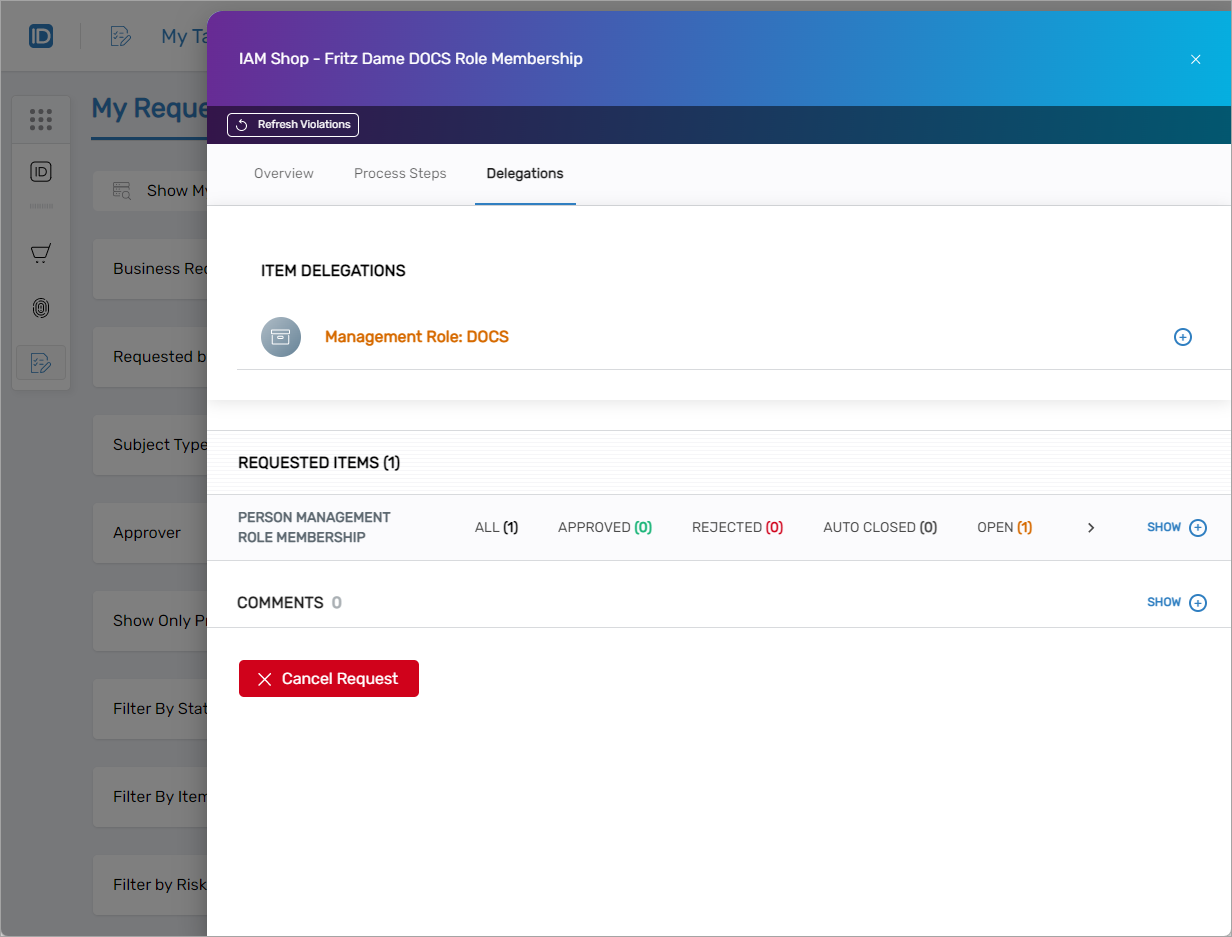
To view the delegation details, click the expand button next to the delegation entry.
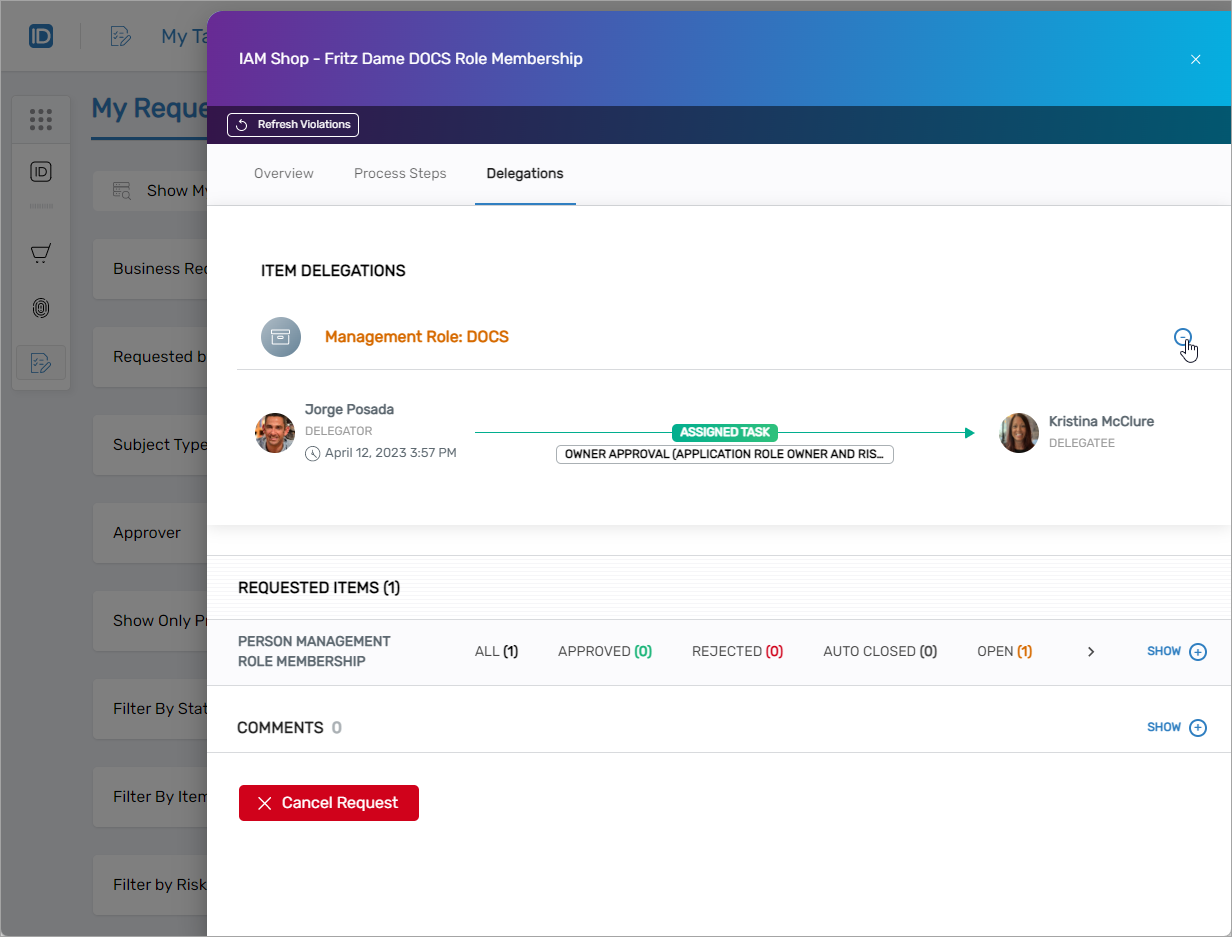
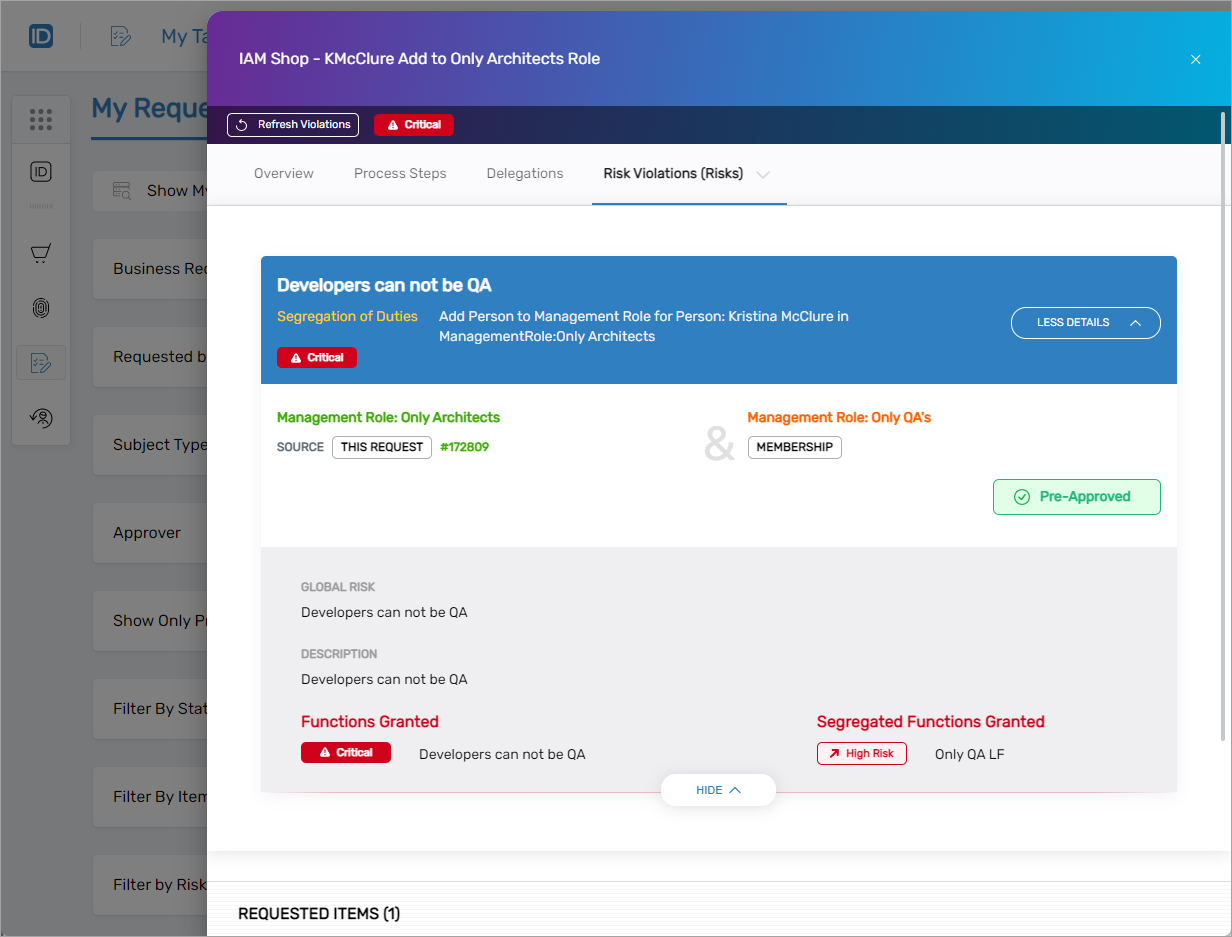
Risk Violations (Risks) Tab
The Risk Violations tab appears only if your request triggered one or more risk policies, such as a Segregation of Duties violation.
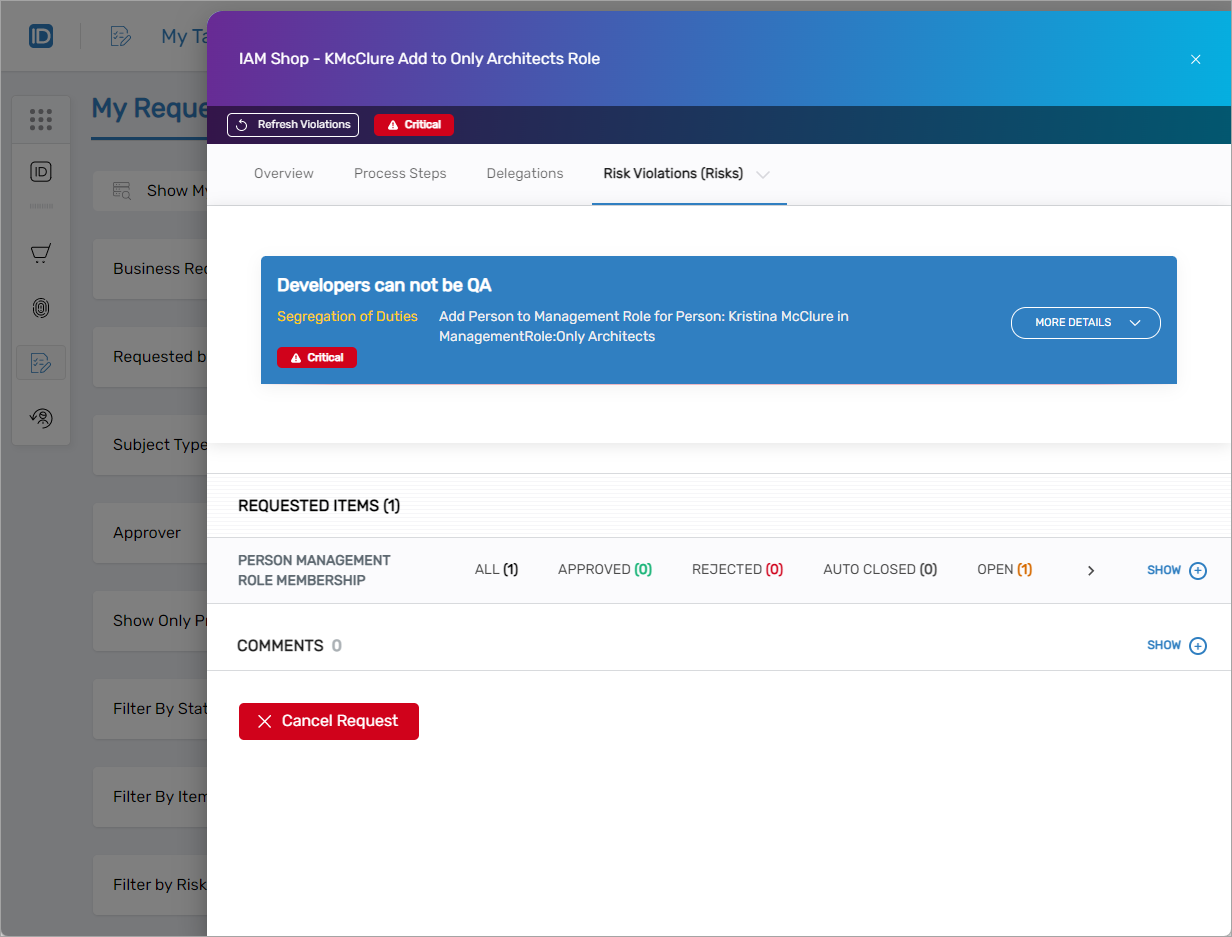
To investigate the violation:
- Click More Details
- Click Show More to view the roles or permissions in conflict
In the example below, the user already belongs to a Management Role (highlighted in orange) that conflicts with the requested role (highlighted in green).
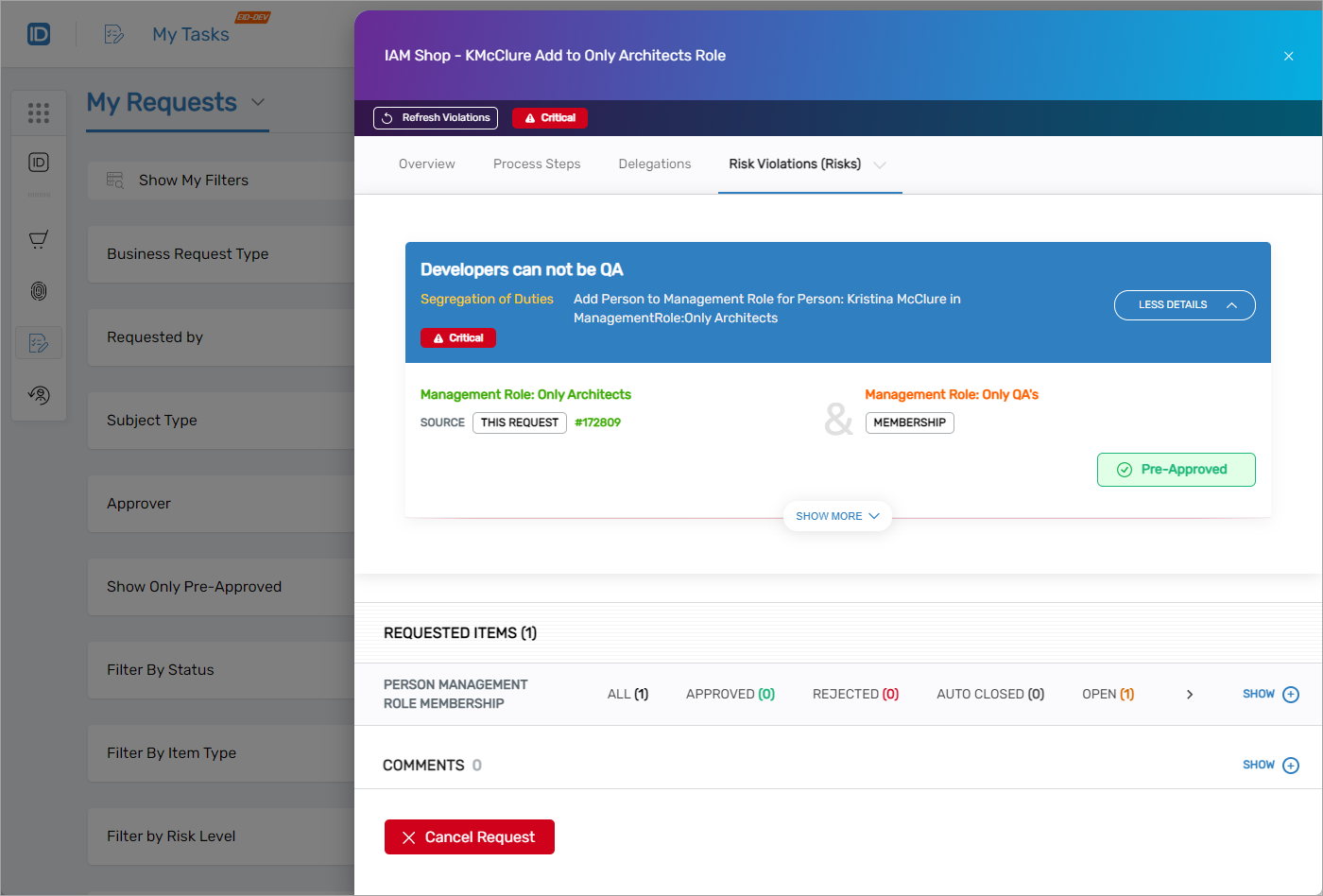
Clicking Show More again reveals additional context such as the specific risk type and justification.
What Happens Next
Once all required approvals are completed, EmpowerID will grant access based on policy and provisioning rules. If the request is denied or canceled, no access will be assigned.
You can revisit the My Requests section at any time to:
- Monitor approval progress
- Add or review comments
- Cancel an active request (if permitted)
- Review audit history and decision paths