Remove Your Access to Resources
If you no longer need access to a resource—such as membership in a group or assignment to a Management Role—you can request its removal from the IAM Shop. EmpowerID allows you to manage your own access in a secure, auditable way by submitting a revocation request through the portal.
Before You Begin
What You Can Remove
You can request to remove any access that appears under your Manage Access tab, including:
- Group memberships
- Business Roles
- Management Roles
- Application access
- And more, depending on your permissions
You must be authorized to manage your own access for this action to appear.
Steps to Request Access Removal
- Navigate to your organization’s IAM Shop portal and log in.
- In the IT Shop, select the appropriate resource type from the filter (e.g., Groups if you want to leave a group).
- Click the Manage Access tab. You’ll see a list of resources currently assigned to you for that resource type.
- Locate the resource you want to remove and click Revoke.
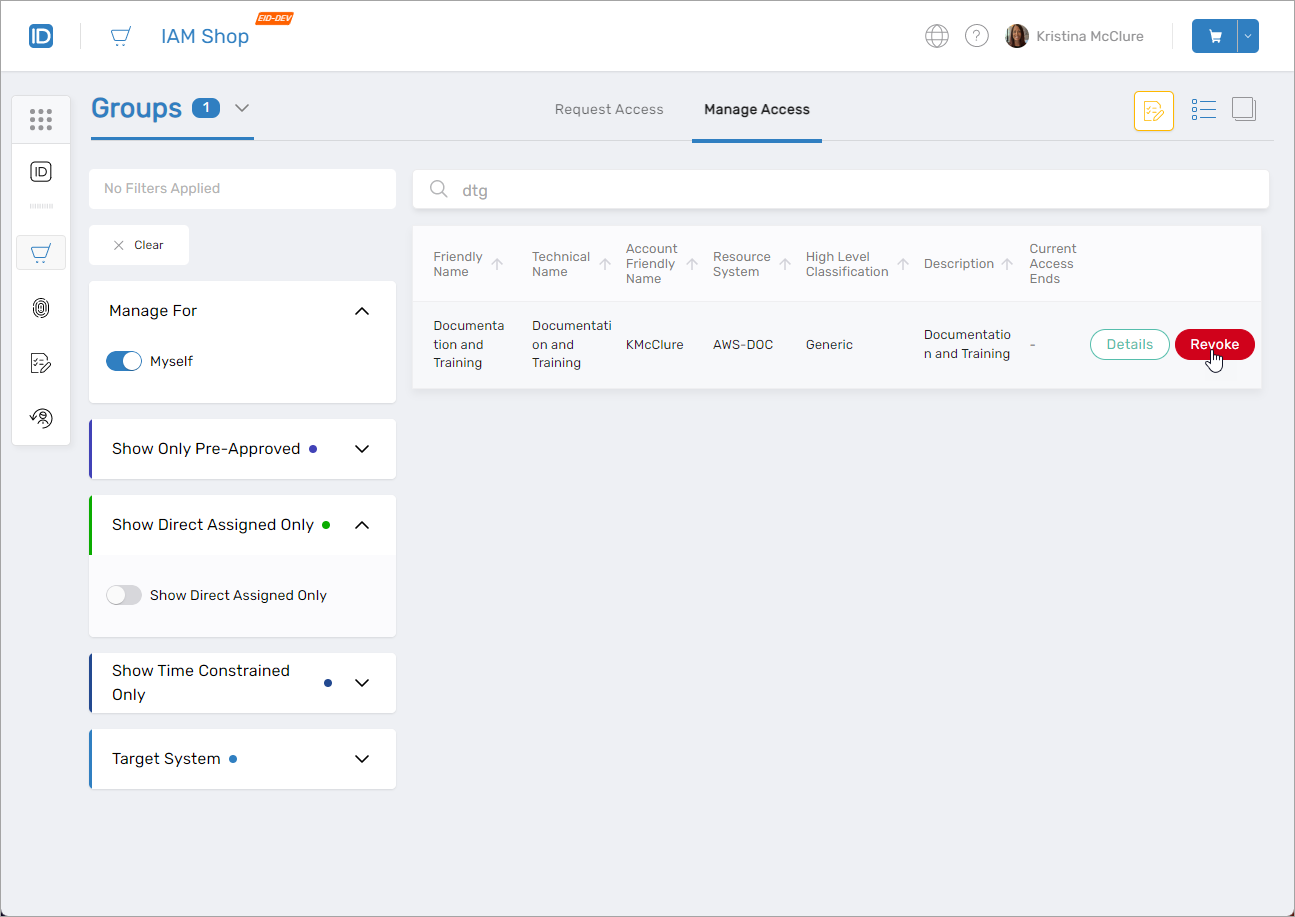
- Click Yes to confirm the revocation.
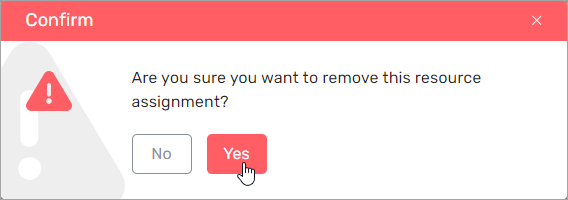
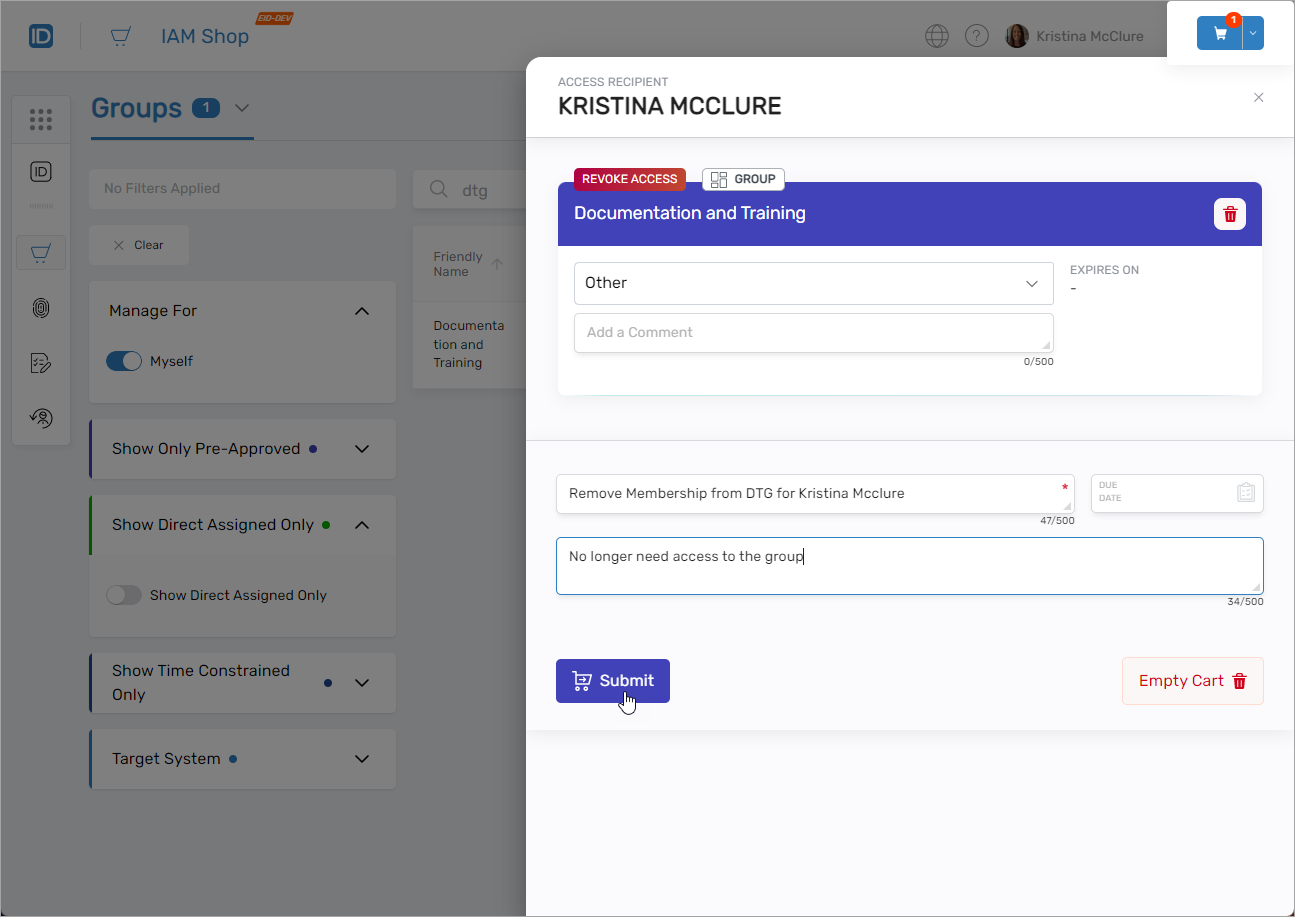
- Click the Cart icon at the top of the page to open your request.
- Fill out the required fields:
- Business Request Name – e.g., “Remove Membership from Documentation and Training for Jane Smith”
- Comment (optional) – Add context or reason for the request
- When ready, click Submit.
 A confirmation message appears when your request is submitted successfully.
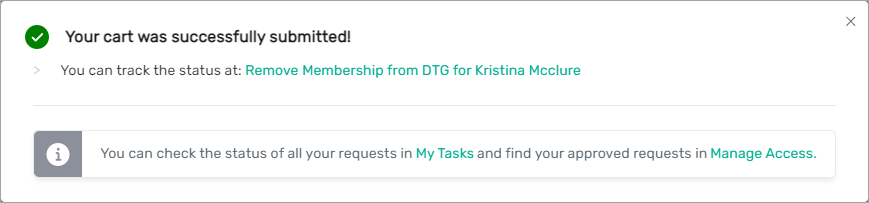
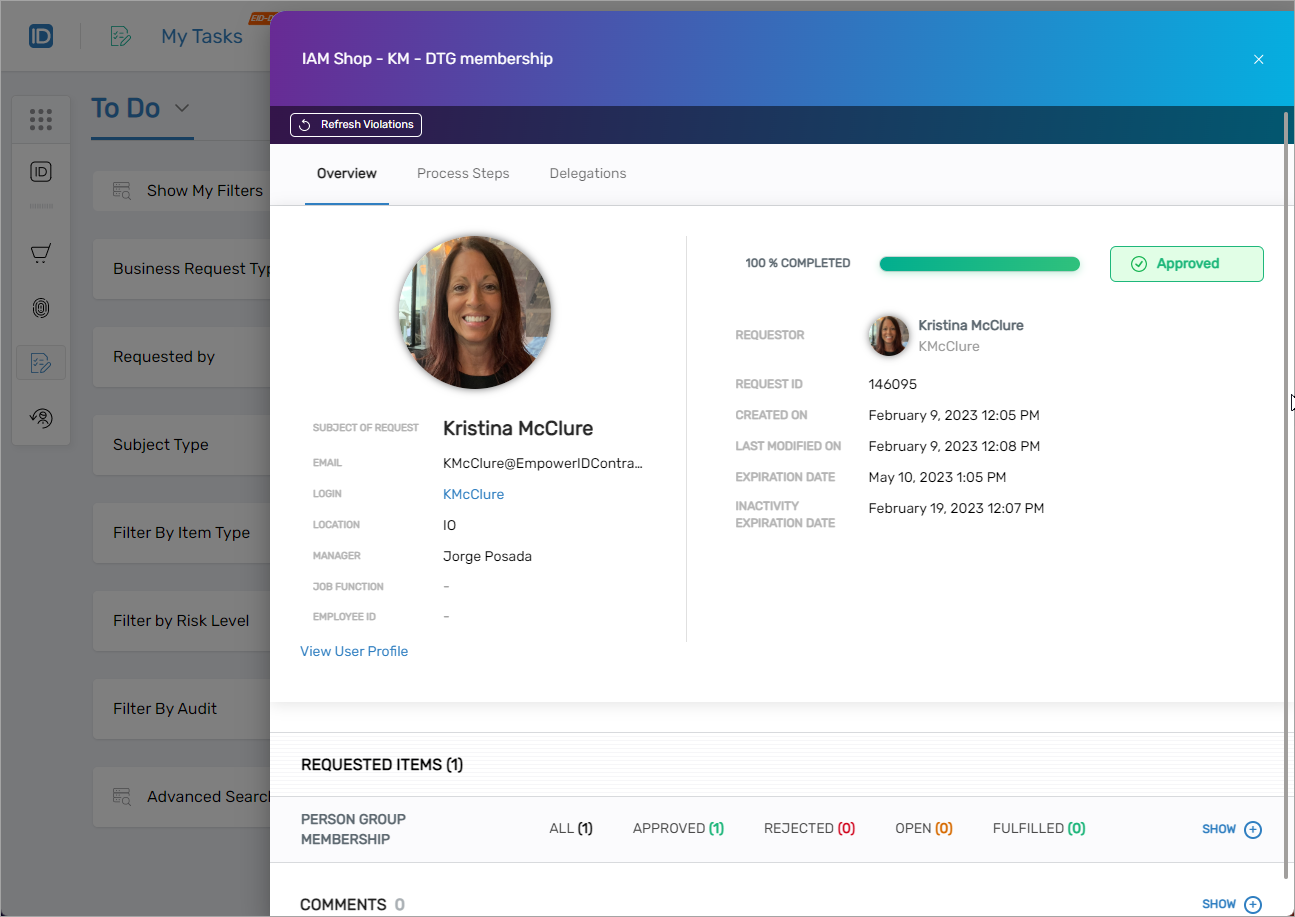
- Click the tracking link in the confirmation window to monitor the progress of your request.
This opens the request in the My Tasks application.
What Happens Next
- Your request is routed for approval (if required) according to your organization’s Approval Flow policies.
- You’ll receive notifications once the request is approved or completed.
- You can track or cancel the request at any time in the My Tasks app.