IAM Shop Overview
The IAM Shop in EmpowerID provides a centralized interface for requesting access to resources like applications, groups, roles, and more. Instead of navigating through the entire portal to find what you need, you can simply search for and request resources in one place—just like shopping online.
You can view your current access, search and filter available resources, and add items to your cart. Items stay in the cart until you either check out or remove them. When you’re ready, submit a business request with a reason for the items you're requesting. The system will route your request to your manager or other designated approvers for review.
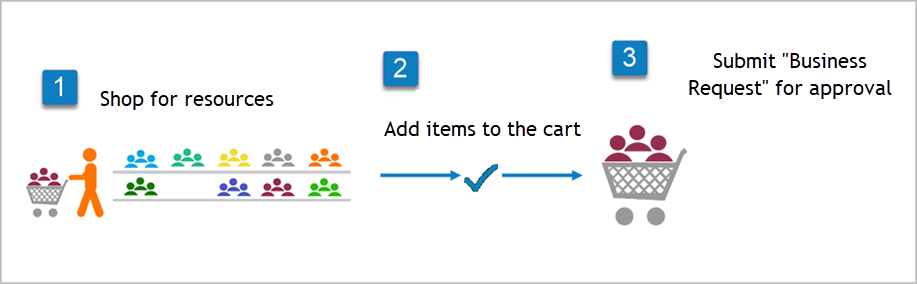
Navigating the IAM Shop
When you access the IAM Shop, the interface and options you see depend on your assigned permissions. The example below shows a user with full access.
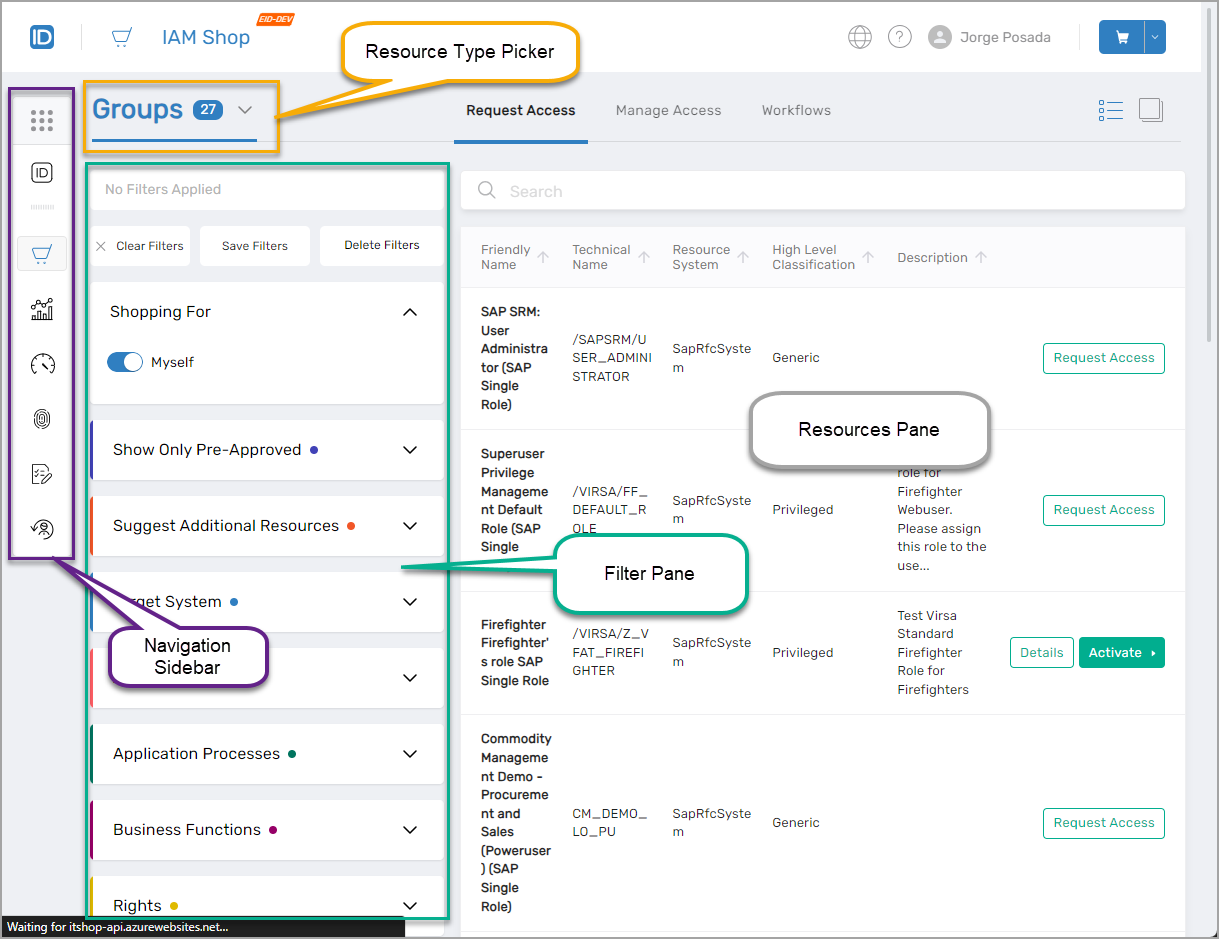
IAM Shop Interface Components
| Control | Description |
|---|---|
| Navigation Sidebar | Navigate to other EmpowerID applications. |
| Resource Panel | View available resources in grid or card format. Click any item to open a pane with an Overview and Process Steps, and add comments if needed. |
| Shopping Cart | Contains items added but not yet submitted. If you are shopping for multiple people, you'll see a cart for each.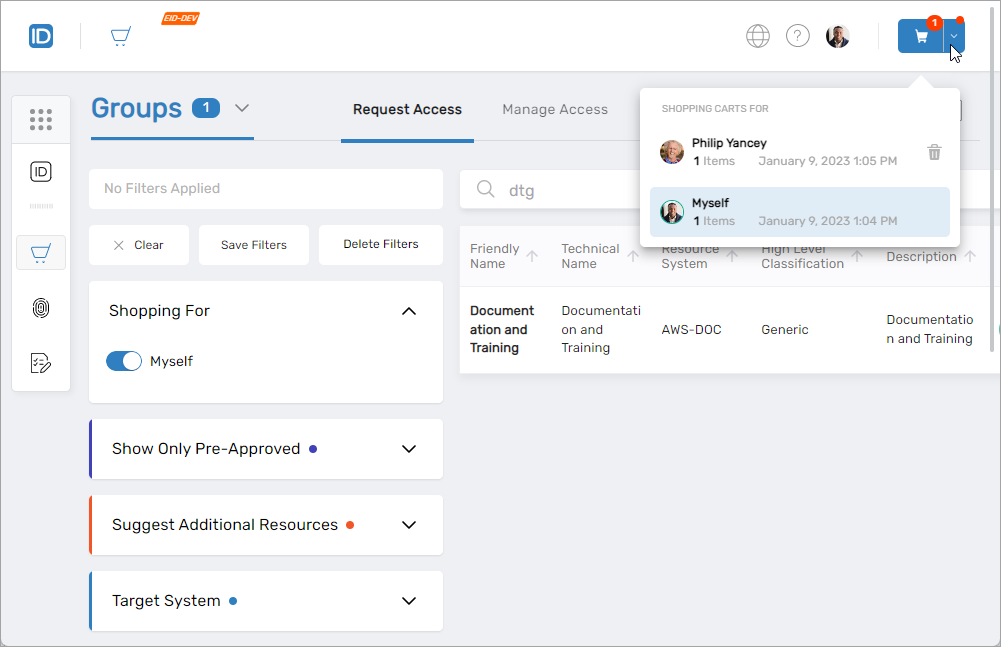 |
| Manage Access Page | View and revoke your current access to resources. Use the Revoke button where authorized.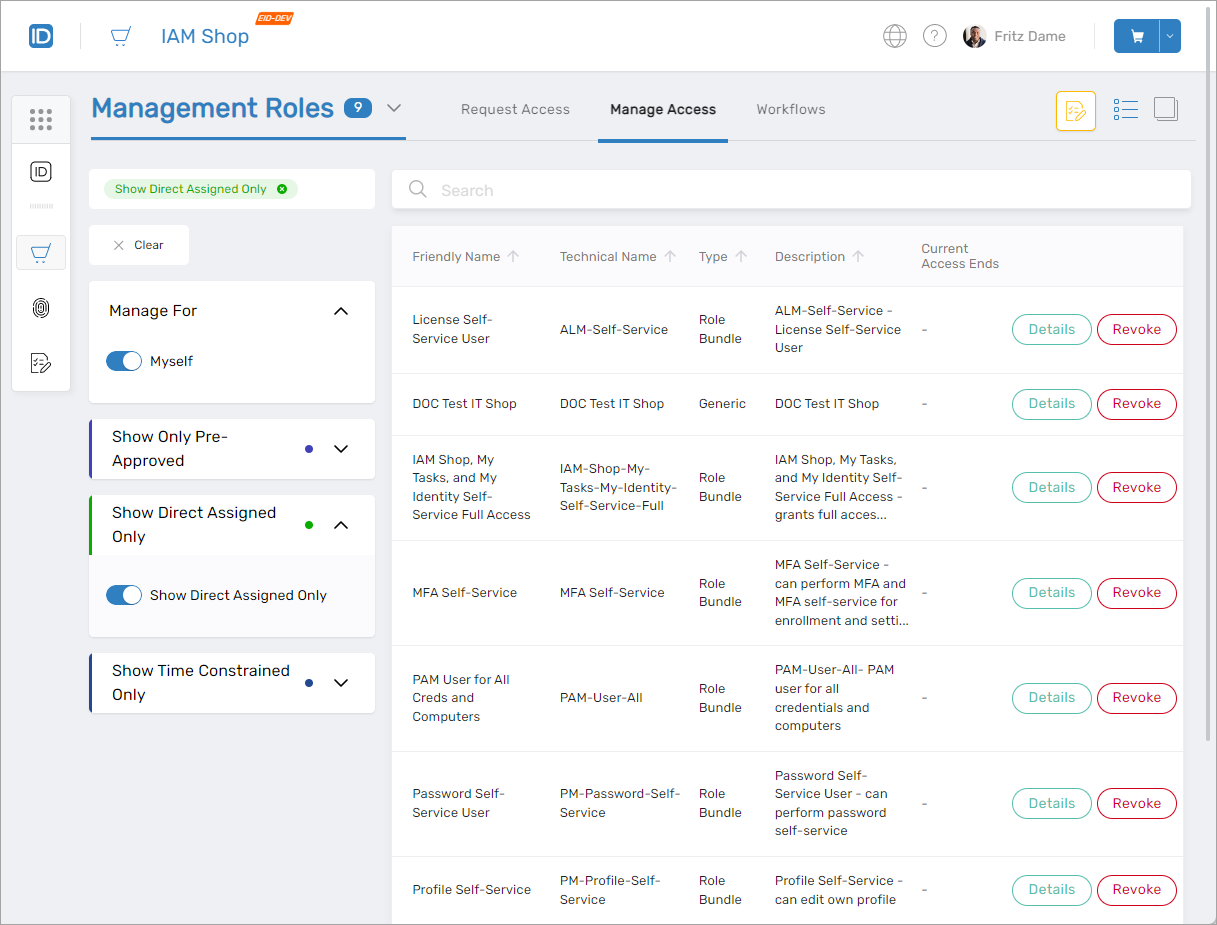 |
| Workflows Page | View and initiate workflows on a selected resource type. Access is dependent on your permissions.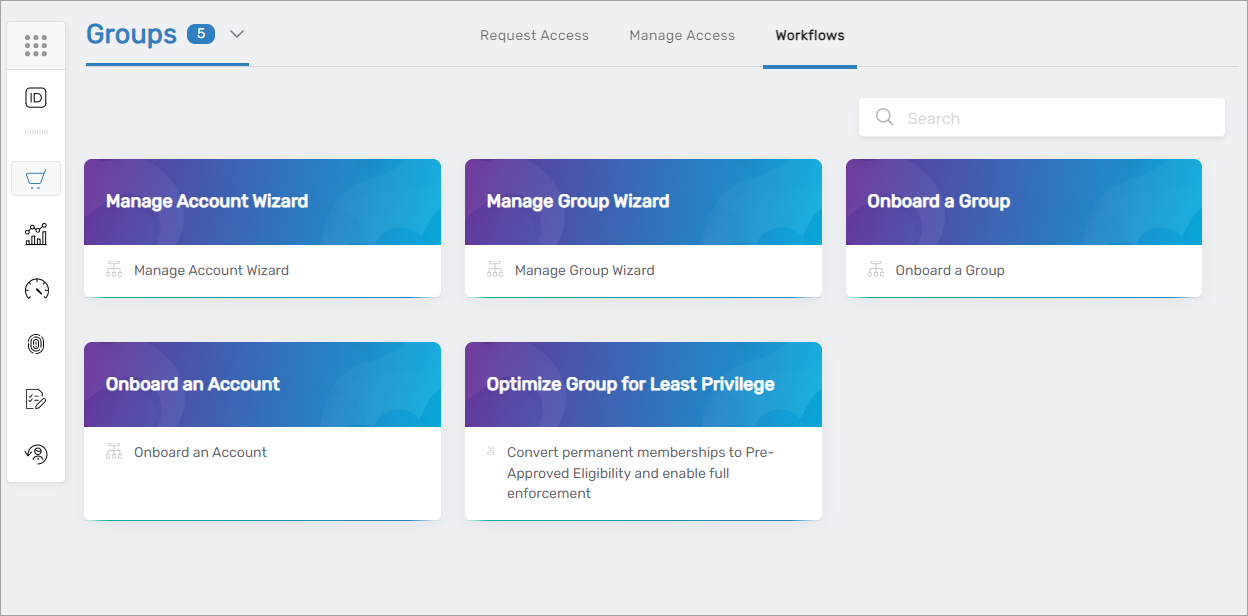 |
| Filter Pane | Filter visible resources based on criteria such as type, domain, or eligibility. |
Available Filters
Use filters in the Filter Pane to narrow down visible resources.
| Filter | Description |
|---|---|
| Resource Type | Filter by type: Groups, Roles, Applications, Licenses, etc. |
| Shopping For | Choose to shop for yourself or another user. |
| Show Only Pre-Approved | Show only resources available via Eligibility policies (appears when shopping for Groups, Business Roles, Management Roles, and Computers). |
| Suggest Additional Resources | Display recommended resources via Eligibility policies (appears for Groups, Business Roles, and Management Roles). |
| Target System | Filter Application Roles based on Account Store Type and/or Account Store.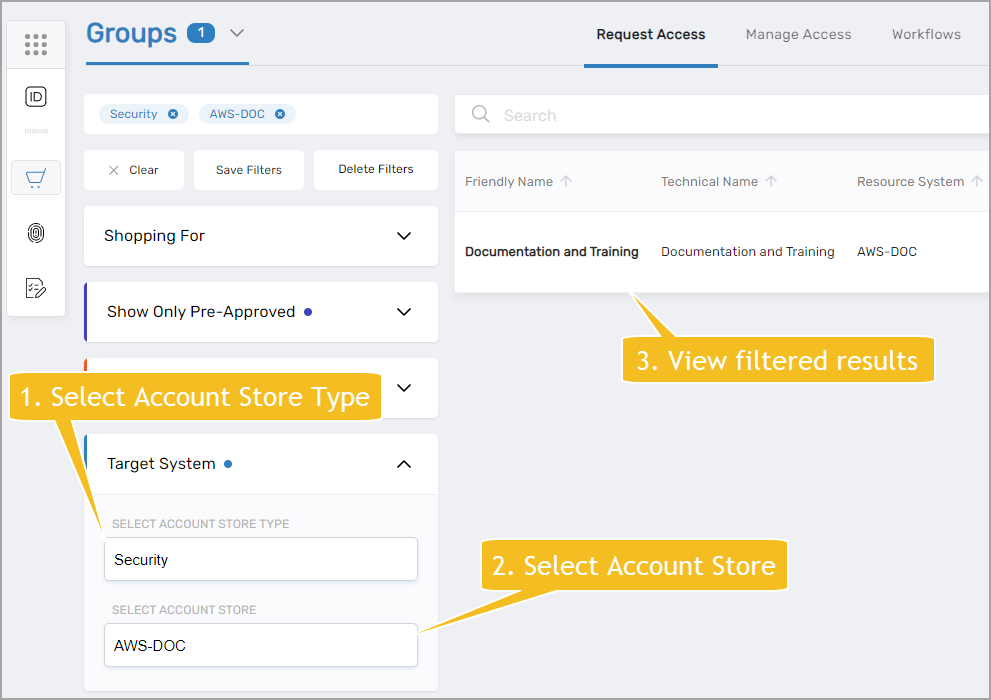 |
| Applications | Show only groups or roles linked to a specific application (for Groups, Business Roles, and Management Roles). |
| Business Domains | Filter roles by Business Domain (for Business Roles and Management Roles).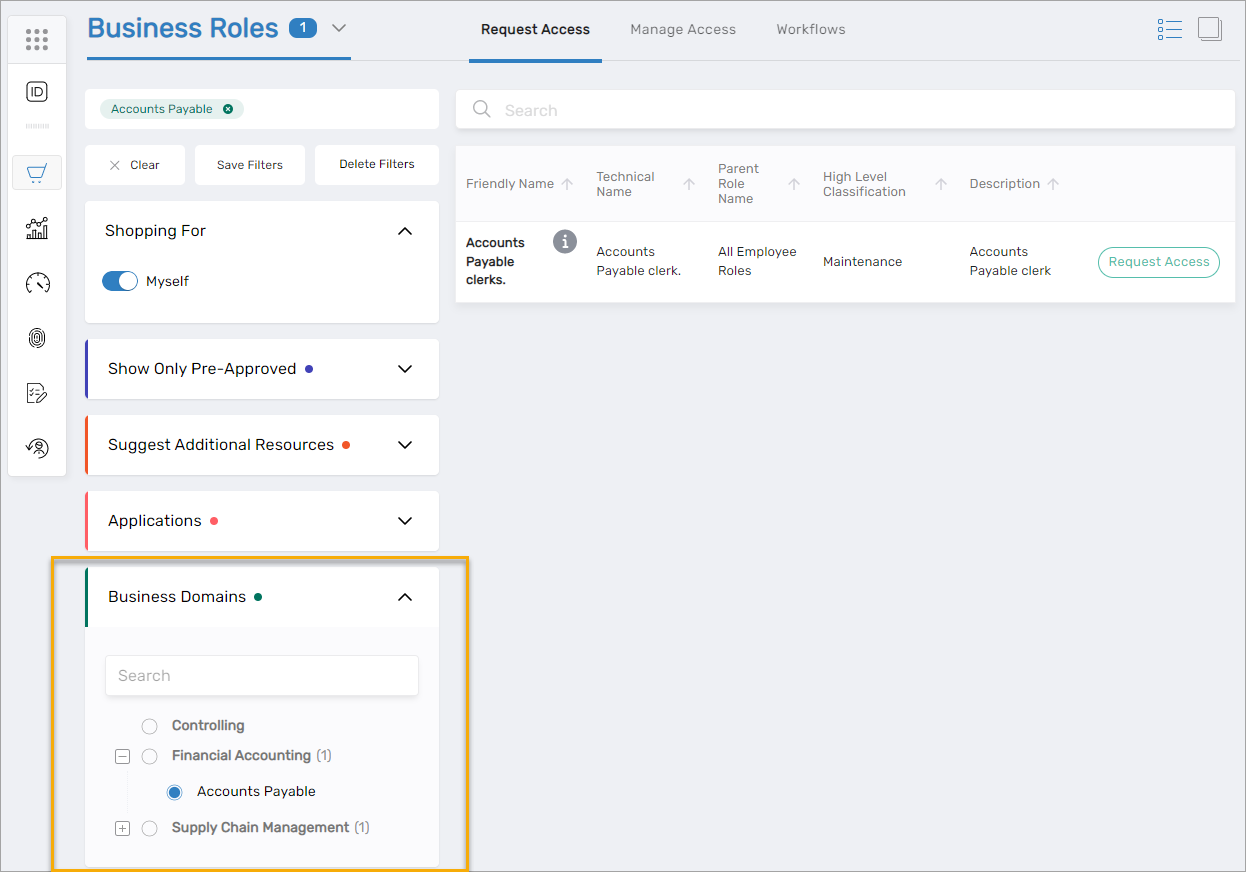 |
| Business Functions | Filter by Business Functions (for Groups, Business Roles, and Management Roles).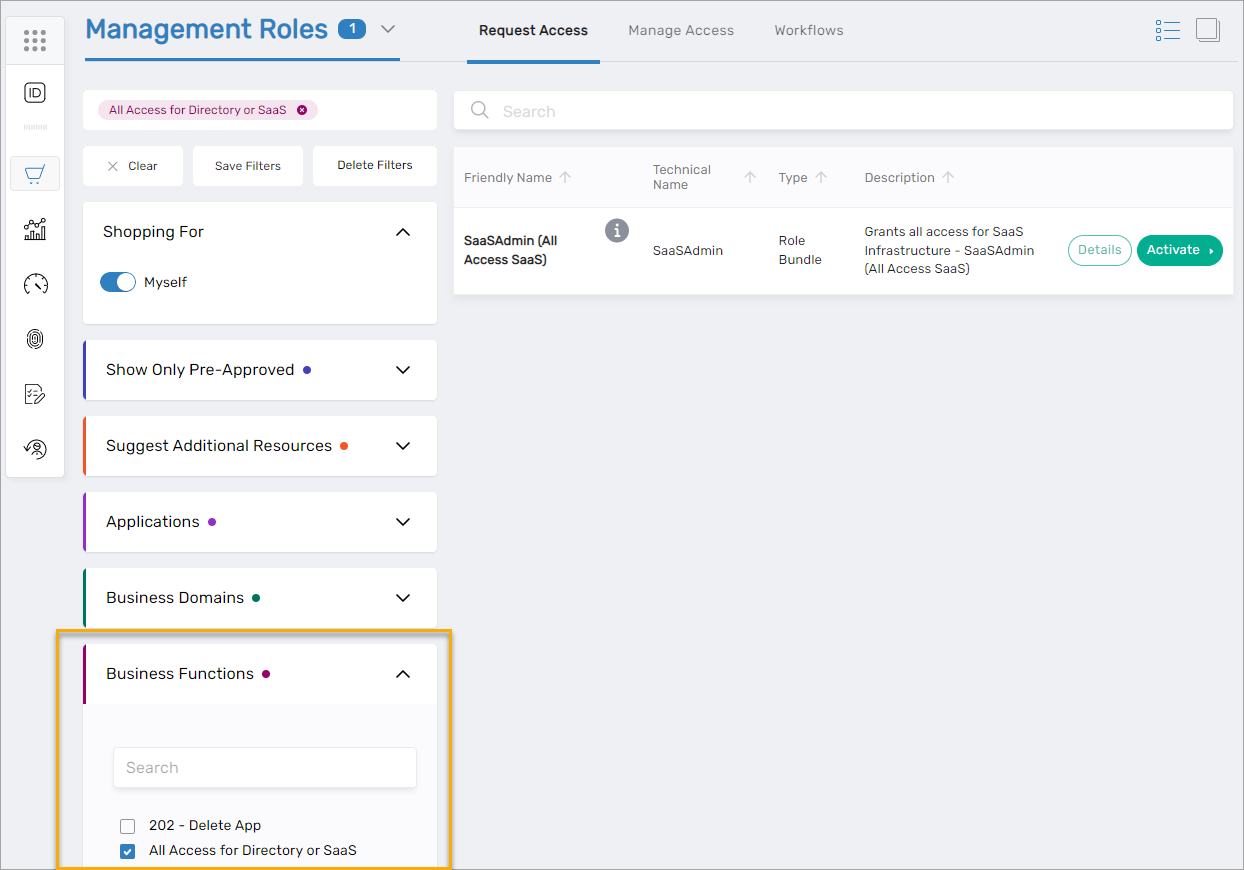 |
| Rights | Filter by external system rights associated with roles. |
| Application Processes | Show groups based on selected process (Groups only). |
| Shop by Reference Person | Show resources assigned to another user (reference person). You must have permission to view them. |
| Advanced Search | Use advanced search syntax to further narrow results. |
Using the Manage Access Page
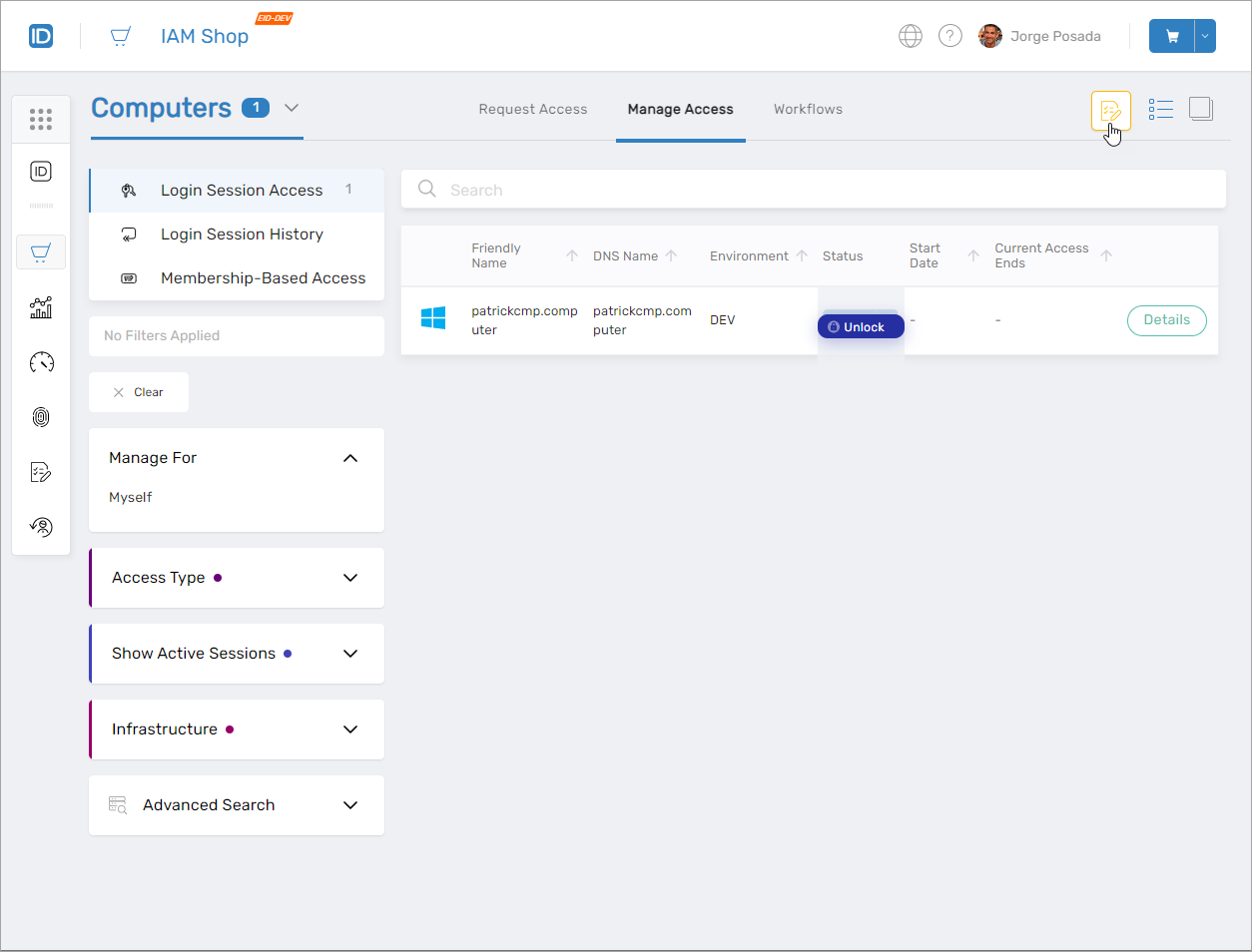
The Manage Access page shows all resource assignments currently active for your account, filtered by resource type. The default view displays your Business Roles in a grid layout.
Available Actions
- Search for a resource assignment
- View Details by clicking the Details button on any record
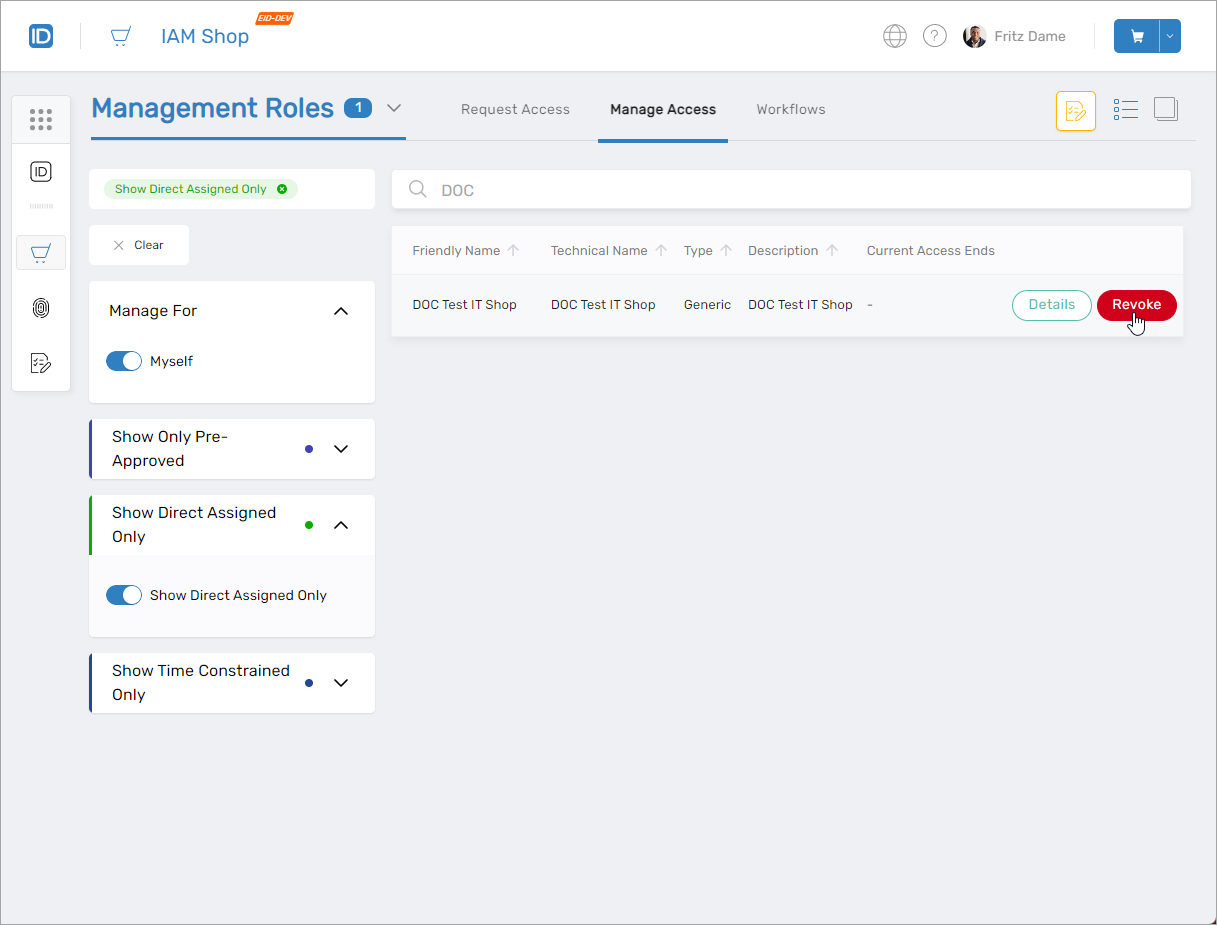
- Revoke Access if authorized, using the Revoke button
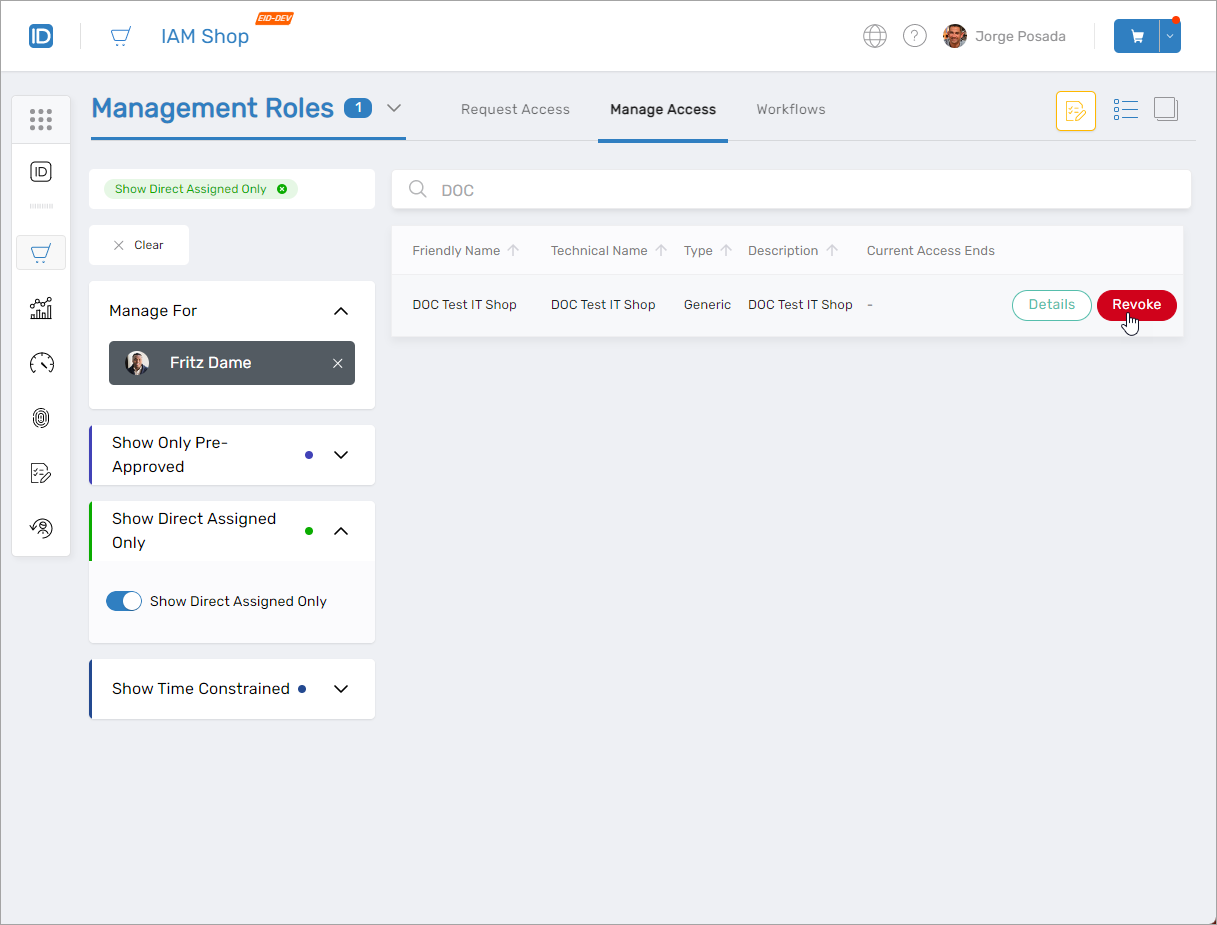
- Manage Access for Others by selecting a person in the Manage For field
- View Time-Constrained Access by toggling the Show Time Constrained button
- View Pending Access Requests via the View Pending Access button, which links to the My Requests view in My Tasks
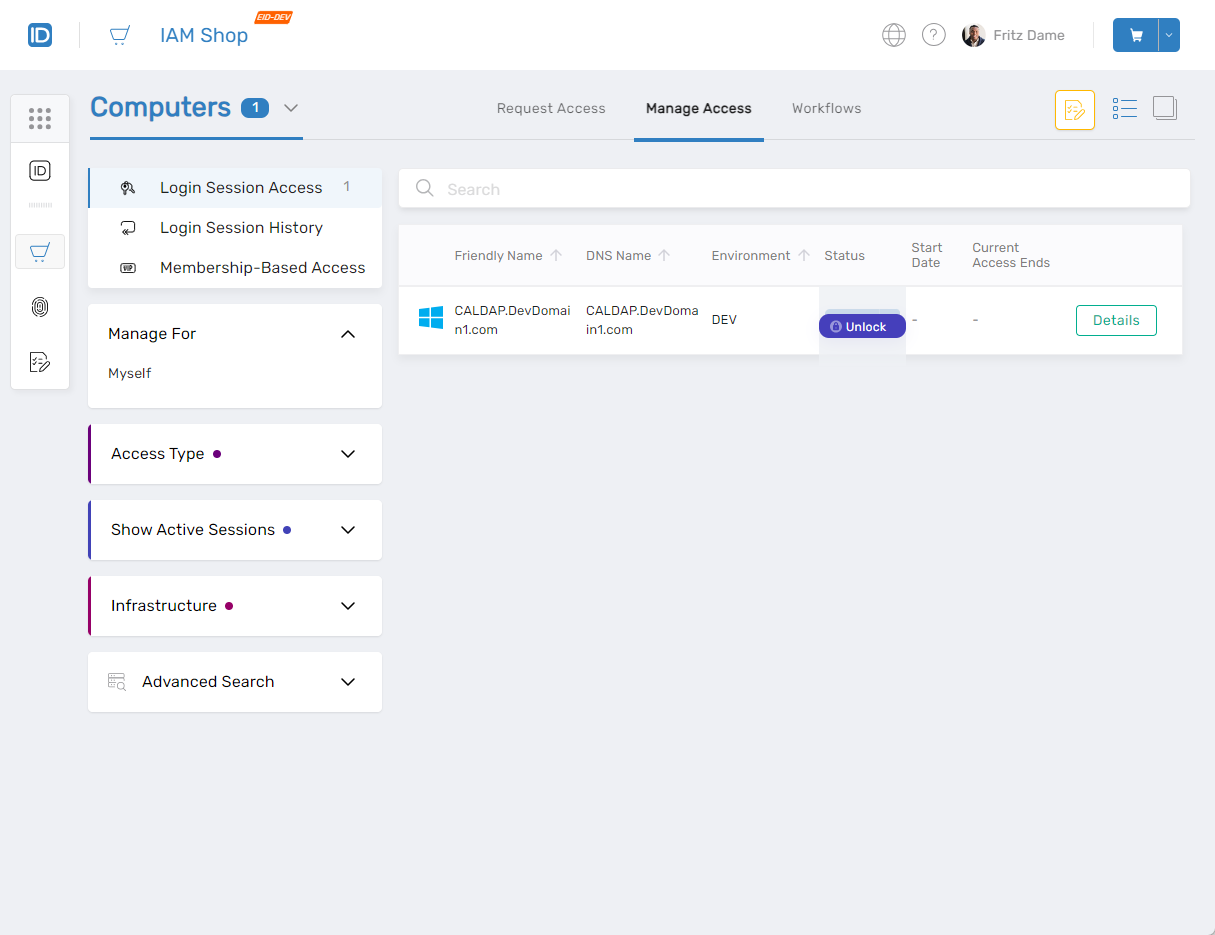
- Unlock Login Sessions for assigned computers using the Unlock button
Using the Workflows Page
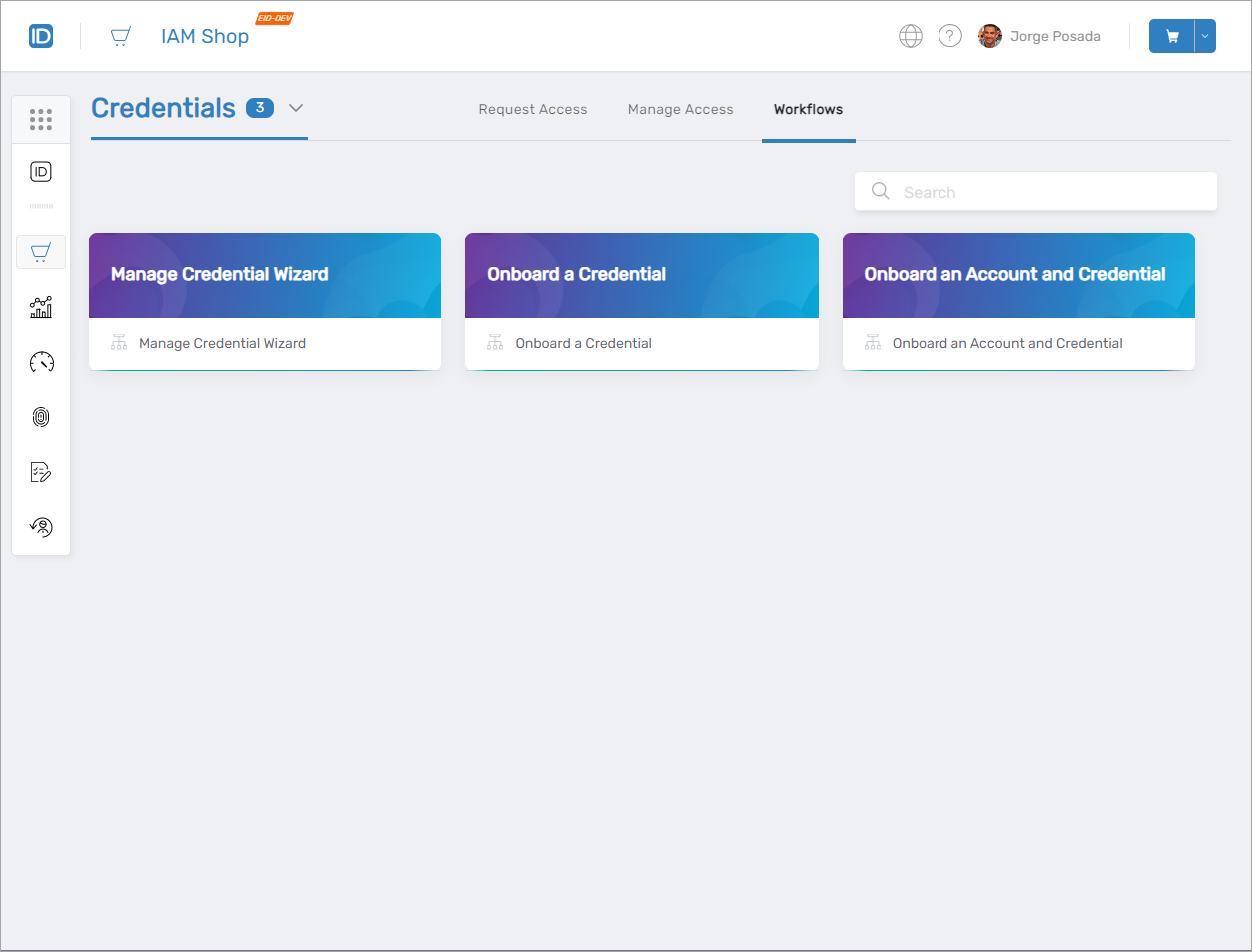
The Workflows Page lists all workflows that you’re allowed to initiate for a specific resource type. Select a resource type and navigate to the page to see available workflows.
For example, the image below shows workflows available for the Credential resource type: