Assigning Management Roles Needed to Access Resource Admin
EmpowerID employs Management Roles to control access to Resource Admin, a microservice for managing various resources (such as applications, groups, and shared folders). These Management Roles ensure users can access only the parts of the Resource Admin microservice that are relevant to their responsibilities.
Resource Admin Management Roles are categorized into two types:
- UI-* Management Roles — Provide access to the application's user interface (UI) components, including pages, controls, workflows, and reports.
- VIS-Res-Admin-MS-API Management Role — Grants access to the APIs used by the Resource Admin microservice.
A user must be granted both the relevant UI-* role(s) and the VIS-Res-Admin-MS-API role to use all aspects of the microservice. Additionally, they must have any required activity (ACT-<Resource>-) and visibility (VIS-<Resource>-) roles applicable to the persona they use in Resource Admin.
Example: If a user needs to manage shared folders, they will require:
- A UI role for shared folders (e.g.,
UI-Res-Admin-MS-Shared-Folders) - The
VIS-Res-Admin-MS-APIrole - Corresponding ACT and VIS Management Roles for shared folders
Resource Admin Management Roles
To manage resources in Resource Admin, users need one or more of the following Management Role assignments (based on their required scope).
| Management Role | Role Type | Description |
|---|---|---|
| UI-Res-Admin-MS-Application | Feature Set (UI) | Provides access to the Resource Admin UI for managing applications. This role grants access to:
This role provides comprehensive access to all application management features in Resource Admin. |
| UI-Res-Admin-MS-Application Base | Feature Set (UI) | This least privilege role provides basic access to the Resource Admin UI for managing applications. Grants limited access to:
Use this role for users who need read-only or minimal application management capabilities. |
| UI-Res-Admin-MS-Application-ClaimsMapping-Policy | Feature Set (UI) | Provides access to Resource Admin UI for managing Azure Claims Mapping Policies. Grants access to:
|
| UI-Res-Admin-MS-Common | Feature Set (UI) | Provides access for common/shared UI used by the Resource Admin microservice. The role specifically grants Viewer access to the Resource Admin Microservice application. This role is typically assigned in combination with other resource-specific roles to provide access to shared interface components. |
| UI-Res-Admin-MS-Groups | Feature Set (UI) | Provides access to Resource Admin UI for managing Groups. Grants access to:
|
| UI-Res-Admin-MS-Groups-Base | Feature Set (UI) | This least privileged role provides basic access to Resource Admin UI for managing groups. Grants limited access to:
Use this role for users who need read-only or minimal group management capabilities. |
| UI-Res-Admin-MS-Mailboxes | Feature Set (UI) | Provides access to Resource Admin UI for managing Mailboxes. Grants access to:
|
| UI-Res-Admin-MS-Mailboxes-Base | Feature Set (UI) | This least privileged role provides basic access to Resource Admin UI for managing mailboxes. Grants limited access to:
Use this role for users who need read-only or minimal mailbox management capabilities. |
| UI-Res-Admin-MS-Management-Role | Feature Set (UI) | Provides access to the Resource Admin UI for managing Management Roles. Grants access to:
|
| UI-Res-Admin-MS-Management-Roles-Base | Feature Set (UI) | This least privilege role provides basic access to the Resource Admin UI for managing Management Roles. Grants limited access to:
Use this role for users who need read-only or minimal Management Role access. |
| UI-Res-Admin-MS-People | Feature Set (UI) | Provides access to Resource Admin UI for managing People. Grants access to:
|
| UI-Res-Admin-MS-People-Base | Feature Set (UI) | This least privileged role provides basic access to Resource Admin UI for managing people. Grants limited access to:
Use this role for users who need read-only or minimal people management capabilities. |
| UI-Res-Admin-MS-Shared-Folders | Feature Set (UI) | Provides access to the Resource Admin UI for managing Shared Folders. Grants access to:
|
| UI-Res-Admin-MS-Shared-Folders-Base | Feature Set (UI) | This least privileged role provides basic access to Resource Admin UI for managing shared folders. Grants limited access to:
Use this role for users who need read-only or minimal shared folder management capabilities. |
| VIS-Res-Admin-MS-API | Visibility (VIS) | Required for all Resource Admin users. Provides access to the base web services required by all users of the Resource Admin microservice. This role must be assigned in combination with at least one UI-* role to enable Resource Admin functionality. |
Quick Reference: Role Capabilities
This table provides a quick overview of capabilities granted by each resource-specific role pair.
| Resource Type | View | Create | Edit | Delete | Manage Members | Full Feature Set Role | Base Role |
|---|---|---|---|---|---|---|---|
| Applications | ✓ | ✓ | ✓ | ✓ | N/A | UI-Res-Admin-MS-Application | UI-Res-Admin-MS-Application-Base |
| Groups | ✓ | ✓ | ✓ | ✓ | ✓ | UI-Res-Admin-MS-Groups | UI-Res-Admin-MS-Groups-Base |
| Management Roles | ✓ | ✓ | ✓ | ✓ | ✓ | UI-Res-Admin-MS-Management-Role | UI-Res-Admin-MS-Management-Roles-Base |
| People | ✓ | ✓ | ✓ | ✓ | N/A | UI-Res-Admin-MS-People | UI-Res-Admin-MS-People-Base |
| Mailboxes | ✓ | ✓ | ✓ | ✓ | N/A | UI-Res-Admin-MS-Mailboxes | UI-Res-Admin-MS-Mailboxes-Base |
| Shared Folders | ✓ | ✓ | ✓ | ✓ | ✓ | UI-Res-Admin-MS-Shared-Folders | UI-Res-Admin-MS-Shared-Folders-Base |
All users must also have VIS-Res-Admin-MS-API and UI-Res-Admin-MS-Common roles in addition to their resource-specific roles.
Viewing Resource Admin Management Roles
EmpowerID allows you to view all Management Roles the Resource Admin microservice uses. Follow these steps:
- In the navbar of the EmpowerID Web app, go to Apps and Authentication > Applications.
- On the Applications tab, search for Resource Admin Microservice App and click the Display Name link for the app.
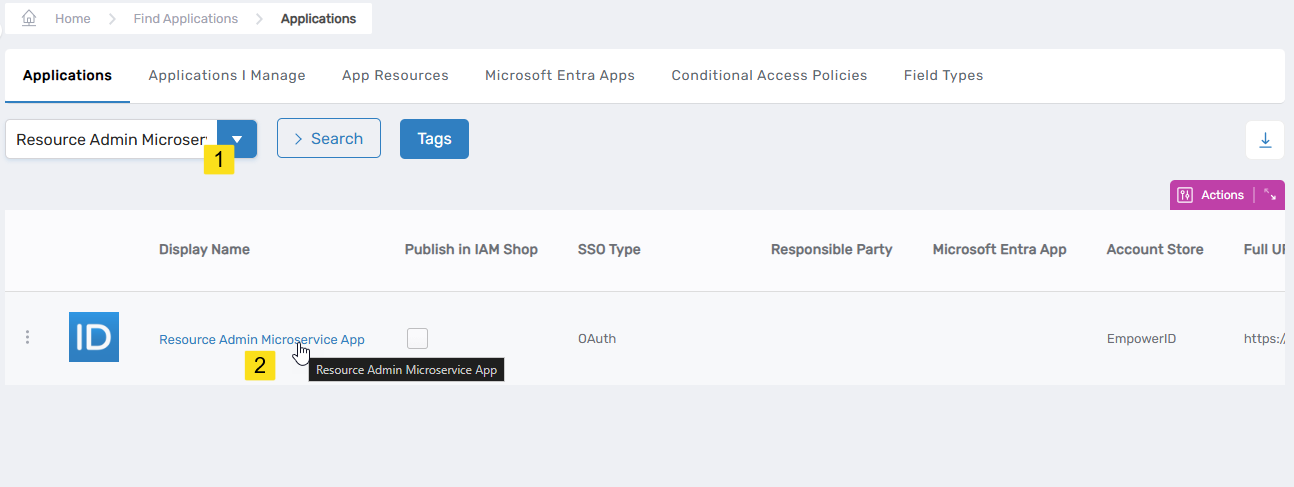 Searching for the Resource Admin Microservice App in the Applications view
 - This opens the View One page for the microservice, allowing you to view and manage relevant objects in EmpowerID.
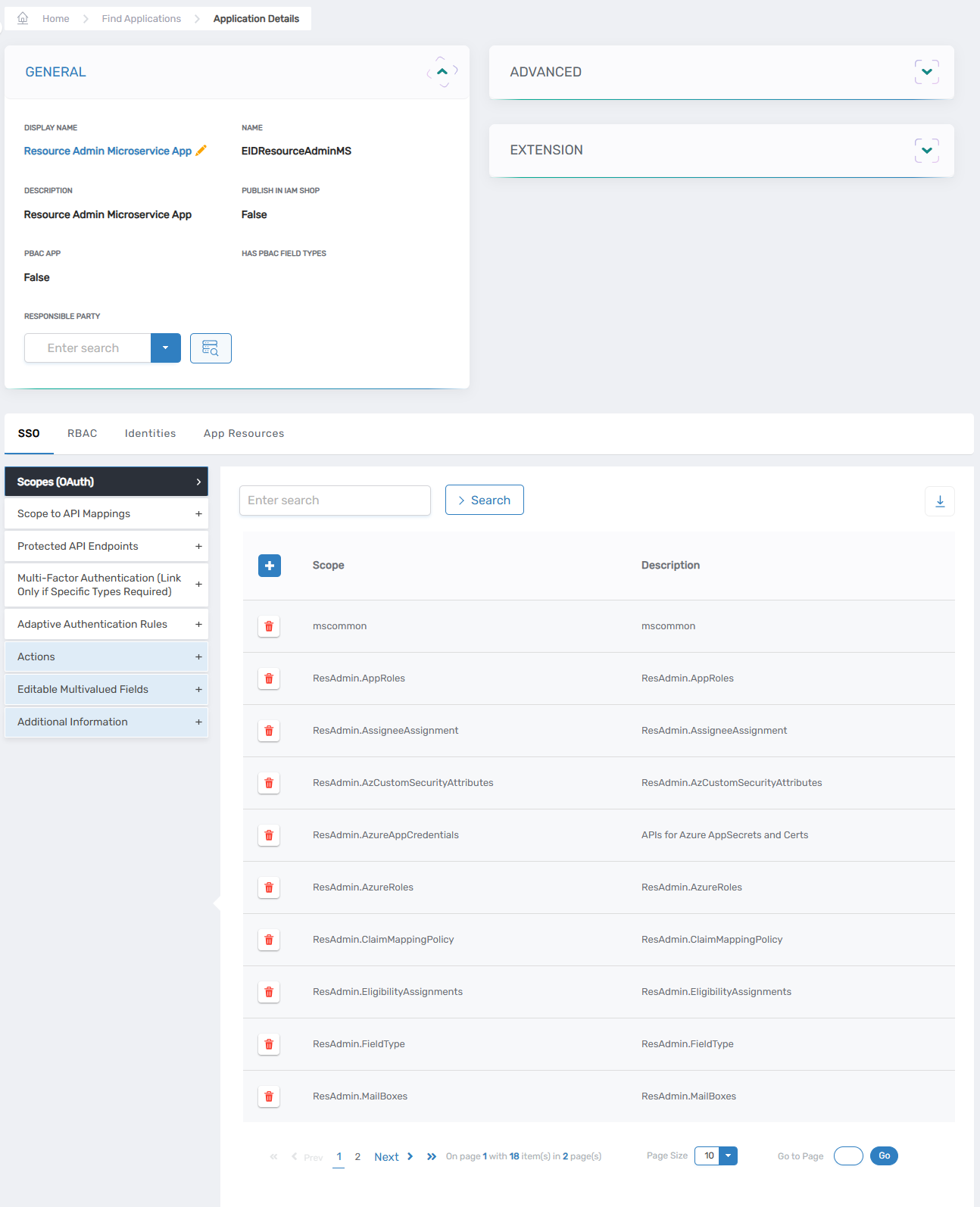 View One page showing Resource Admin microservice details
 - Select the App Resources tab and expand the Management Roles Used By This Application section.
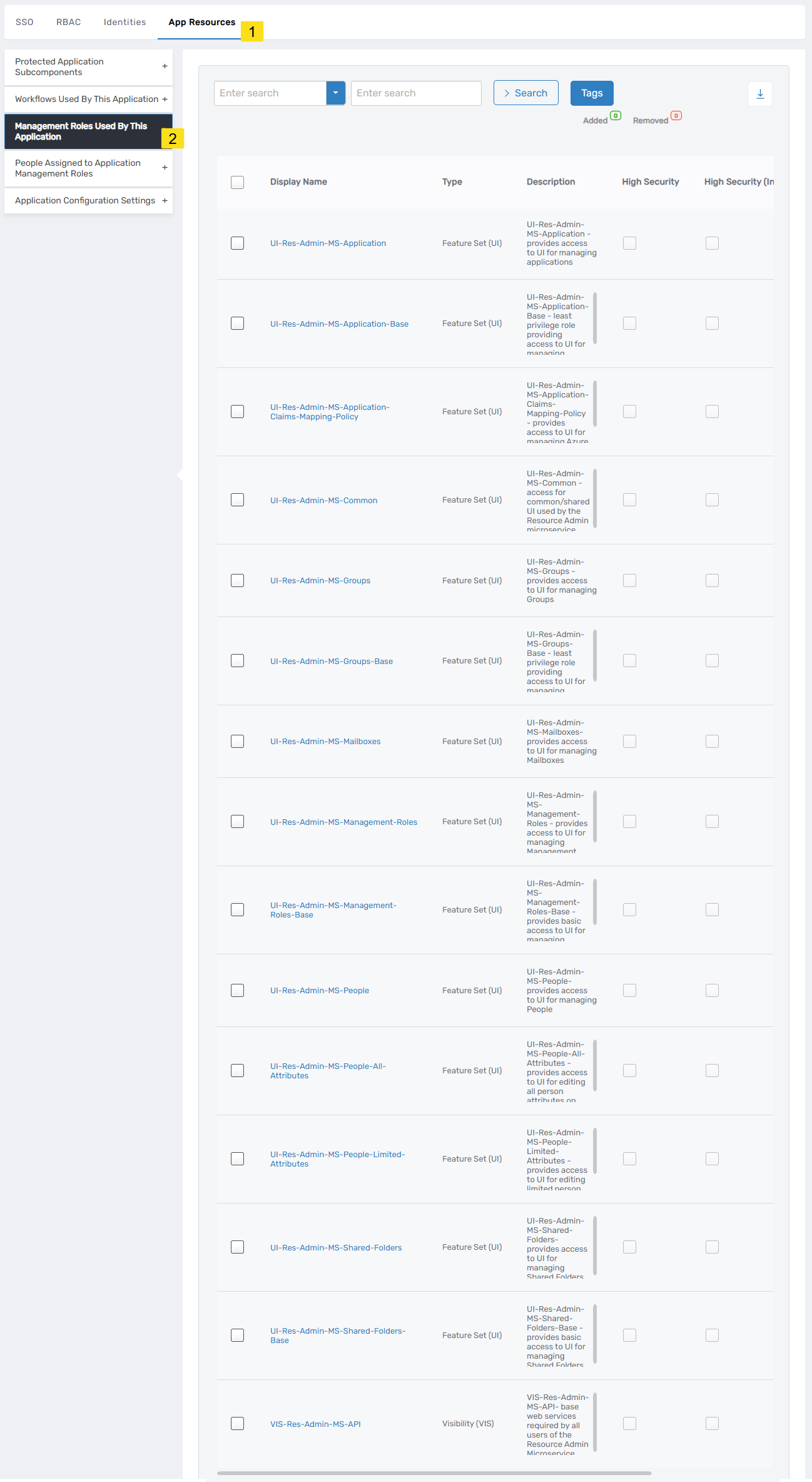 Management Roles list showing all roles associated with Resource Admin
You will see a list of all Management Roles associated with the Resource Admin microservice.
Management Roles list showing all roles associated with Resource Admin
You will see a list of all Management Roles associated with the Resource Admin microservice.
Role Assignment Best Practices
When assigning Resource Admin Management Roles, consider the following best practices:
Choose the Appropriate Access Level
- Full Access Roles (e.g.,
UI-Res-Admin-MS-Application): Assign to users who need comprehensive management capabilities. - Base Roles (e.g.,
UI-Res-Admin-MS-Application Base): Assign to users who need read-only or limited management capabilities.
Combine with Required Supporting Roles
Always ensure users have:
- At least one UI- role* for the resources they manage
- The VIS-Res-Admin-MS-API role (required for all users)
- Appropriate ACT and VIS roles for the specific resources they manage
Example Role Combinations
Application Administrator:
UI-Res-Admin-MS-Application(full application management)VIS-Res-Admin-MS-API(API access)UI-Res-Admin-MS-Common(shared UI components)- Relevant
ACT-Application-*andVIS-Application-*roles
Group Administrator (Read-Only):
UI-Res-Admin-MS-Groups-Base(limited group access)VIS-Res-Admin-MS-API(API access)UI-Res-Admin-MS-Common(shared UI components)- Relevant
VIS-Group-*roles
Multi-Resource Administrator:
- Multiple UI-* roles for different resource types
VIS-Res-Admin-MS-API(API access)UI-Res-Admin-MS-Common(shared UI components)- Corresponding ACT and VIS roles for each resource type
Assigning Management Roles to Users
To assign Resource Admin Management Roles to users, follow the standard EmpowerID role assignment process:
- Navigate to the user's profile in EmpowerID
- Access the Management Roles section
- Assign the appropriate combination of roles based on the user's responsibilities
- Verify the user has access to Resource Admin by having them log in and test their permissions
After assigning roles, have users verify their access by:
- Logging into Resource Admin
- Confirming they can see the appropriate resource types in the dropdown
- Testing that they can perform the expected operations on resources
Troubleshooting Role Assignments
Use this section to diagnose and resolve common role assignment issues.
User Cannot Access Resource Admin
Symptom: User cannot access Resource Admin at all; receives access denied error or cannot see the application
Possible Causes and Solutions:
-
Missing Common Roles
- Check: Verify user has both
UI-Res-Admin-MS-CommonandVIS-Res-Admin-MS-APIroles - Solution: Assign both required common roles
- Check: Verify user has both
-
No Resource-Specific Roles
- Check: Confirm user has at least one
UI-Res-Admin-MS-*role (e.g., Groups, People, Applications) - Solution: Assign appropriate resource-specific role based on user's responsibilities
- Check: Confirm user has at least one
-
Role Assignment Not Yet Effective
- Check: Verify when roles were assigned
- Solution: Have user log out and log back in, or wait for role propagation (typically 5-15 minutes)
User Cannot See Specific Resource Type
Symptom: Resource type missing from the Resource Type dropdown menu
Possible Causes and Solutions:
-
Missing Resource-Specific UI Role
- Check: Verify user has the appropriate
UI-Res-Admin-MS-<Resource>orUI-Res-Admin-MS-<Resource>-Baserole - Solution: Assign the required UI role for that resource type
- Check: Verify user has the appropriate
-
Missing Supporting VIS Roles
- Check: Confirm user has corresponding
VIS-<Resource>-*roles - Solution: Assign visibility roles that match the resource scope
- Check: Confirm user has corresponding
-
No Resources in Scope
- Check: Verify the user owns or has visibility to resources of that type
- Solution: Either assign ownership of resources or expand visibility scope through appropriate VIS roles
User Can See Resources But Cannot Perform Actions
Symptom: Resources are visible in the list but action buttons are disabled or workflows cannot be initiated
Possible Causes and Solutions:
-
Using Base Role Instead of Full Role
- Check: Determine if user has
-Baserole (e.g.,UI-Res-Admin-MS-Groups-Base) - Solution: If user needs full management capabilities, upgrade to the full feature set role (e.g.,
UI-Res-Admin-MS-Groups)
- Check: Determine if user has
-
Missing Activity (ACT) Roles
- Check: Verify user has required
ACT-<Resource>-*activity roles for the desired operations - Solution: Assign appropriate activity roles (e.g.,
ACT-Group-Create,ACT-Group-Modify)
- Check: Verify user has required
-
Resource Ownership Restrictions
- Check: Confirm whether the user owns the resource or has delegated rights
- Solution: Either assign ownership of the resource or configure delegation boundaries to include the resource
-
Insufficient Delegation Boundaries
- Check: Review user's delegation scope and boundaries
- Solution: Adjust delegation settings to include the target resources
User Sees Too Many Resources
Symptom: User can see resources outside their area of responsibility
Possible Causes and Solutions:
-
Overly Broad VIS Roles
- Check: Review assigned
VIS-*roles for scope - Solution: Replace organization-wide visibility roles with location or department-specific roles
- Check: Review assigned
-
Incorrect Use of Full Access Role
- Check: Determine if user has full feature set role when they only need base access
- Solution: Replace with corresponding
-Baserole if read-only access is sufficient
-
ResAdmin Mode Not Configured
- Check: Verify if ResAdmin visibility mode is enabled for the resource type
- Solution: Configure ResAdmin mode restrictions (see Use ResAdmin Mode to Restrict Resource Visibility)
Workflows Complete But Changes Not Reflected
Symptom: User initiates workflows successfully, but resources remain unchanged
Possible Causes and Solutions:
-
Approval Pending
- Check: Review the workflow approval status
- Solution: Inform user that changes require approval; check with approvers
-
Workflow Errors
- Check: Review workflow logs for errors
- Solution: Address any system connectivity issues or permission problems on target systems
-
Target System Synchronization Delay
- Check: Verify synchronization schedule for the affected account store
- Solution: Wait for next sync cycle or manually trigger synchronization if needed
Related Pages
- Navigating Resource Admin - Overview of the Resource Admin interface
- Use ResAdmin Mode to Restrict Resource Visibility - Configure visibility restrictions for Resource Admin users
- Applications Page - Managing applications in Resource Admin
- Groups Page - Managing groups in Resource Admin
- Management Roles Page - Managing Management Roles in Resource Admin
- People Page - Managing people in Resource Admin
- Mailboxes Page - Managing mailboxes in Resource Admin
- Shared Folders Page - Managing shared folders in Resource Admin