Delete Application Scopes
As an application owner, you can delete outdated or unused Microsoft Entra scopes from your application in the Resource Admin portal. EmpowerID fulfills the request on your behalf by removing the scope from Microsoft Entra ID.
warning
Deleting a scope is permanent. Ensure the scope is no longer needed before proceeding.
What You’ll Need
| Requirement | Description |
|---|---|
| Access to Resource Admin | You must be signed in to the Resource Admin portal. |
| Application Ownership | You must be the owner or a delegated administrator for the application. |
Steps to Delete an Application Scope
1. Open the Application Overview Page
- Log in to Resource Admin.
- In the Resource Type menu, select Applications.
- Search for and select the Microsoft Entra application you want to manage.
- Click the Details button for the application.
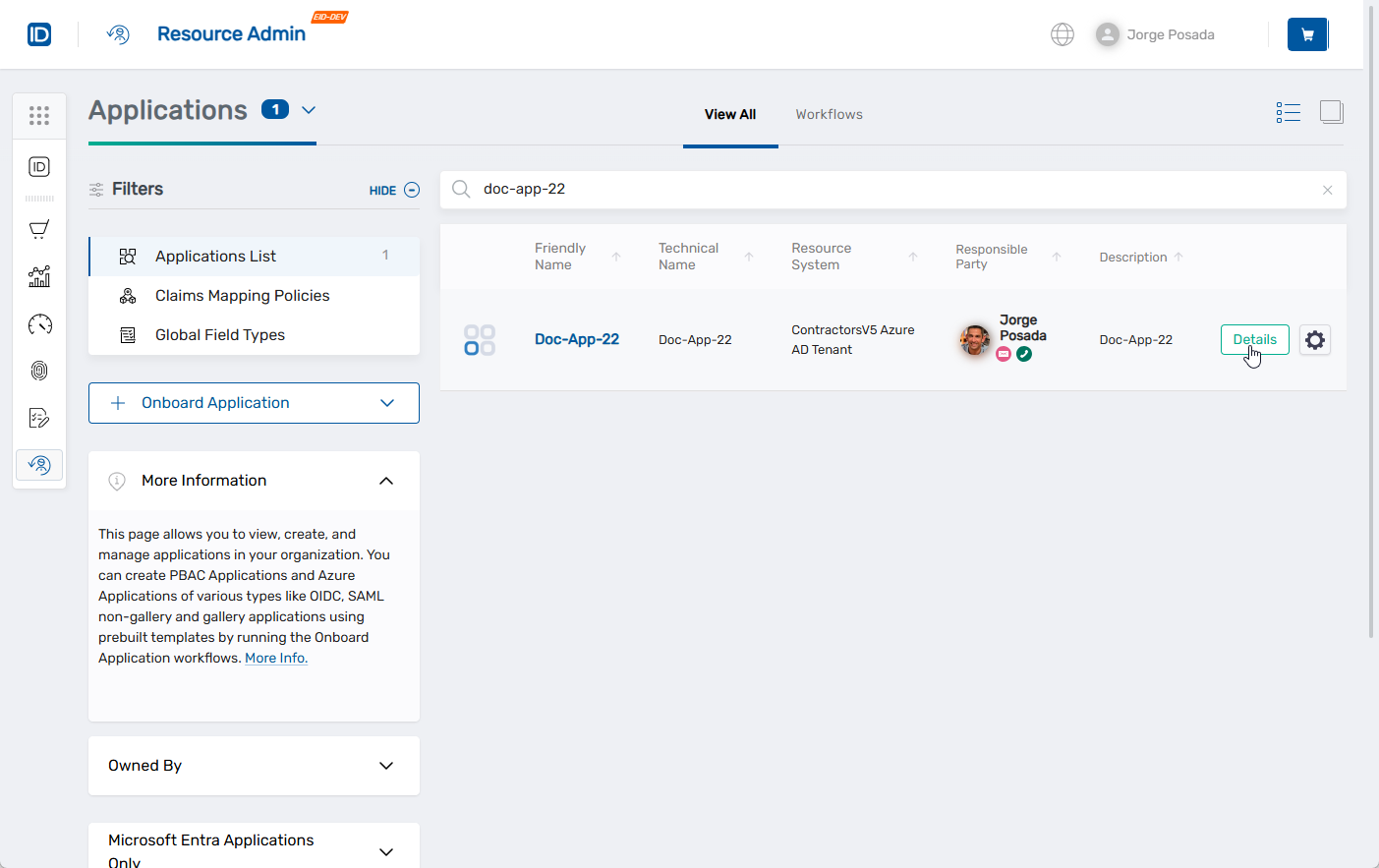
This opens the application's Overview page.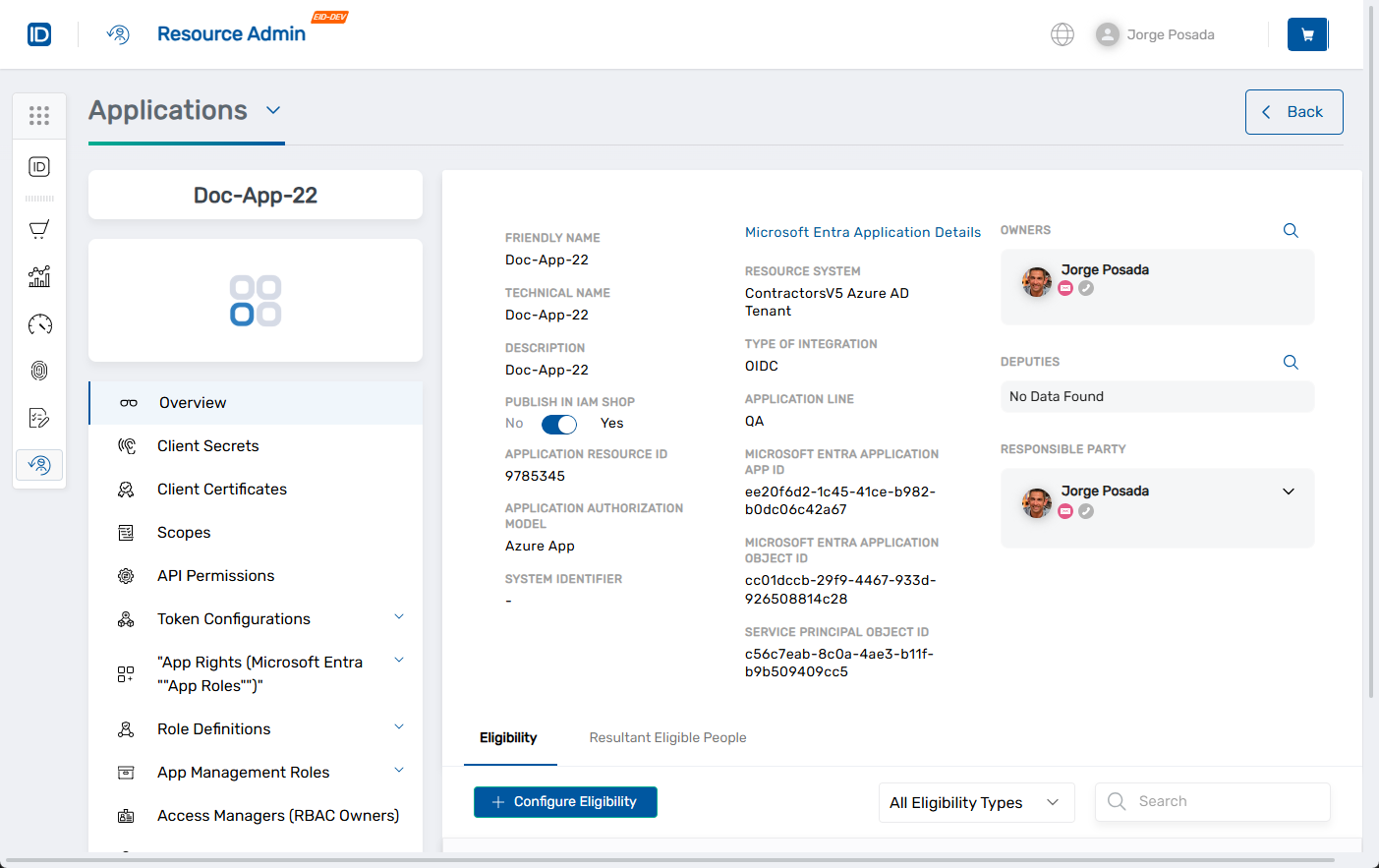
2. Delete the Scope
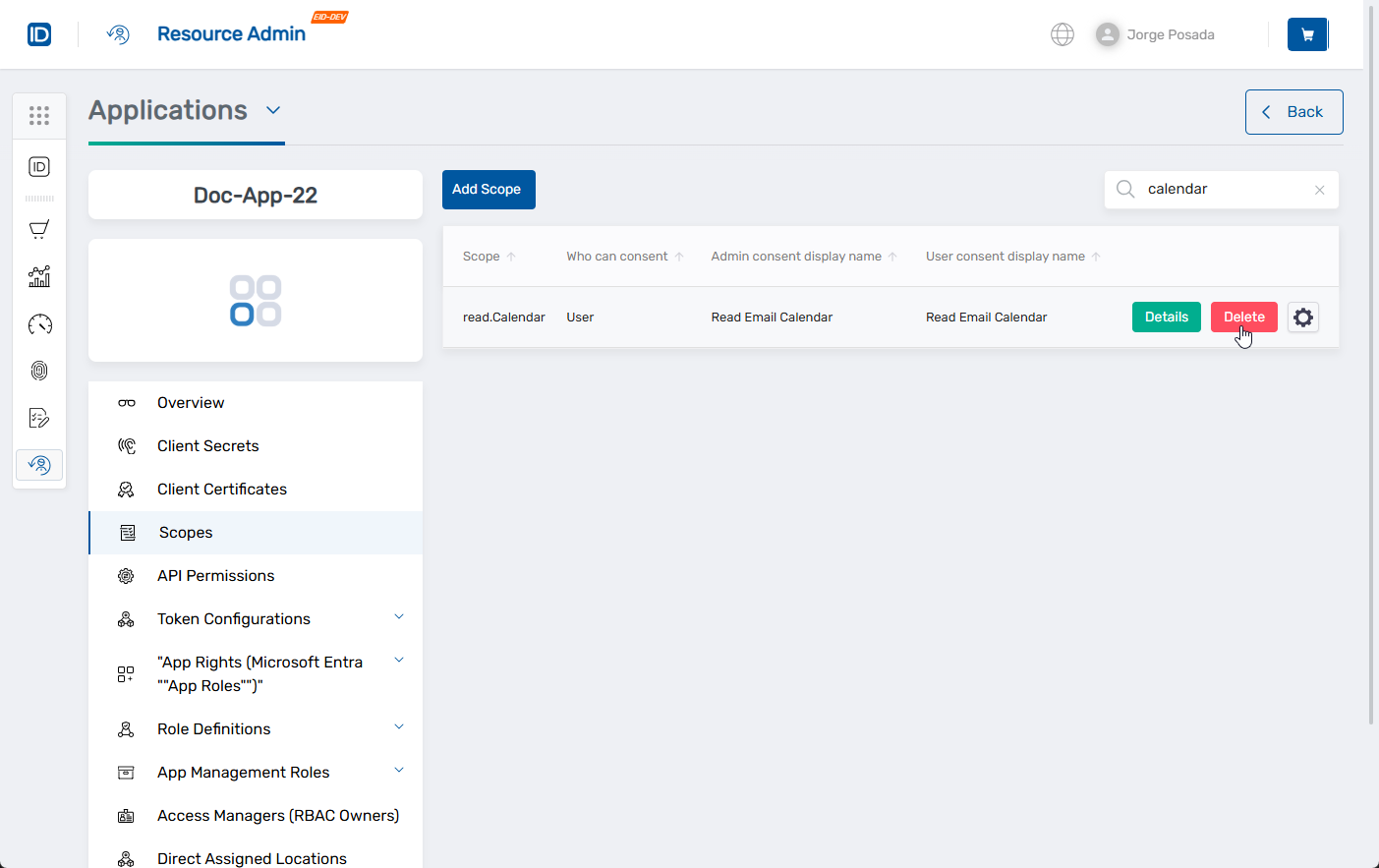
- In the left application menu, click Scopes.
- Locate the scope you want to delete in the grid.
- Click the Delete button for the scope.
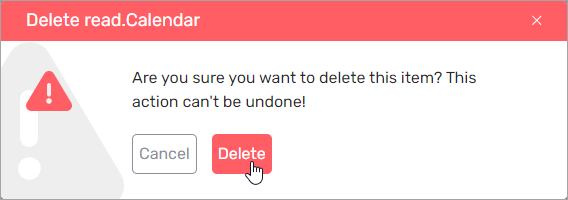
- In the confirmation dialog, click Delete to confirm.
note
Deleted scopes are immediately removed from the application in Microsoft Entra ID and no longer appear in the list.
What Happens Next
- The selected scope is permanently deleted from the Microsoft Entra application.
- All related permissions or references to the deleted scope should be reviewed for consistency.
- EmpowerID logs the action for auditing and compliance.