Edit Application Owners
As an application owner, you can manage additional owners and deputies for your application by using the Manage Application Wizard in the Resource Admin portal.
What You Can Manage
You can use the wizard to:
| Role Type | Description |
|---|---|
| Owners | Users or groups with full management rights over the application. |
| Deputies | Users or groups who can act on behalf of the application owner. Deputies receive the same Configuration Owner role in Microsoft Entra and ensure continued application management availability. |
| Responsible Party | A designated user who is the primary point of accountability for the application. This is used for tracking and notification purposes. |
Steps to Edit Application Owners or Deputies
Step 1: Open the Manage Application Wizard
- Log in to the Resource Admin portal.
- From the Resource Type dropdown, select Applications.
- Search for the application you want to update.
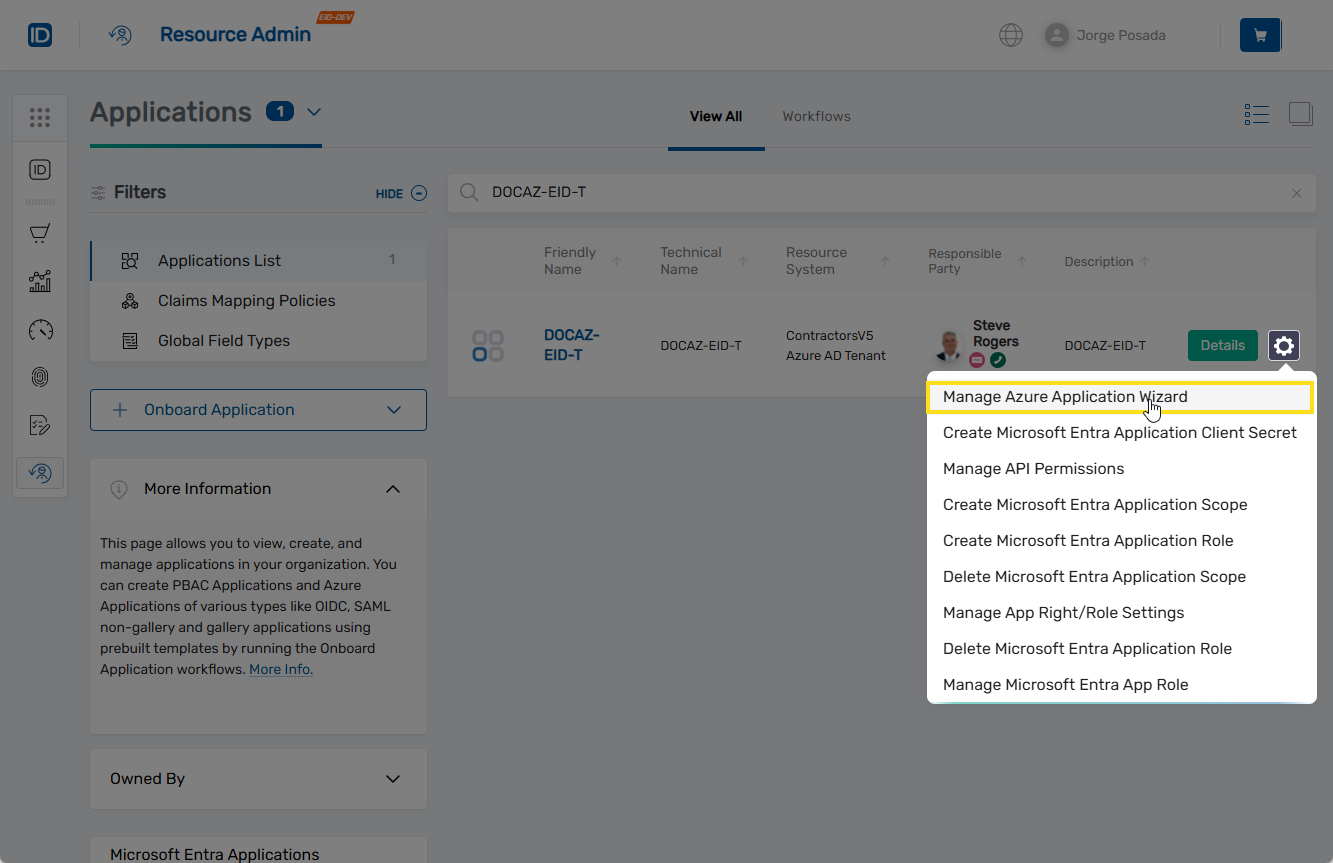
- Click the gear icon on the application record and select Manage Application Wizard.
Step 2: Select the Edit Owners and Deputies Action
- Under Select Options, select Edit Owners and Deputies.
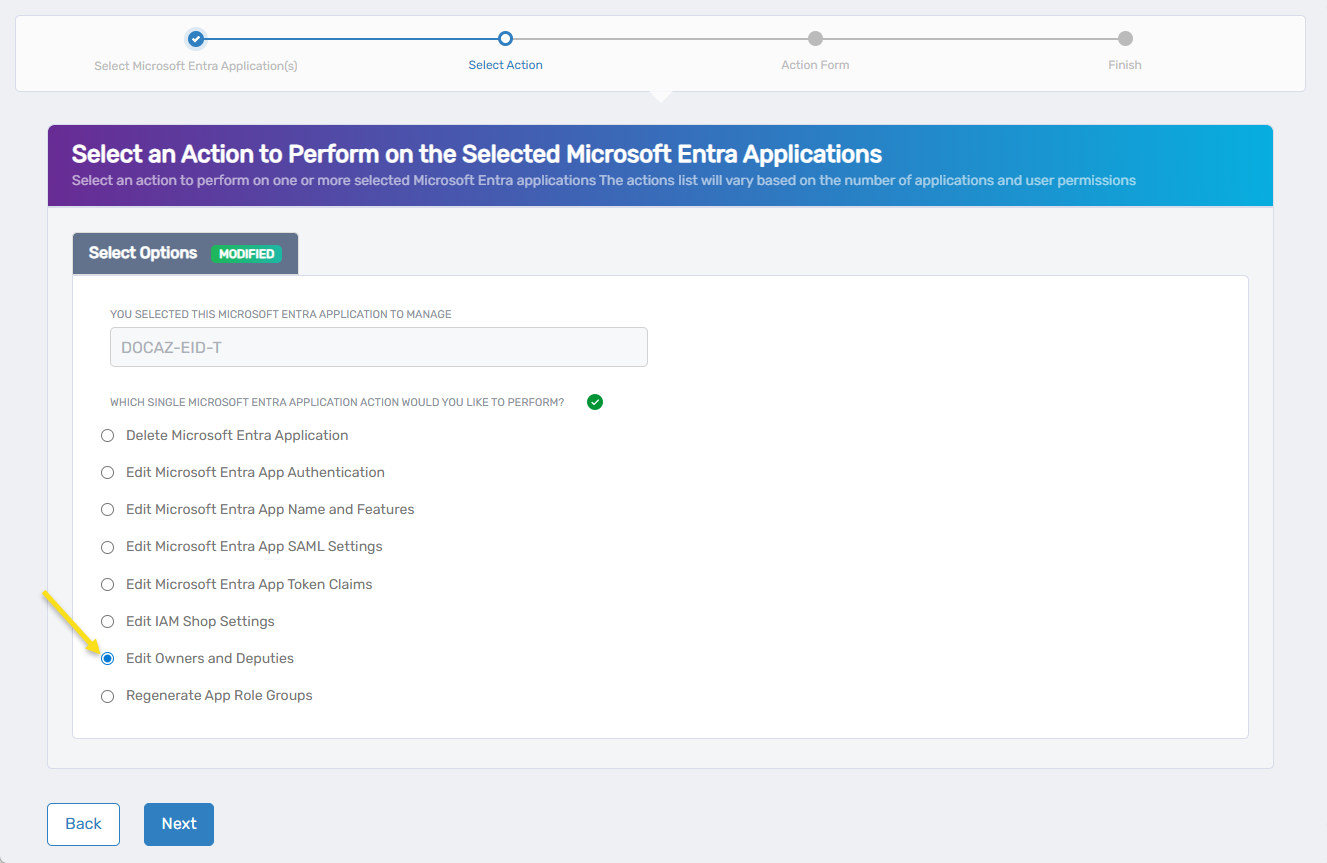
- Click Next.
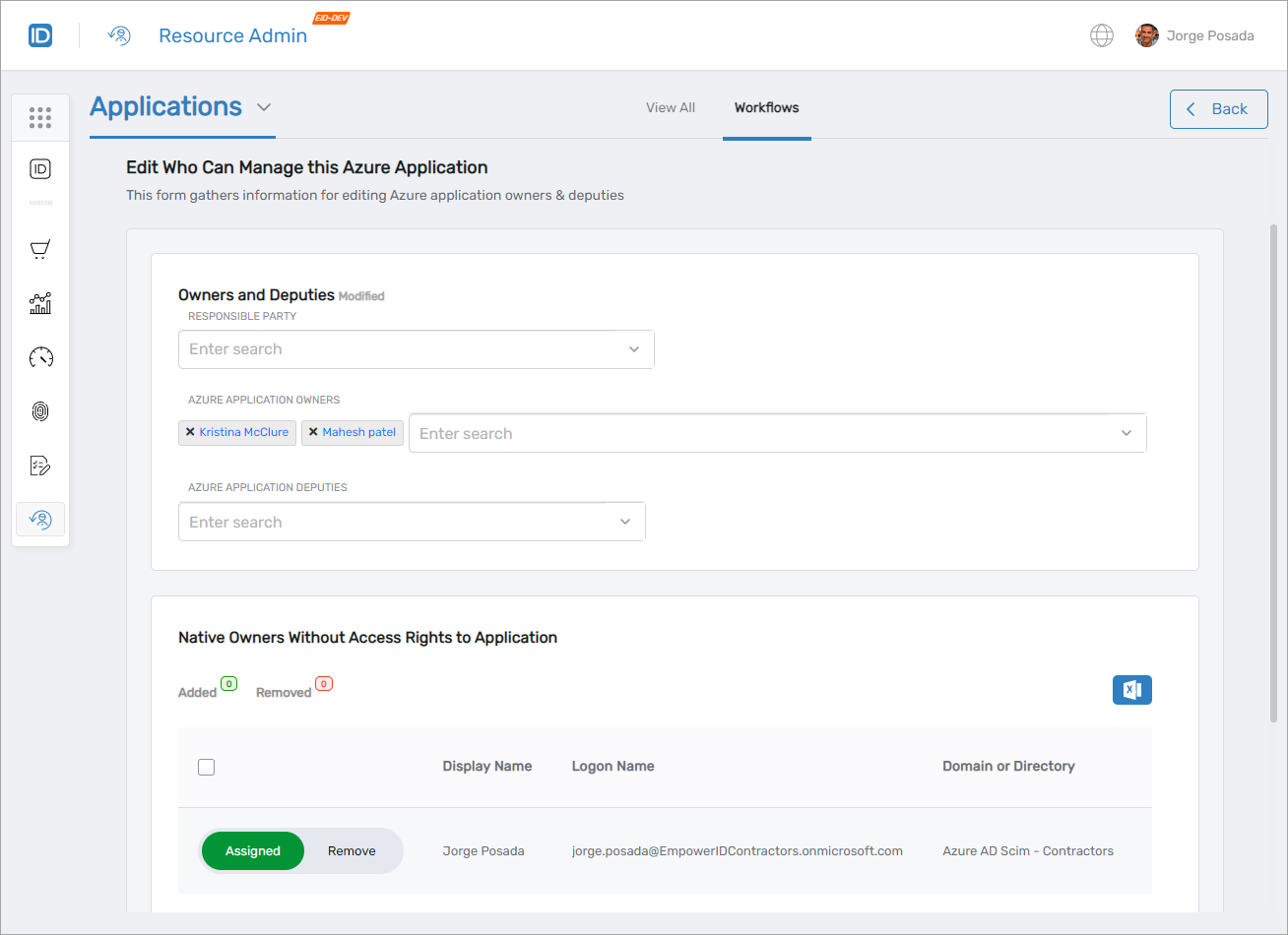
The Edit Who Can Manage this Microsoft Entra Application form opens.
Step 3: Make Edits on the Form
Use the edit screen to update the Responsible Party, manage owners and deputies, and clean up any inactive owner assignments.
Assign or Update the Responsible Party
- To assign a Responsible Party, enter the user’s name in the Responsible Party field and click the user to select them.
- To remove the current Responsible Party, click the X in the field to clear the value.
This field is used for internal accountability, notifications, and reporting. It does not affect Microsoft Entra permissions.
Add or Remove Microsoft Entra Application Owners and Deputies
- Add Owners
- Remove Owners
- Add Deputies
- Remove Deputies
- In the Microsoft Entra Application Owners field, enter the name of the user or group to assign.
- Click the user or group to select them.
Click Remove next to the user or group you want to unassign from the Microsoft Entra Application Owners list.
- In the Microsoft Entra Application Deputies field, enter the name of the user or group to assign.
- Click the user or group to select them.
Click Remove next to the user or group you want to unassign from the Microsoft Entra Application Deputies list.
Review Native Owners Without Access Rights
The Native Owners Without Access Rights to Application section lists users who are currently assigned as owners but no longer have access to the application in Microsoft Entra.
Click Remove next to any user you want to unassign from this section.
This section is for review and cleanup only. You cannot assign users from here.
Finish Your Changes
When all edits are complete, click Next to continue.
Step 4: SReview the Summary and Finish
- Review the Operation Execution Summary confirming the update completed successfully.
- Click Submit to continue.
- On the Finish or Start Over Workflow screen, choose one of the following:
- Manage the same Microsoft Entra application(s)
- Manage different Microsoft Entra application(s)
- Finish the workflow
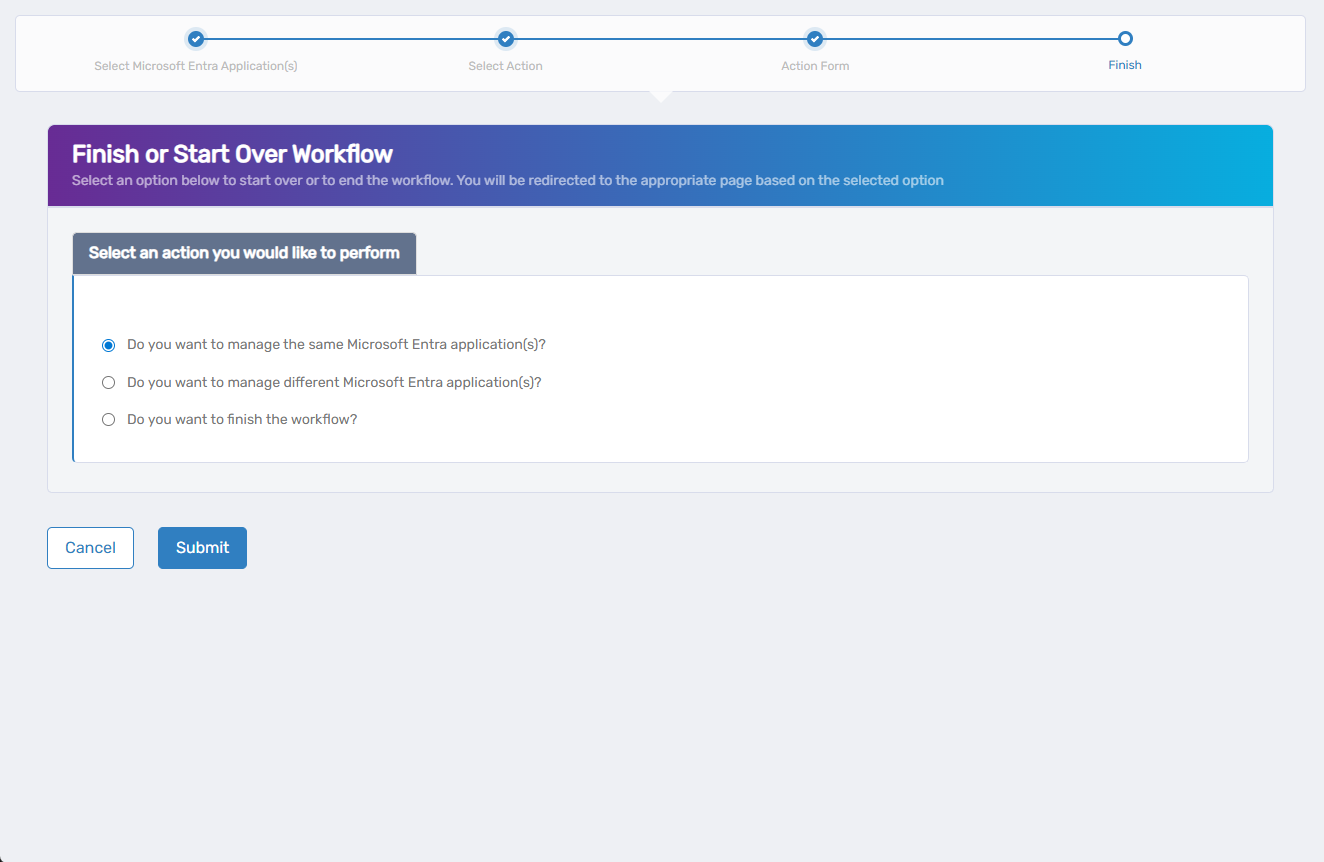
- Click Submit to confirm your choice.
You’ll be redirected based on your selection—either back into the wizard or out to the Workflows page.